Tailor Shop
Invoices and payments
Raise an invoice from an order, record deposits and part payments against it, mark it settled, and send the client a PDF.
Available on
- iPhone
- iPhone Duo
- iPad
- Android
- Tailor Shop feature
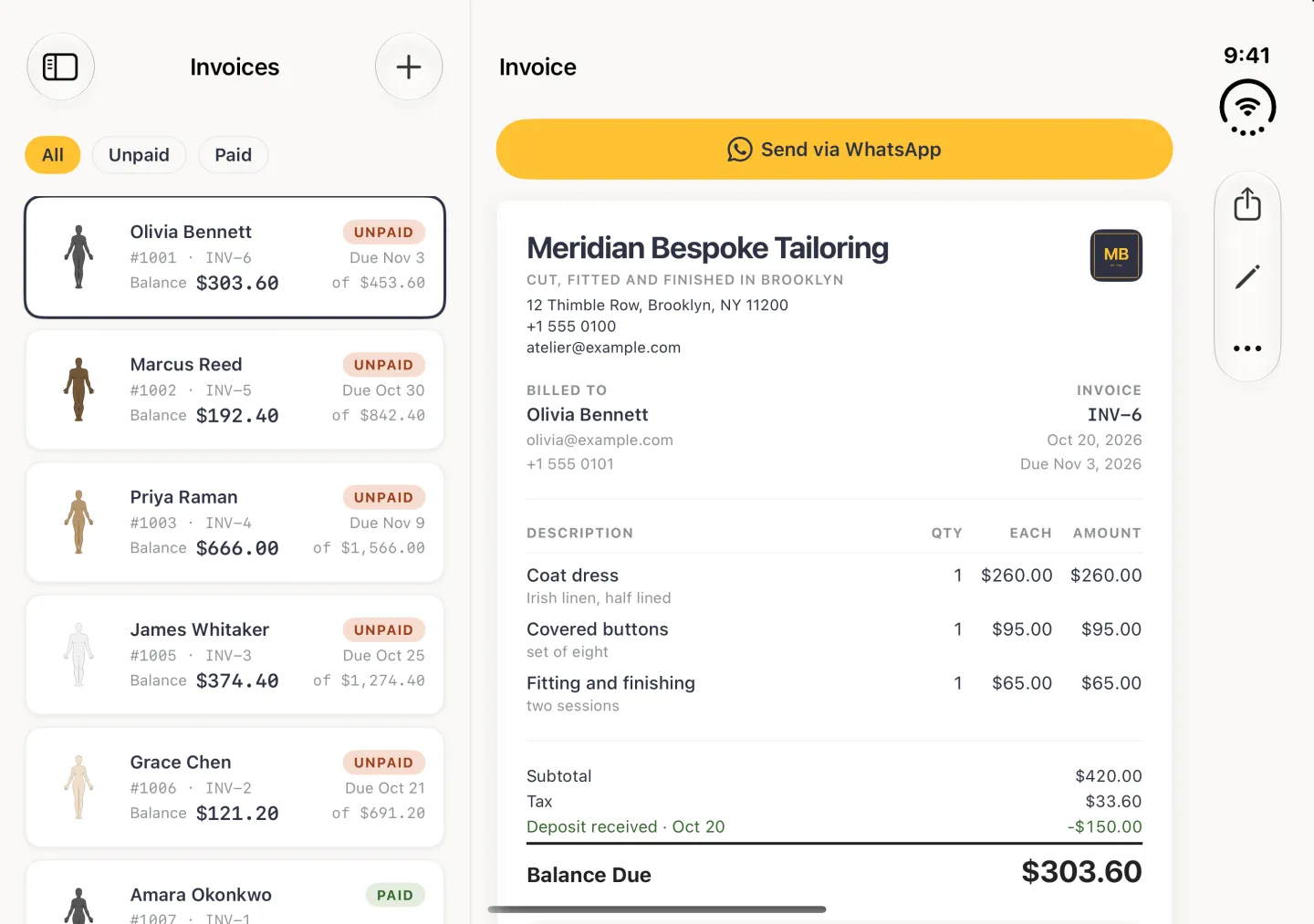
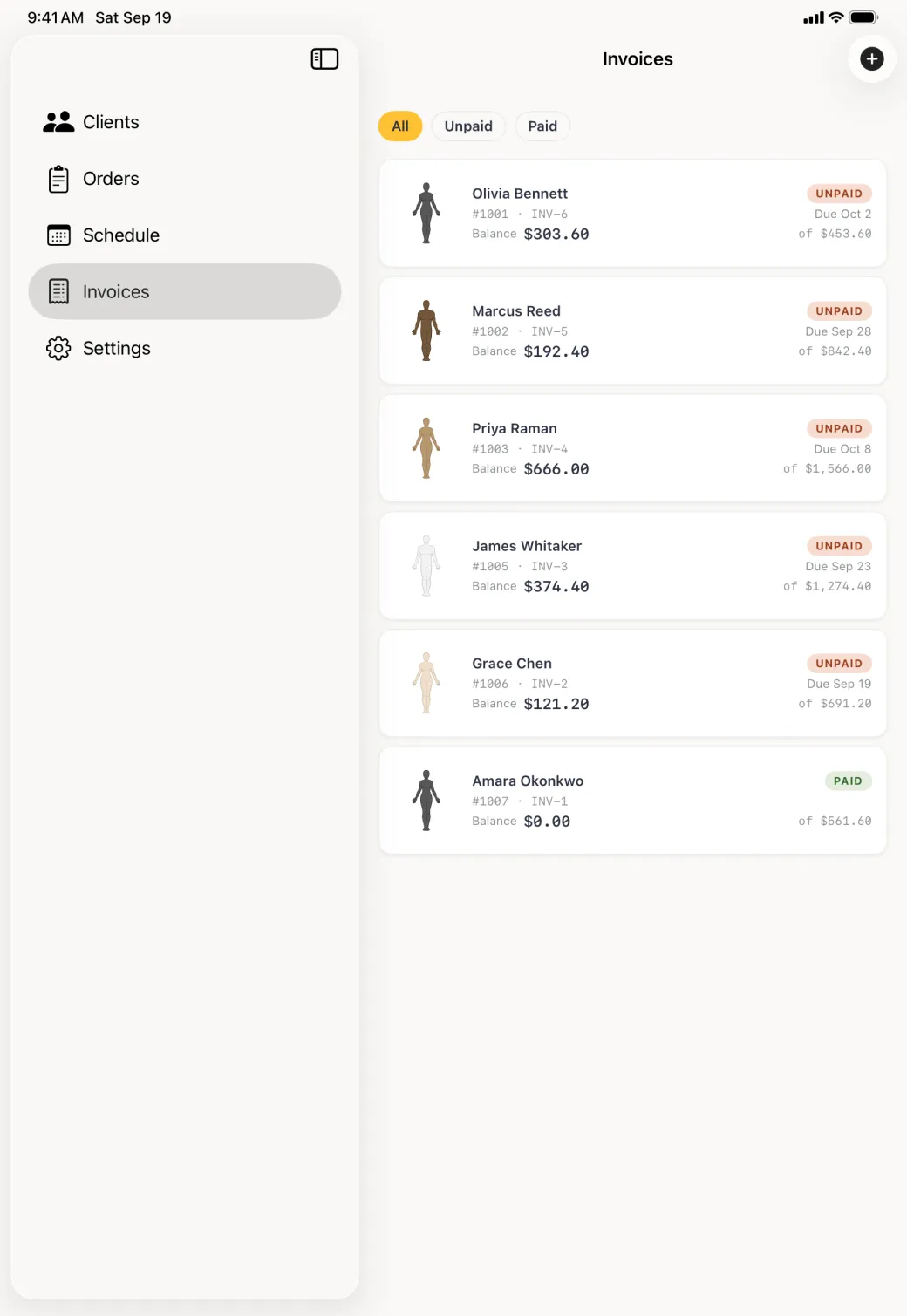
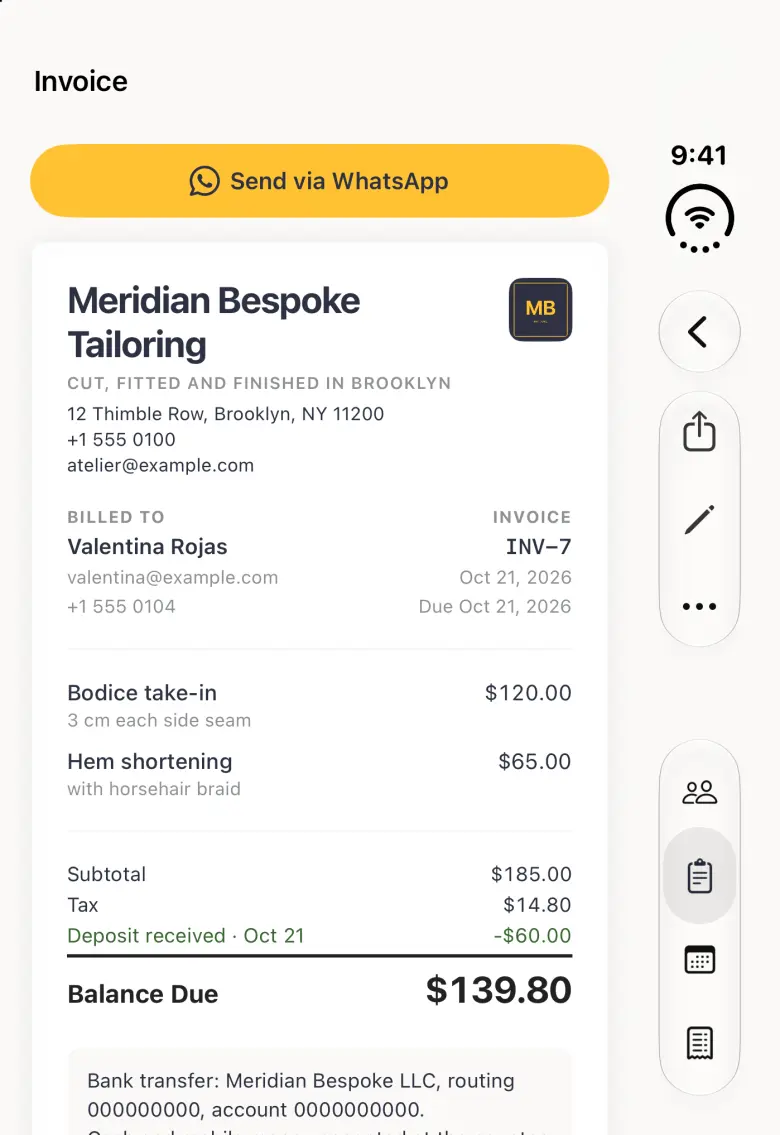
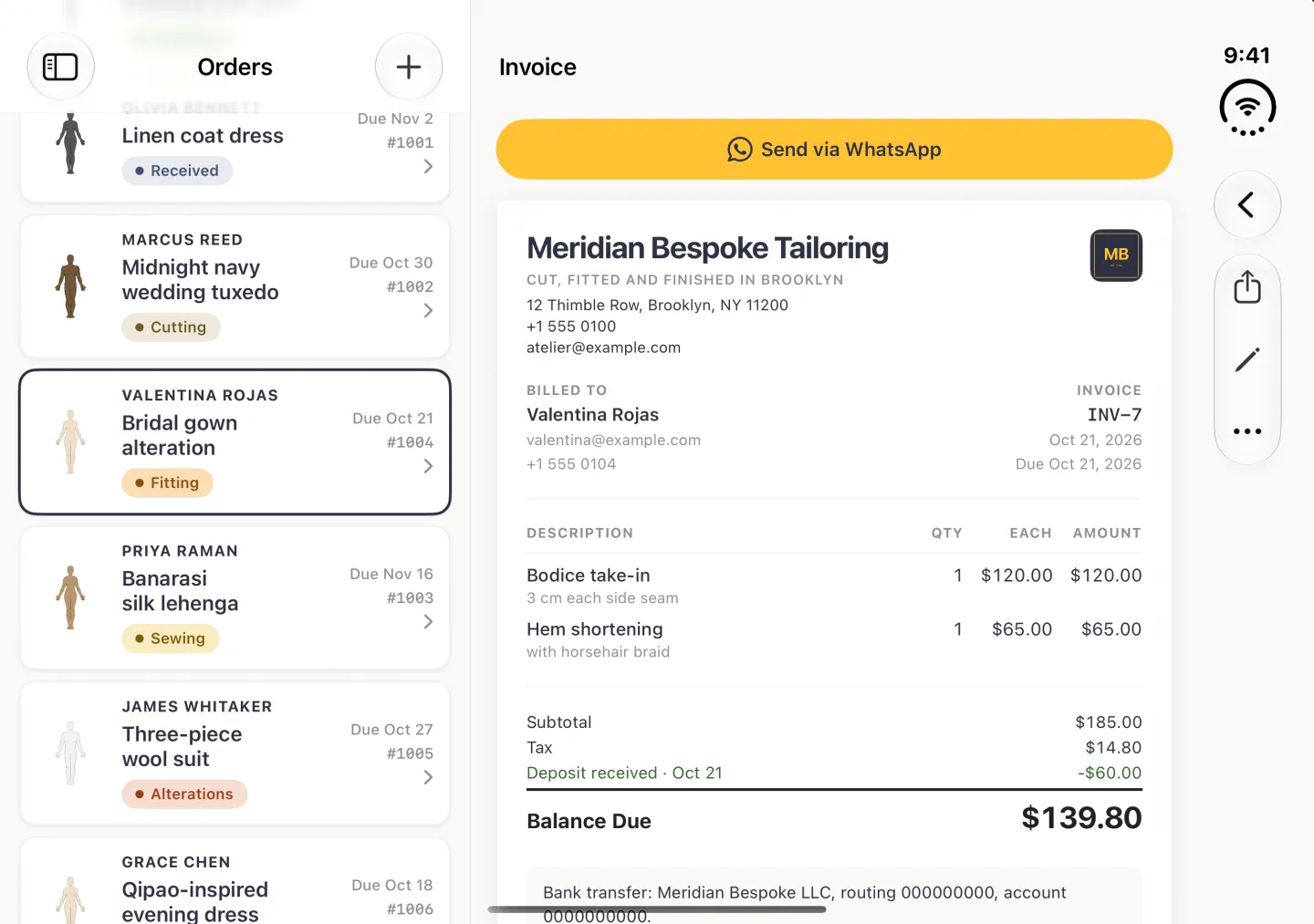
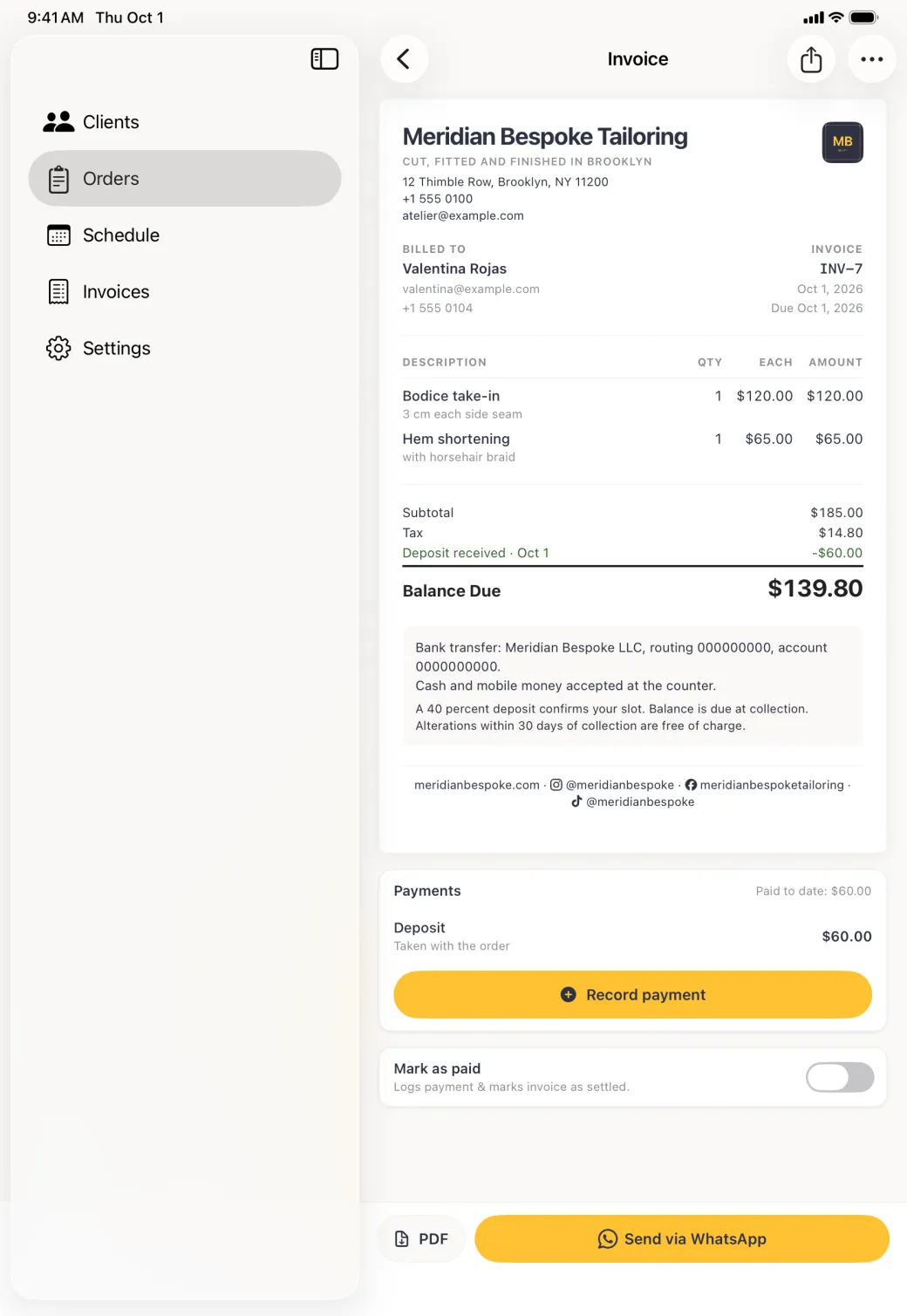
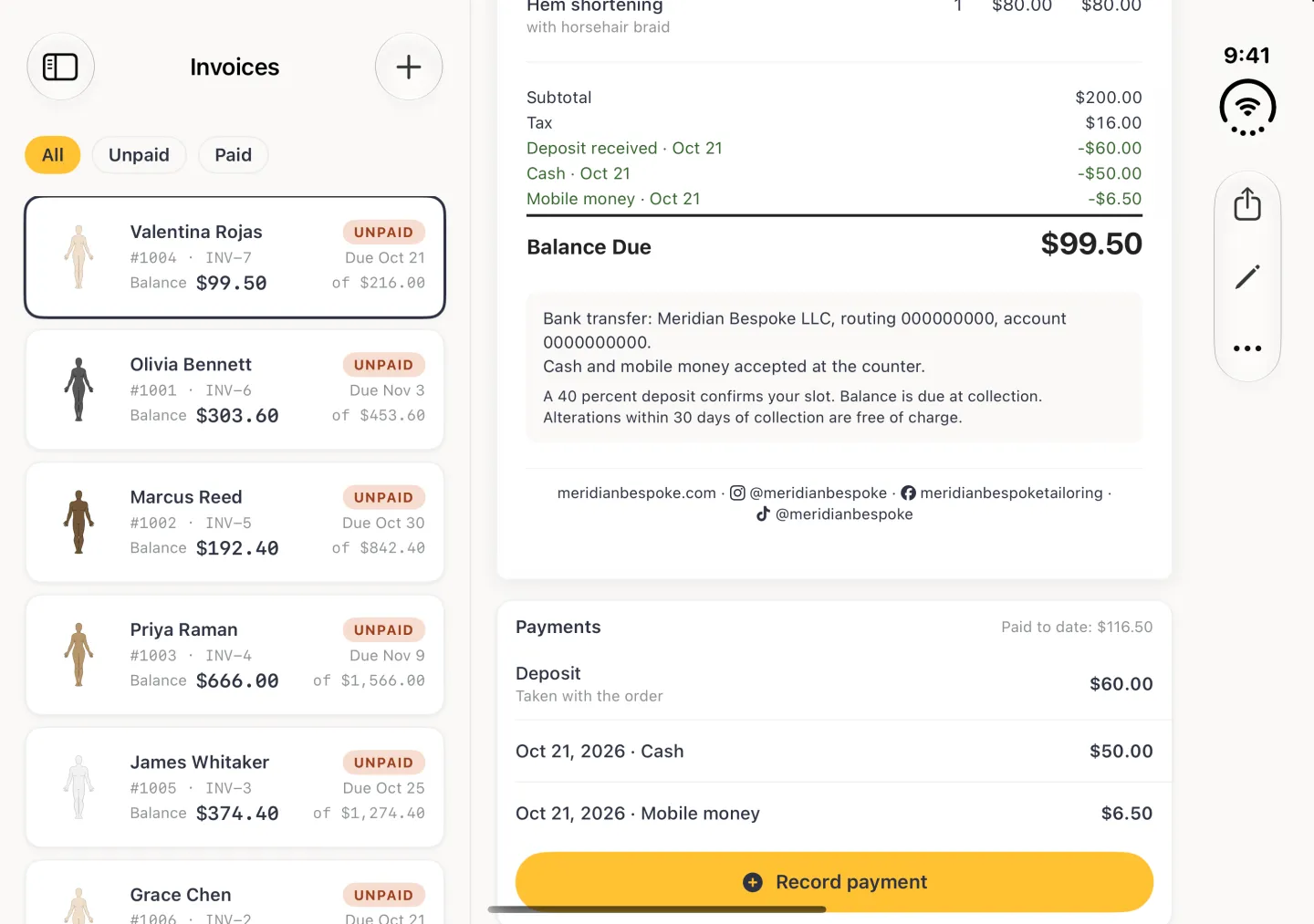
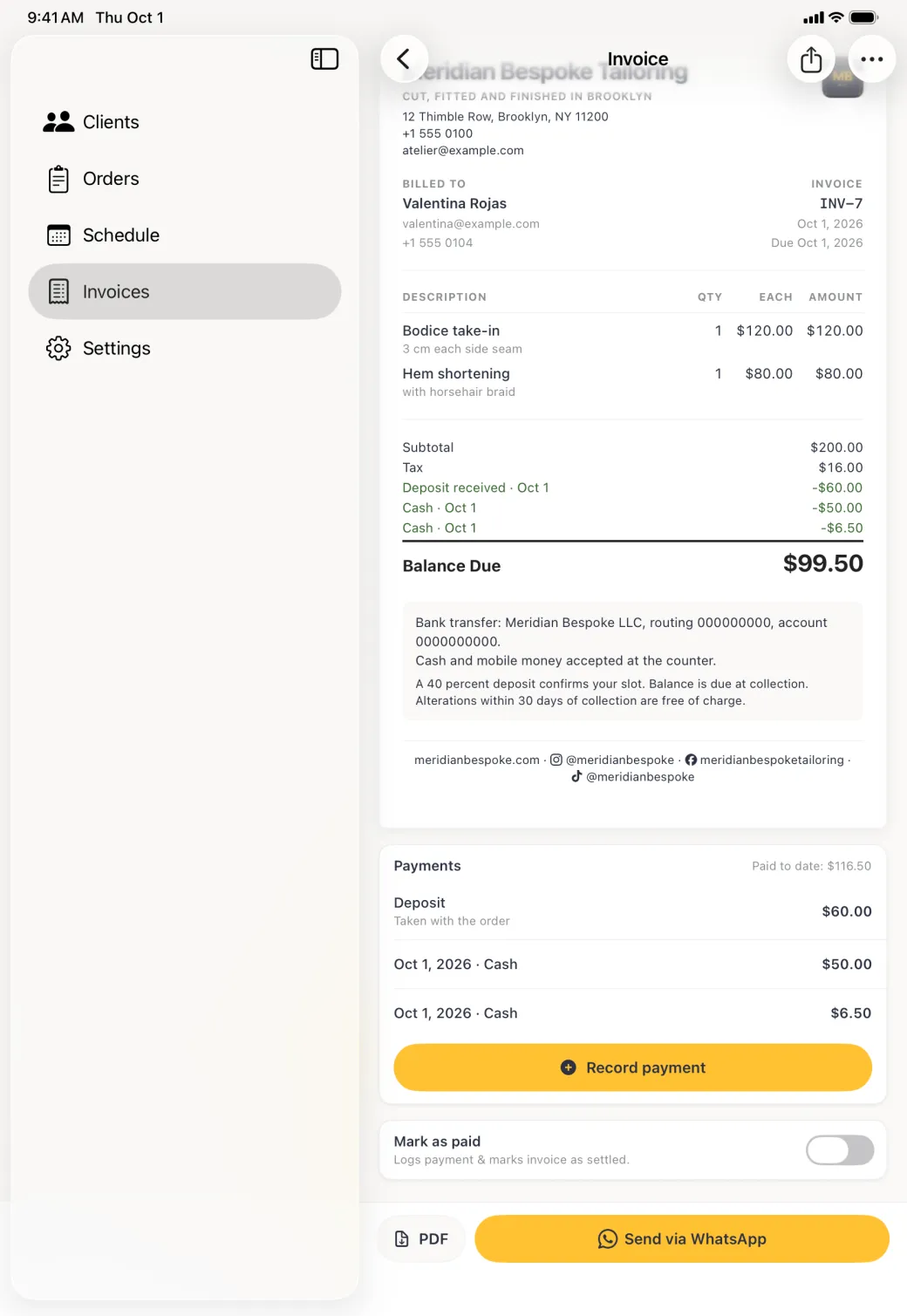
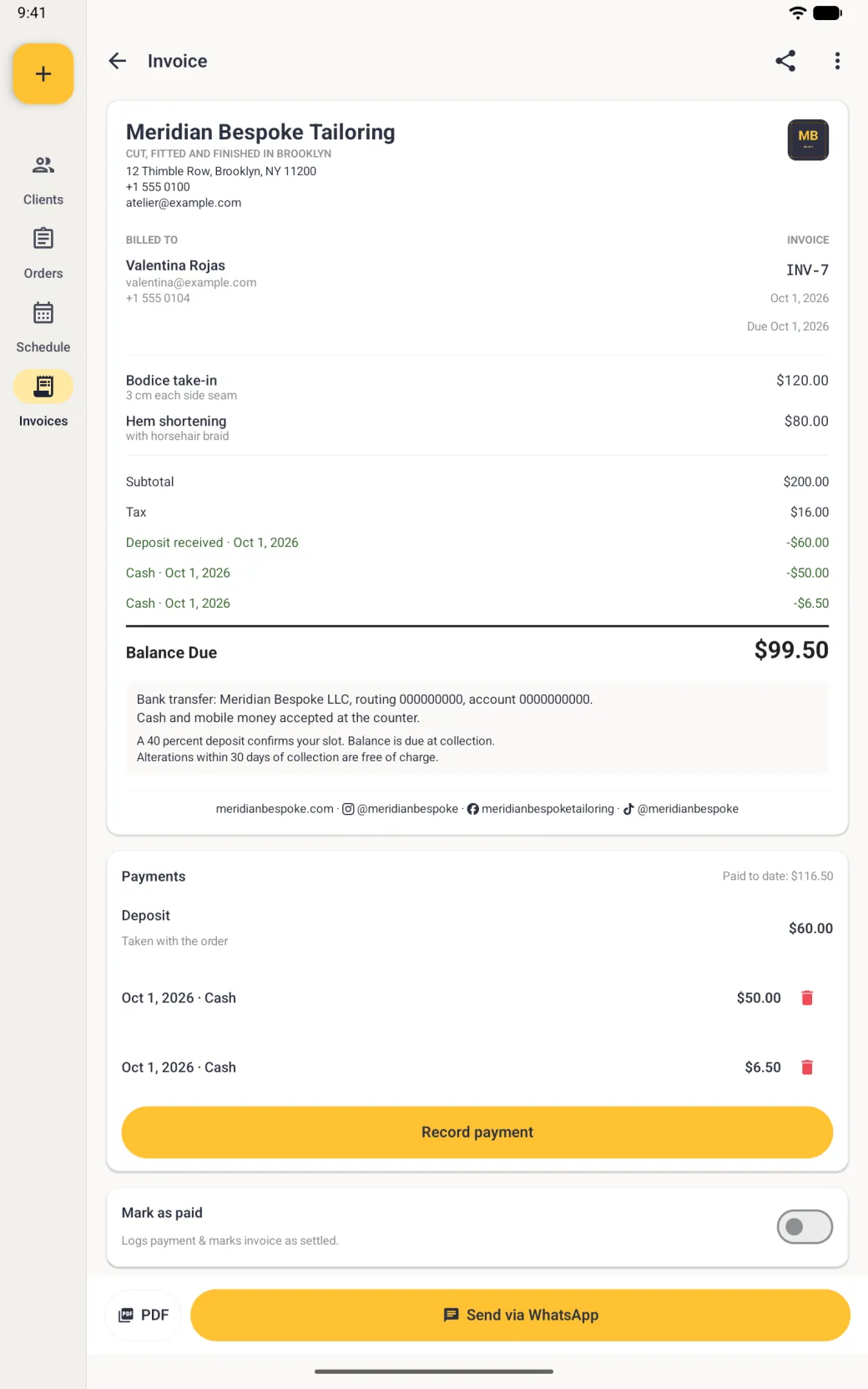
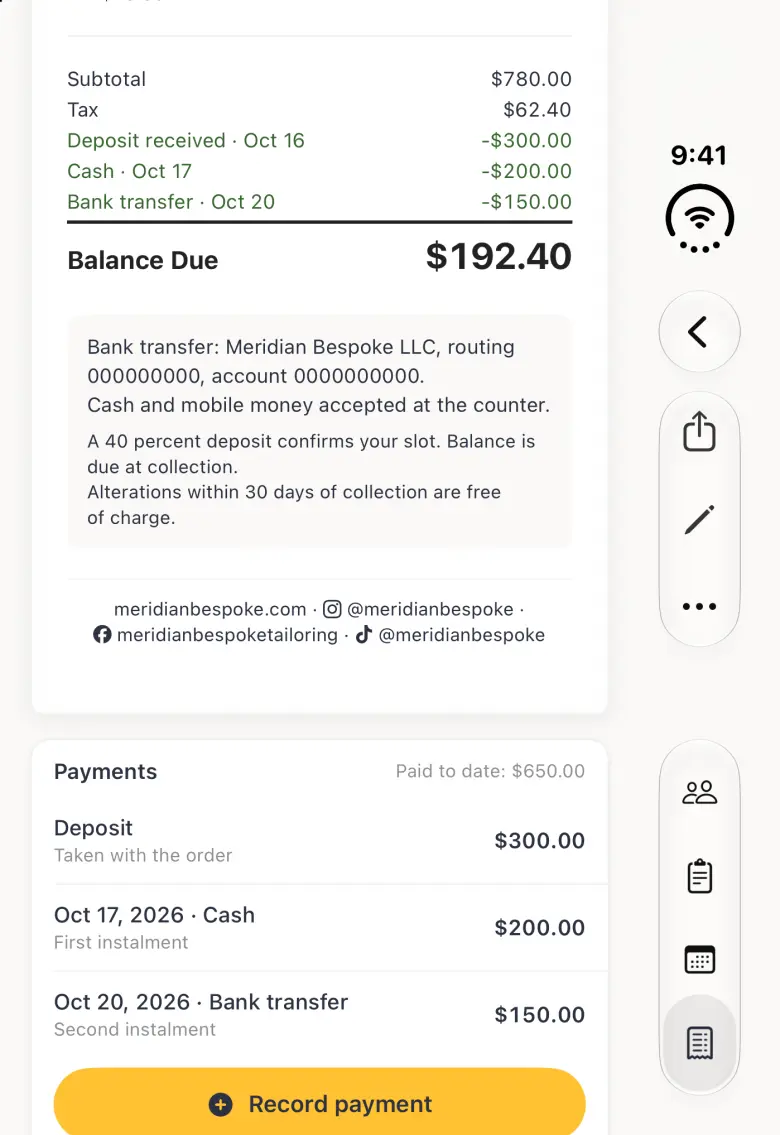
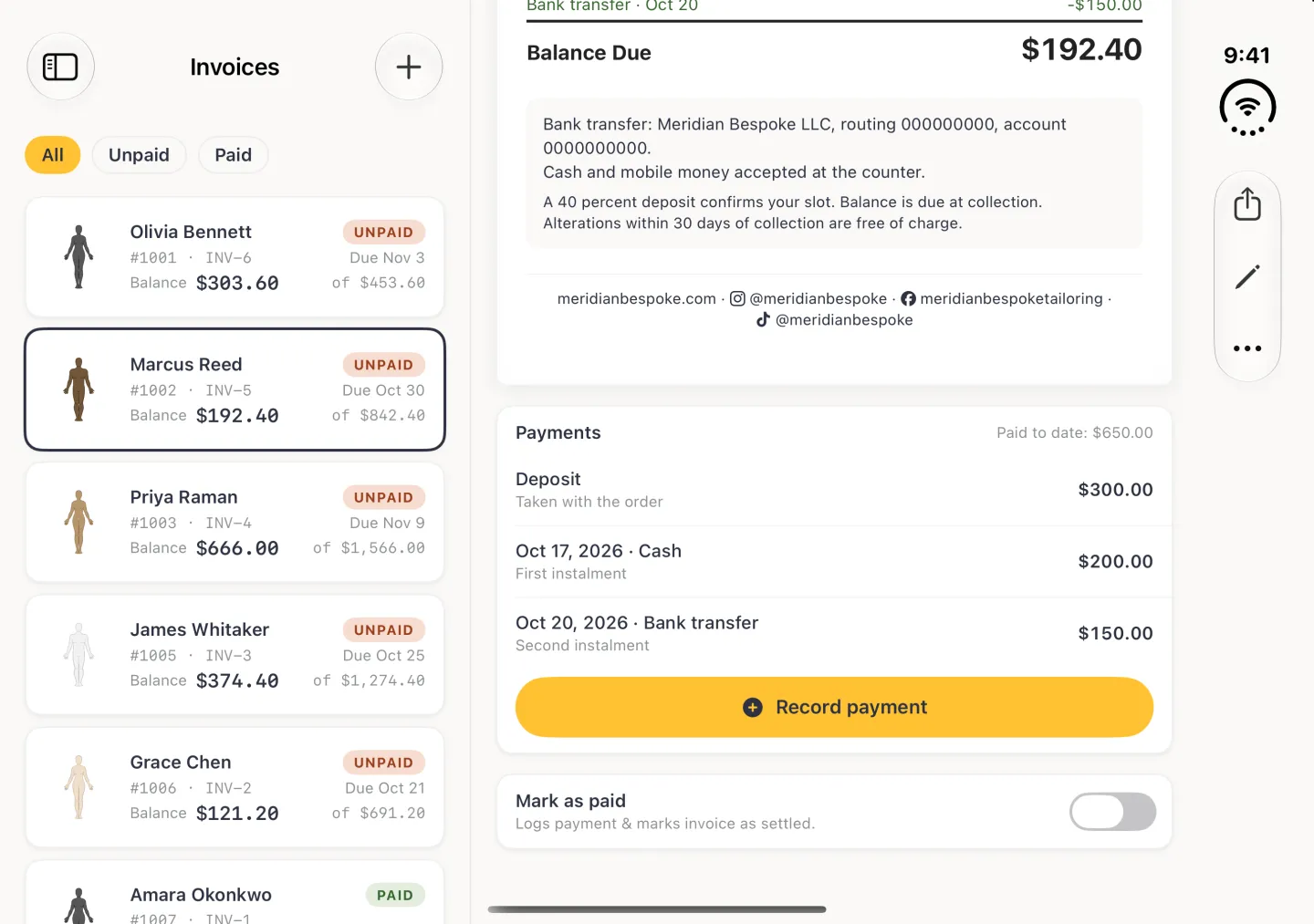
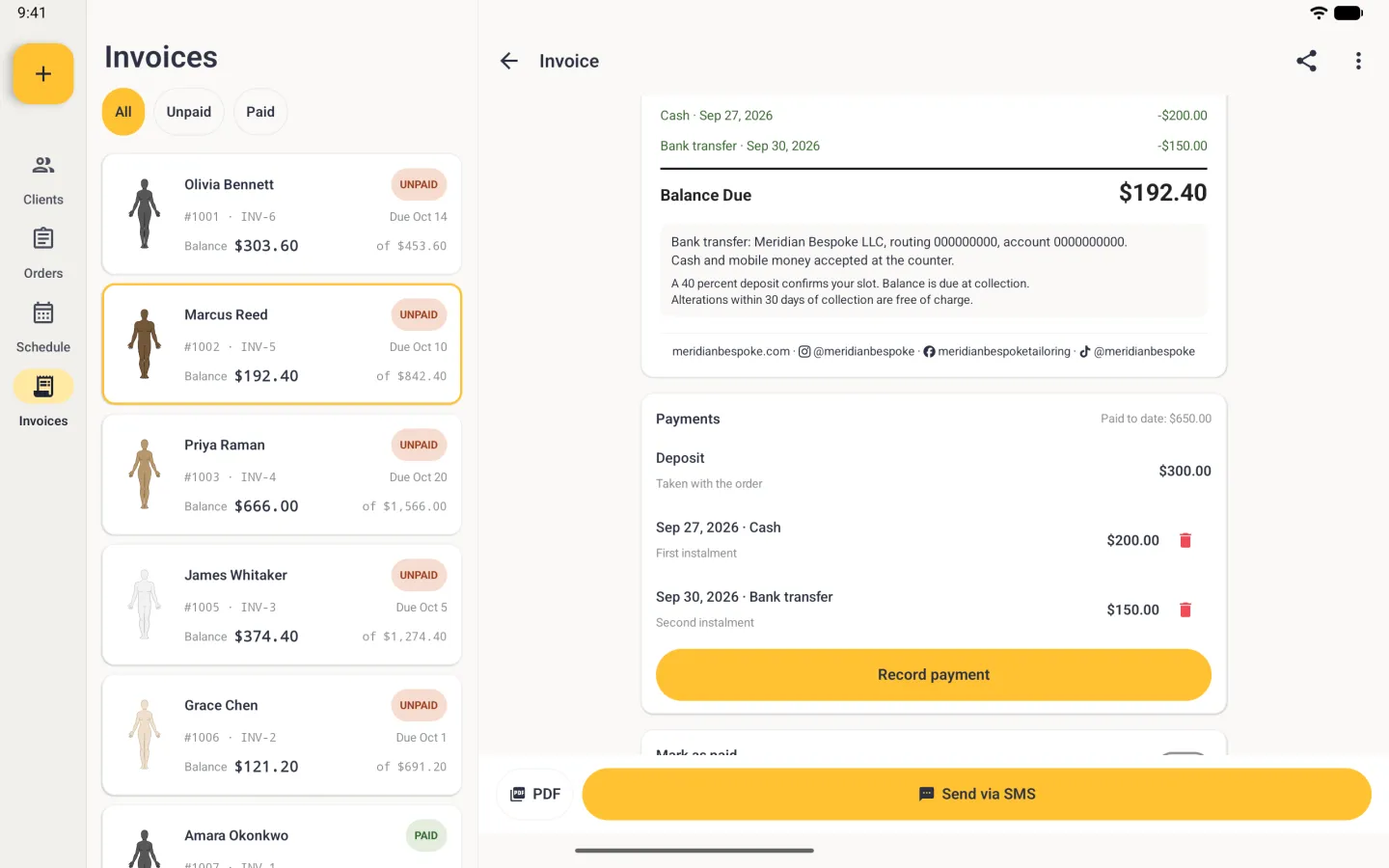
The Tailor Shop tools described here are on iPhone, iPad and Android. On iPad the tabs are a sidebar on the left, and on Android the tabs are a bar along the bottom of a phone and a rail down the left on a tablet. On iPhone Duo, opened, the list sits beside the page, the tabs sit behind the sidebar button at the top left and the bar buttons move to a strip on the right; closed, it works like an iPhone with the buttons and the four tabs in a strip on the right. Invoices is the fourth tab of the four-tab bar, and every invoice is raised from an order, so it helps to read the orders guide first.
How to find an invoice and read the list
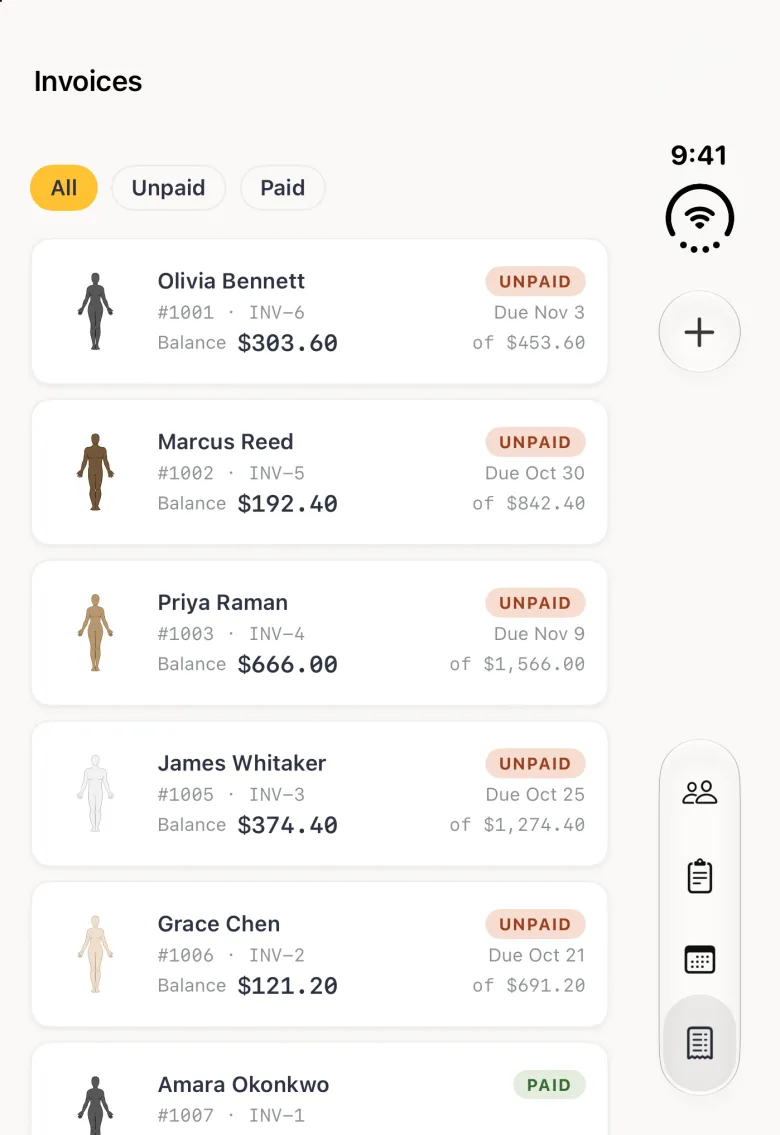
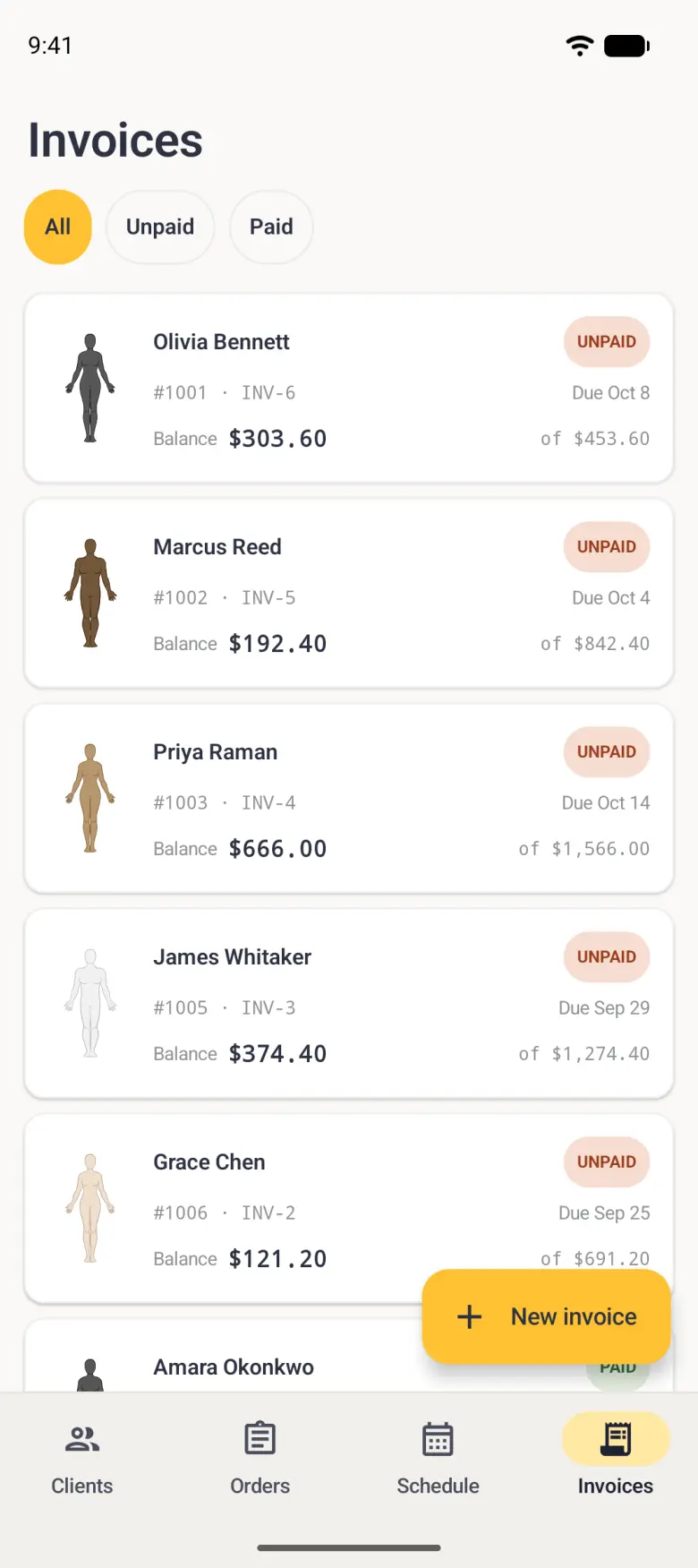
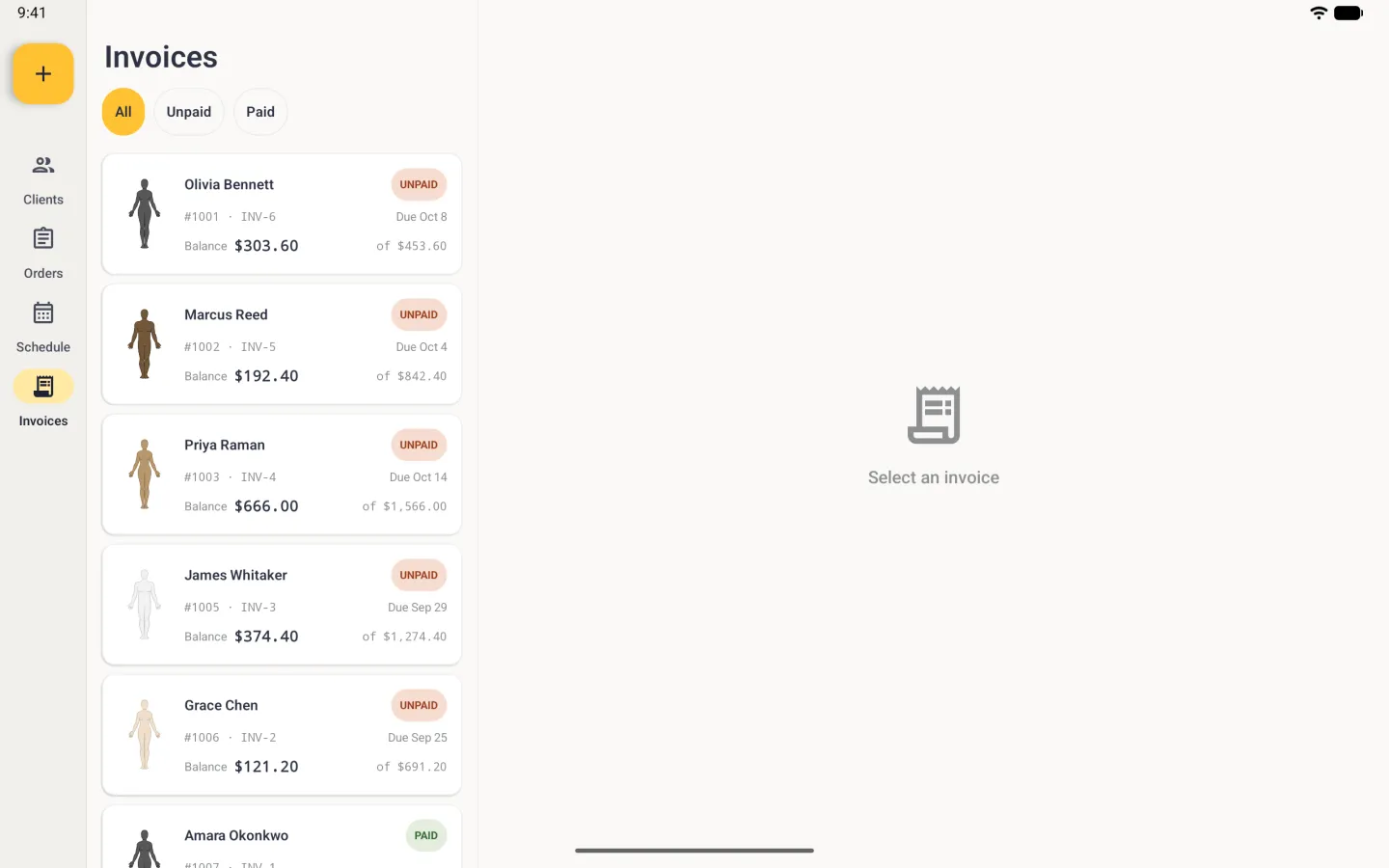
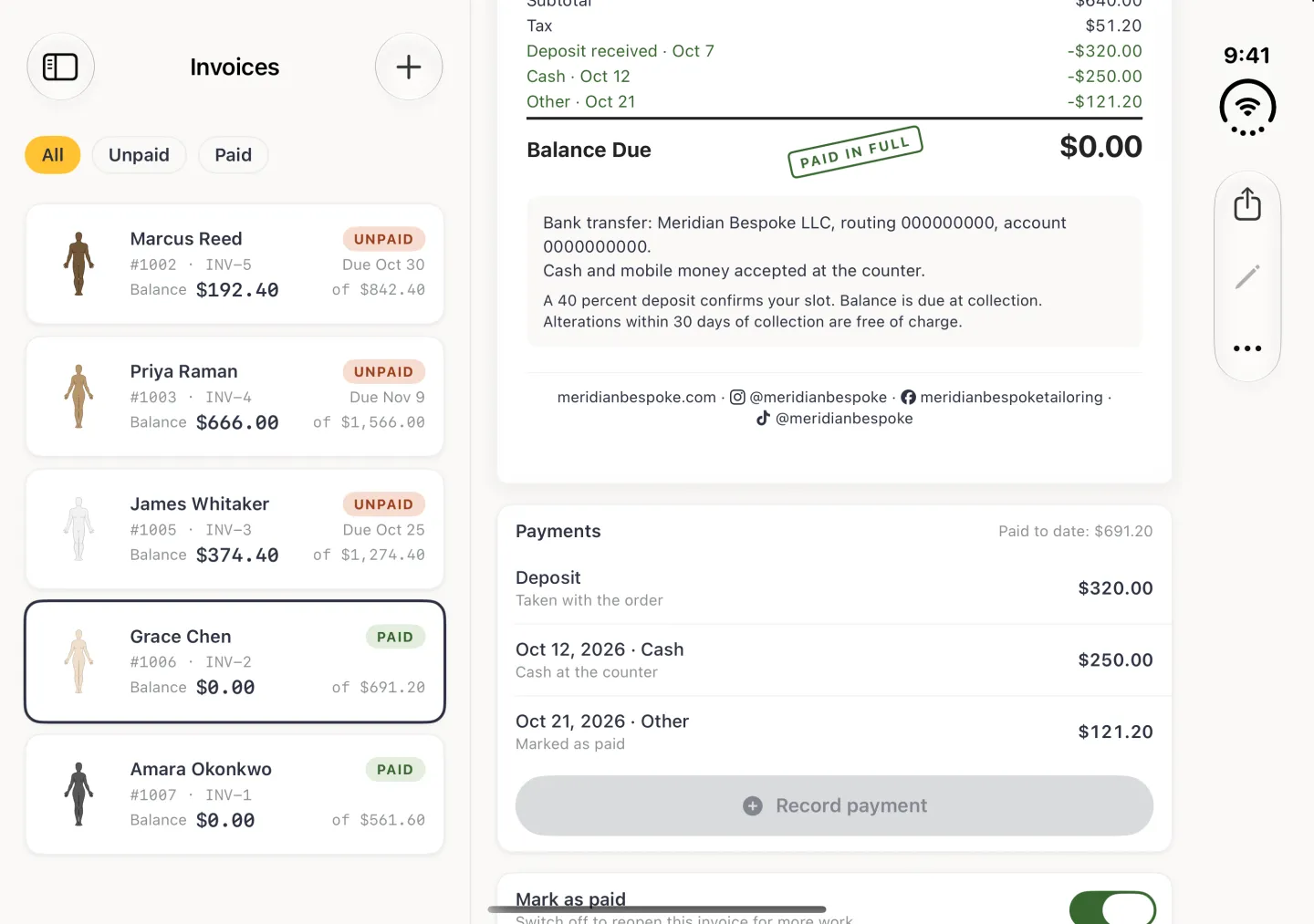
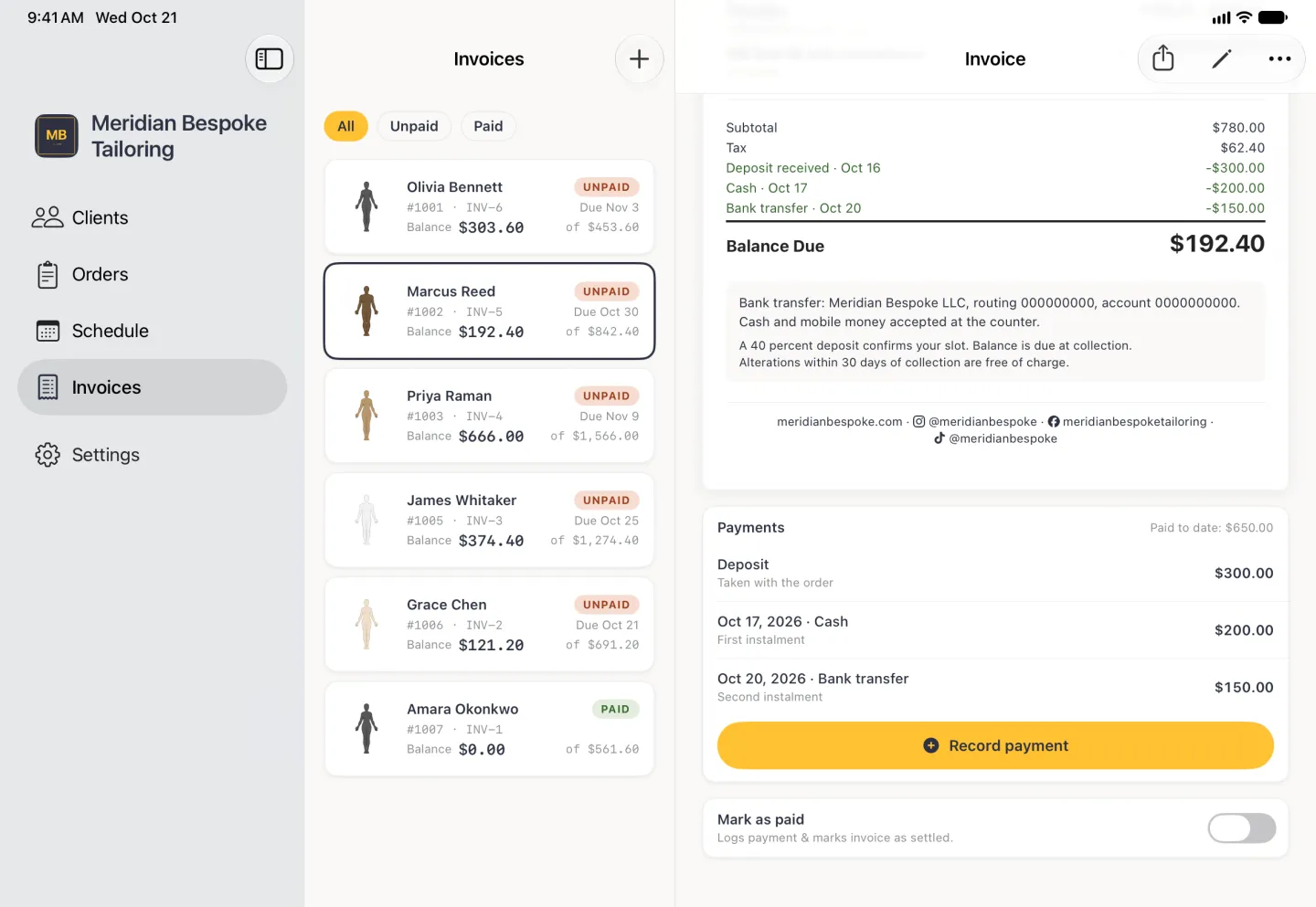
The Invoices tab lists every invoice, newest first, with the client, the order number, the invoice number and the money. The large figure on each row is the balance still owed, and the smaller figure beside it is the invoice total, so a settled invoice reads zero. An orange Unpaid badge carries the due date and a green Paid badge means the invoice has been marked settled.
The three chips under the title filter the list. Unpaid leaves only the invoices with money still owing, Paid leaves the settled ones, and All restores the list. Tap any row to open the invoice with its line items, totals, deposit, payments and balance.


How to create an invoice from an order
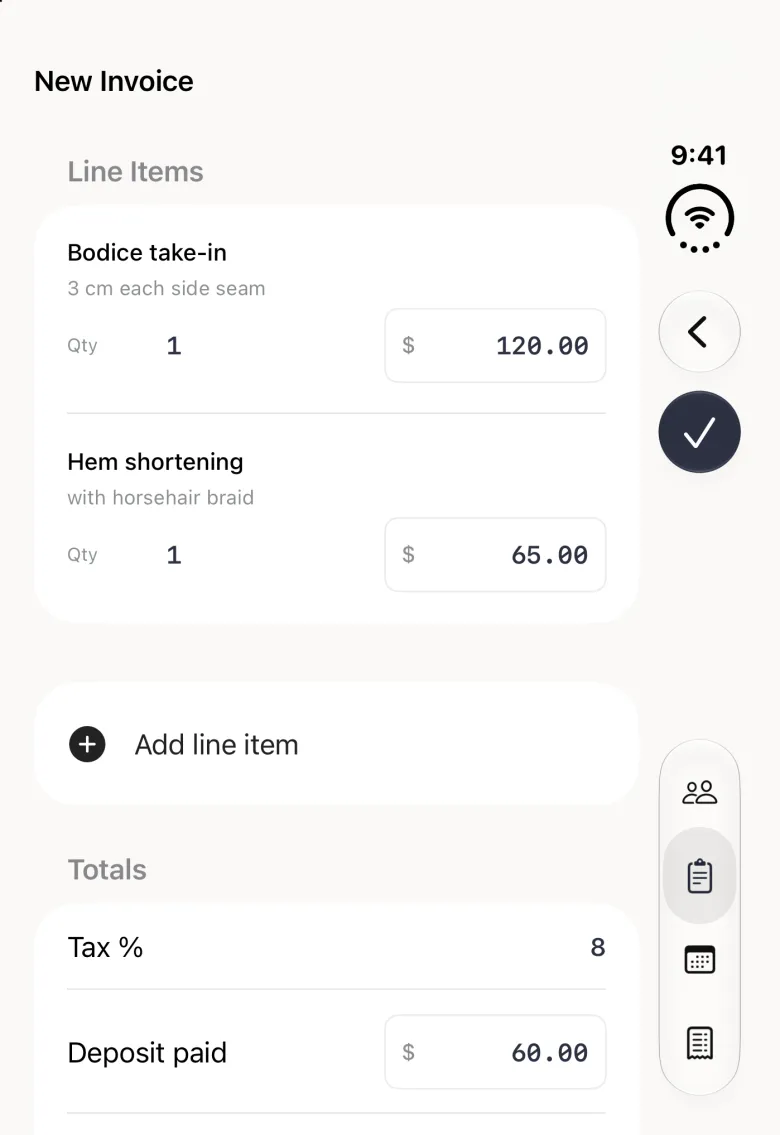
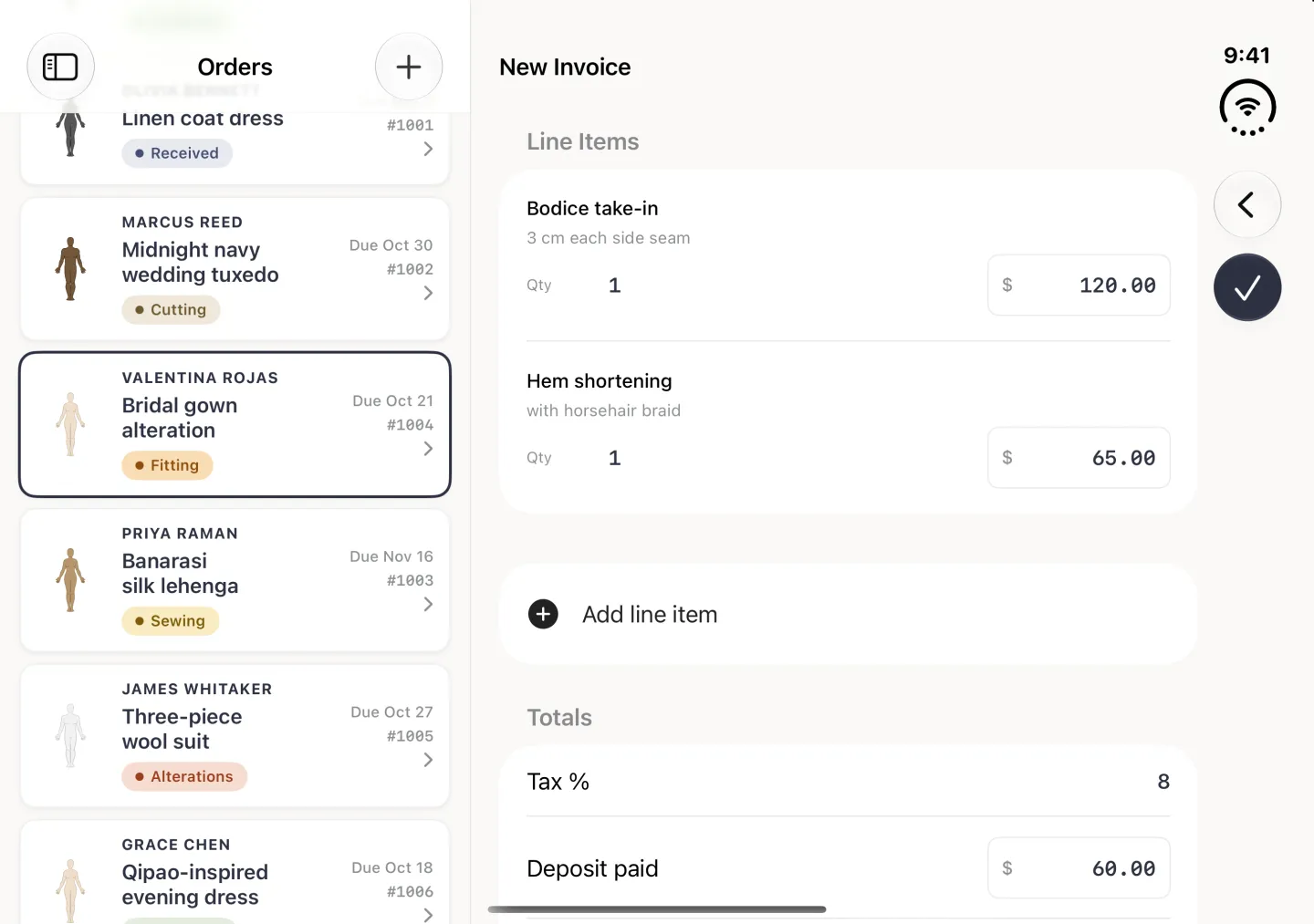
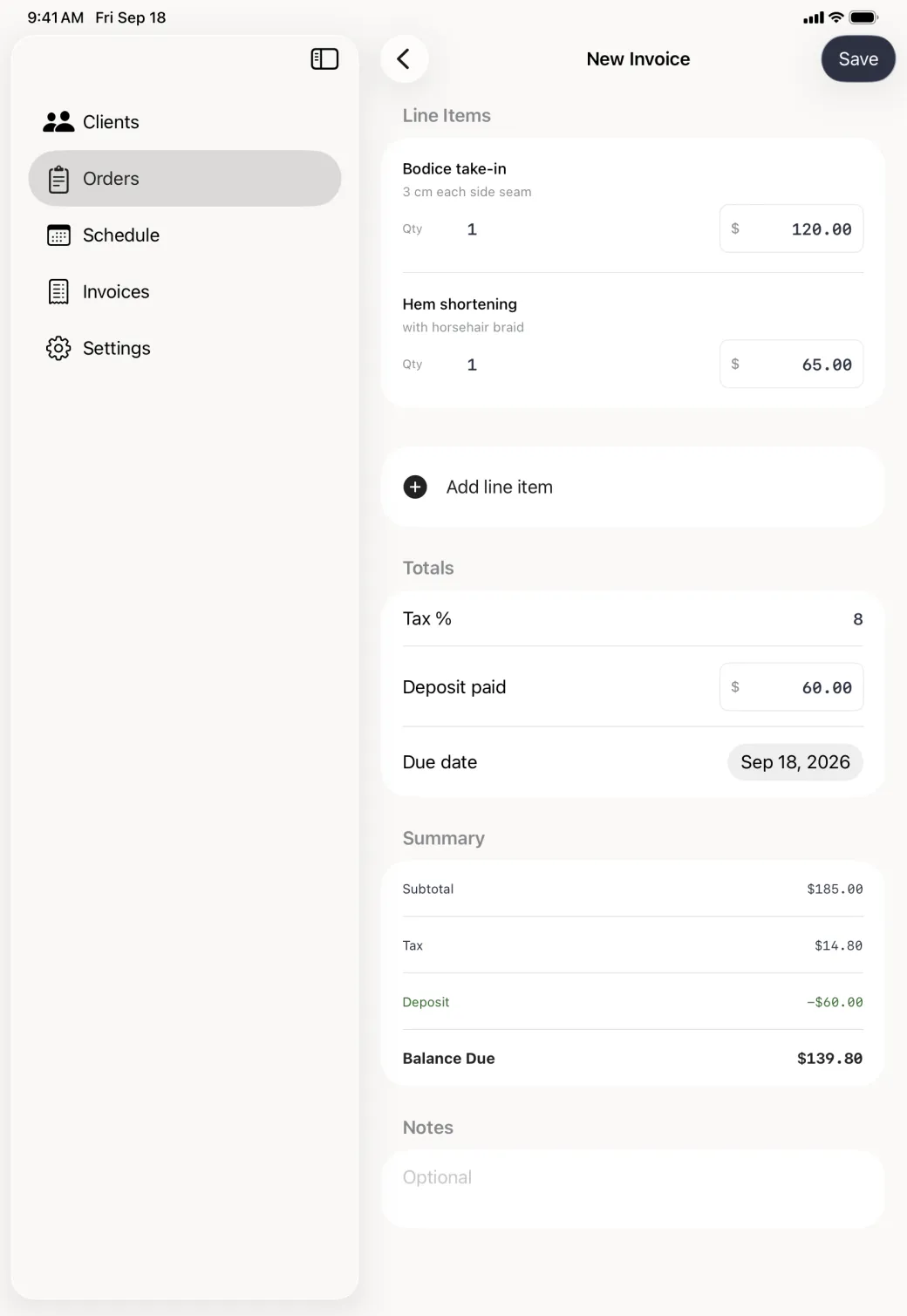
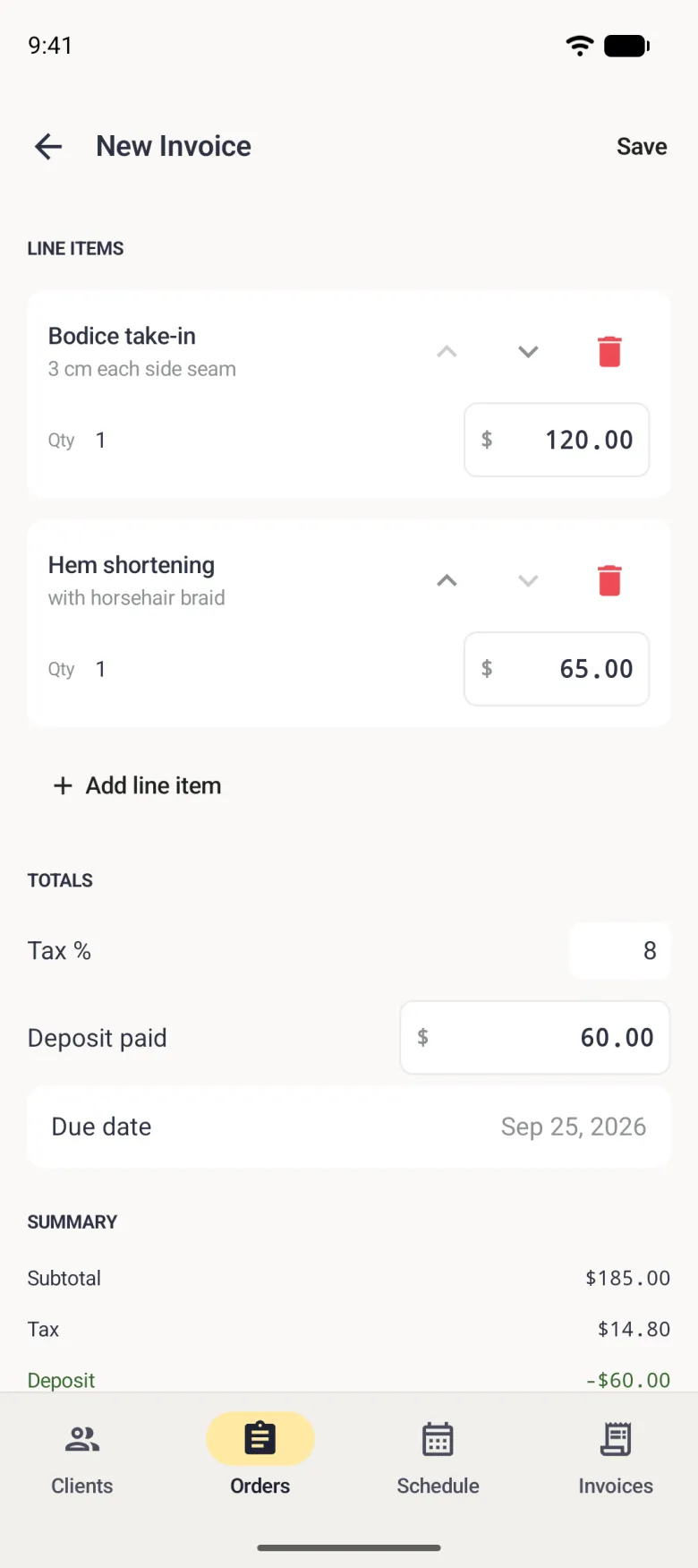
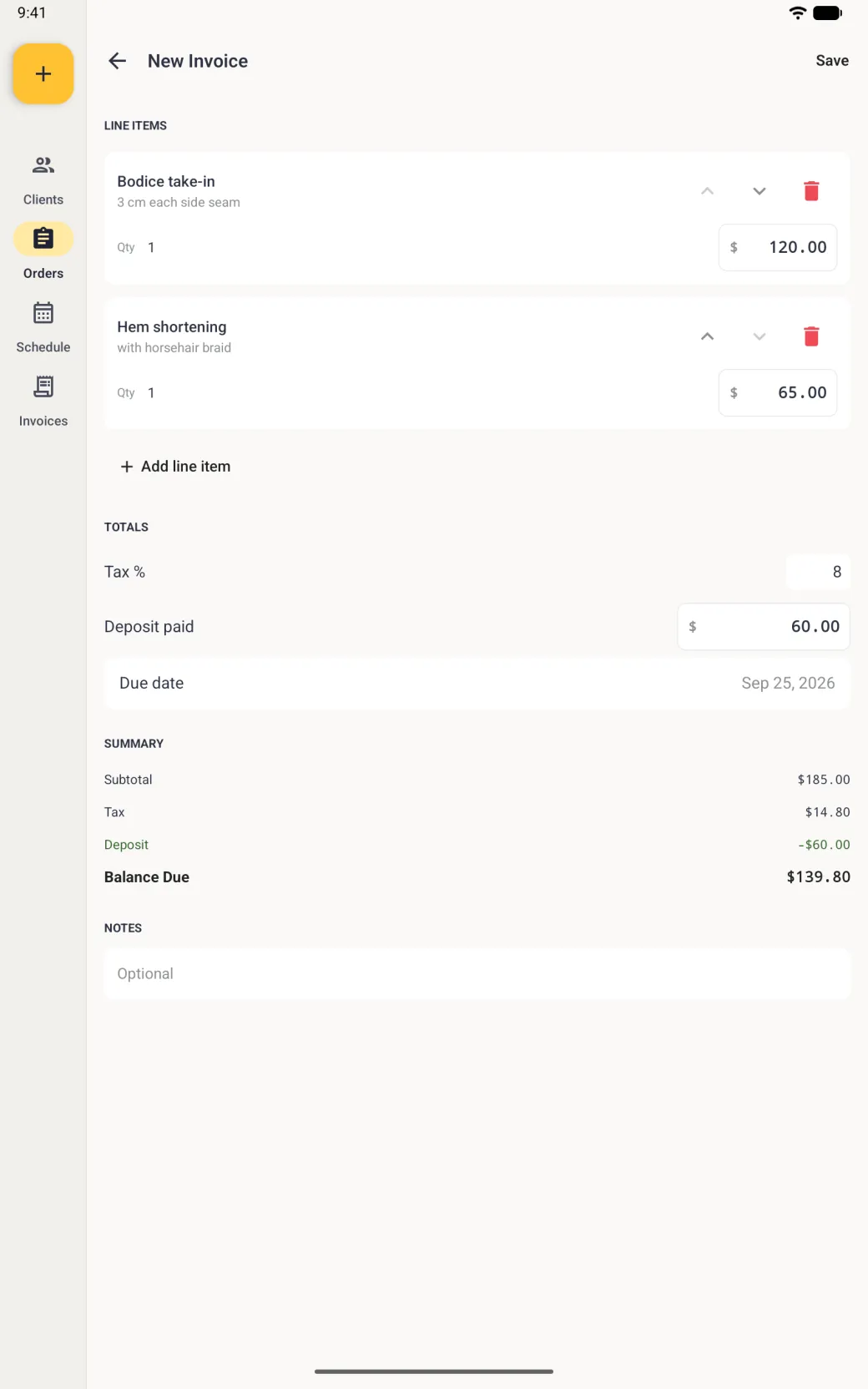
Open the order and tap Create invoice on the payment card, to the right of the Unpaid badge. The editor opens already built from the order: the work appears as line items with their quantity and unit price, your shop tax rate is filled in, any deposit taken with the order is carried across, and the summary keeps a running subtotal, tax, deposit and balance due.
- Open the order you want to bill and tap Create invoice on its payment card.
- Check the line items, and use Add line item for anything the order did not cover.
- Set the tax percentage, the deposit already paid and the due date if they need changing.
- Save the invoice with the checkmark at the top right. The invoice takes the next number, and the order’s payment card switches to View invoice. On iPhone and iPad the editor closes straight back to the order.



How to start an invoice from the Invoices tab
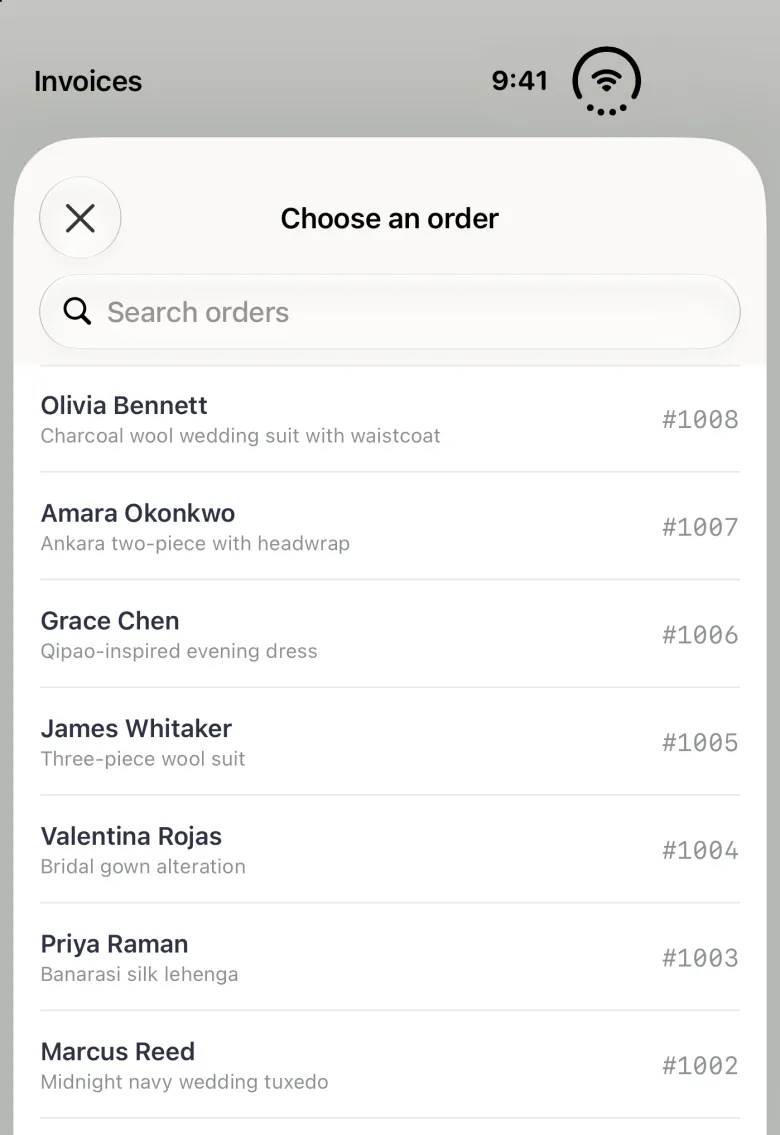
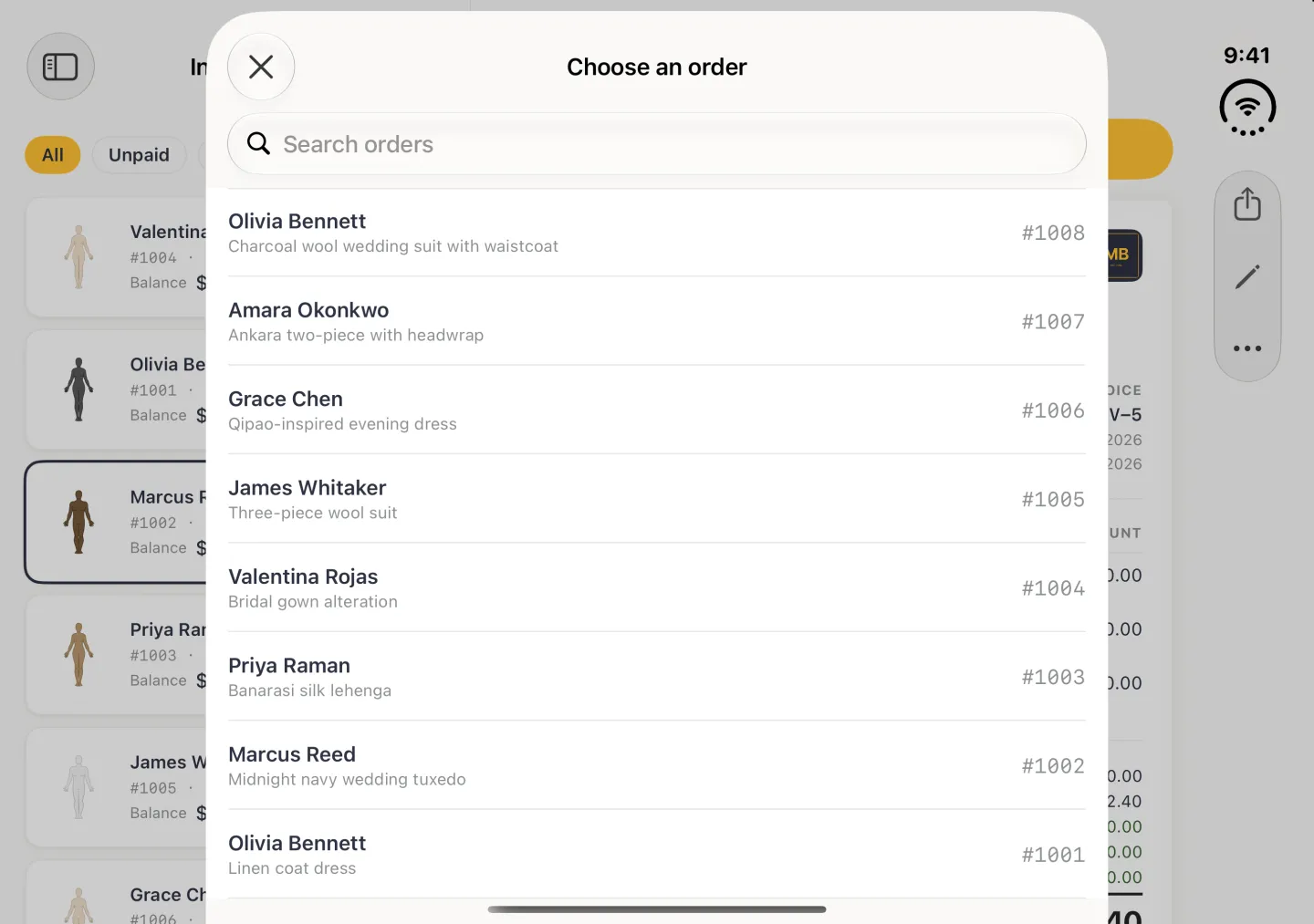
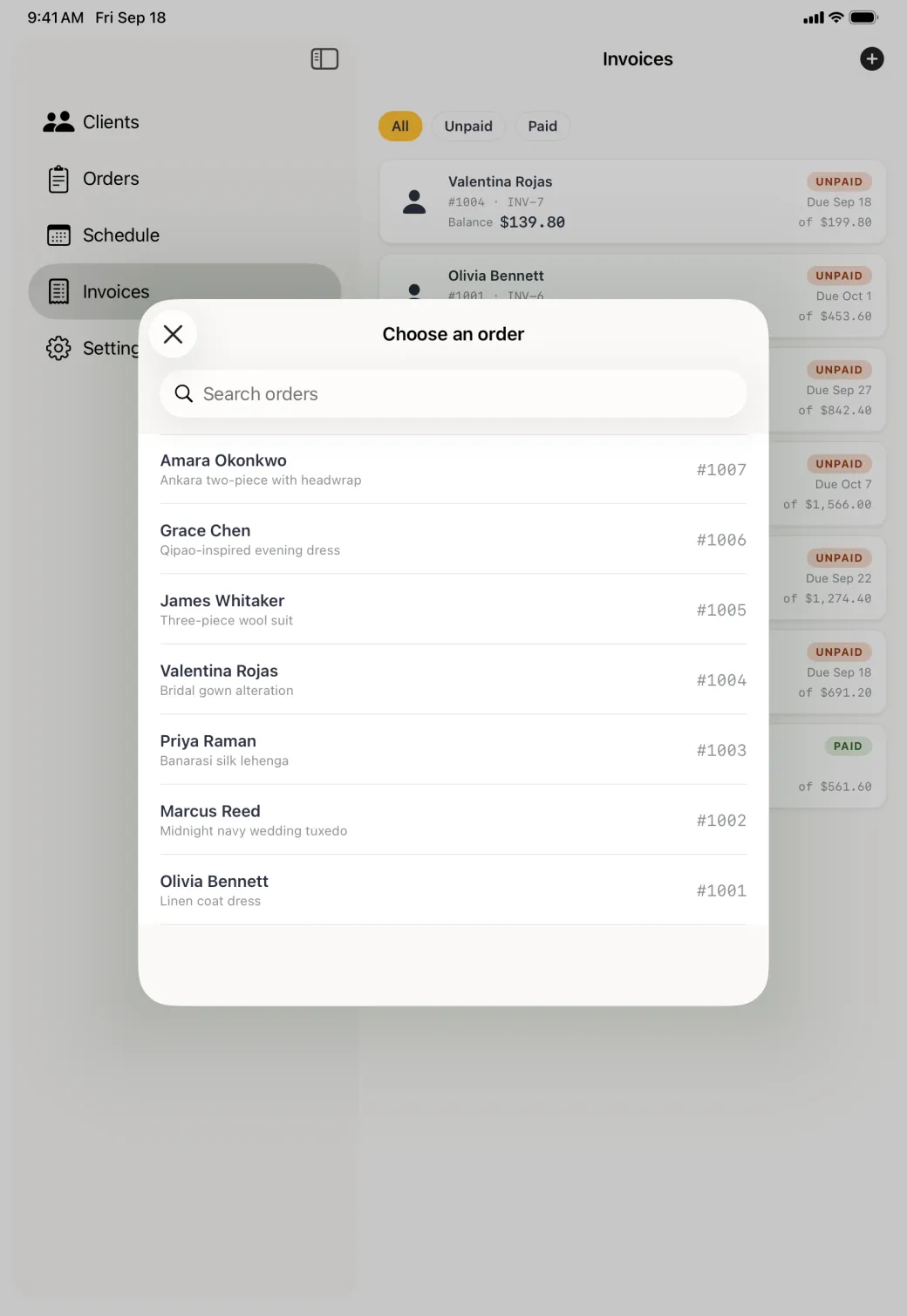
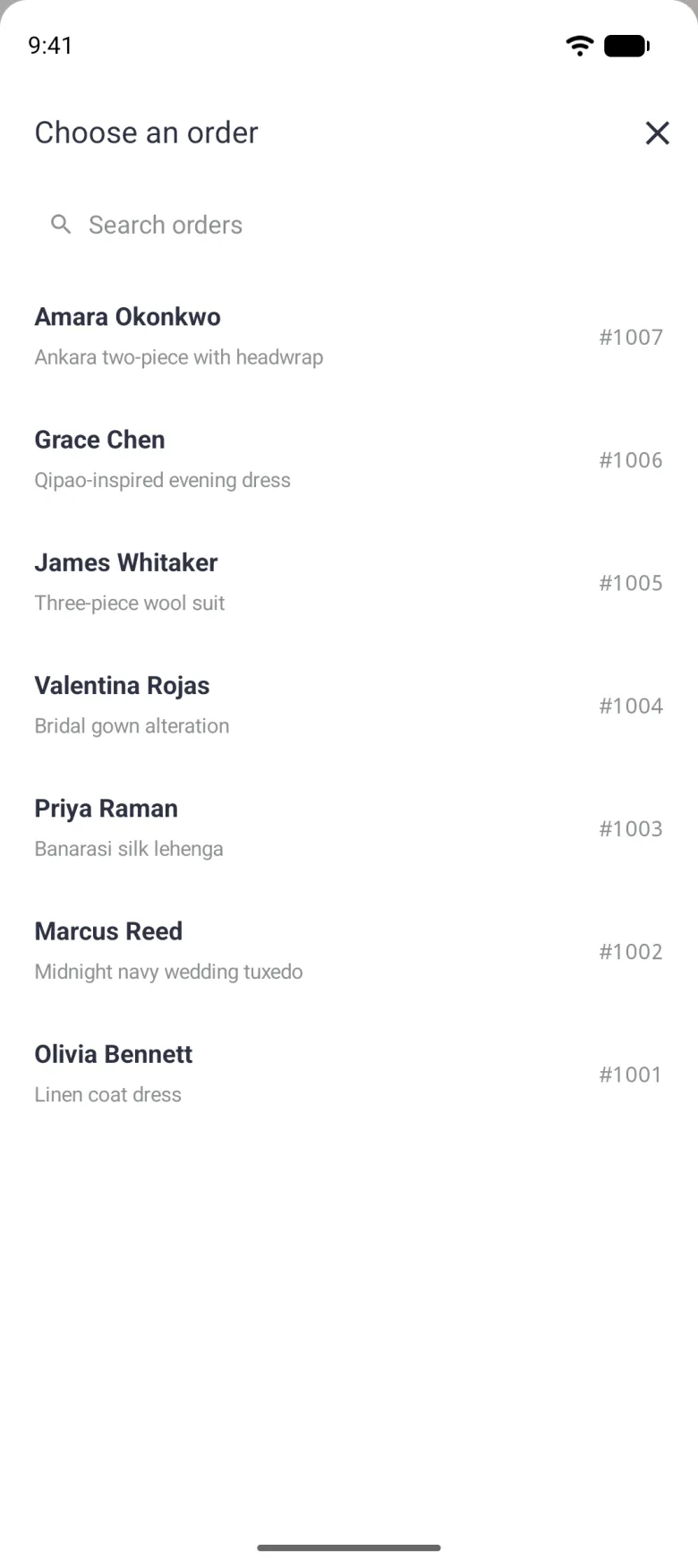
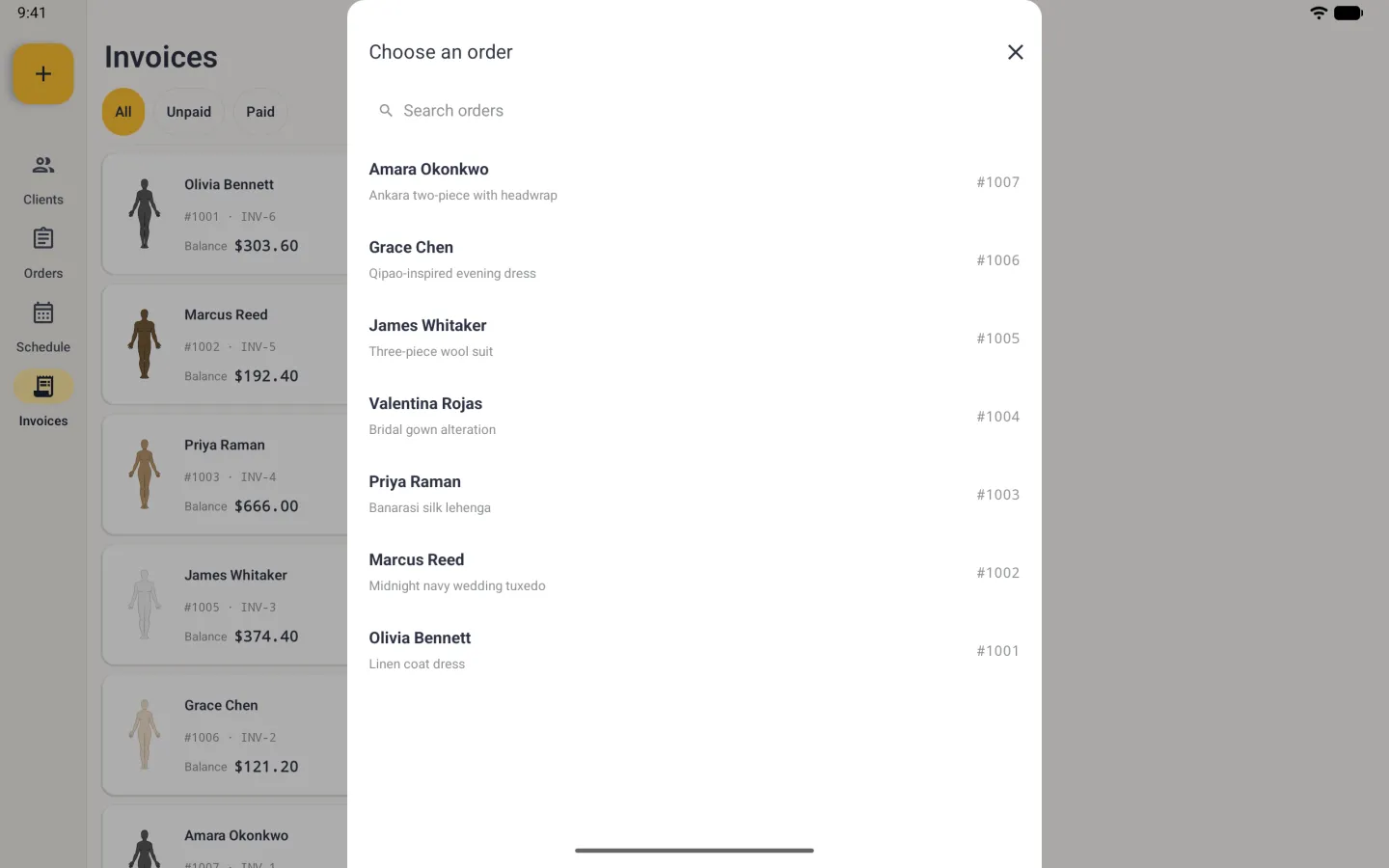
The plus button at the top right of the Invoices tab asks which order you are billing, because an invoice always belongs to an order. The sheet lists every order with a search field, whether it has been billed or not.
On Android the same action is a labelled New invoice button, a gold floating button at the bottom right of the Invoices tab, which shrinks to a plus while the list scrolls. On an Android tablet it sits at the top of the navigation rail.
An order can carry only one invoice. Pick an order that has already been billed and the app opens the existing invoice rather than starting a second one.

How to change what is on an invoice
Open the invoice and tap the pencil at the top right, or on Android tap the three dots and choose Edit. On iPhone and iPad the pencil greys out once the invoice is paid in full. The editor holds the line items, the tax percentage, the deposit and the due date. Change a quantity or a unit price and the line total, the subtotal, the tax and the balance due all recalculate as you type. To remove a line, swipe left across its row and tap Delete.
Saving the invoice also rewrites the total on the order it came from, so the order, the Orders dashboard and the invoice always agree.
How to record a payment
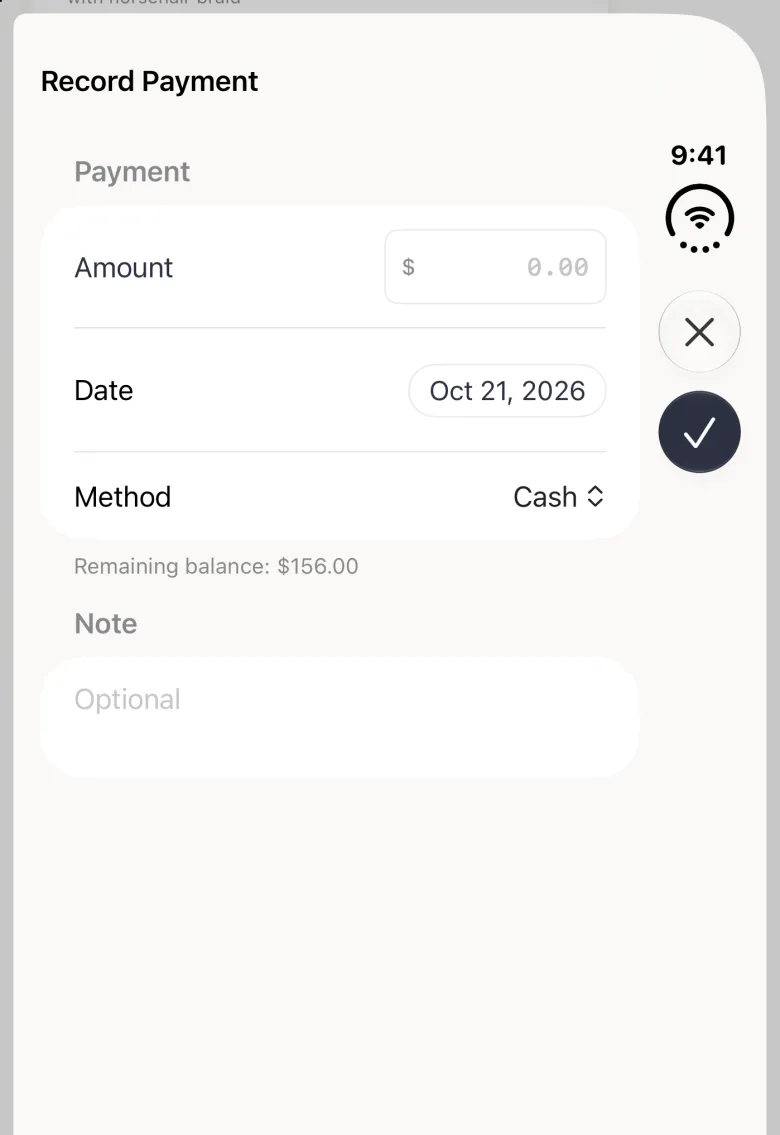
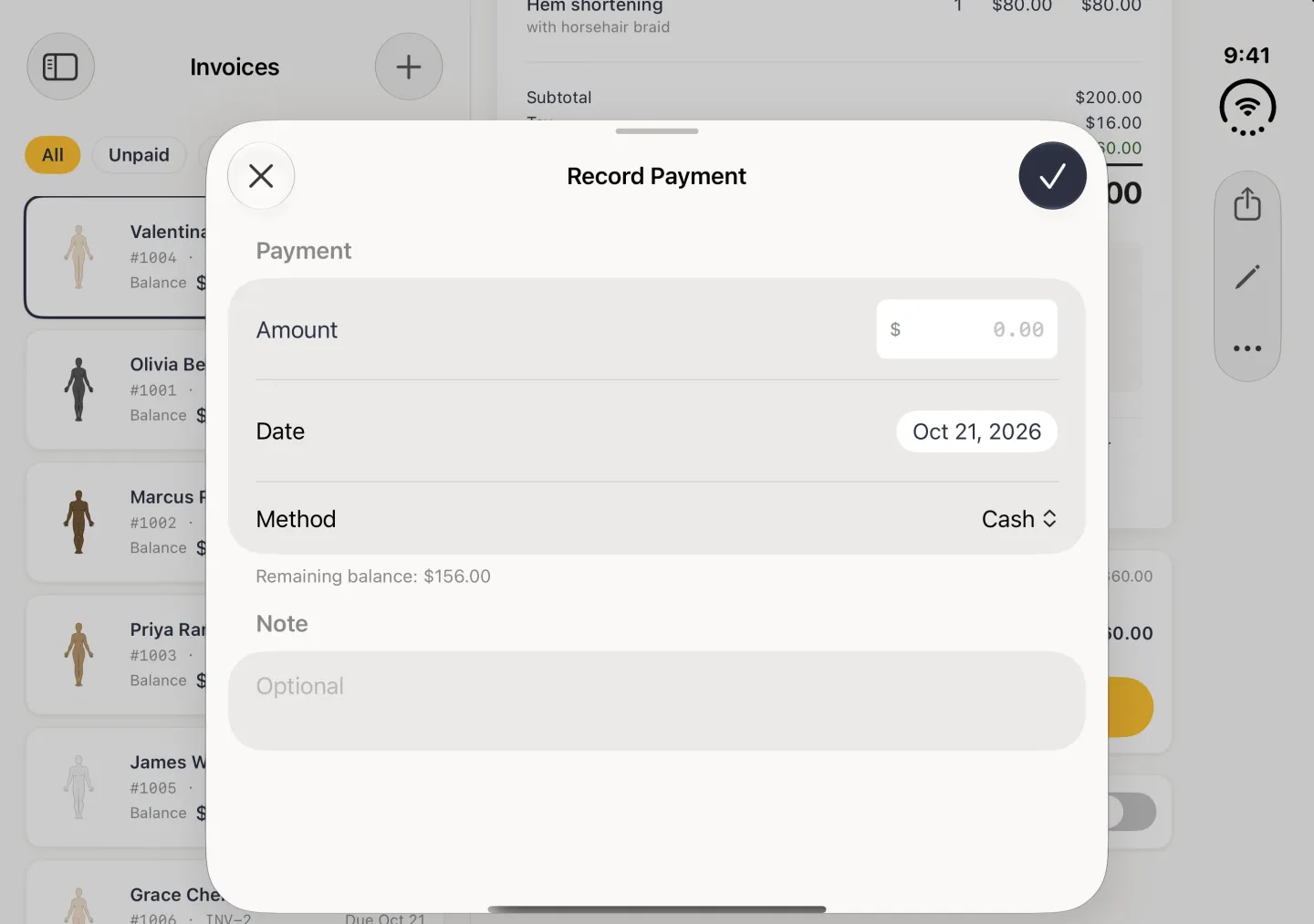
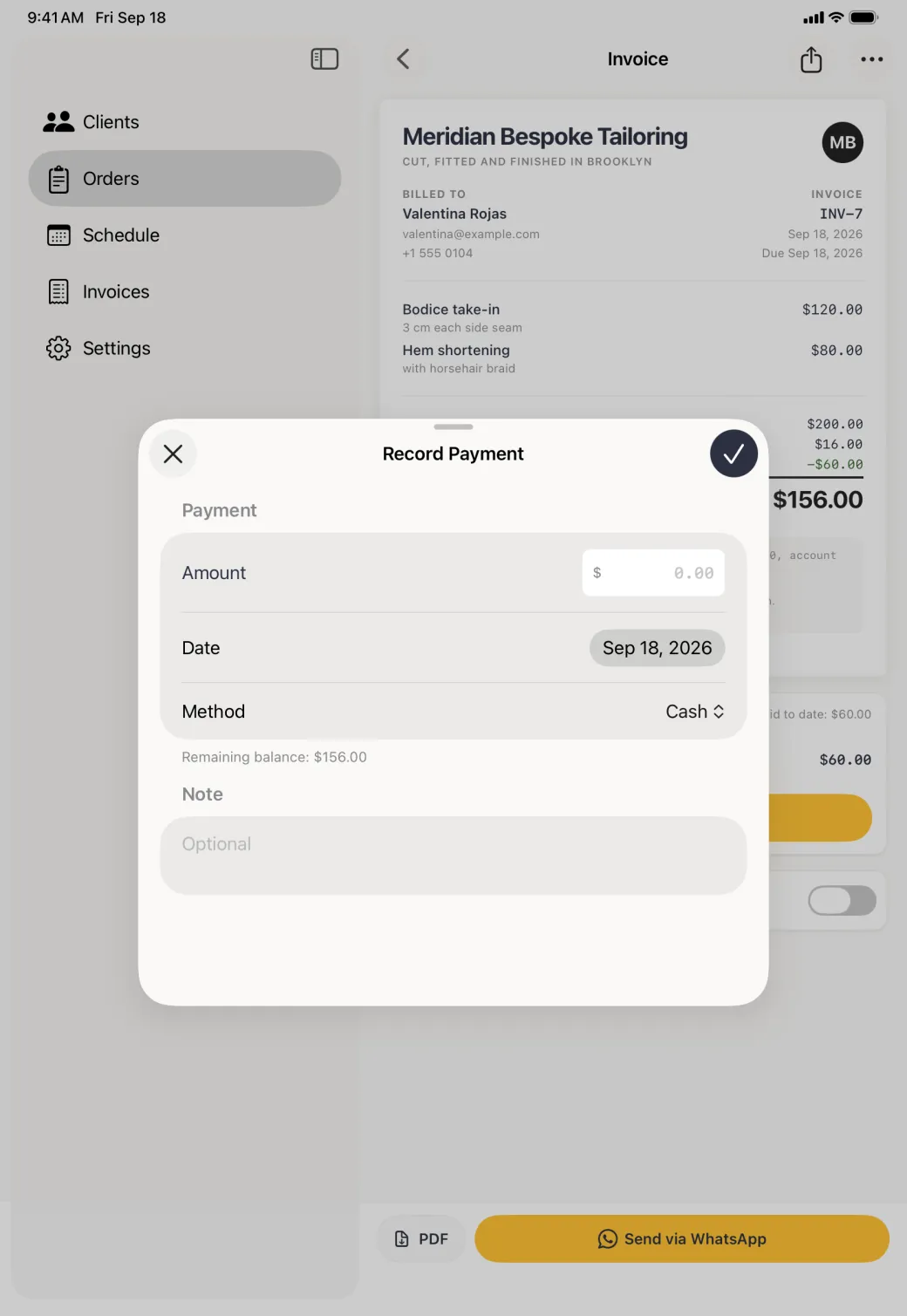
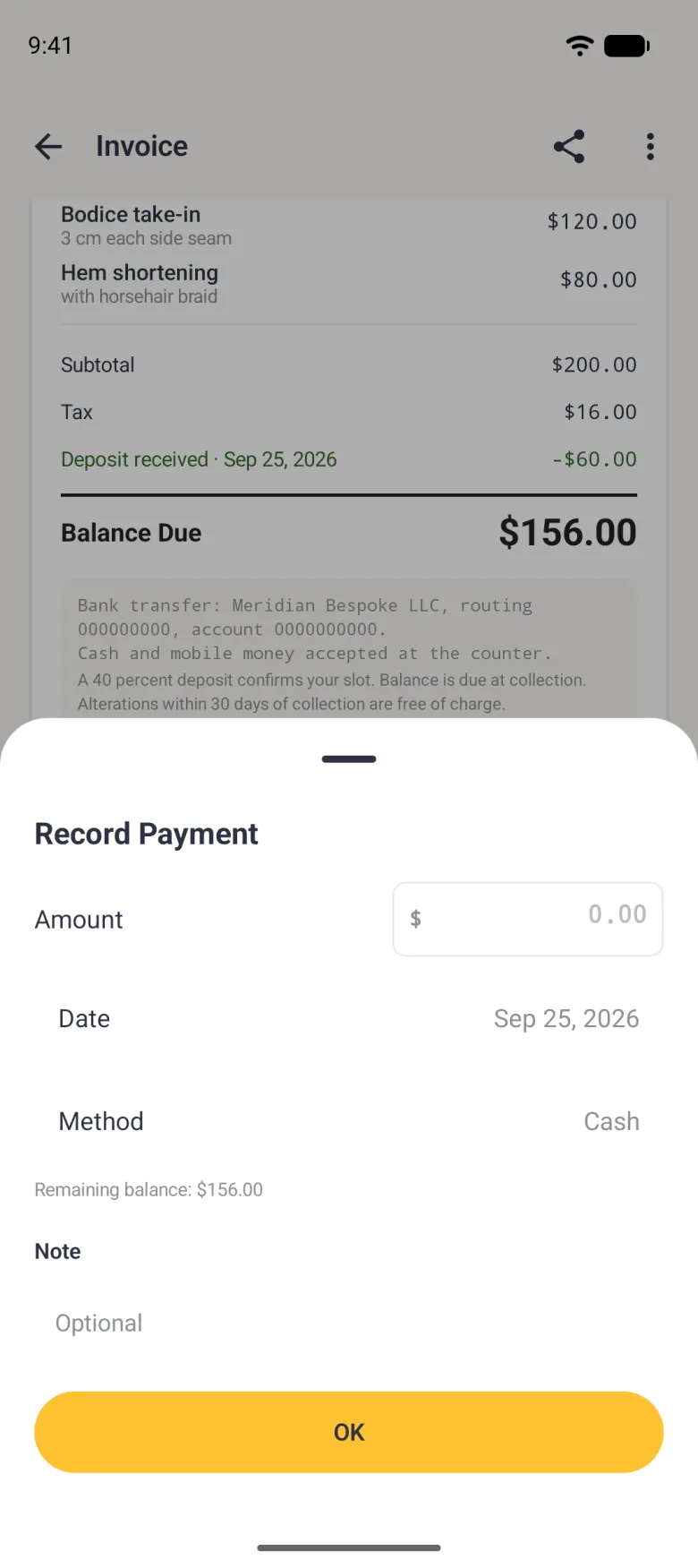
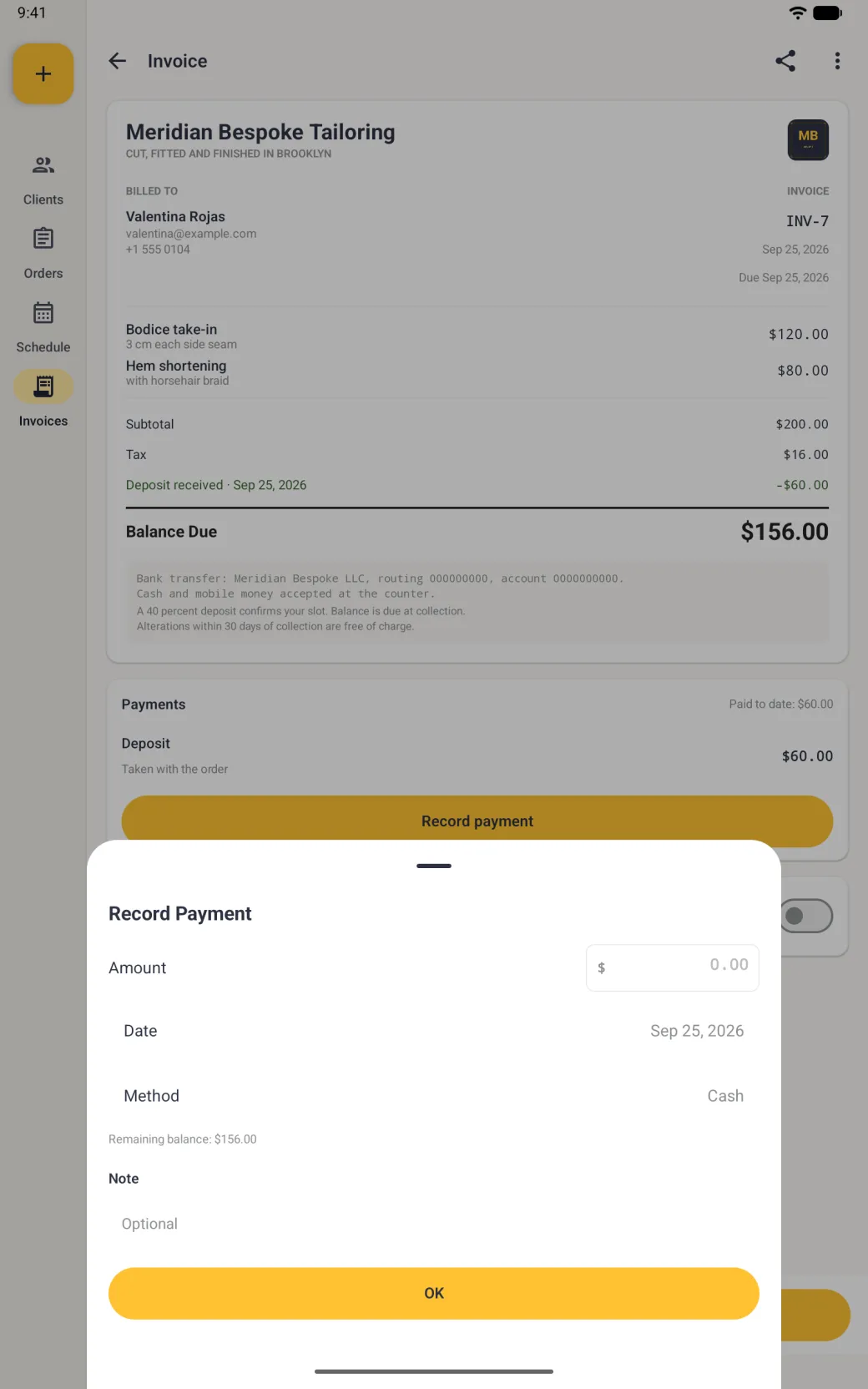
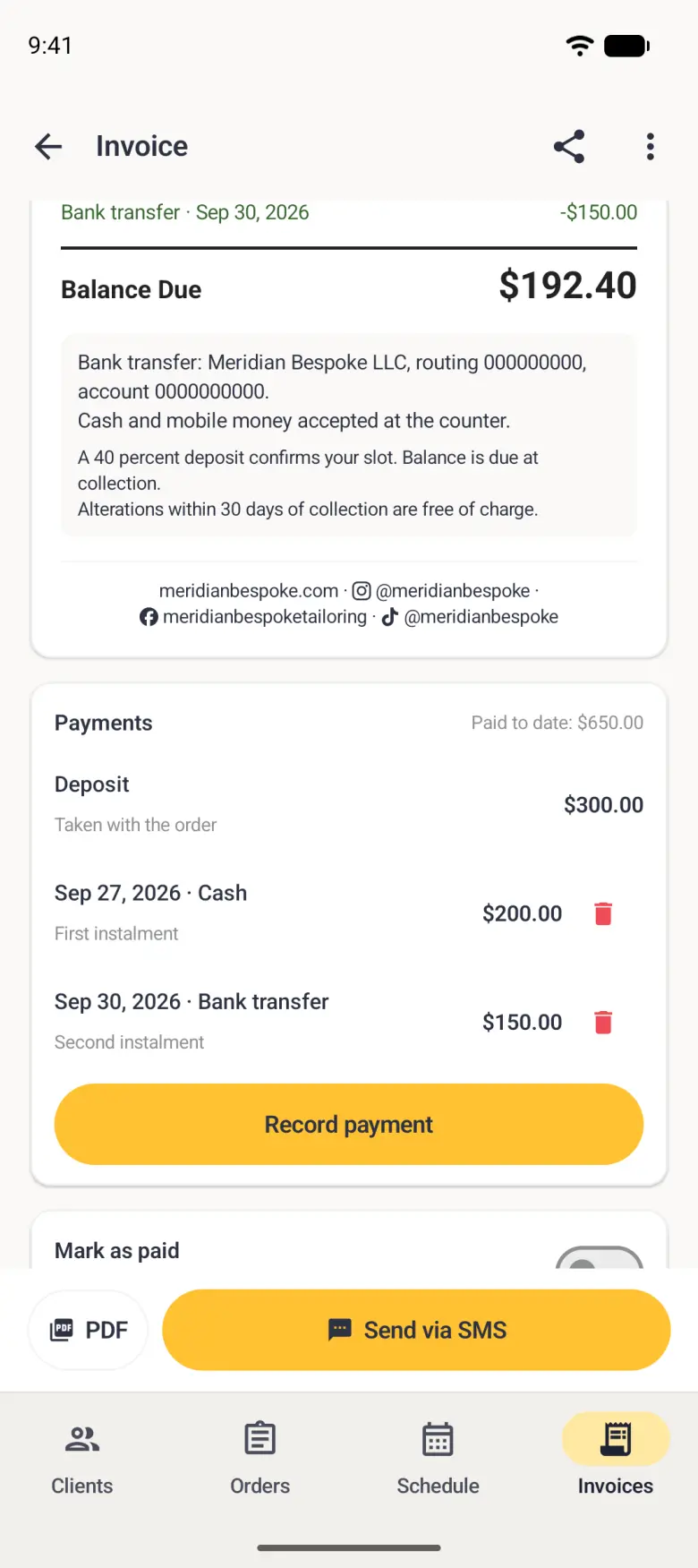
Payments live on their own card below the invoice. Record payment opens a short form for the amount, the date and how the client paid: cash, bank transfer, mobile money or other. The remaining balance is printed under the fields so you can see what is left before you confirm.
- Scroll to the Payments card and tap Record payment.
- Type the amount. Anything larger than the remaining balance is refused when you confirm.
- Set the date and the method.
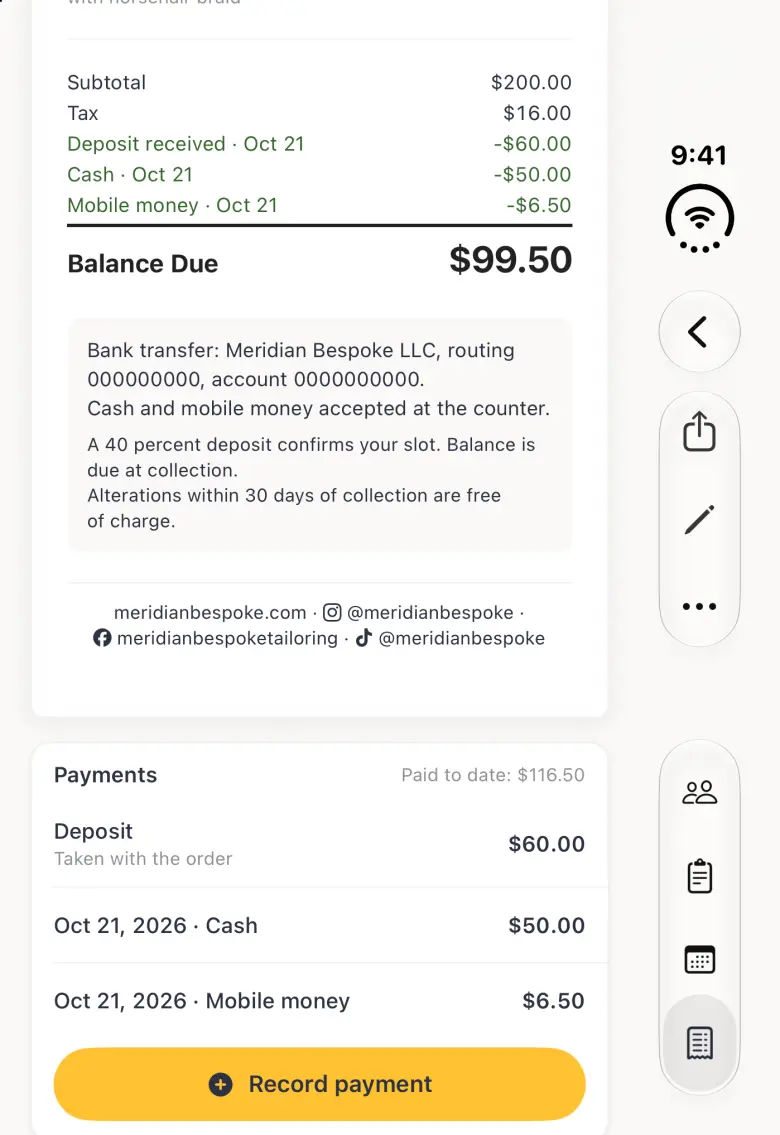
- Tap the tick at the top right. The payment appears in the totals block and in the Payments card, and the balance due drops by the amount paid.
On Android, Record payment is a bottom sheet with a gold OK button at its foot instead of a tick at the top right, and it refuses an amount larger than the remaining balance the same way.
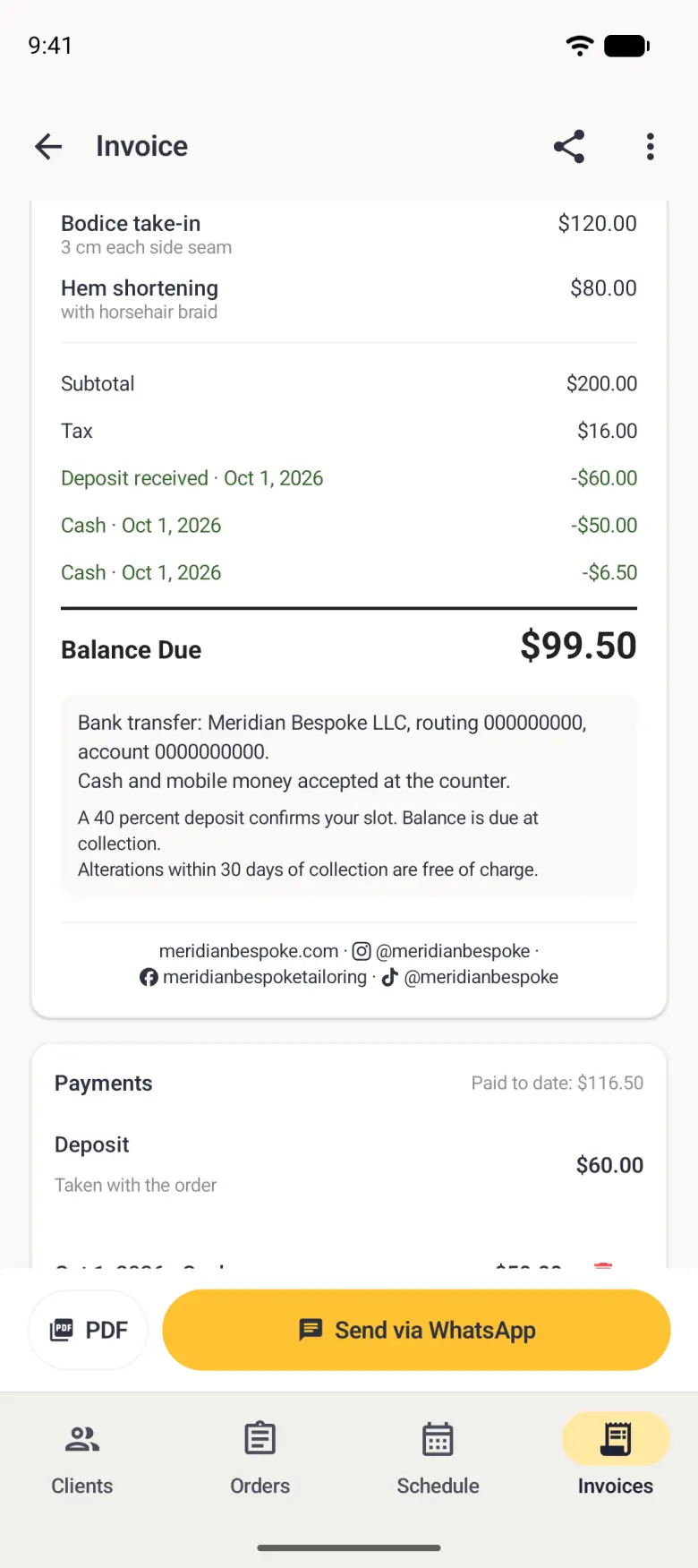
Repeat that for each instalment. Every payment is kept as its own line with its date and method. The deposit is not one of those lines: it was taken with the order, so it shows as its own green line in the totals and counts towards paid to date.


How to mark an invoice paid
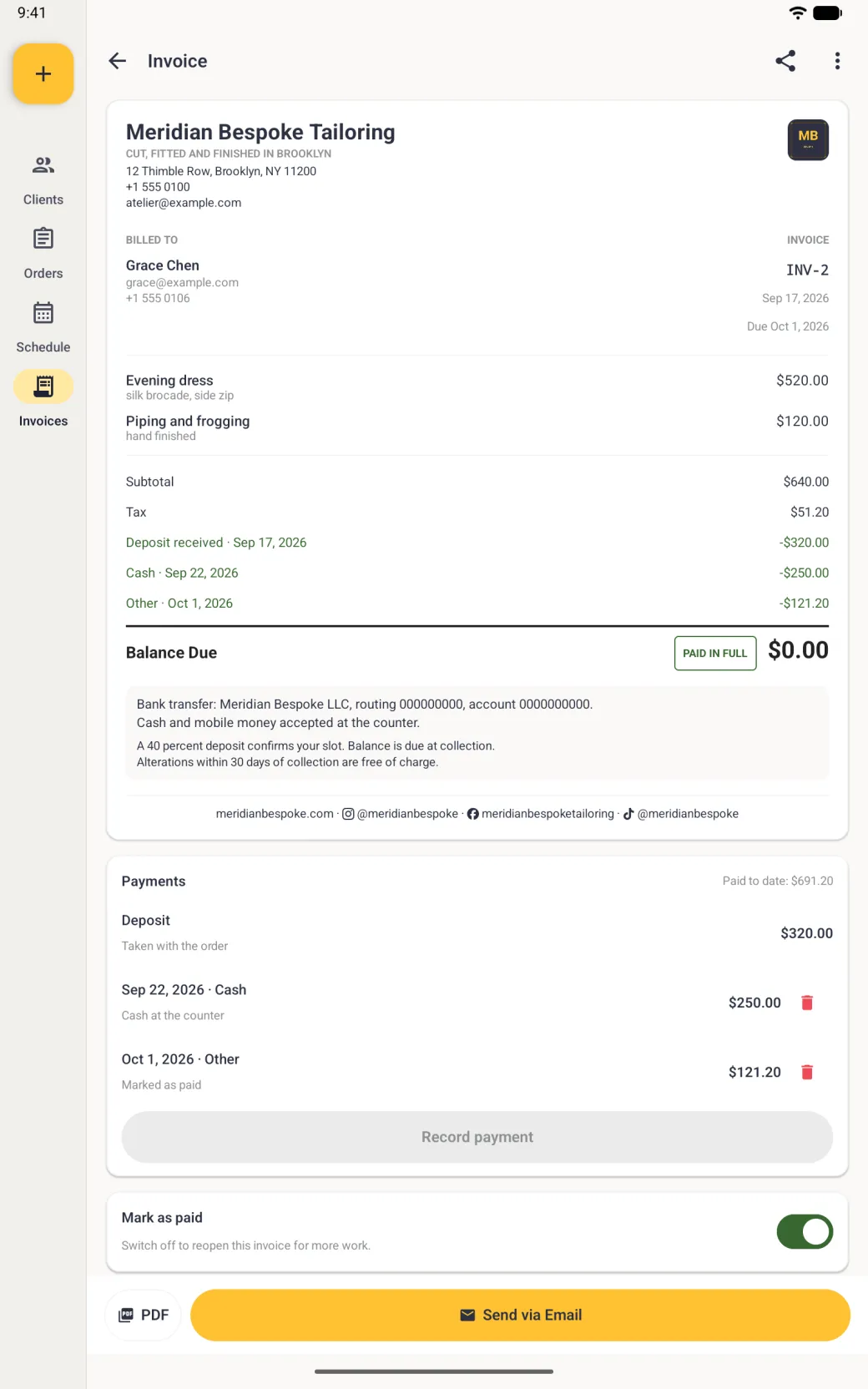
Paying an invoice down to zero settles it. When a payment clears the balance, the invoice is stamped paid in full, the Mark as paid switch at the foot of the invoice turns on, Record payment greys out and the invoice moves to the Paid filter.
The switch also settles an invoice by hand. On an invoice that still has a balance it asks you to confirm, then logs the outstanding amount as a payment dated today, so the payments list stays complete, and marks the invoice paid in full.

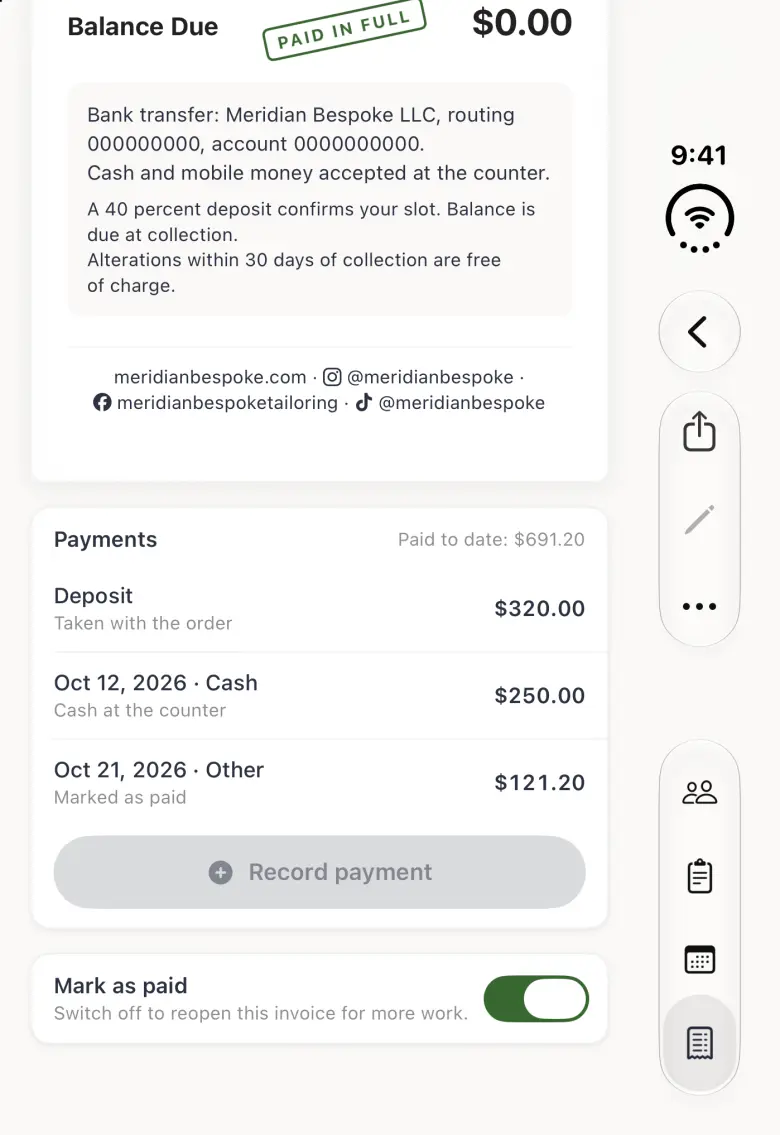
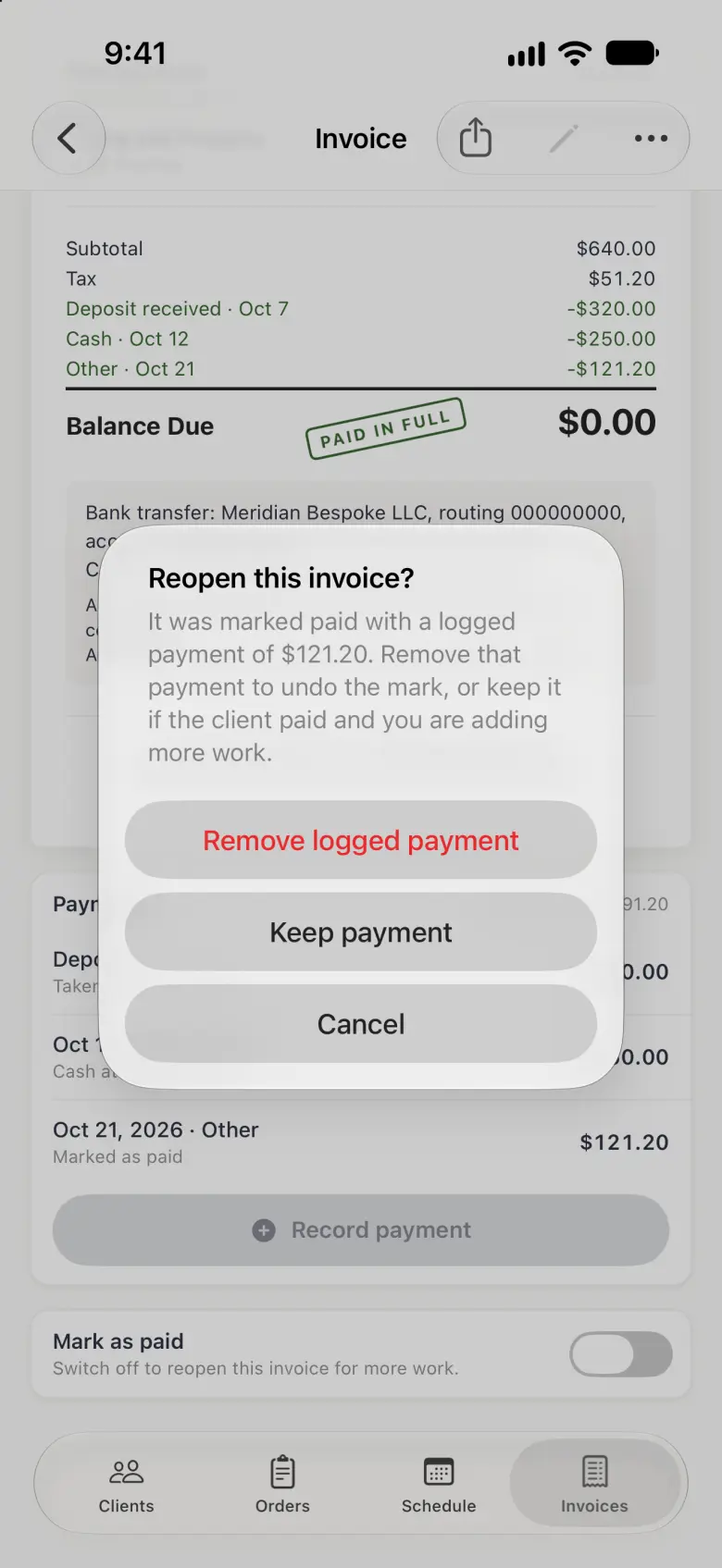
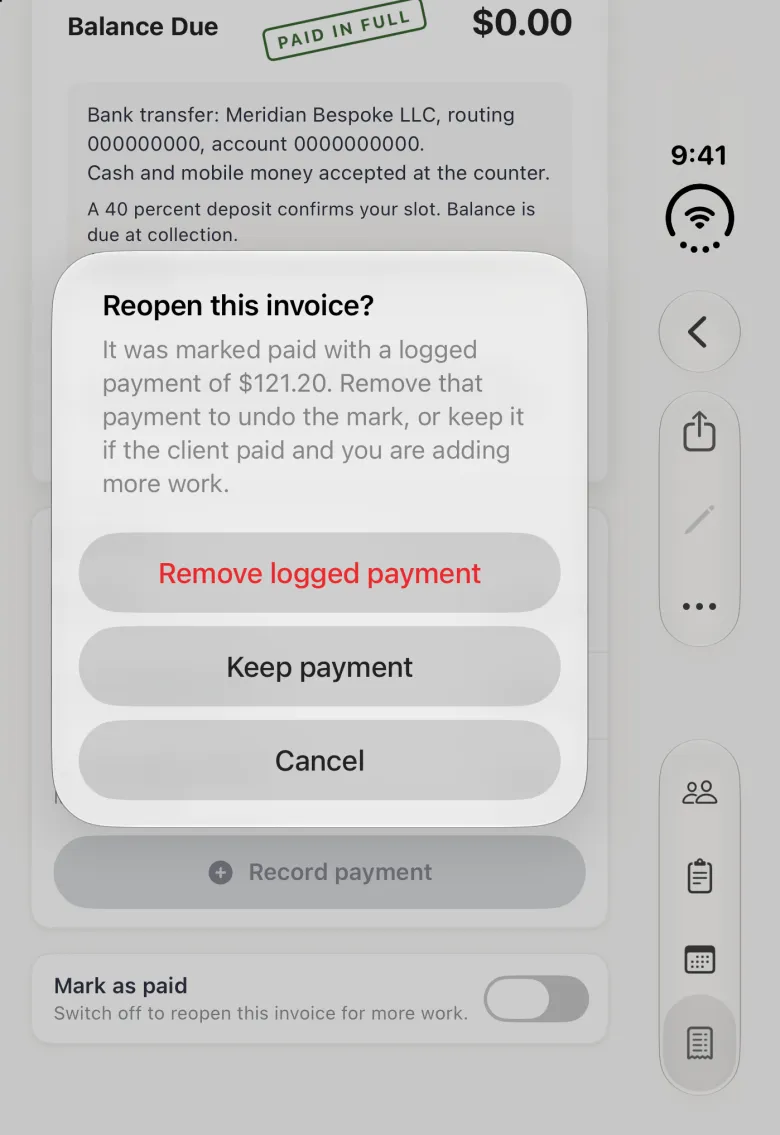
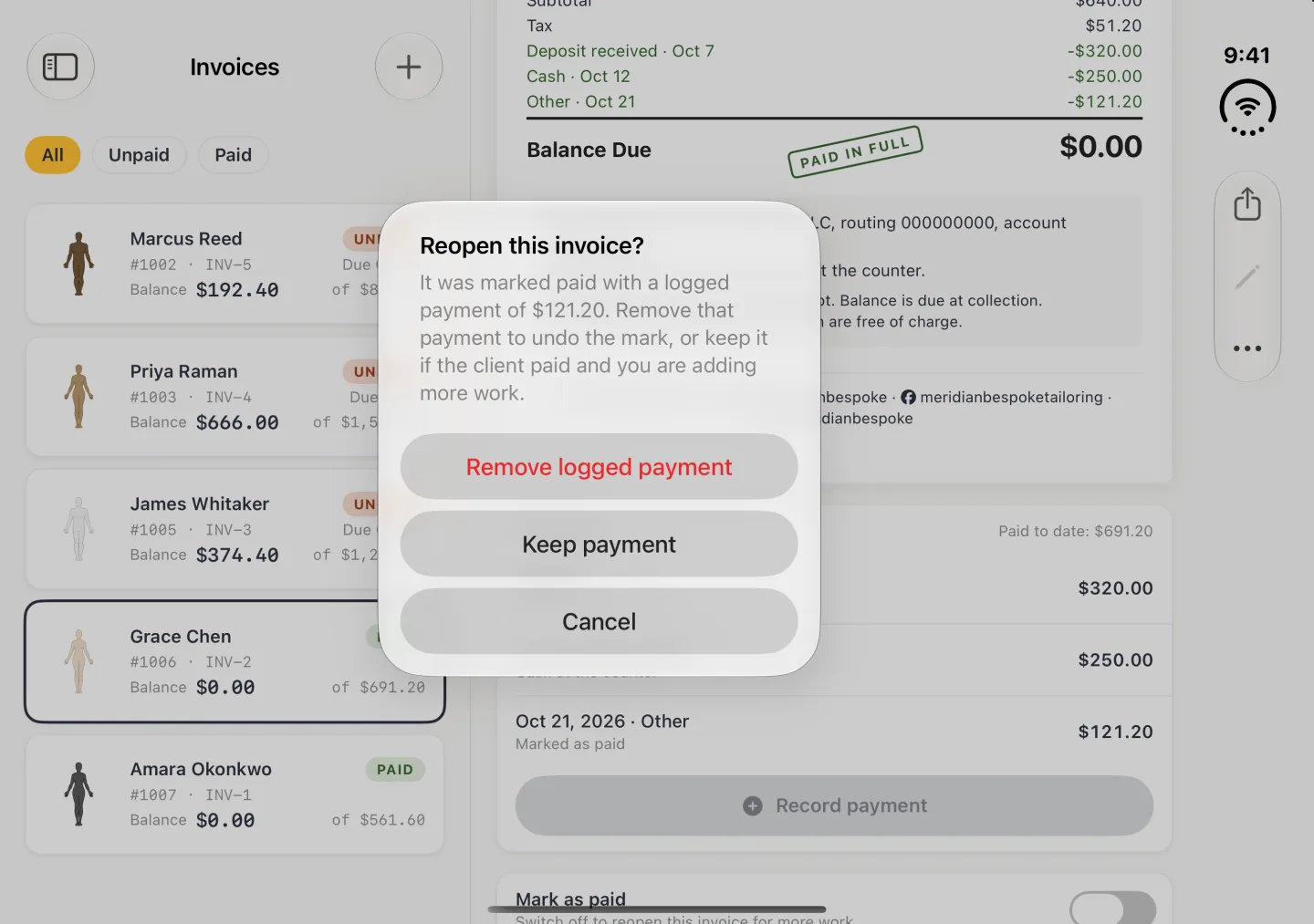
To reopen a paid invoice for more work, switch Mark as paid off. The app asks whether to remove the payment it logged, which brings the balance back, or keep it, for when the client has paid and you are adding work. Cancel leaves the invoice paid.
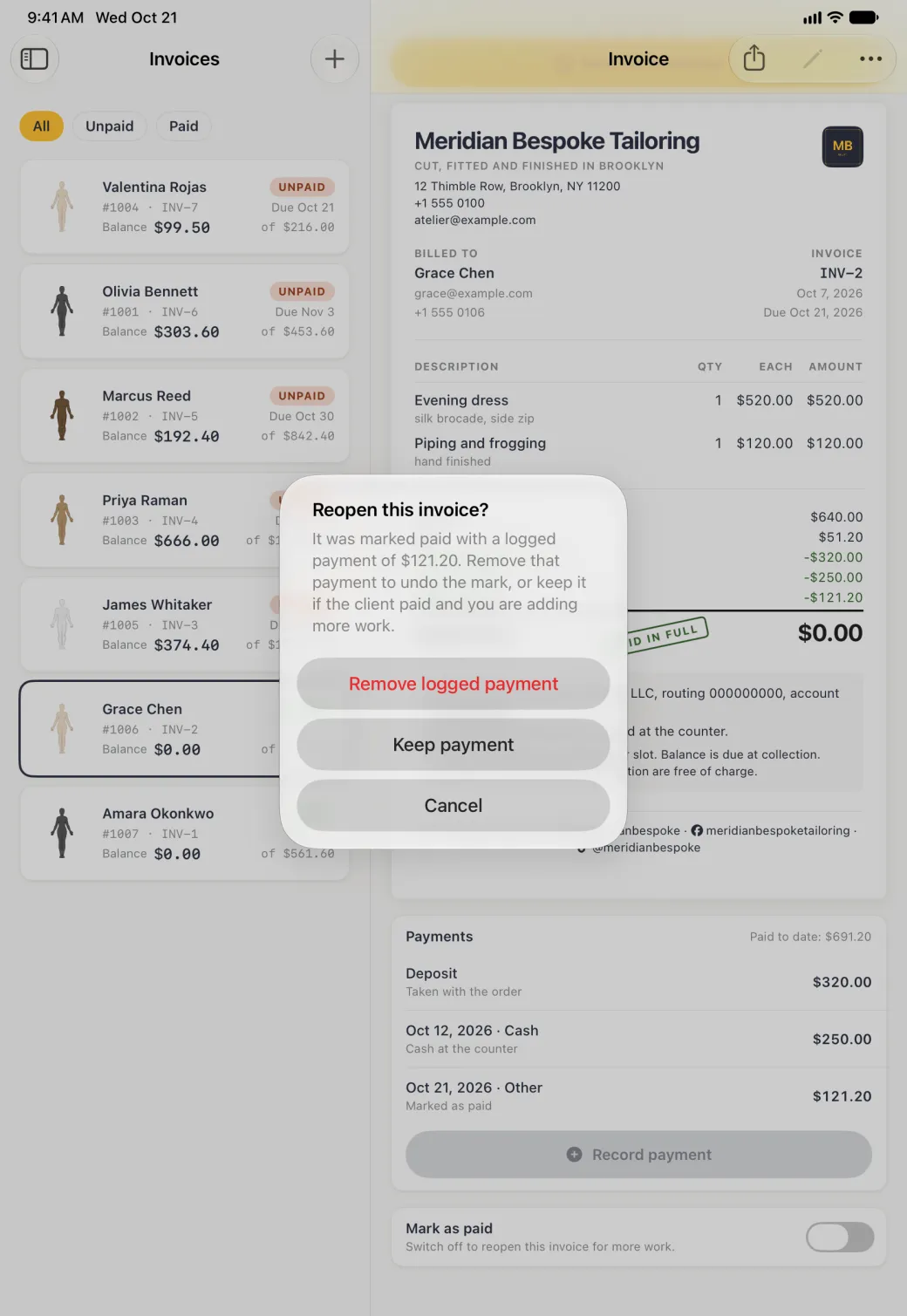
What is printed on an invoice
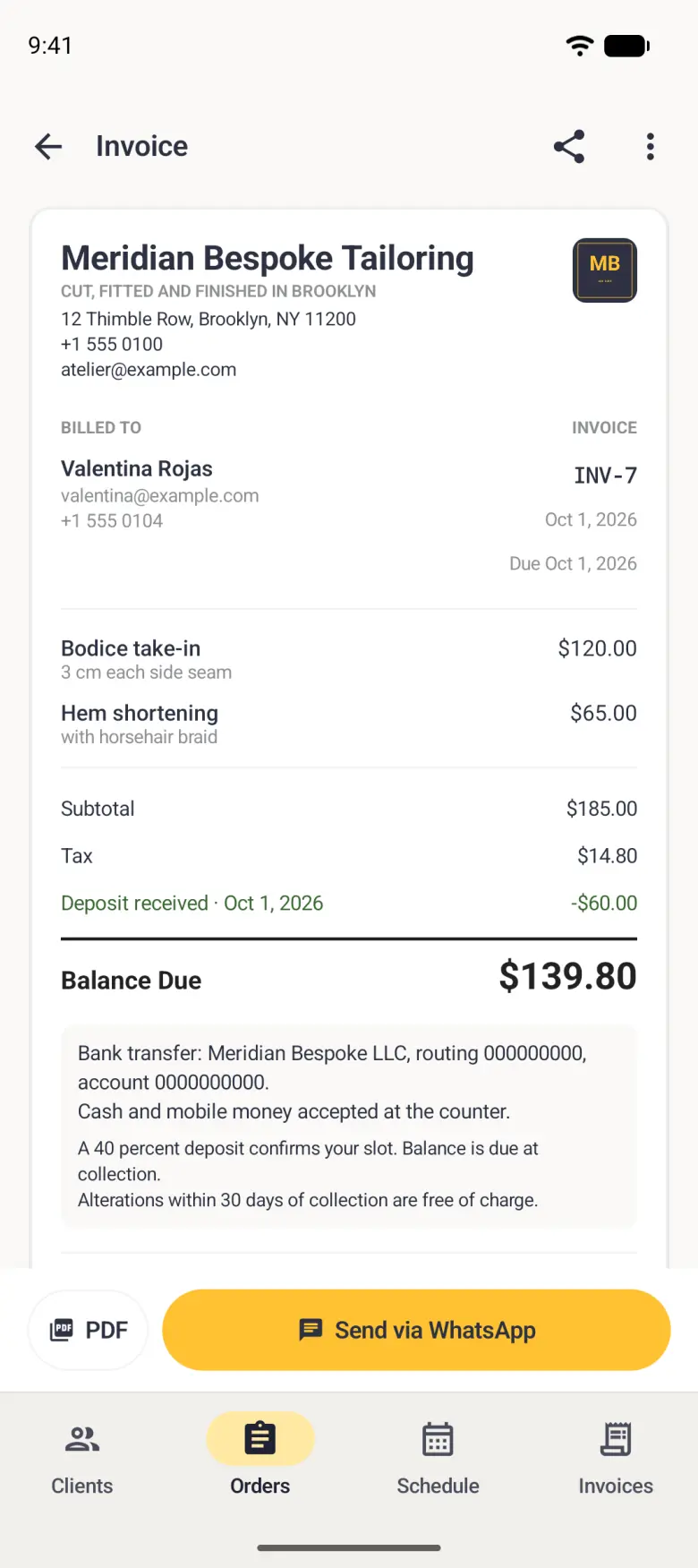
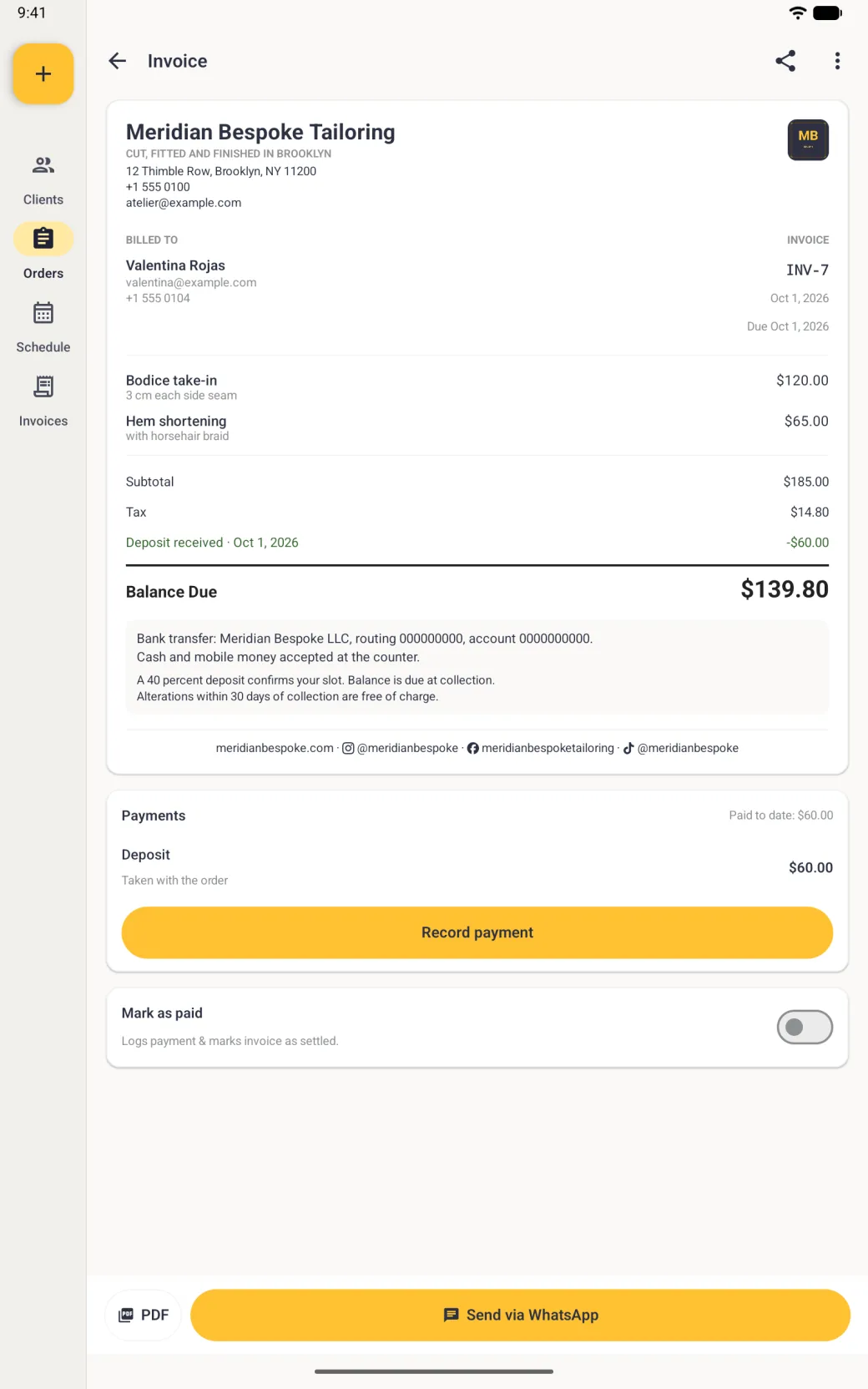
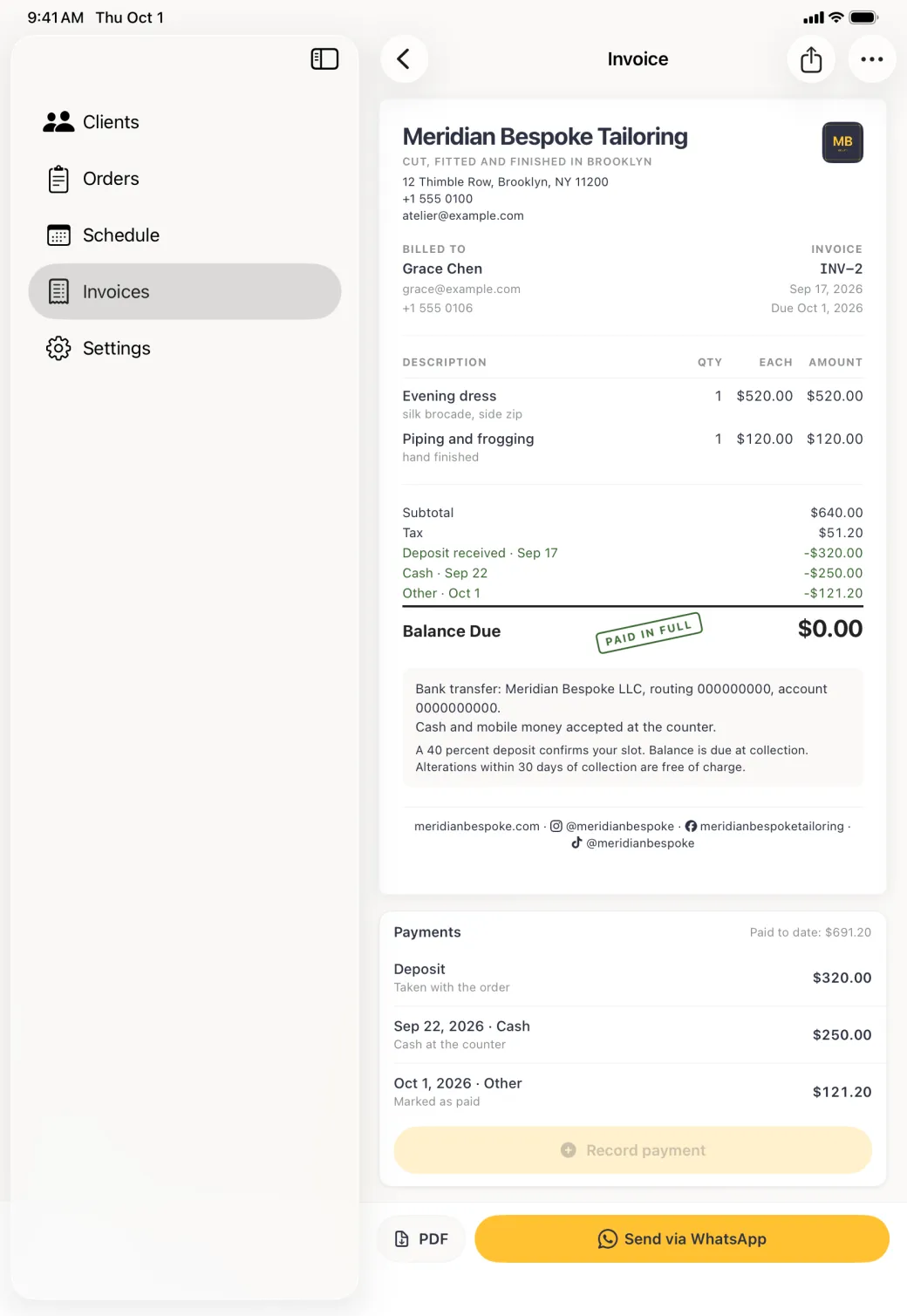
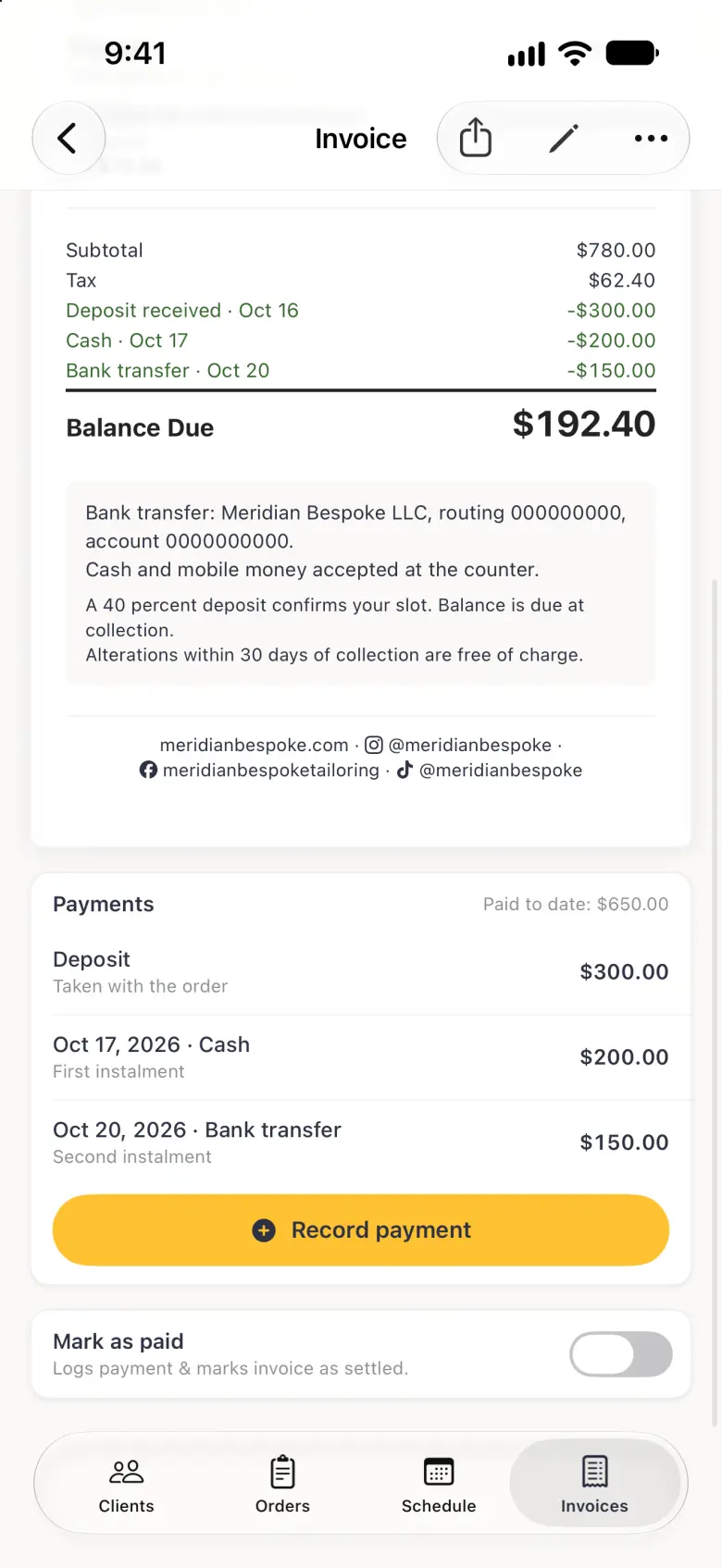
An invoice reads like a letterhead document, on screen and in the PDF. Your logo, business name, tagline, address, phone number and email sit at the top, and the client, the invoice number and the dates sit below them. The line items, the totals, your payment details and a footer with your website and social handles follow.
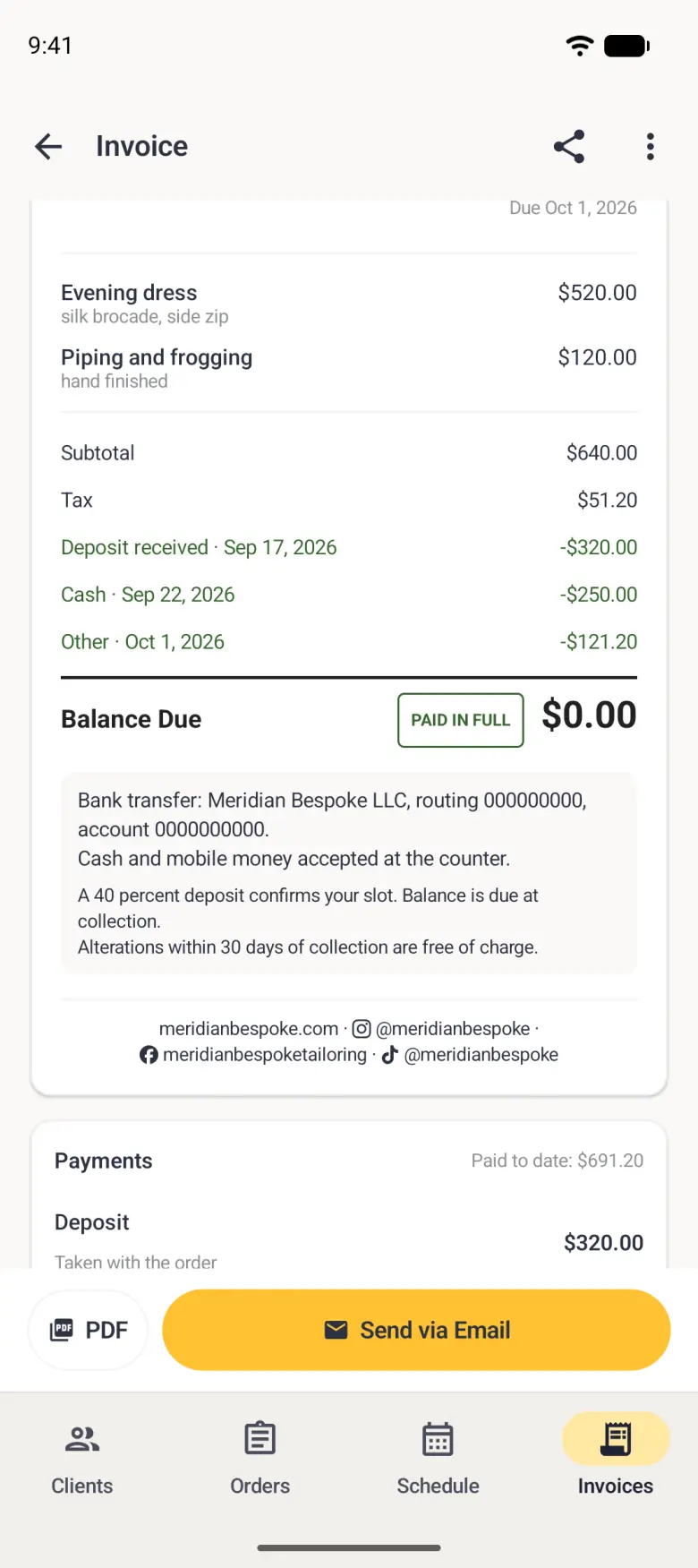
The line items are a table with Description, Qty, Each and Amount columns. On a phone the invoice on screen shows a compact row instead, with the quantity and unit price written as “qty × each” under the item name, and that second line is hidden when the quantity is 1. Your payment details print in larger type on a pale panel, so a client can read the account number without squinting. The footer comes from the Online section of your business profile, and a platform you leave blank is skipped.
How to send an invoice to a client
The Share button at the top right of an invoice, a square with an arrow, builds a printable PDF and hands it to the share sheet, where you can save it to Files, print it, or send it through any app on your phone. The gold Send via WhatsApp button at the top of the invoice opens a message to the client instead.
On Android, PDF and Send via WhatsApp sit in a bar pinned above the tab bar, and PDF, like the share icon in the invoice’s top bar, opens the Android share sheet, where you can print the invoice, save it or send it through any app on your phone.
The PDF follows the invoice on screen. It carries your logo, business name, tagline, address, phone number and email from your business profile, the client’s details, every line item in a Description, Qty, Each and Amount table, the subtotal, tax, deposit and payments, the balance due, the payment details and terms you set in App Settings, and a footer with your website and social handles. A short invoice fits one page. A longer one continues onto a second page, with even margins on every page and the table header repeated at the top of the second.

Which currency the amounts are in
The currency comes from App Settings, under Tailor Shop, and applies to the whole shop at once. Changing the currency relabels existing amounts and does not convert them, on every invoice and on the PDF alike. The figures stay as they are and only the symbol changes, so set the currency once when you set up the shop. Amounts use the currency’s own symbol, such as ₦, GH₵ or Ksh, whatever language your phone is set to.