Measuring
Taking measurements
Tap a label on the body to enter a measurement with a tape, read the guidance for where the tape goes, switch units, and track how a measurement changes over time.
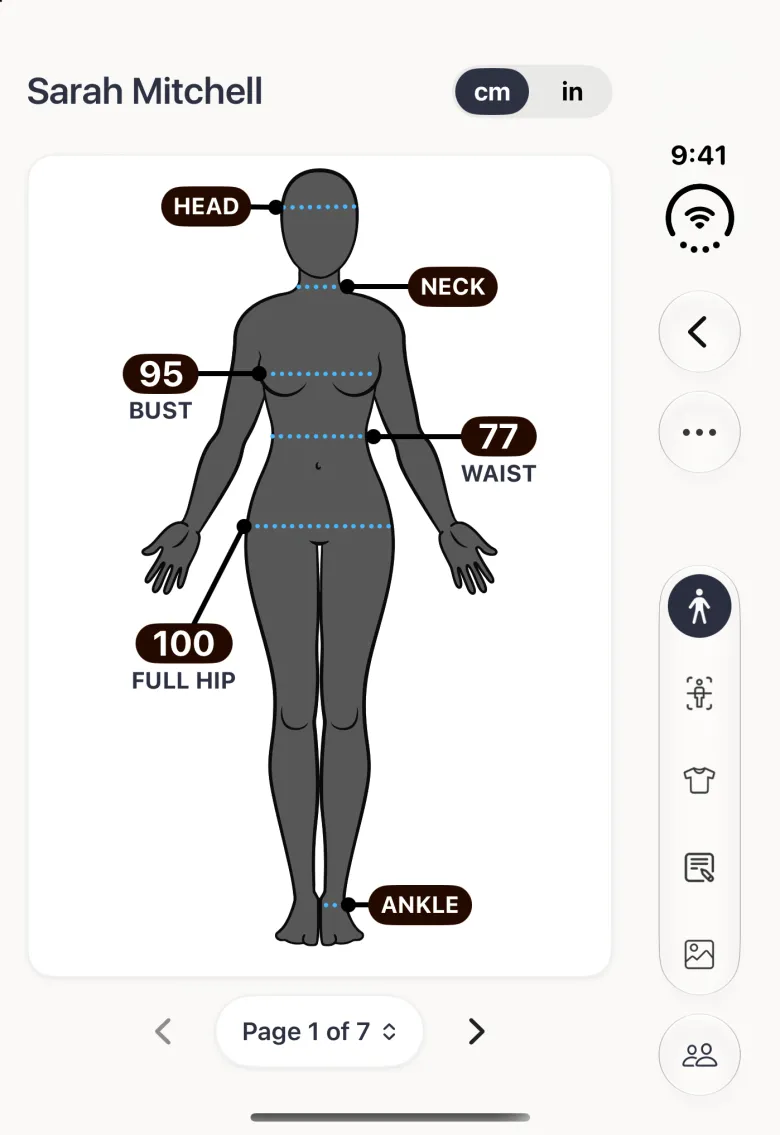
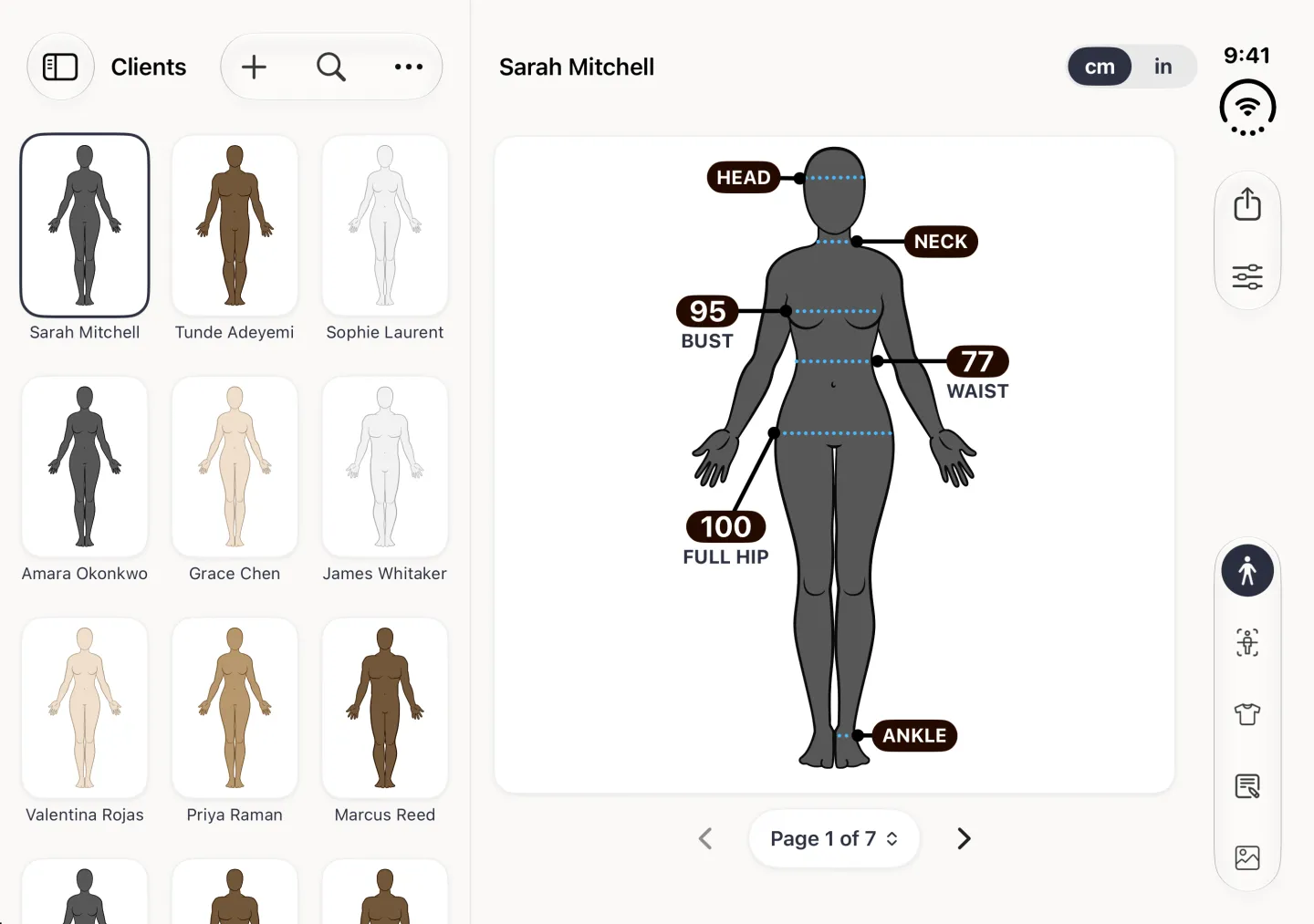
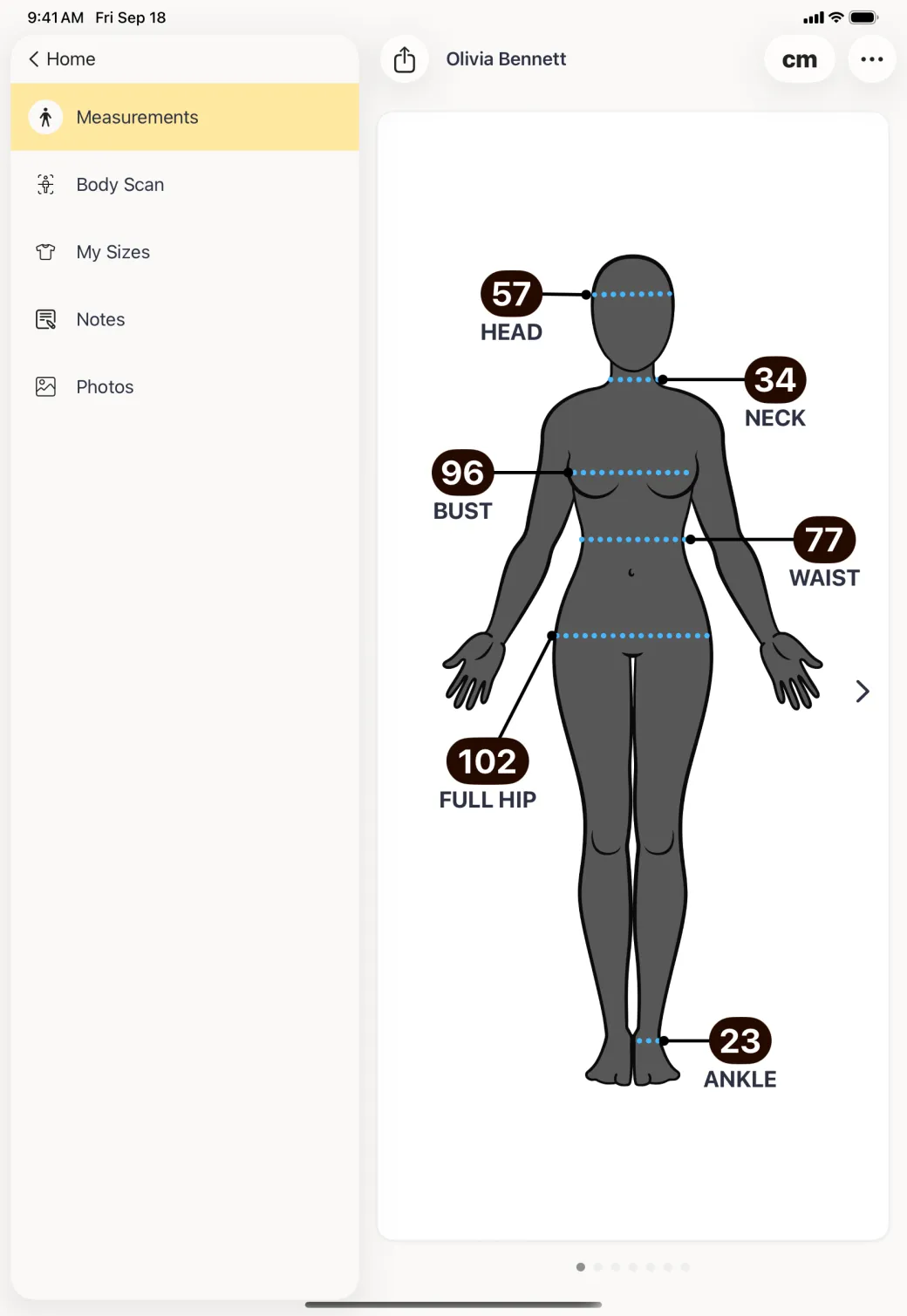
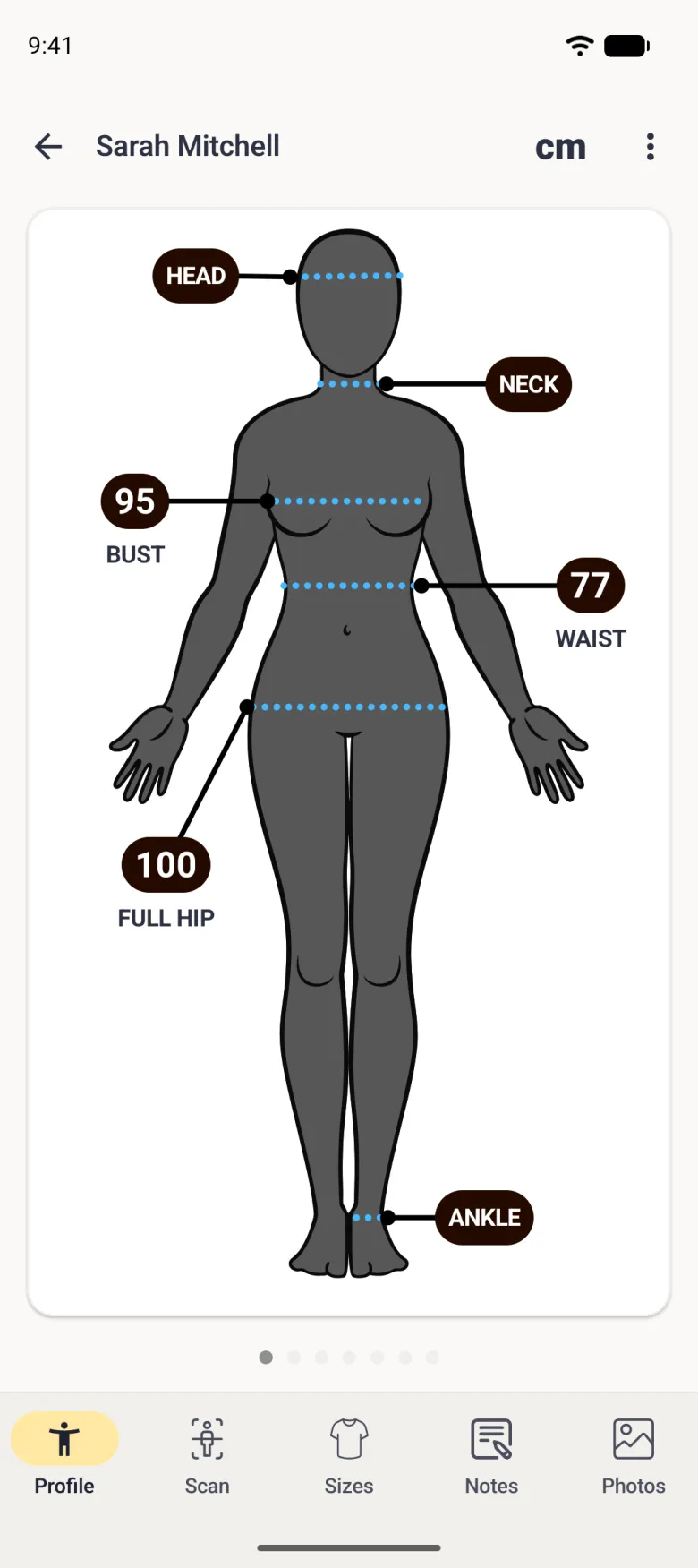
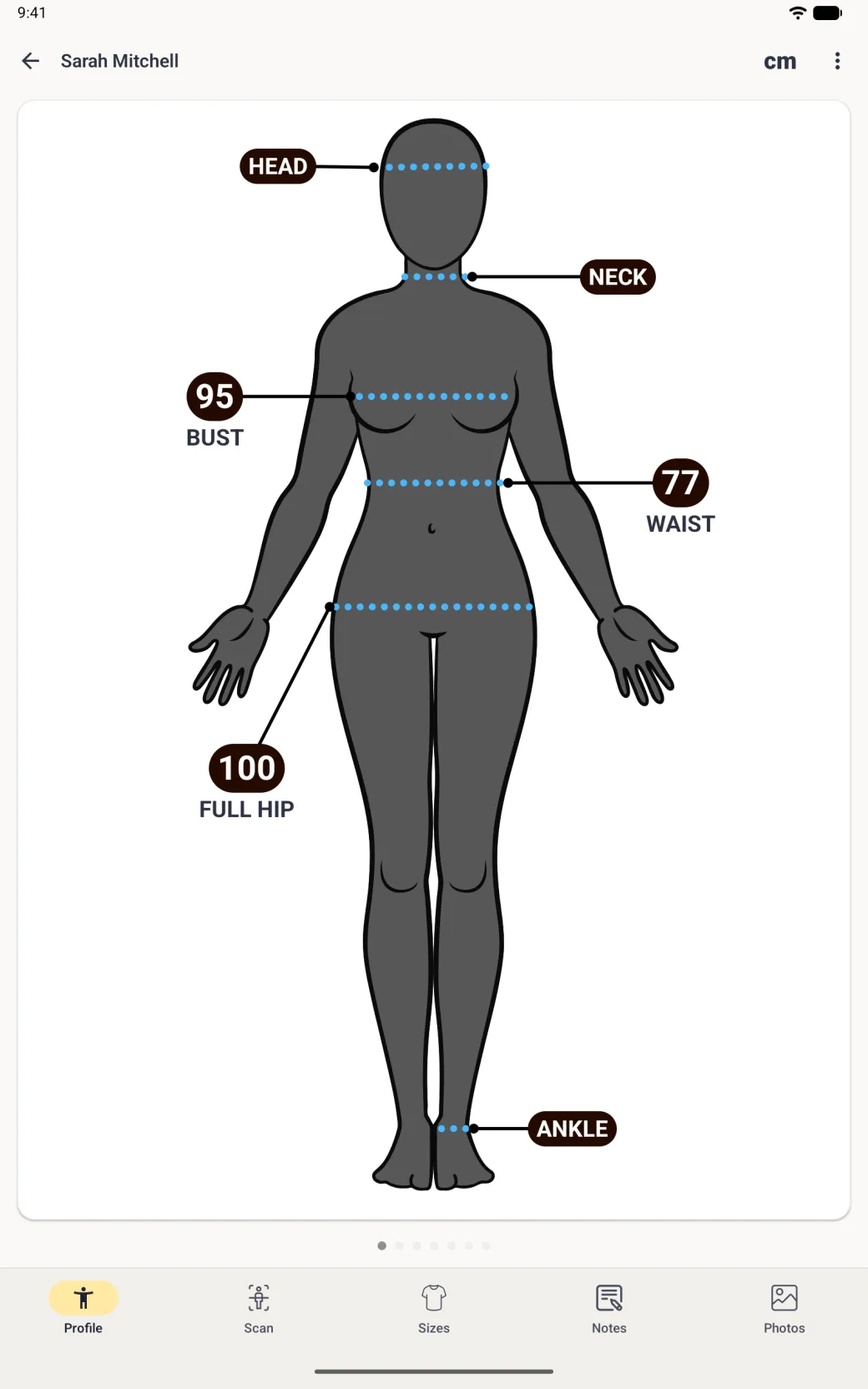
Measurements are entered one at a time, from the body on the profile screen. Some of the screens below show a phone with a Tailor Shop subscription, where a profile is called a client and the home grid becomes a Clients tab. The measuring works the same way on the free plan.
How do I enter a measurement with a tape?
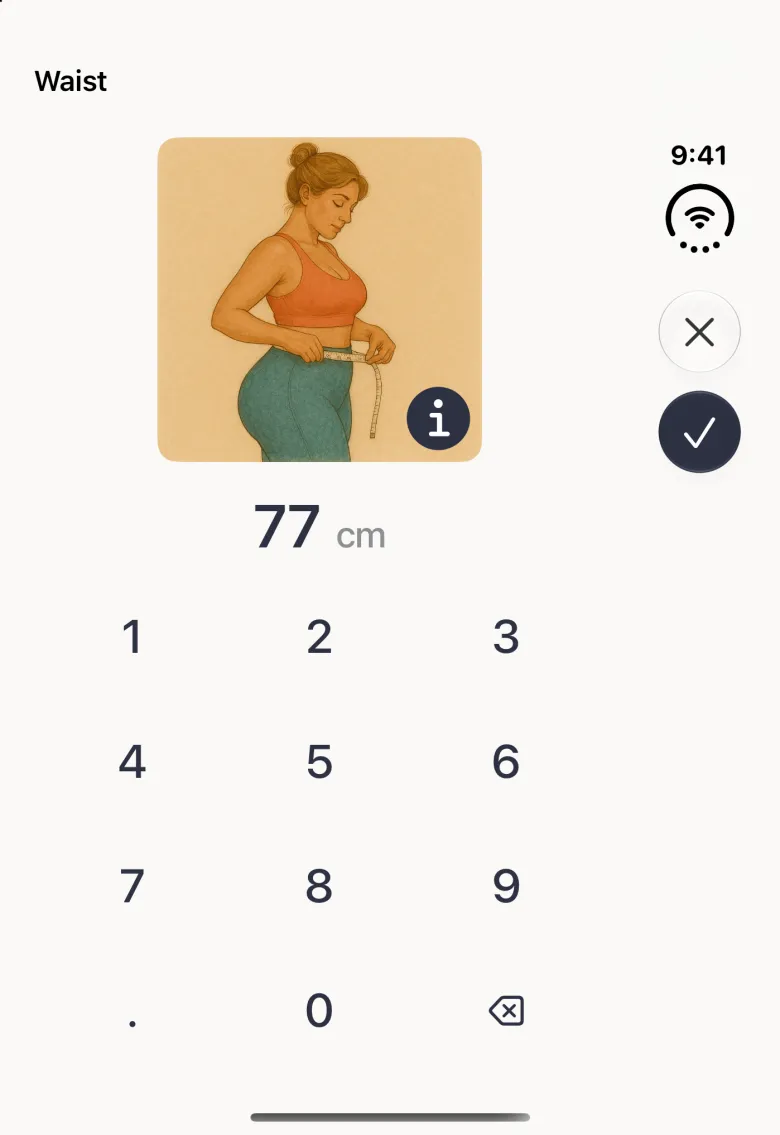
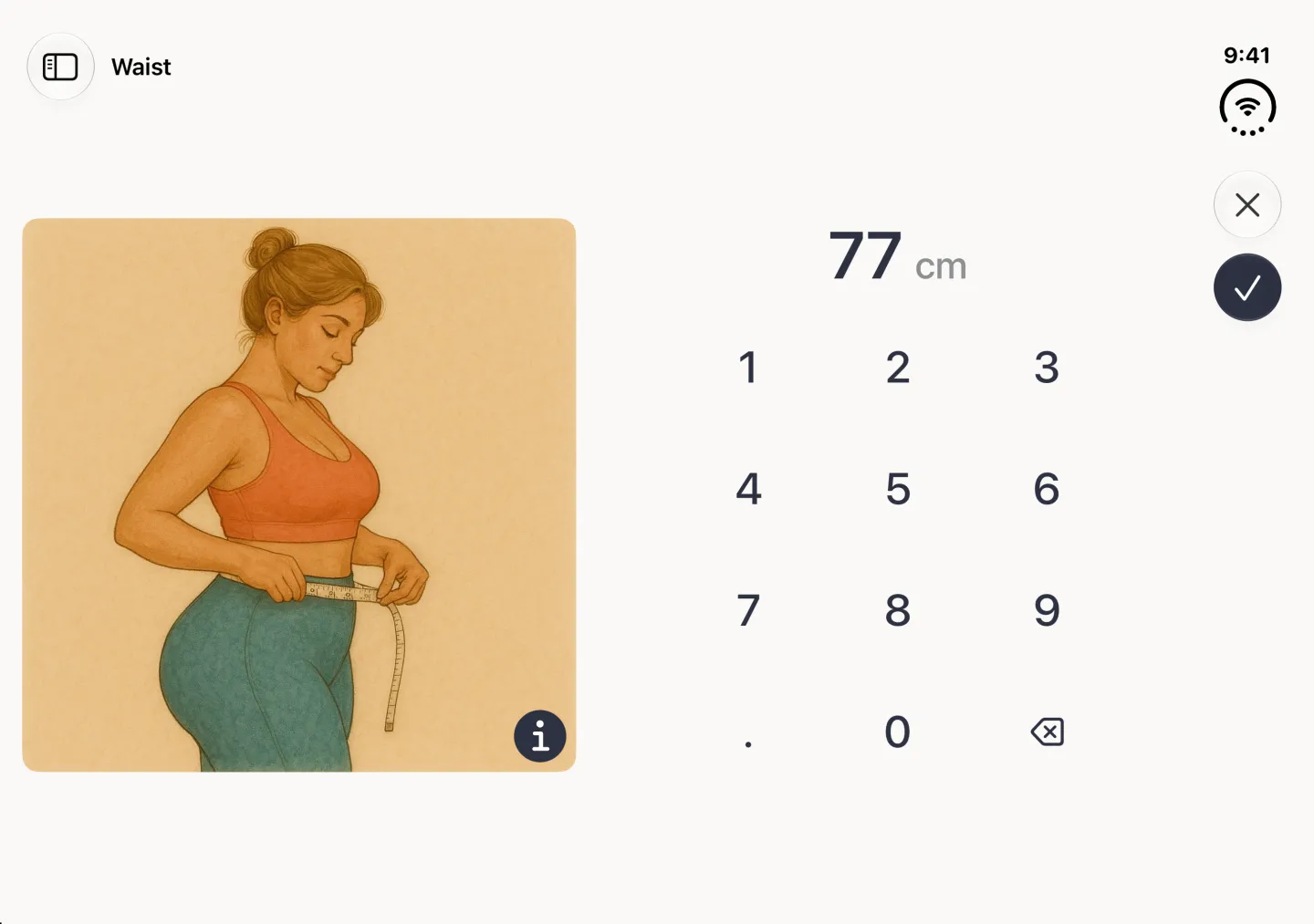
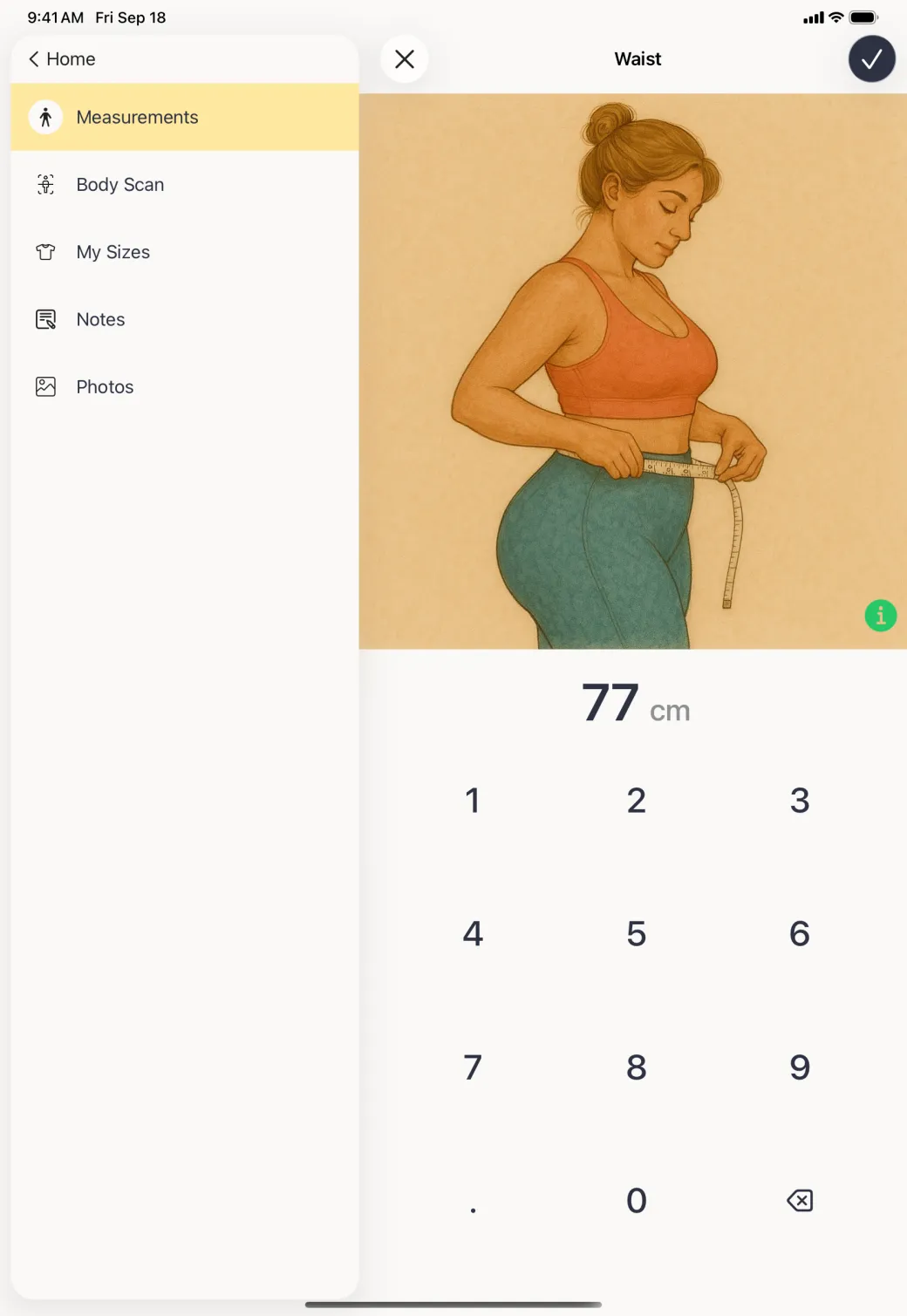
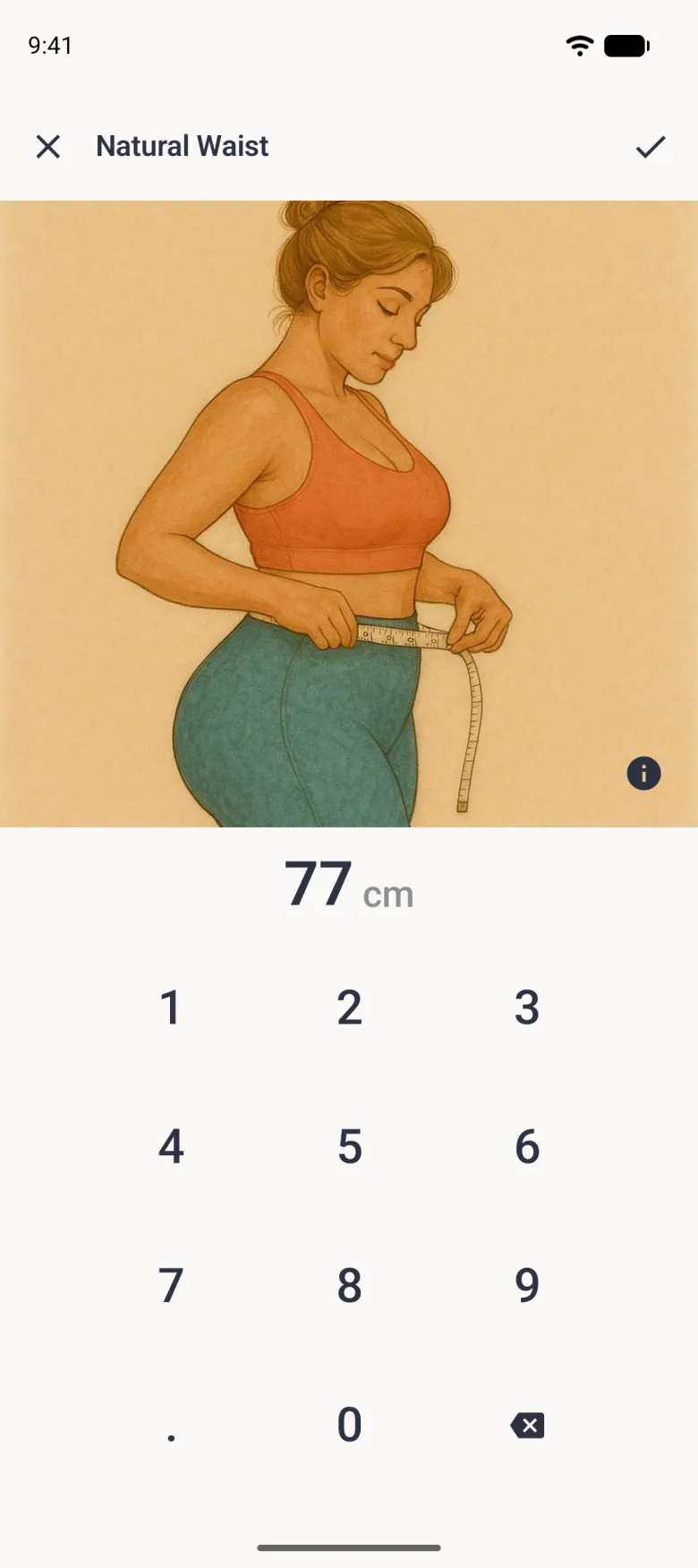
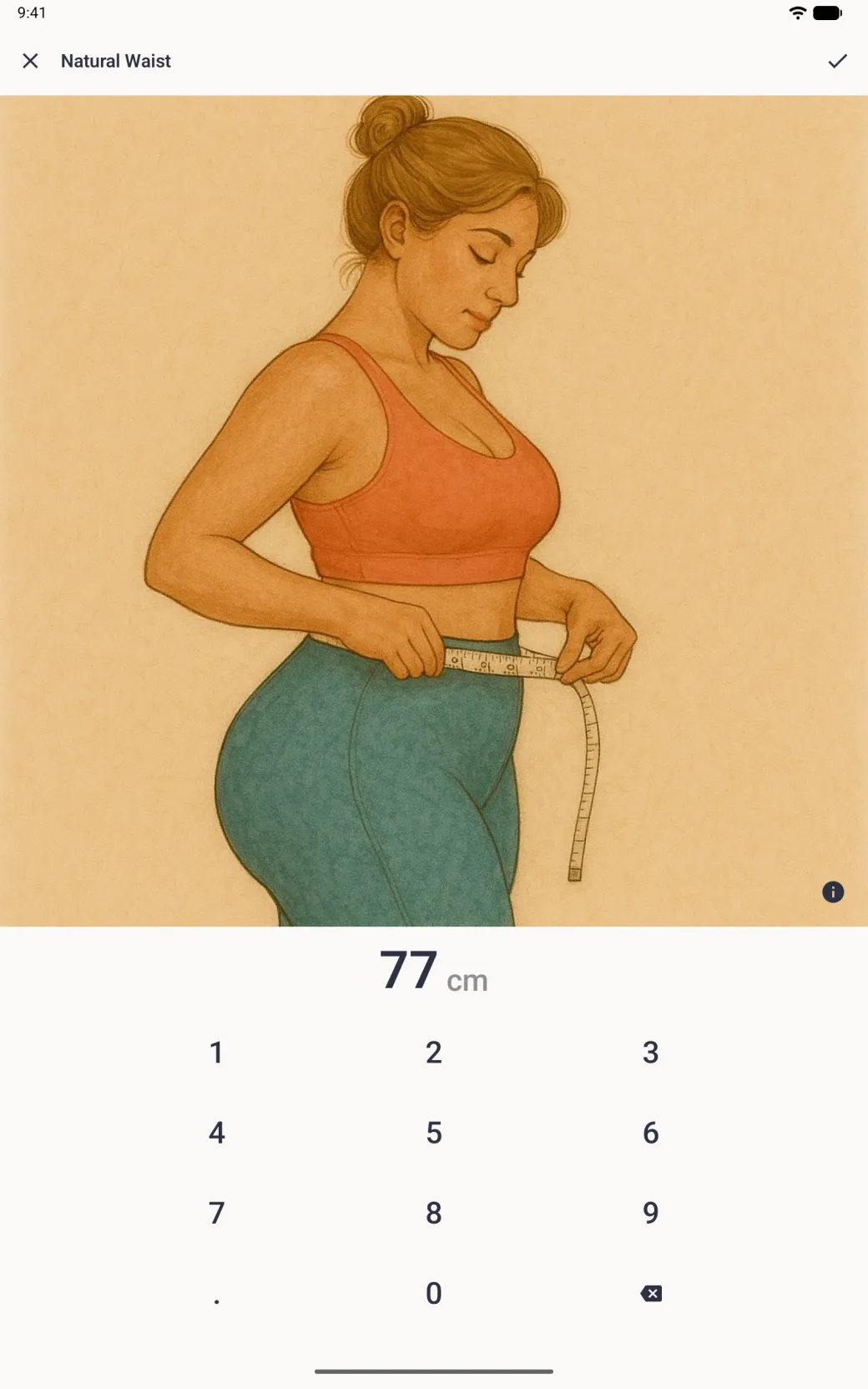
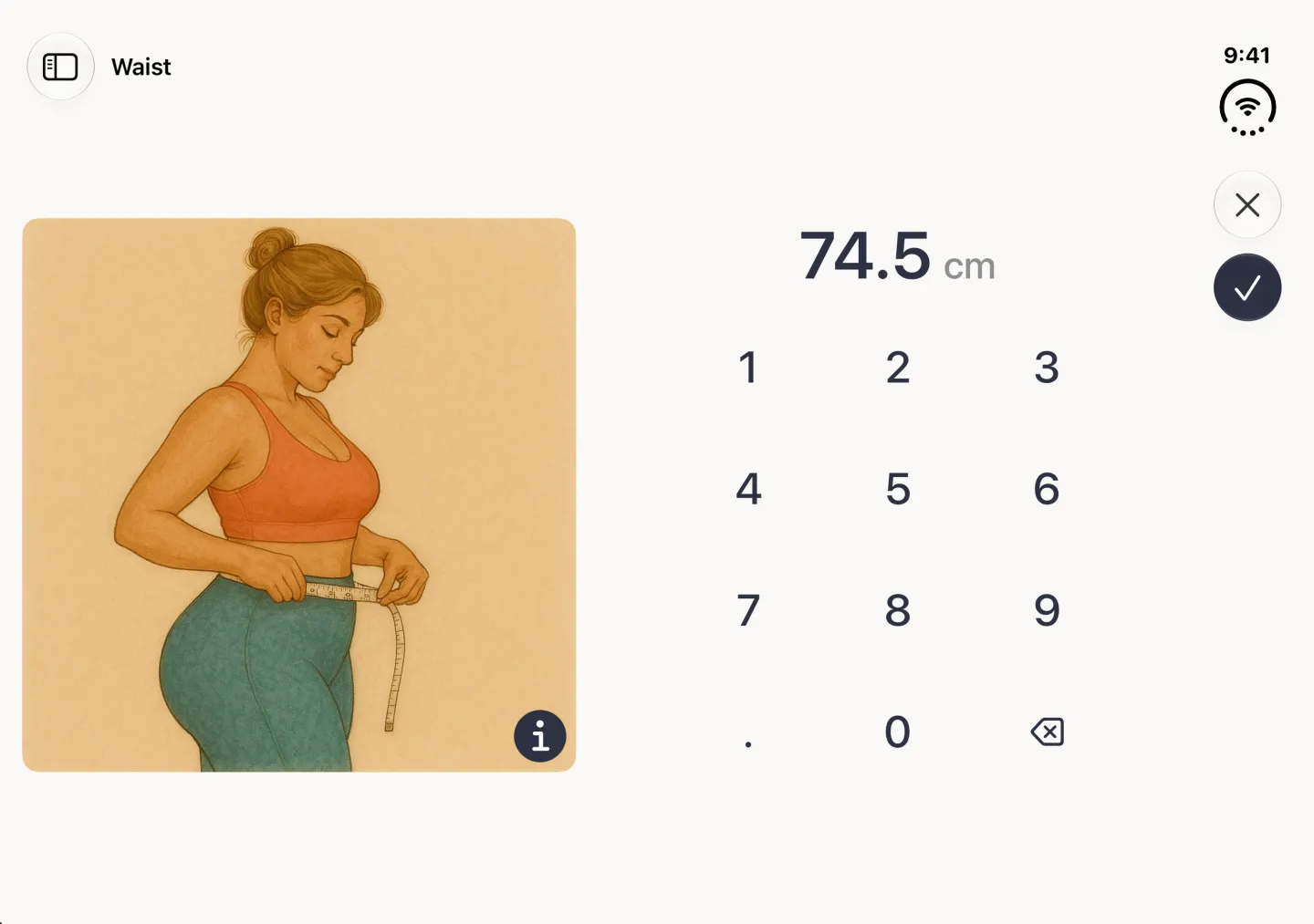
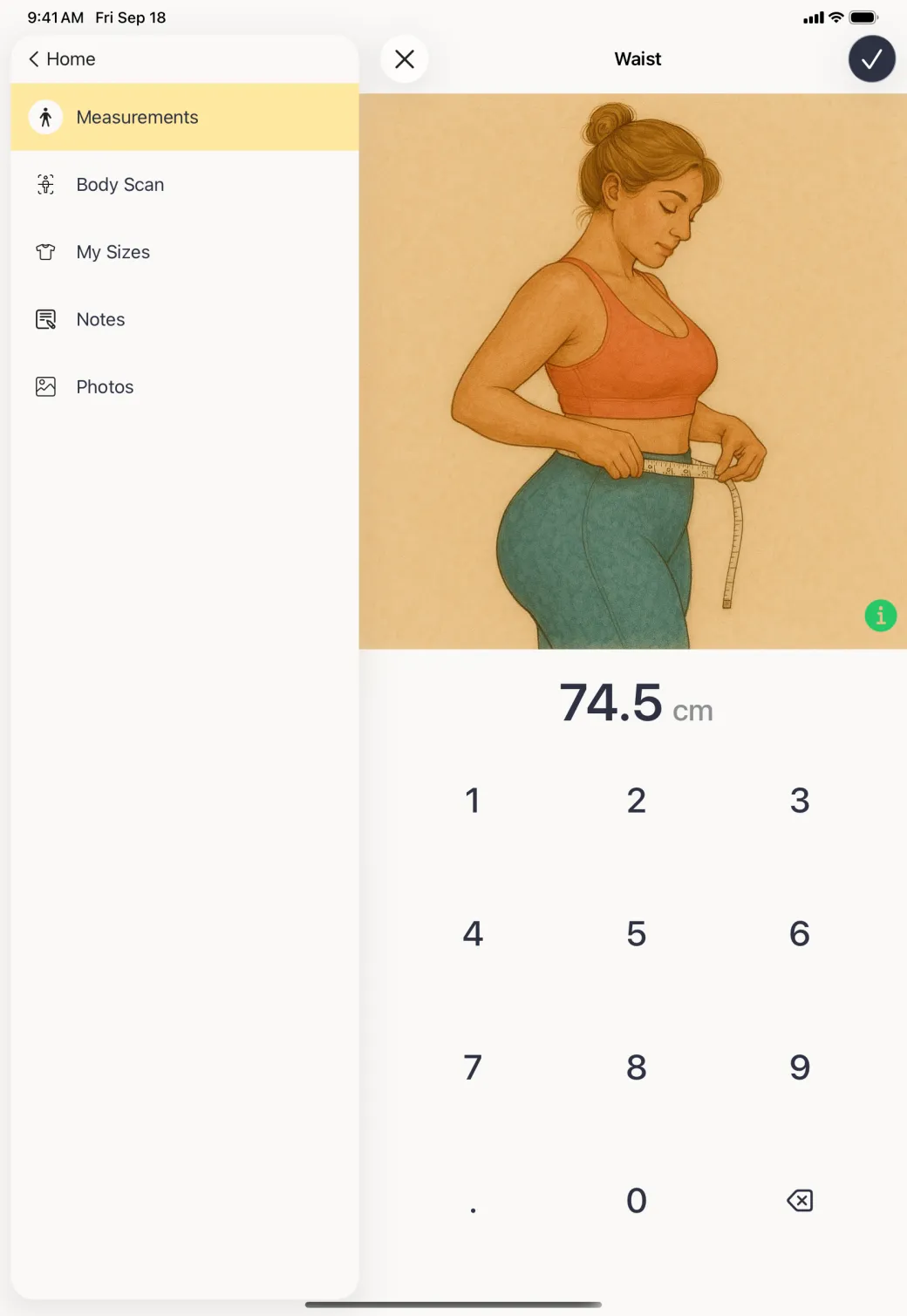
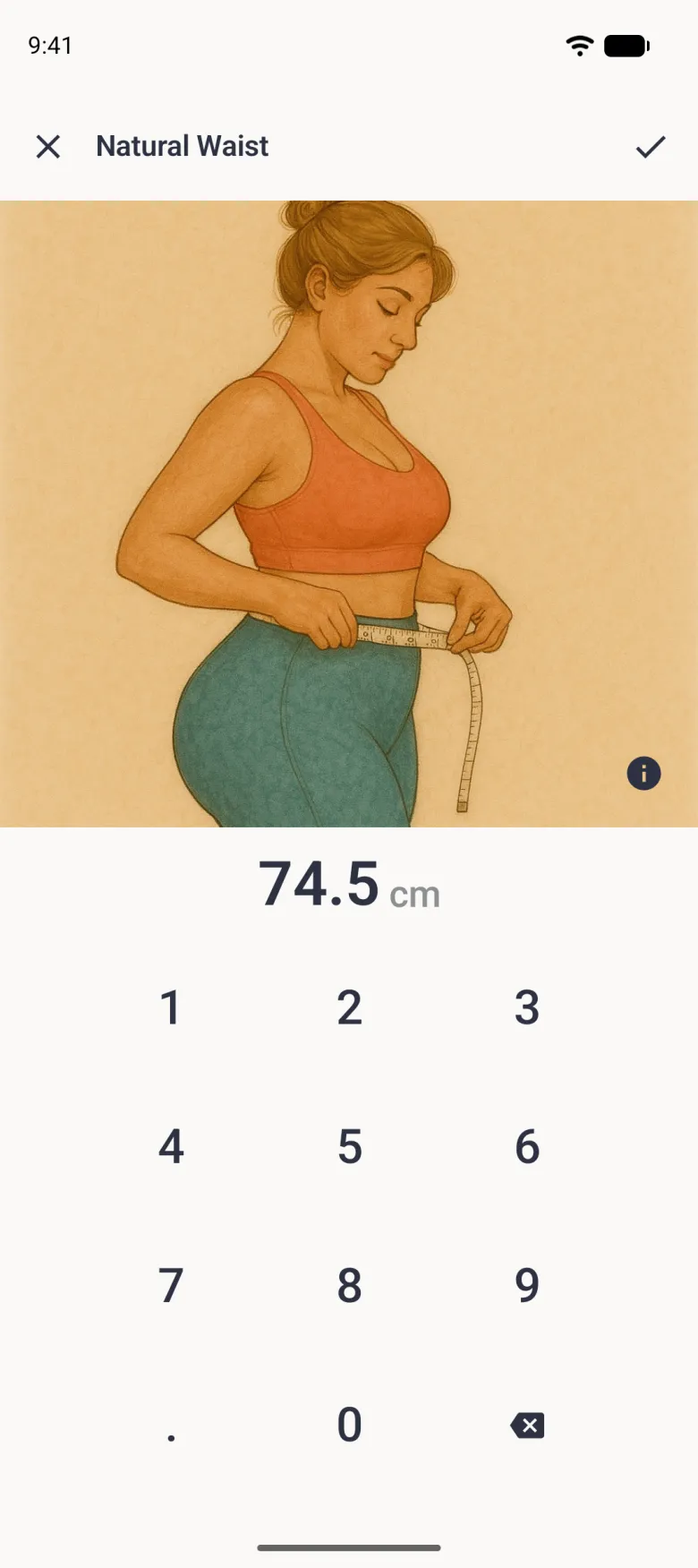
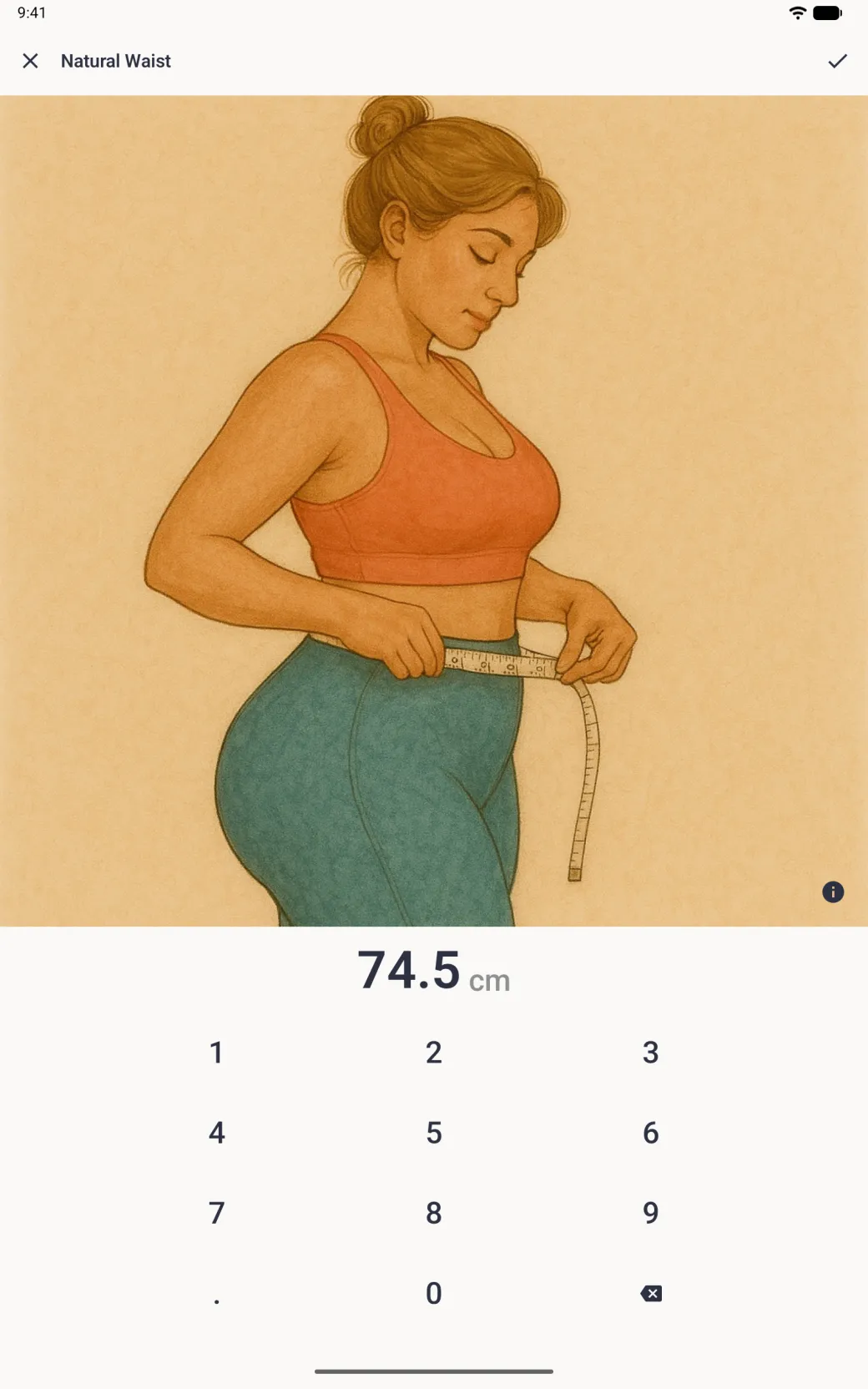
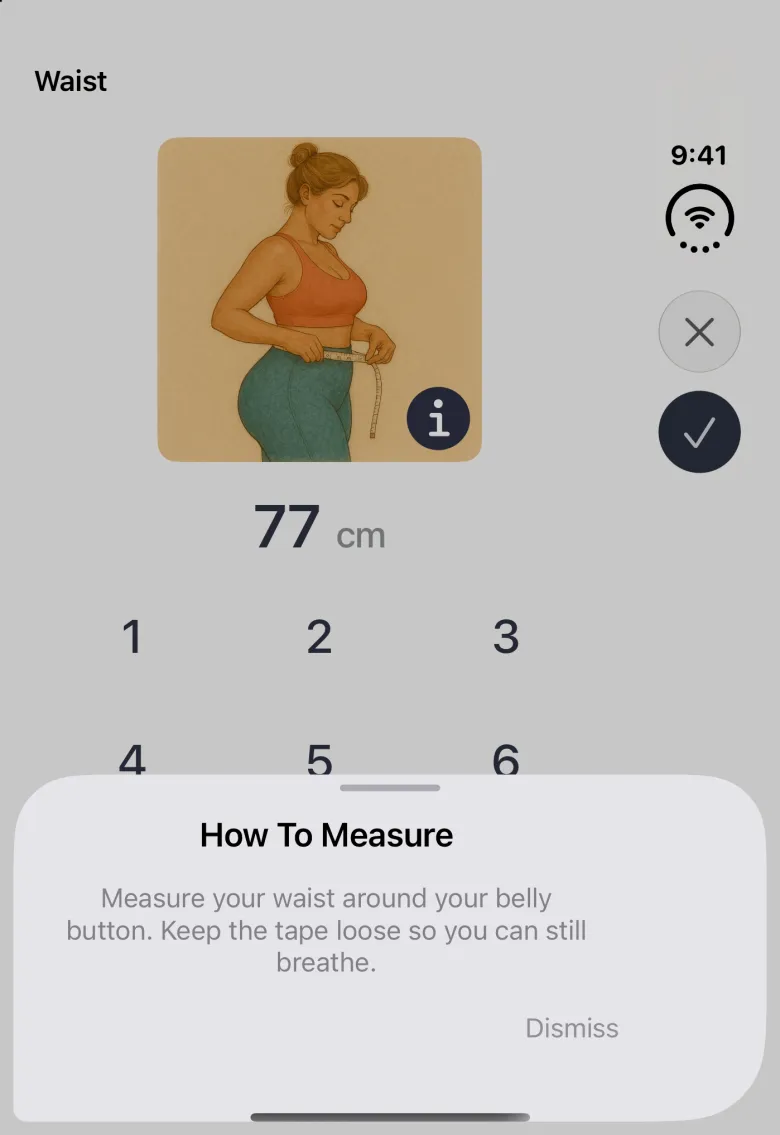
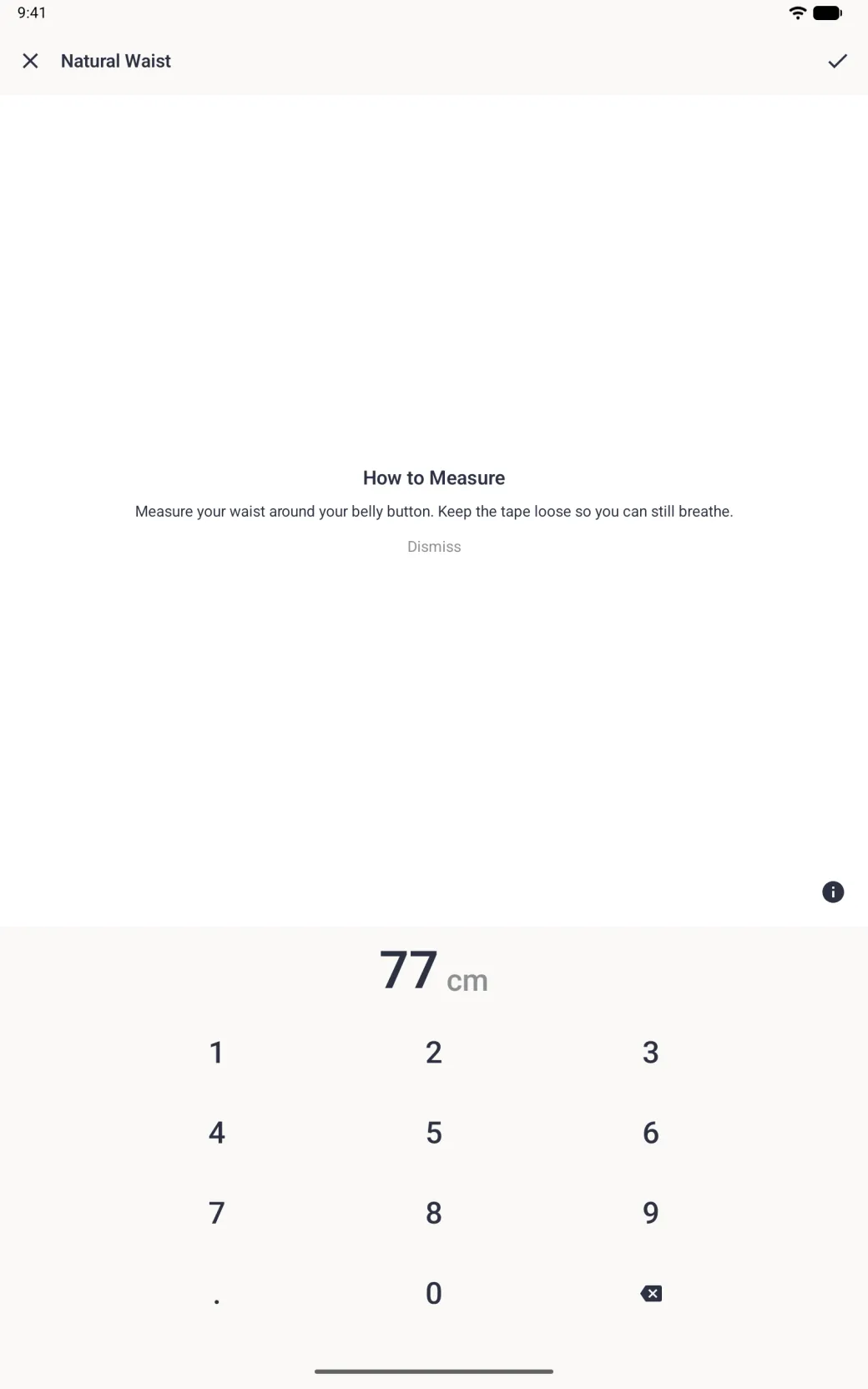
Open the profile, tap the label for the measurement you want, and type the number on the pad that opens. Each measurement has its own screen with an illustration of where the tape goes, the value that is stored now, and a number pad. Saving takes you straight back to the body.
- Open the profile from the home screen.
- Tap the label on the body, for example Waist.
- Type the number on the pad. The first digit you type replaces the whole existing value instead of adding to it, so you never have to clear the field.
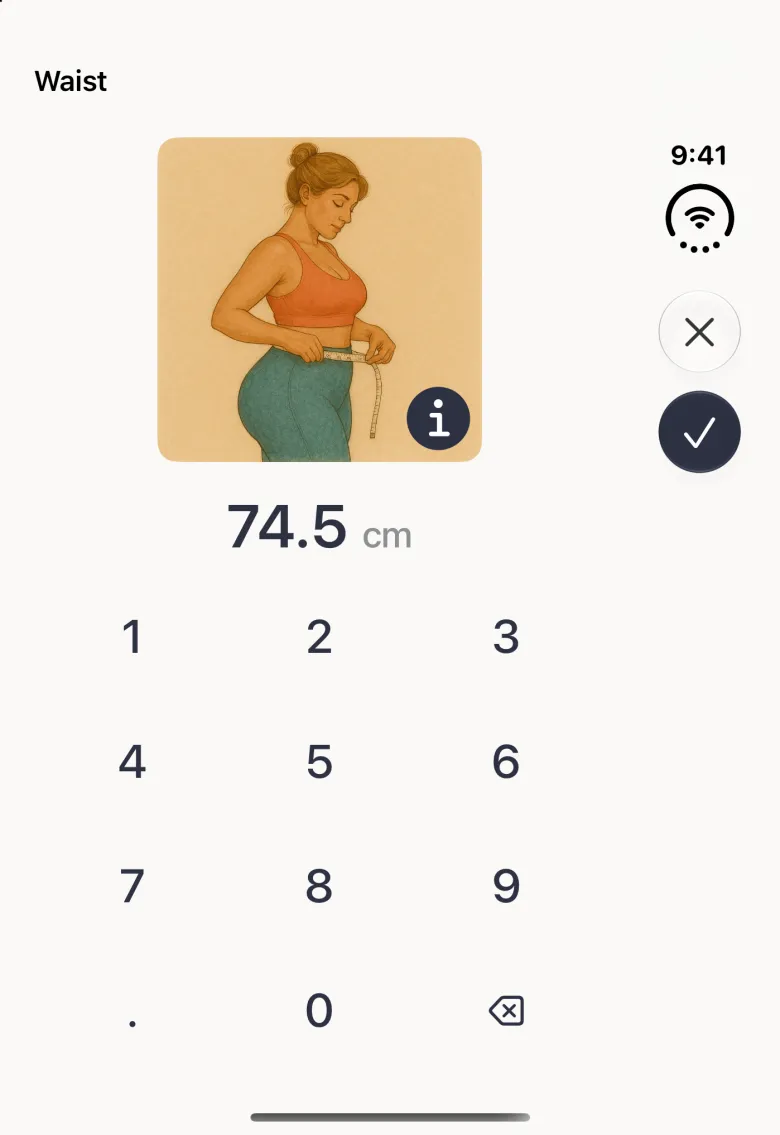
- Use the decimal key for a part measurement, such as 74.5.
- Tap the round navy checkmark at the top right to save. The close button at the top left leaves without saving.
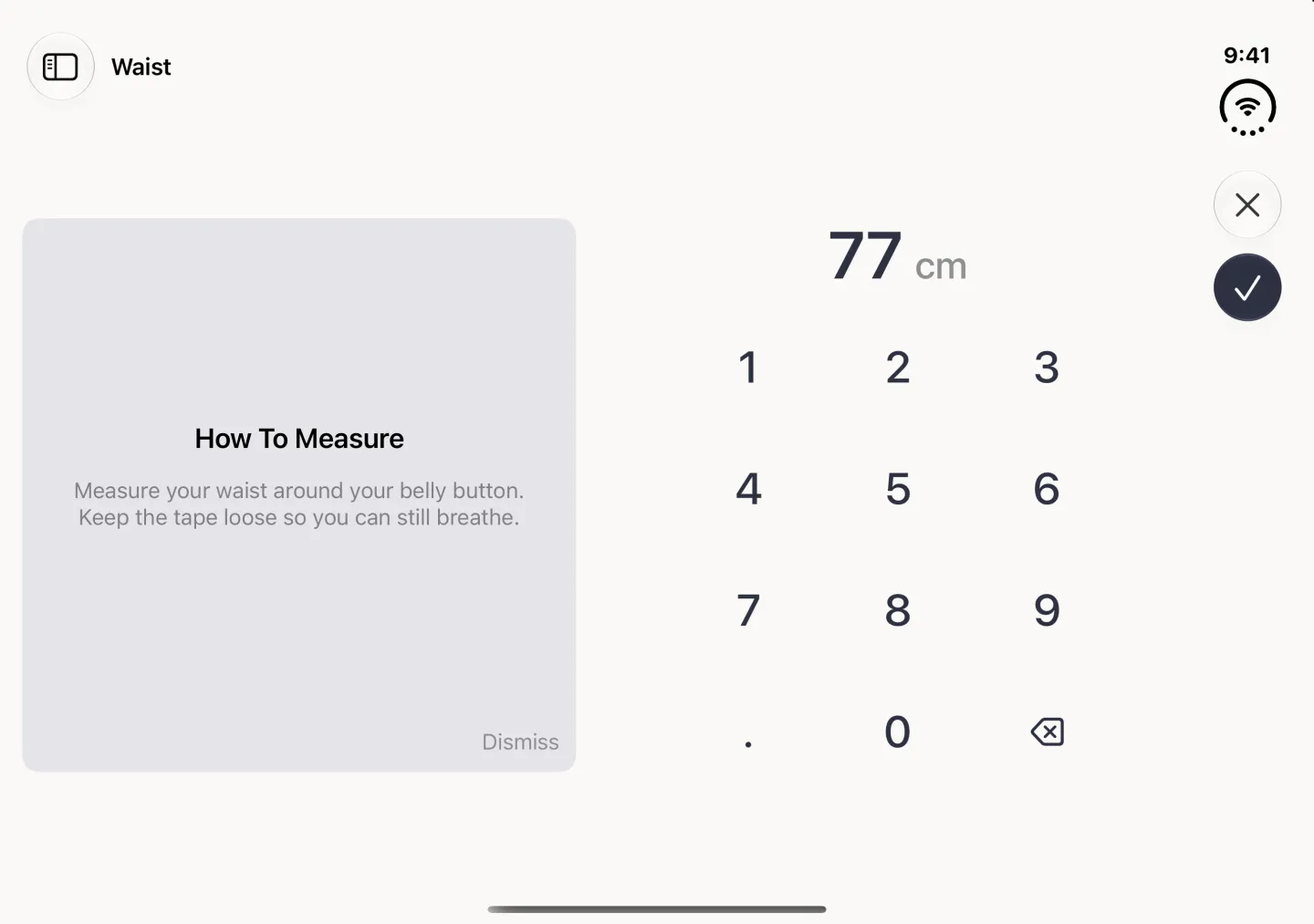
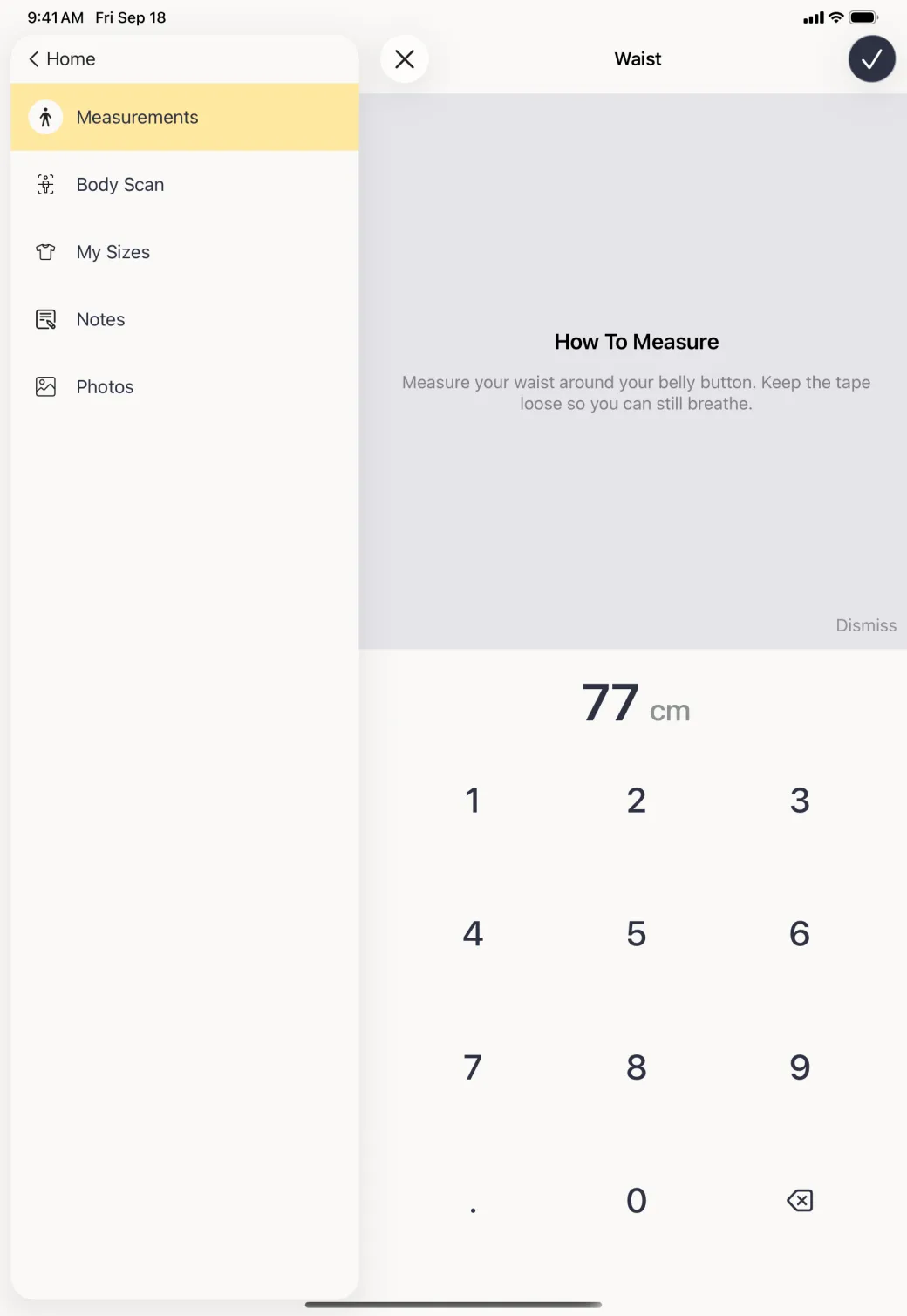
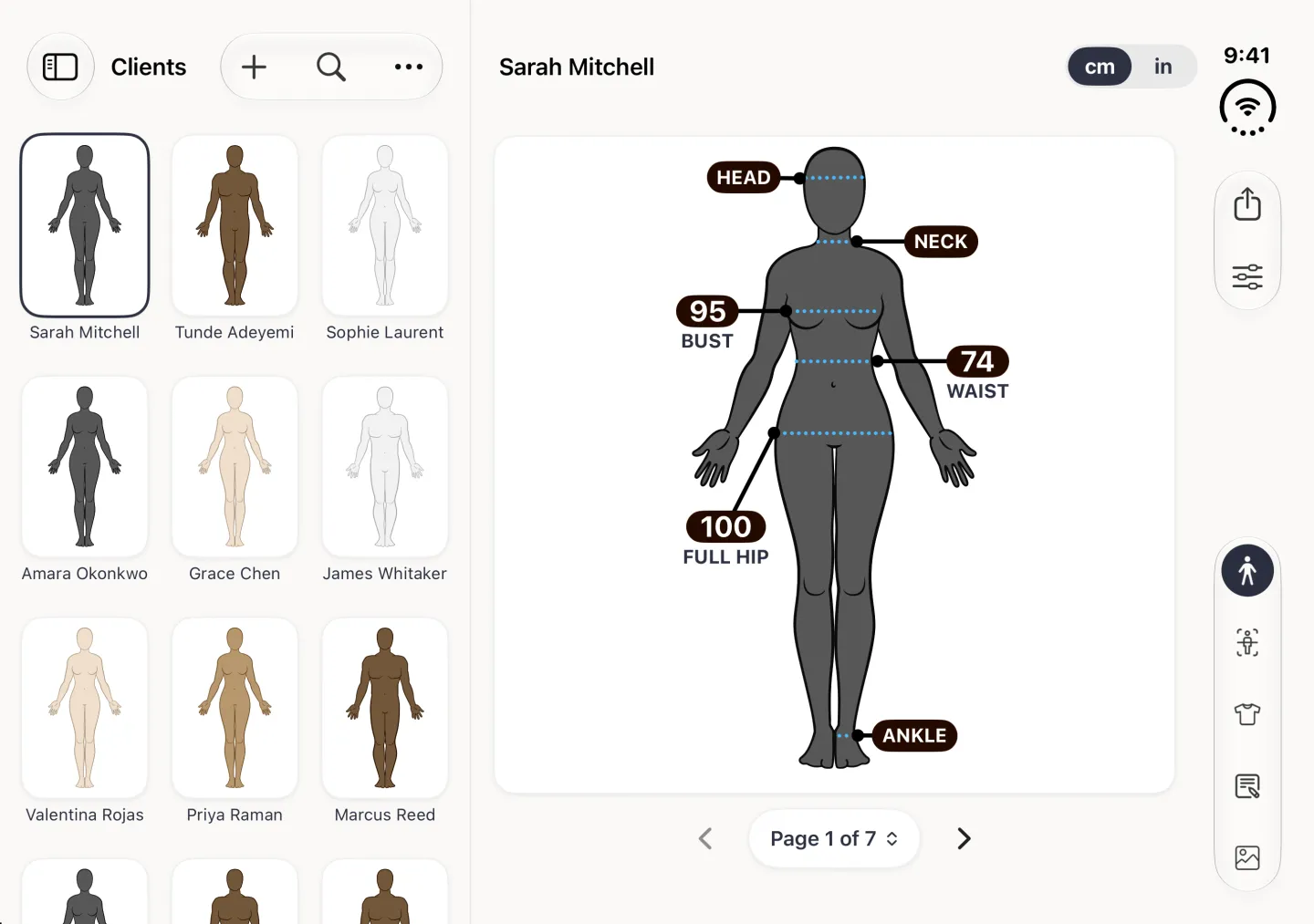
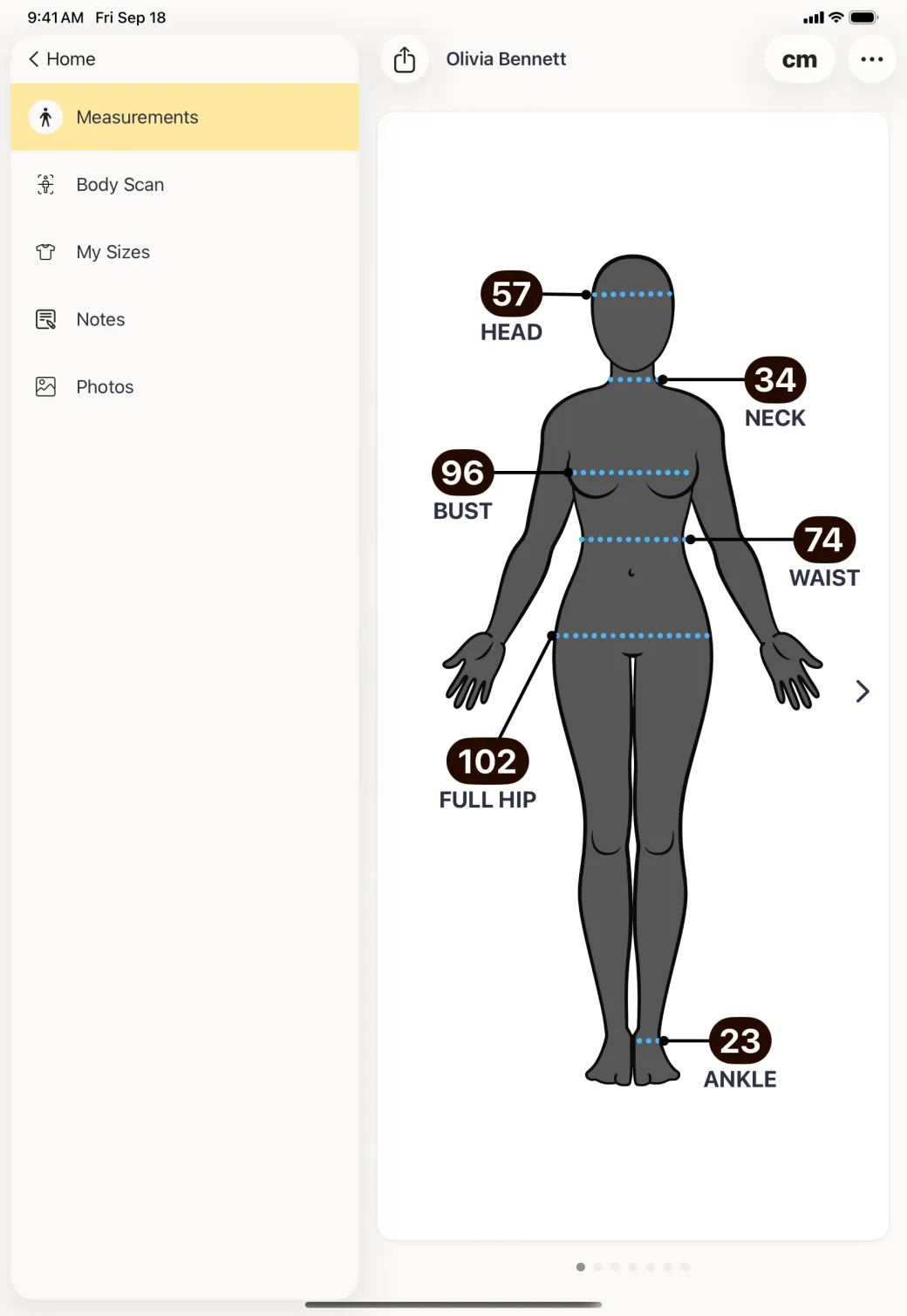
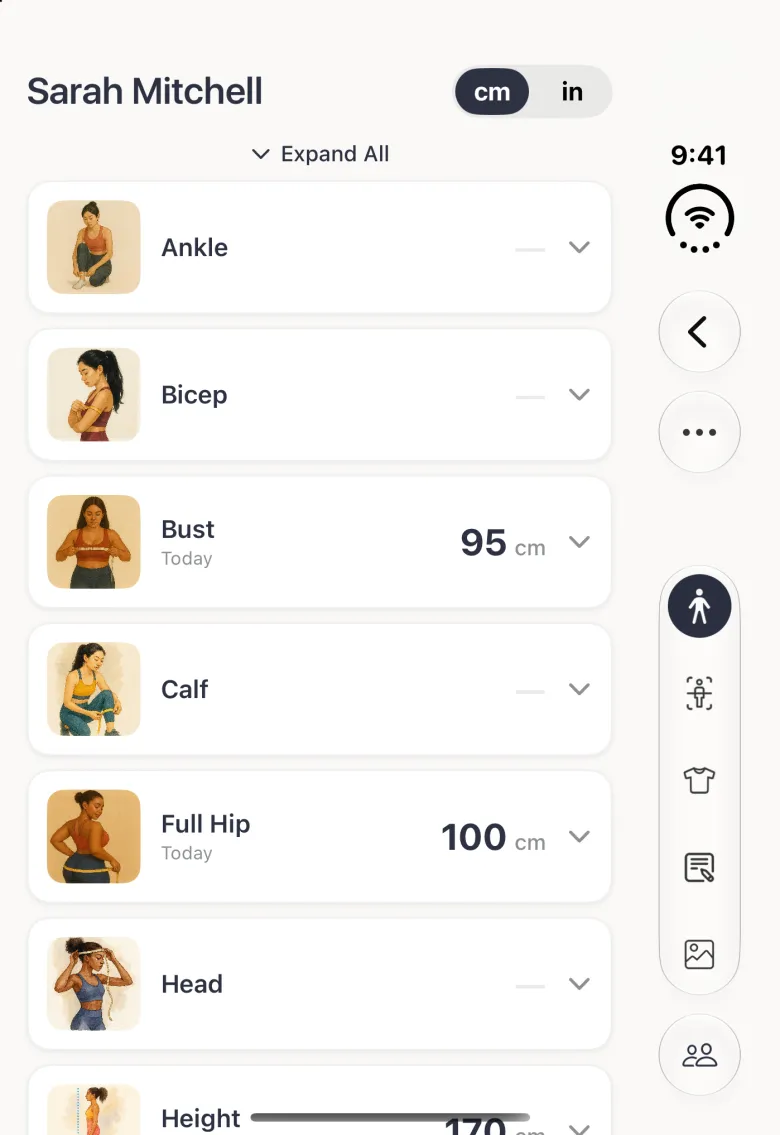
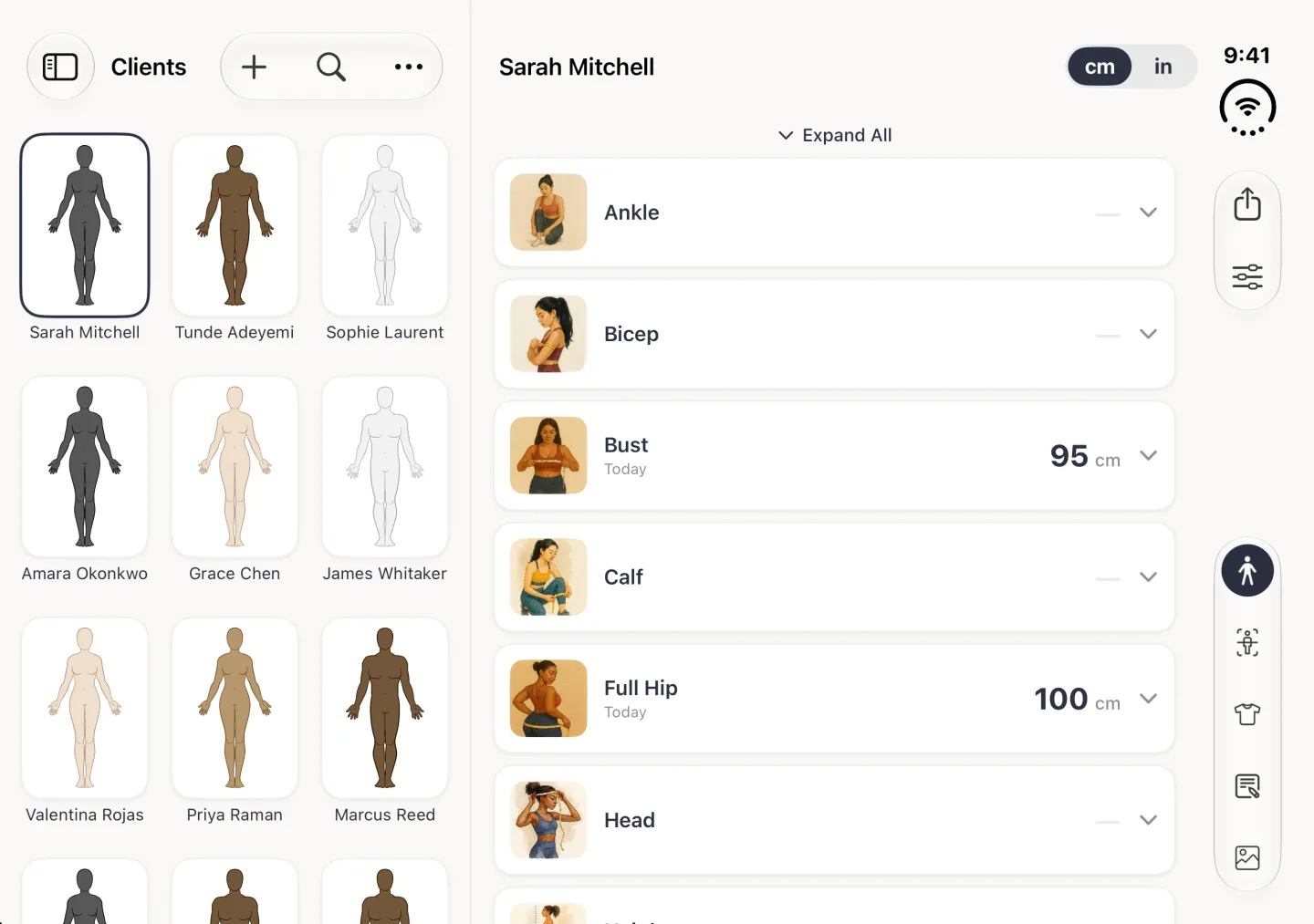
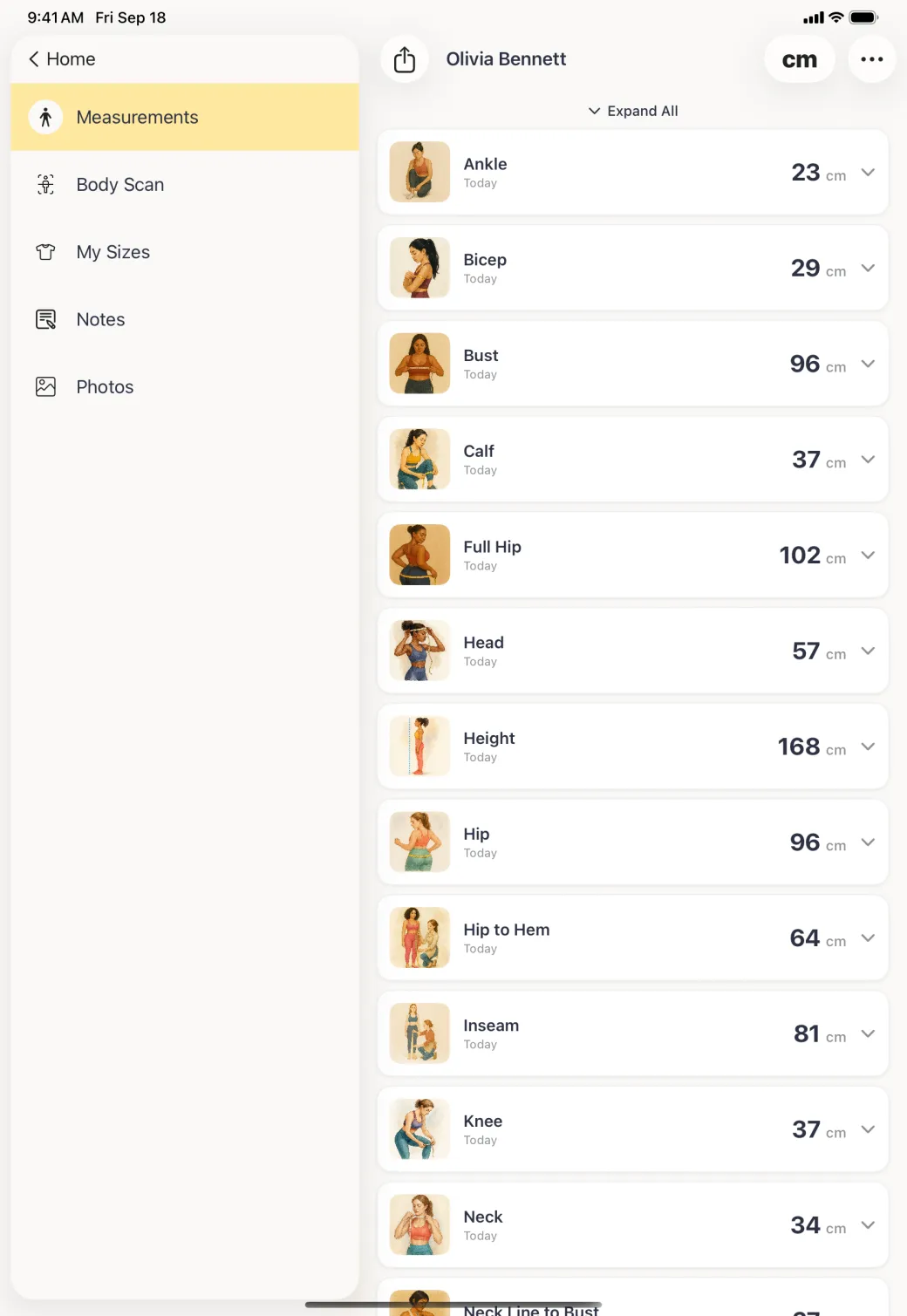
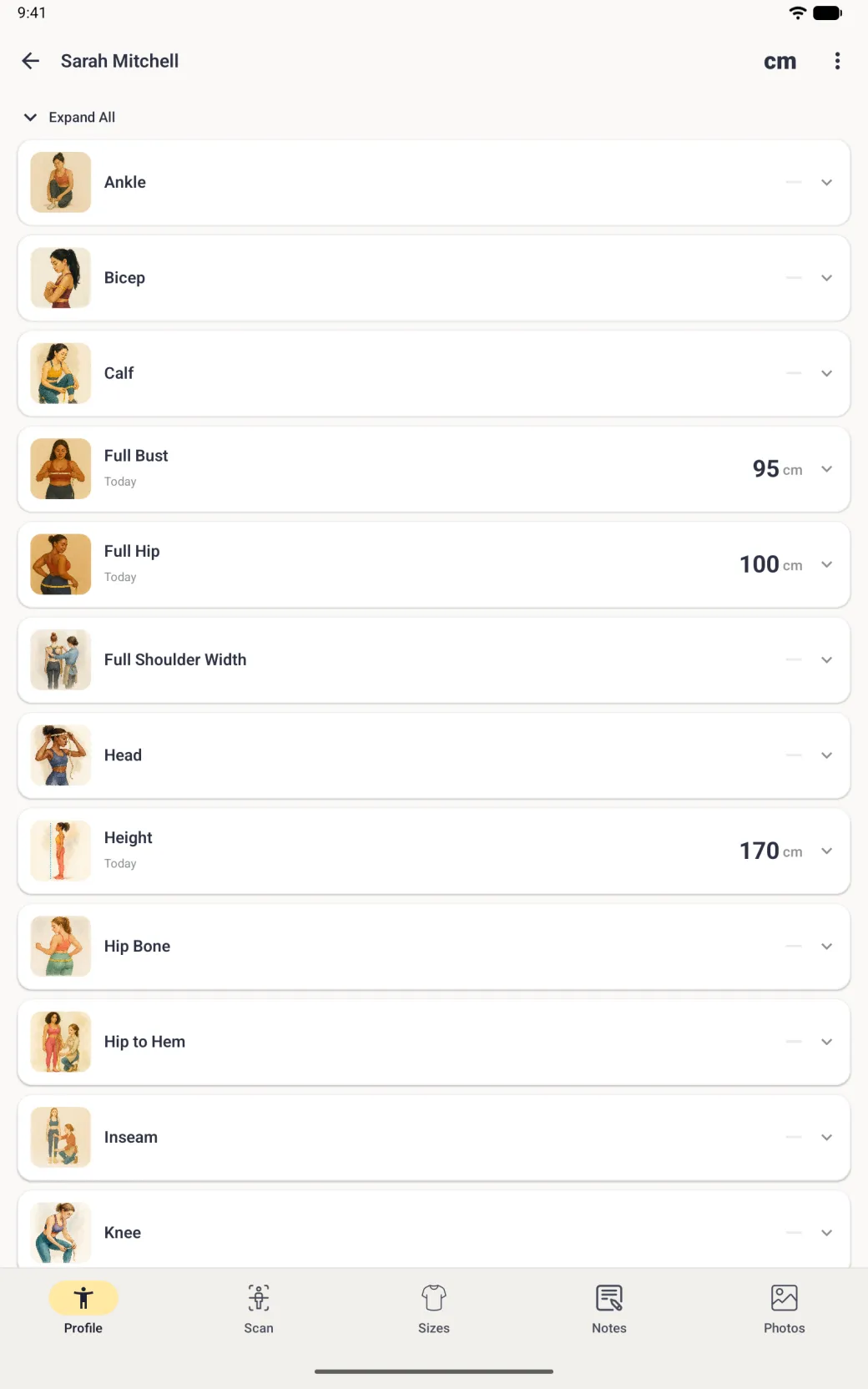
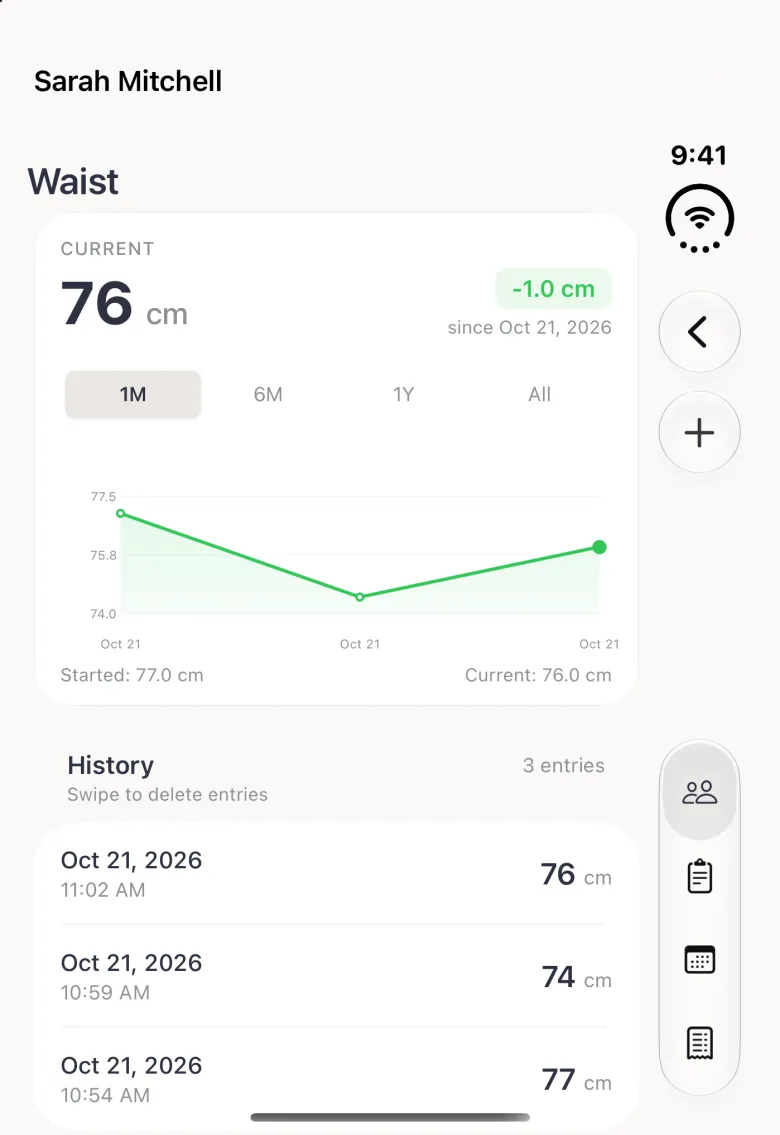
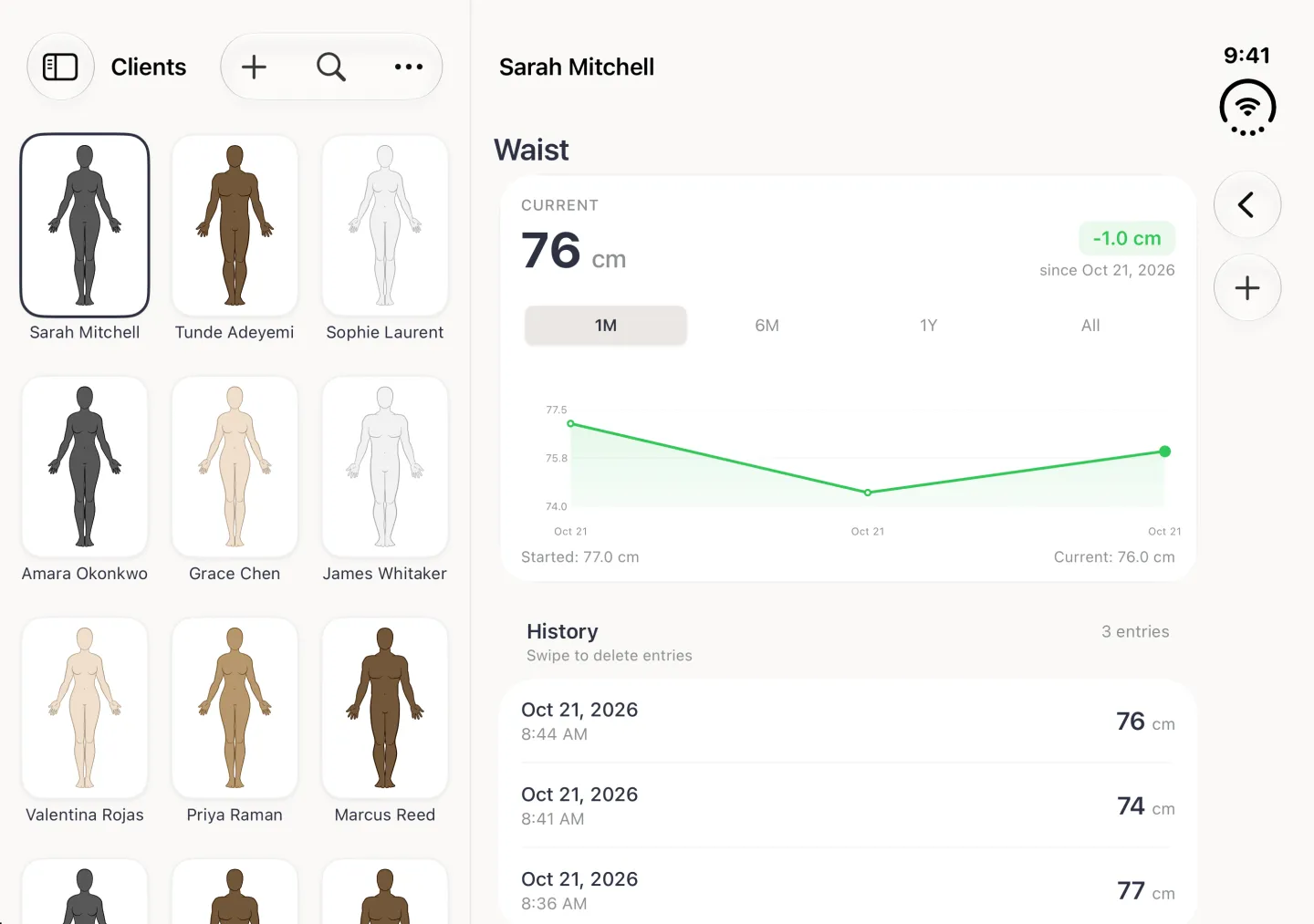
On iPad and on iPhone Duo, opened, the Clients list sits beside the profile. On iPhone Duo the share, options and section buttons move to a strip on the right, and the entry screen’s close and checkmark buttons sit in that strip too; closed, it works like an iPhone with Back, a round more button and the section buttons in the strip.




How do I know where to put the tape?
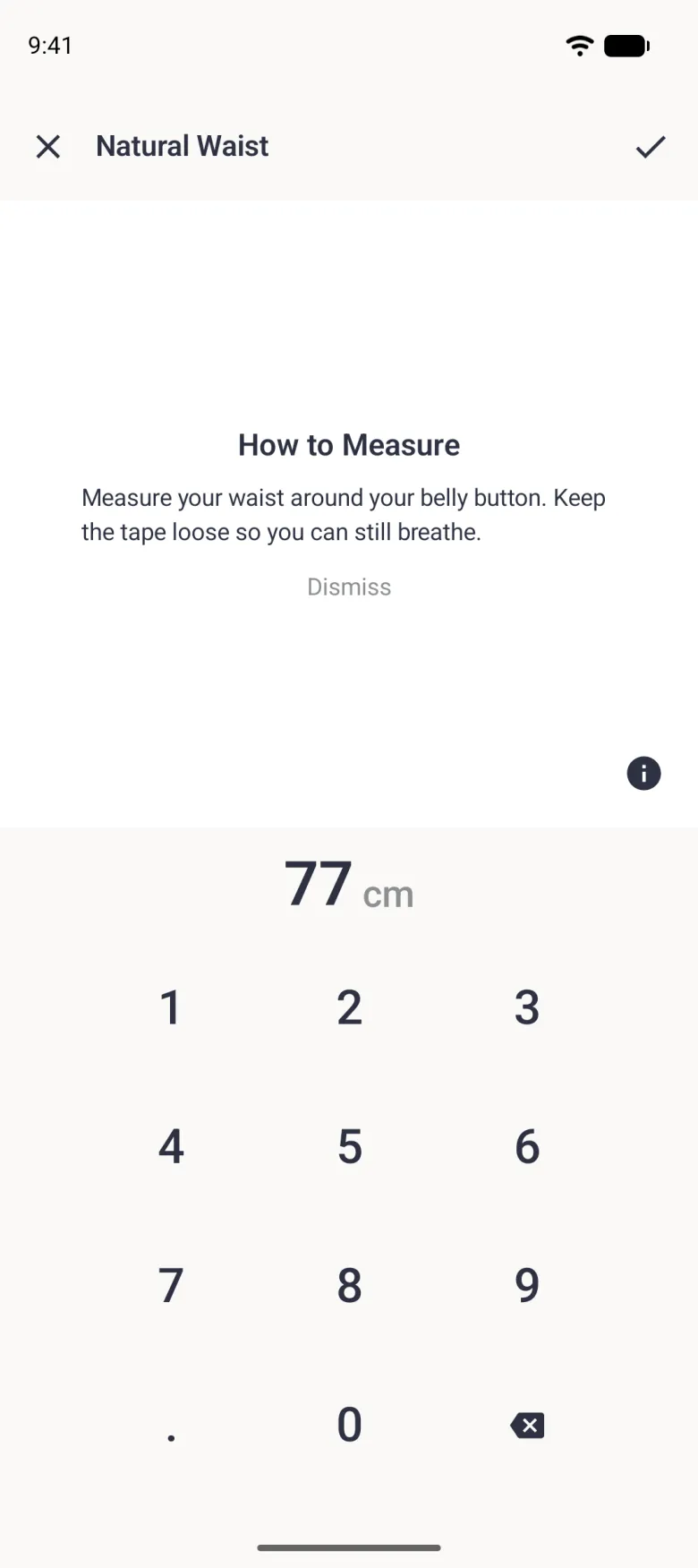
Every built-in measurement carries its own instructions. Tap the round navy information button at the bottom right of the illustration and a How To Measure panel replaces it with a sentence or two on where the tape goes and how tight to pull it. Tap Dismiss to bring the illustration back. Anything you have already typed stays in the field while the panel is open. On a small screen, such as the closed iPhone Duo, the instructions open in a sheet instead. On Android the button is navy too.

Why does the saved label read a whole number?
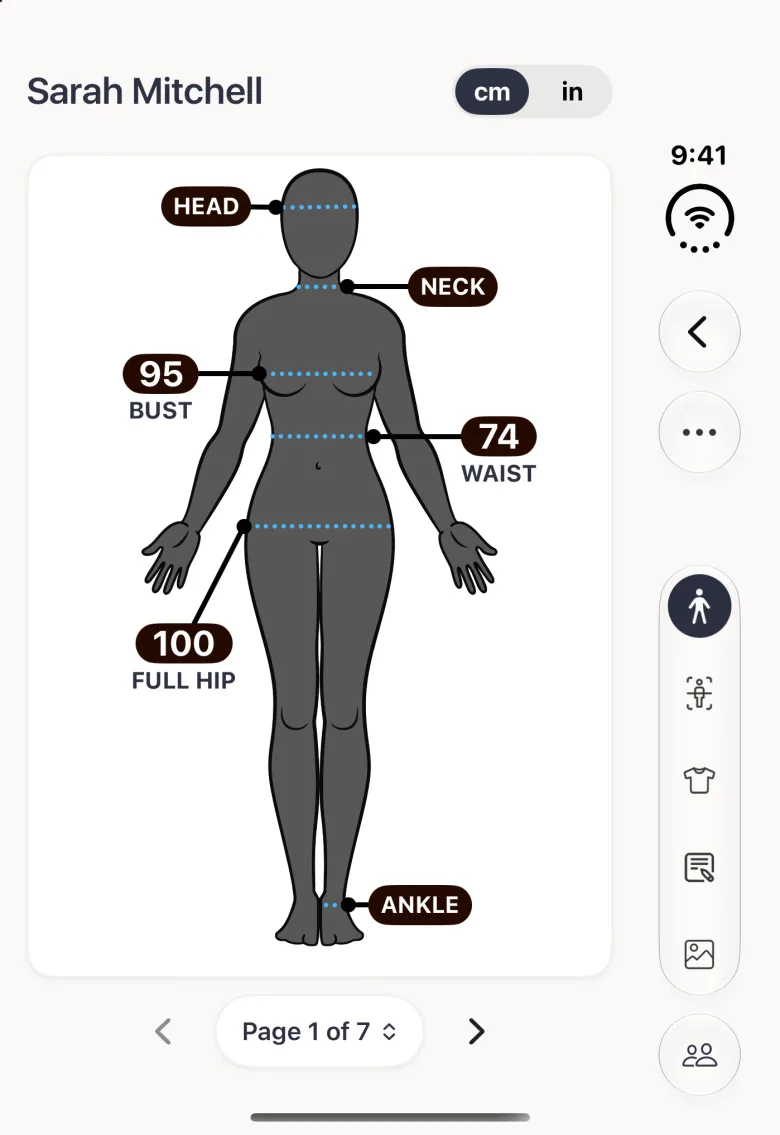
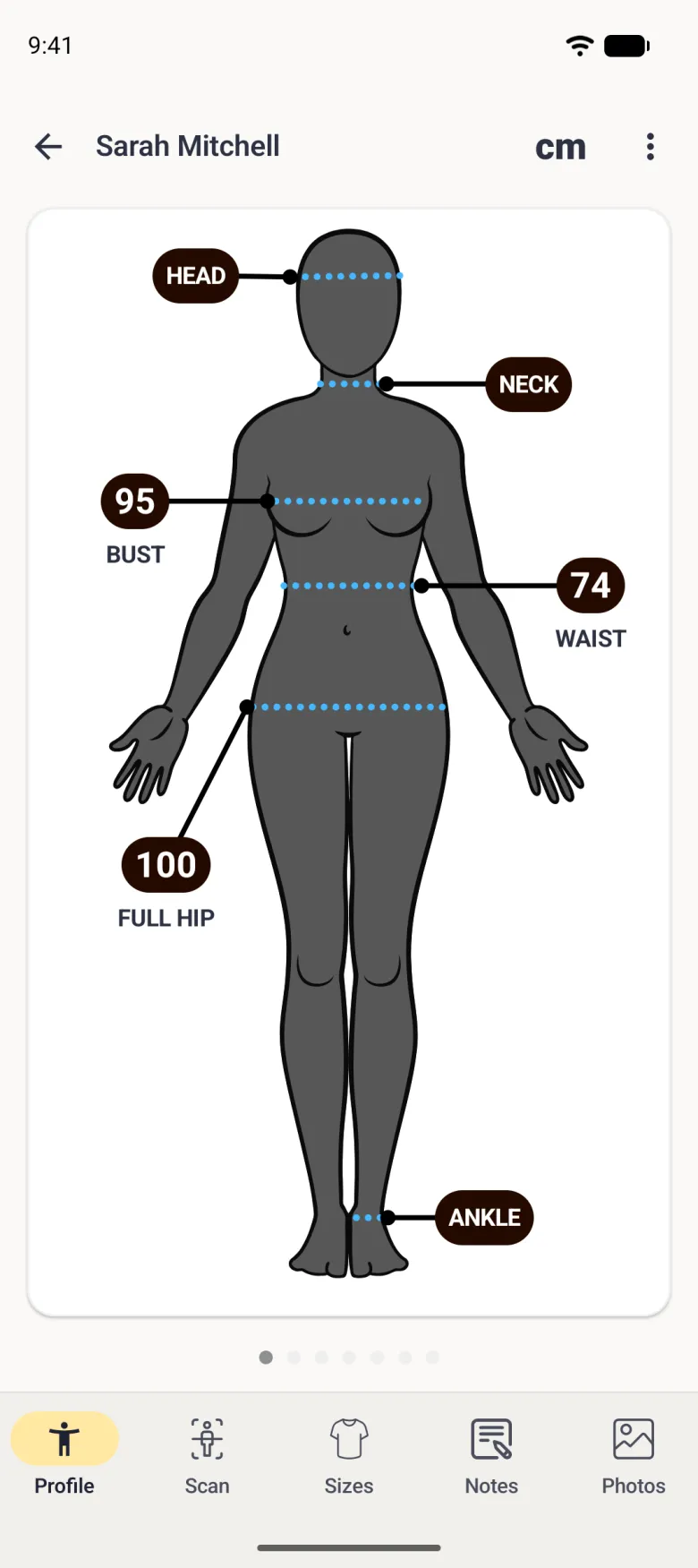
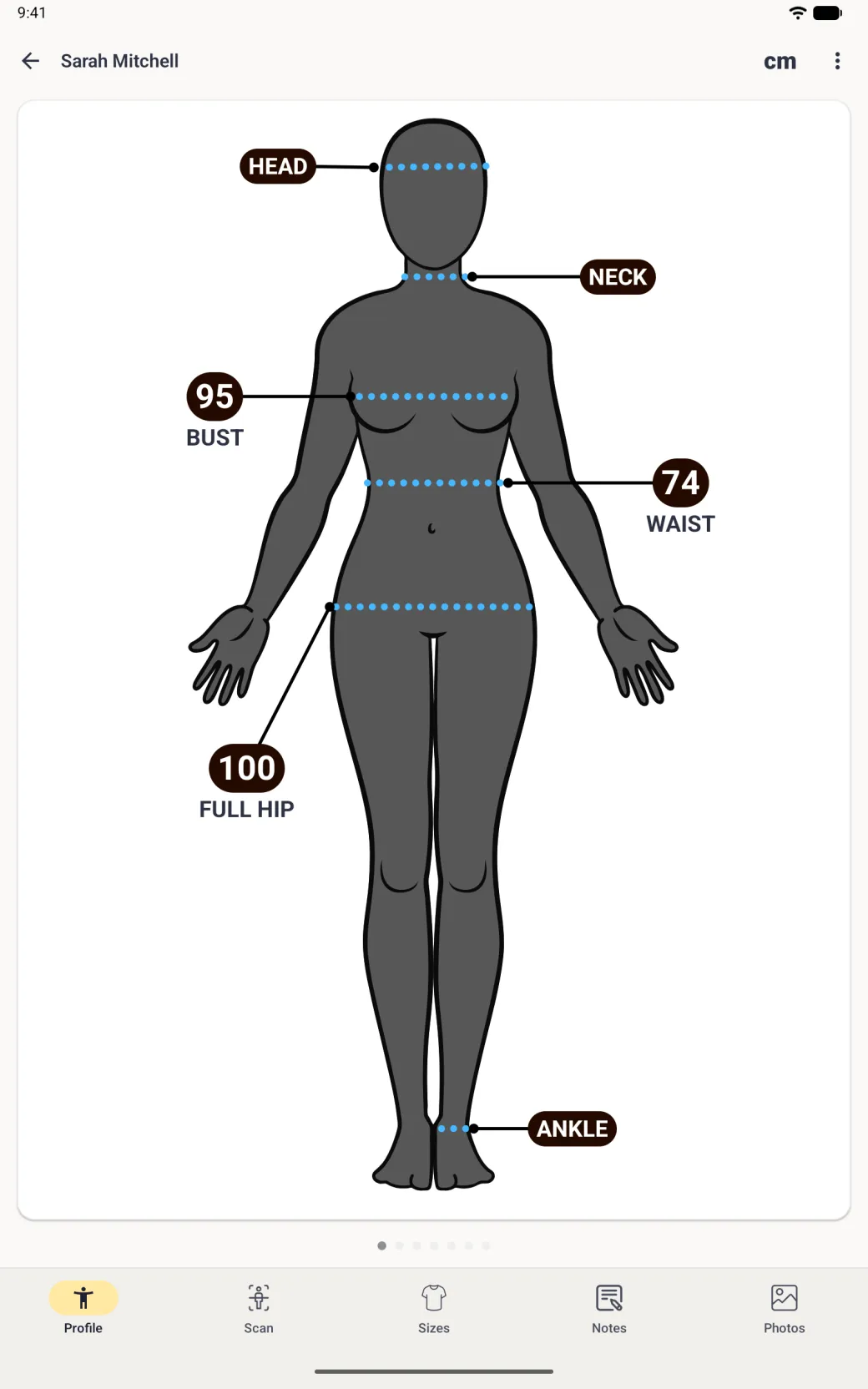
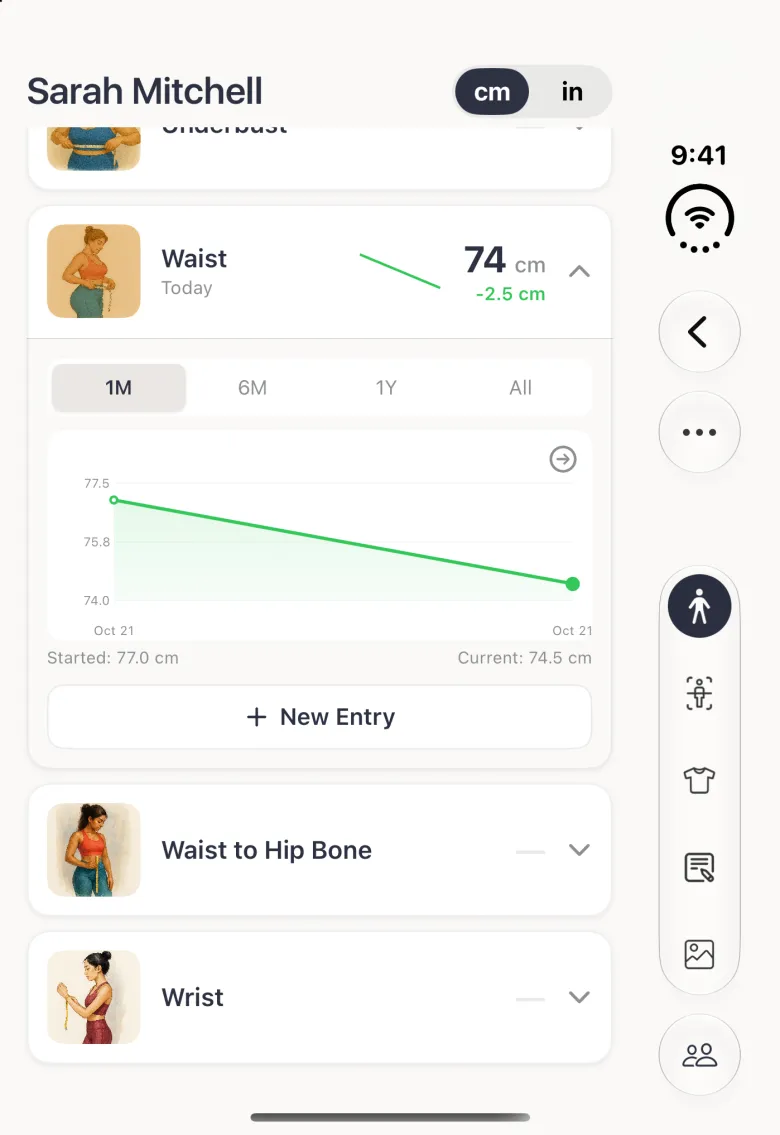
Centimetres are displayed as whole numbers and inches to one decimal place, so a waist typed as 74.5 cm shows as 74 on the body. Only the display is rounded. The full value is what gets stored, which is why the history for that waist still reads 74.5 cm. Rounding is done half to even, so a value ending in .5 does not always round up.

How do I switch between centimetres and inches?
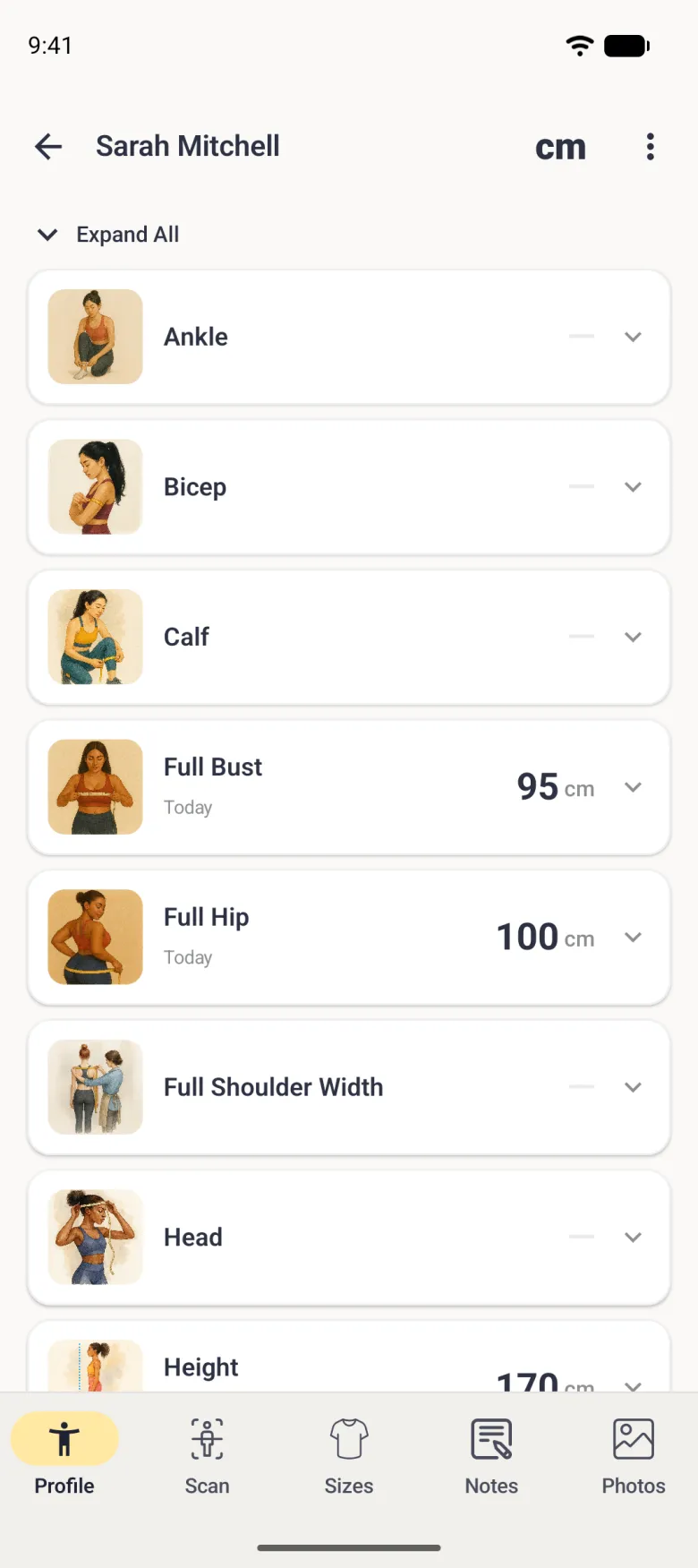
Tap cm or in on the switch beside the name at the top of the profile. The selected half turns navy and every value on the screen converts with it. On Android it is a cm button in the top bar, and its label switches. Measurements are stored in the unit they were entered in, so switching the display and switching back returns the original number with nothing lost.
How do I see how a measurement has changed?
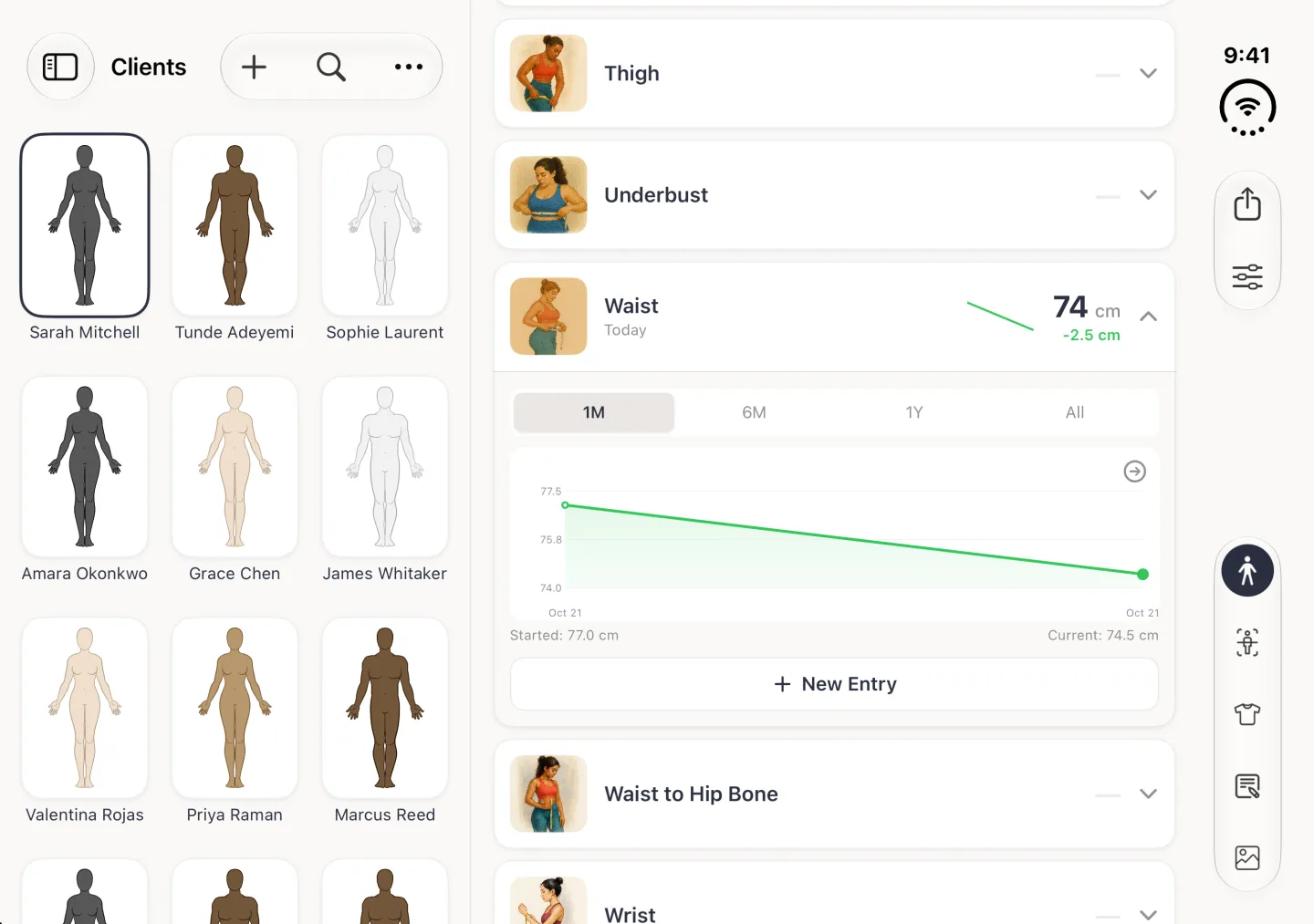
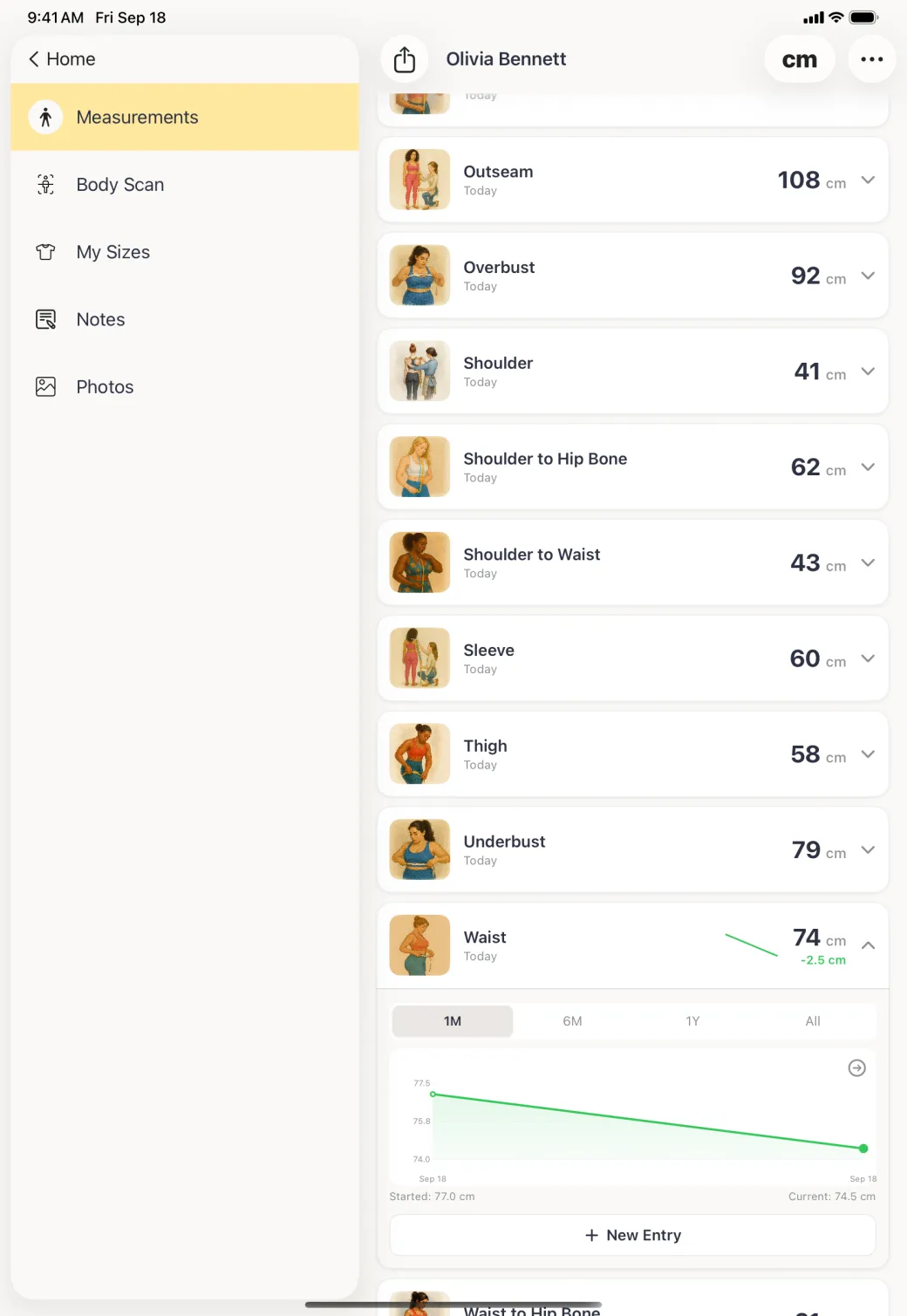
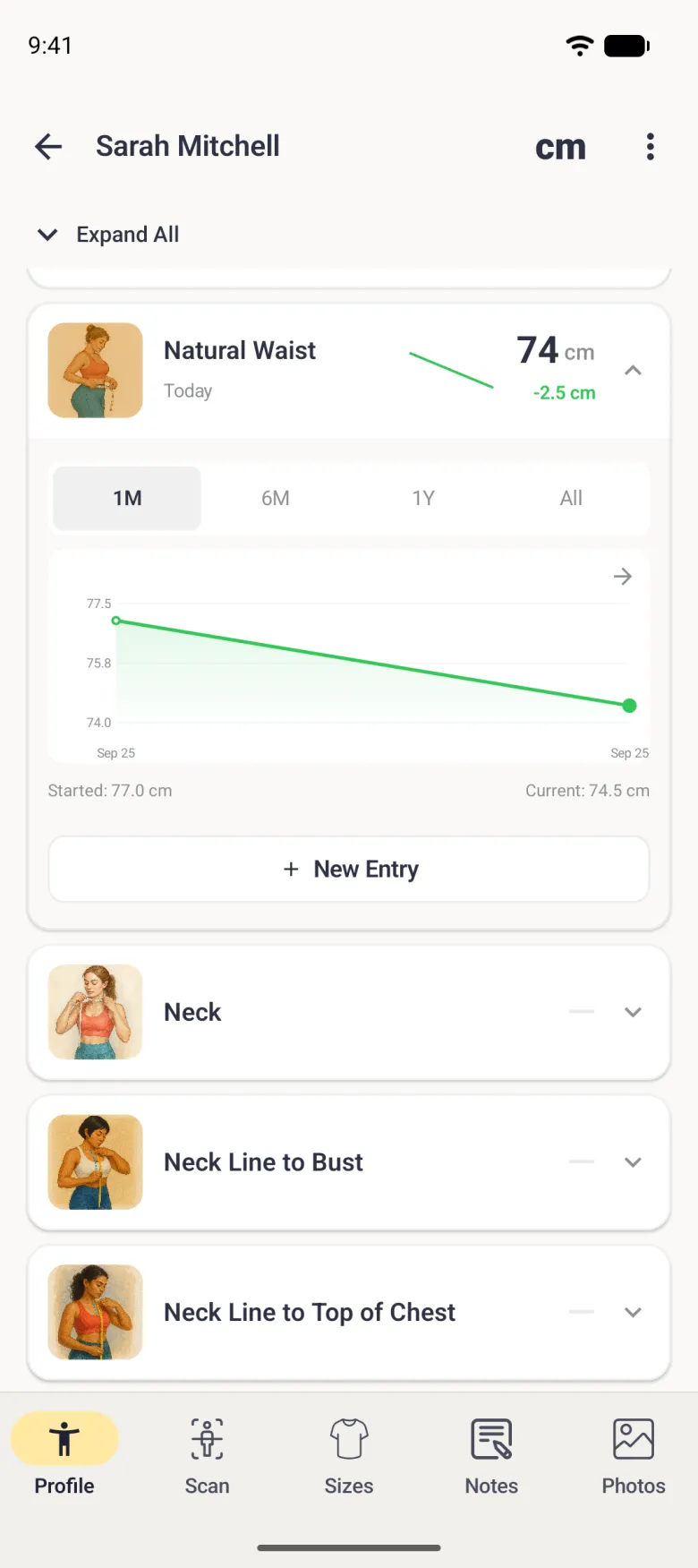
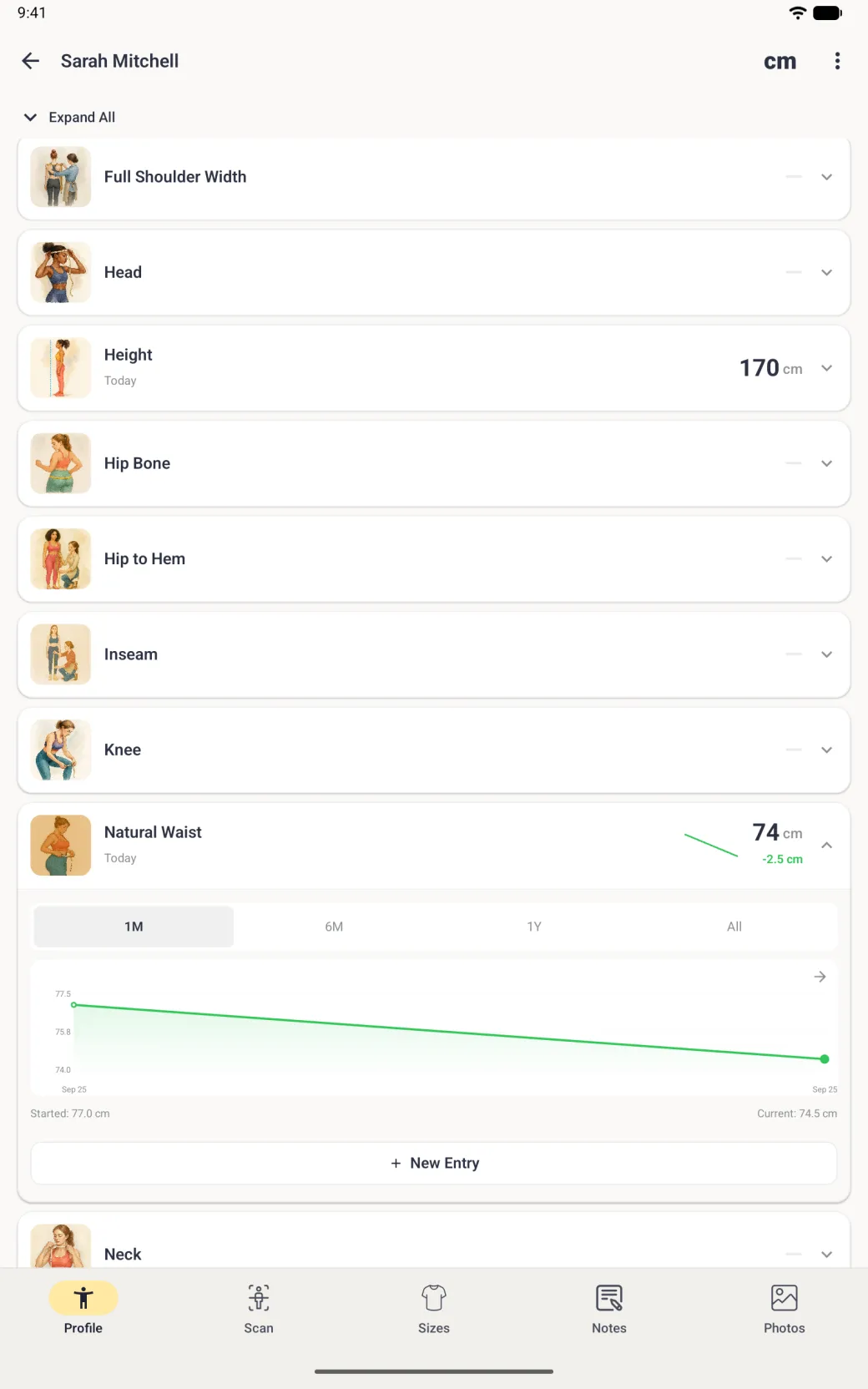
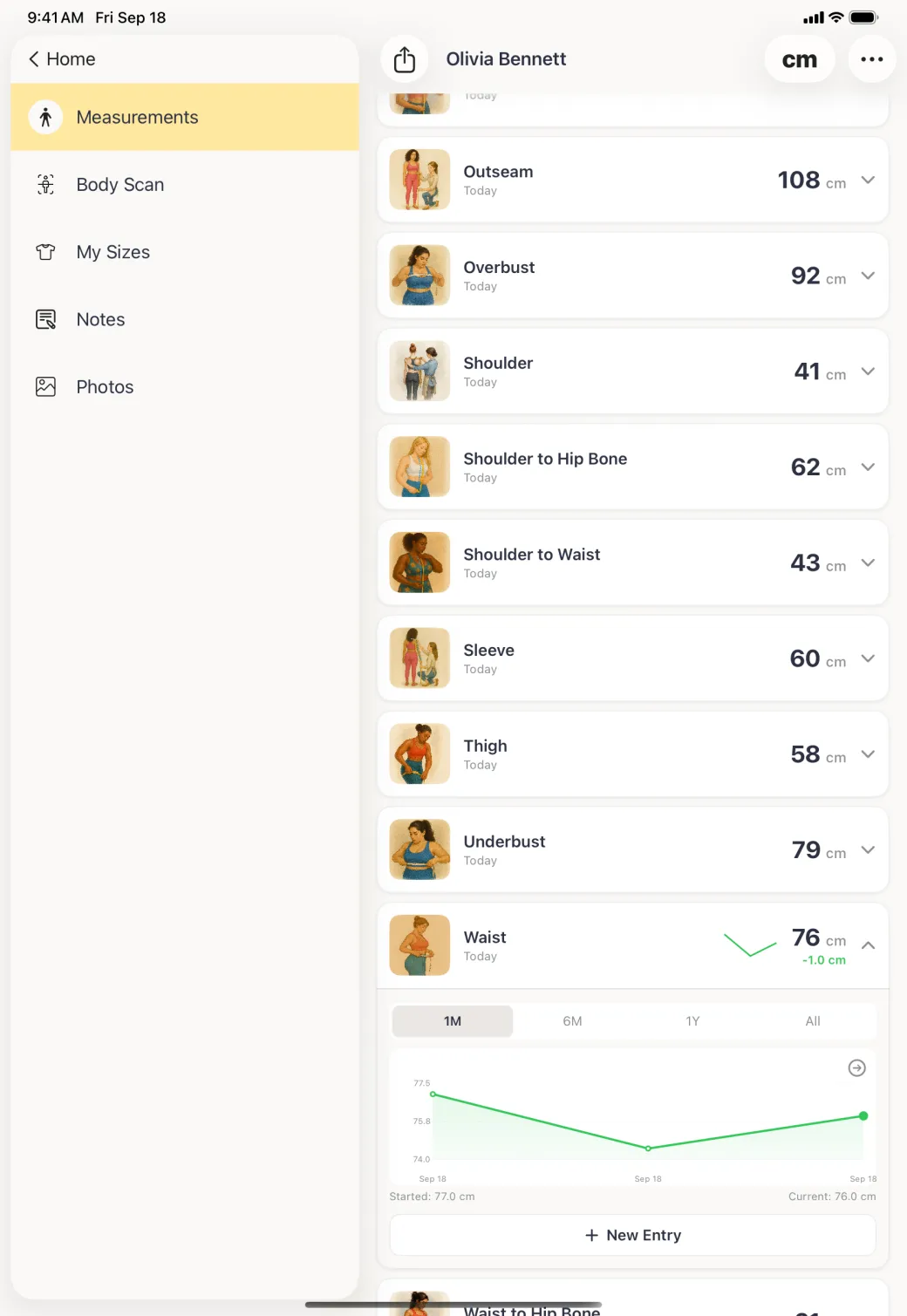
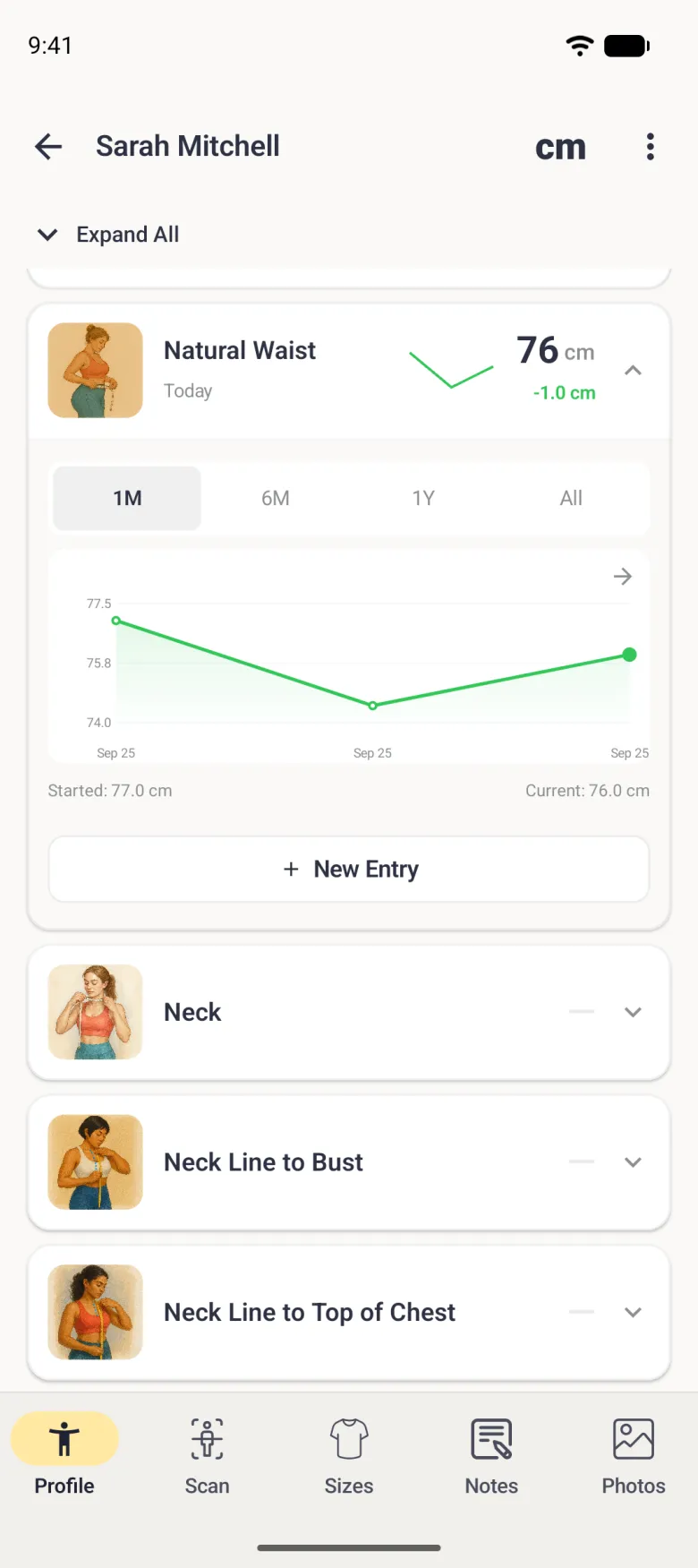
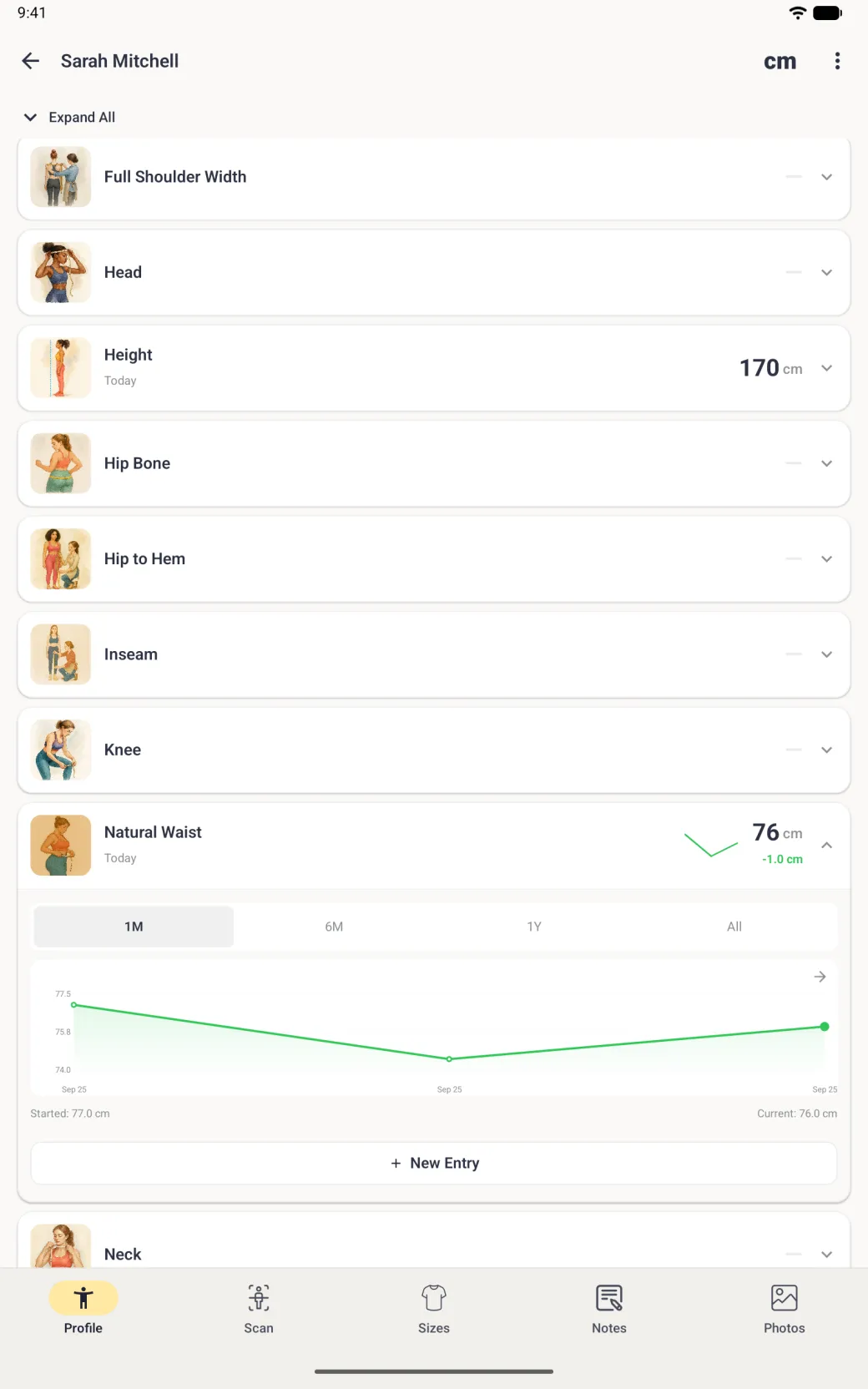
Open List View from the options button (three sliders) at the top right of the profile, or the three-dot menu on Android, and tap the chevron at the end of a row. The row expands into a chart of every entry you have recorded for that measurement, with 1M, 6M, 1Y and All ranges, the value you started at, and the current value. Tap the circled arrow at the top right of the chart for the full history with each dated entry listed. The plus button at the top right of that page adds another entry, and you can swipe an entry to delete it.
New Entry, at the bottom of the expanded row, opens the same number pad. A new entry is added to the chart rather than replacing the last one, which is what makes the line worth reading over a season of fittings.



What do the short labels on the body mean?
The first pages use full words, but the later pages carry vertical measurements whose names are too long to fit on a label, so they are shortened. List View always names them in full if you would rather read them that way.
| Label | Measurement |
|---|---|
| STW | Shoulder to Waist |
| STHB | Shoulder to Hip Bone |
| NLTC | Neck Line to Top of Chest |
| NLTB | Neck Line to Bust |
| WTHB | Waist to Hip Bone |
| HTH | Hip to Hem |