Tailor Shop
Set up your business profile
Your shop name, tagline, logo, contact details, website and social handles sit in one screen and print on every invoice and receipt you send a client.
Available on
- iPhone
- iPhone Duo
- iPad
- Android
- Tailor Shop feature
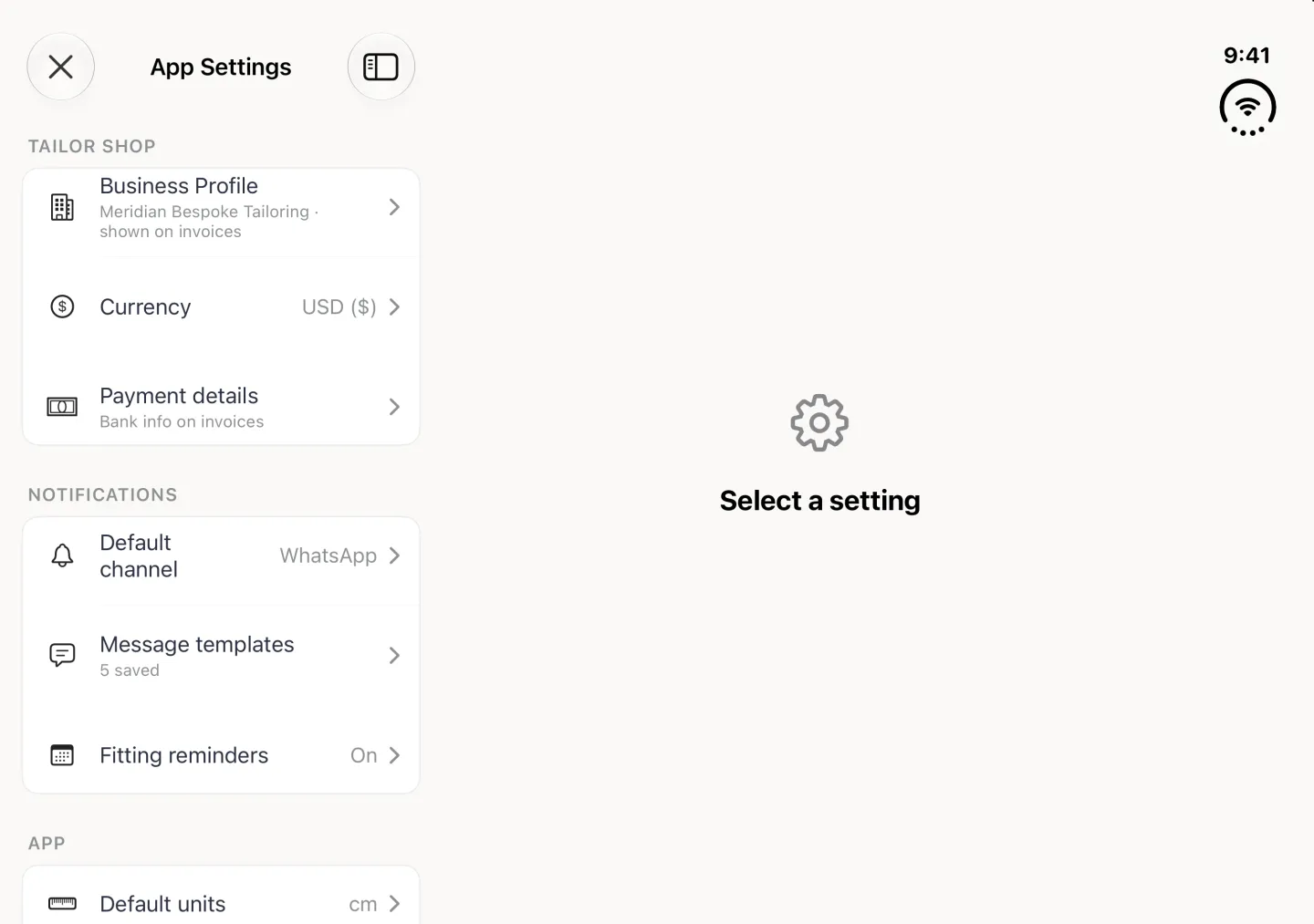
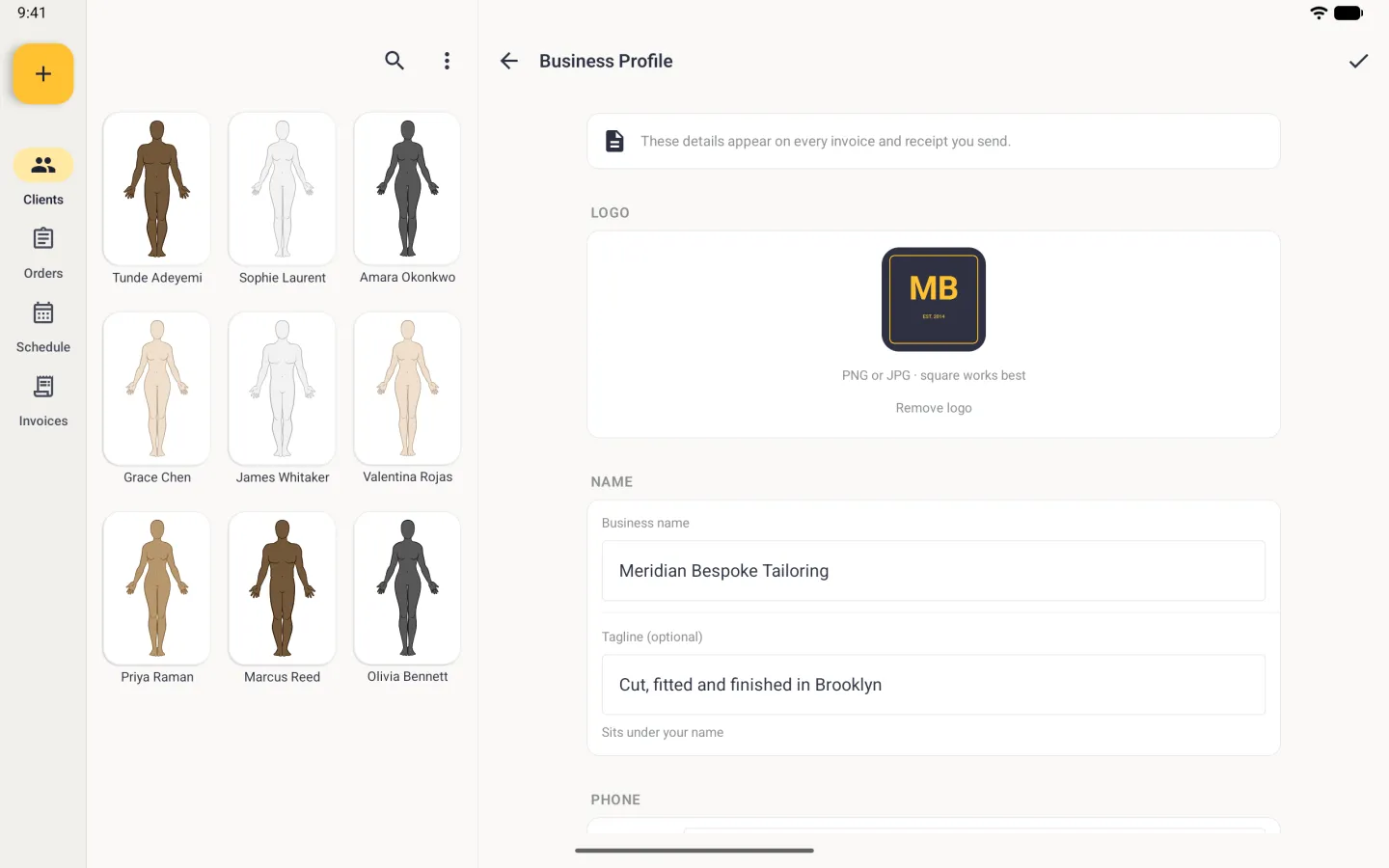
The Tailor Shop tools described here are on iPhone, iPad and Android. On iPad the tabs are a sidebar on the left. On Android the tabs are a bar along the bottom of a phone, and a rail down the left on a tablet. On iPhone Duo, opened, the list sits beside the page, the tabs sit behind the sidebar button at the top left and the bar buttons move to a strip on the right; closed, it works like an iPhone with the buttons and the four tabs in a strip on the right.
Where the business profile lives
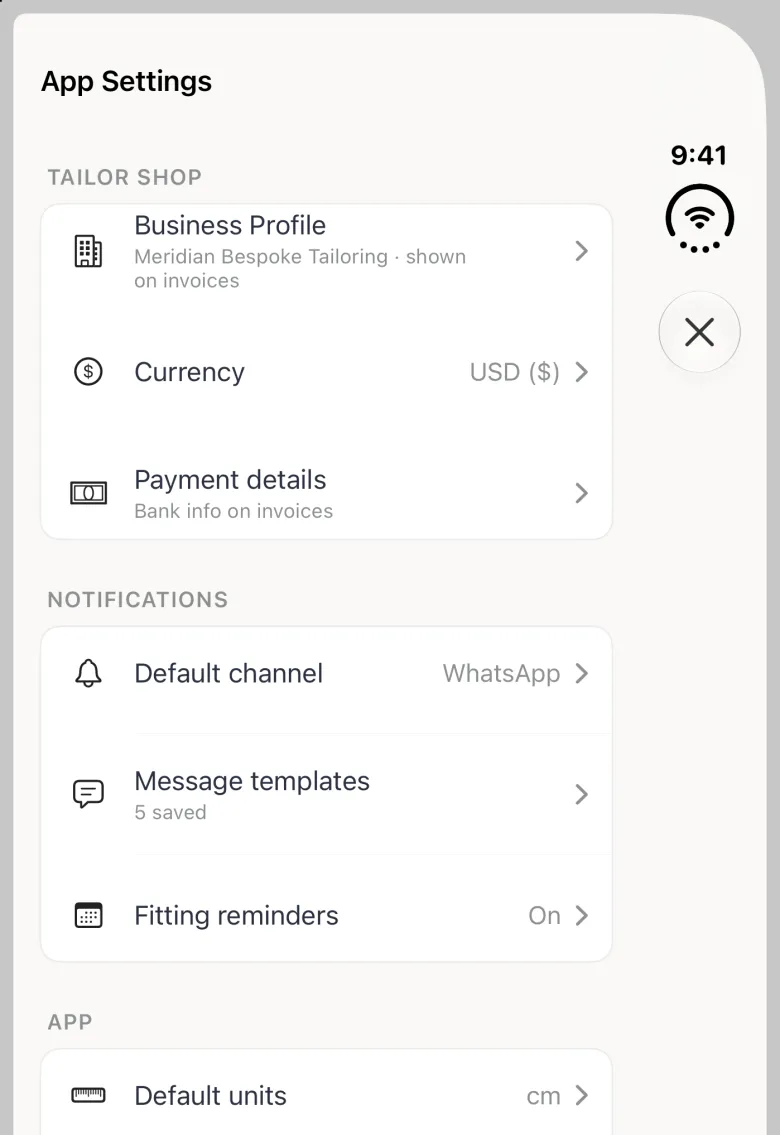
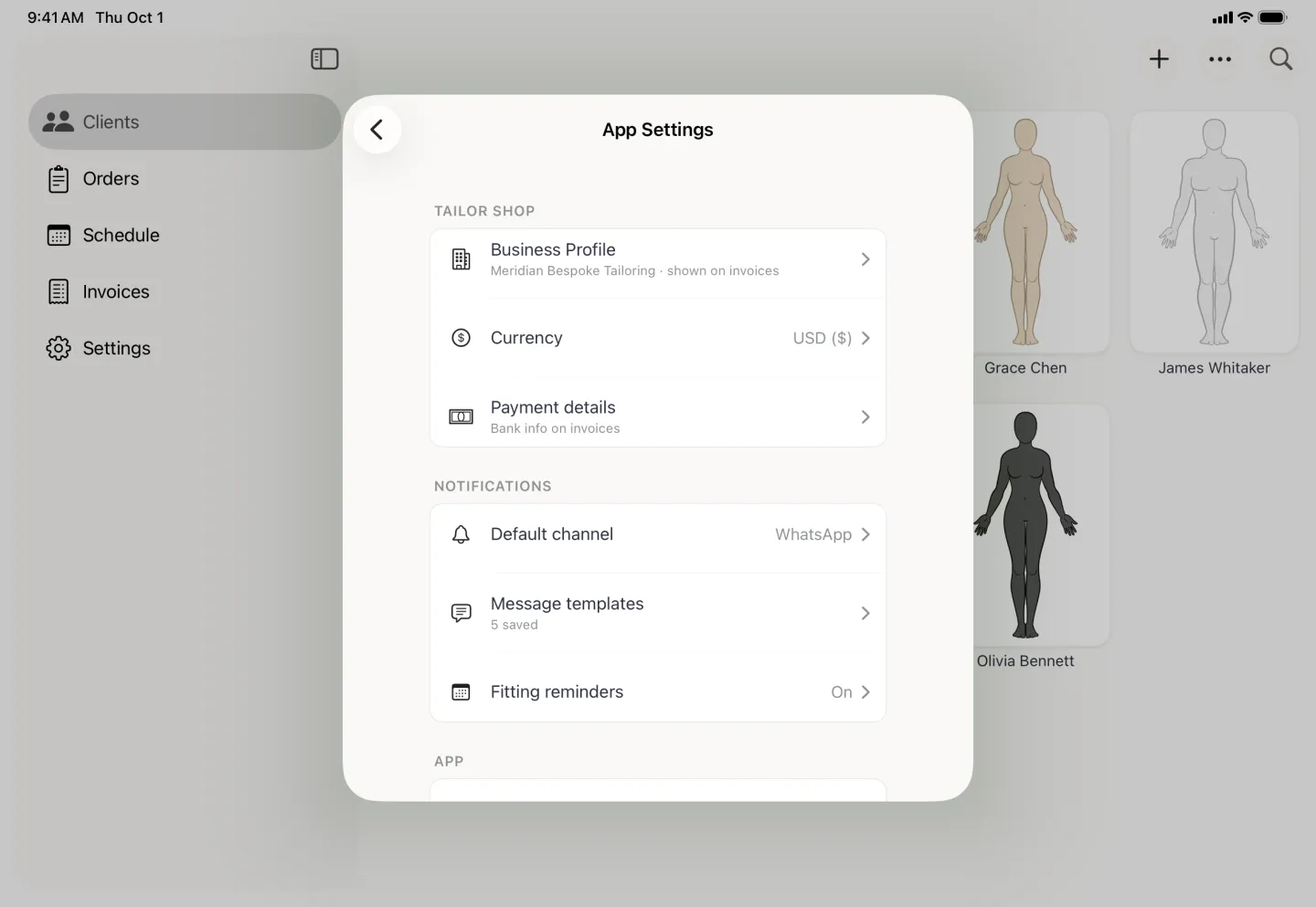
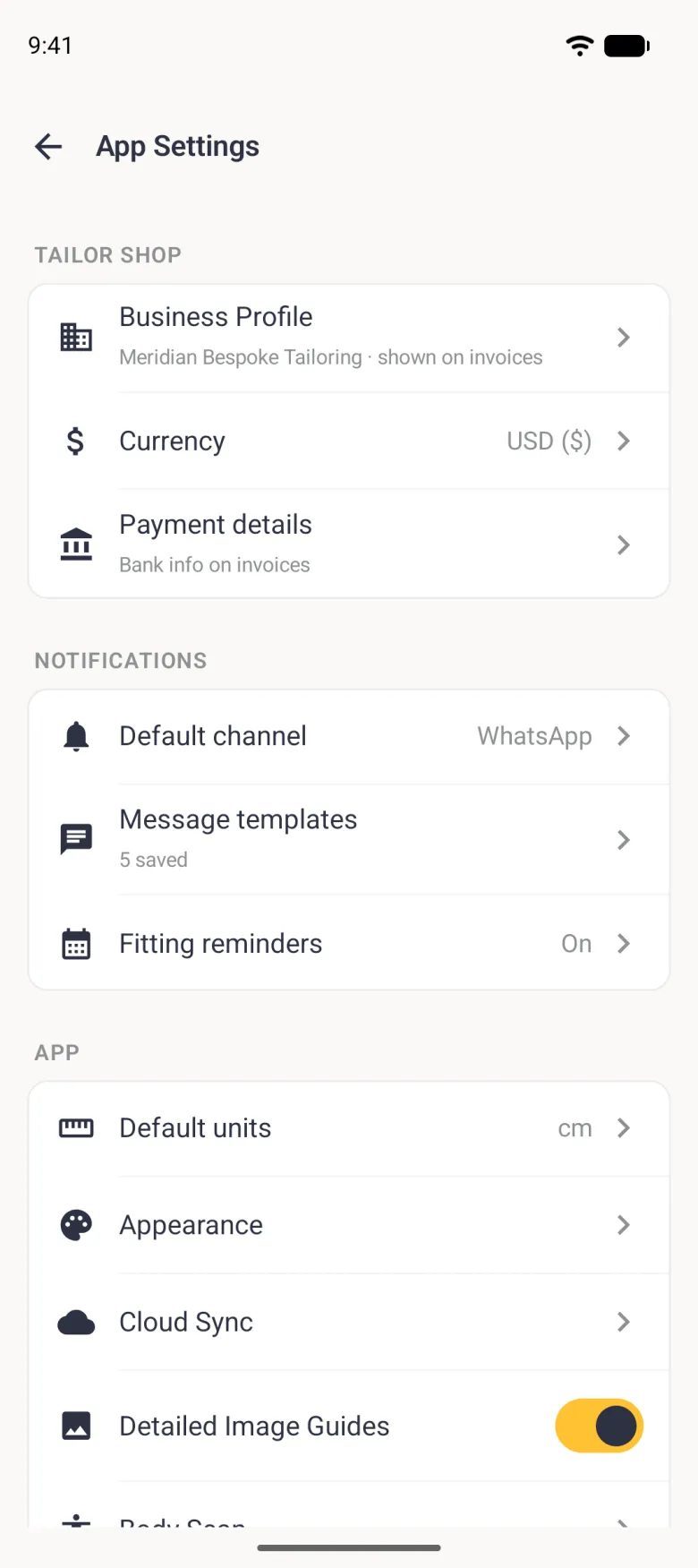
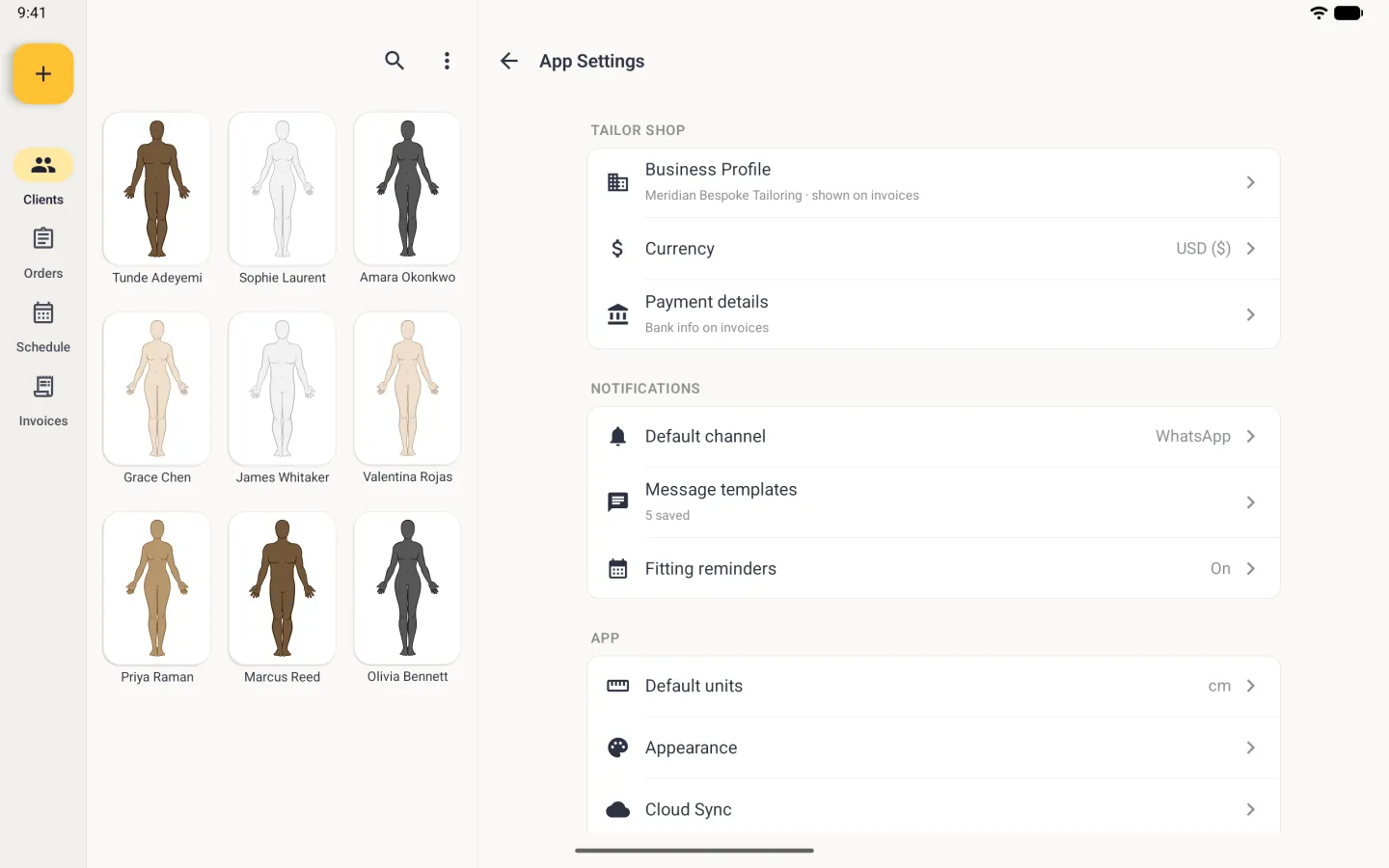
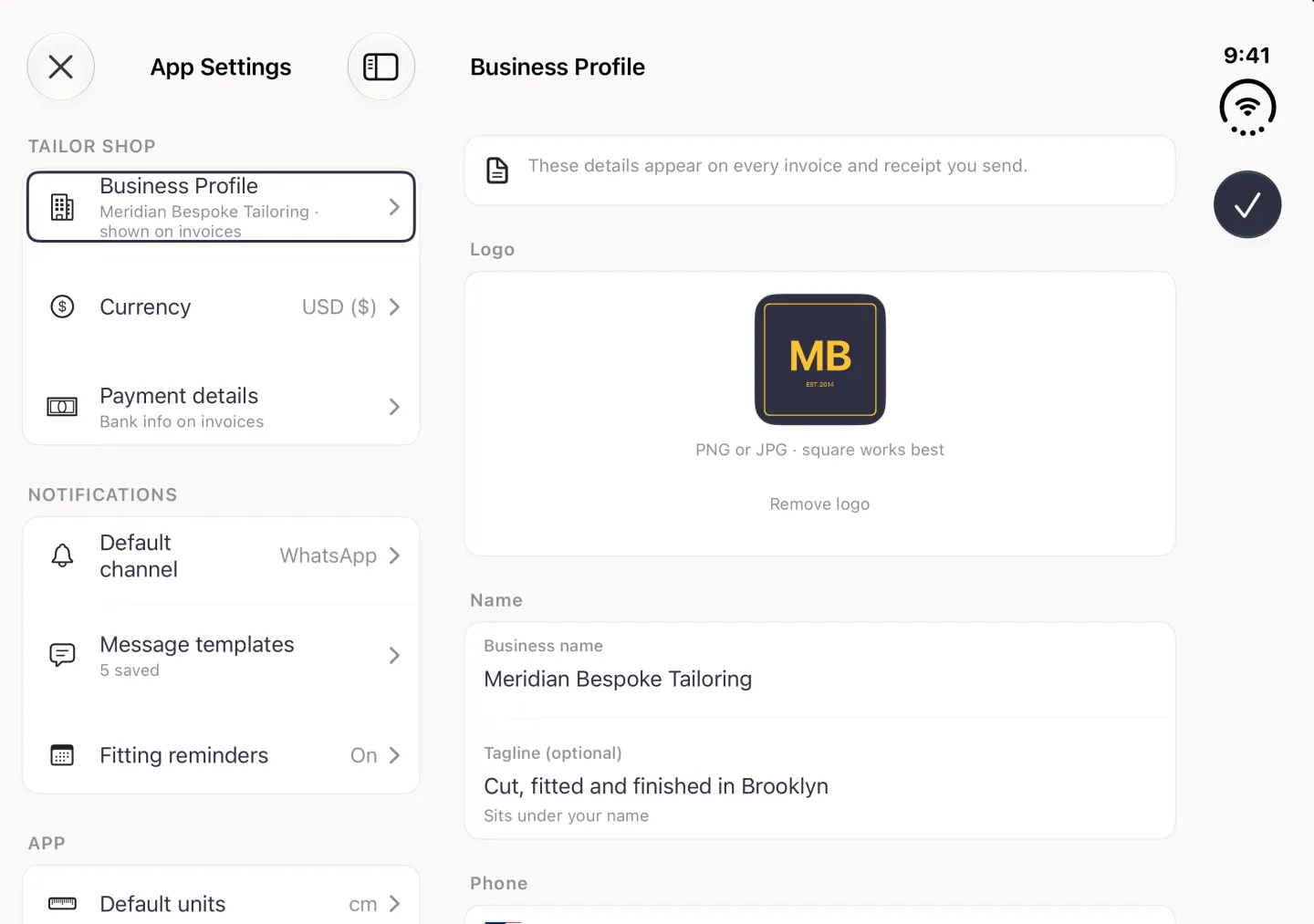
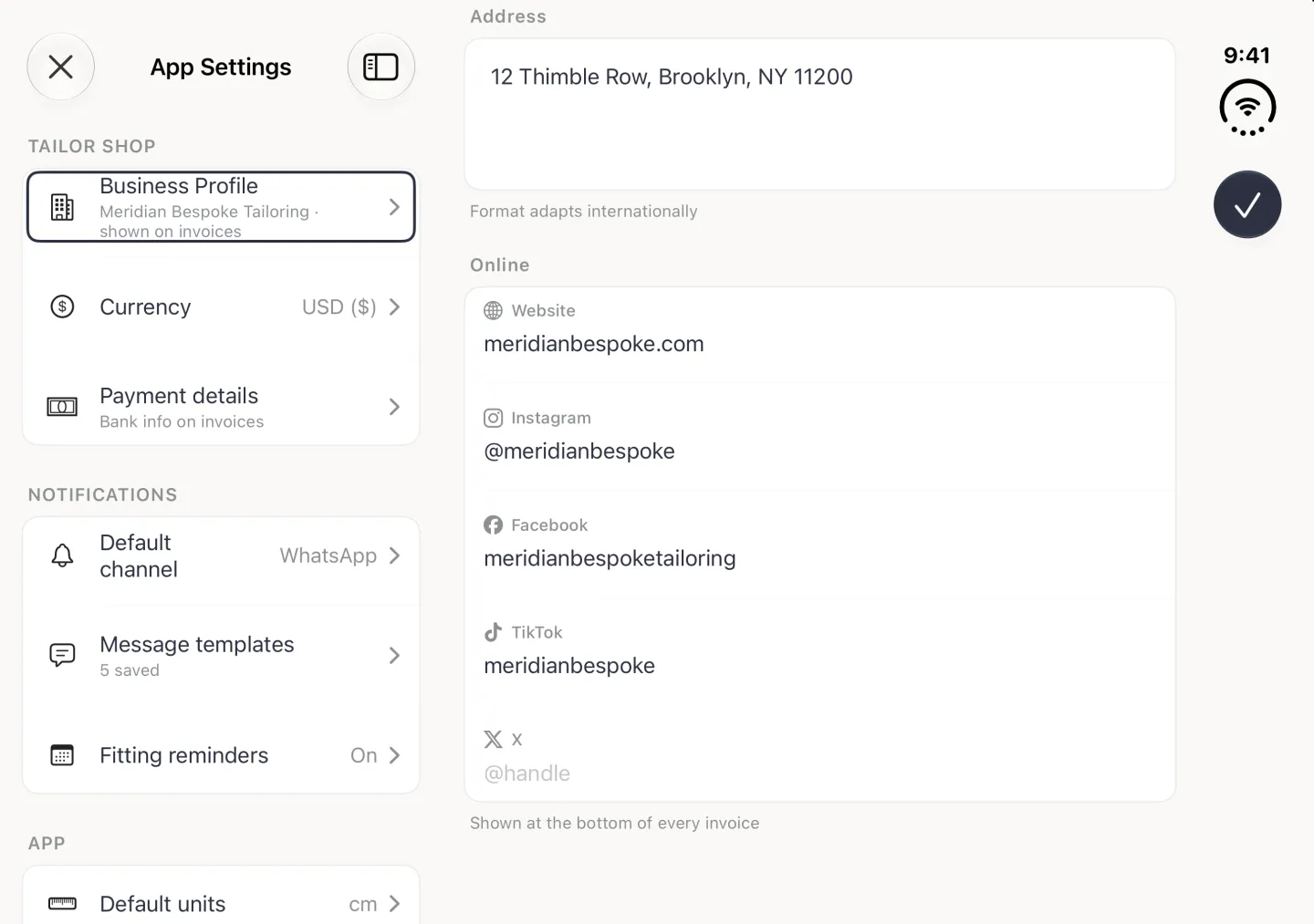
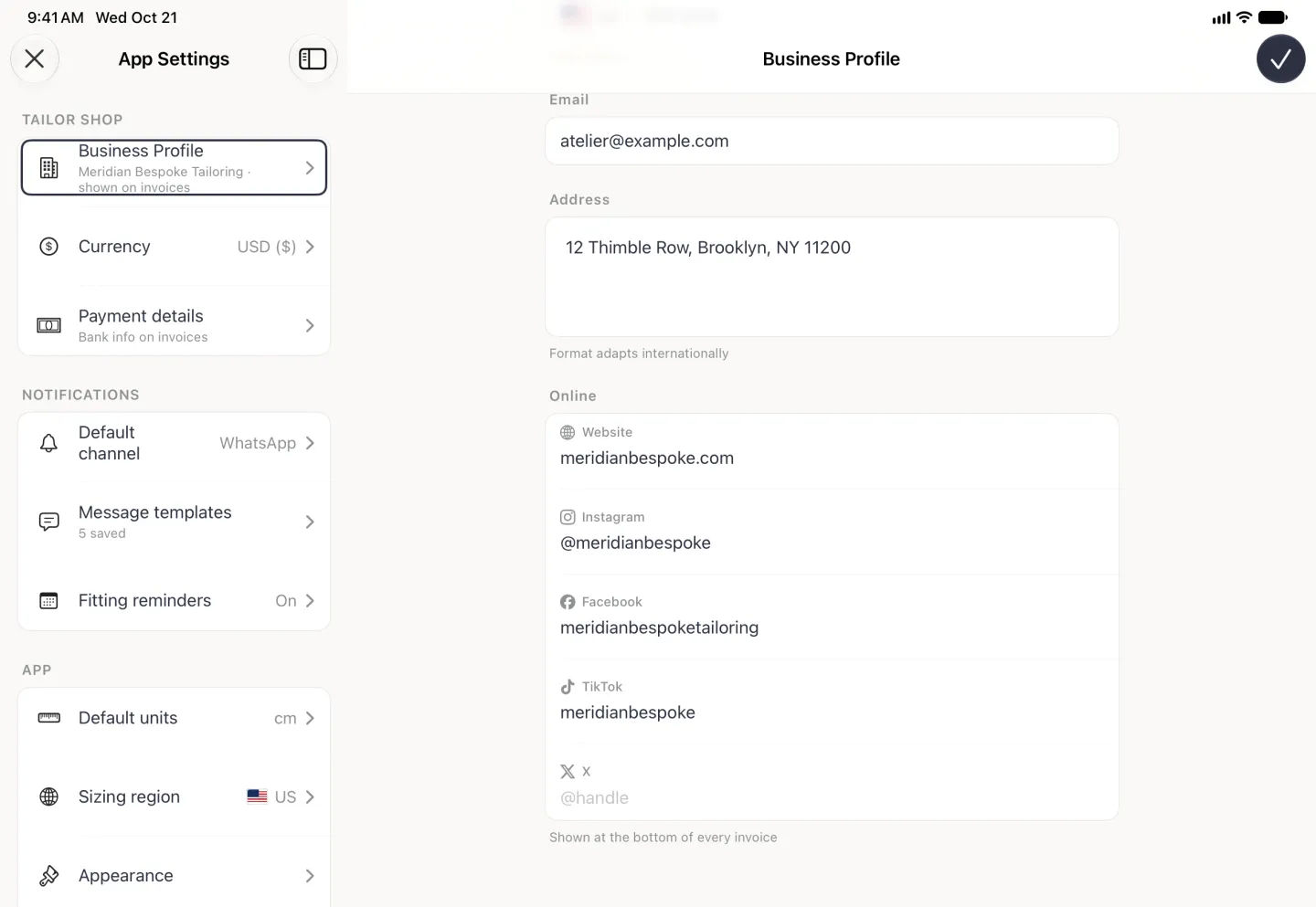
Everything a client sees is grouped under Tailor Shop in App Settings, and Business Profile is the first row. Open App Settings from the three-dot menu at the top right of the Clients tab. On iPhone it opens as a sheet; on iPad and on the opened iPhone Duo it is a split view, with the settings list on the left and the page you pick on the right. Currency and Payment details sit directly below it, and all three print on the invoices you send, so it is worth filling them in before you bill anyone.



What to put in your business profile
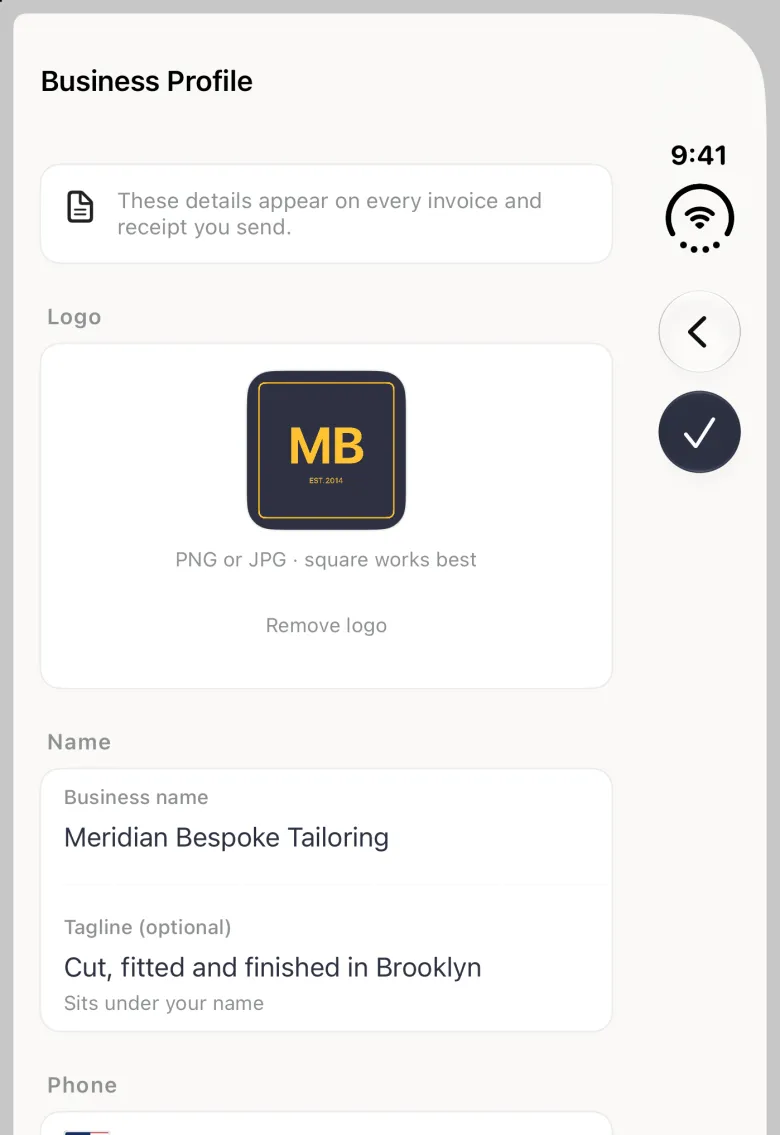
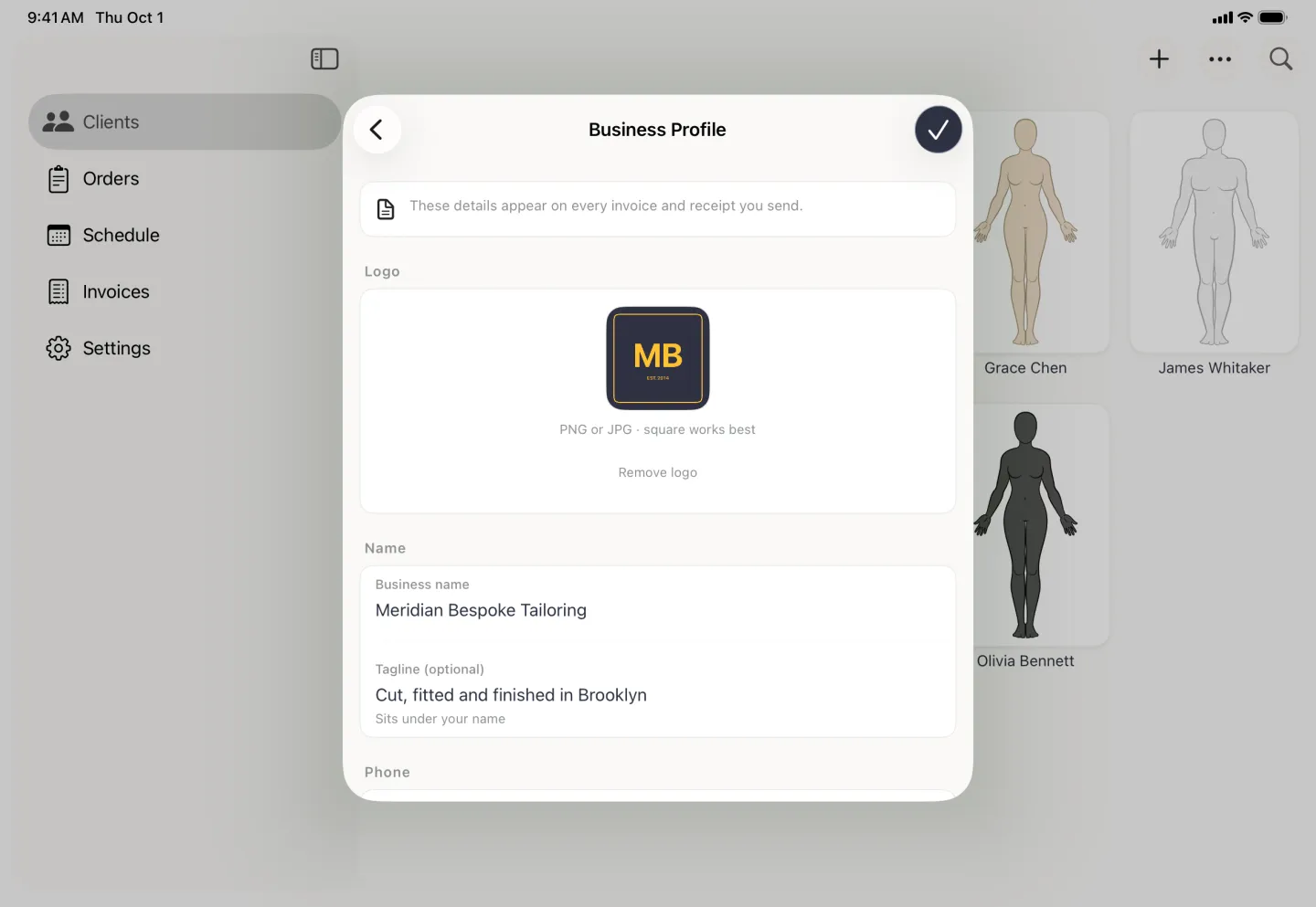
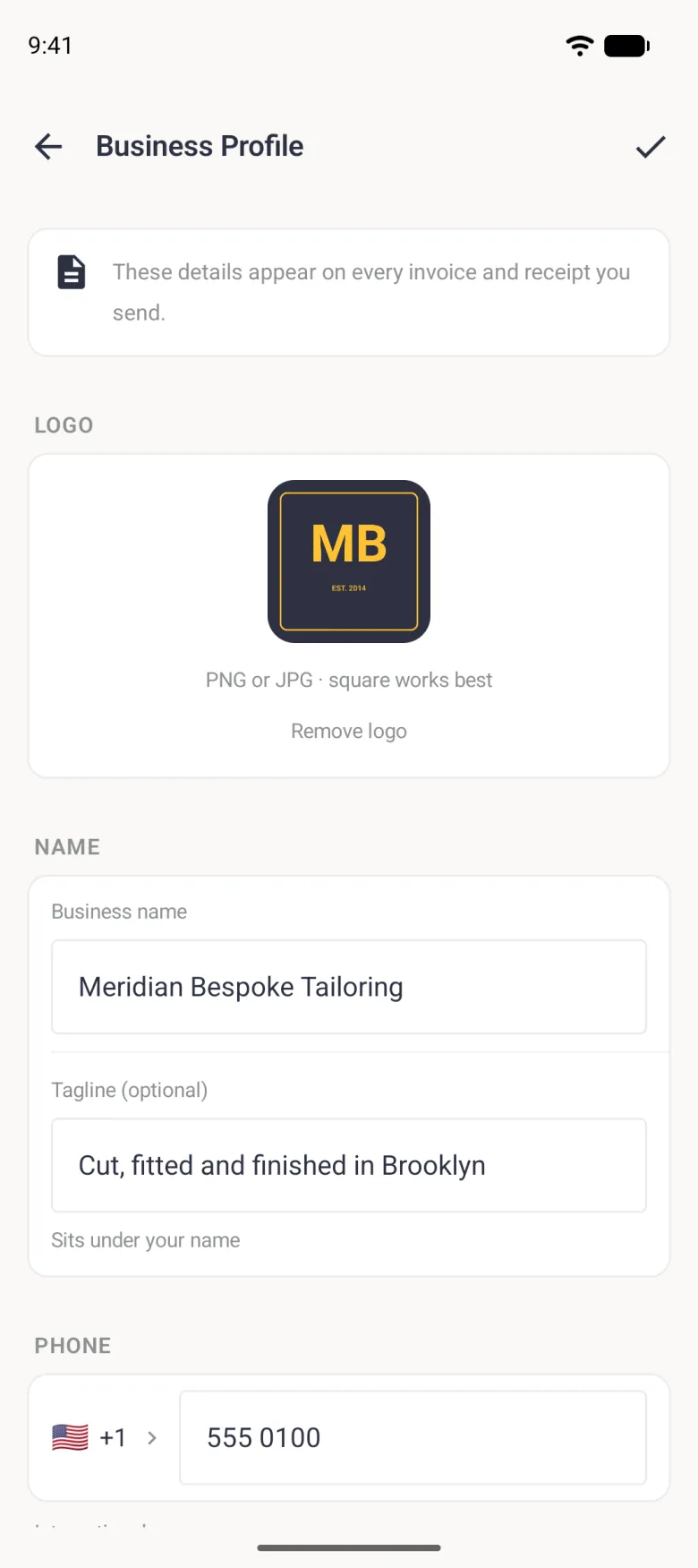
The screen holds a logo, a business name, an optional tagline, a phone number with an international dialling code, an email address, an address and an Online section for your website and social handles. The name and tagline head every invoice and receipt, and the logo is drawn as a small square mark at the top right of the invoice. A square image works best.
- Open App Settings, then Business Profile.
- Tap the logo tile and choose a square image from your photo library. The new picture shows on the tile with a note to tap the checkmark to save it, and going back without saving discards it.
- Type your business name, and a tagline if you use one.
- Fill in the phone number, email address and shop address.
- Tap the checkmark at the top right to save, new logo included. App Settings then shows your business name under Business Profile.
To go back to no logo, tap Remove logo under the logo tile and confirm. Invoices then show your initial in its place.

How to add your website and social handles
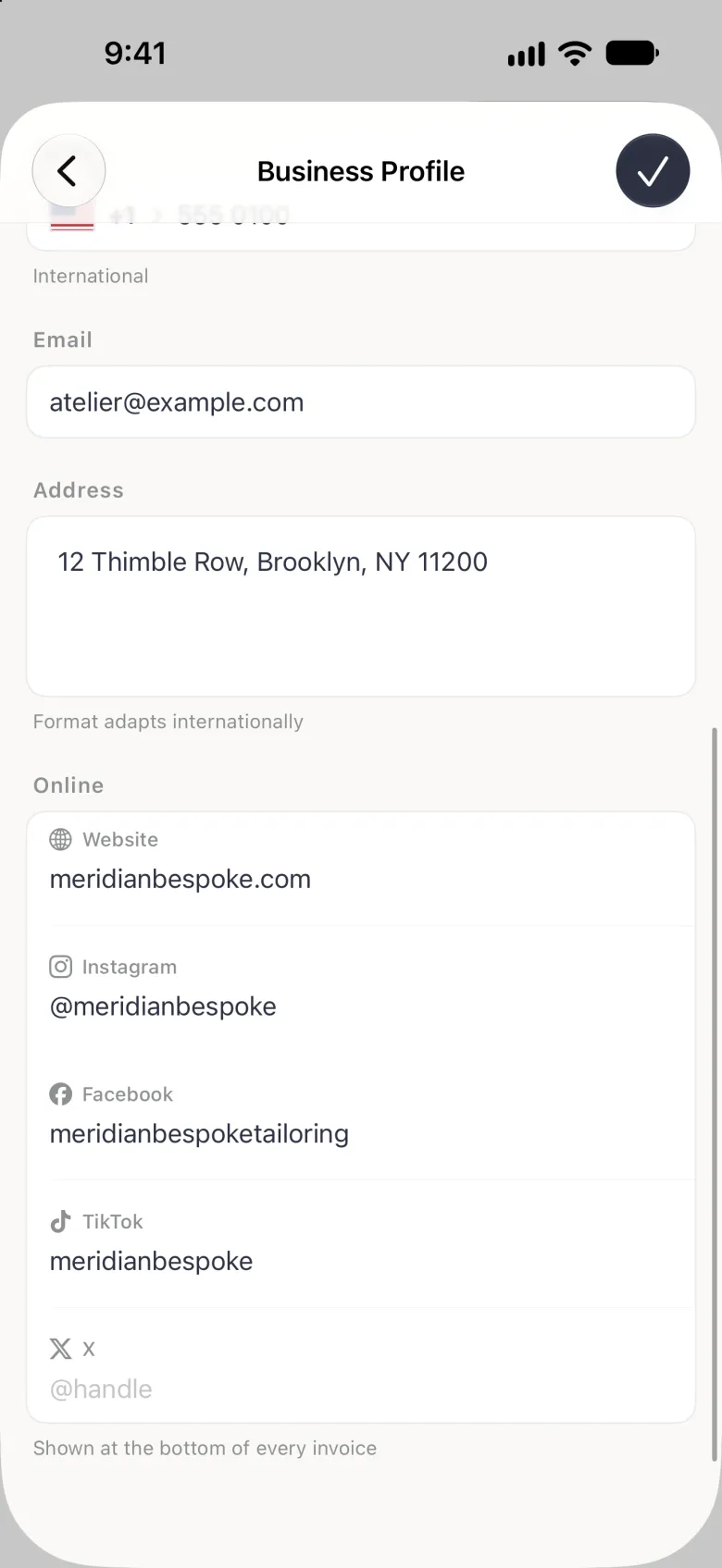
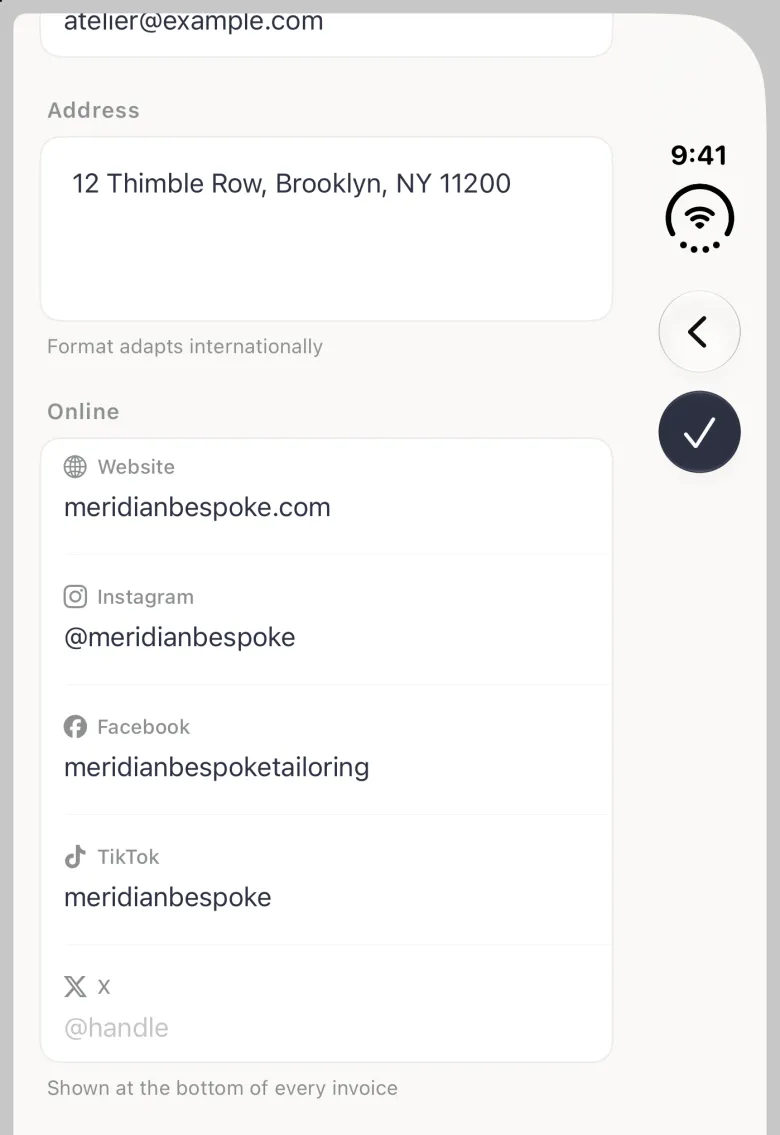
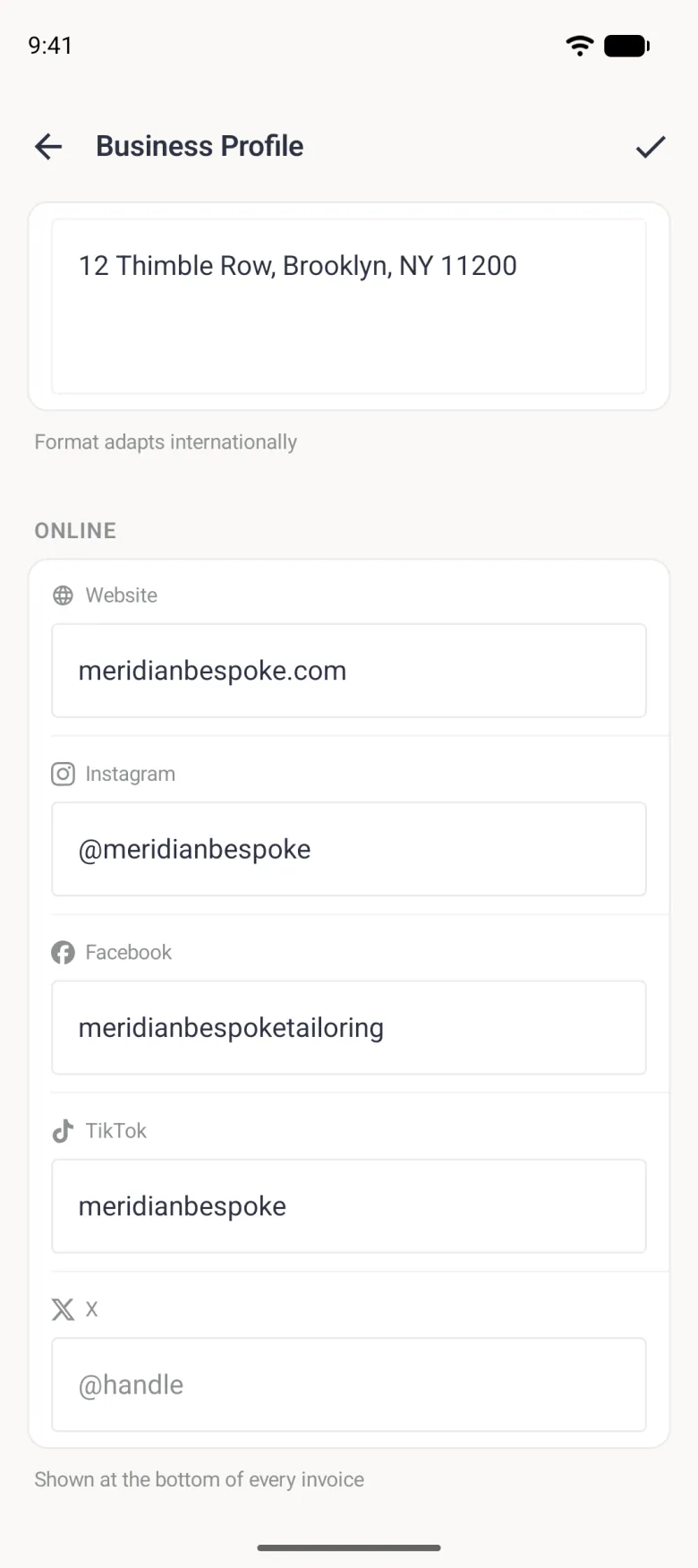
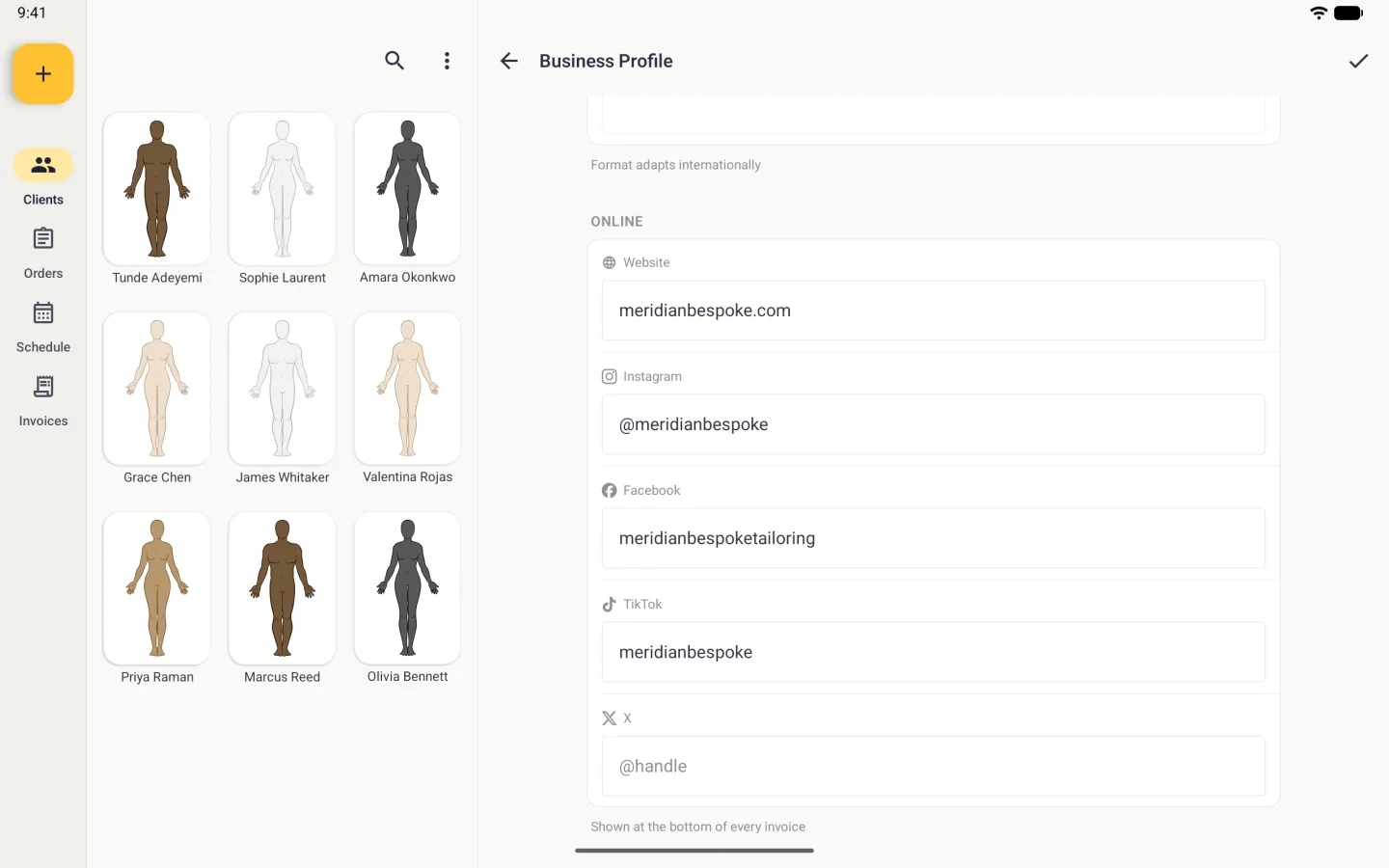
The Online section sits under Address on the Business Profile screen. It holds a website and your Instagram, Facebook, TikTok and X accounts, and whatever you fill in is shown at the bottom of every invoice. A platform you leave blank is skipped, so add only the ones your clients can reach you on.
- Open App Settings, then Business Profile, and scroll down to Online.
- Type your website, and the handle or page name for each platform you use.
- Tap the checkmark at the top right to save.
How to set a phone number for another country
The phone field keeps the dialling code in its own selector, so the number itself stays in the format your country uses. Tap the flag and code to the left of the field to open a searchable list of countries. You can type a country name or a dialling code, and choosing a country closes the list and updates the code.

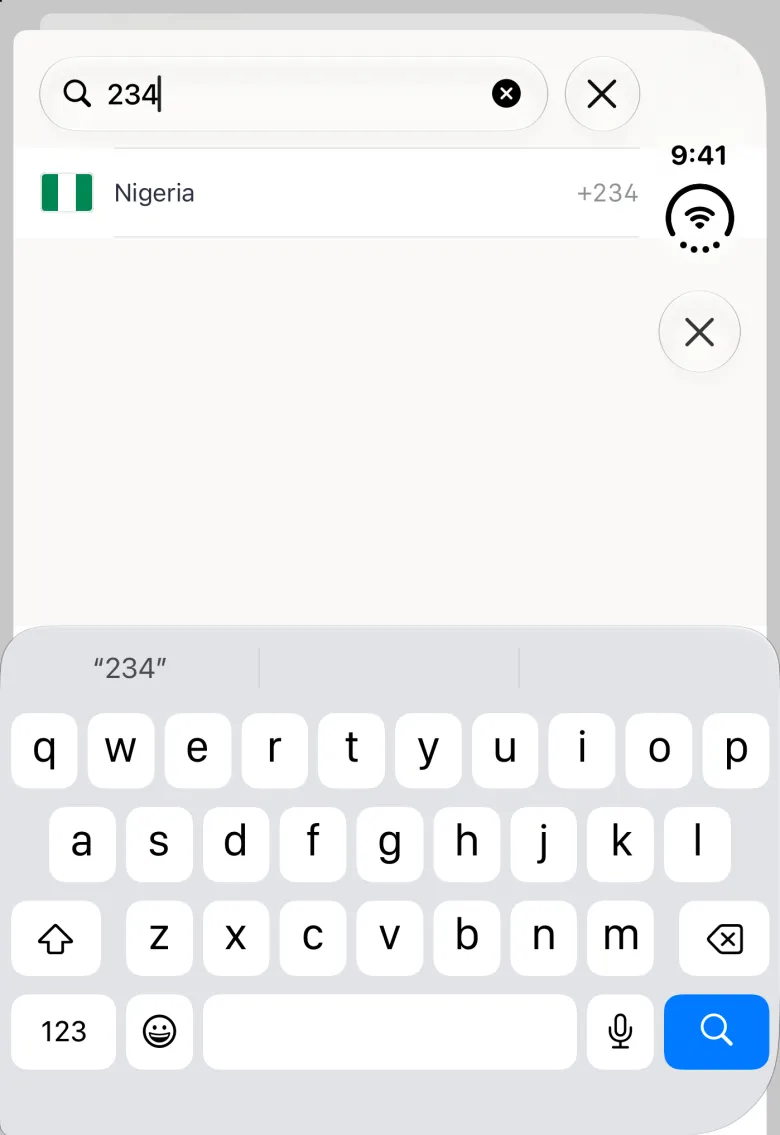
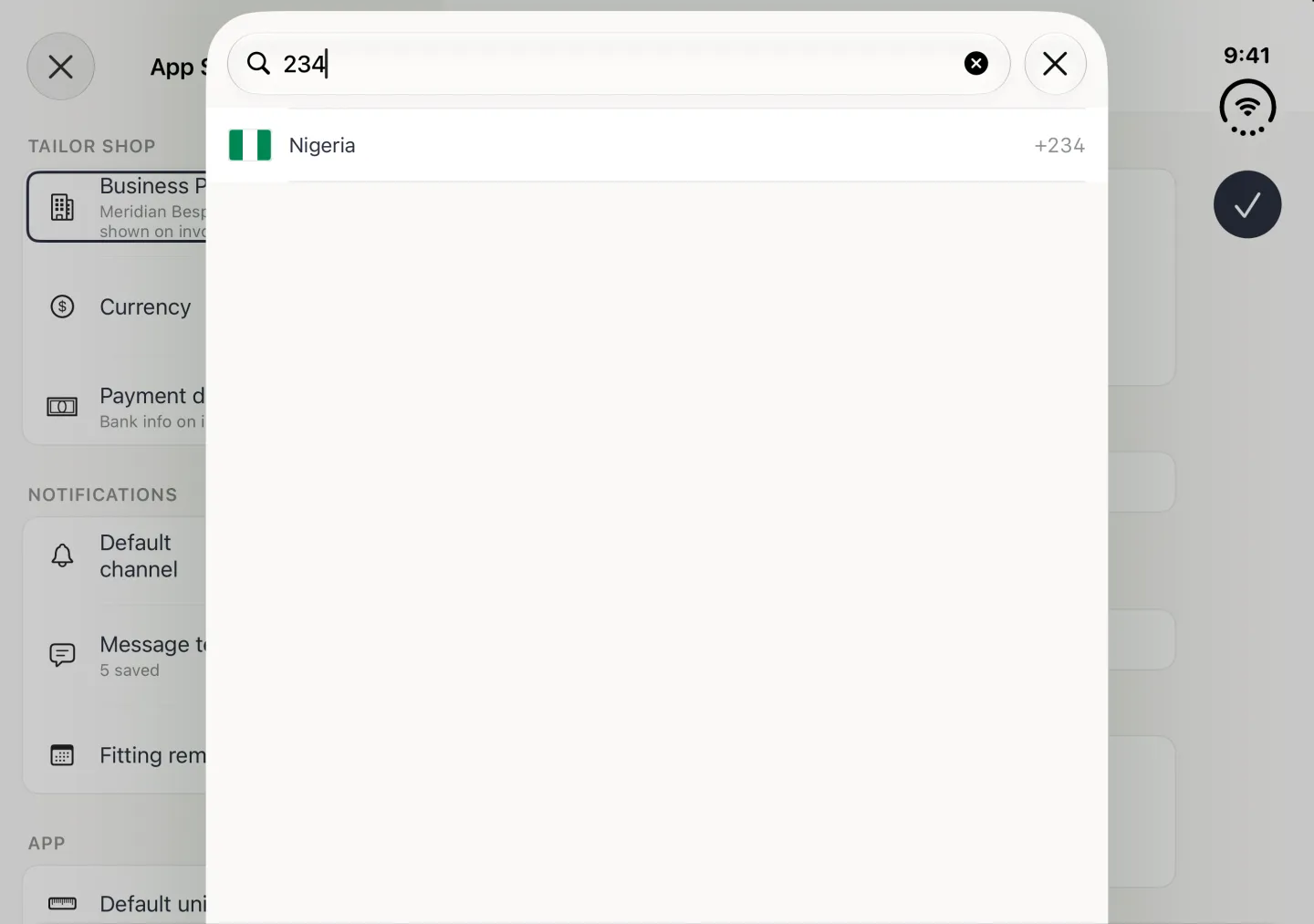
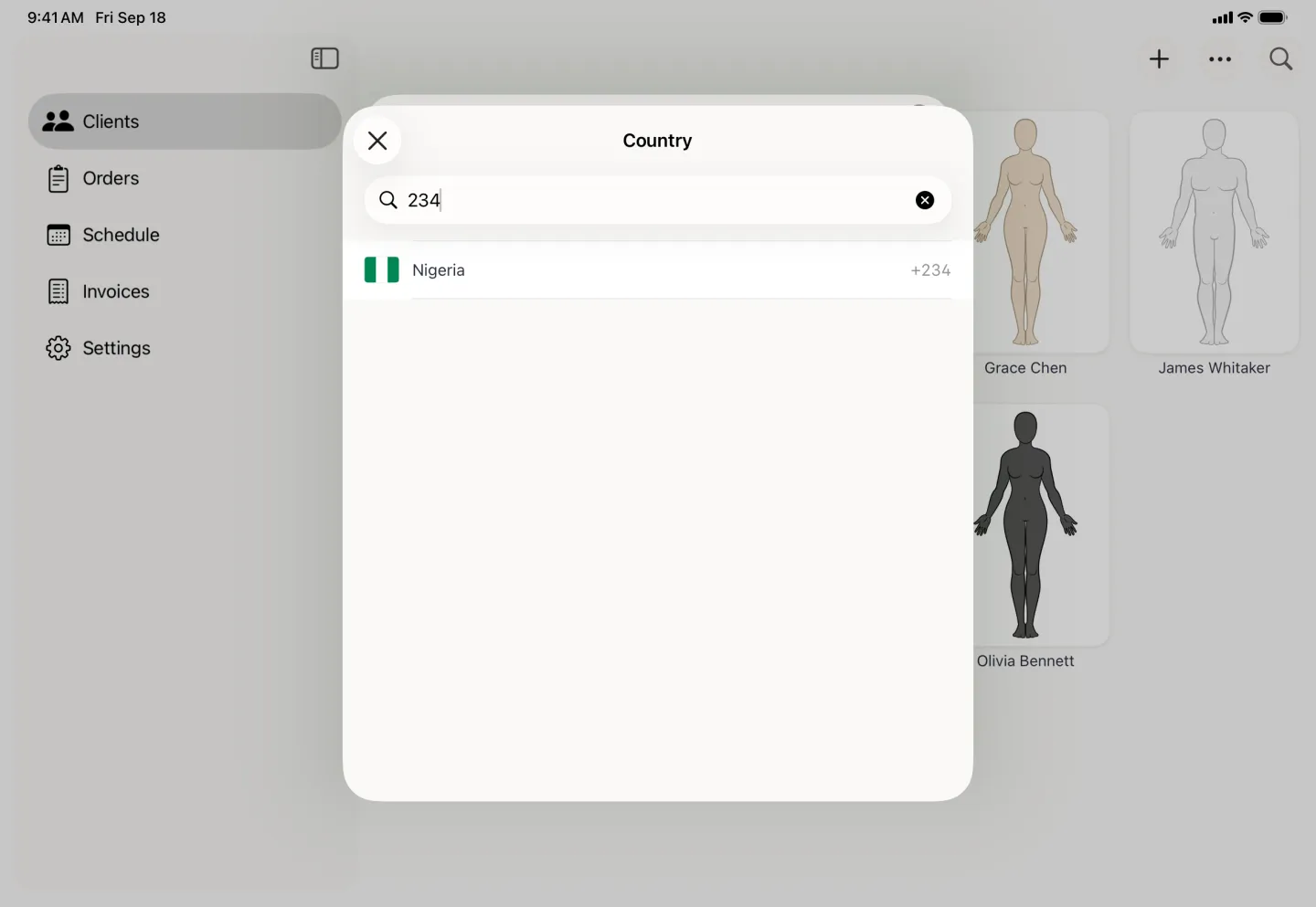
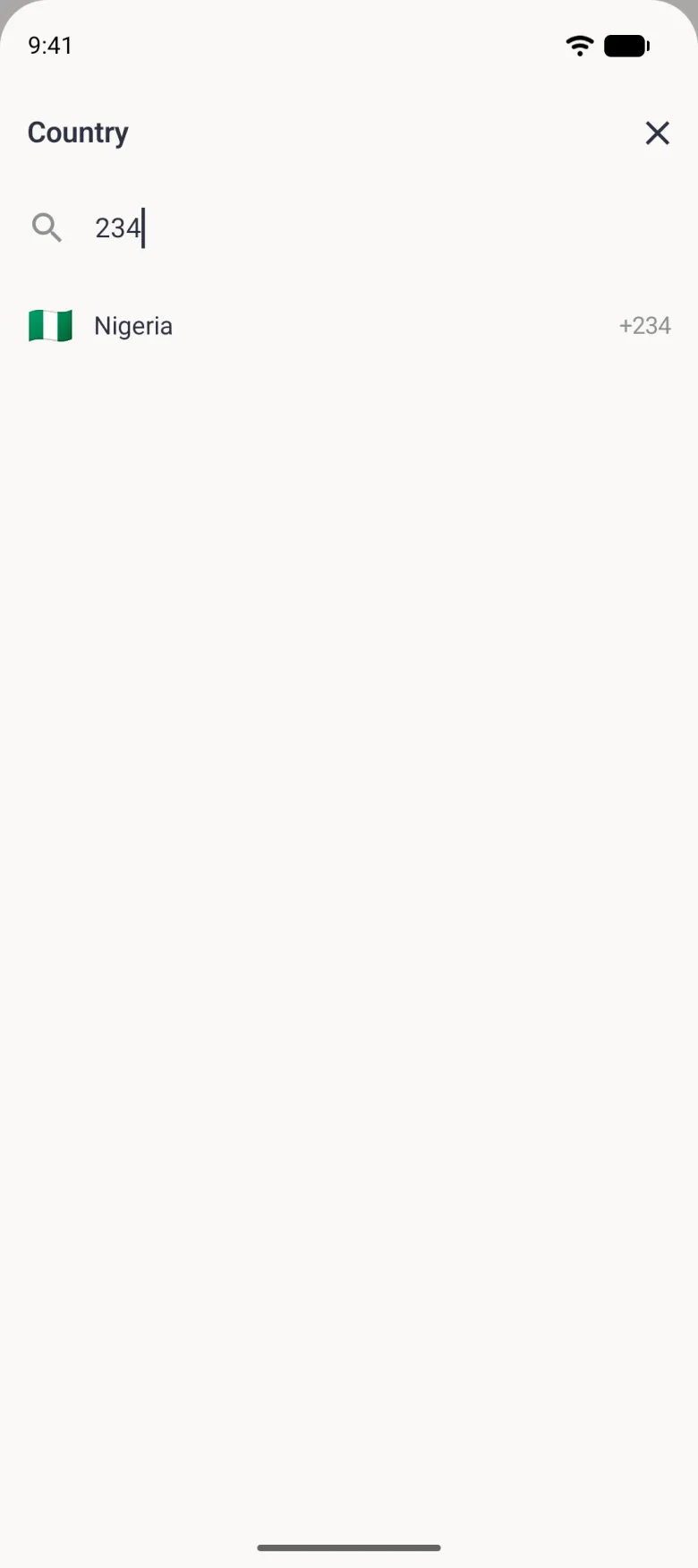
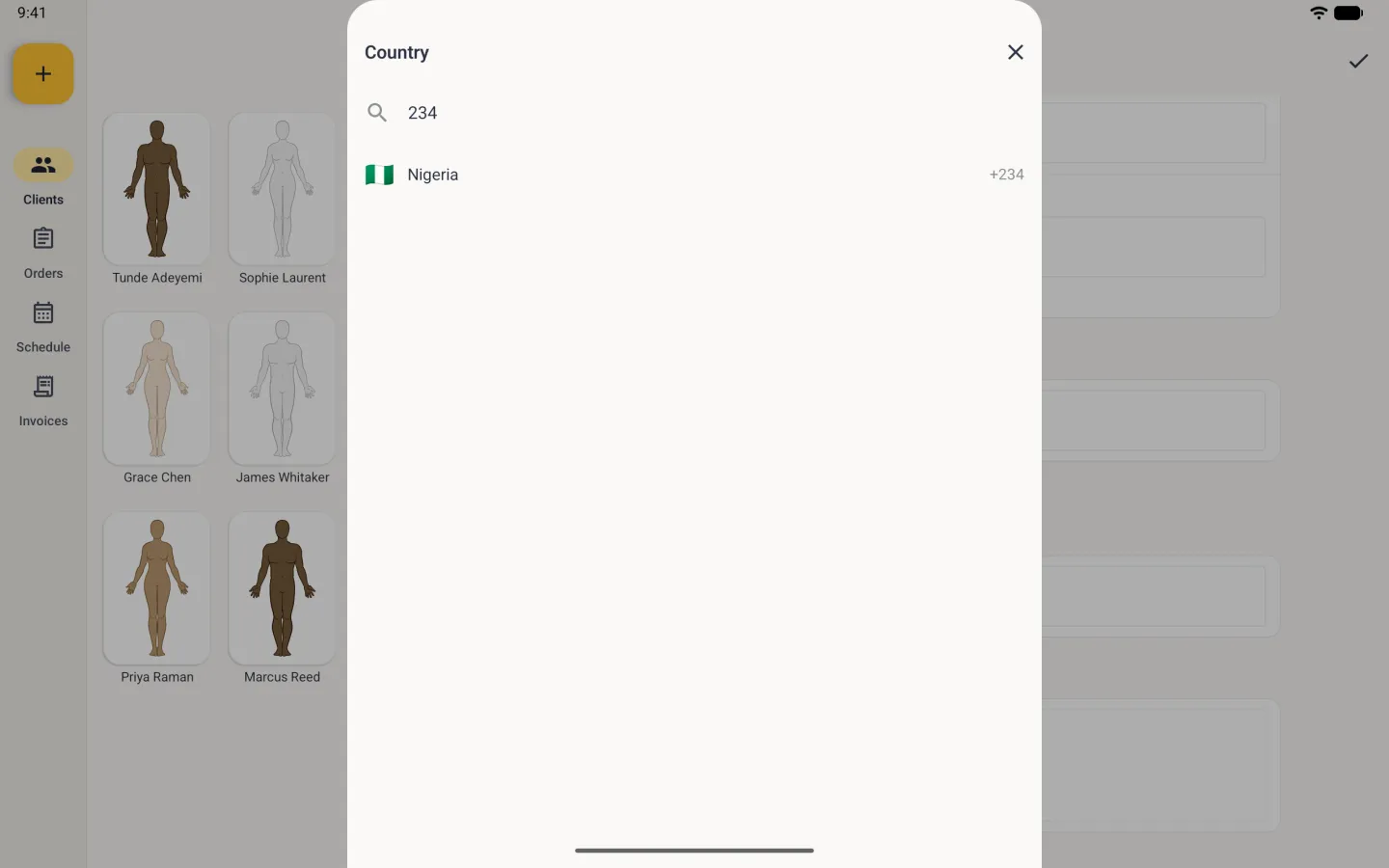
Client phone numbers work the same way on the client form, so a shop in Lagos or Lahore can keep local numbers for local clients and international ones for the rest.
Where these details show up
Your business profile is the letterhead of the app. The logo, name, tagline, address, phone number and email sit at the top of every invoice on screen and in the exported PDF. The payment details and terms you set in the neighbouring screen, and a footer with your website and social handles from the Online section, print at the foot of both. Clients see them whenever you share an invoice or a receipt.
Leaving a field empty leaves a gap in that header, so fill in at least a name before you send anything.