Profile management
Exporting measurements as PDF or CSV
Send one profile as a printable PDF measurement sheet, or export several clients as a spreadsheet, without leaving the app.
The screenshots below are from the iPhone app, and the toggle above each set swaps them for the same steps on iPhone Duo, iPad, Android and Android tablet. On iPad the tabs are a sidebar on the left; on Android they are a bar along the bottom of a phone and a rail down the left on a tablet. On iPhone Duo, opened, the profile list sits beside the open profile and the bar buttons move to a strip on the right; closed, it works like an iPhone with the buttons in a strip on the right. On the free plan your profiles sit on the Home screen; with a Tailor Shop subscription, on either platform, the same grid becomes the Clients tab, so the menus described here are in the same place under a different heading.
How do you export one profile as a PDF?
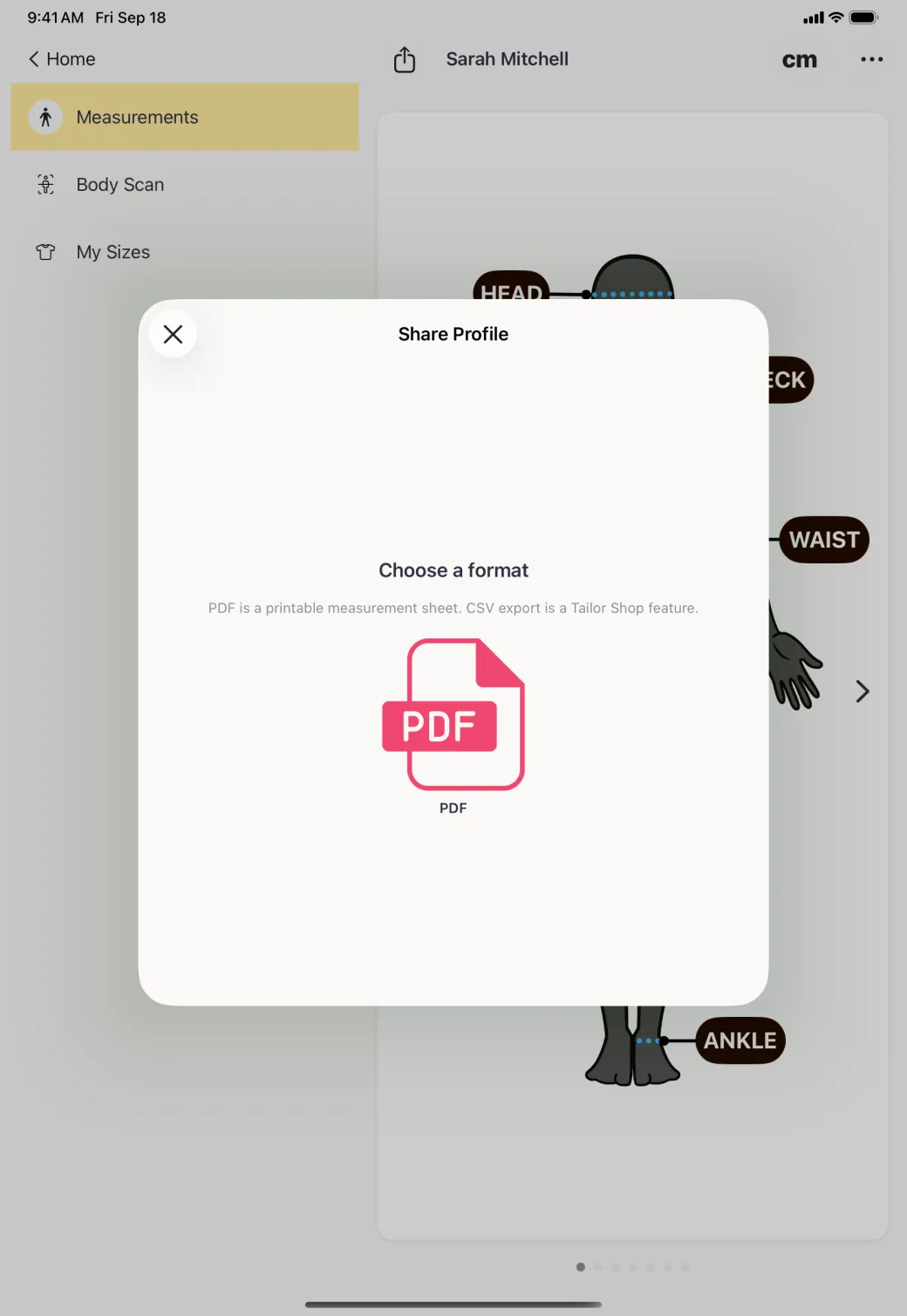
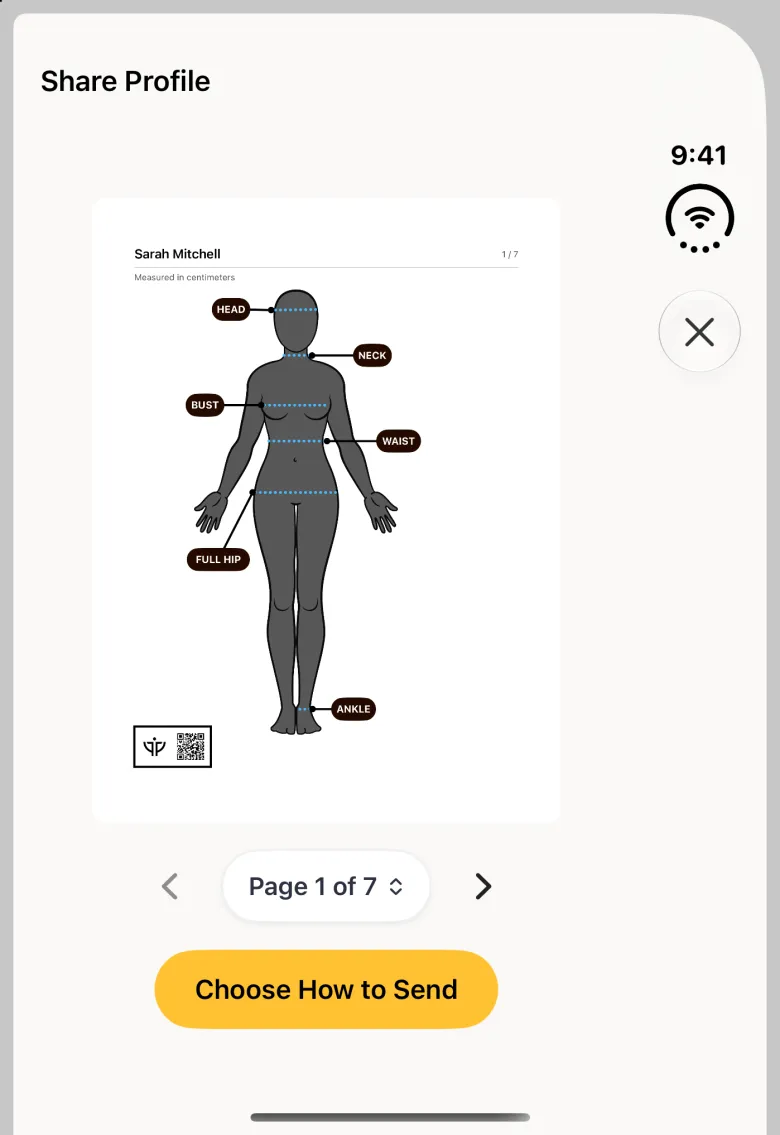
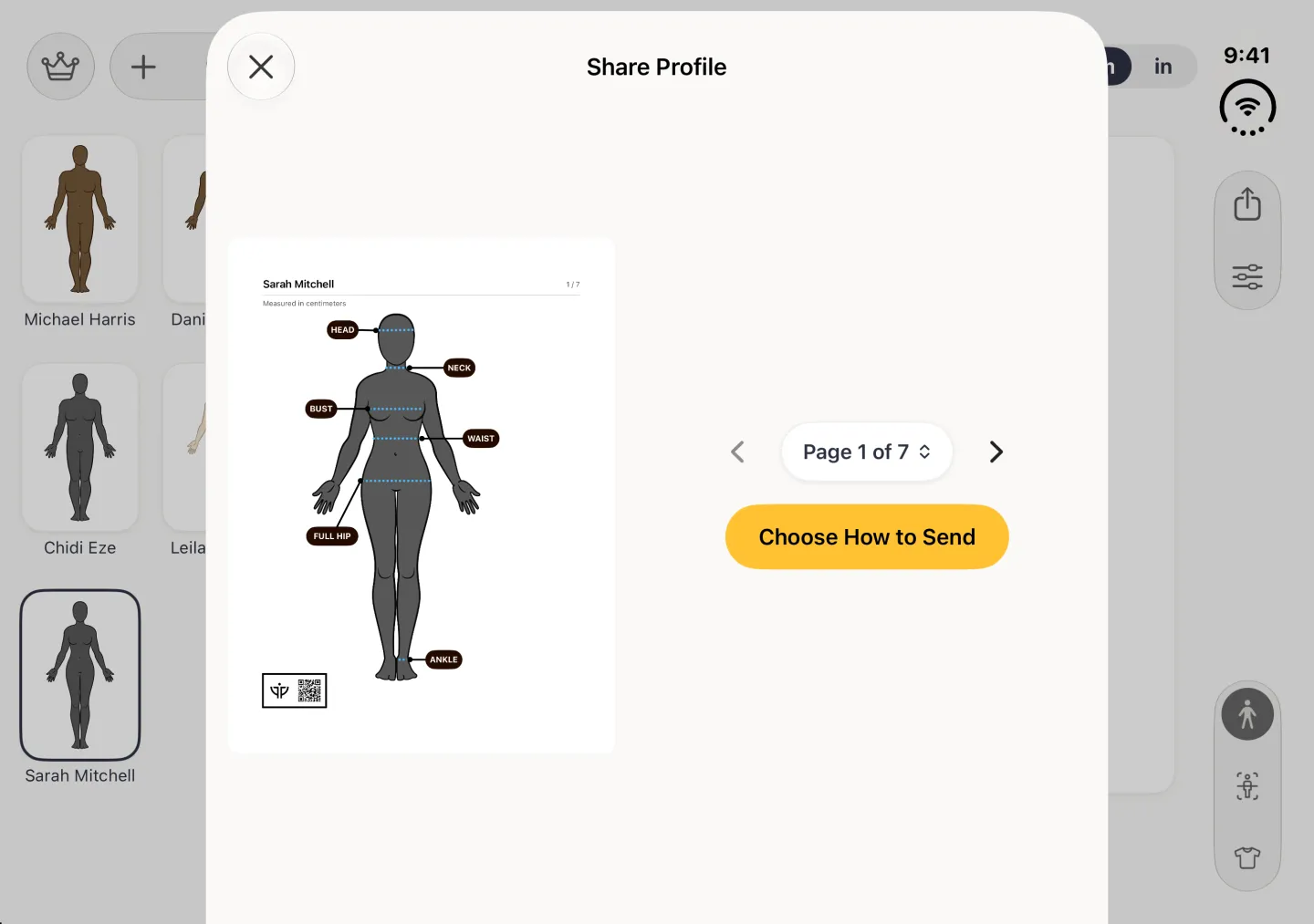
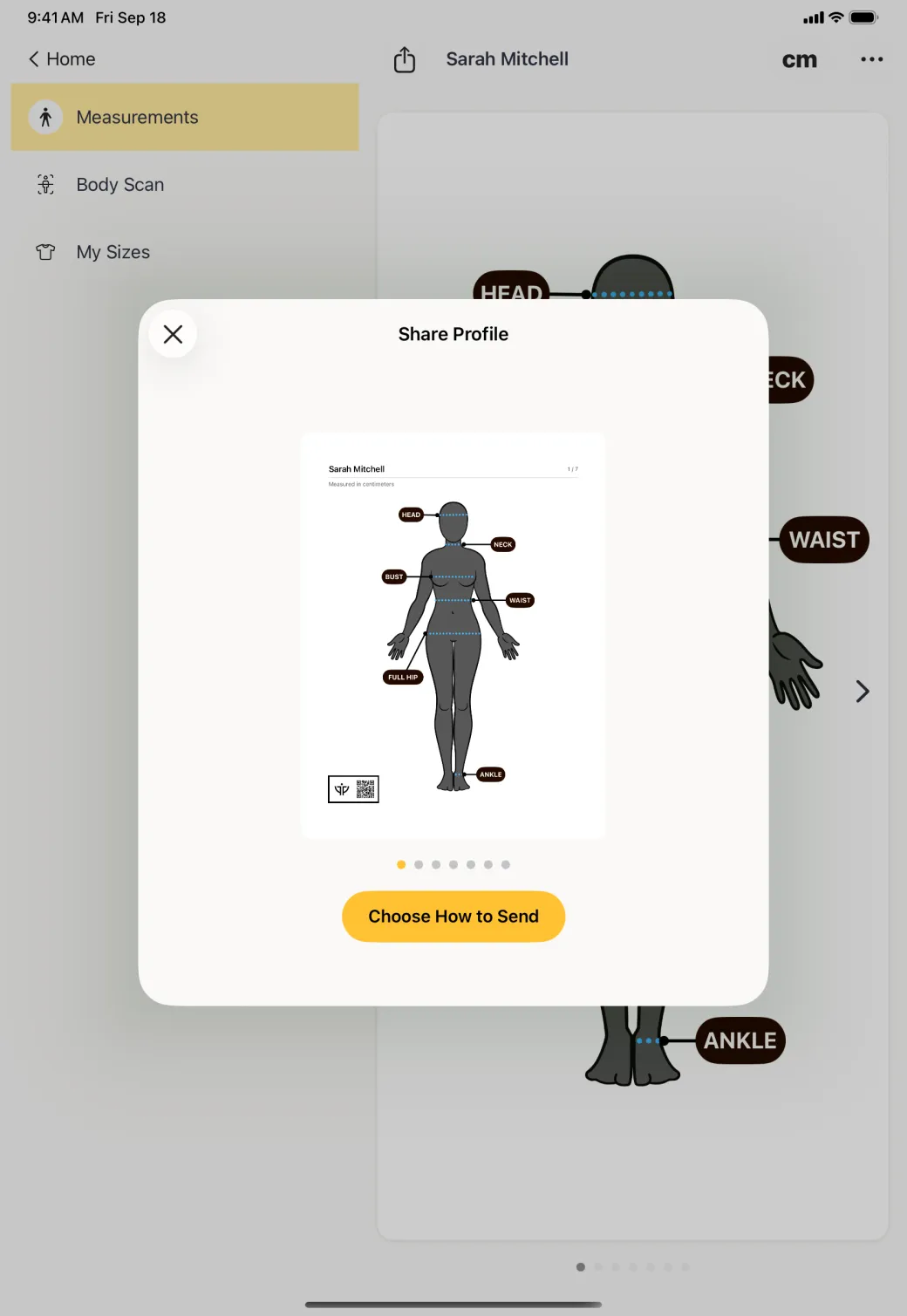
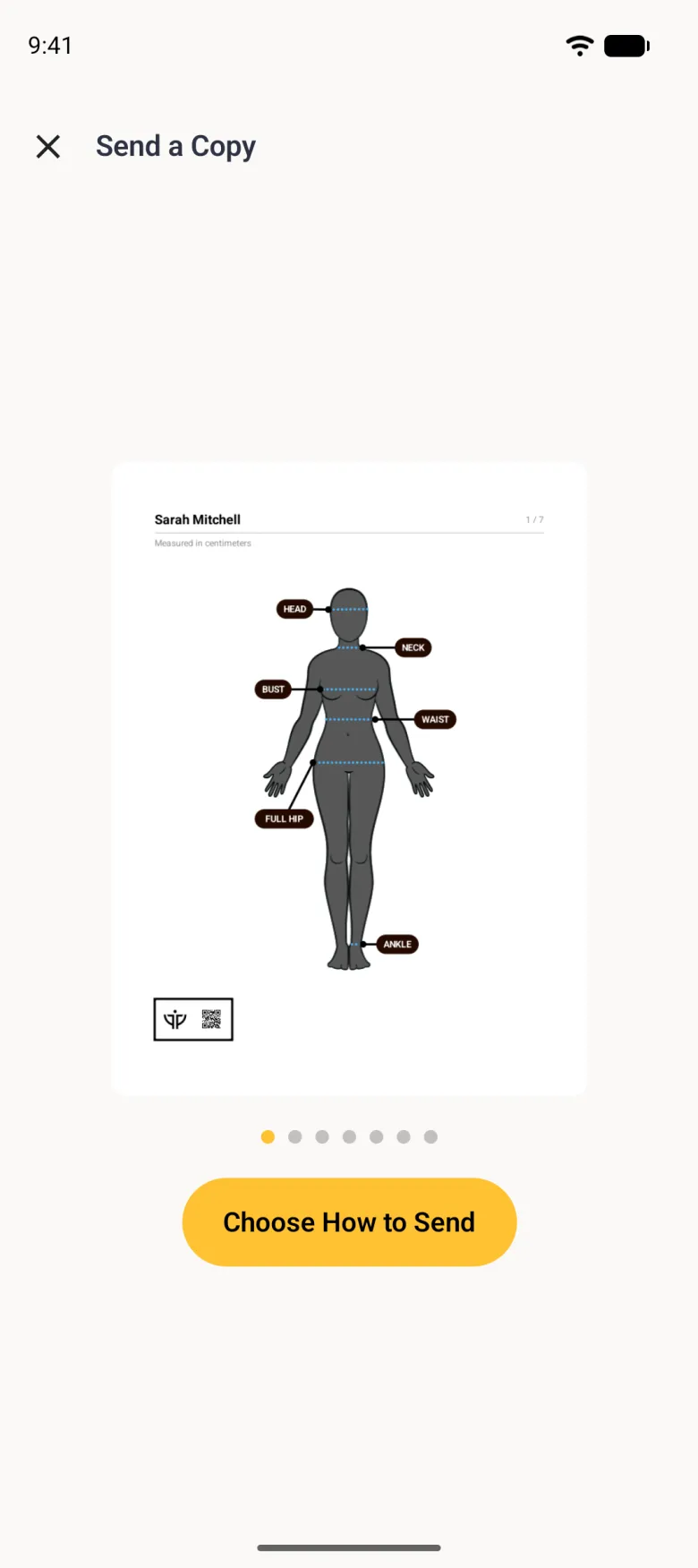
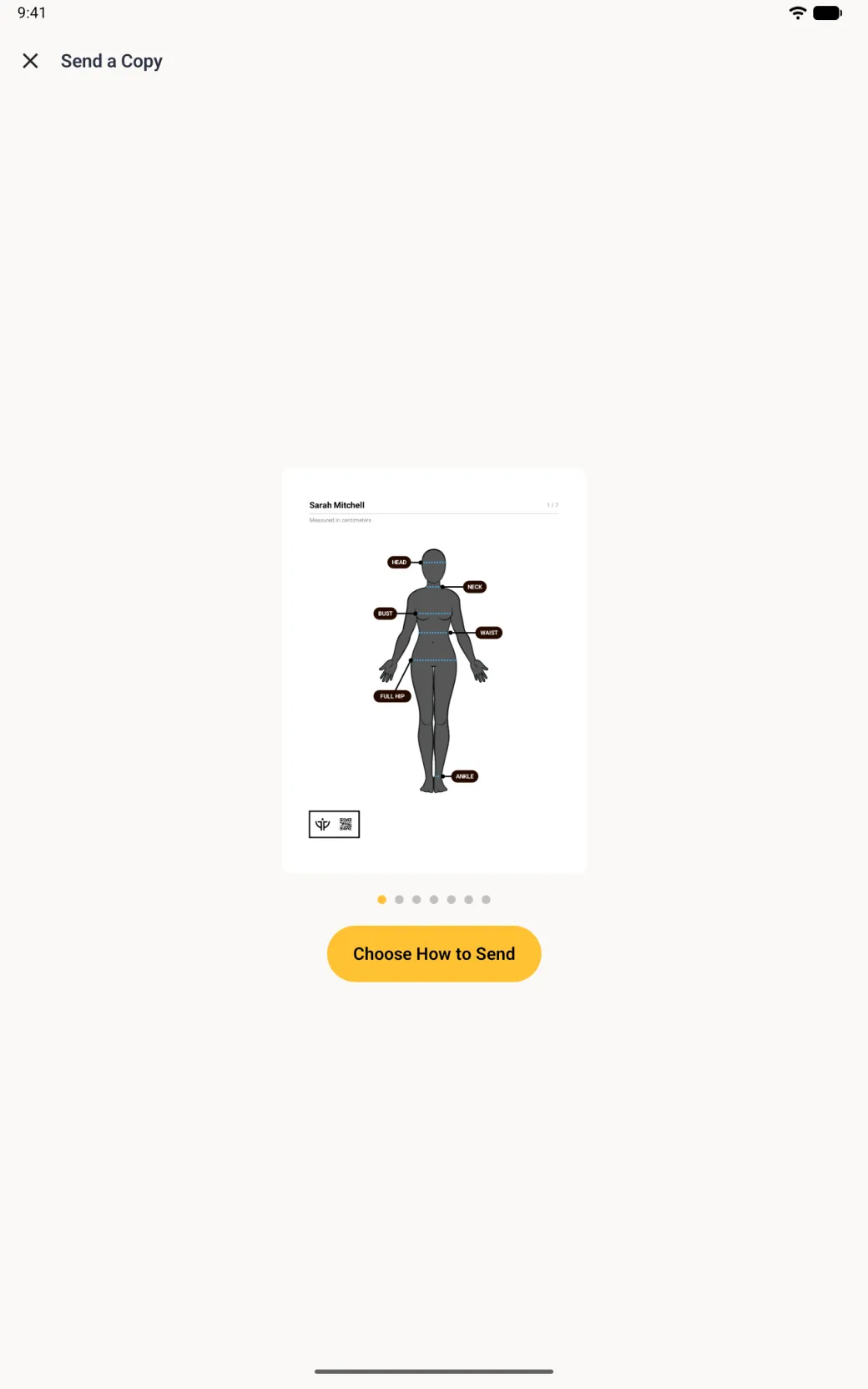
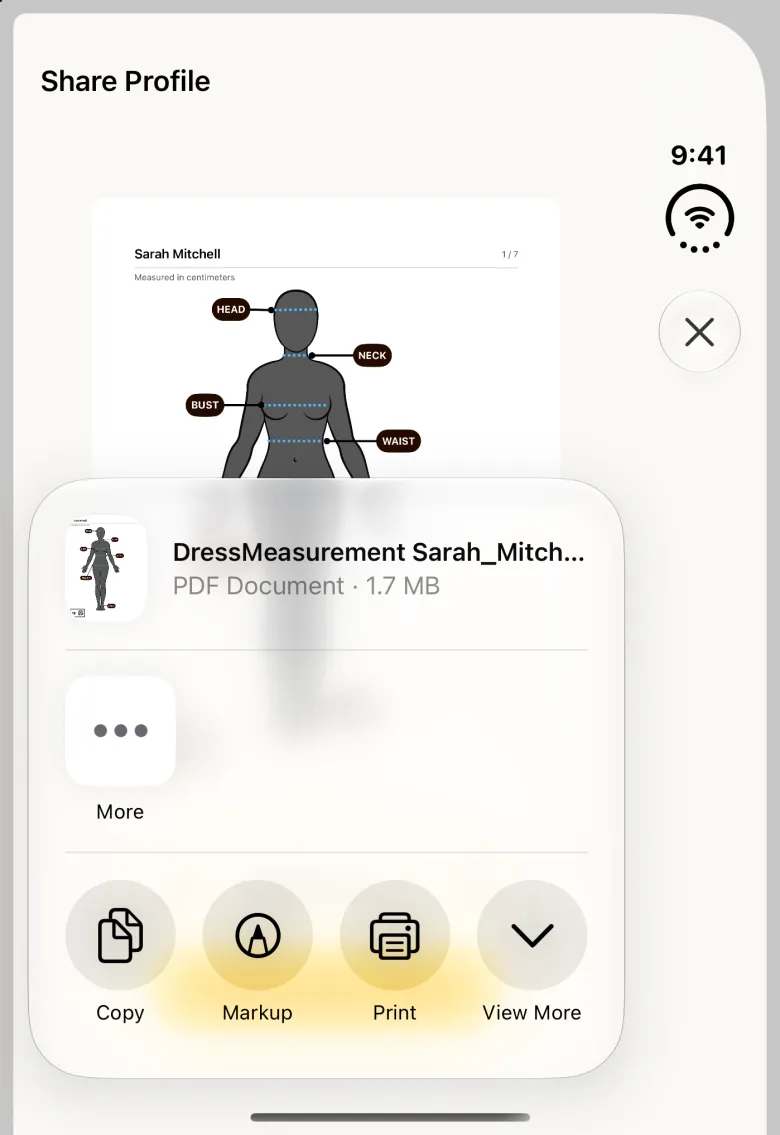
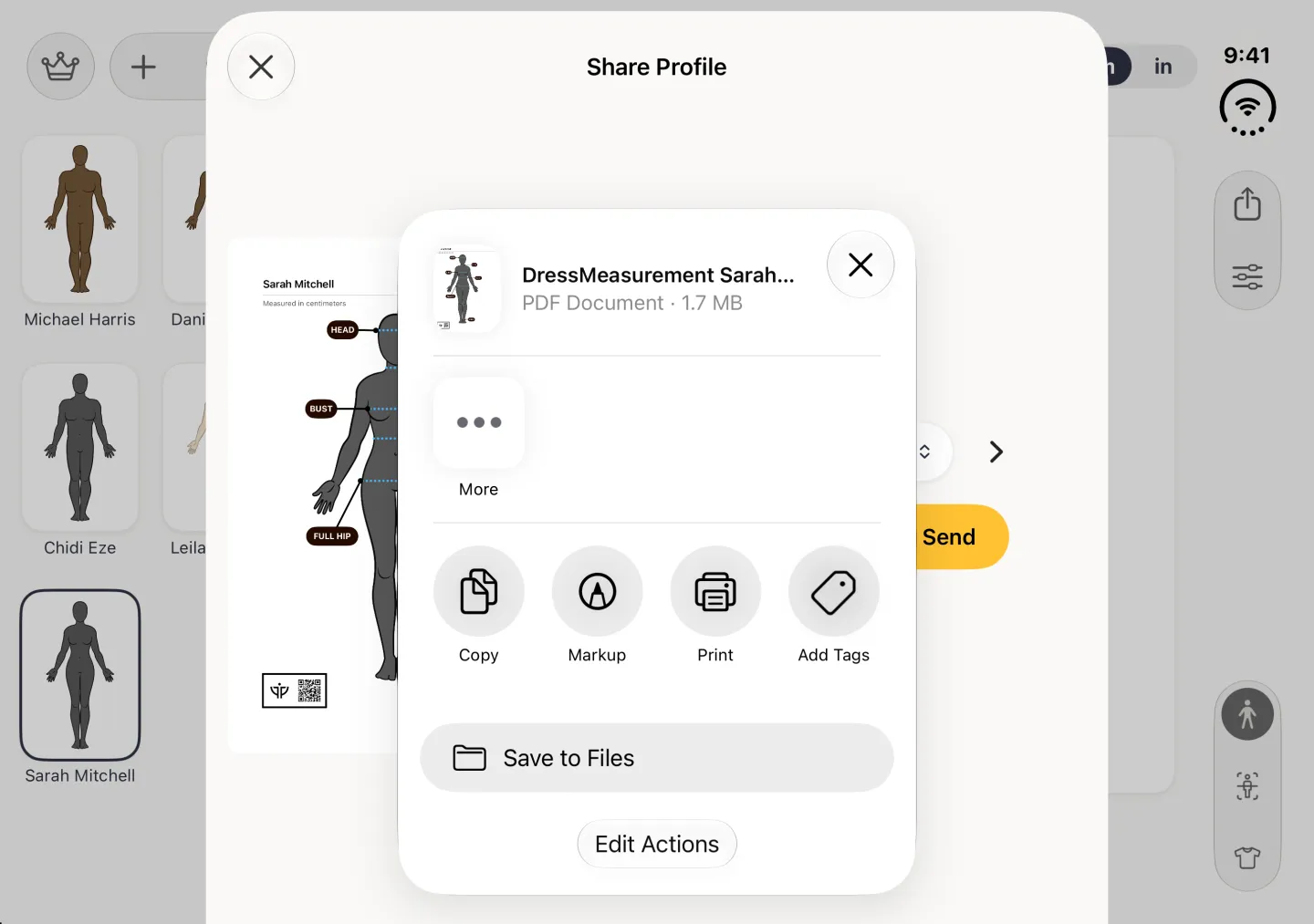
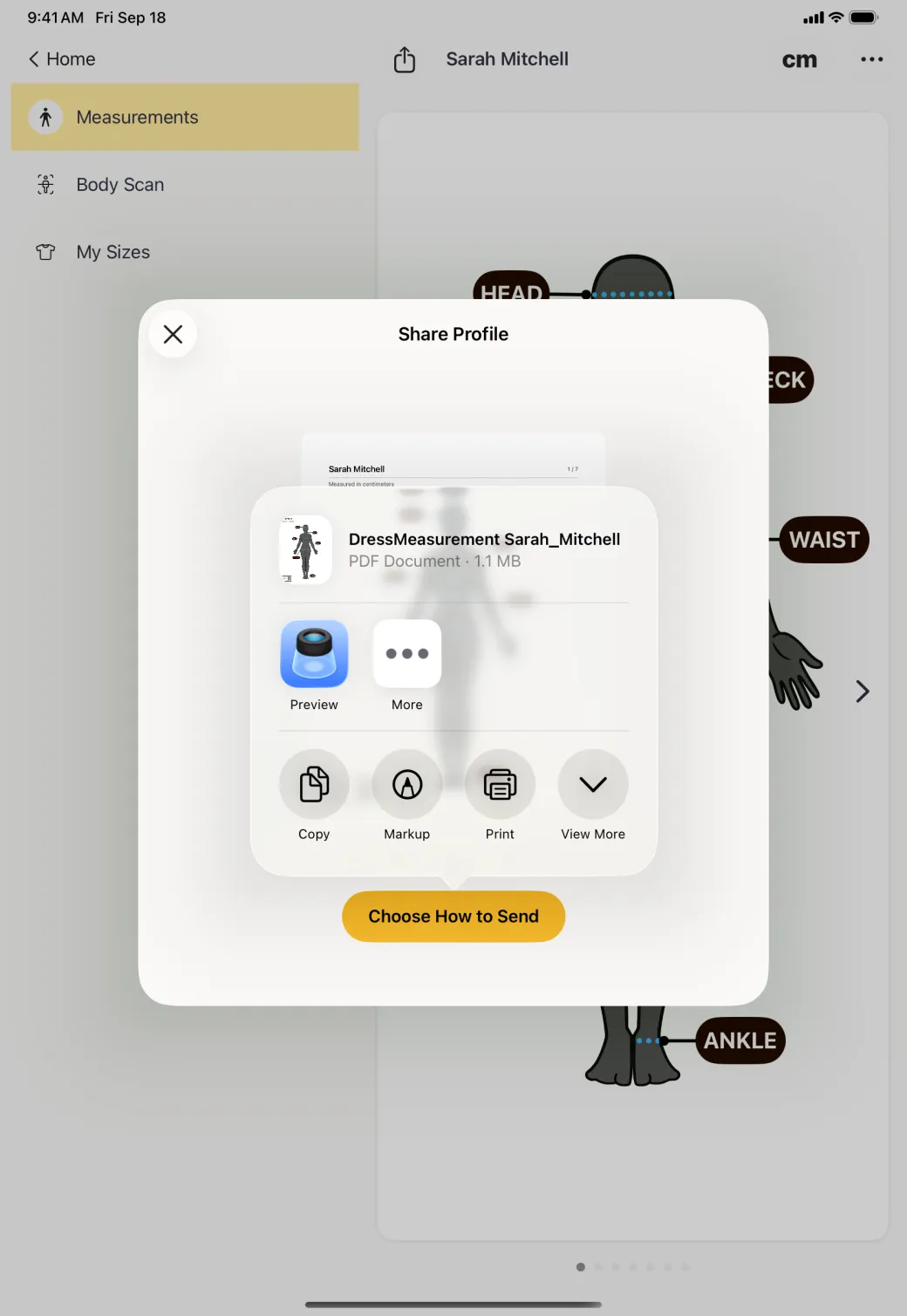
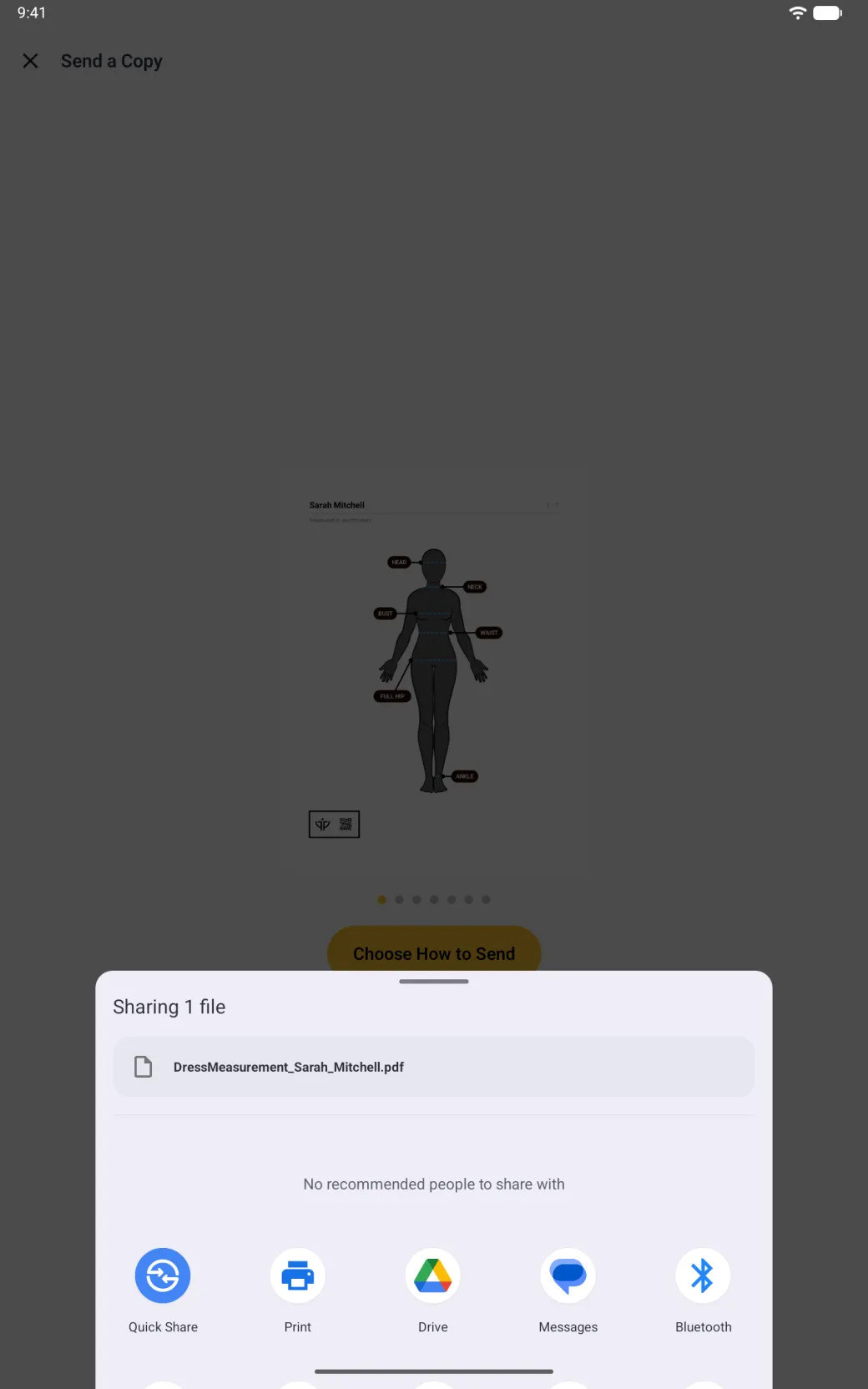
Open the profile, tap its share button, and pick PDF. The app builds a printable measurement sheet with the profile name at the top, a line reading “Measured in centimeters” or the equivalent for inches, and a labelled avatar for each group of measurements. The foot of each page carries the app mark and a QR code pointing at dressmeasurement.com. PDF export is on the free plan as well as Tailor Shop.
- Open the profile you want to send.
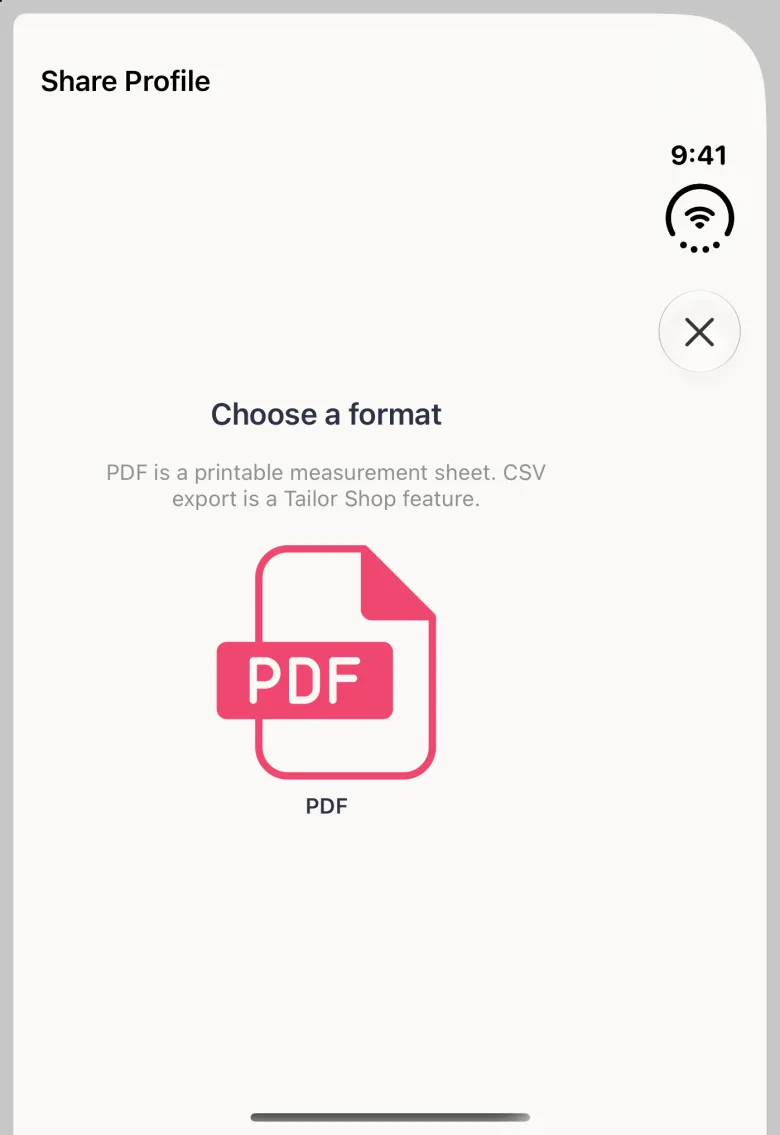
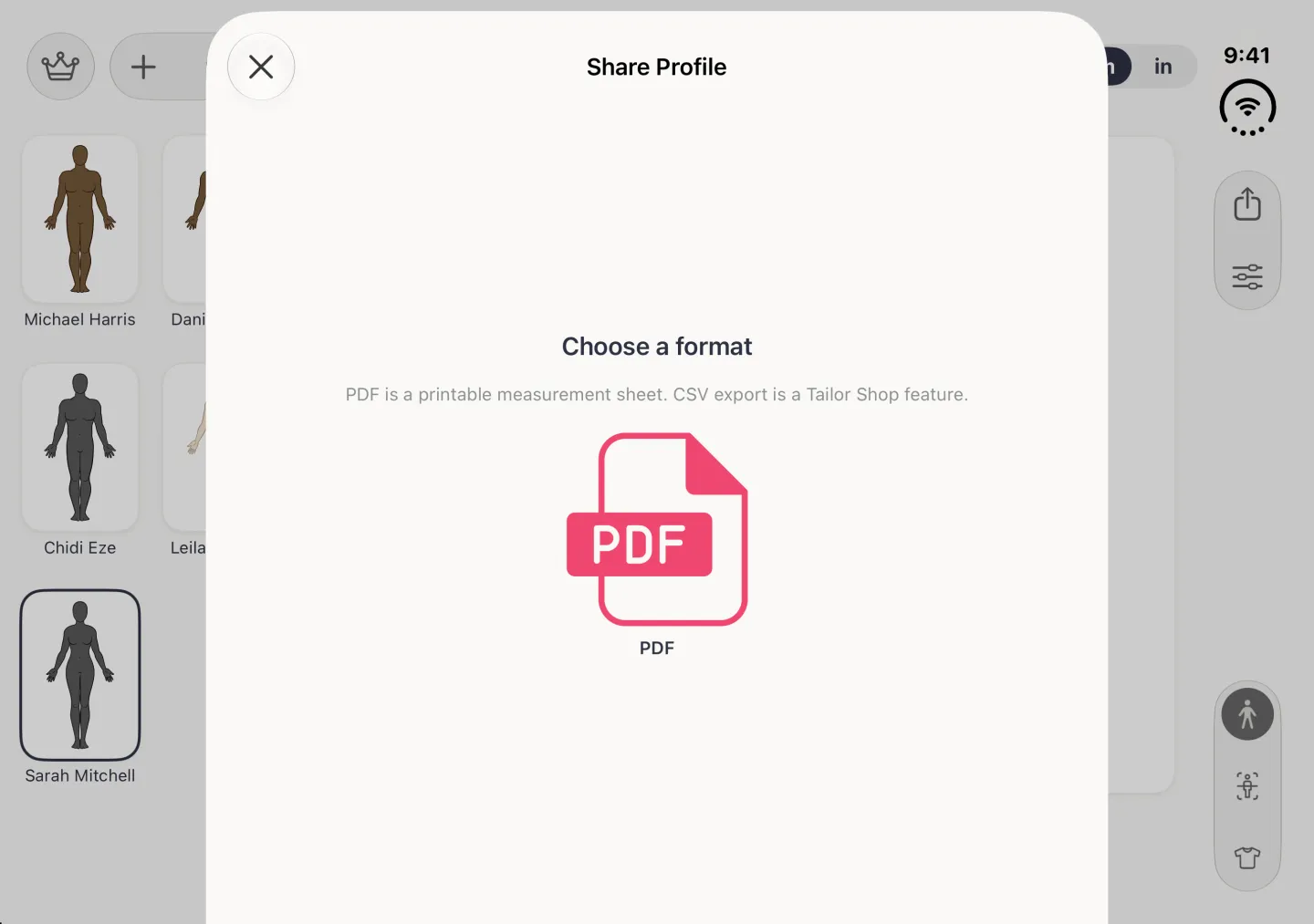
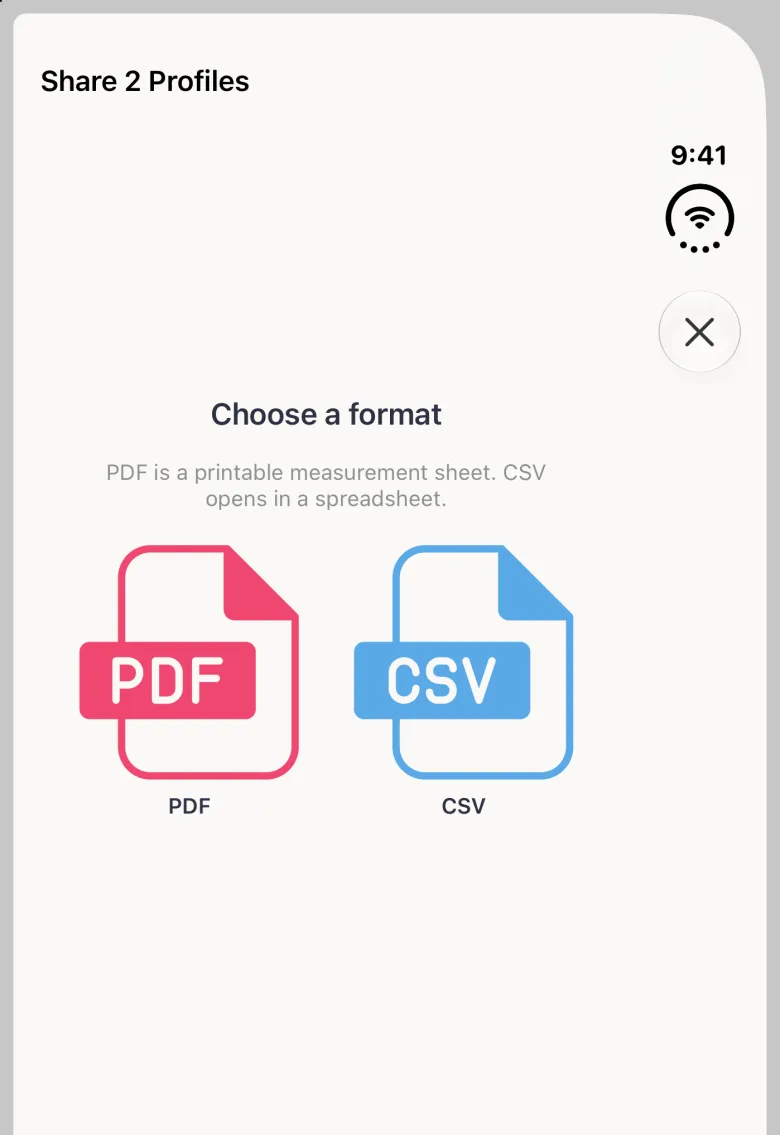
- Tap the share button (a square with an arrow pointing up) at the top right. The Share Profile sheet opens on Choose a format.
- Tap PDF.
- Give the preview a moment to build, then use the arrows either side of the page counter to check each page.
- Tap Choose How to Send.
On iPhone Duo, opened, the share button sits in the strip of buttons on the right edge; closed, tap the more button (three dots) in that strip and choose Share Profile, the first item.
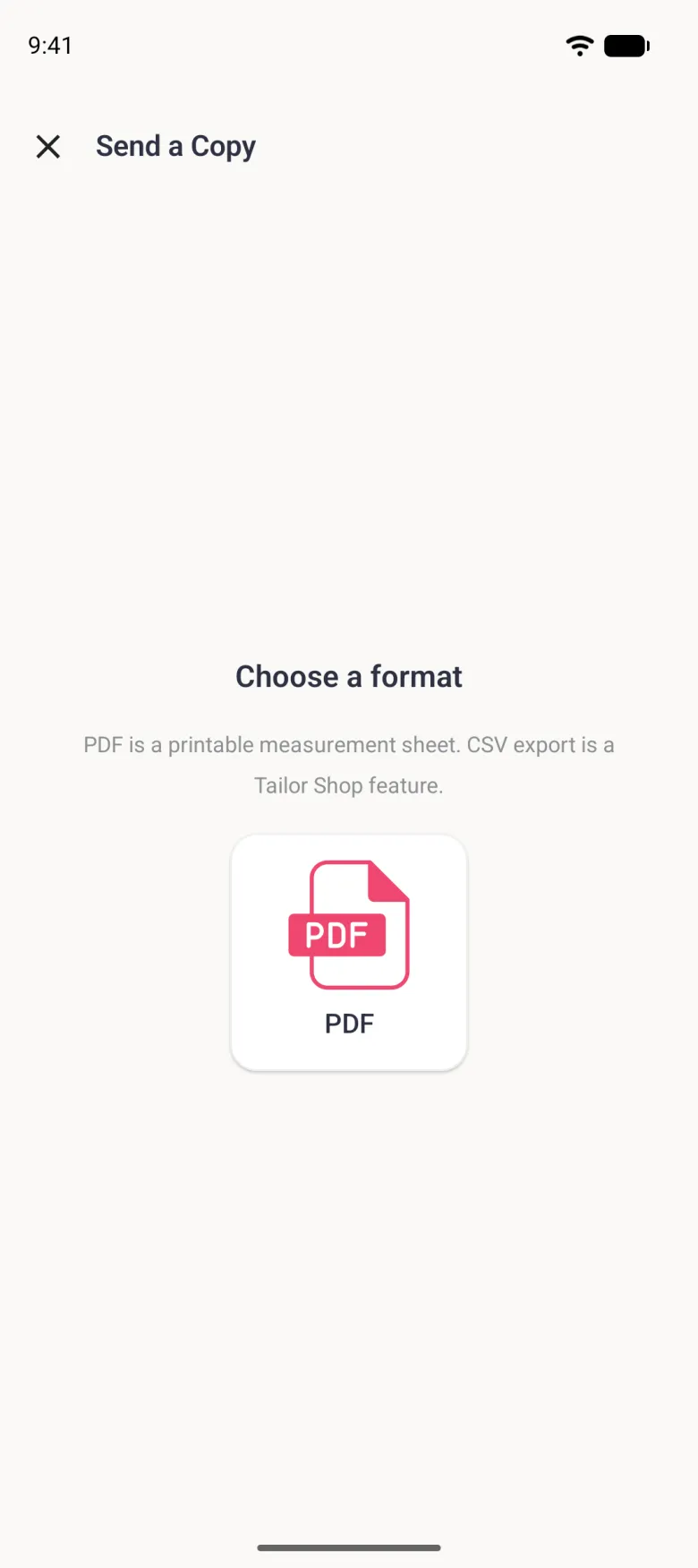
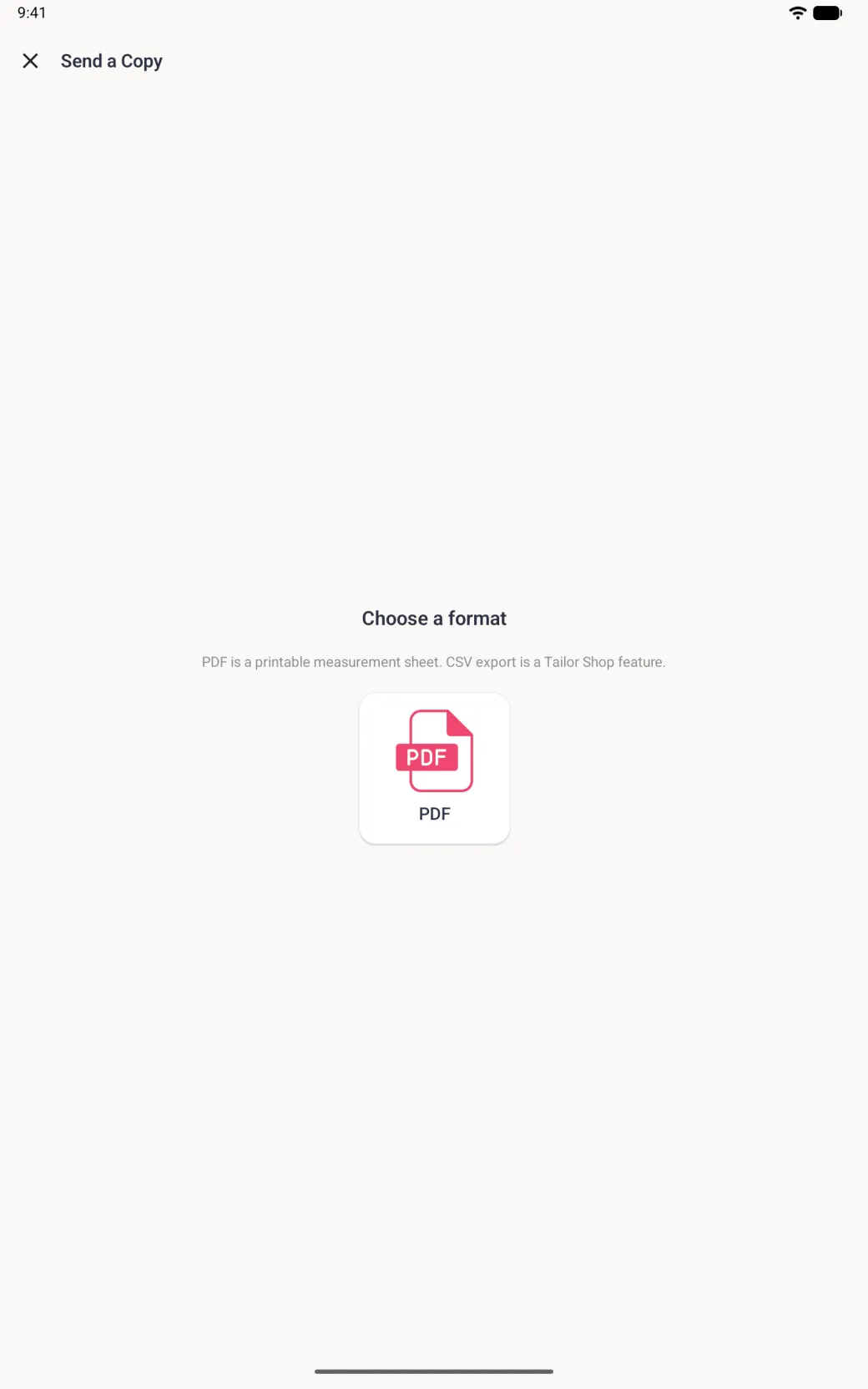
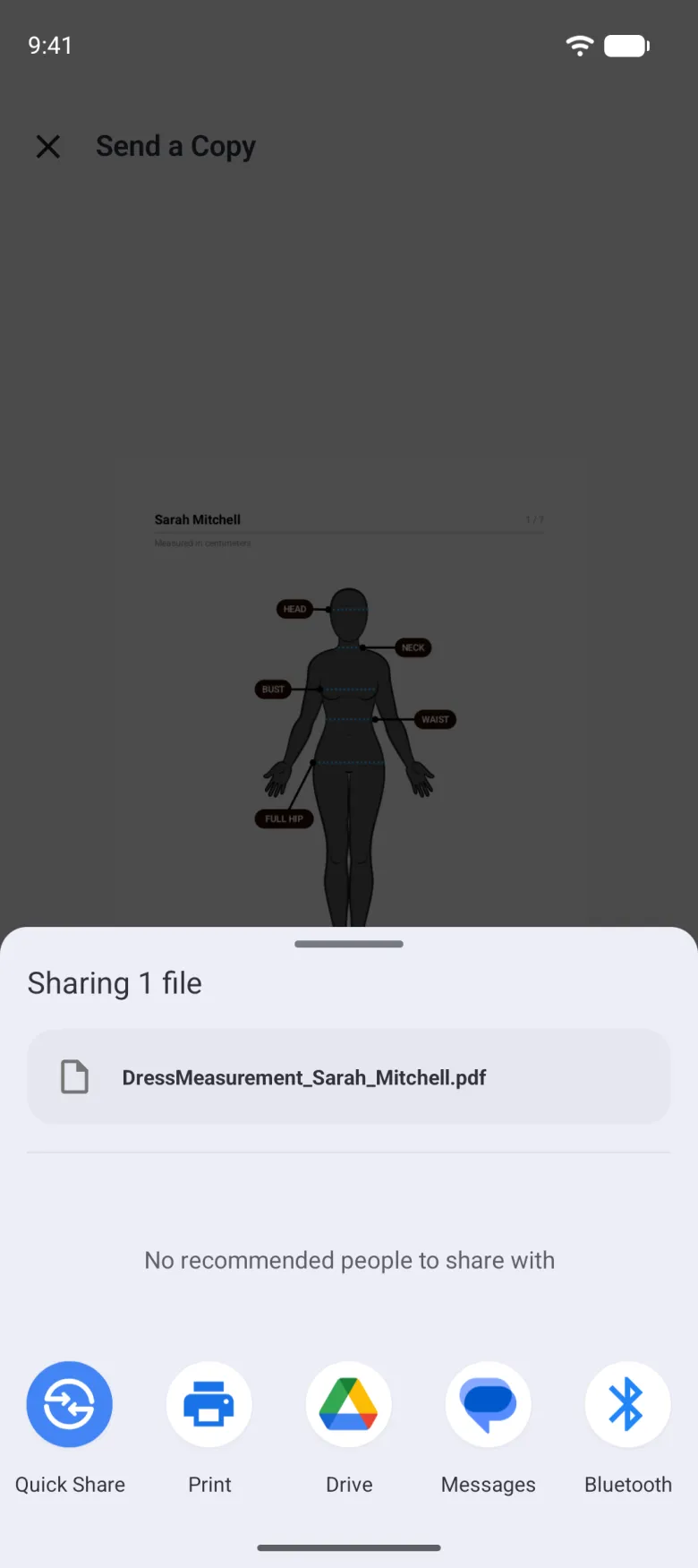
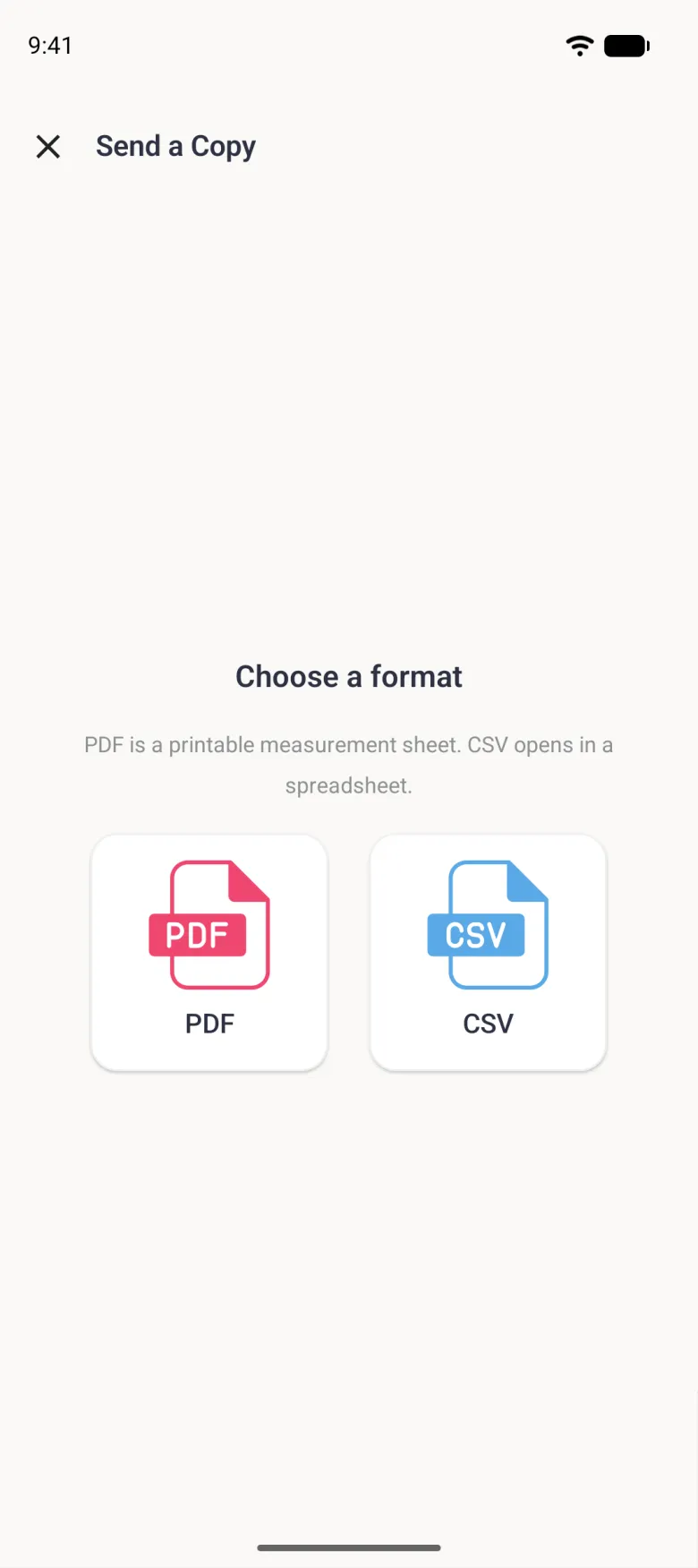
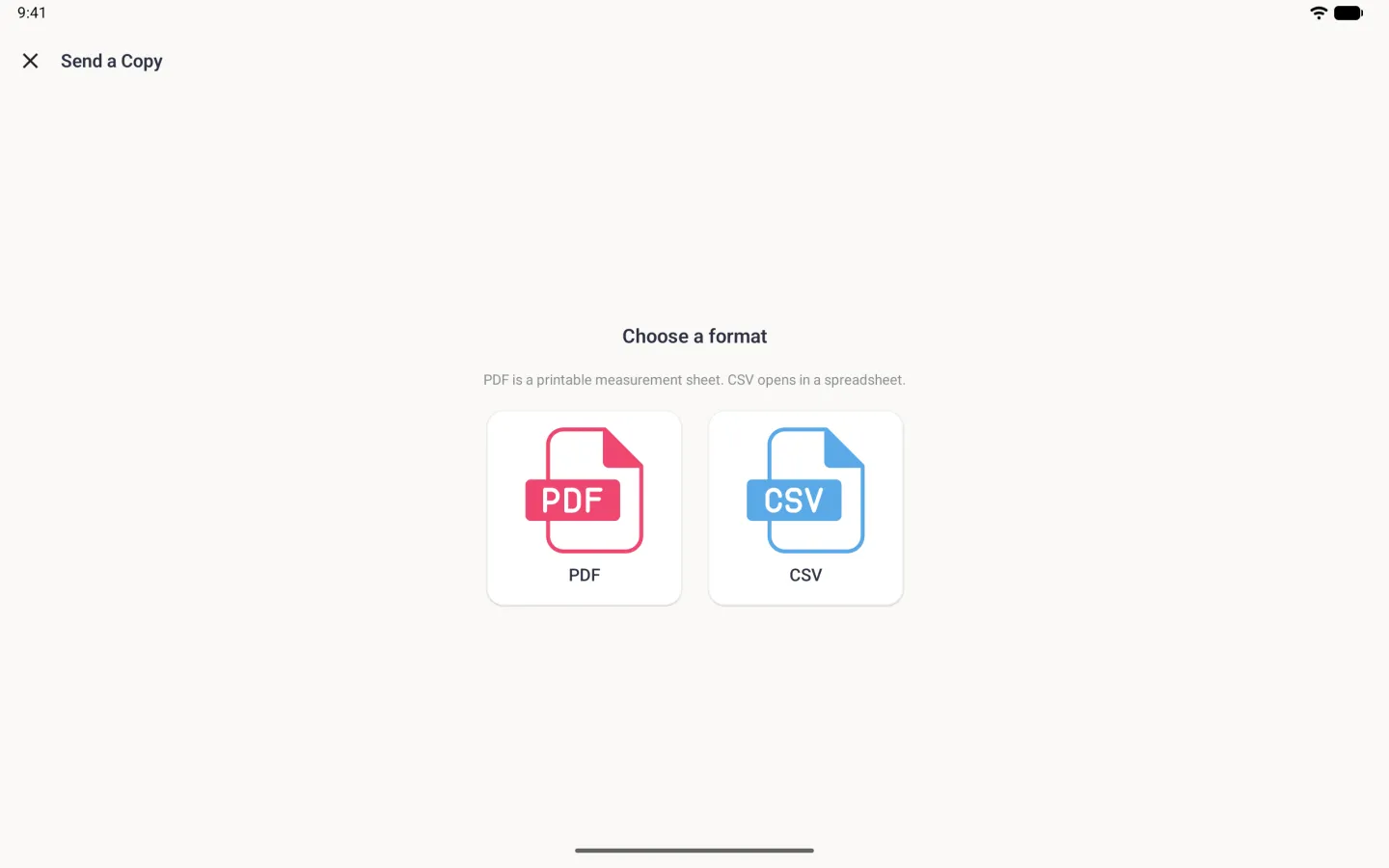
On Android, open the ⋮ menu on the profile and tap Share Profile. The screen that opens is titled Send a Copy rather than Share Profile, but the steps inside it are the same: Choose a format, then Choose How to Send, then the Android share sheet. Swipe the preview to move between pages.


Where can you send the finished file?
Choose How to Send hands the file to your phone’s own share sheet, so anywhere you can normally send a document is available: a messaging app, email, a note, a printer, or your files. Nothing leaves the device until you pick a destination there, and you can back out of the share sheet without sending.

How do you work with several profiles at once?
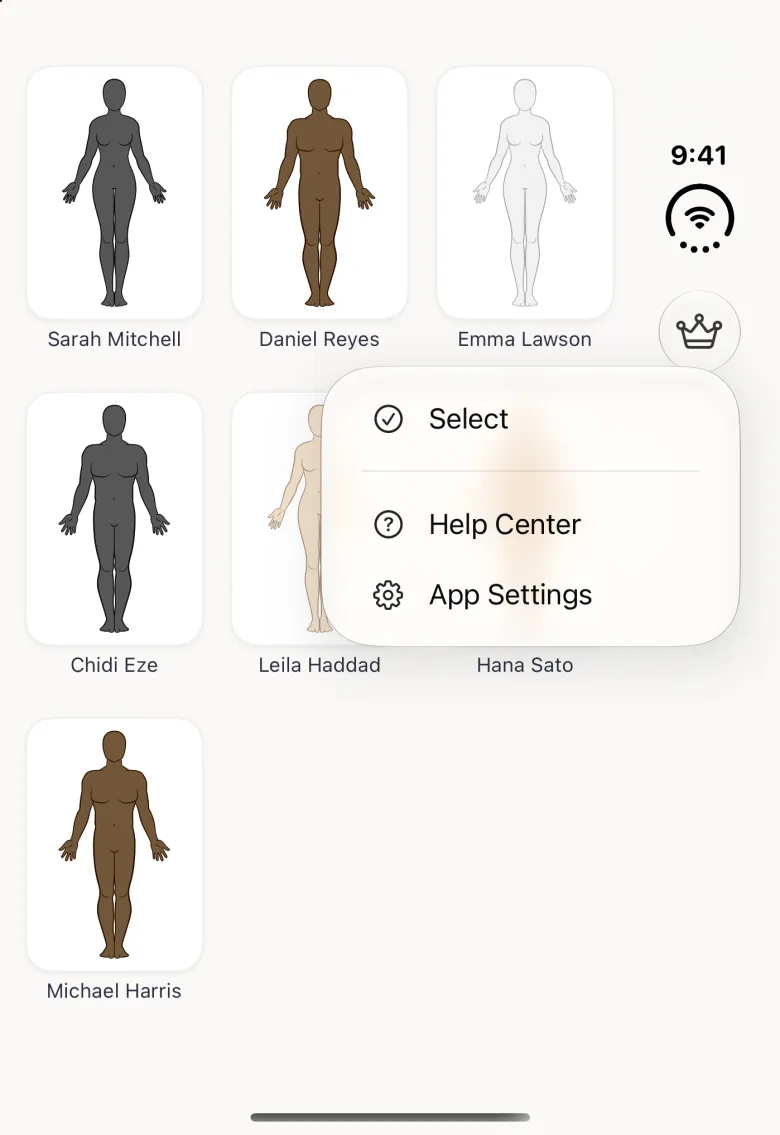
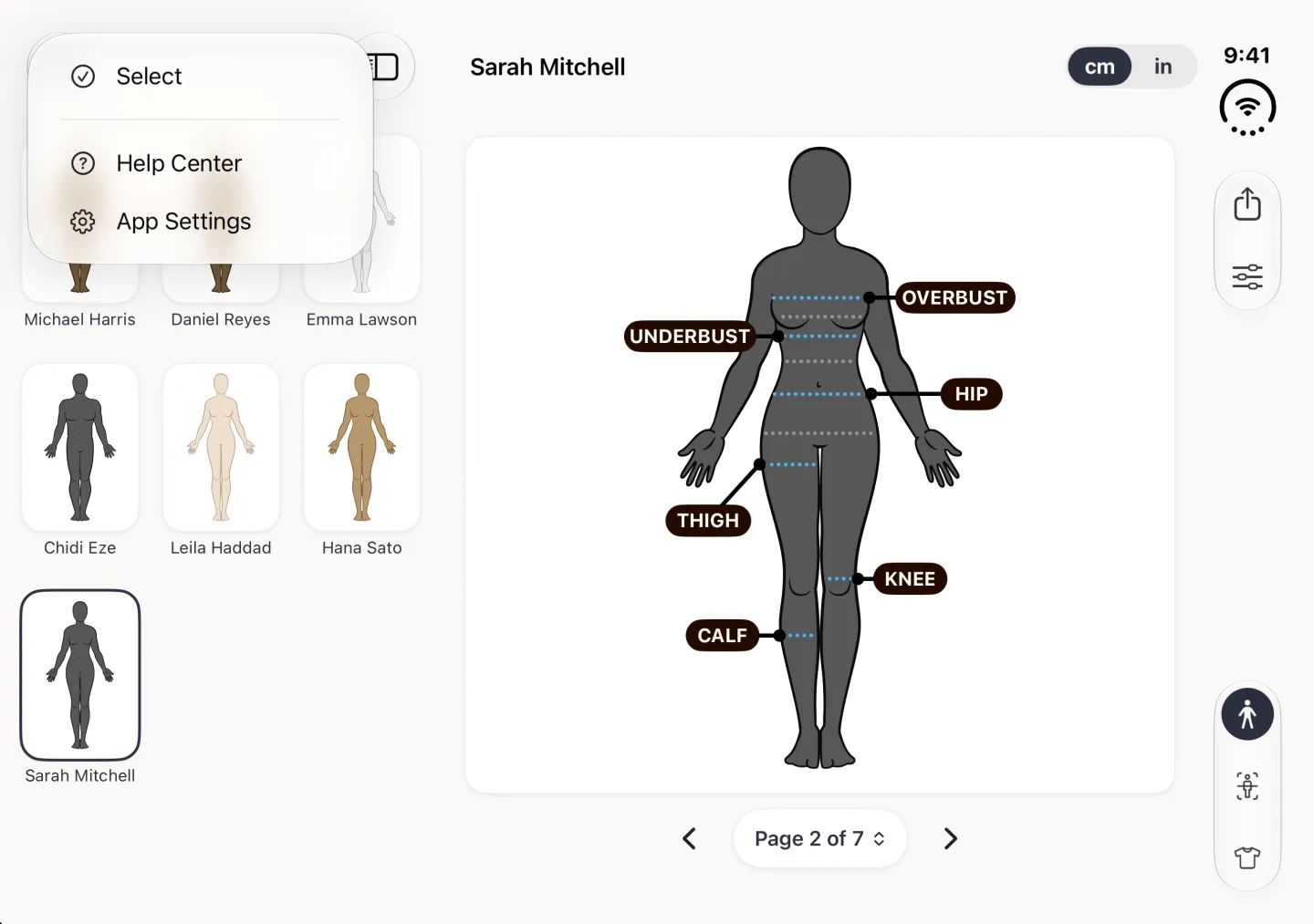
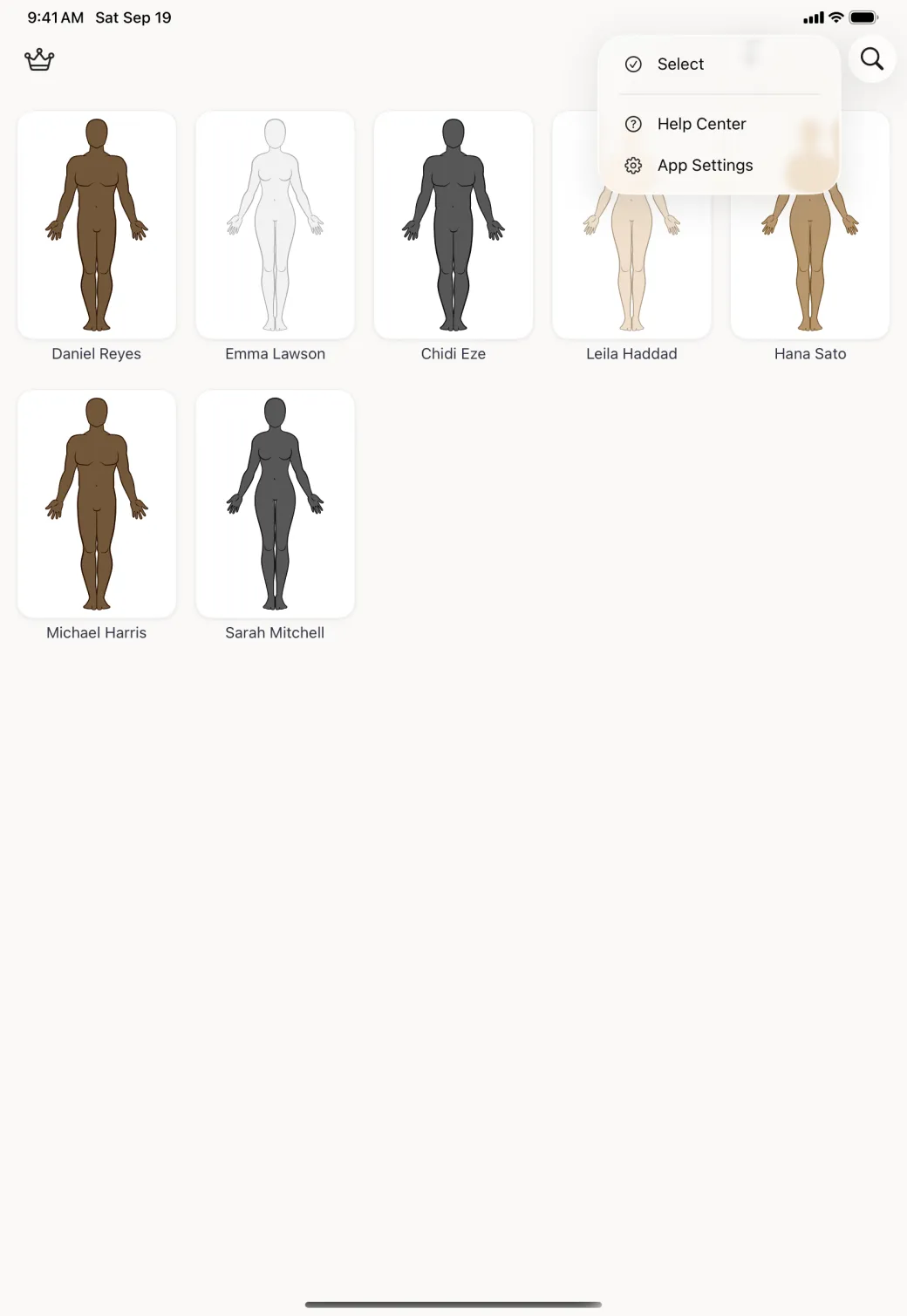
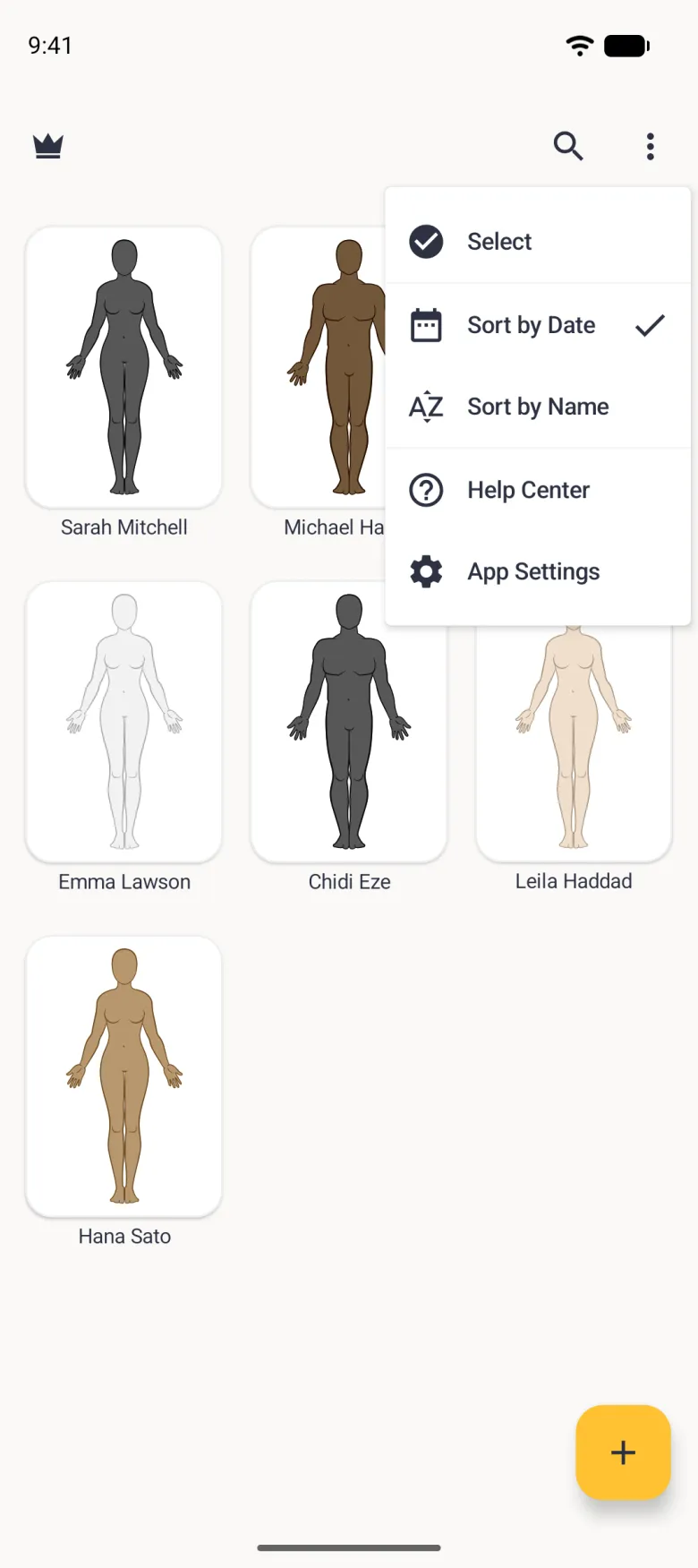
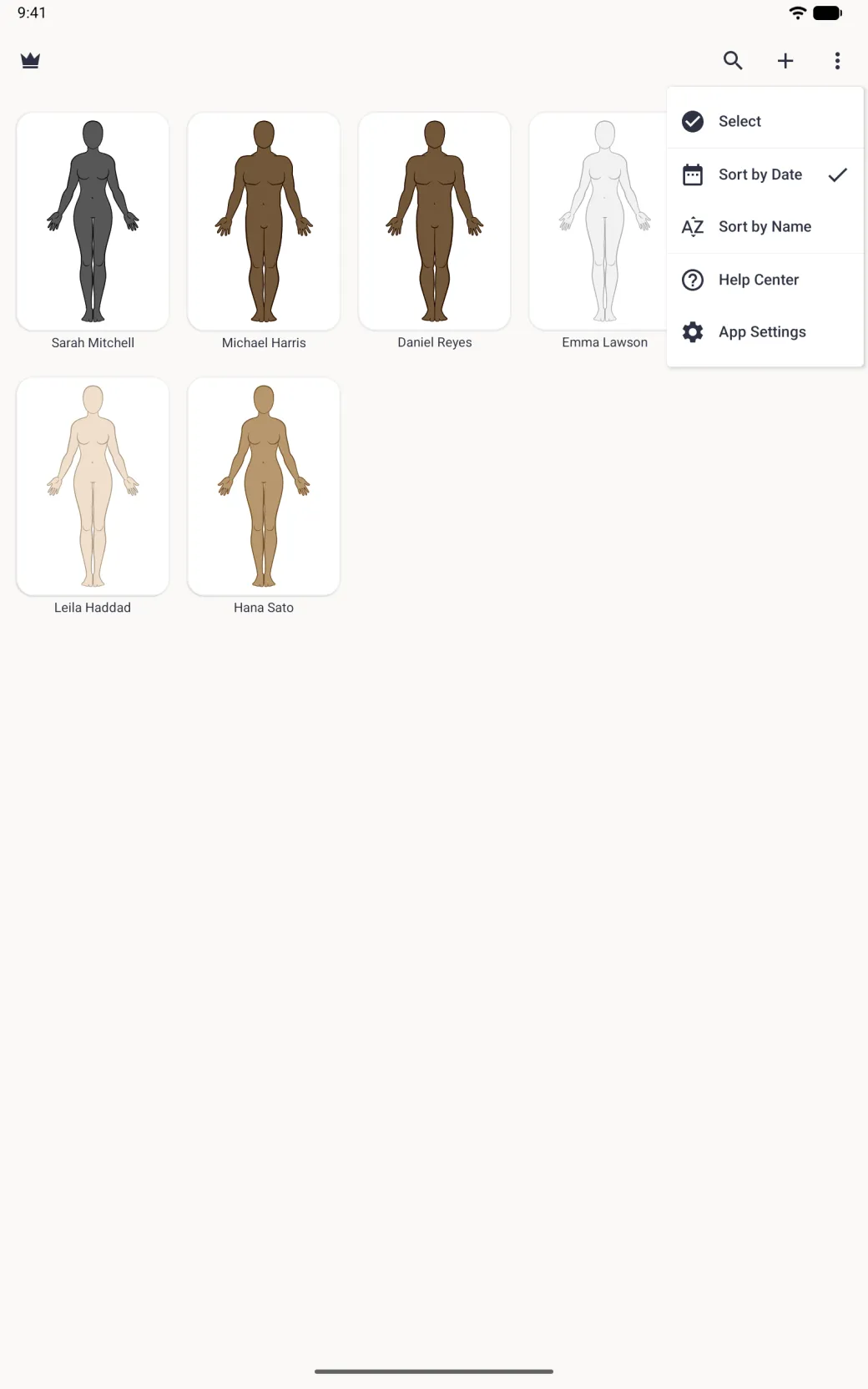
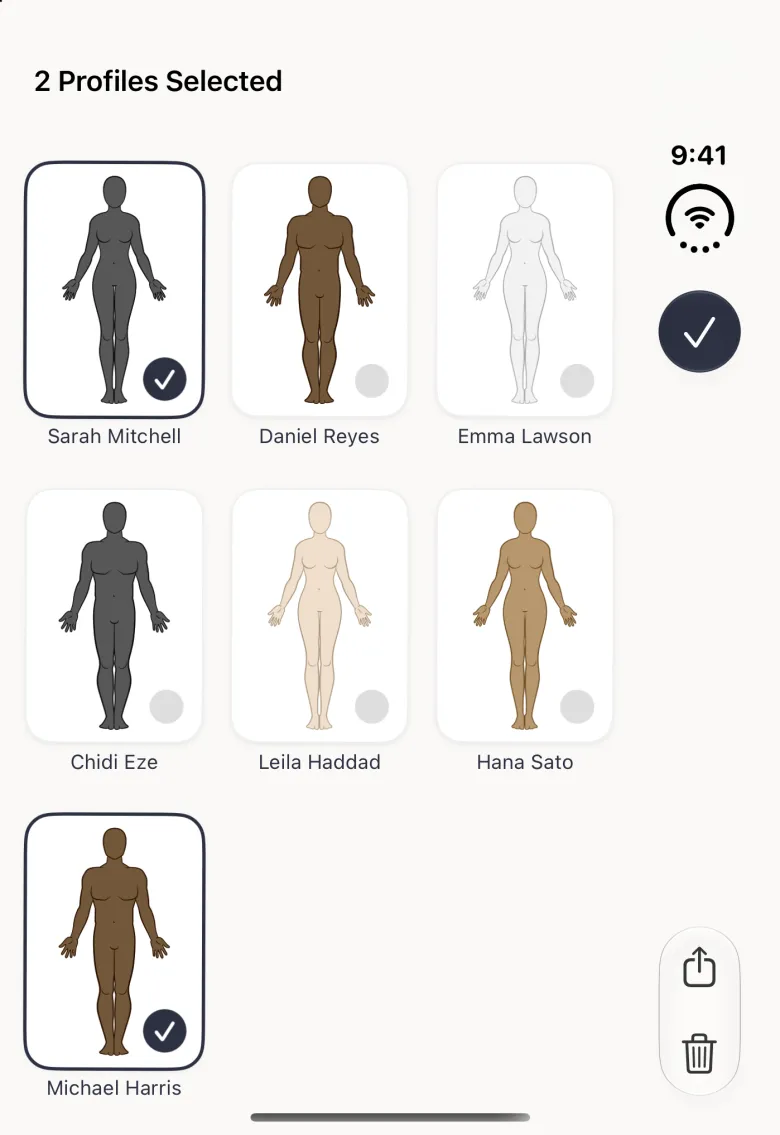
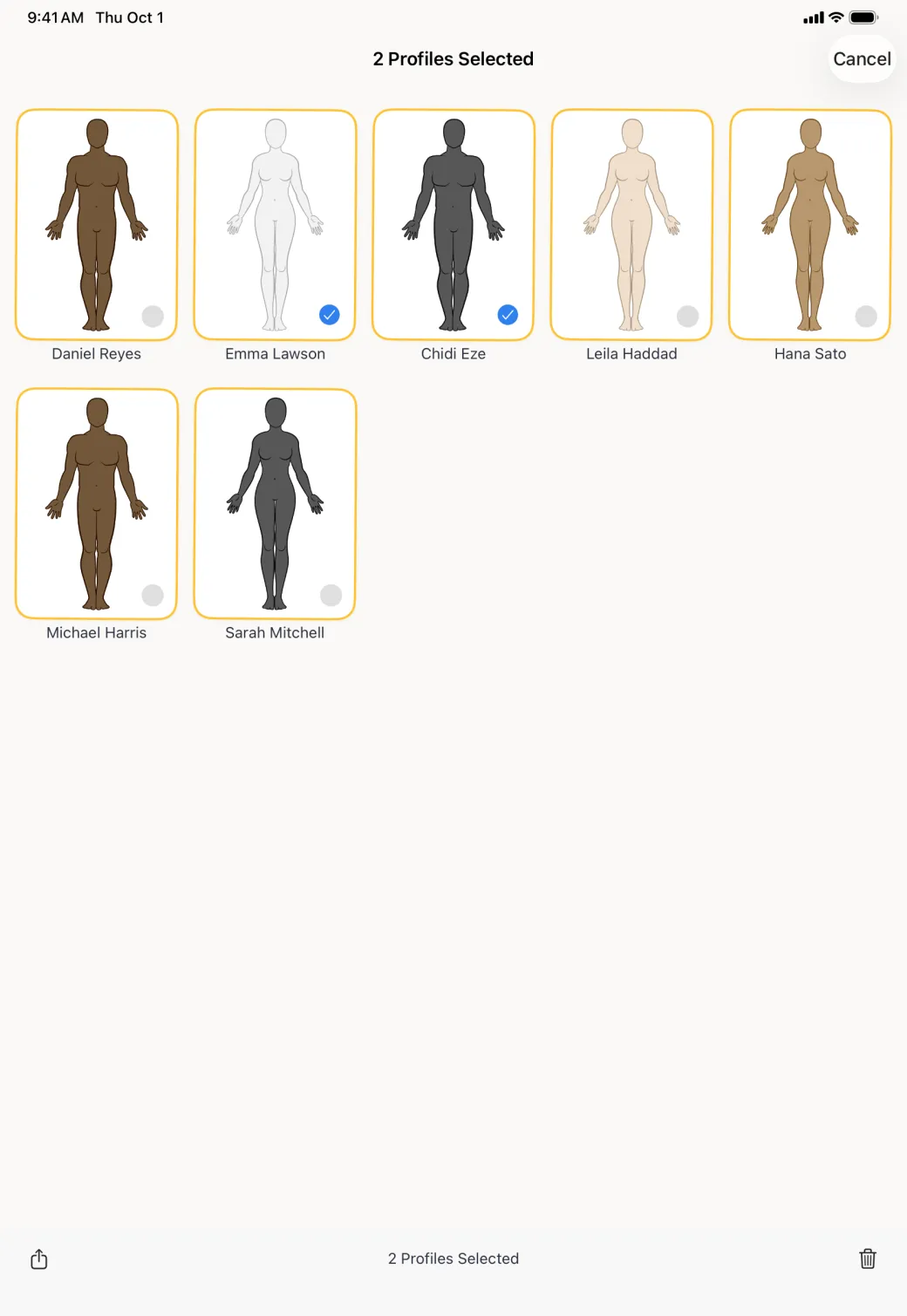
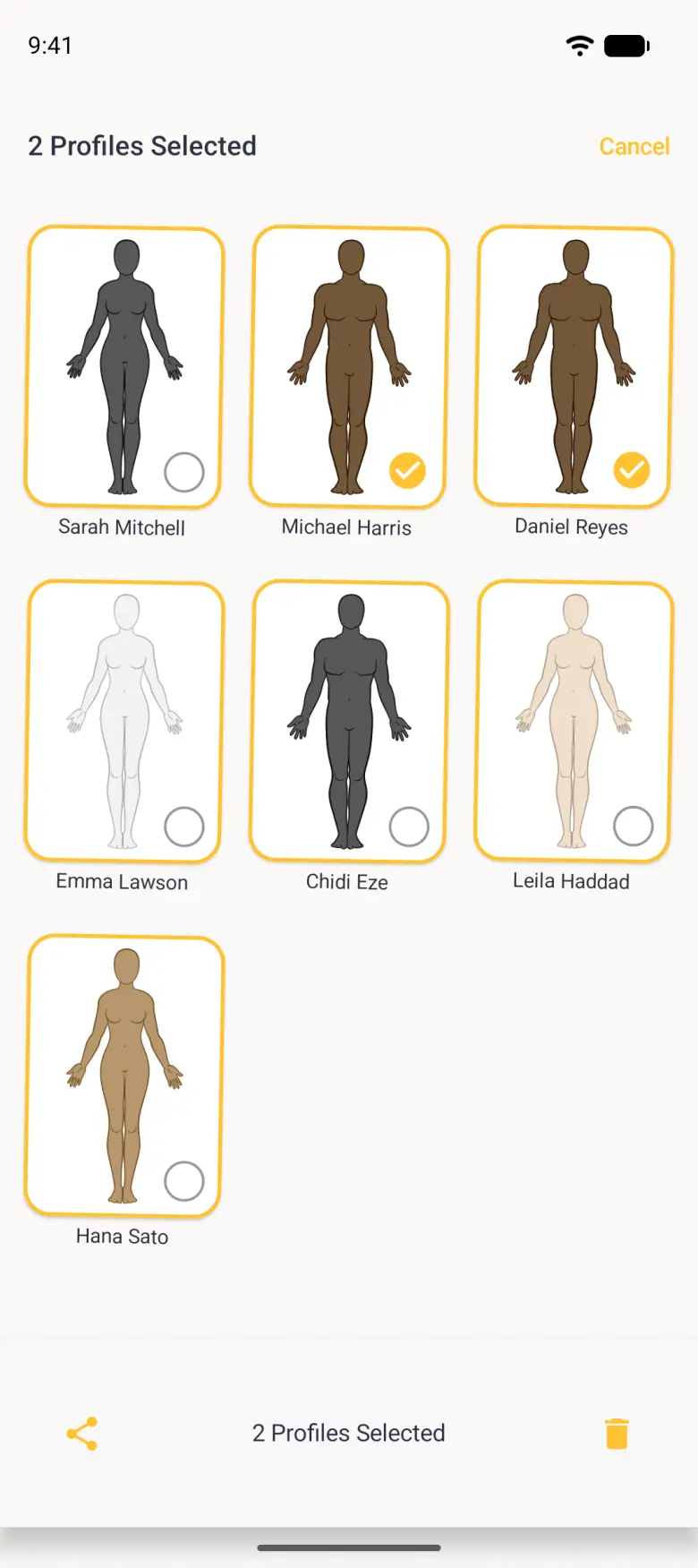
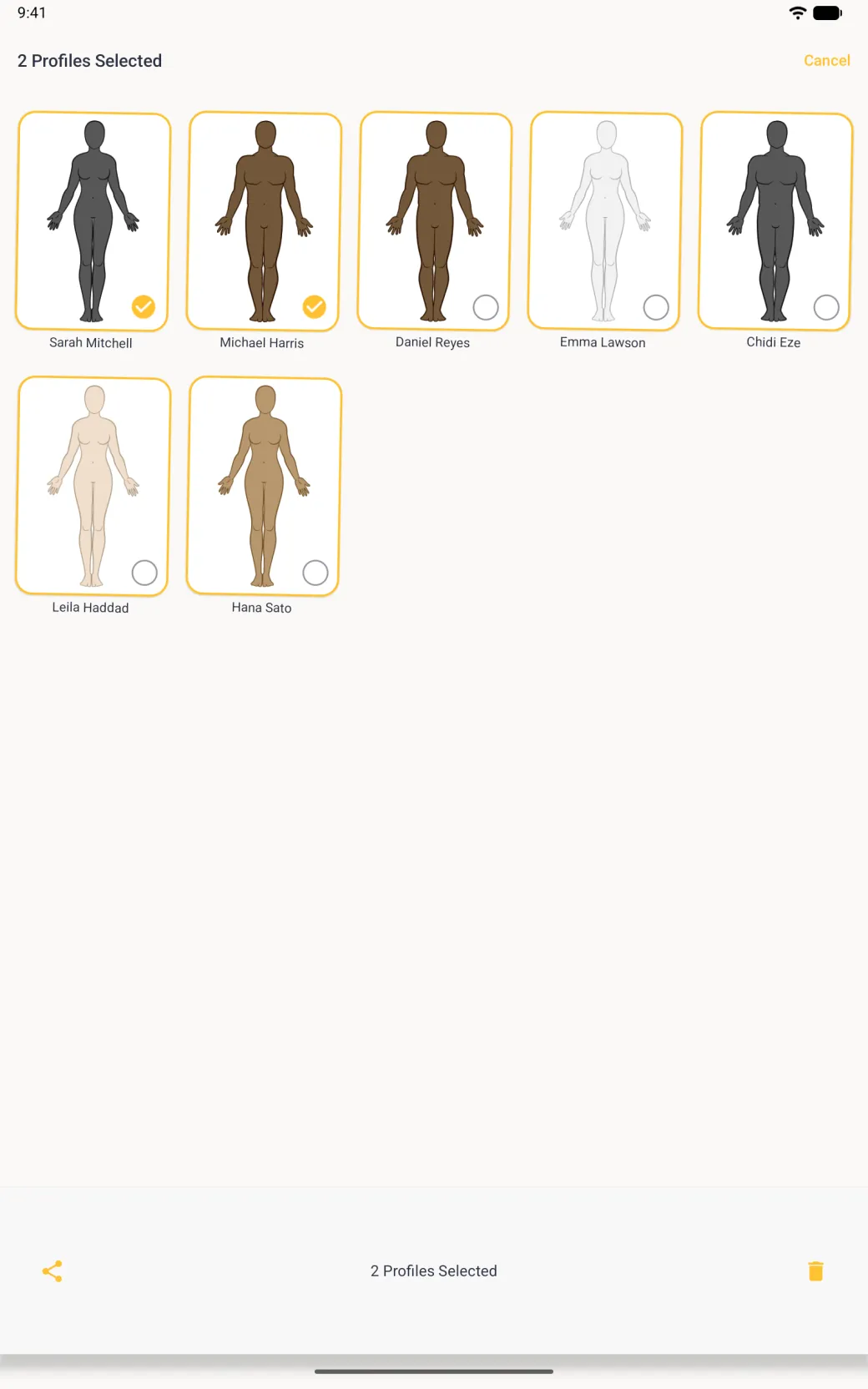
Selection mode turns the profile grid into a set of tick boxes. Open the three-dot menu at the top right of the grid and tap Select, then tap each profile you want. The title counts what you have chosen, a share button sits at the bottom left and a delete button at the bottom right, and the checkmark at the top right leaves selection mode. Exporting several profiles together is part of Tailor Shop: on the free plan on iPhone, sharing more than one selected profile opens the Upgrade to Tailor Shop sheet instead.
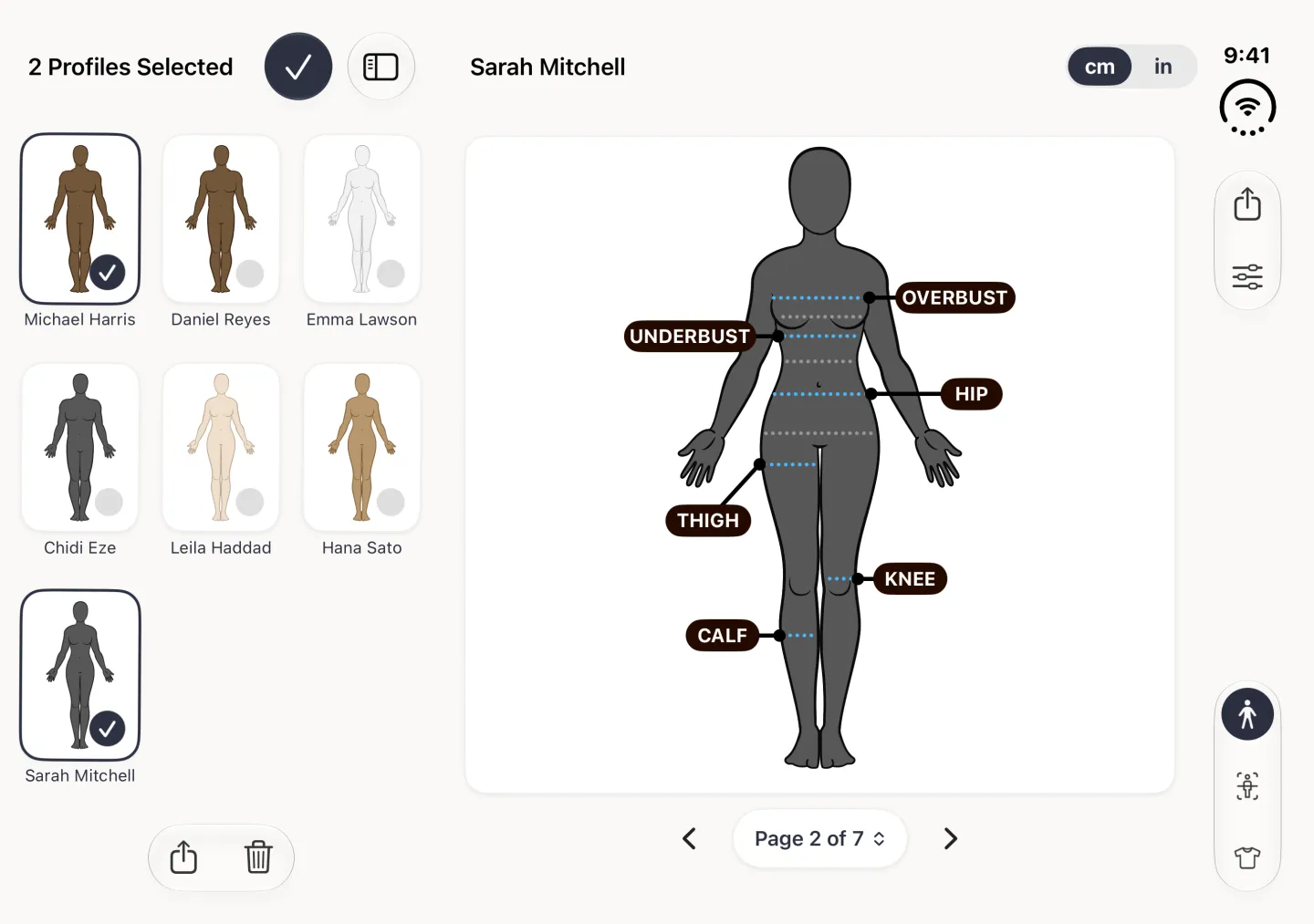
On iPhone Duo, opened, selection happens in the profile list beside the open profile, with the share and delete buttons at the foot of the list; closed, the checkmark and the share and delete buttons sit in the strip on the right. On Android the count also shows in a bottom bar between the share and delete buttons, and Cancel at the top leaves selection mode.
Deleting always asks first. The confirmation names how many profiles you are about to remove and spells out that their measurements, history, photos and notes go with them, so a mistap costs you nothing.


How do you export clients as a spreadsheet?
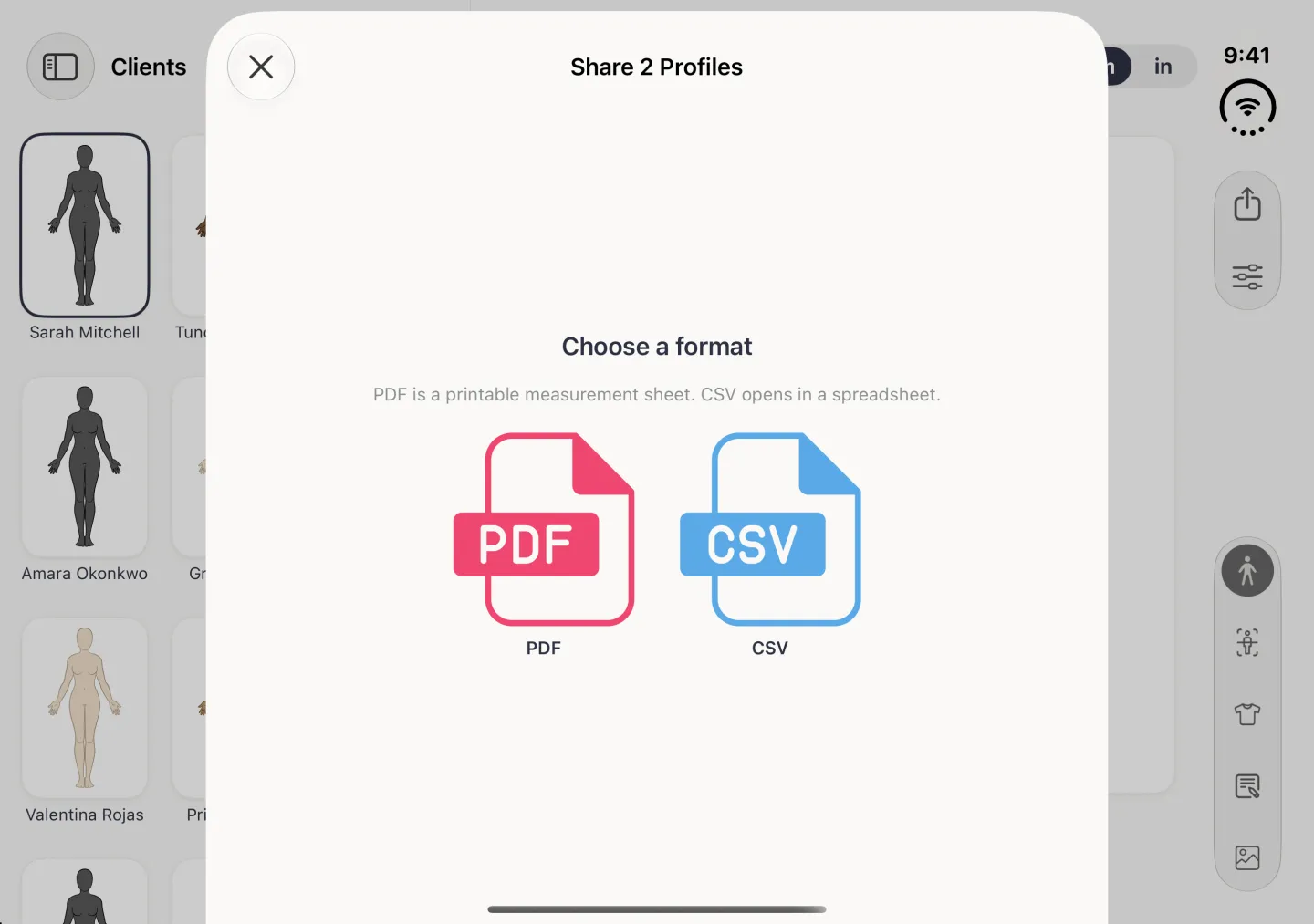
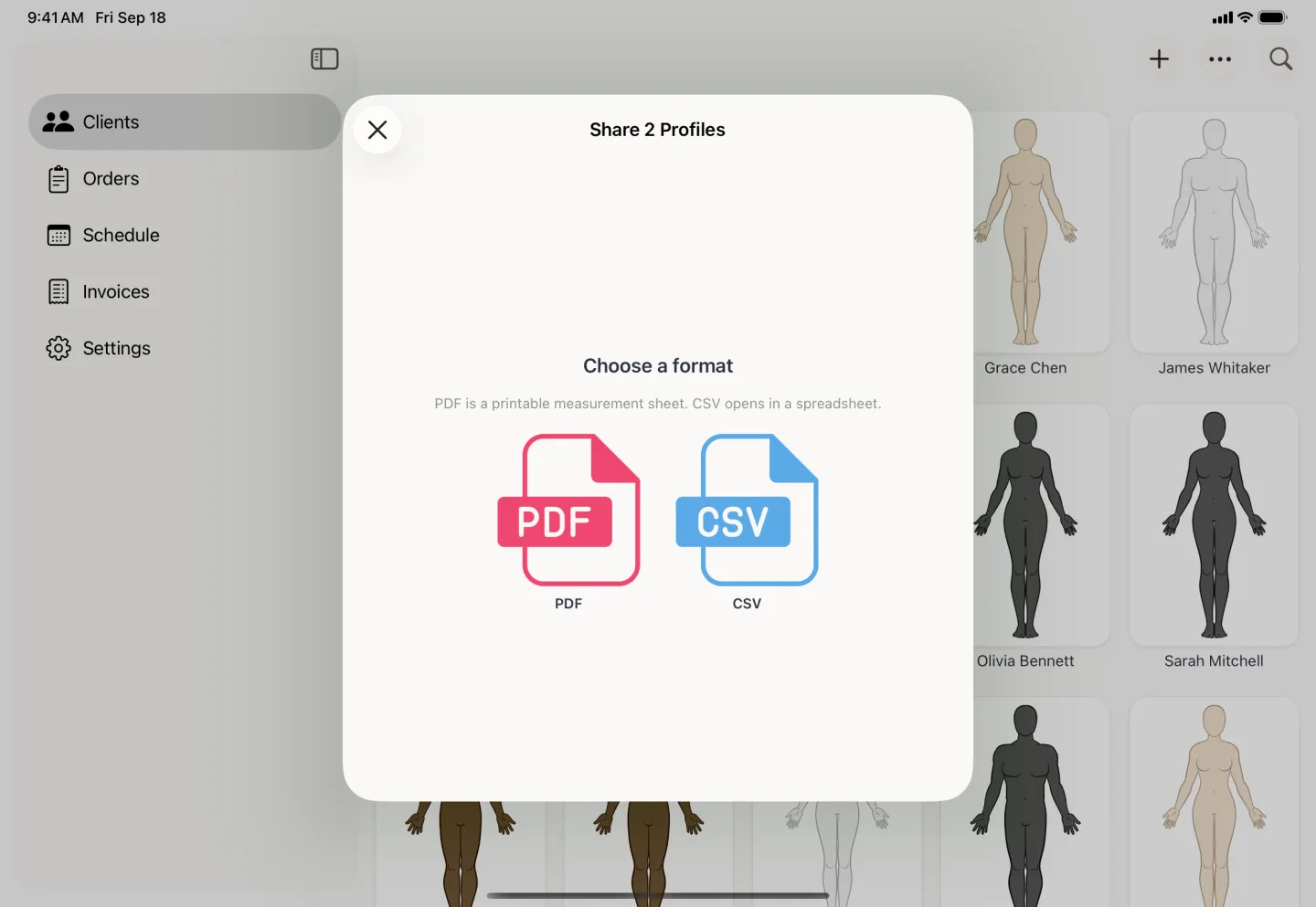
CSV is the Tailor Shop format. Select the clients you want, tap the share button at the bottom left, and the Choose a format page offers a PDF tile and a CSV tile side by side. Picking CSV builds one file covering every client you selected, then shows it with a Choose How to Send button, the same as the PDF route.
- On the Clients tab, open the three-dot menu and tap Select.
- Tap each client you want to include.
- Tap the share button at the bottom left.
- Tap the CSV tile.
- Tap Choose How to Send, then pick where the file goes, such as your files or a mail message.


What does the CSV file look like?
The file is laid out for a spreadsheet rather than for reading on a phone. The first row is a header: an empty cell, then two columns for every profile you exported, one carrying the profile name and one headed Units. Every row after that is a single measurement.
- Each measurement row starts with the measurement name, then repeats a value and its unit for each profile in turn.
- Values come out in the unit that profile is set to, which is why each profile carries its own Units column. A batch can mix centimetres and inches without confusion.
- Centimetres are written as whole numbers and inches to one decimal place, the same rounding the app uses on screen.
- A measurement a profile does not have leaves both of its cells empty, so blank stays blank when you sort or chart the column.
Because the unit lives in its own column, the values arrive as numbers rather than text, and your spreadsheet can total, sort and compare them without any cleaning up.