Profile management
Sync and backup
Keep your profiles backed up automatically: iCloud on iPhone and iPad, and Cloud Sync, part of Tailor Shop, on Android. Compare what is stored in the cloud against what is on the device, and on iPhone and iPad keep a local backup as a second copy.
Everything you measure is stored on your device first. A cloud copy means a lost or replaced device does not mean losing your profiles. On iPhone and iPad this is iCloud sync, covered first below; on Android the equivalent is Cloud Sync, part of a Tailor Shop subscription, covered further down this article.
How do you turn iCloud sync on?
iCloud has a row of its own in App Settings, under the App section. On the free plan that row is a switch: turn it on and the app starts syncing. With a Tailor Shop subscription the row opens an iCloud settings page instead, and the same switch is the first thing on it.
Two things have to be true before sync can start. The phone needs a network connection, and it needs to be signed in to iCloud with an Apple Account. If either is missing the app tells you rather than failing quietly, and nothing is uploaded until you fix it and try again.
How do you check that your data is really synced?
The iCloud settings page, which the iCloud row opens once you have Tailor Shop, has a Storage Details row that expands into a table with two columns, On Cloud and On Device. It counts profiles, measurements, notes, pictures, silhouettes, custom pages, custom measurements, reference measurements and measurement history, then, under a Tailor Shop heading, orders, line items, status events, invoices, payments, appointments, order notes, order photos, your Business Profile and messages, so you can see at a glance whether the two sides agree.
Two rows sit under the table. Auto Sync reads On, Off or Error, and Last Sync carries the date and time of the last successful sync, or says it has not synced yet. Open the section again after any action on this page to refresh the counts.
If a row does not match, its number is shown in red and the app raises a message saying there is a conflict between your data on iCloud and the data on your device, with a Learn More button that opens the in-app help for this screen. A mismatch means the two copies do not agree yet; it does not by itself mean anything is lost. Check your connection, give it a moment, and open Storage Details again.
What do Push to iCloud and Pull from iCloud do?
These two are the manual overrides for when the two copies have drifted apart and you need to declare a winner. They are not merges, and each one discards a whole copy.
- Pull from iCloud erases the app’s data on this device and replaces it with what is in iCloud. Use it when the cloud copy is the more recent one, for example on a new phone.
- Push to iCloud erases the data in iCloud and replaces it with what is on this device. Use it when the phone in your hand holds the work you want to keep.
Because both are destructive, the app asks you to type the action into the confirmation alert before it will proceed: “PULL FROM ICLOUD” or “PUSH TO ICLOUD”. Cancel is always available. OK goes ahead only when the word matches; a word that does not match erases nothing, and the alert asks again.
How do you keep a local backup?
On iPhone and iPad, Save Local Backup writes a copy of your data to the phone itself, and Restore Local Backup reads it back. Each one opens a small screen that explains the task and carries a single button, Backup Data or Restore Data, with the date and size of the last snapshot underneath it. The button stays inactive when there is nothing to back up or nothing to restore.
A local backup is a second copy and not a substitute for iCloud, since it lives on the same phone. It is most useful right before you do something risky, such as a push or a pull. Save one as often as you add work you would not want to redo.
What if sync seems stuck?
When a sync has not made progress for a while, a Troubleshooting section appears at the bottom of the iCloud settings page with a Reset Stuck Sync button and a line saying sync has not made progress recently. Tapping it asks you to confirm, then cancels the sync that is in flight so you can start a fresh one. It does not delete anything.
If it keeps happening, check that the phone is online and still signed in to iCloud, turn the iCloud switch off and on again, and compare Storage Details before reaching for push or pull.
How does Cloud Sync work on Android?
Cloud Sync is Android’s equivalent of iCloud, included with a Tailor Shop subscription. It keeps your profiles, measurements, notes, photos and body scans, and the rest of the Tailor Shop suite, orders, invoices, appointments and client messages, backed up and up to date across every Android device signed in to the same account. Turn it on from App Settings, under the App section, the same place iCloud sits on iPhone.
Sign in with your Google account, or with an email address instead. The email route sends one message to that address holding both a sign-in link and a 6-digit code: tap the link on the same device, or type the code in by hand. There is no password to remember, and the same email always reaches the same Dress Measurement account.
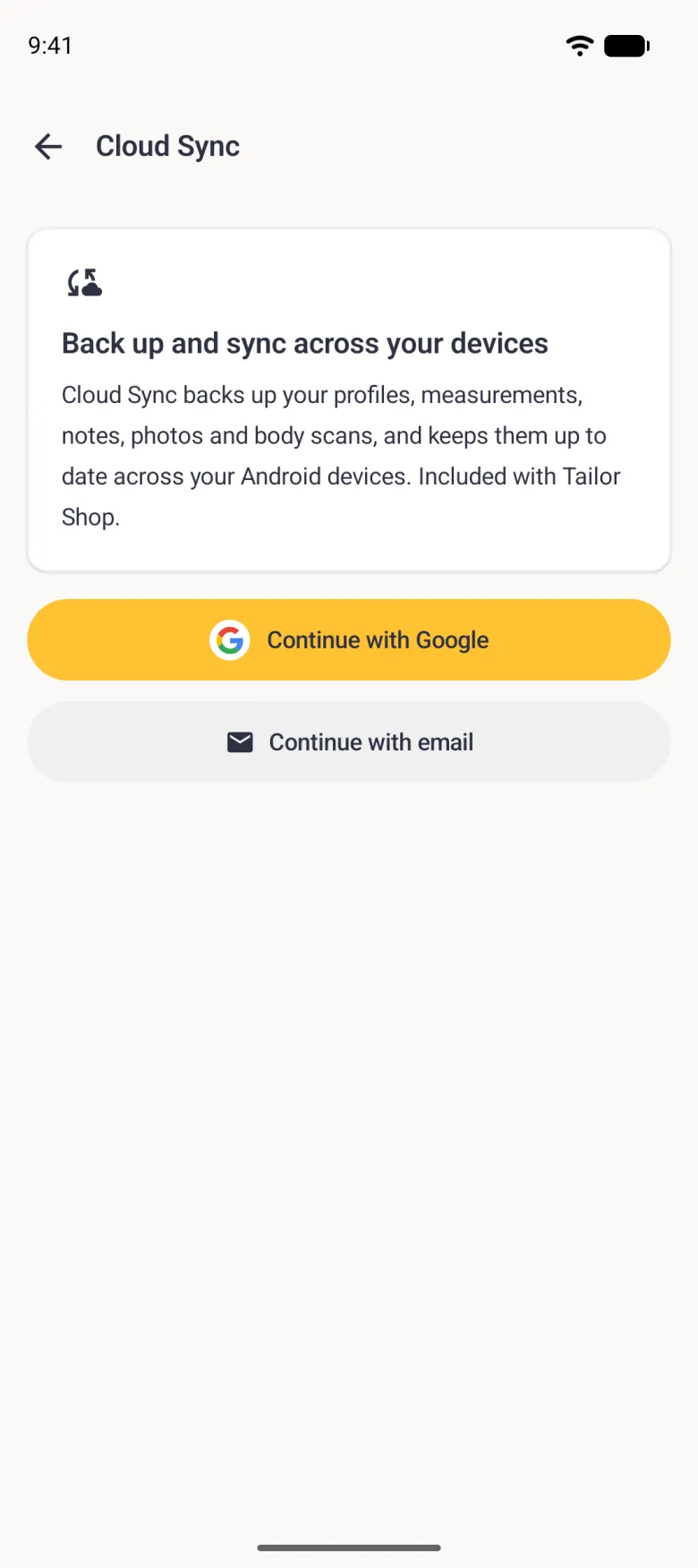
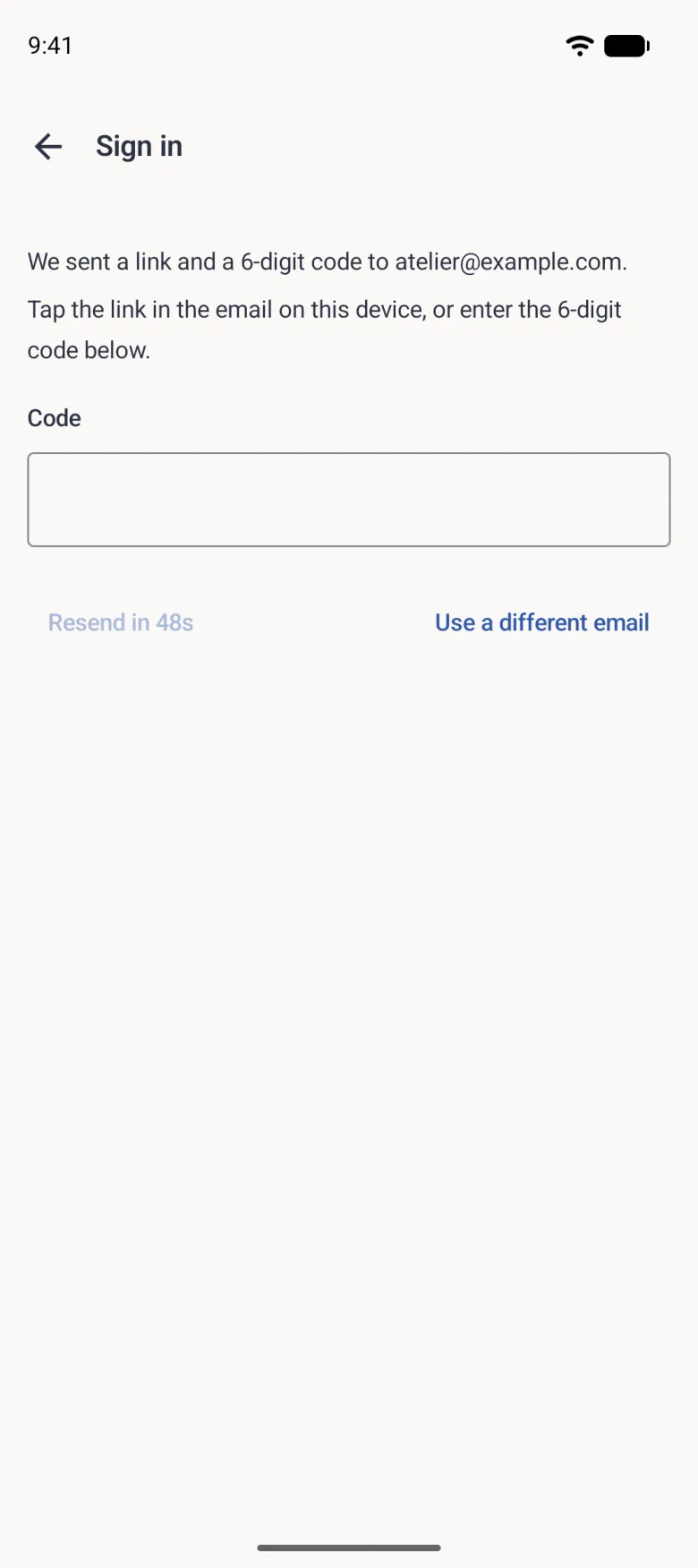
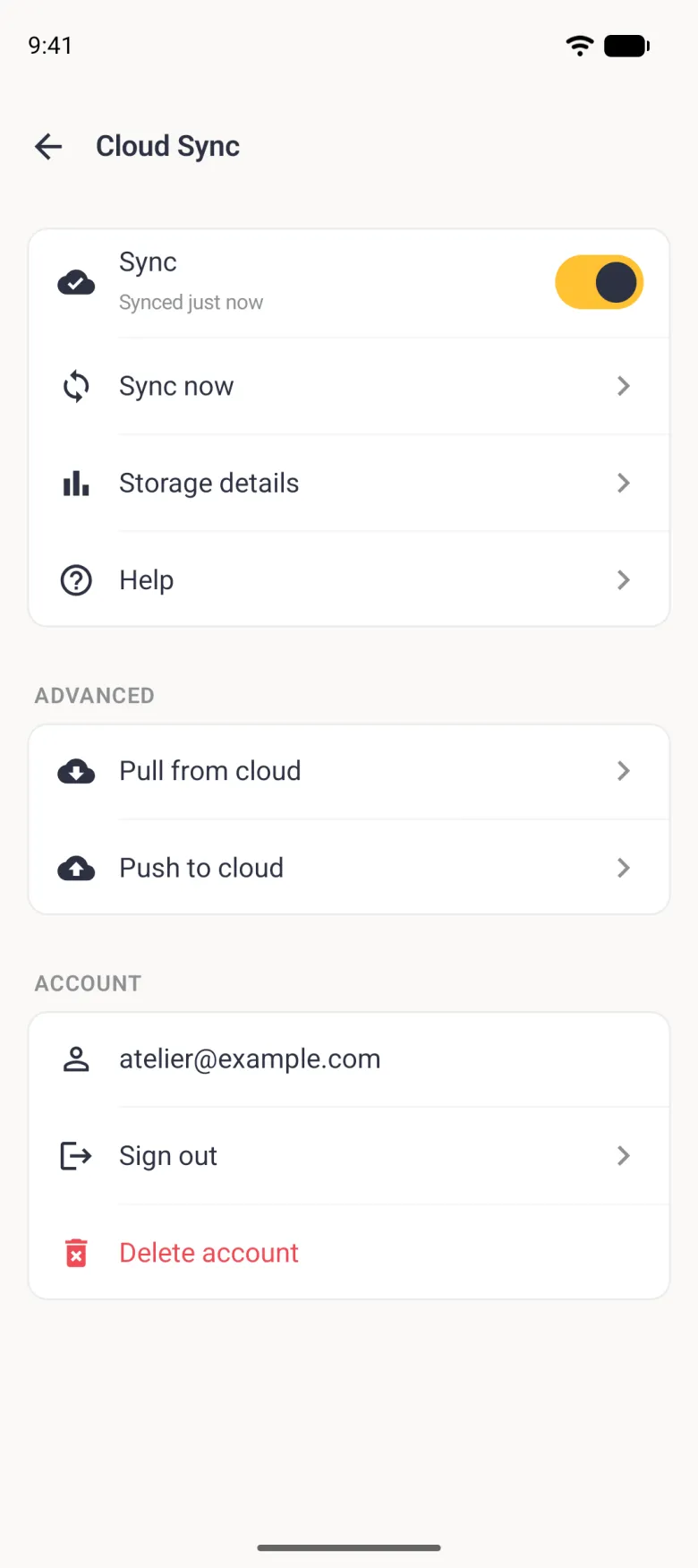
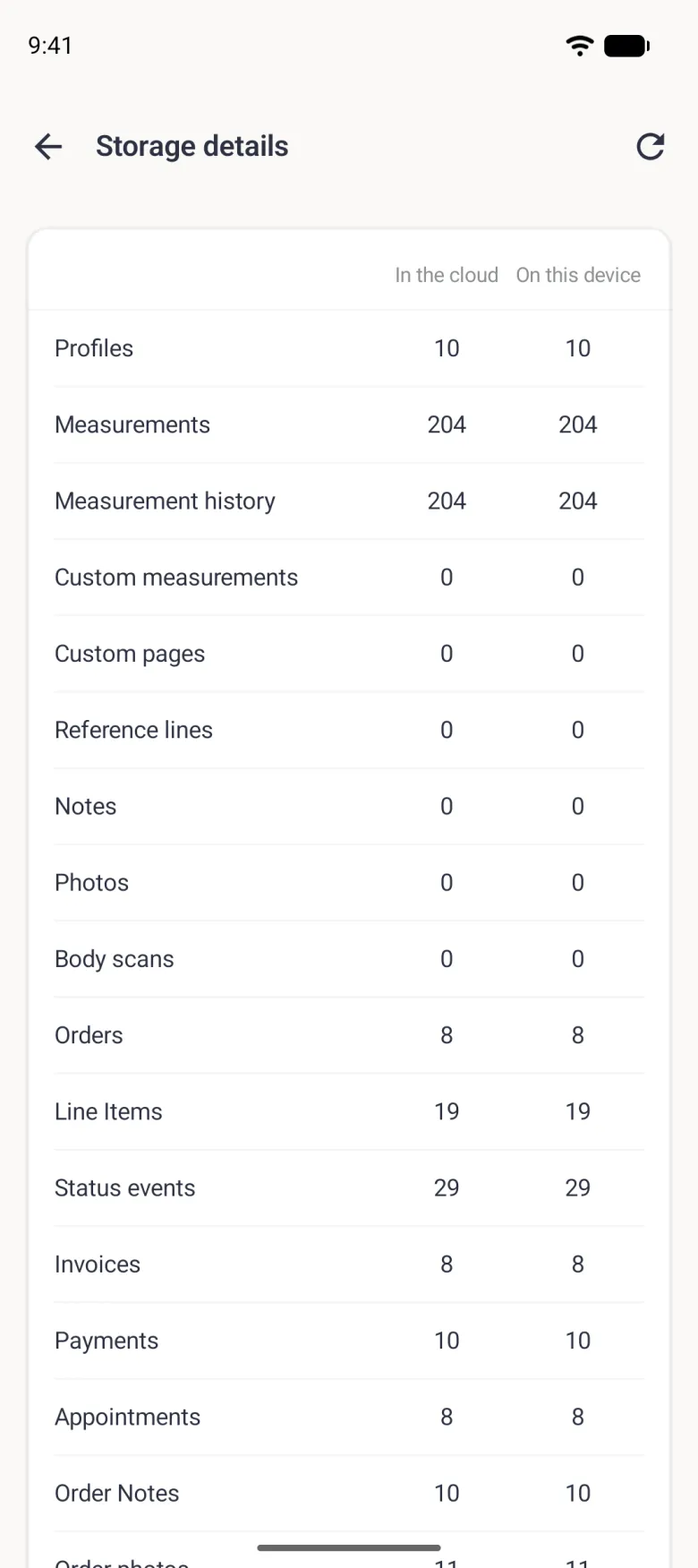
Once you are signed in, the Sync switch turns Cloud Sync on and off, and Sync now starts a sync right away instead of waiting for the next automatic one. Storage details lists every kind of data the app keeps, from profiles and measurements to orders and invoices, in two columns, In the cloud and On this device, so you can see at a glance whether the two sides agree.
Pull from cloud and Push to cloud are the same kind of manual override as Pull from iCloud and Push to iCloud above. Pull from cloud replaces this device’s synced data with the cloud copy, after saving a local backup first. Push to cloud replaces the cloud copy with this device’s data. Neither one merges, so use them only once you know which side holds the copy you want to keep.
If your Tailor Shop subscription lapses, sync pauses and your cloud data is kept for 12 months in case you resubscribe, shown in the app as the date it will be deleted. Sign out leaves the data on the device exactly where it is. Delete account removes your Dress Measurement account and its cloud copy immediately; it does not cancel a Google Play subscription, which you cancel separately in Google Play if you do not want to be charged again.