Start here
Getting started with Dress Measurement
Set up Dress Measurement in a few minutes on iPhone, iPad or Android: your first profile, your height, fit and sizing region, and where your measurements live once setup is done.
Dress Measurement does not ask you to sign up or create an account. Install it from the App Store or Google Play, open it, and the first thing it does is build a profile for the person you are measuring.
How do I set up the app the first time?
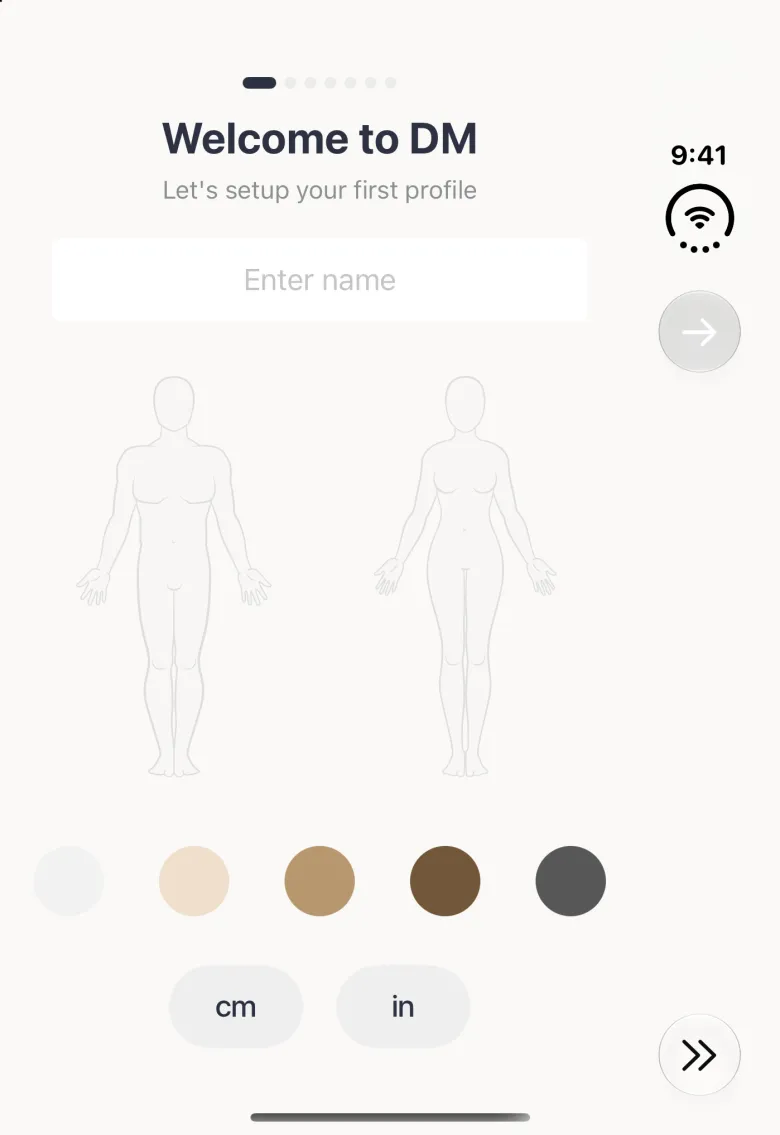
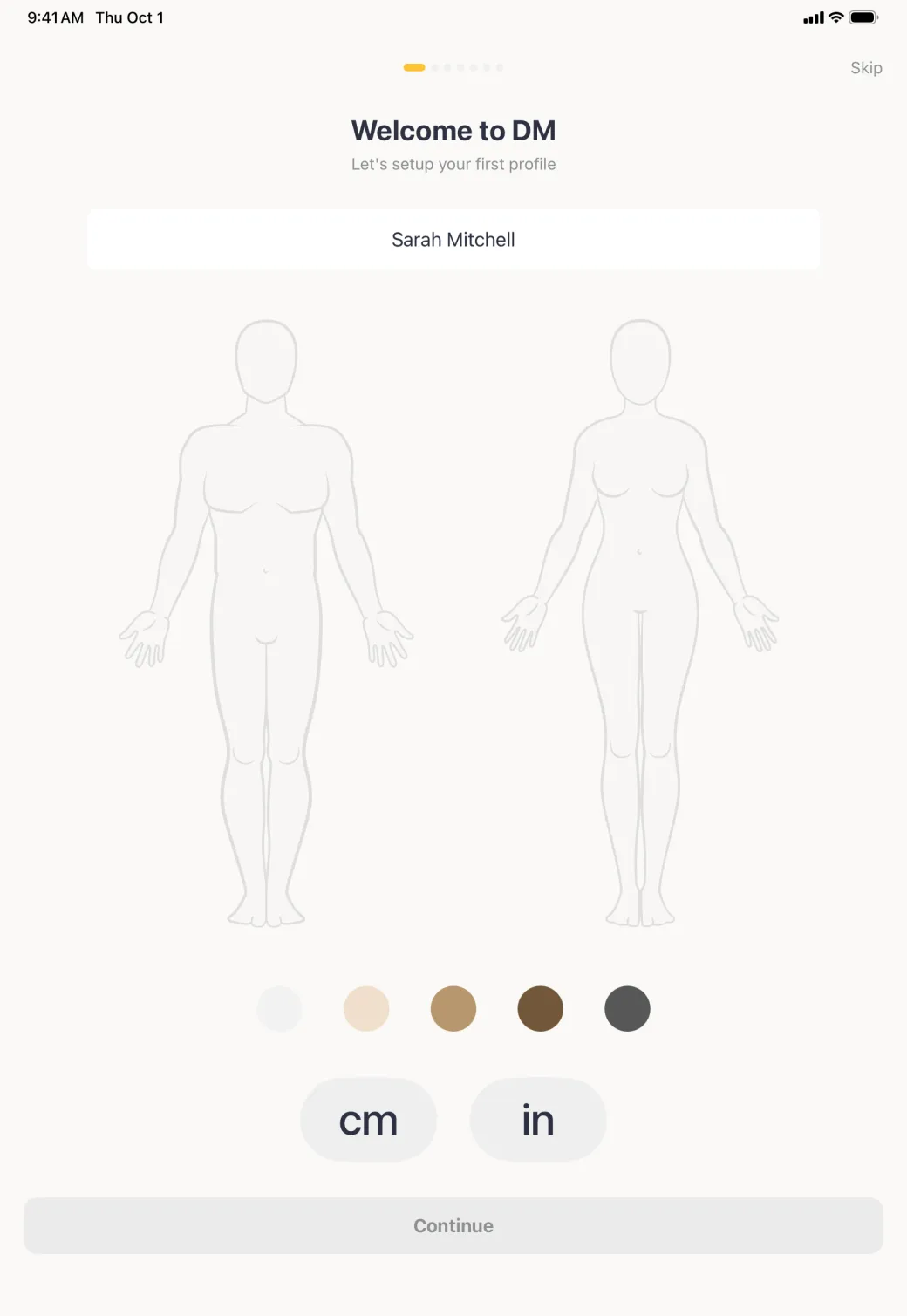
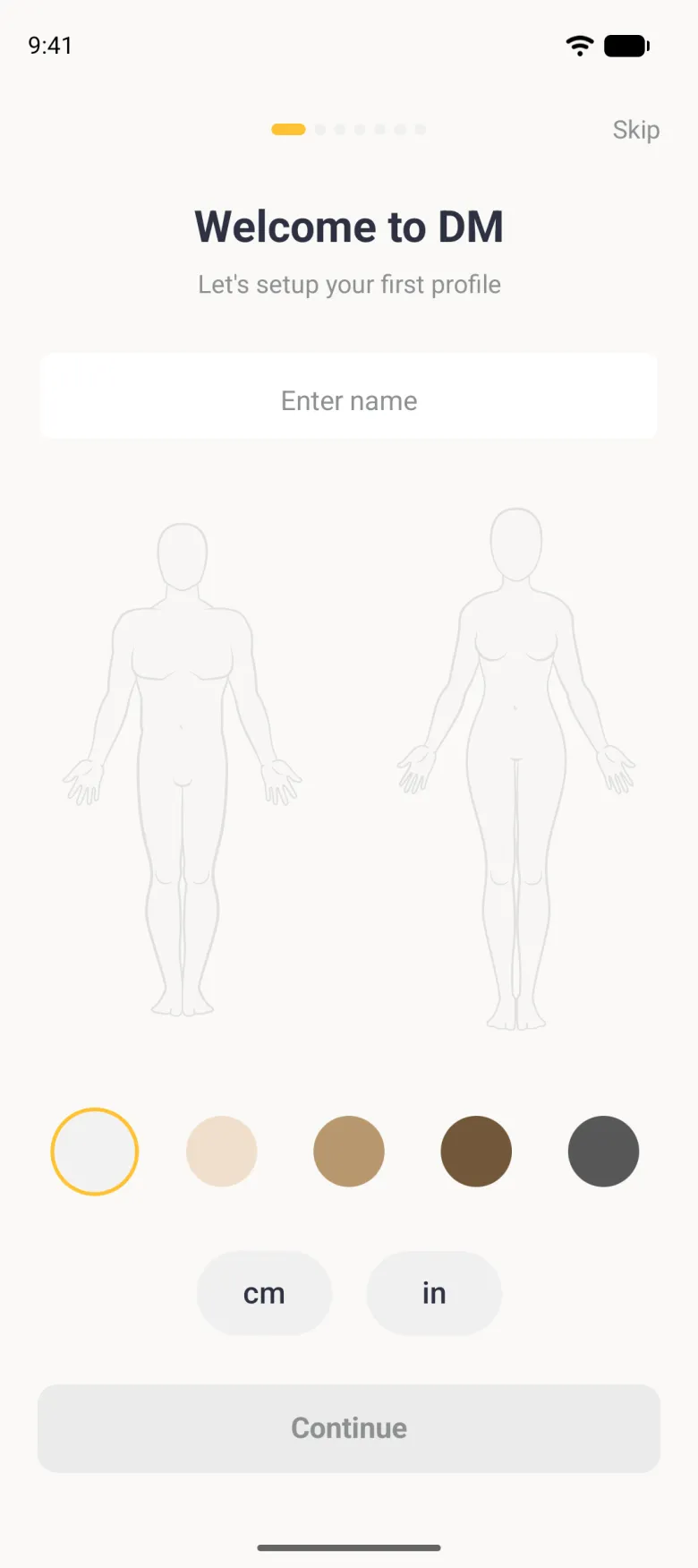
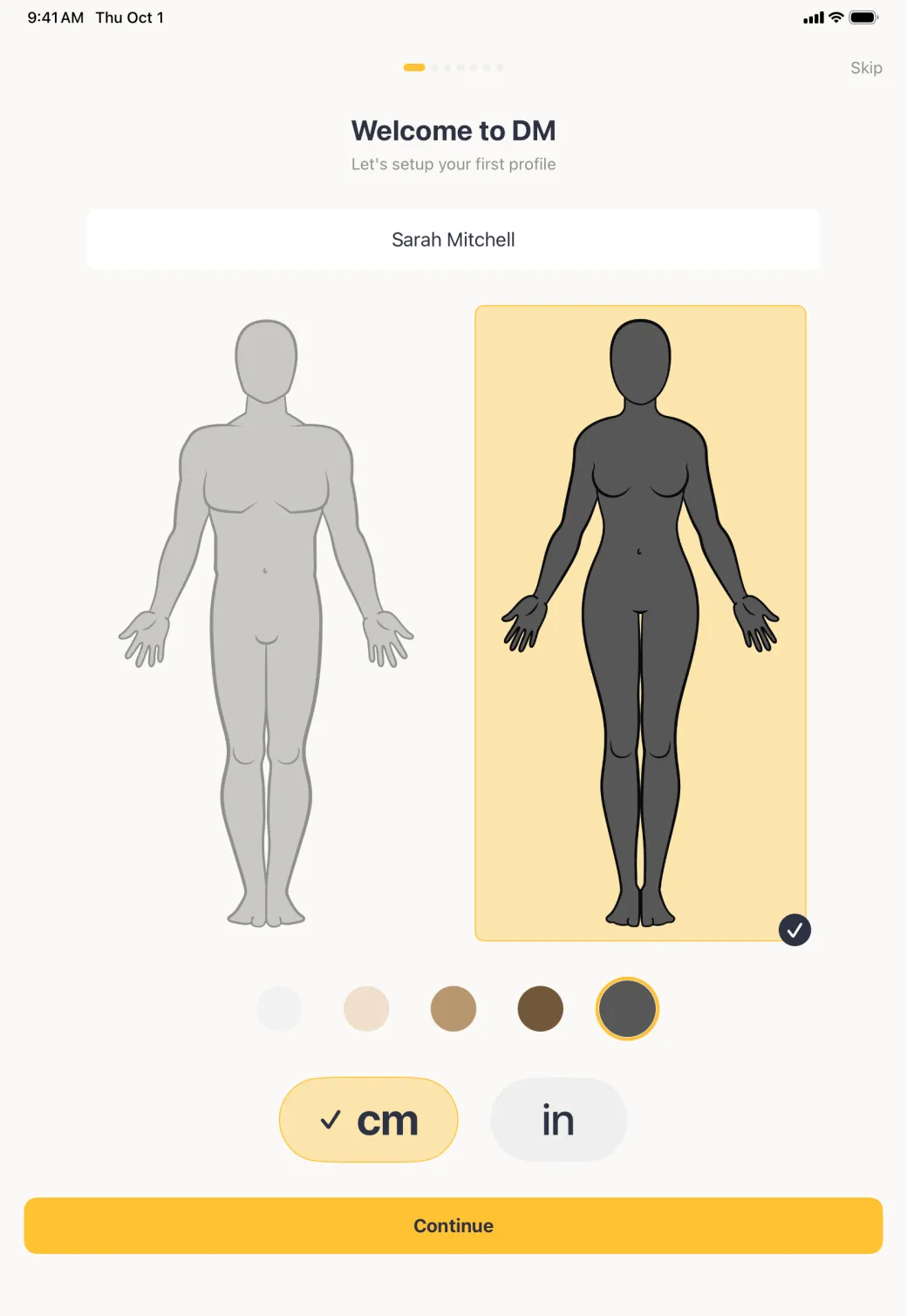
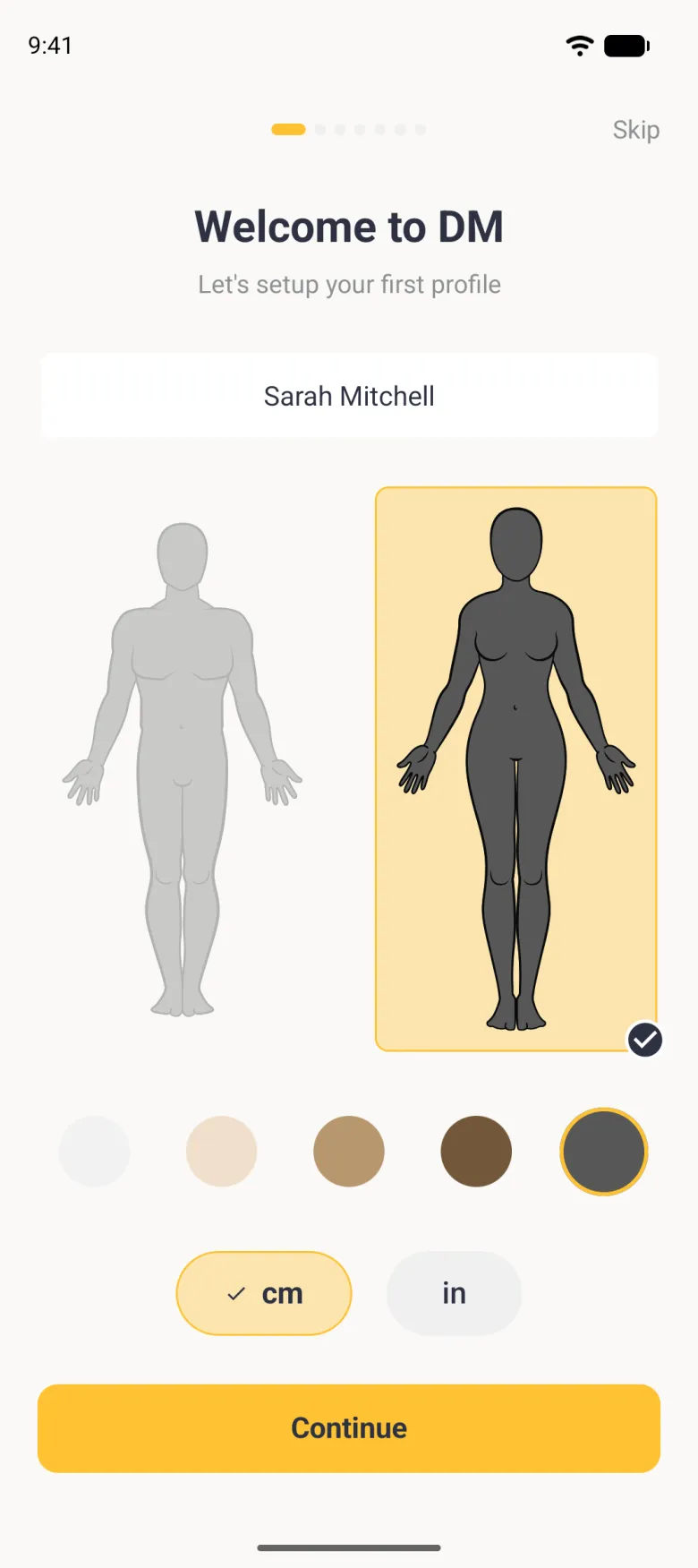
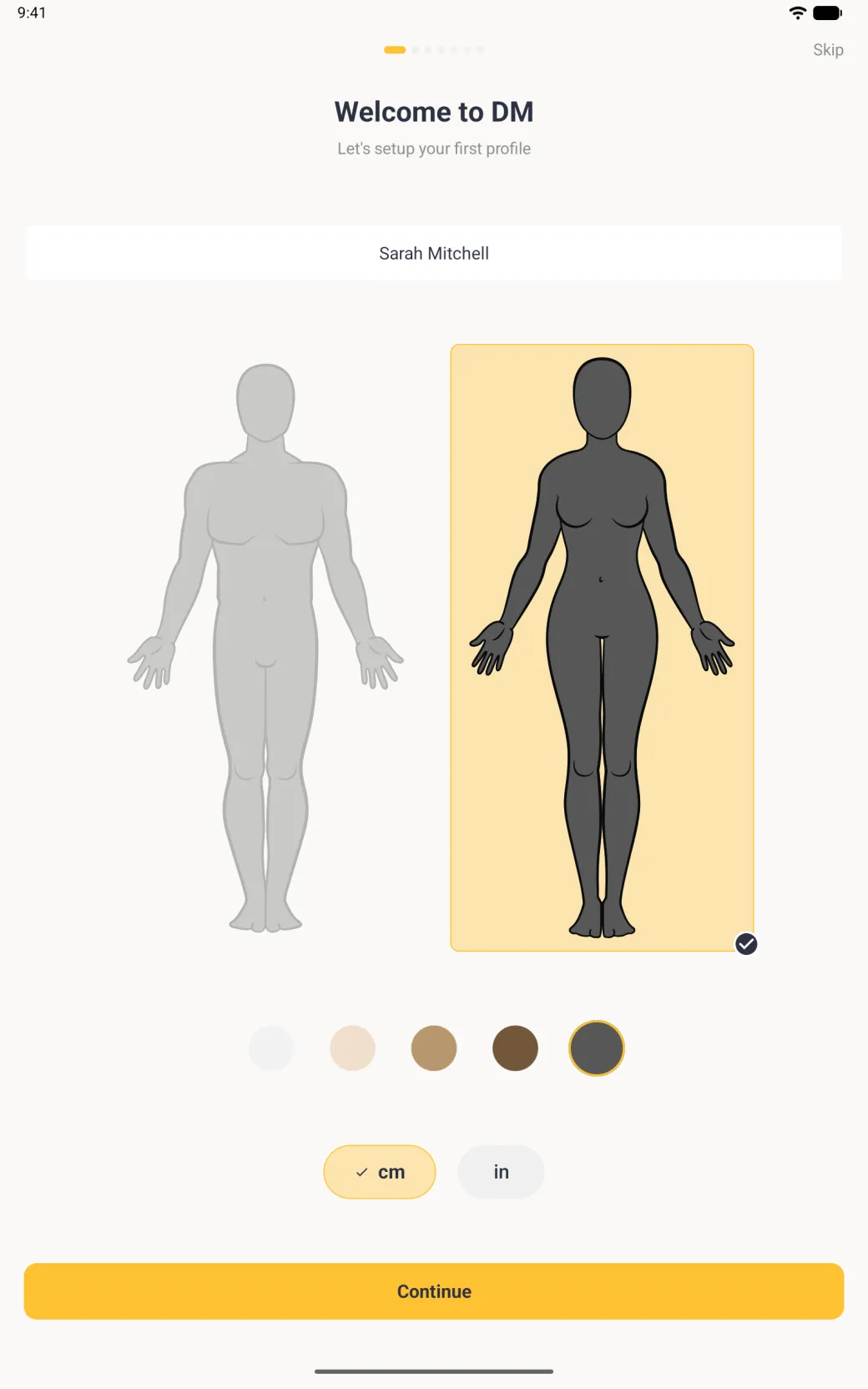
Setup is seven short screens, shown as seven page dots at the top, and the app opens on your new profile at the end of it. You need a name, a body type, a skin tone and your units to get past the first screen. Everything after that shapes the size recommendations you are given later, and you can change any of it afterwards.
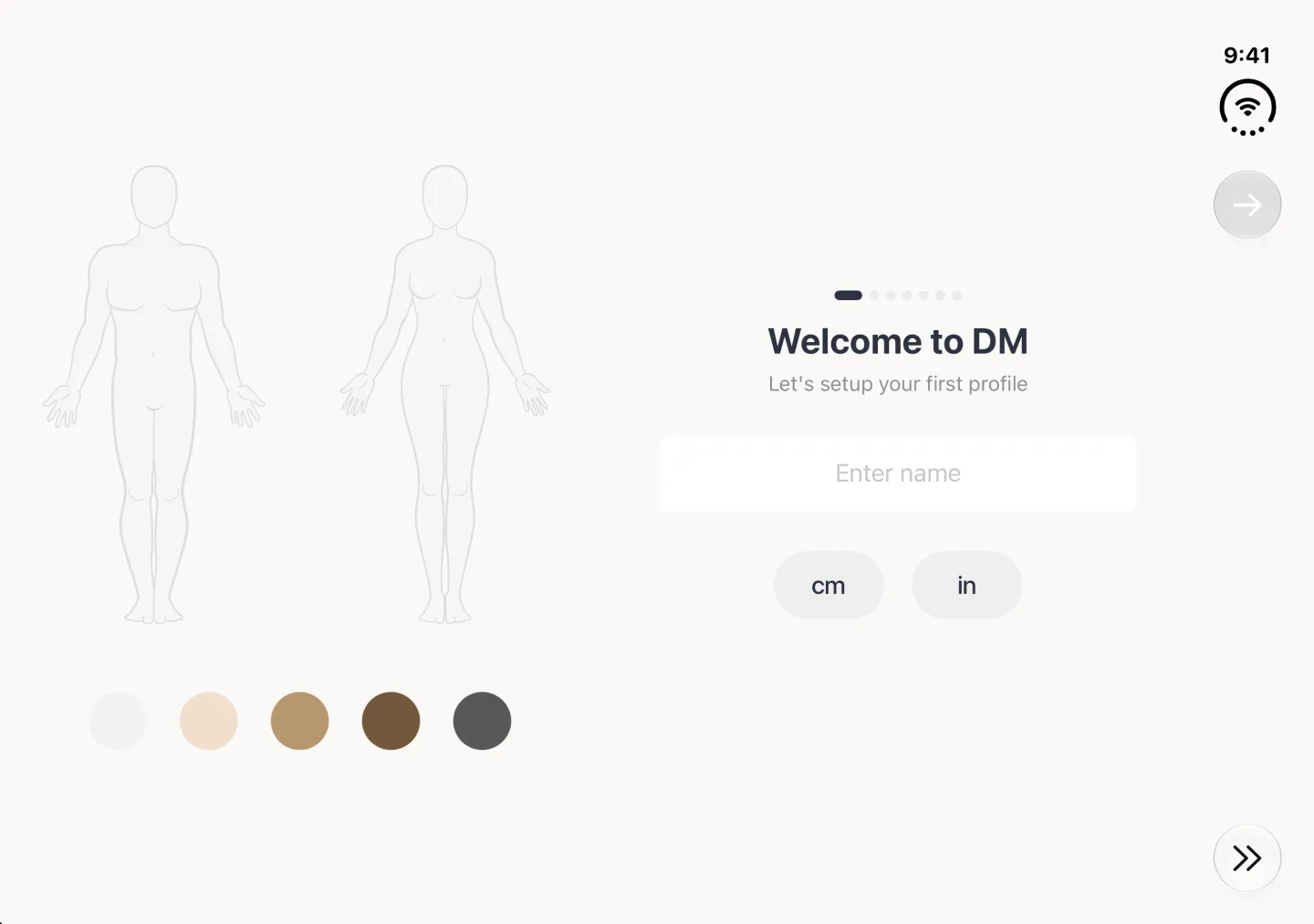
- Type a name in the field under Welcome to DM. Use your own name if you are measuring yourself, or the name of the person you are measuring. Tap the keyboard’s checkmark key to put the keyboard away.
- Tap the man outline on the left or the woman outline on the right. The chosen one is highlighted in gold with a tick.
- Pick one of the five skin tones. The selected outline takes that tone.
- Tap cm or in for the units you measure in, then tap Continue.
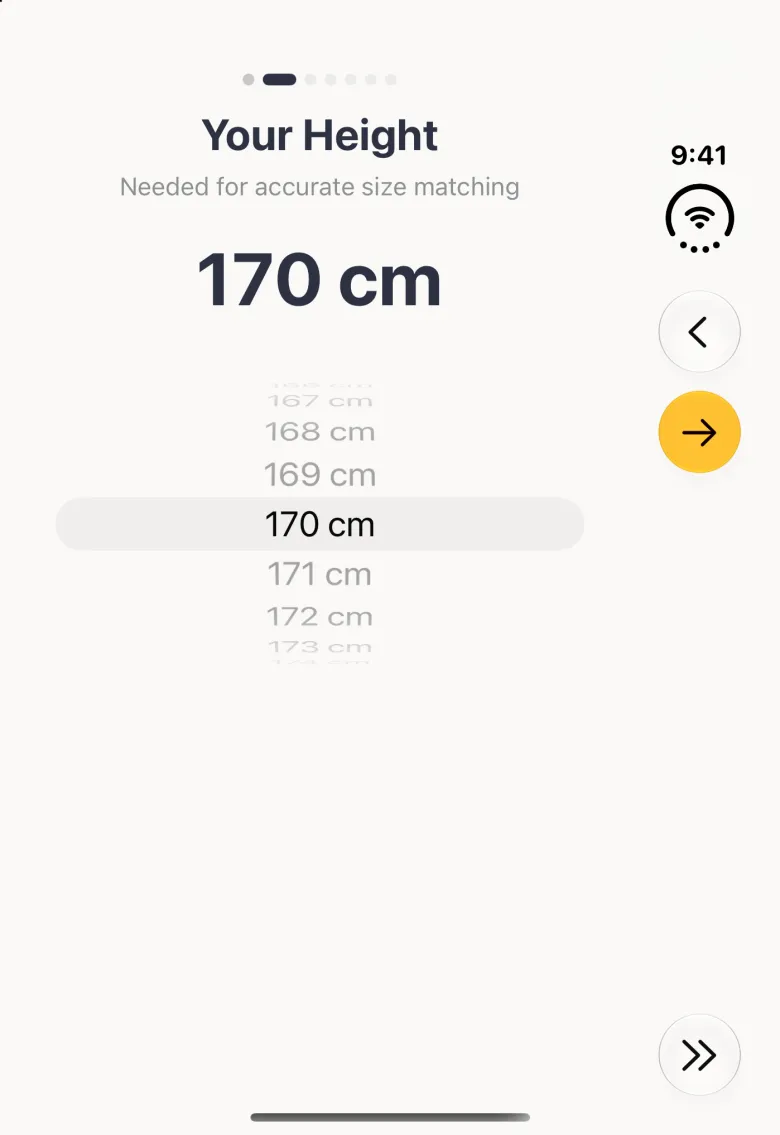
- Scroll the wheel to your height. Height is what lets the app match your measurements to a brand’s size chart.
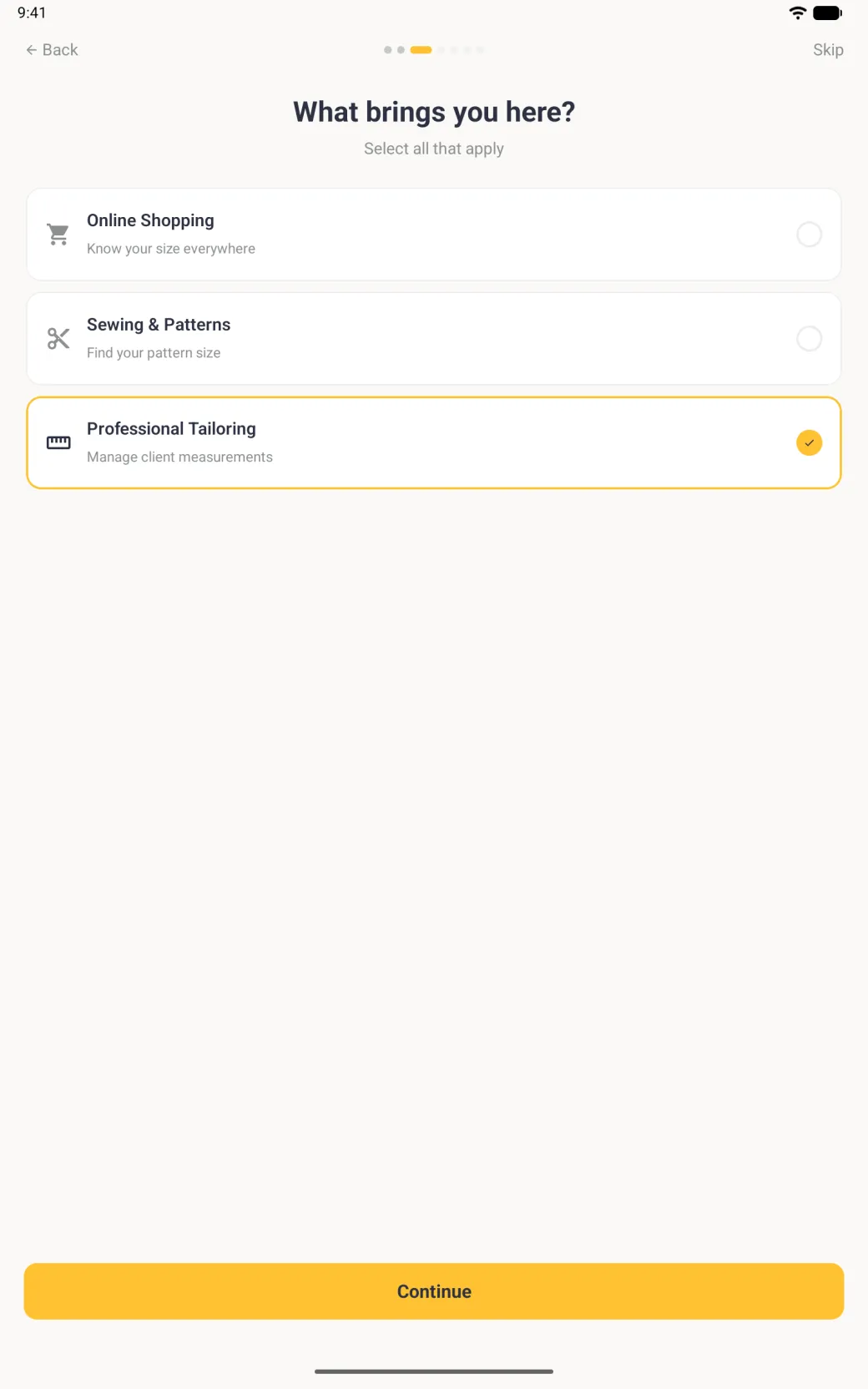
- On What brings you here, choose Online Shopping, Sewing and Patterns, or Professional Tailoring. You can select more than one.
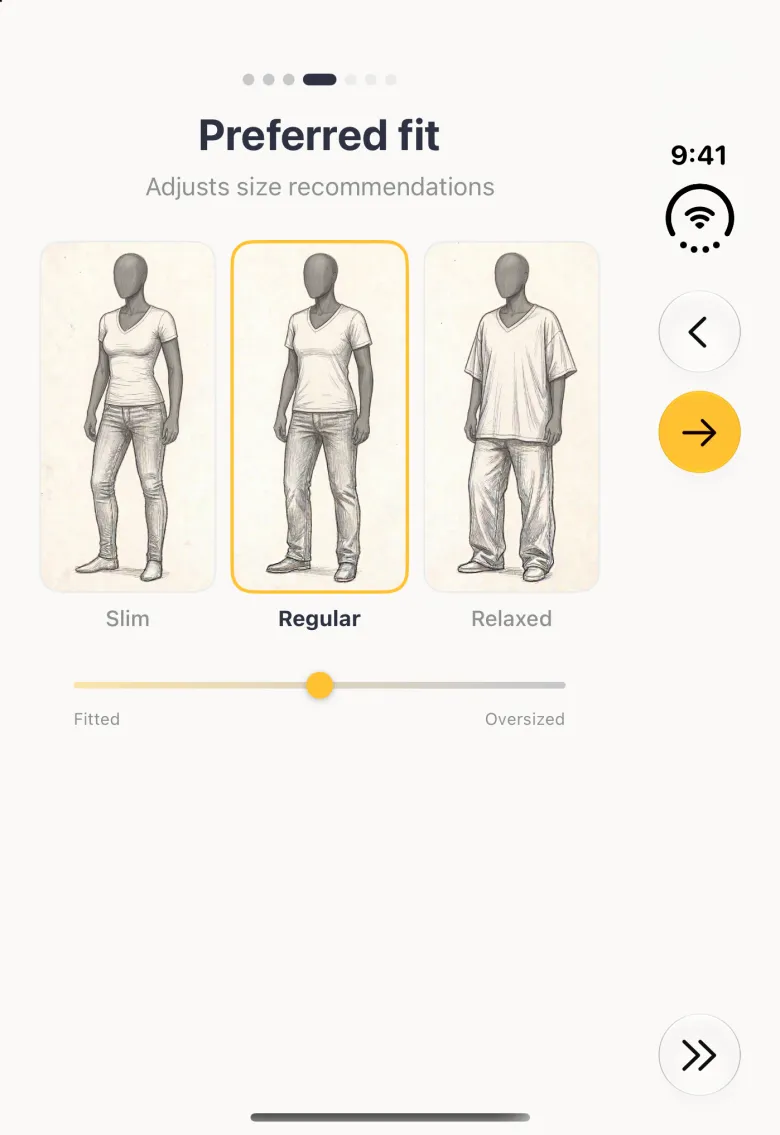
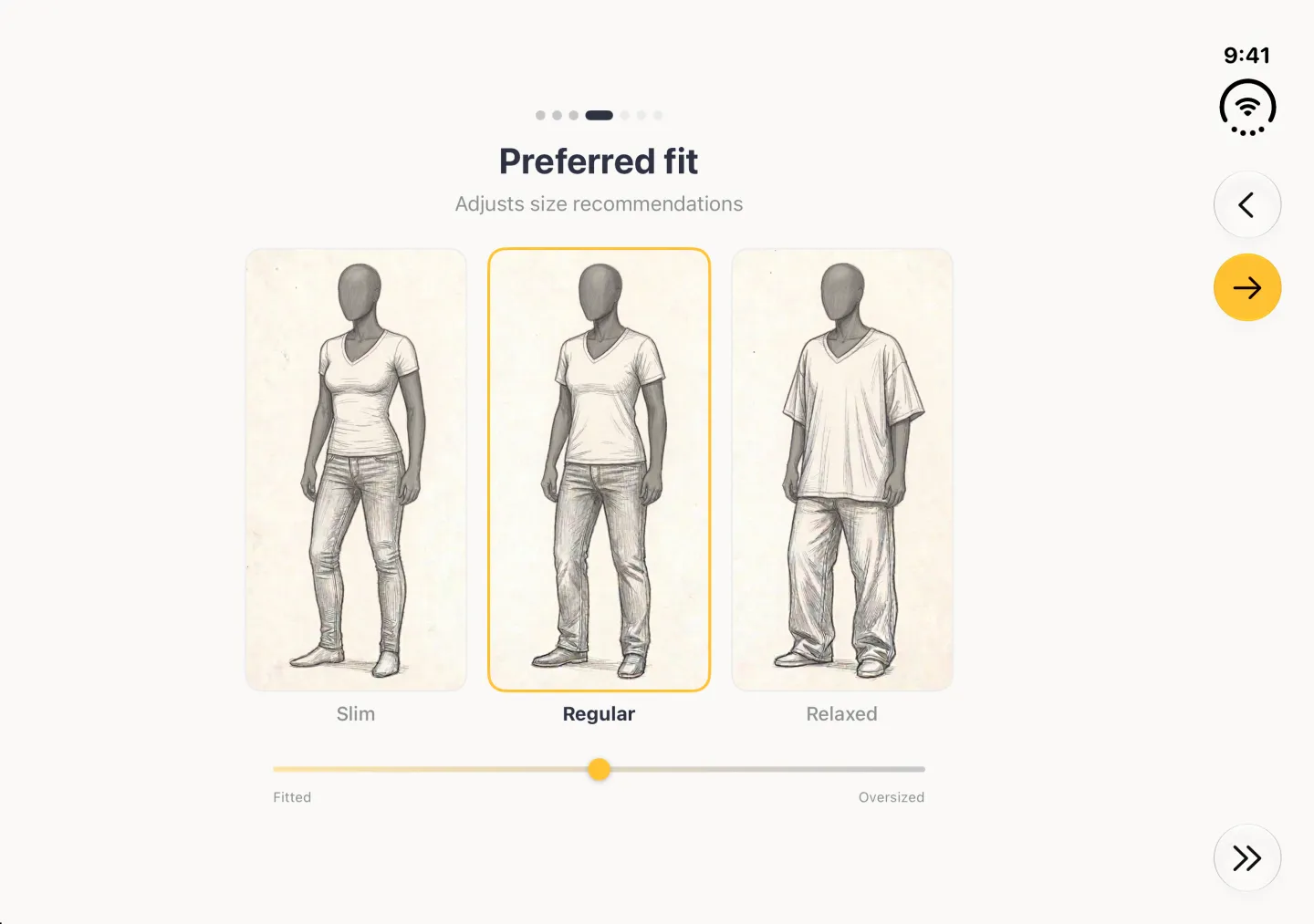
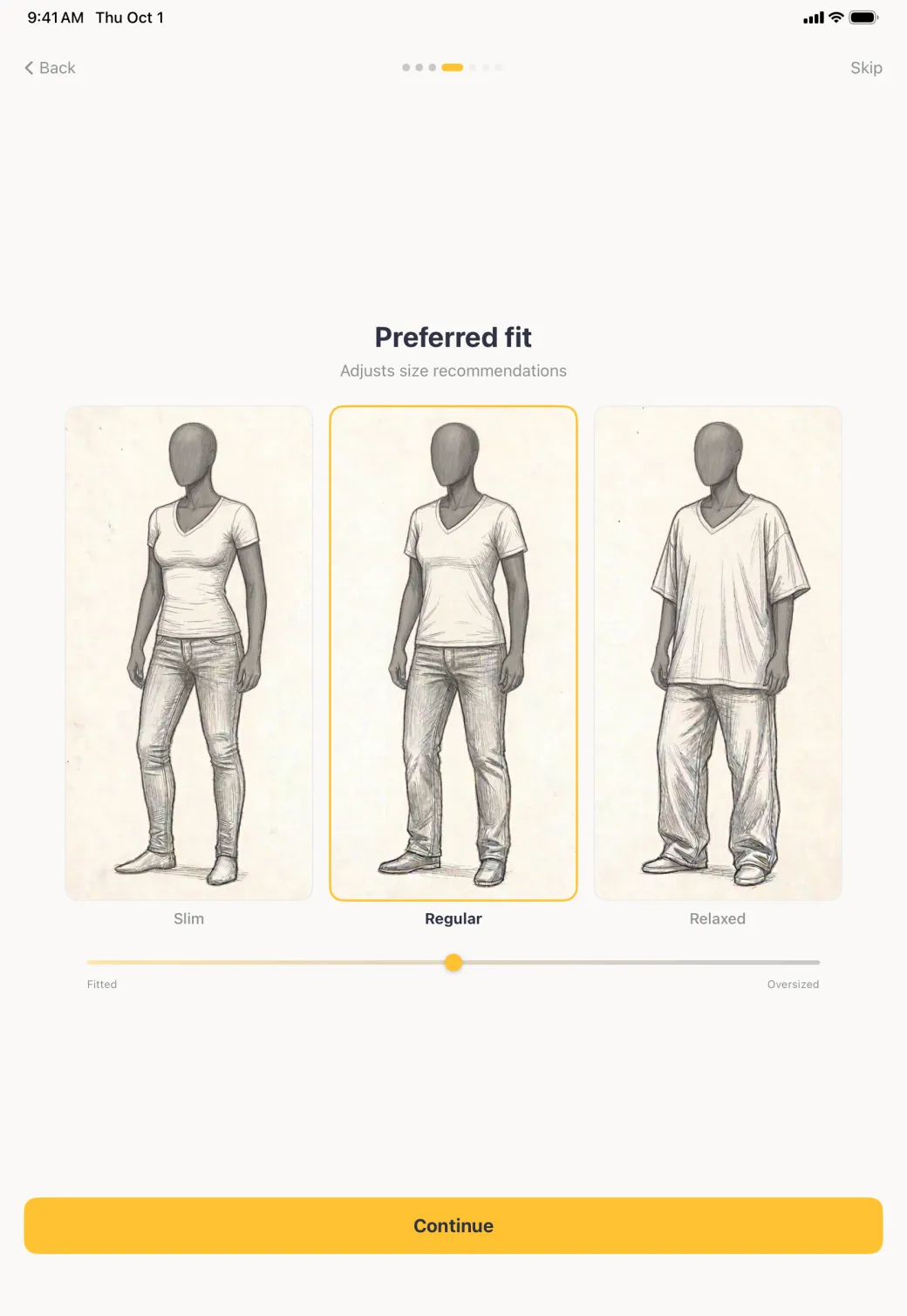
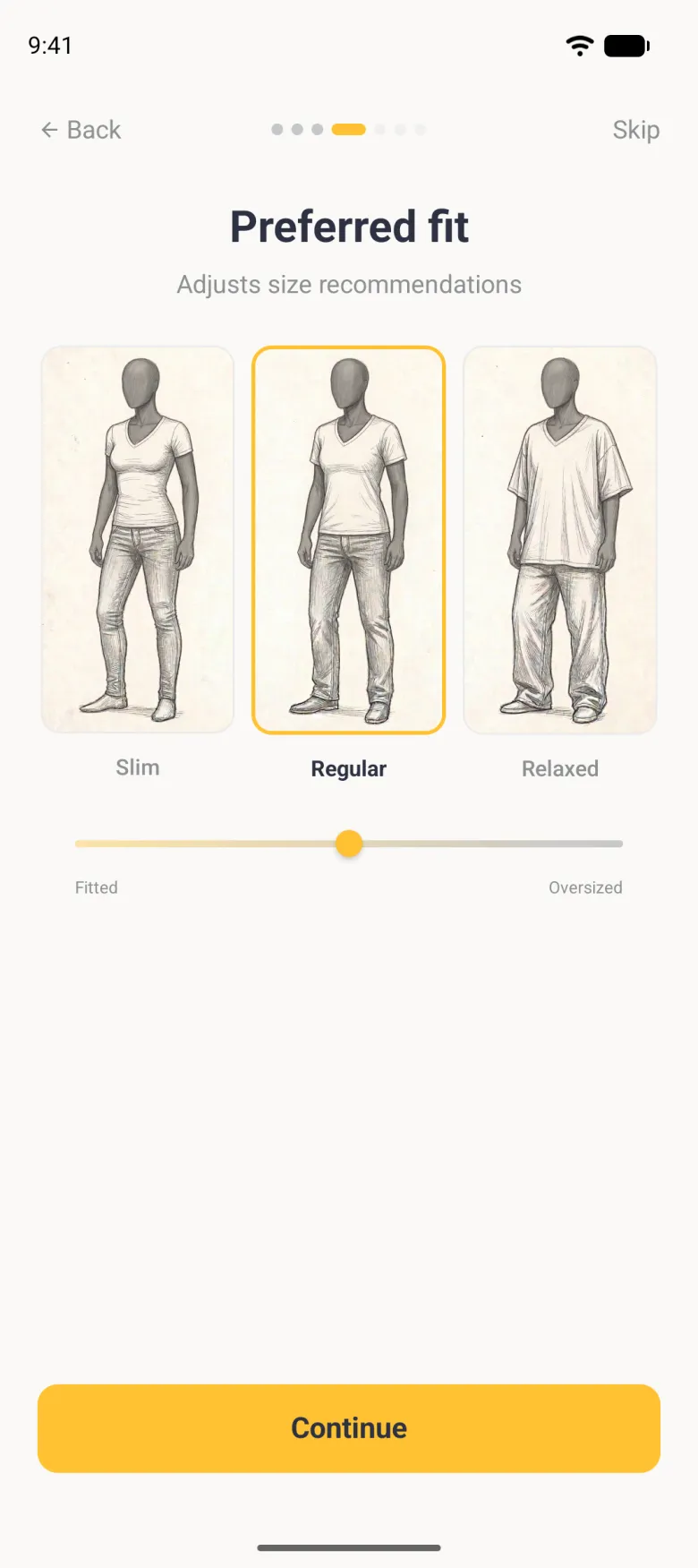
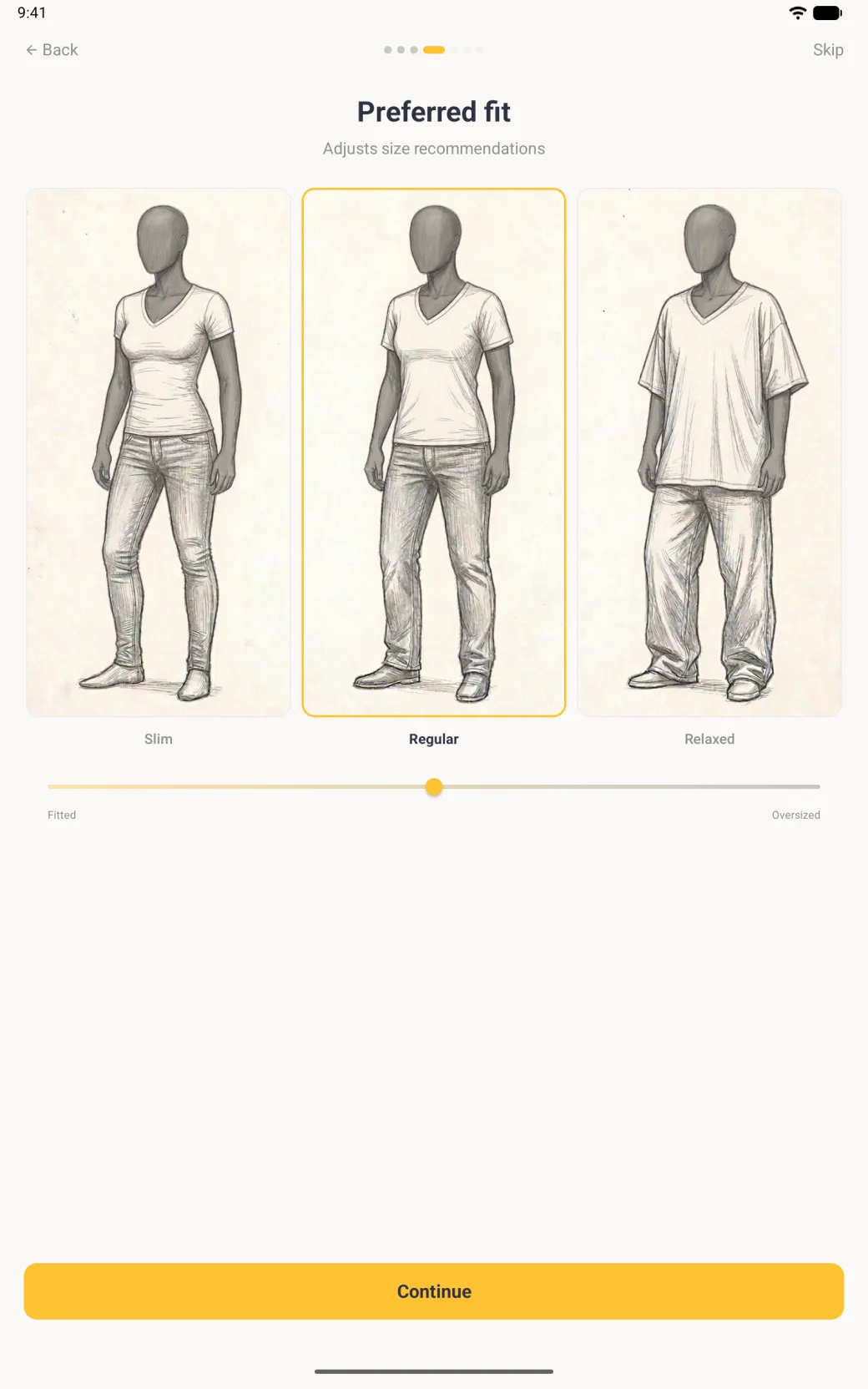
- On Preferred fit, choose Slim, Regular or Relaxed. This adjusts the sizes you are recommended.
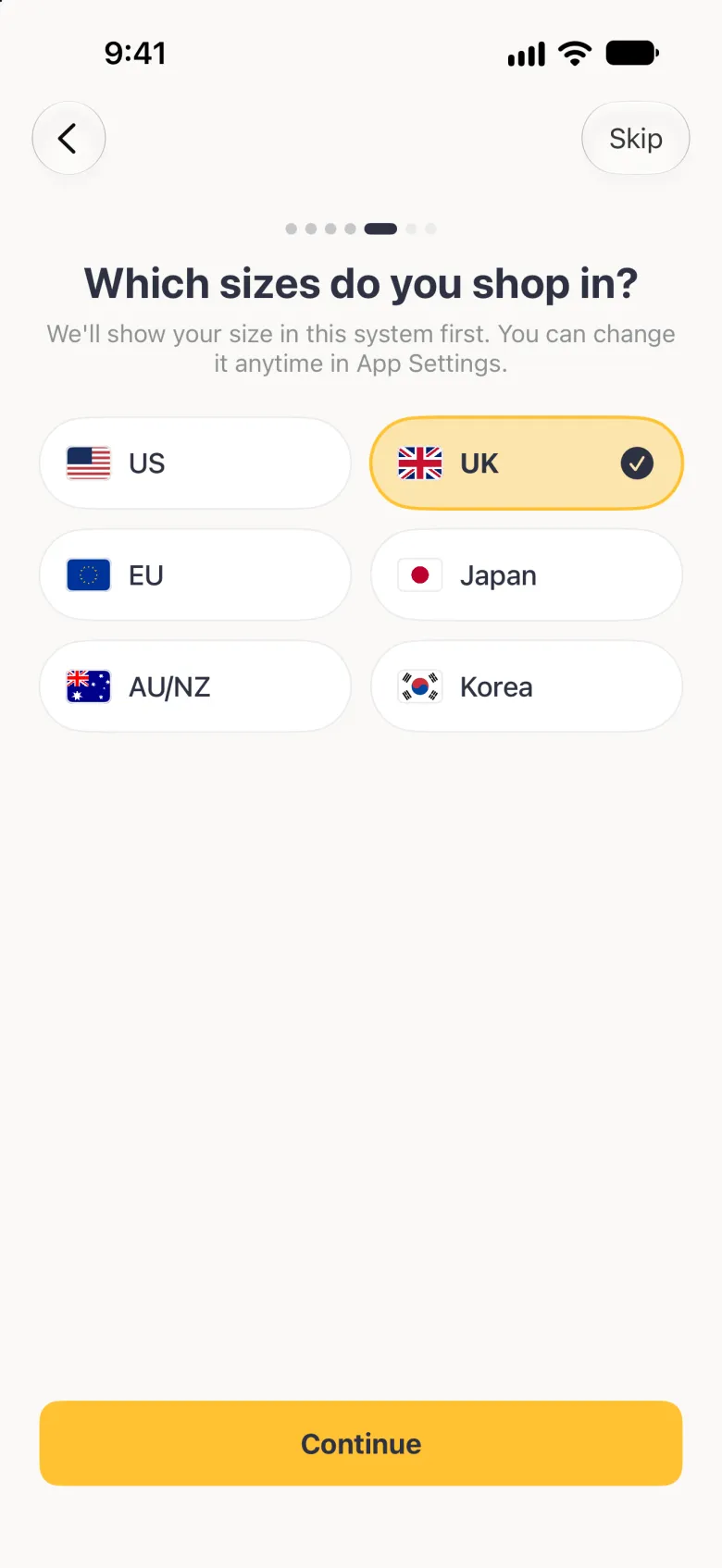
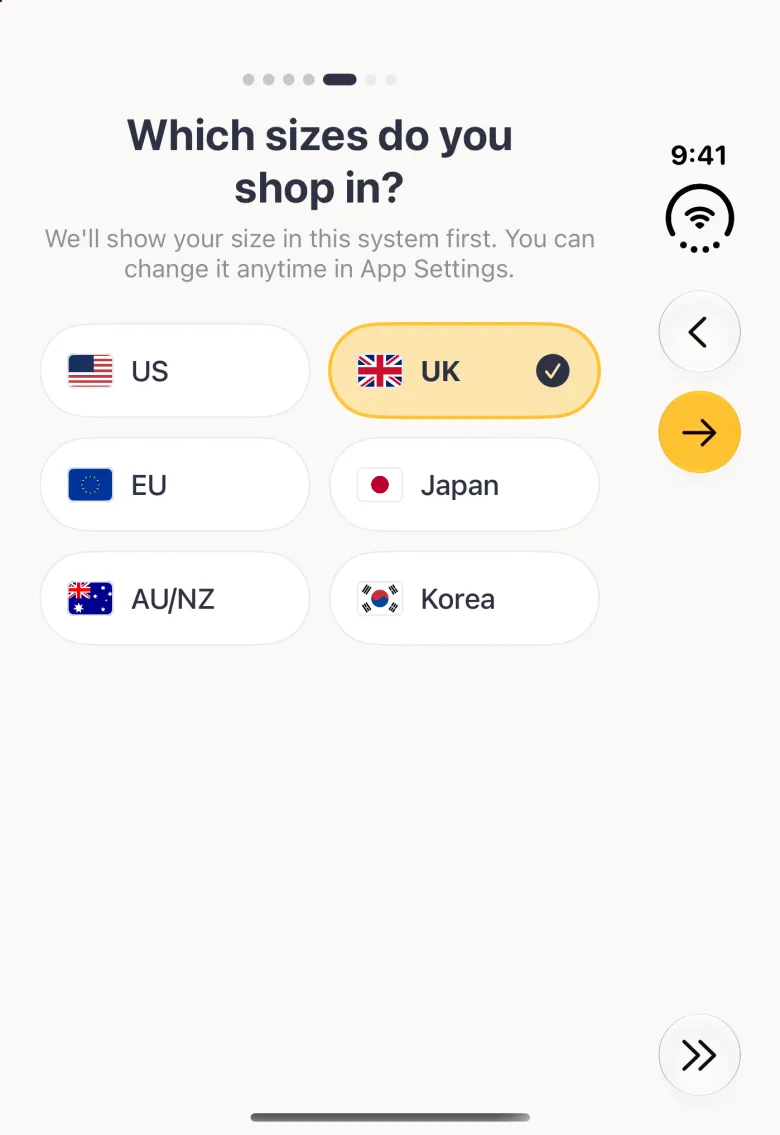
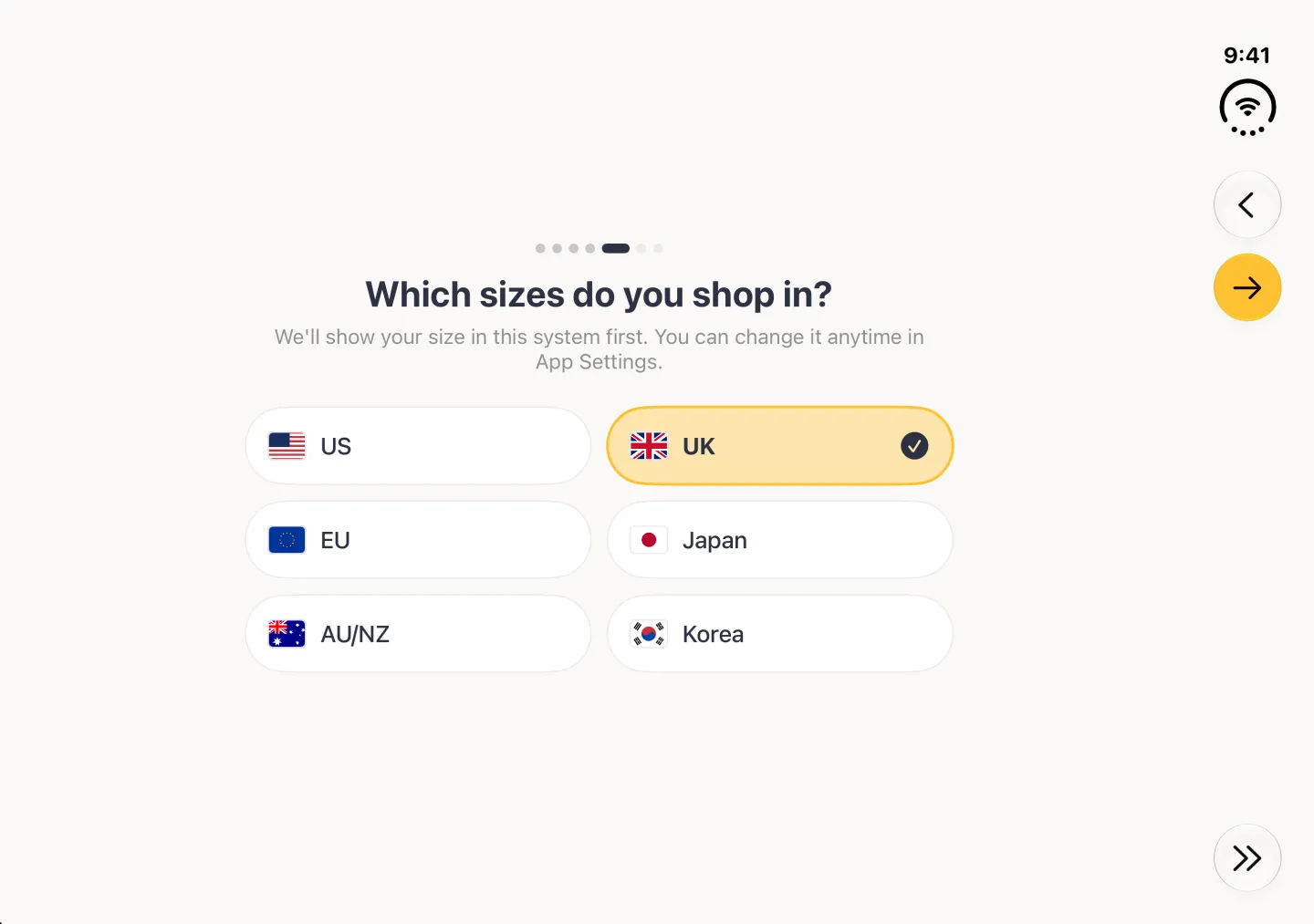
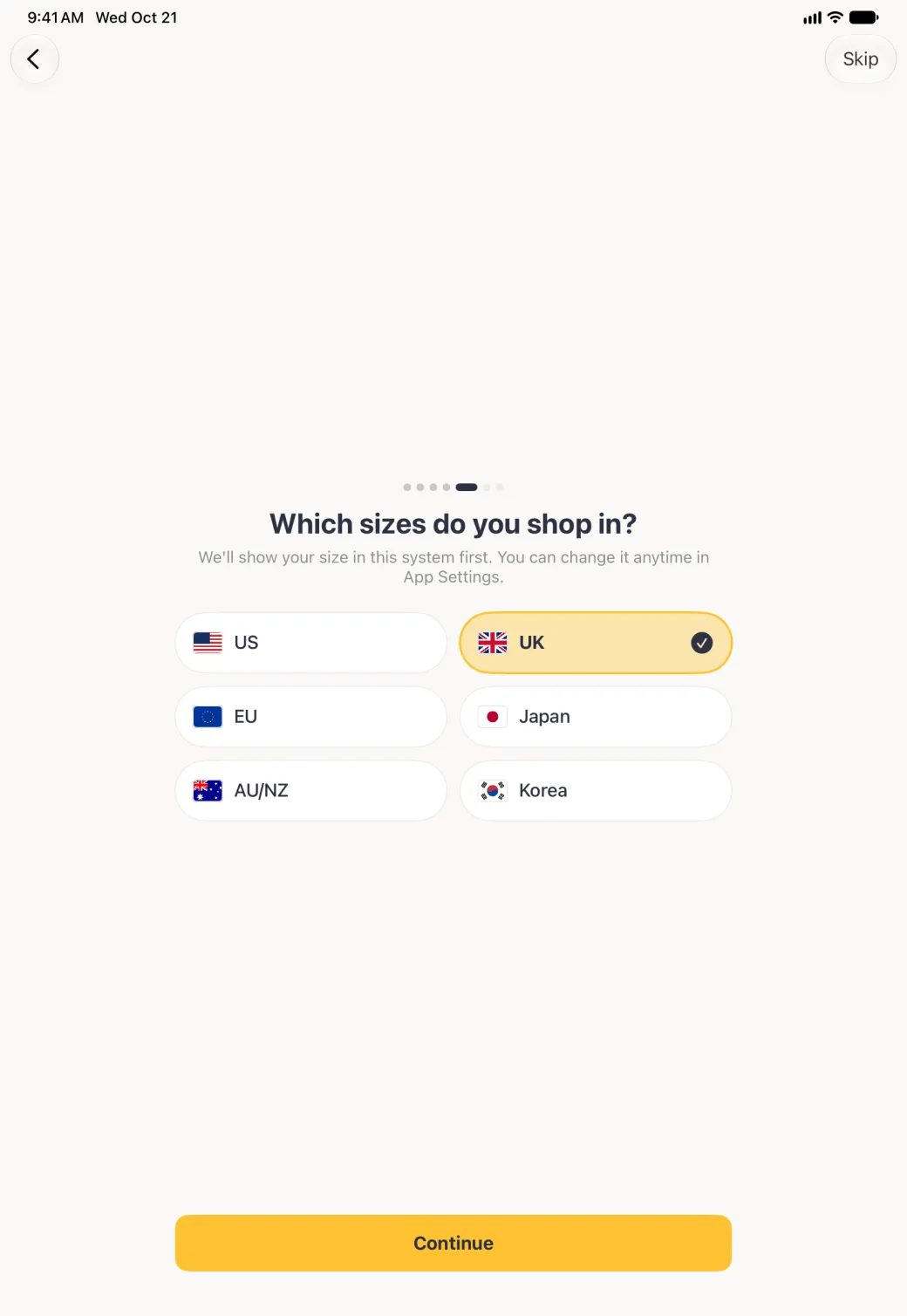
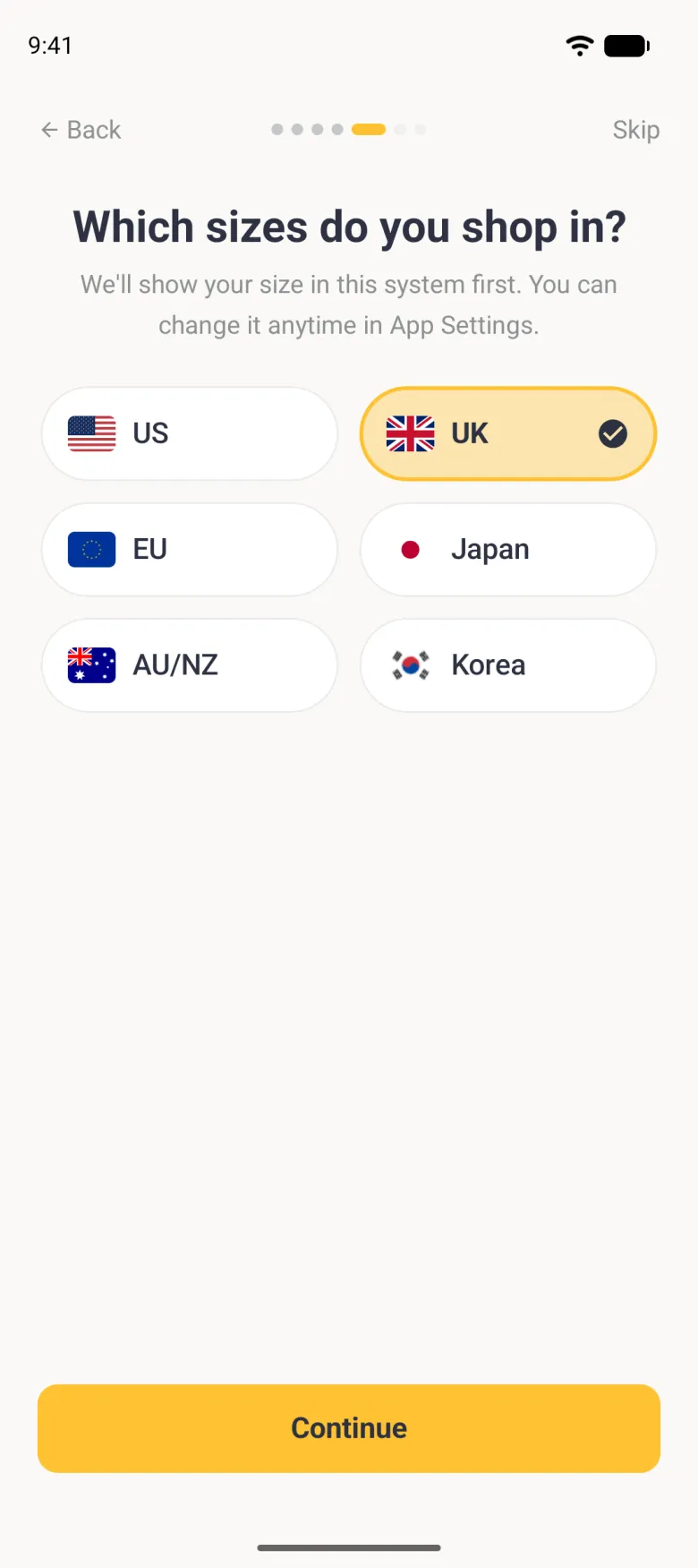
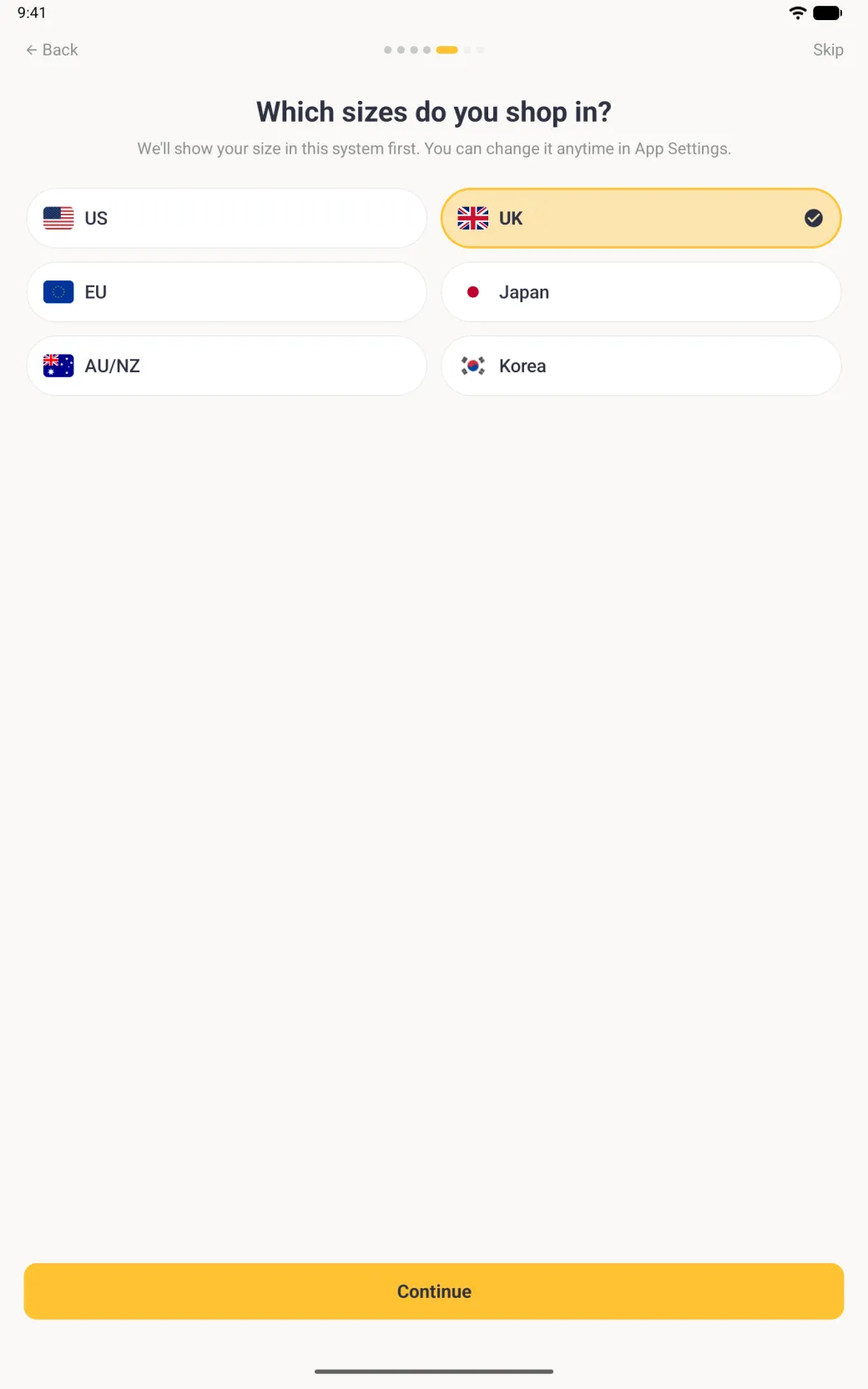
- On Which sizes do you shop in, choose US, UK, EU, Japan, AU/NZ or Korea. The app preselects the region your phone is set to, so change it only if you shop in a different sizing system. You can change it later in App Settings or on the Sizes tab.
- On Favorite brands, pick up to three brands you buy from.
- The last screen is the Tailor Shop offer, described below the pictures.
On iPhone Duo, opened, the body outlines sit beside the form and Back, Continue (an arrow) and Skip (a double chevron) move to a strip on the right; closed, it works like an iPhone with the same buttons in a strip on the right.


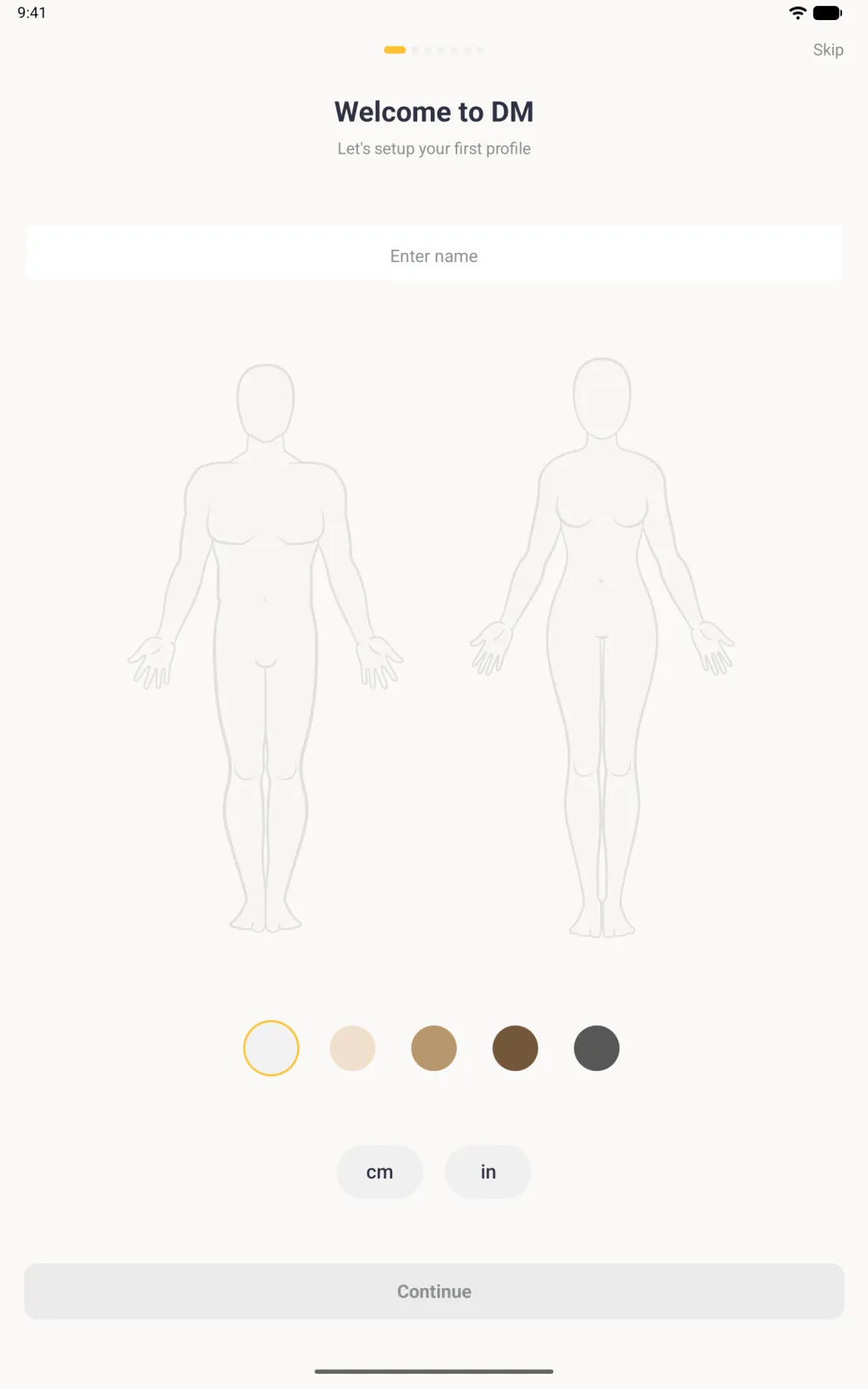

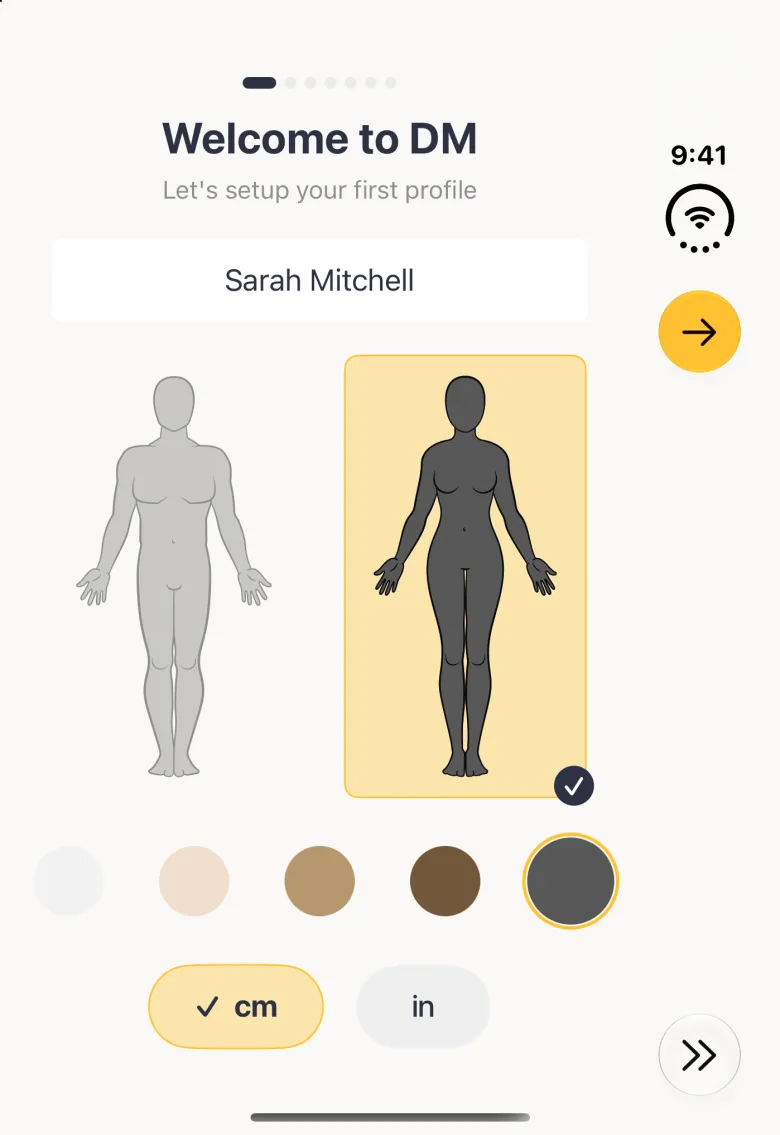
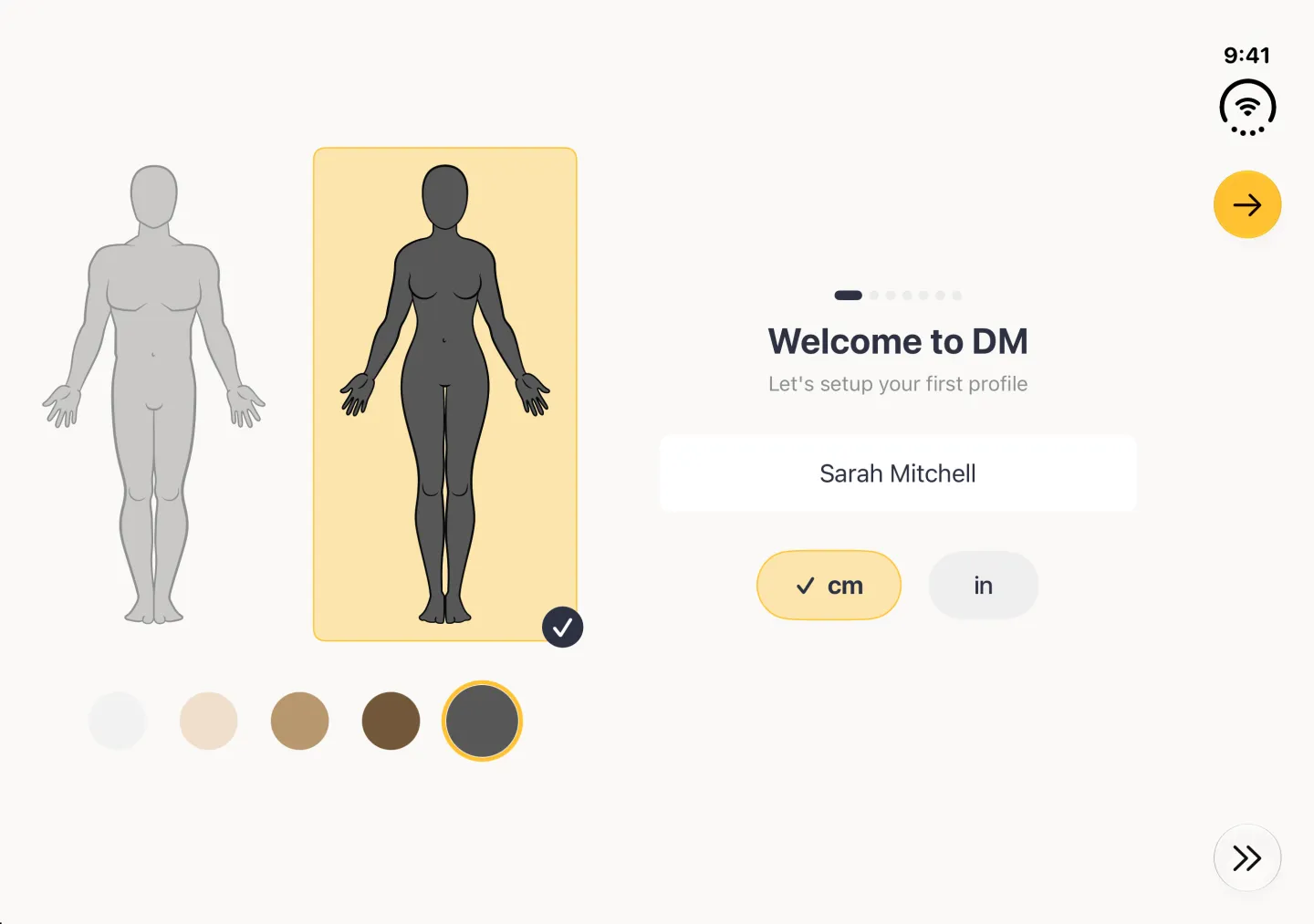

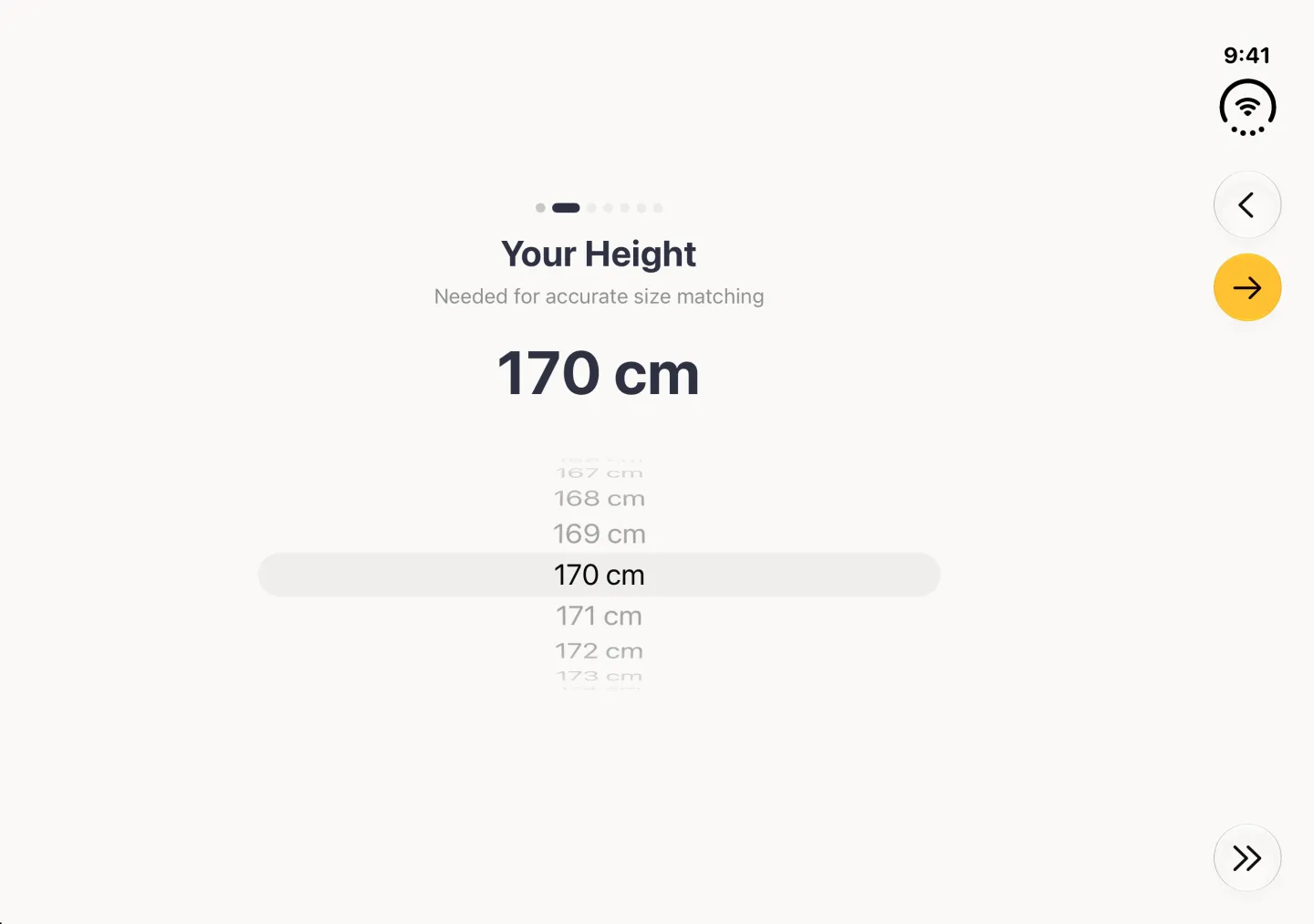
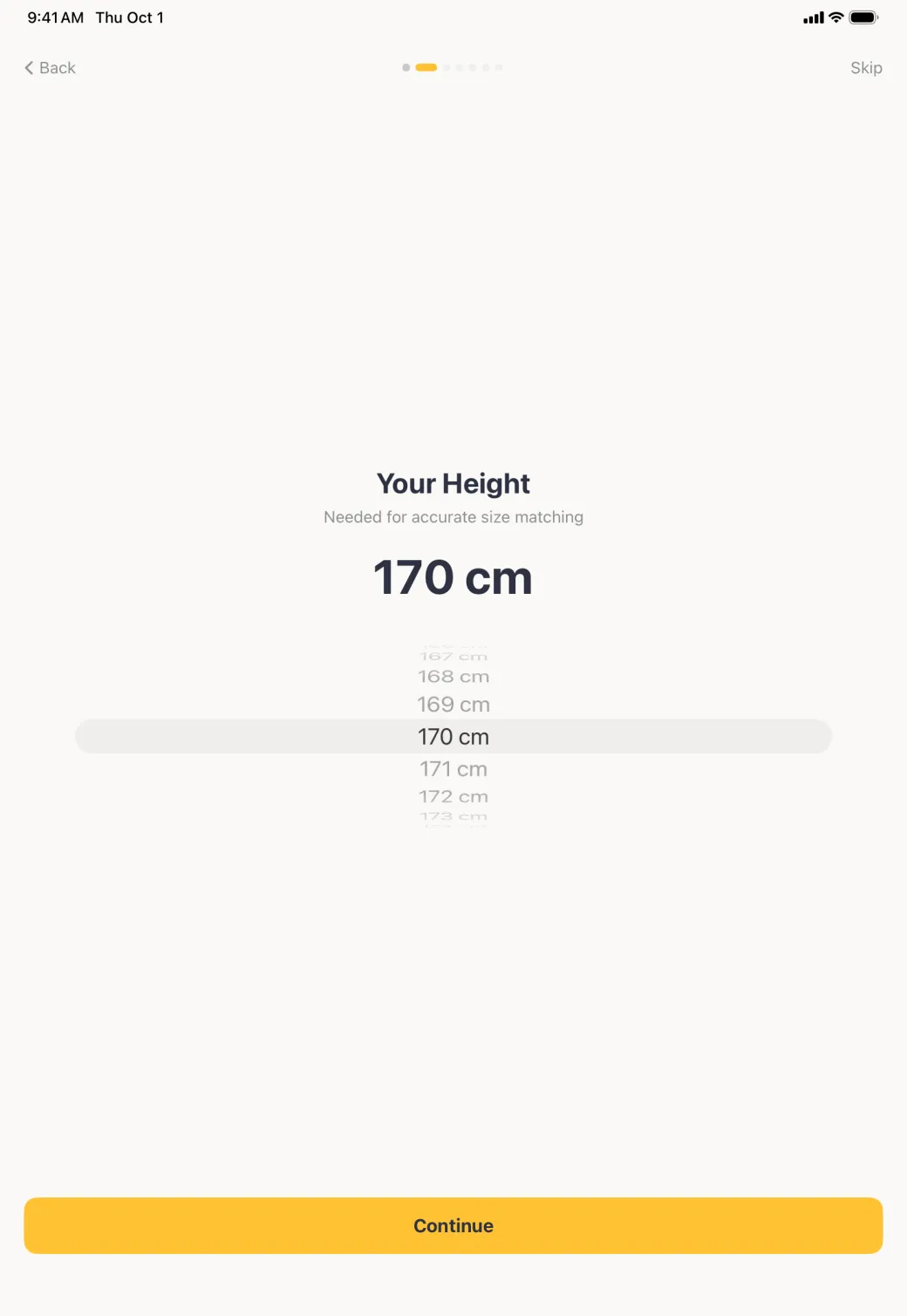
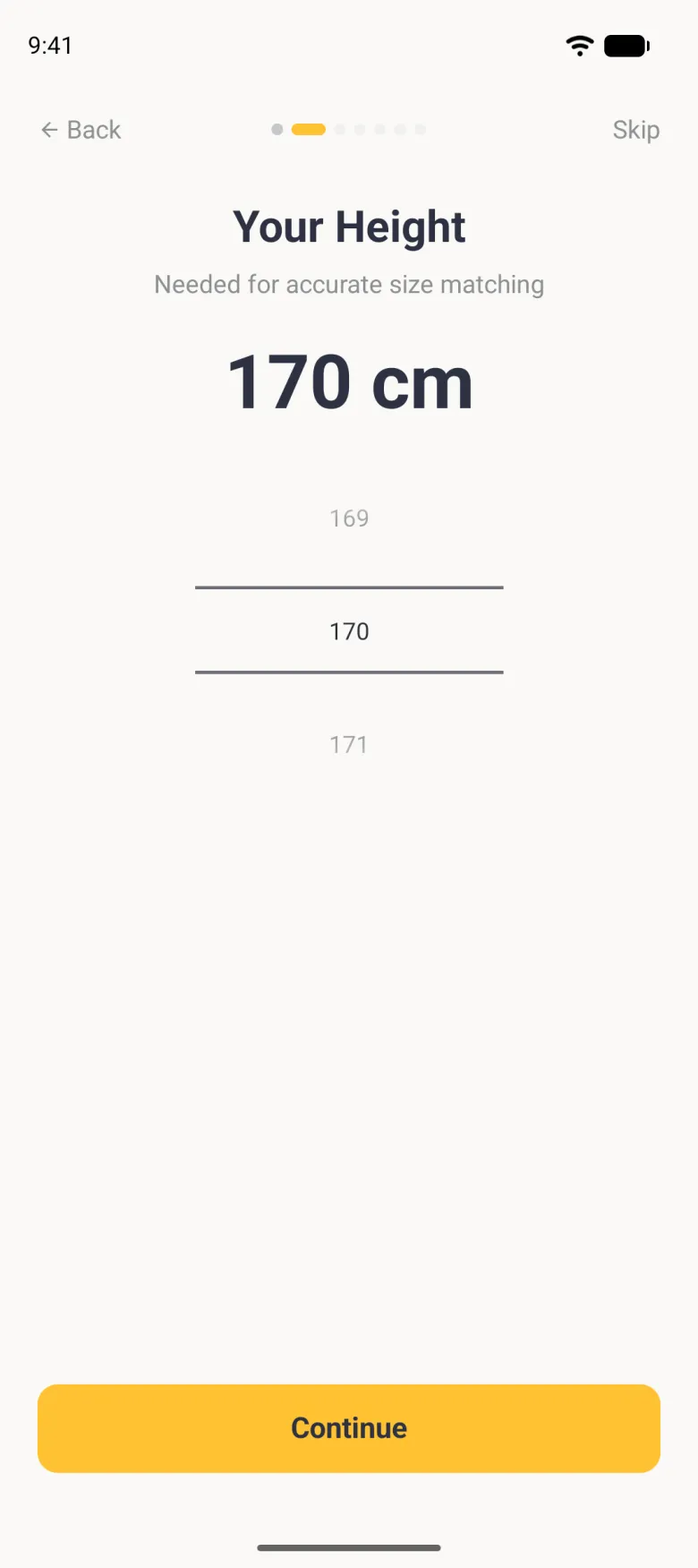
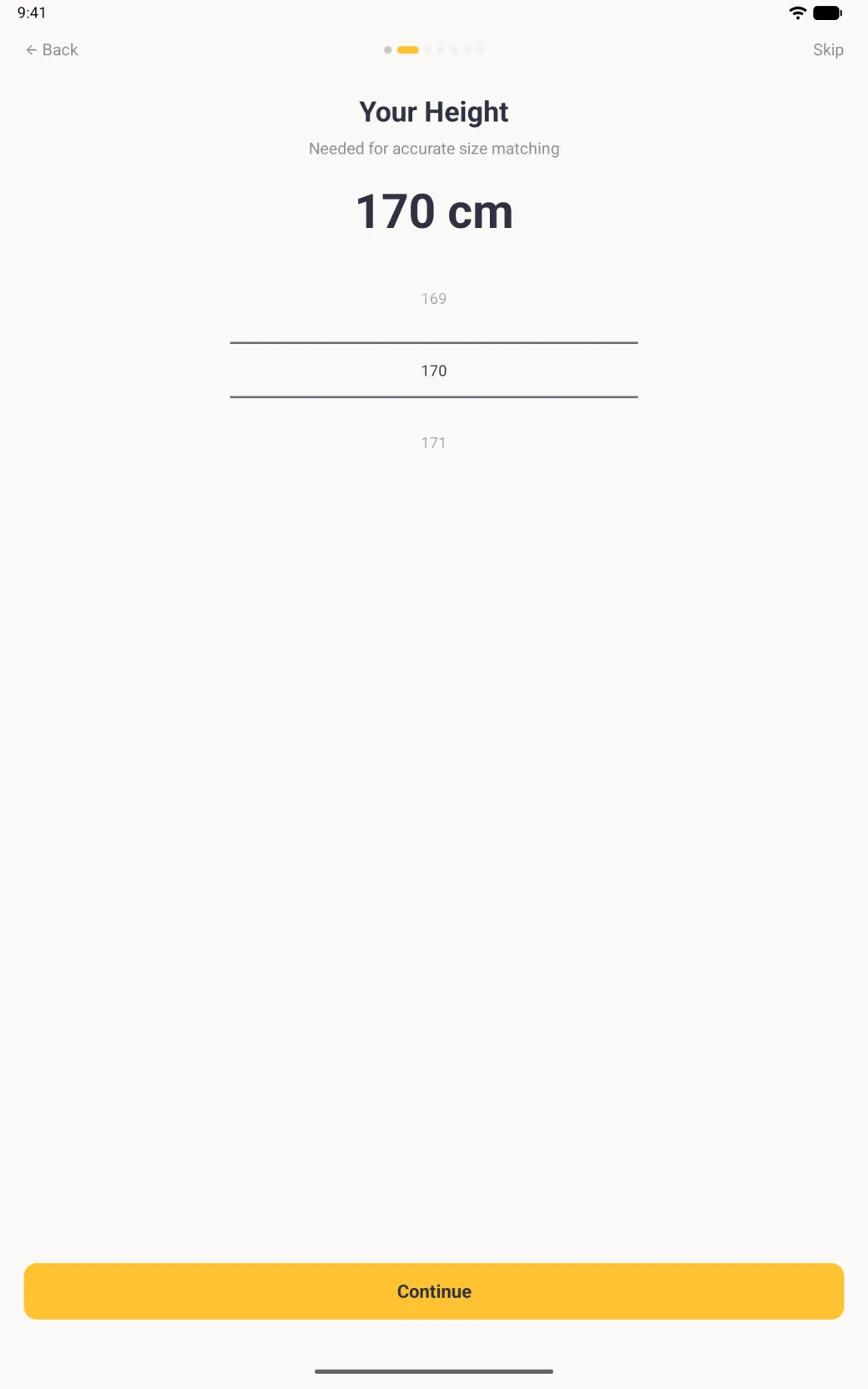

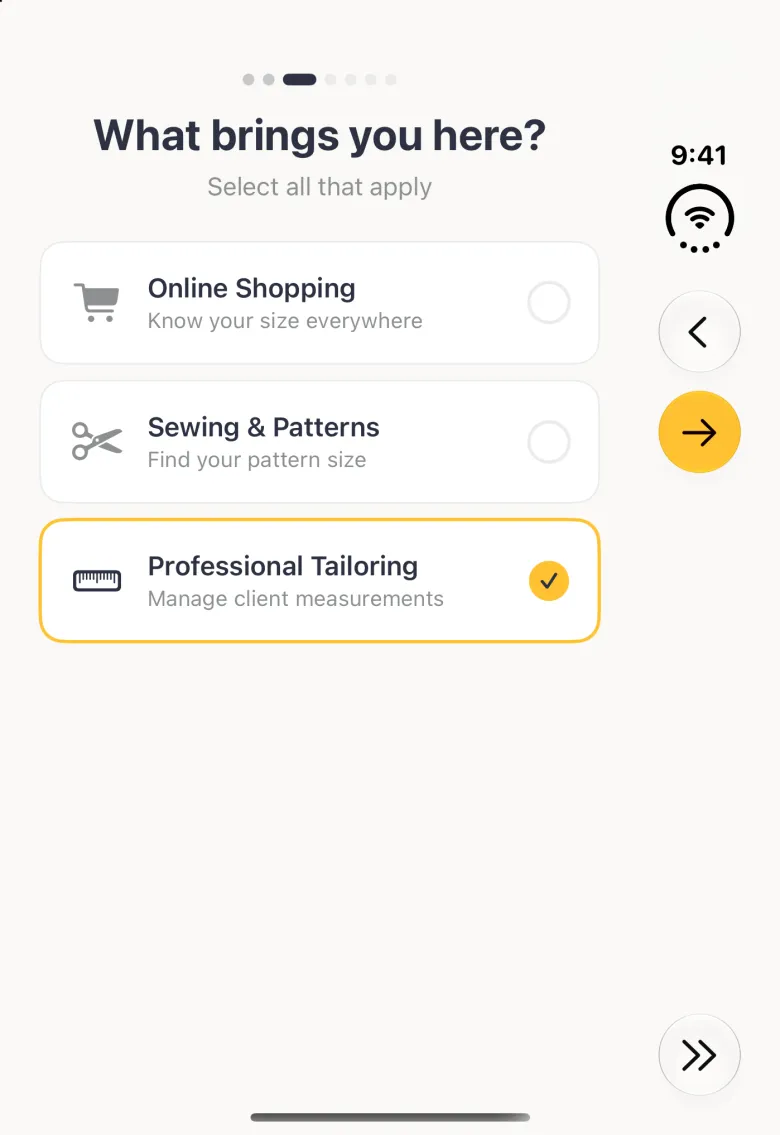
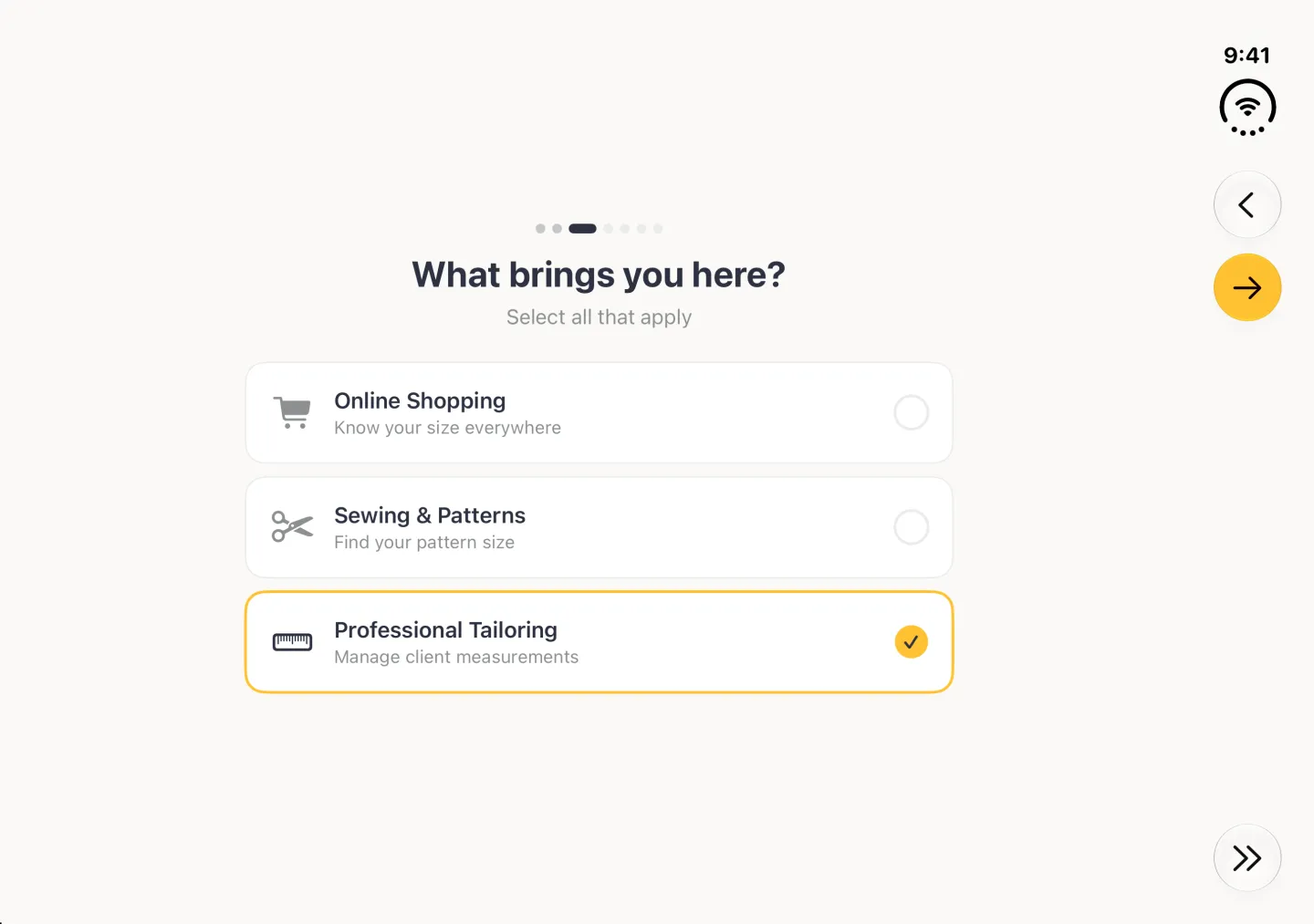
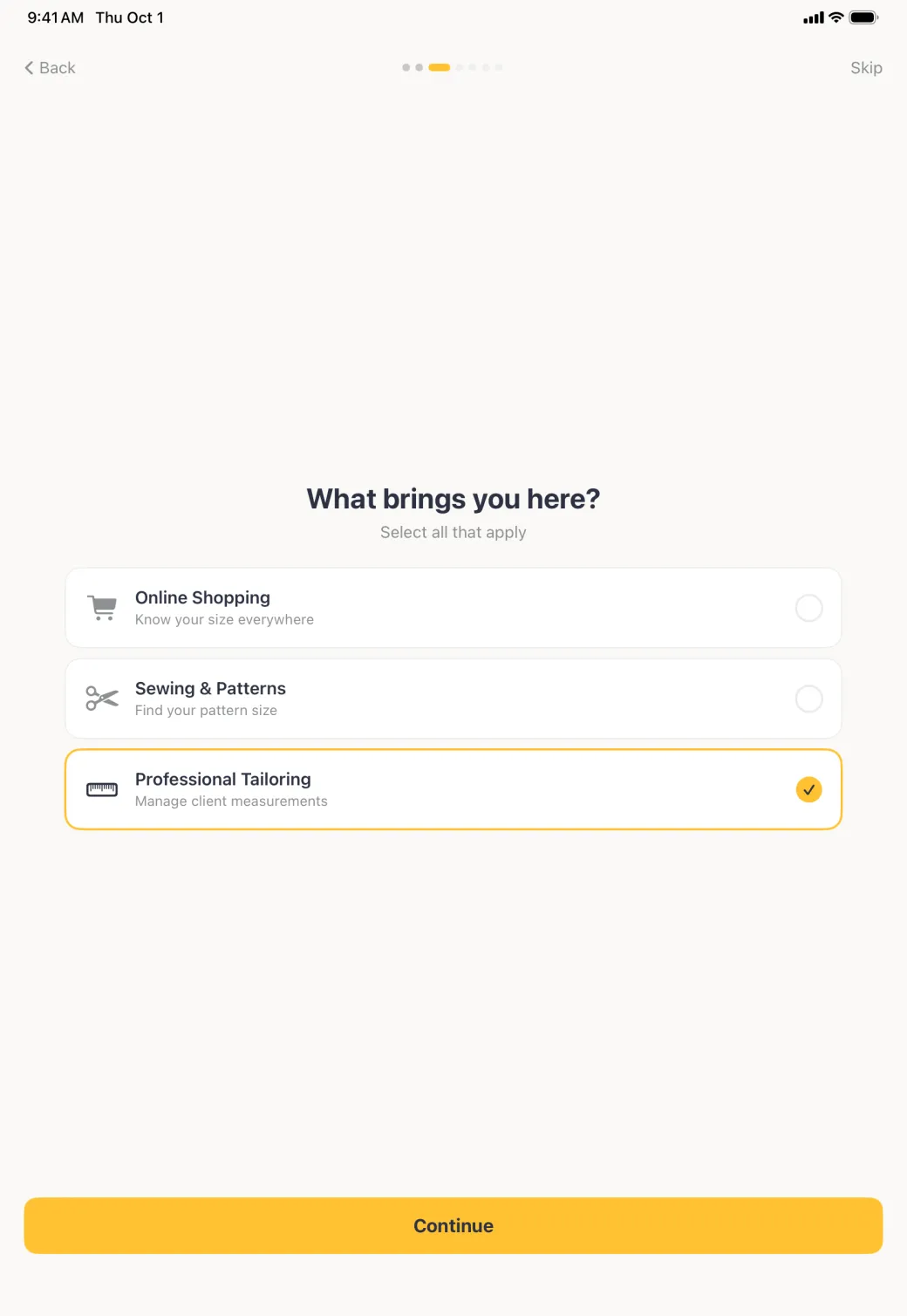
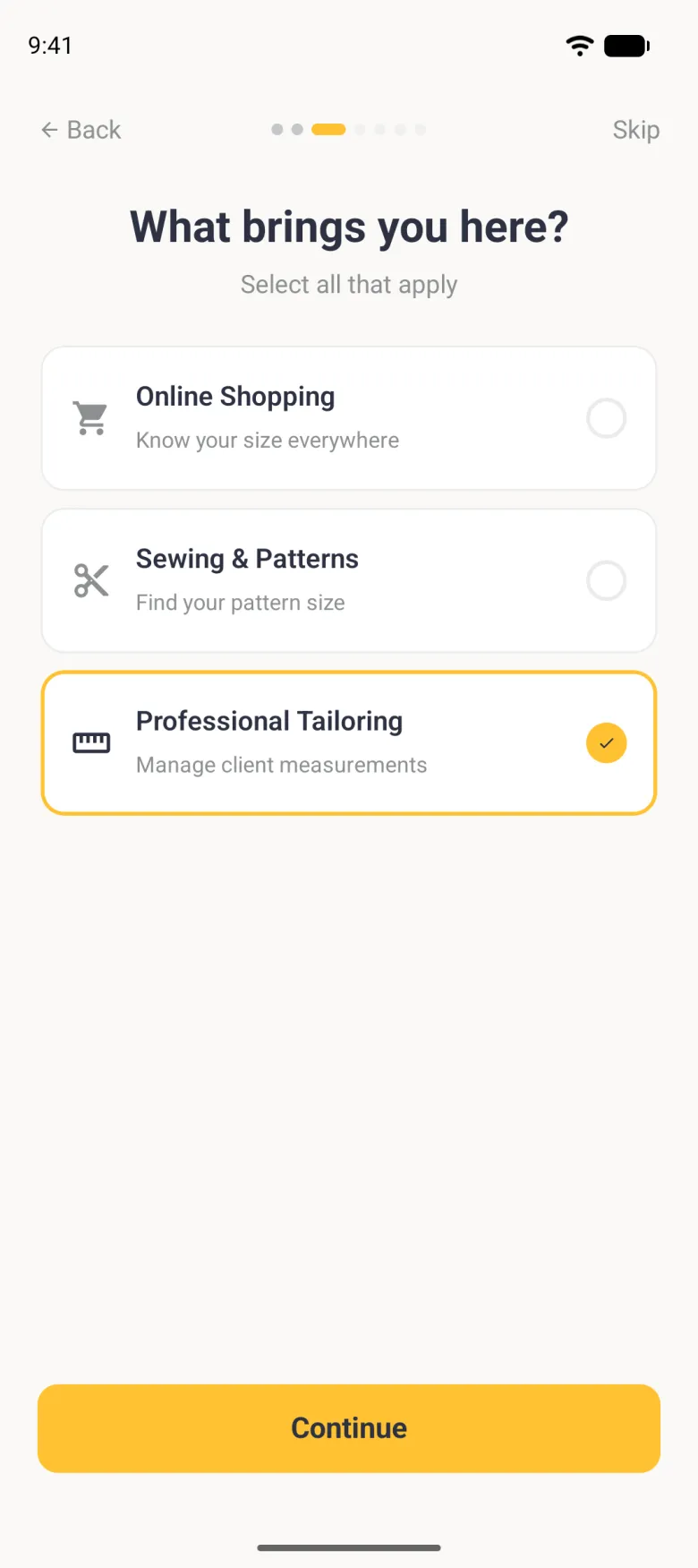

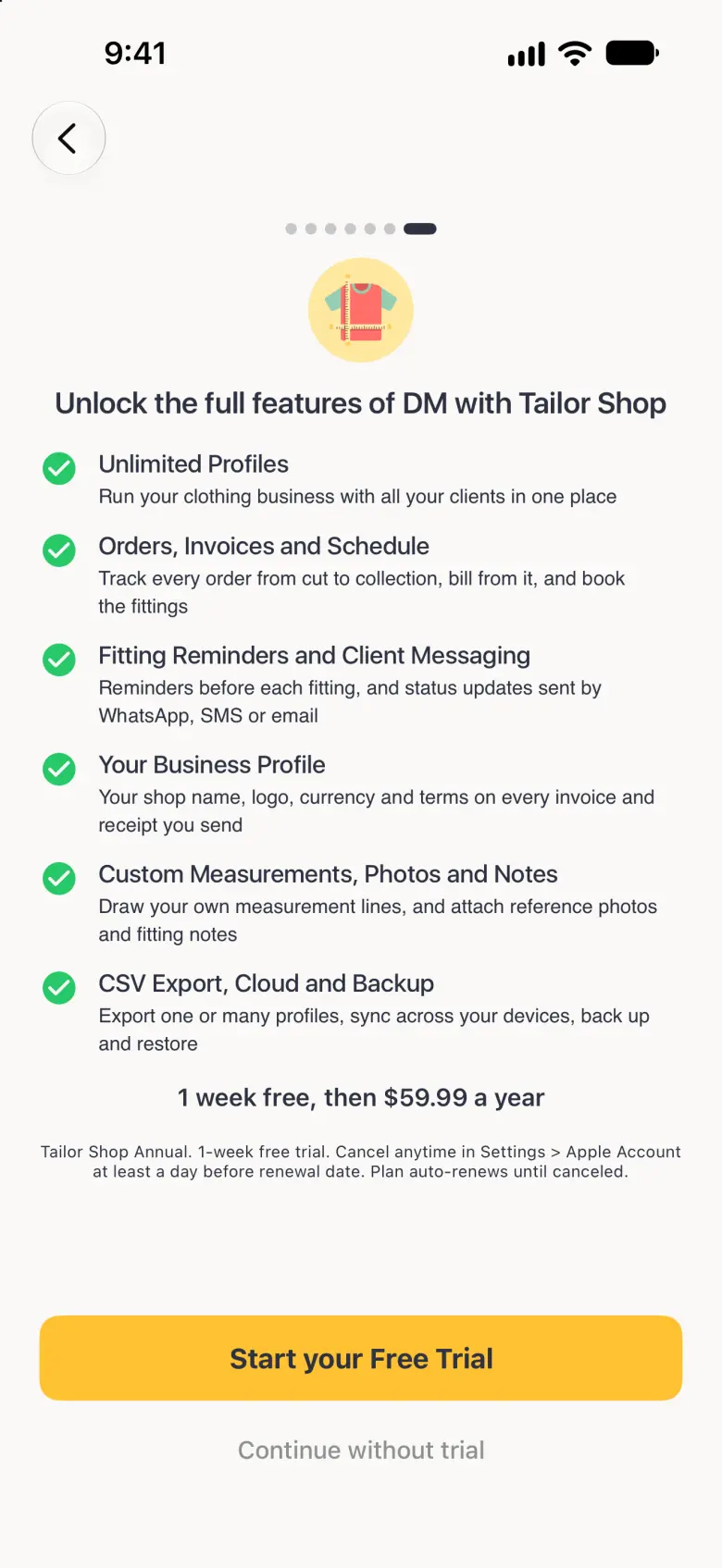
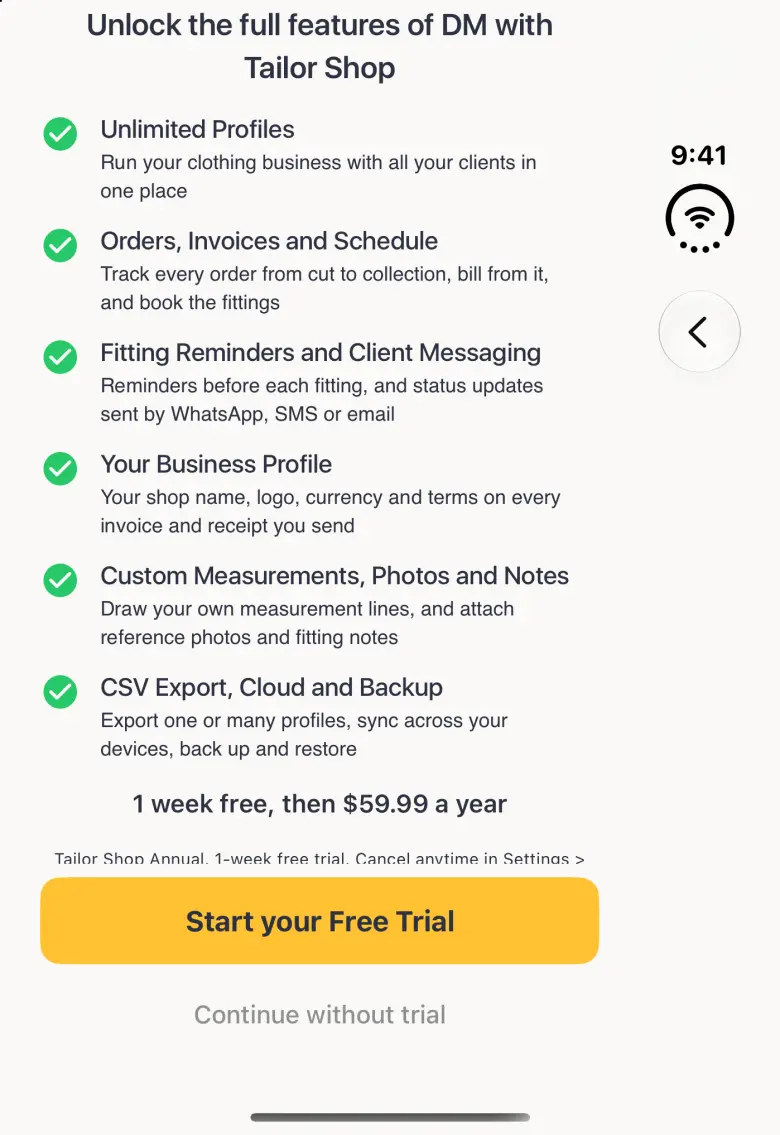
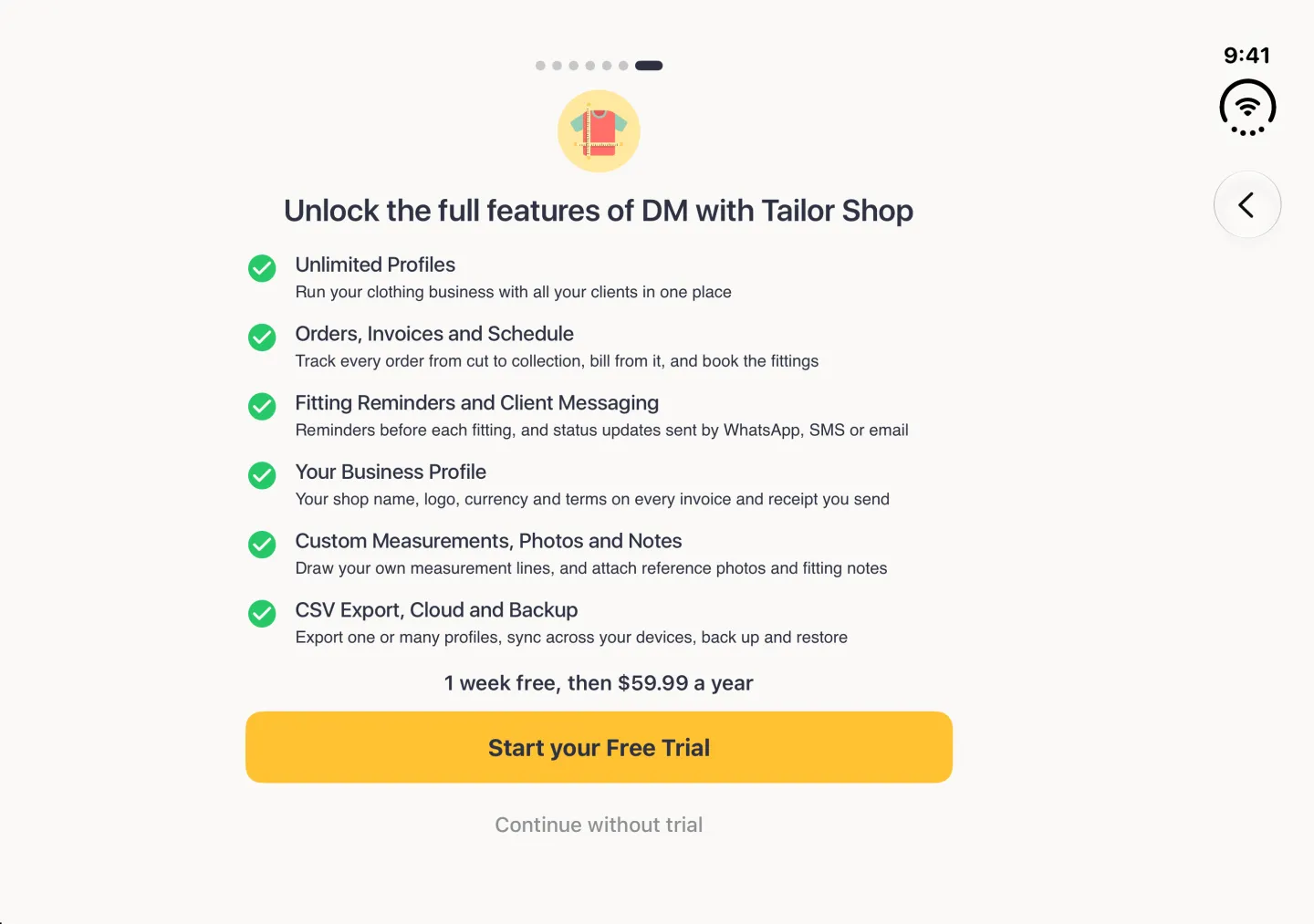
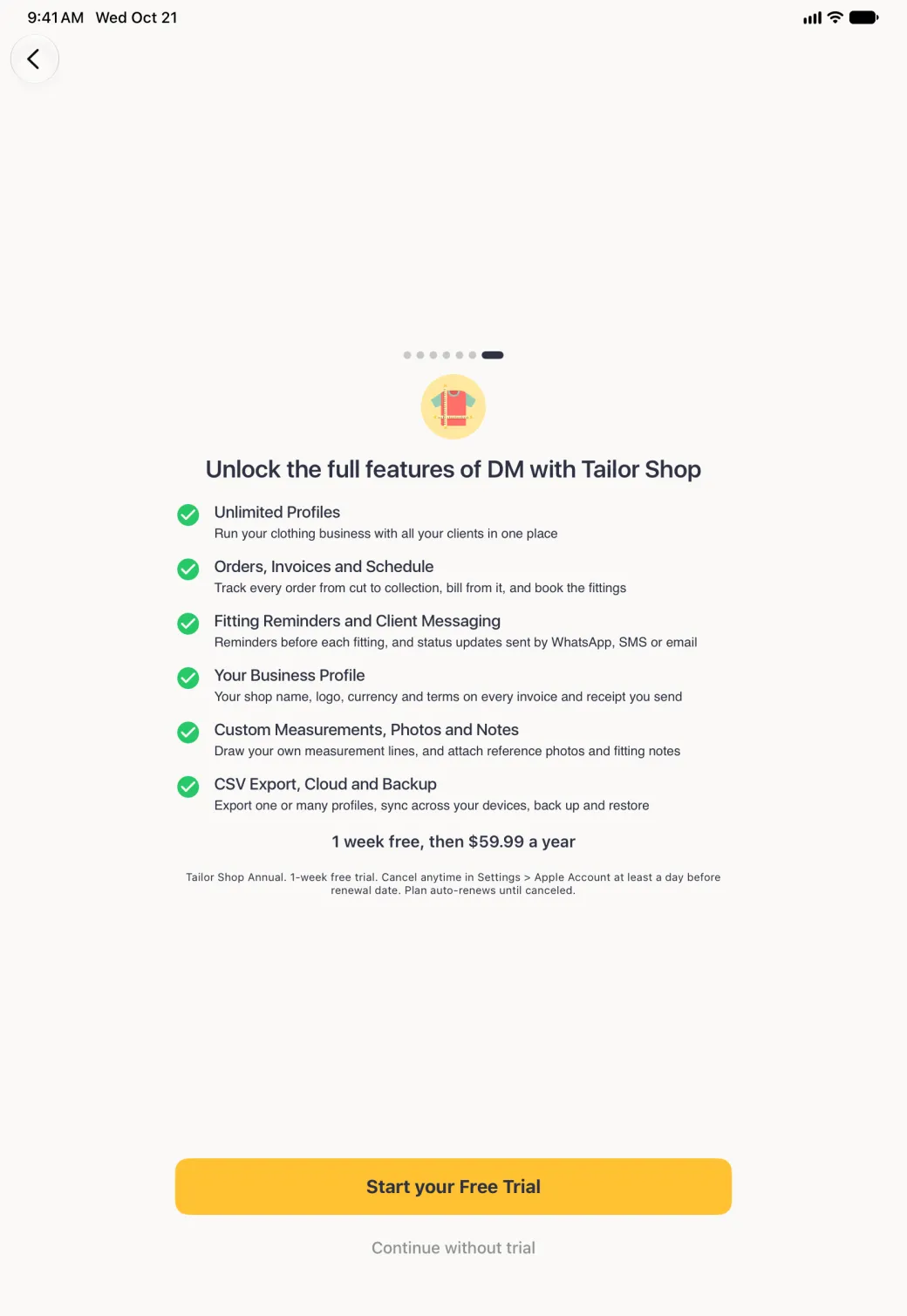
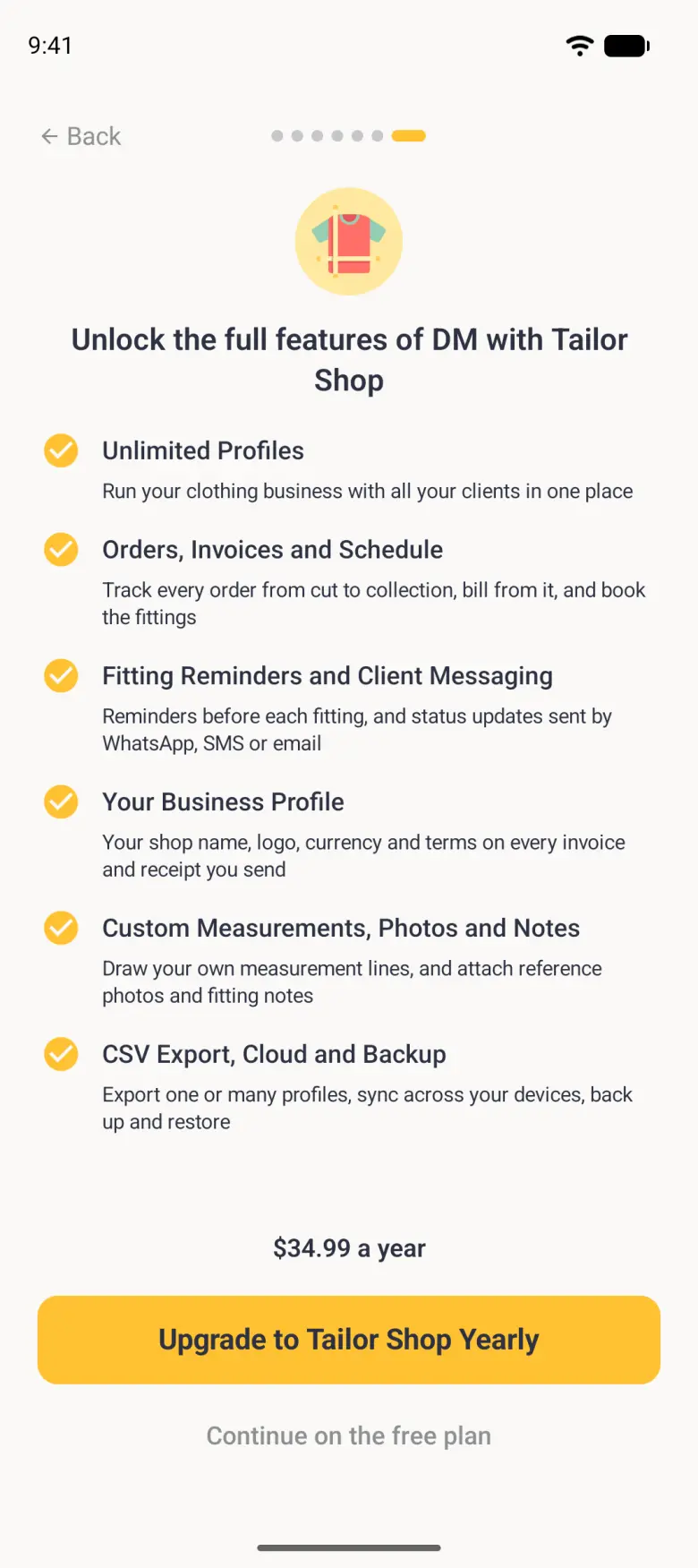
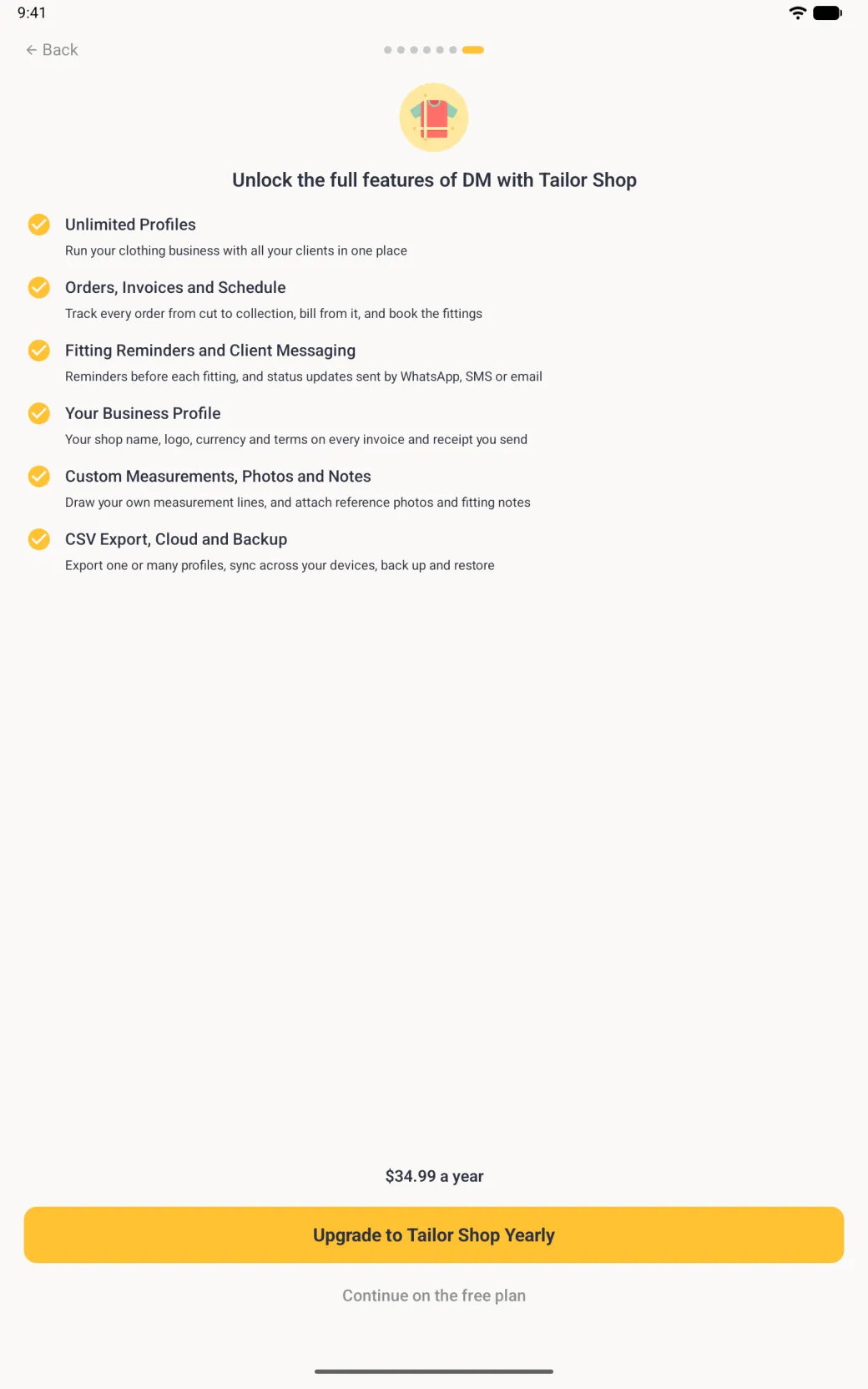
The last screen offers Tailor Shop, the paid plan: start the free trial there, or tap Continue without trial to carry on with the free plan. The price is shown on that screen by the App Store or Google Play, so it is always the current one for your country. On Android the buttons read Start your Free Trial or Upgrade to Tailor Shop Yearly, with Continue without trial or Continue on the free plan below them.
Where do my measurements live?
Setup ends on the profile itself, which is a body with a label for each measurement. Tap a label to enter that measurement, and swipe the body sideways, or use the arrows either side of the Page control under it, to reach the other pages of measurements. The Back button at the top left takes you to the grid of all your profiles; on iPad the profile list stays open on the left beside the profile instead. On Android this is a back arrow too.

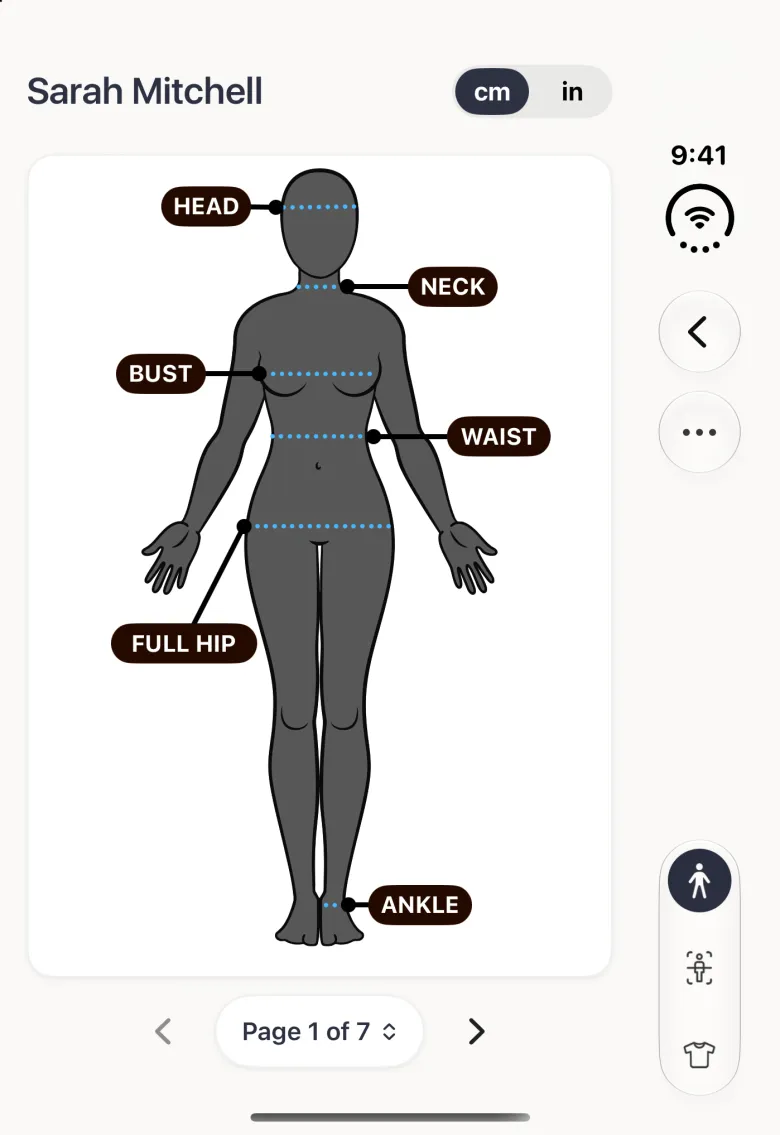
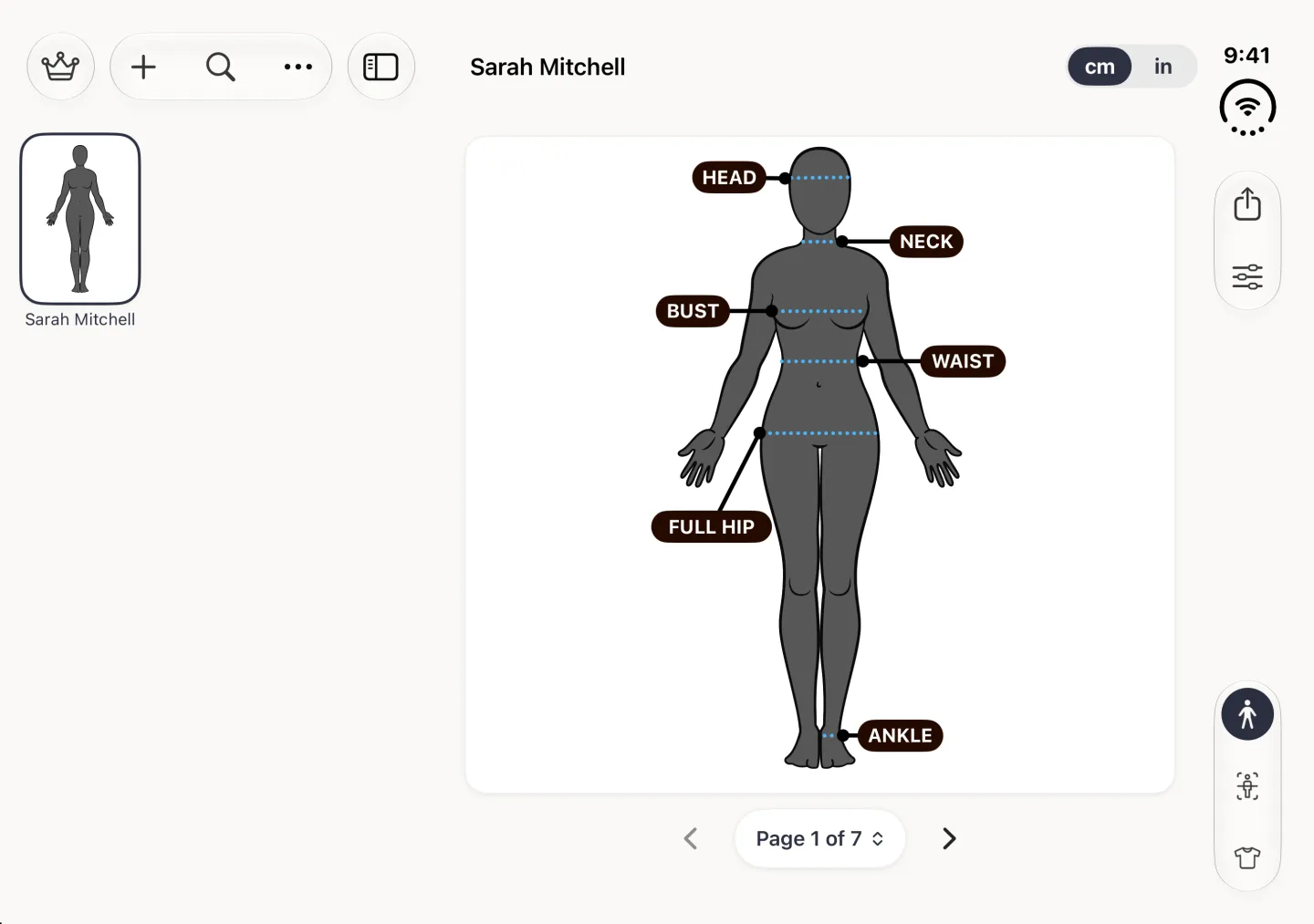
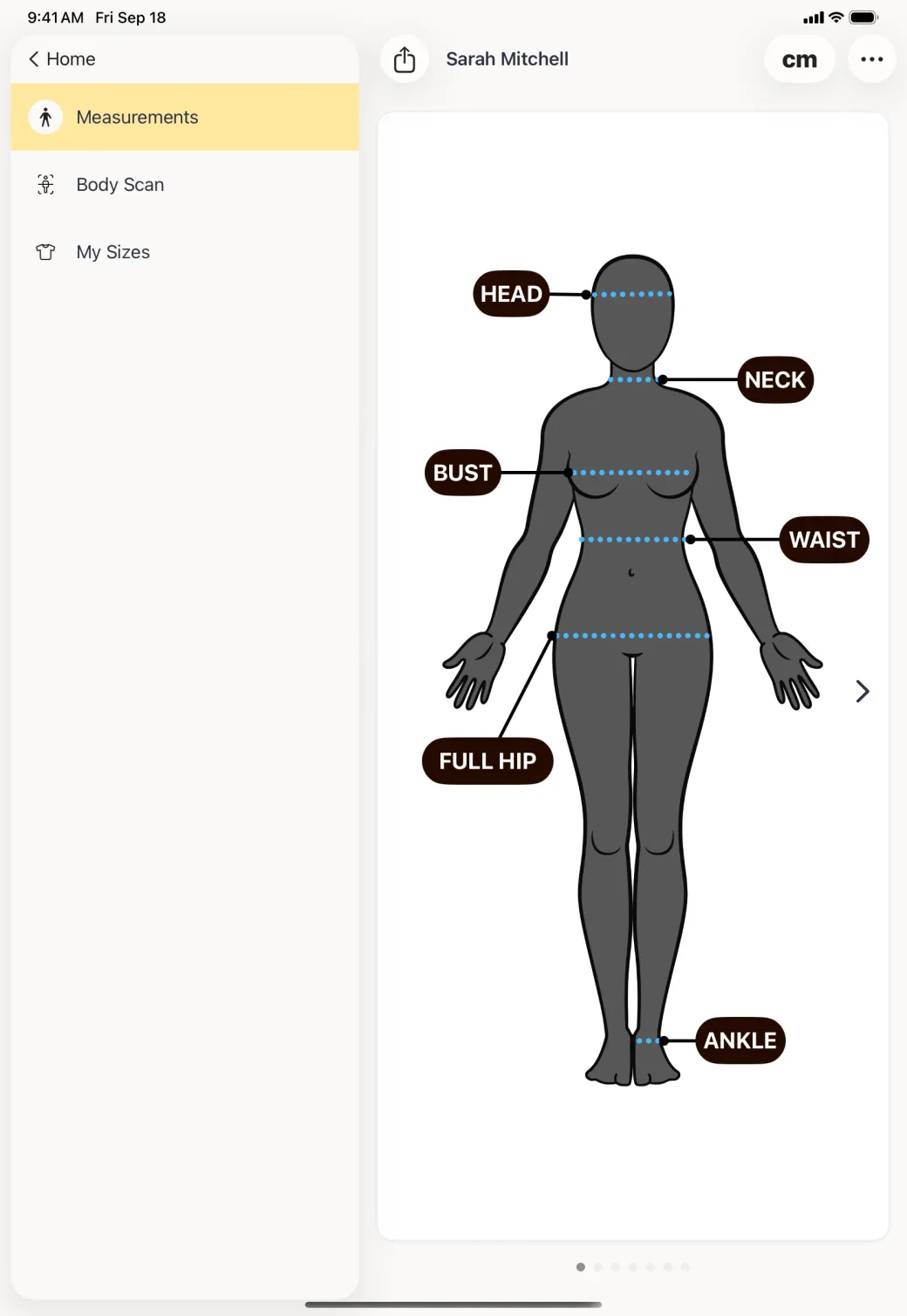
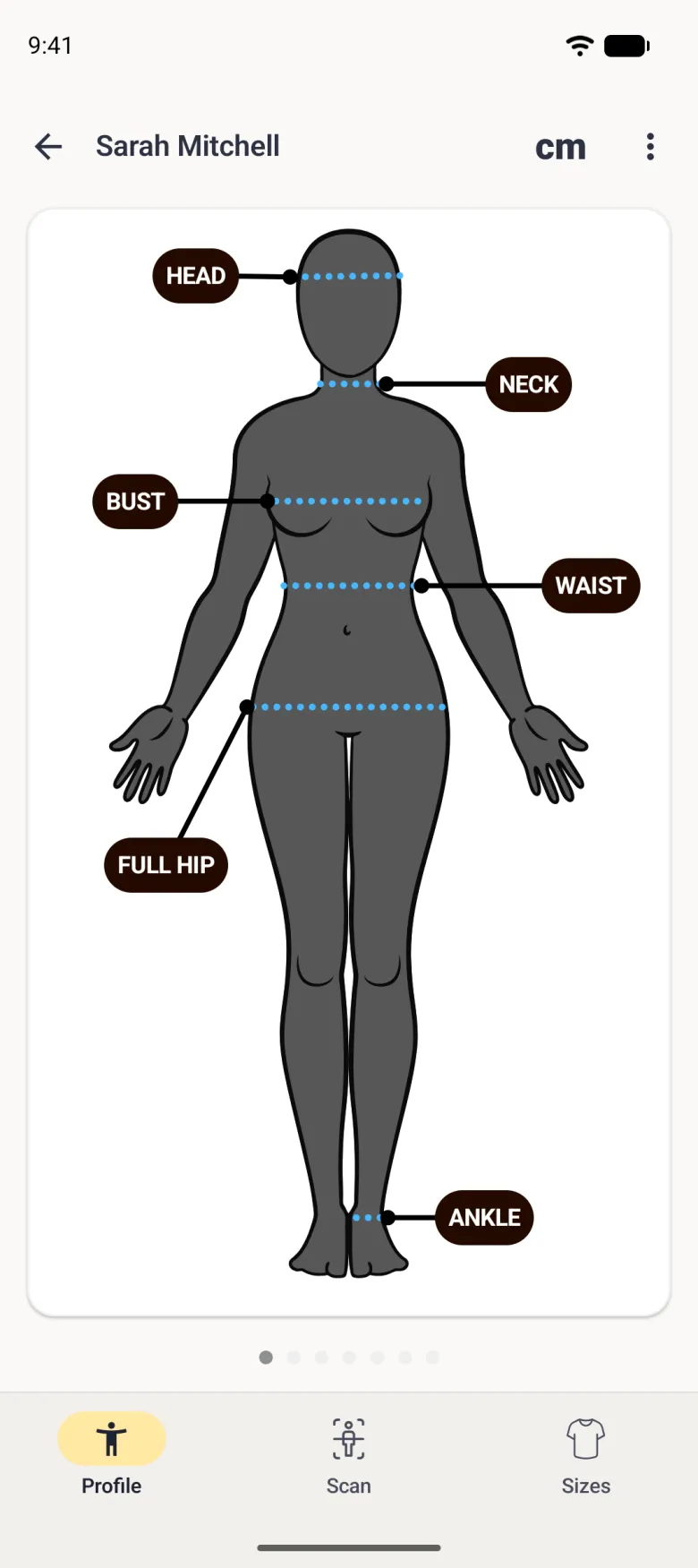
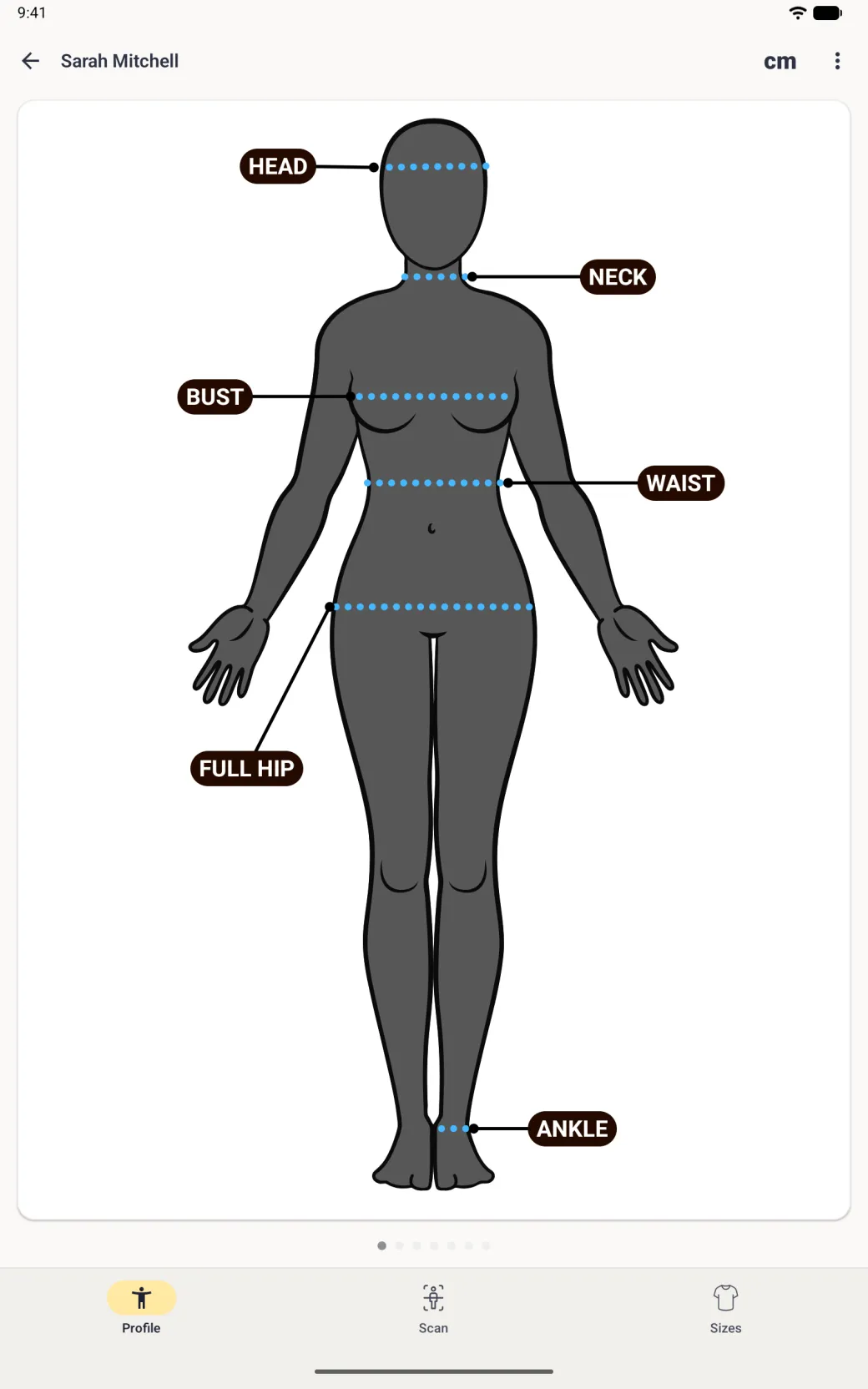
Three more sets of controls sit on this screen. The cm and in switch beside the name switches the units on everything shown. At the top right, the share button shares the profile, and the options button (three sliders) switches between the body and a plain list of every measurement and holds the profile and app settings. The three round buttons at the bottom move between the body, the body scan and the sizes that match your measurements; the selected one is a navy disc. On Android the cm button and the three-dot menu sit in the top bar, and the bottom bar is labelled Profile, Scan and Sizes. On iPhone Duo, opened, the profile list sits beside the profile and the share, options and section buttons move to a strip on the right; closed, Back, a round more menu (which holds Share Profile) and the section buttons sit in a strip on the right.
What should I do next?
Enter a few measurements first, because everything else in the app is built on them. Bust and waist, or chest and waist, are enough to get a size recommendation. Once those are in, the Sizes tab has something to work with and a body scan has a height to scale against.