DRESS MEASUREMENT

Tailor Shop

Tailor Shop

Tailor Shop adds client contact details, orders, invoices, a fitting schedule and client messaging to Dress Measurement, so one app carries a job from the first measurement to the final payment.

Available on

  • iPhone
  • iPad
  • Android
  • Tailor Shop feature

The Tailor Shop tools described here are on iPhone, iPad and Android. On iPad the tabs are a sidebar on the left. On Android the tabs are a bar along the bottom of a phone, and a rail down the left on a tablet. Tailor Shop is a subscription, $12.99 per month or $59.99 per year with a seven-day free trial on the annual plan. Size recommendations stay free on every plan.

What Tailor Shop adds to Dress Measurement

Tailor Shop keeps the measuring you already do and builds the rest of a workshop around it. Your profiles become clients with a phone number, an email address, a preferred channel, an address, a birthday and tags. Around those clients sit orders, invoices and a fitting schedule, plus a business profile whose name, logo and payment details print on everything a client receives.

  • Business profile: your shop name, tagline, logo and payment details.
  • Clients: contact fields, tags, sorting and deleting.
  • Orders: the job itself, with six stages from received to done.
  • Invoices: line items, tax, deposits, payments and a PDF to send.
  • Schedule: fittings grouped by day, with reminders.
  • Messaging clients: WhatsApp, SMS and email updates written for you.
  • Photos and notes: references and fitting notes on a client or an order.

How the four tabs fit together

With Tailor Shop on, the home grid becomes the Clients tab of a four-tab bar: Clients, Orders, Schedule and Invoices. The four are not separate ledgers. An order belongs to a client, an invoice belongs to an order, an appointment belongs to an order, and every message is sent from an order, so a piece of work stays joined up wherever you open it.

That is also why most jobs start on the Clients tab. If the client is not saved yet, save them first, then open their orders from their profile.

Show these screens on
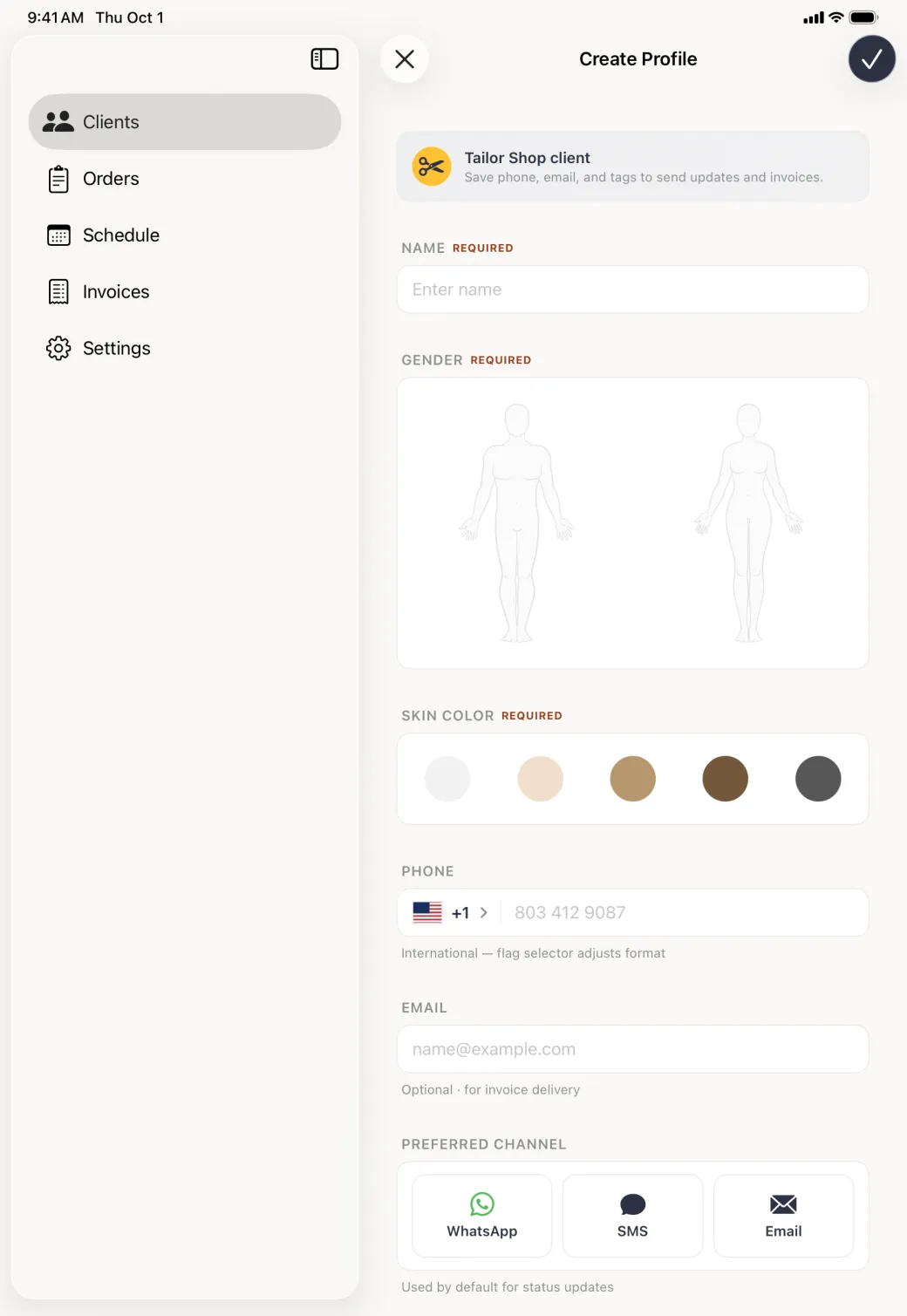
Create Profile form with an empty name field, two body figures for gender, a row of five skin tone circles and a phone field with a plus one country code.
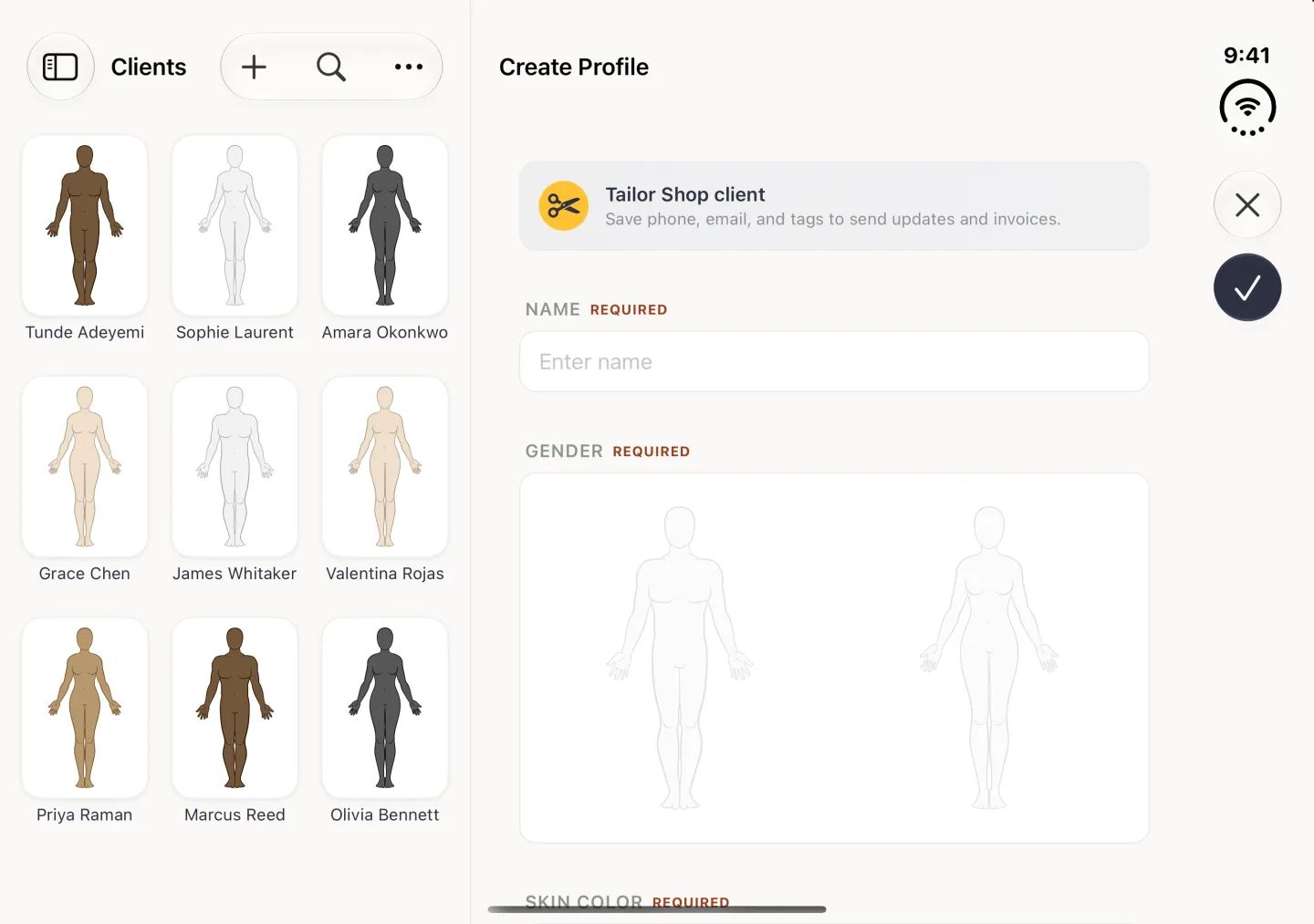
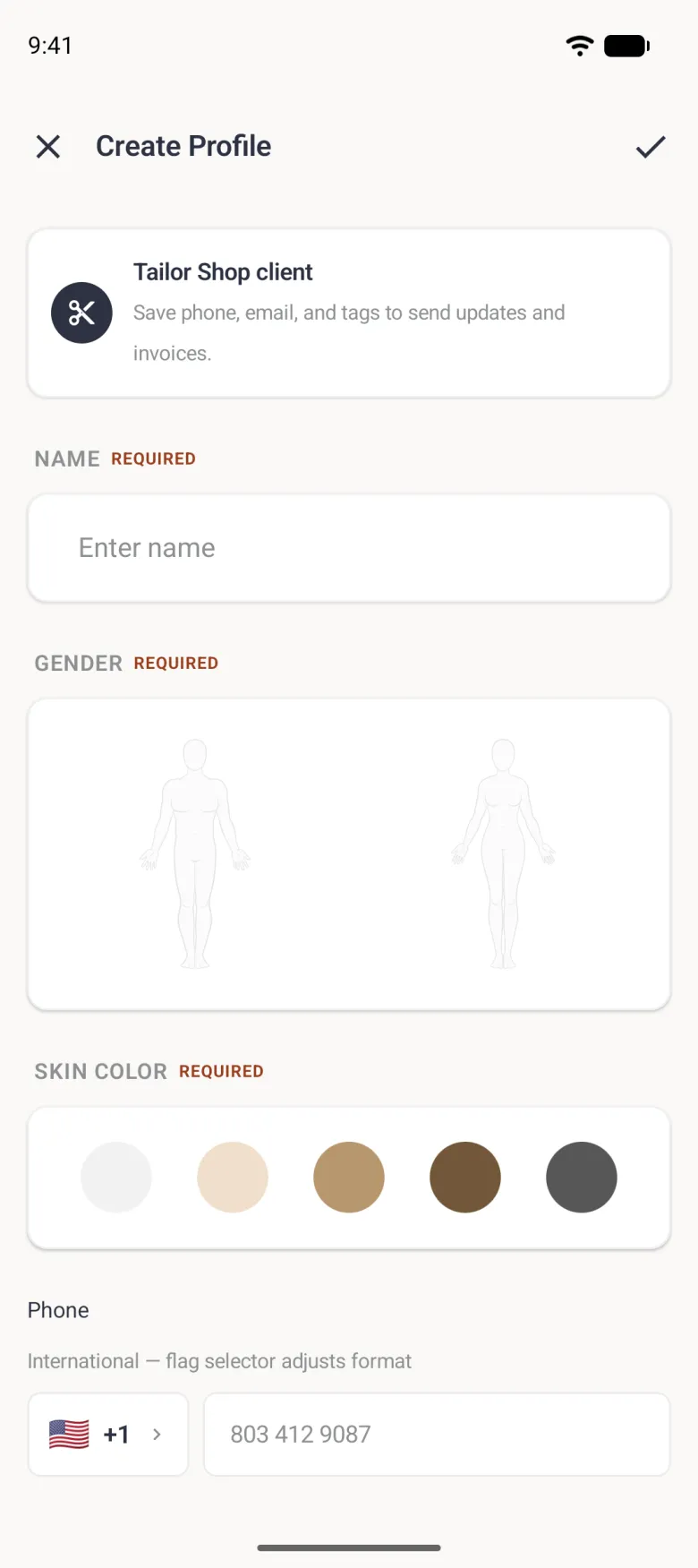
Create Profile form filling the pane beside a sidebar listing Clients, Orders, Schedule, Invoices and Settings, headed by a Tailor Shop client banner, with an empty Name field, two body outlines for gender, five skin tone circles, a phone row with a flag and plus one country selector, an email field and three preferred channel cards.
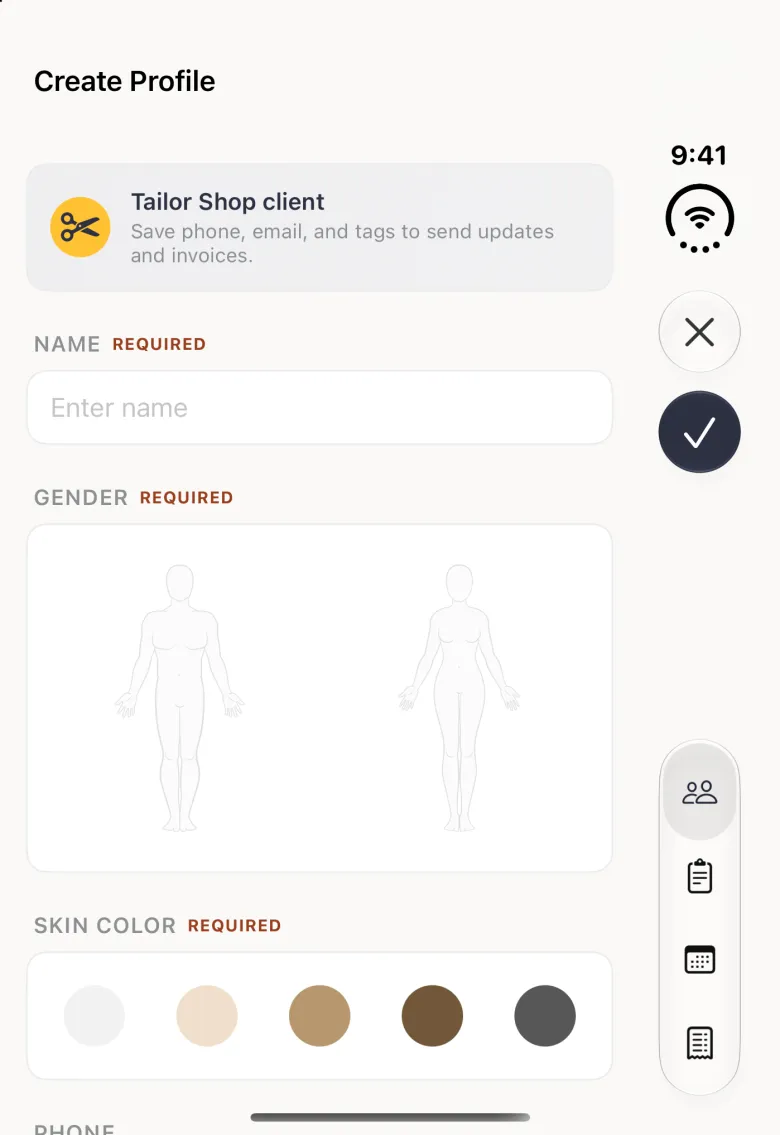
Create Profile screen, opened from the gold New client button on the Clients tab, with an X and a tick in the top bar, a Tailor Shop client card explaining that phone, email and tags are used for updates and invoices, an empty Name field marked Required, two grey body figures for gender, a row of five skin tone circles and a Phone field with a US flag and plus one beside a grey example number.
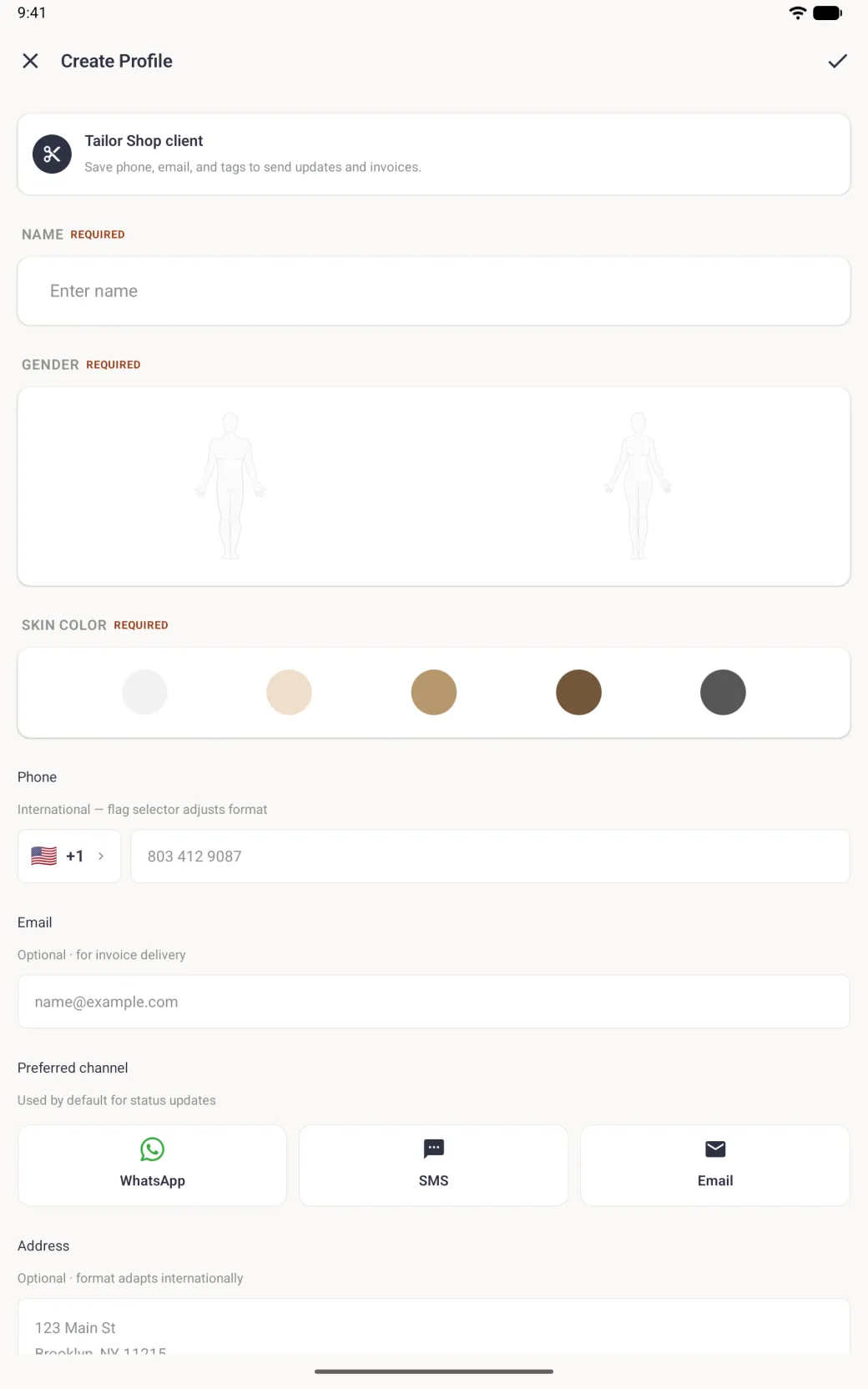
Create Profile screen on a tablet in portrait with an X and a tick in the top bar, a Tailor Shop client card explaining that phone, email and tags are used for updates and invoices, an empty Name field marked Required, a wide panel with a man and a woman outline, five skin tone circles, a Phone field with a US flag and plus one, an Email field, WhatsApp, SMS and Email channel cards, and the start of the Address box.
Start with the client, since everything else hangs off her record.
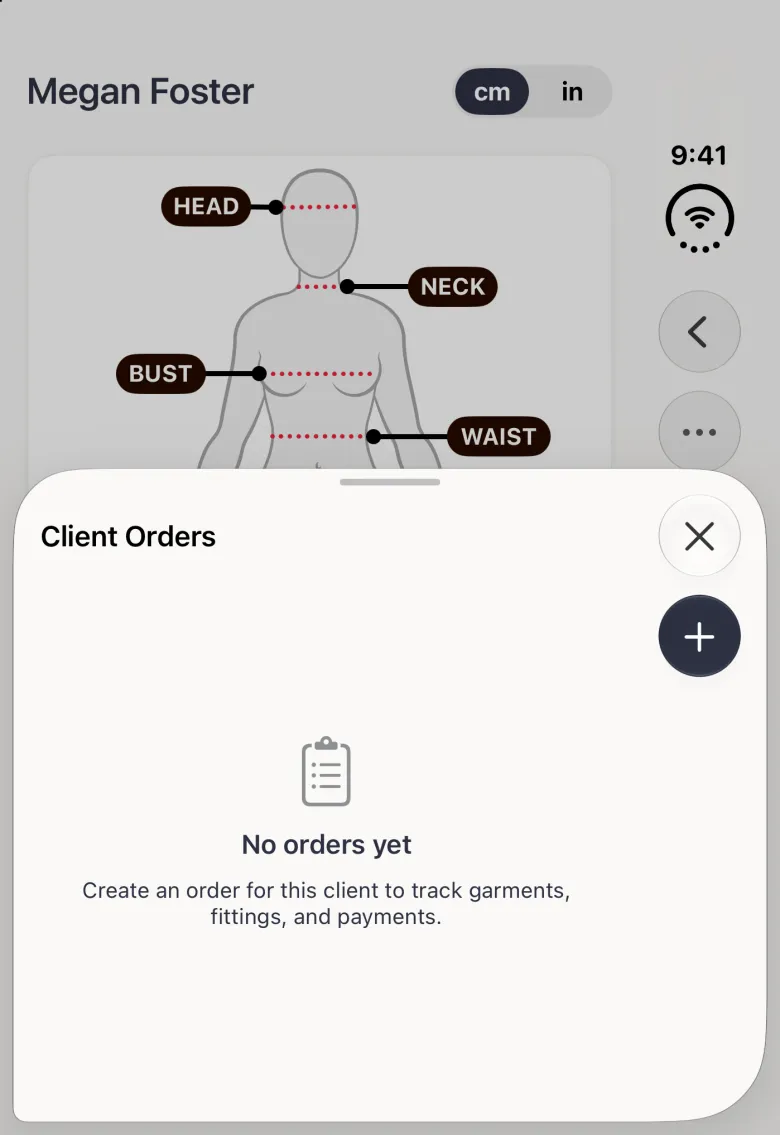
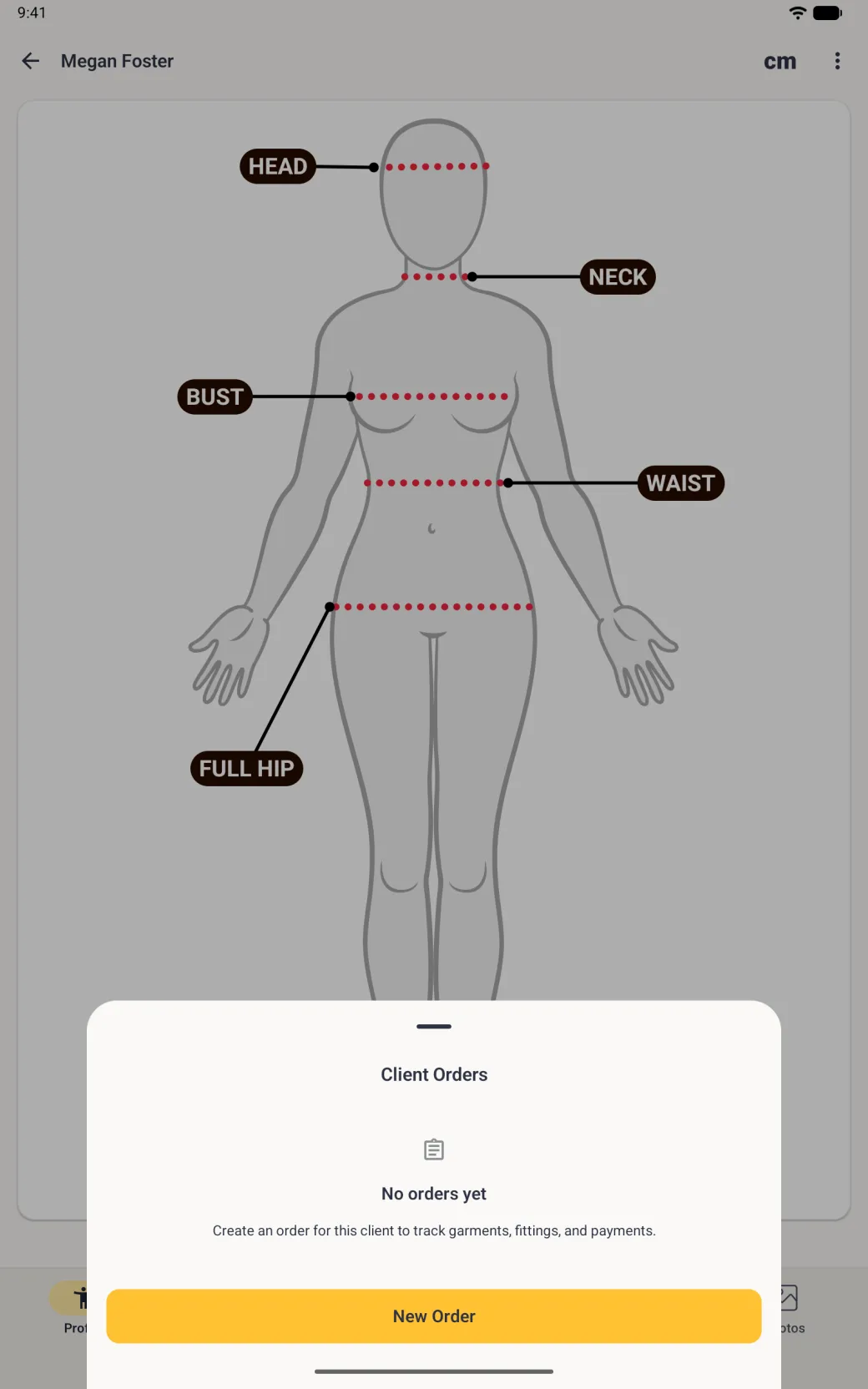
Client profile for Megan Foster with a sheet titled Client Orders covering the lower half, reading No orders yet above a gold New Order button.
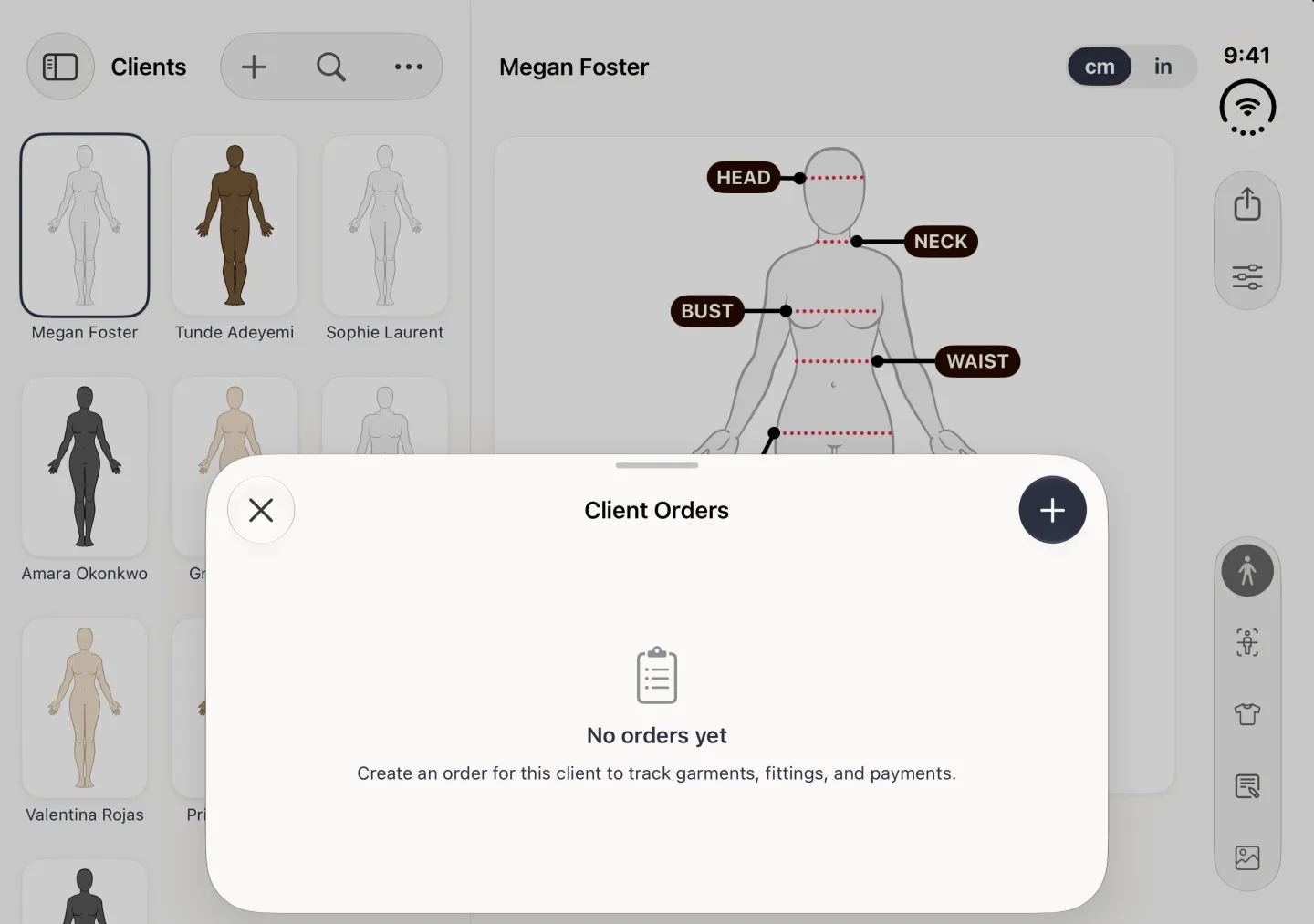
Card titled Client Orders centred over Megan Foster's dimmed profile, reading No orders yet above the line Create an order for this client to track garments, fittings, and payments, with a gold New Order button along the bottom and a close cross at the top left.
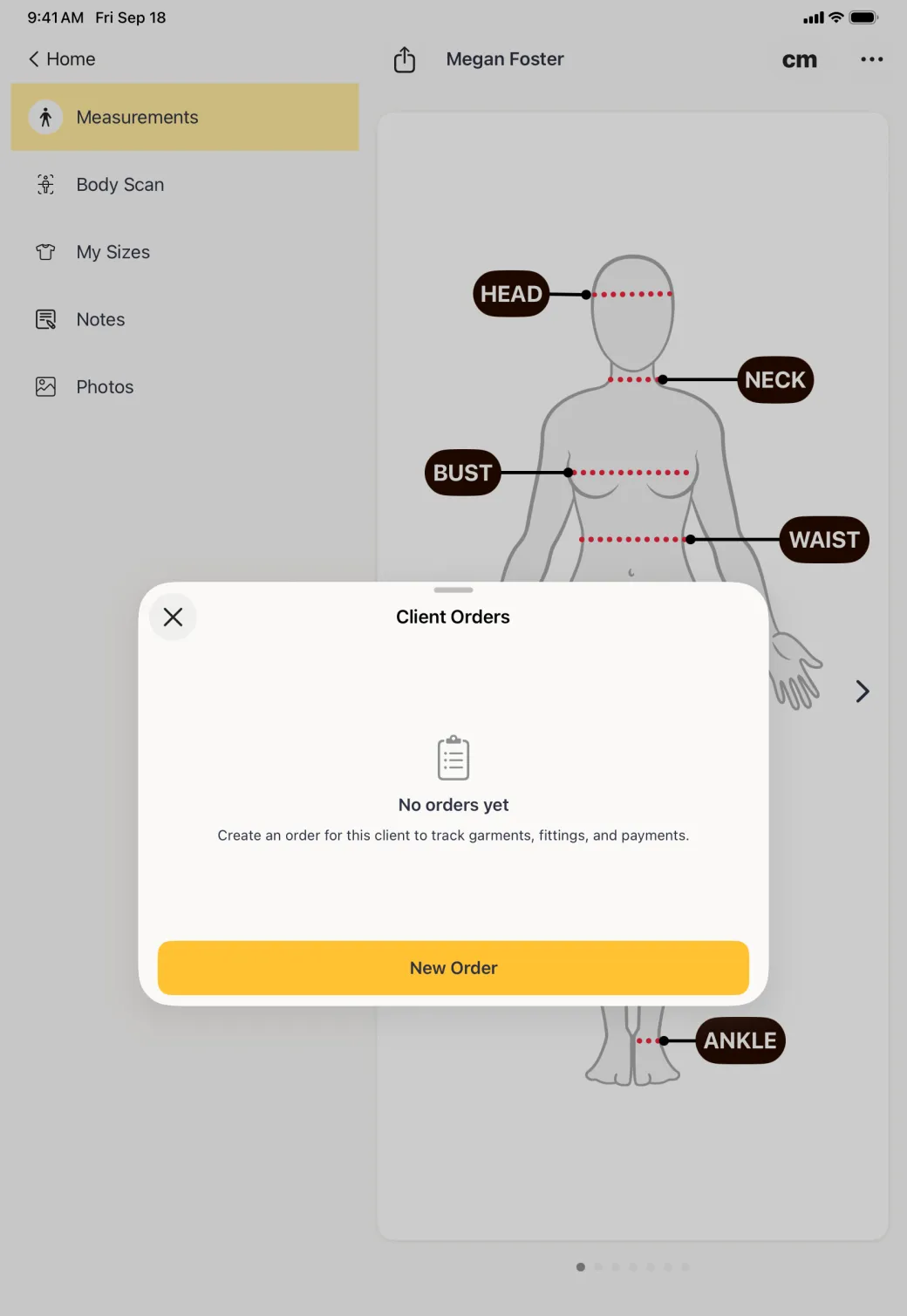
Megan Foster's body view dimmed behind a bottom sheet titled Client Orders, with a clipboard icon, the words No orders yet, a line inviting you to create an order to track garments, fittings and payments, and a gold New Order button along the bottom.
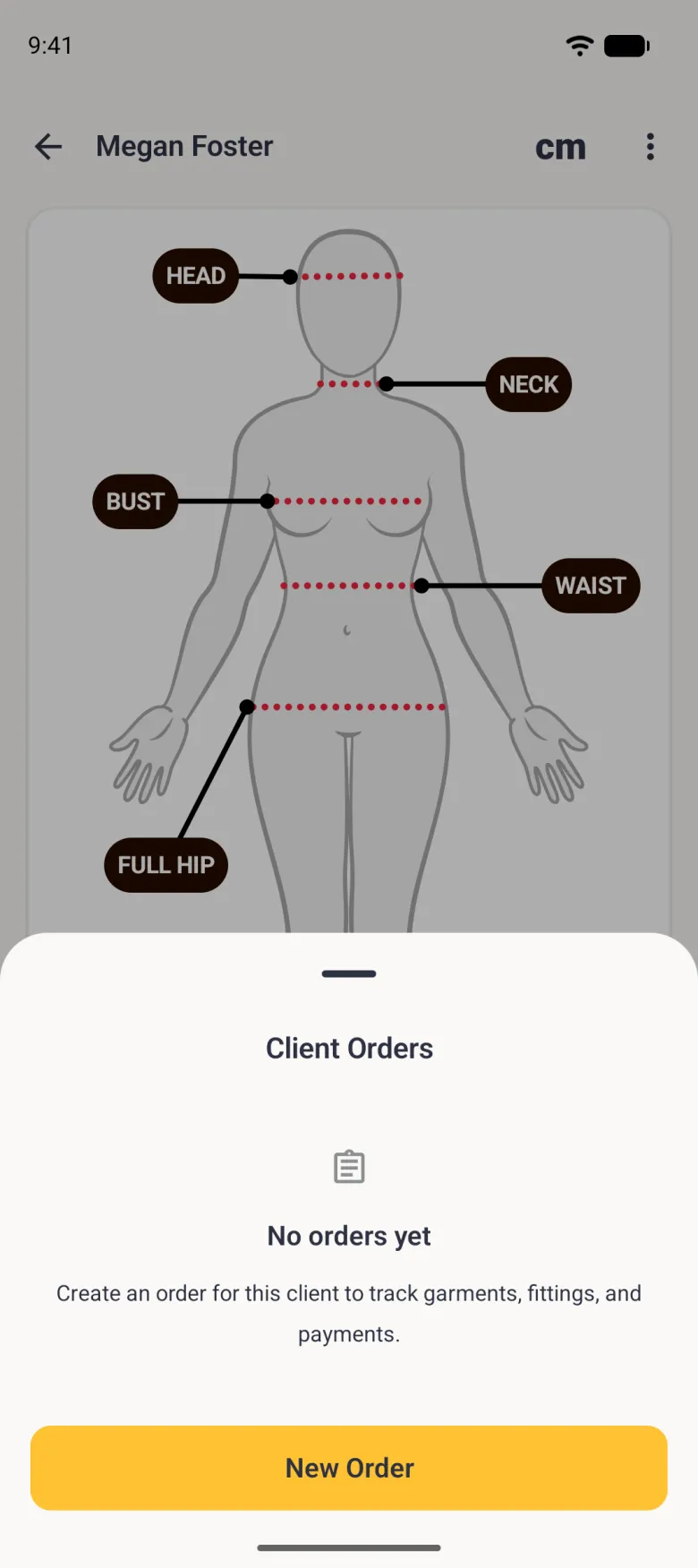
Megan Foster's body view on a tablet in portrait, dimmed behind a bottom sheet titled Client Orders with a drag handle, a clipboard icon, the words No orders yet, a line inviting you to create an order to track garments, fittings and payments, and a wide gold New Order button.
Client Orders on her profile is the way into her work.

How a job runs from a new client to a paid invoice

The chain below is one pass through the whole suite. Each step opens the next screen with what it already knows filled in, so you rarely retype a name, a garment or an amount.

  1. On the Clients tab, tap the plus button and fill in the client. On Android, tap the gold + button at the bottom right of the Clients tab instead. Set a preferred channel while you are there, because every later message uses it.
  2. Open her profile menu and tap Client Orders, then New Order at the bottom of the sheet.
  3. The app moves to the Orders tab with the client already chosen. Type the garment, the order total and any deposit, then save.
  4. The saved order is the hub for the job: a six-stage status track, a next fitting card, an invoice card and a card for messaging the client.
  5. Tap Create invoice on the unpaid card. The garment becomes a line item, the tax rate and deposit come across from your settings and the order, and the balance is worked out for you.
  6. Tap Tap to schedule on the next fitting card, set the day, time, length and reminder, then save.
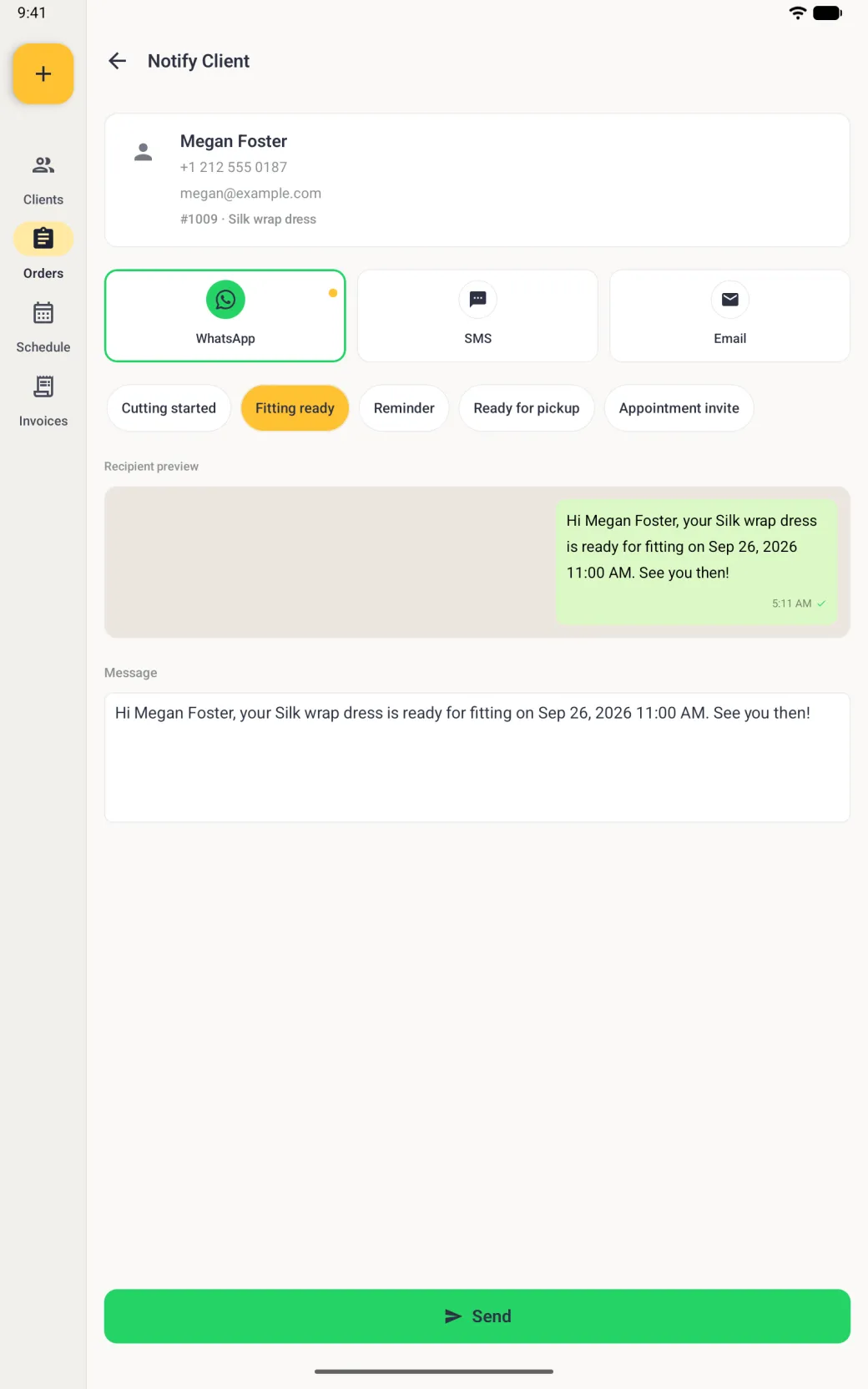
  7. Open the message card, pick the Fitting ready template, and the client’s name, garment and fitting date drop into the text.
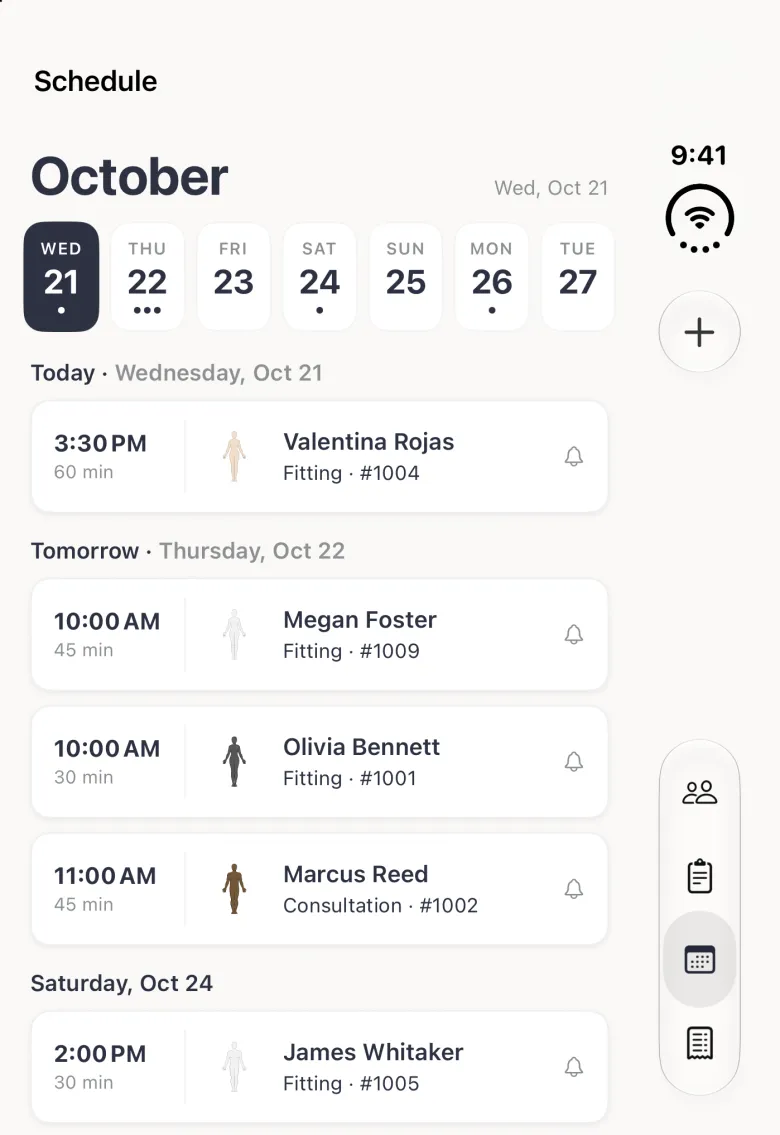
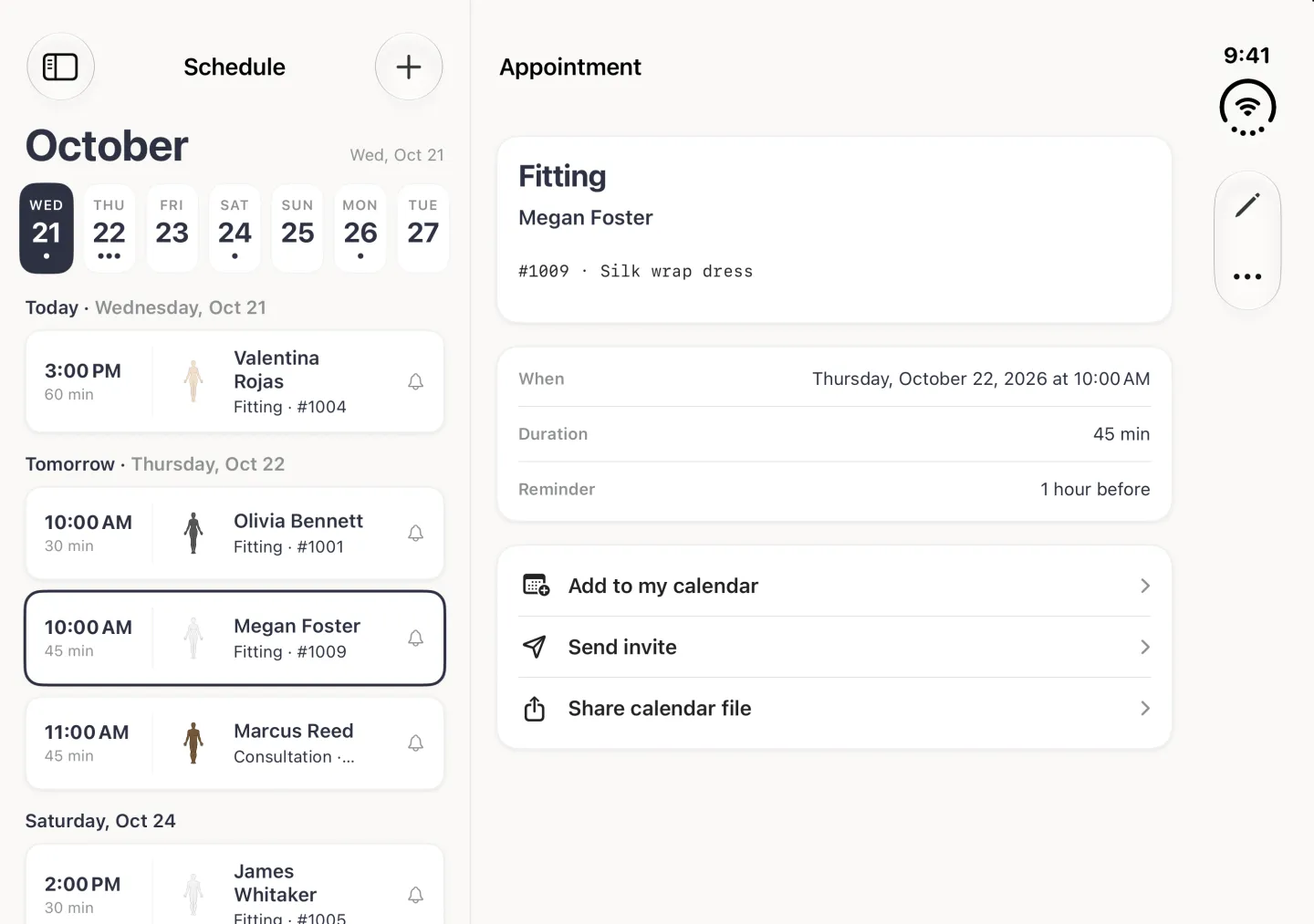
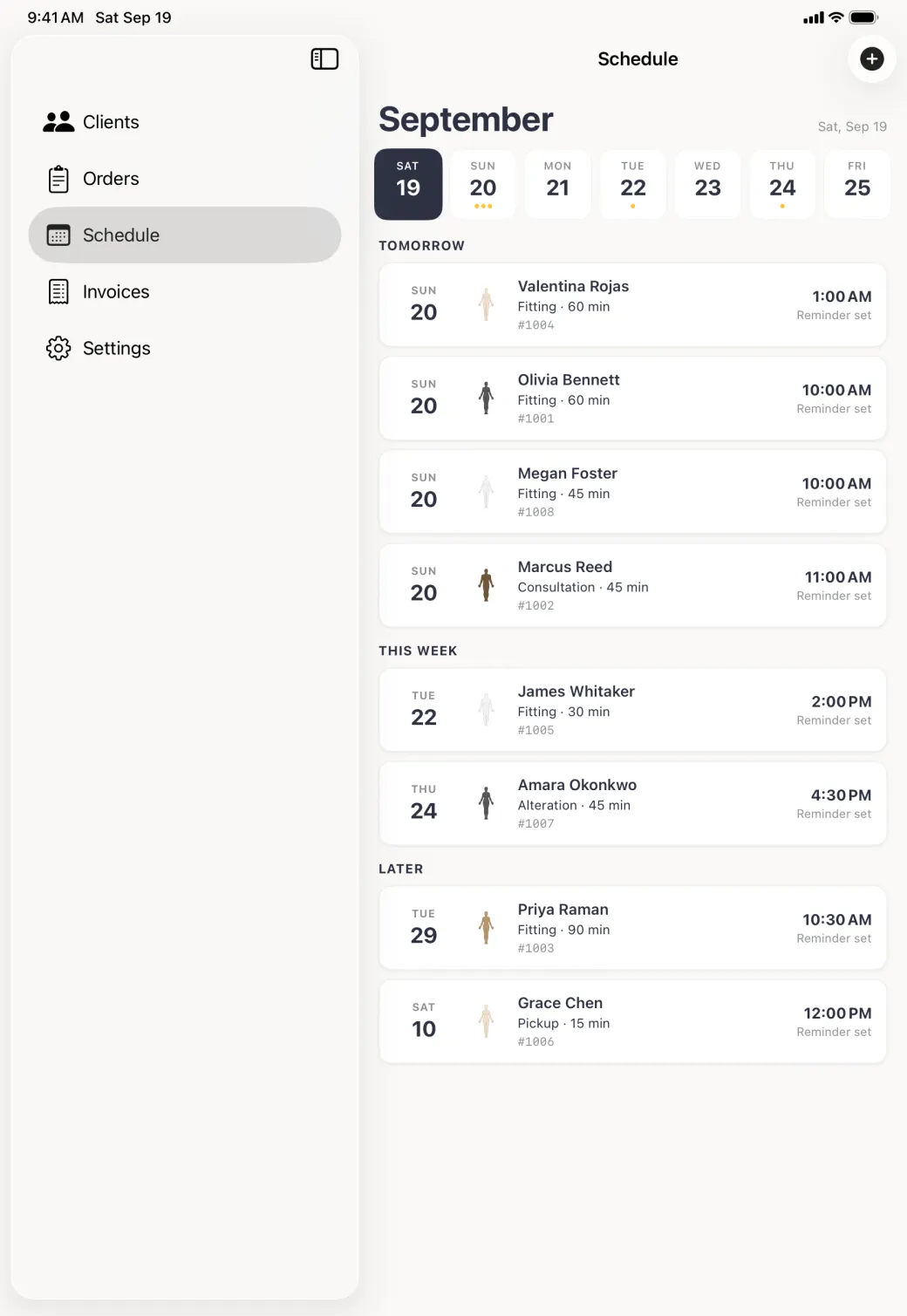
  8. Check the Schedule tab. The fitting is already filed under the day it falls on.
Show these screens on
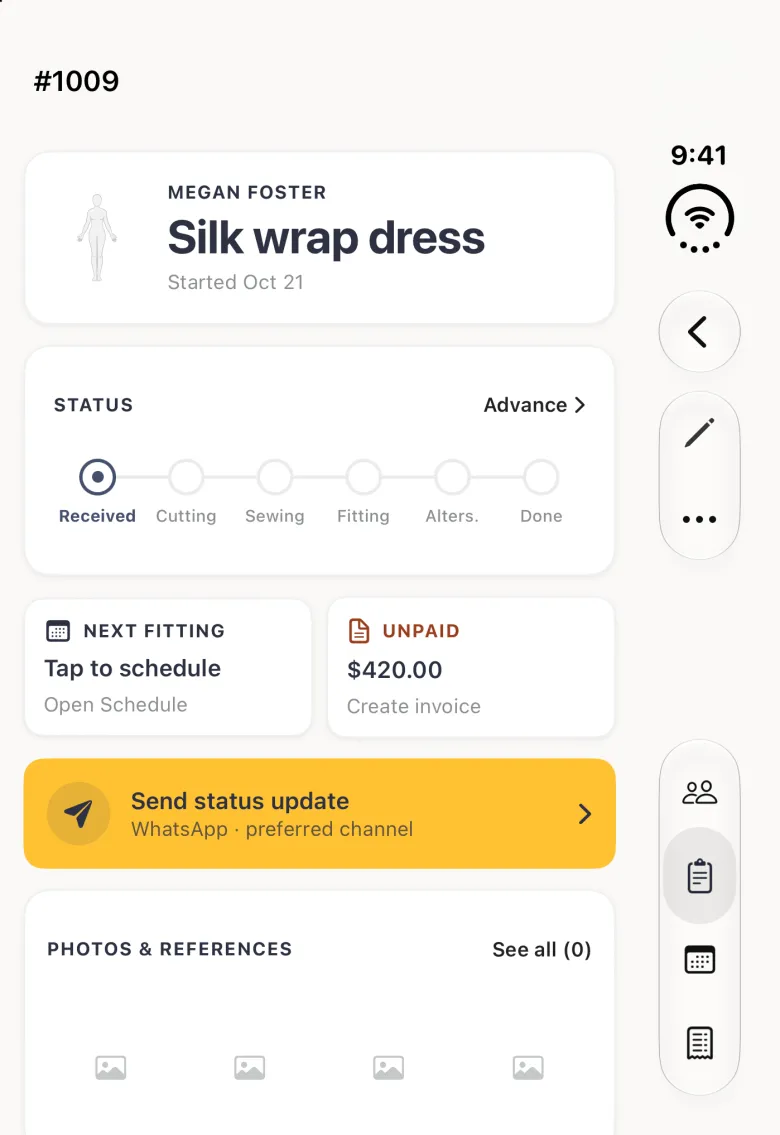
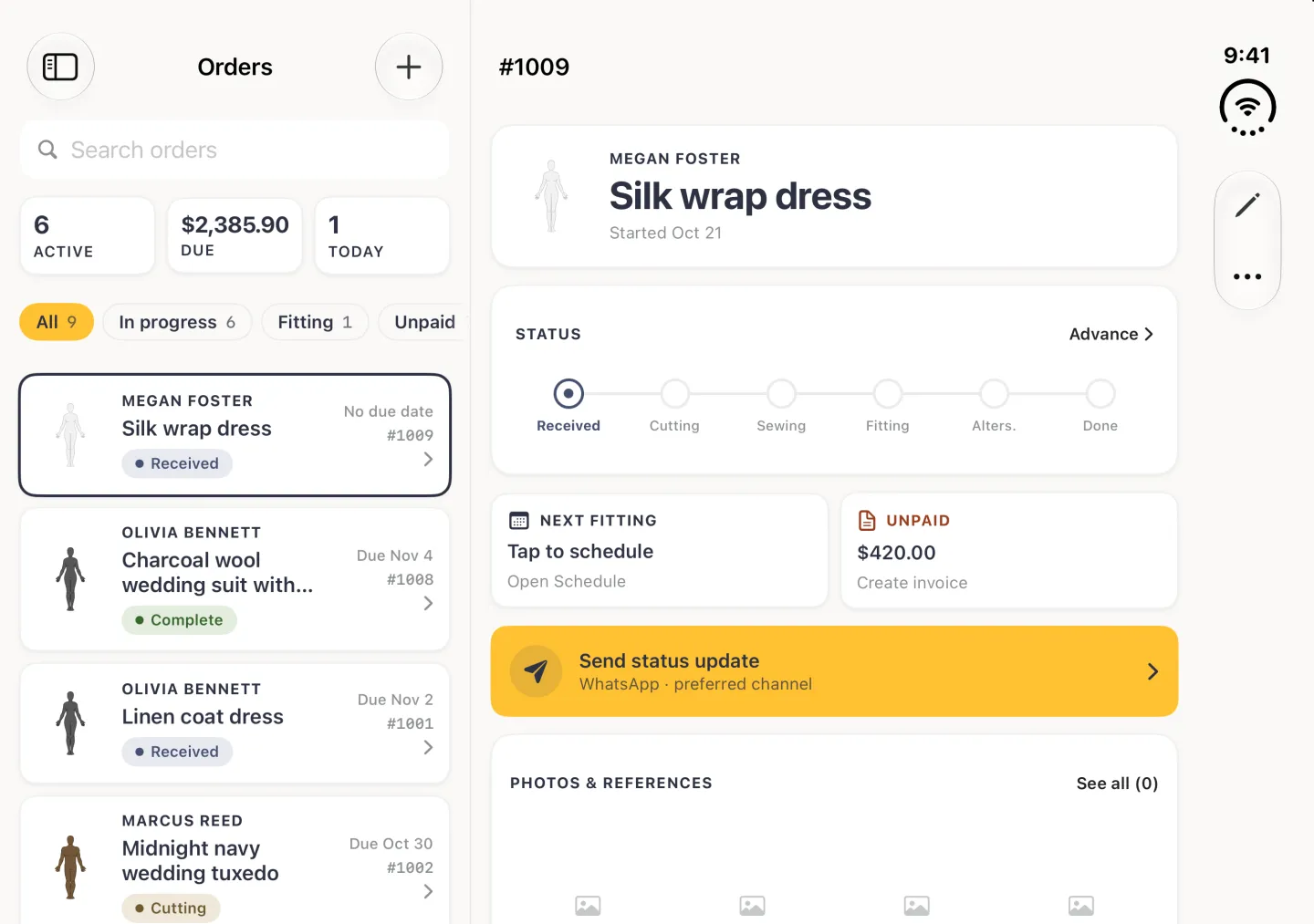
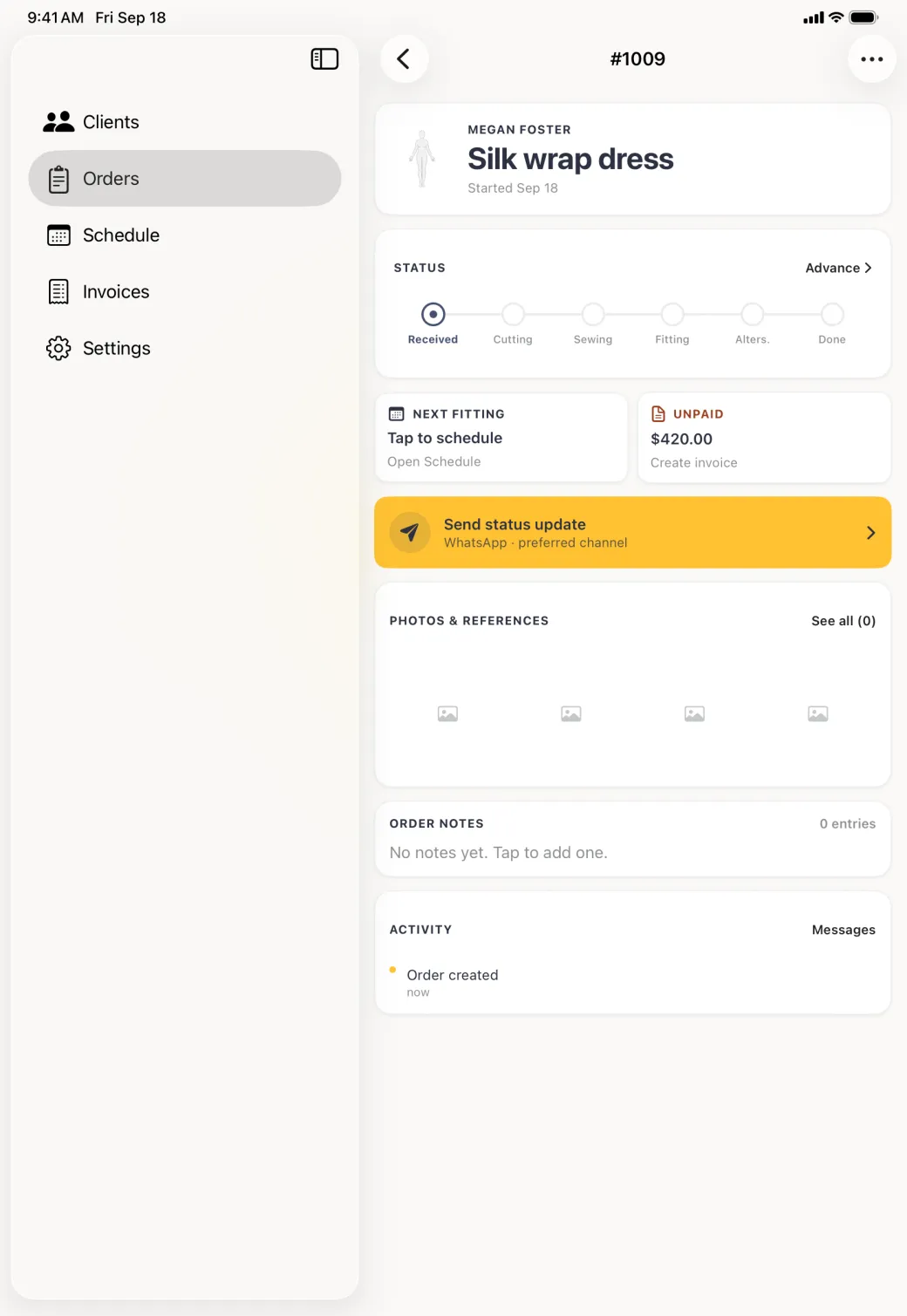
Order 1009 detail for Megan Foster reading Silk wrap dress, a six stage status track at Received, a Next fitting card saying Tap to schedule, an UNPAID card showing 420 dollars with Create invoice, and a gold Send status update card marked WhatsApp preferred channel.
Order 1009 for Megan Foster headed Silk wrap dress and started Sep 18, with a six stage status track from Received to Done with Received filled, a Next fitting card reading Tap to schedule, an UNPAID card reading 420 dollars above Create invoice, a gold Send status update card marked WhatsApp preferred channel, an empty Photos and References grid, an empty Order Notes card and an Activity card logging Order created.
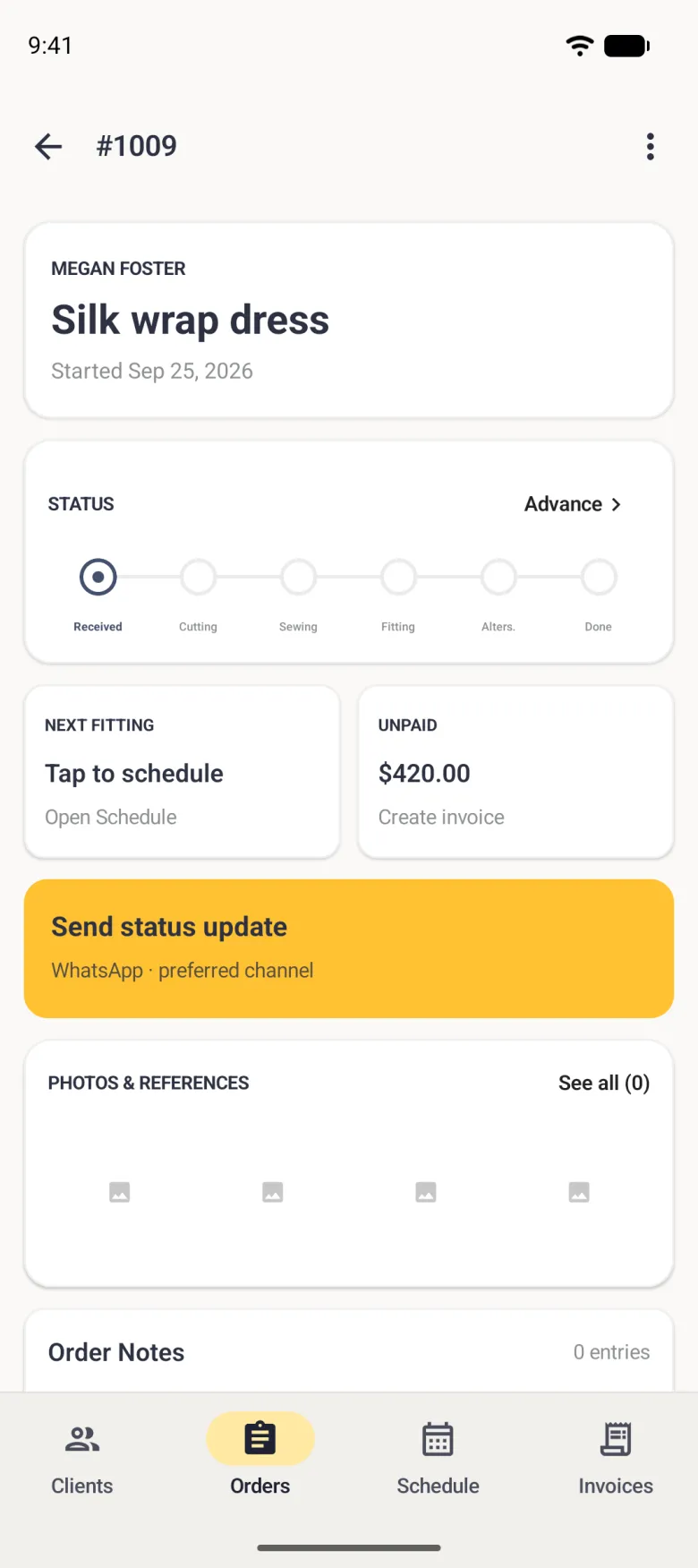
Order 1009 detail for Megan Foster reading Silk wrap dress, started Sep 25, 2026, a six stage status track starting at Received with Advance at the right, a Next fitting card saying Tap to schedule and Open Schedule, an UNPAID card showing 420 dollars with Create invoice, and a gold Send status update card marked WhatsApp preferred channel.
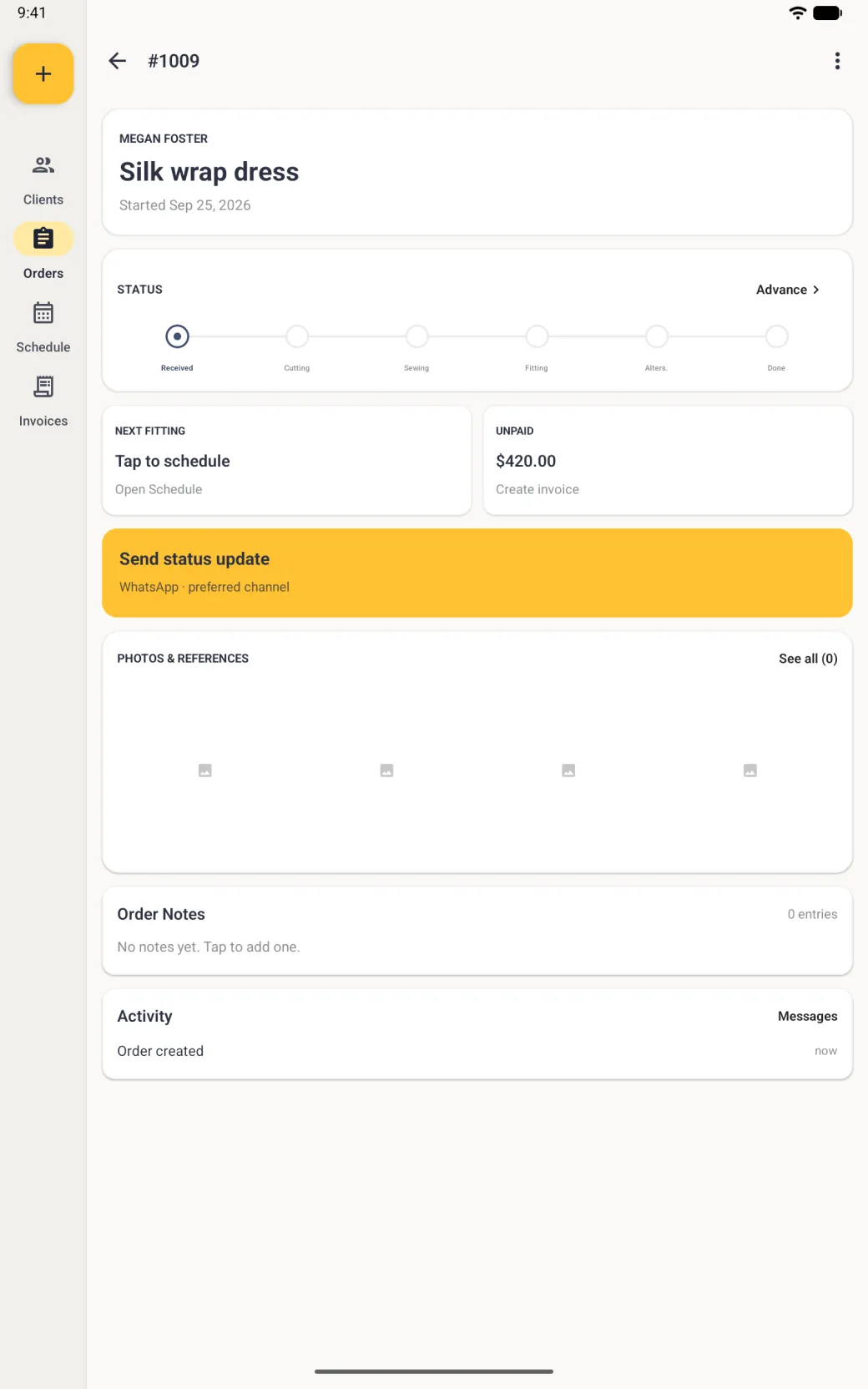
Order 1009 detail on a tablet in portrait for Megan Foster reading Silk wrap dress and Started today, a six stage status track at Received with Advance at the right, a Next fitting card saying Tap to schedule and Open Schedule beside an UNPAID card showing 420 dollars with Create invoice, a wide gold Send status update bar marked WhatsApp preferred channel, and Photos and References, Order Notes and Activity cards below.
The saved order gathers status, fitting, invoice and messages in one place.
New Invoice form with a line item reading Silk wrap dress, quantity one at 520 dollars, a Tax percent field set to 8, Deposit paid 100, and a summary showing subtotal 520 dollars, tax 41 dollars 60 and the deposit deducted.
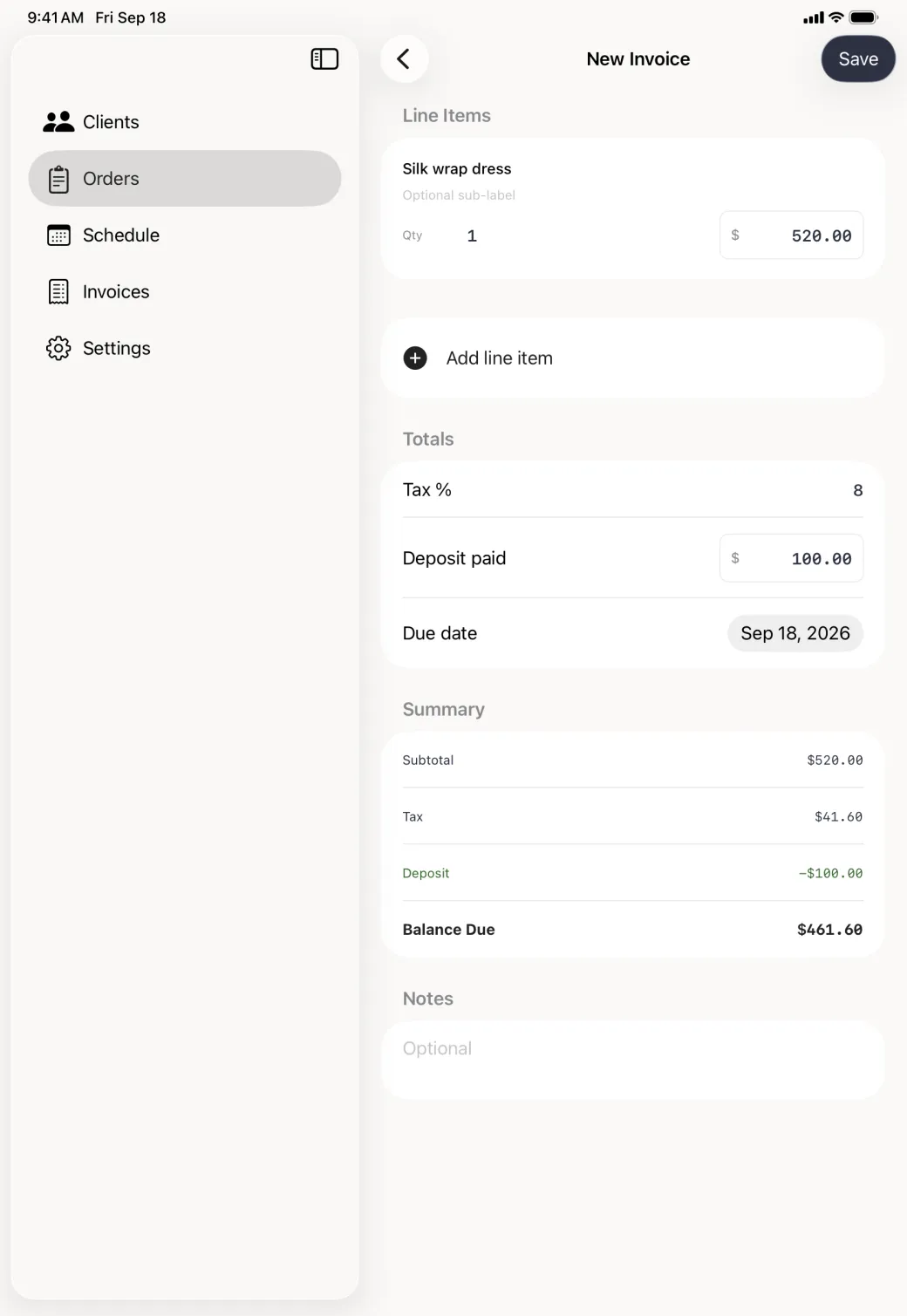
New Invoice editor in the pane beside the sidebar, with a line item reading Silk wrap dress, quantity one at 520 dollars, an Add line item row, Tax percent set to 8, Deposit paid 100 dollars, a due date of Sep 18 2026, and a summary listing subtotal 520 dollars, tax 41.60, deposit minus 100 and Balance Due 461.60, above an optional Notes box.
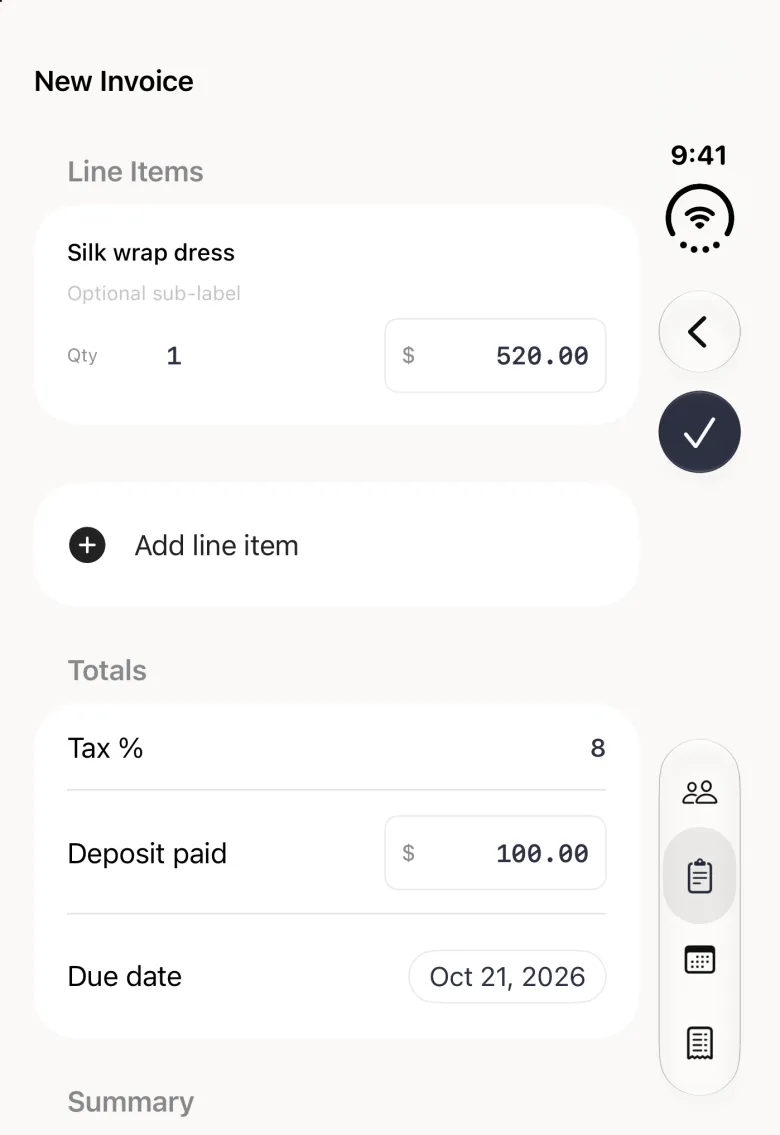
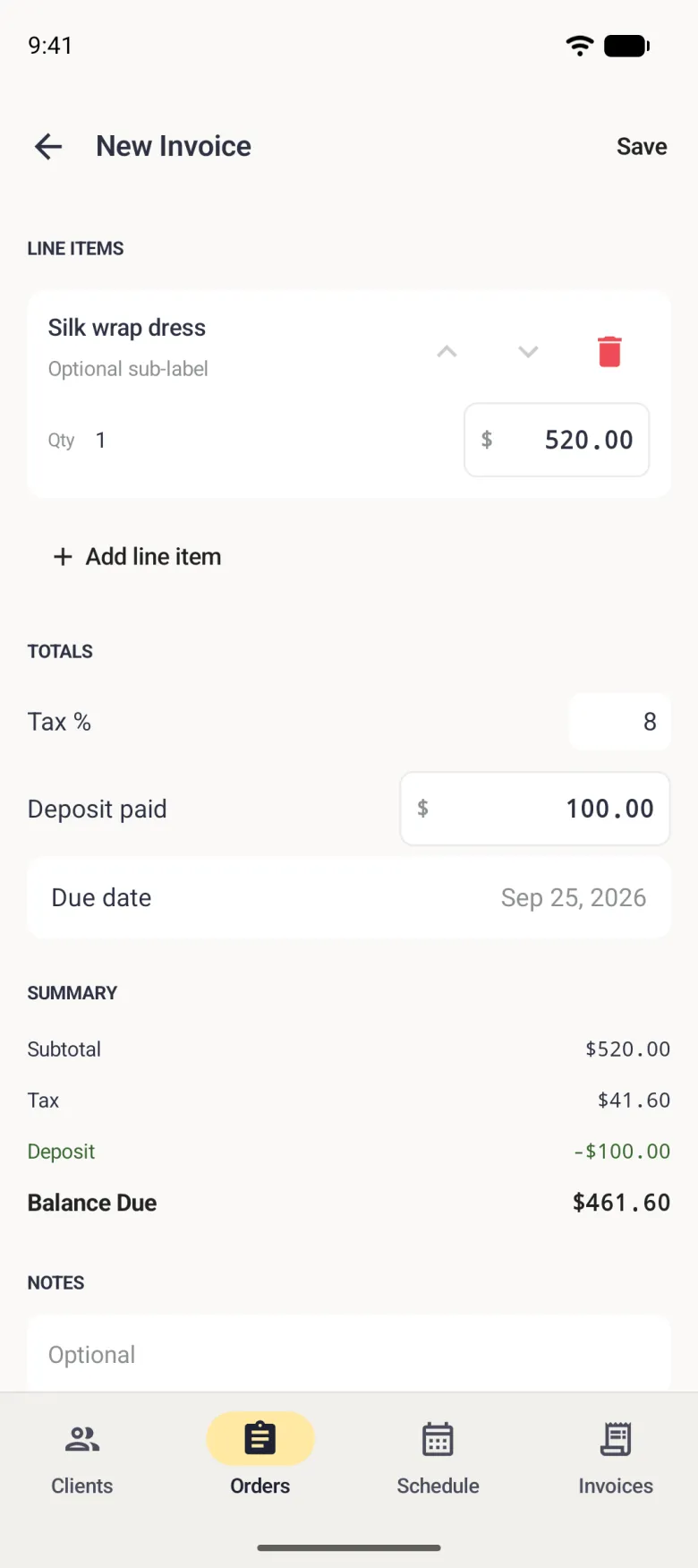
New Invoice screen with a line item card reading Silk wrap dress, quantity 1 at 520 dollars, with up and down arrows and a red delete button, an Add line item link, Tax percent 8, Deposit paid 100, a Due date of Sep 25, 2026, and a summary showing subtotal 520, tax 41.60, deposit minus 100 in green and Balance Due 461.60.
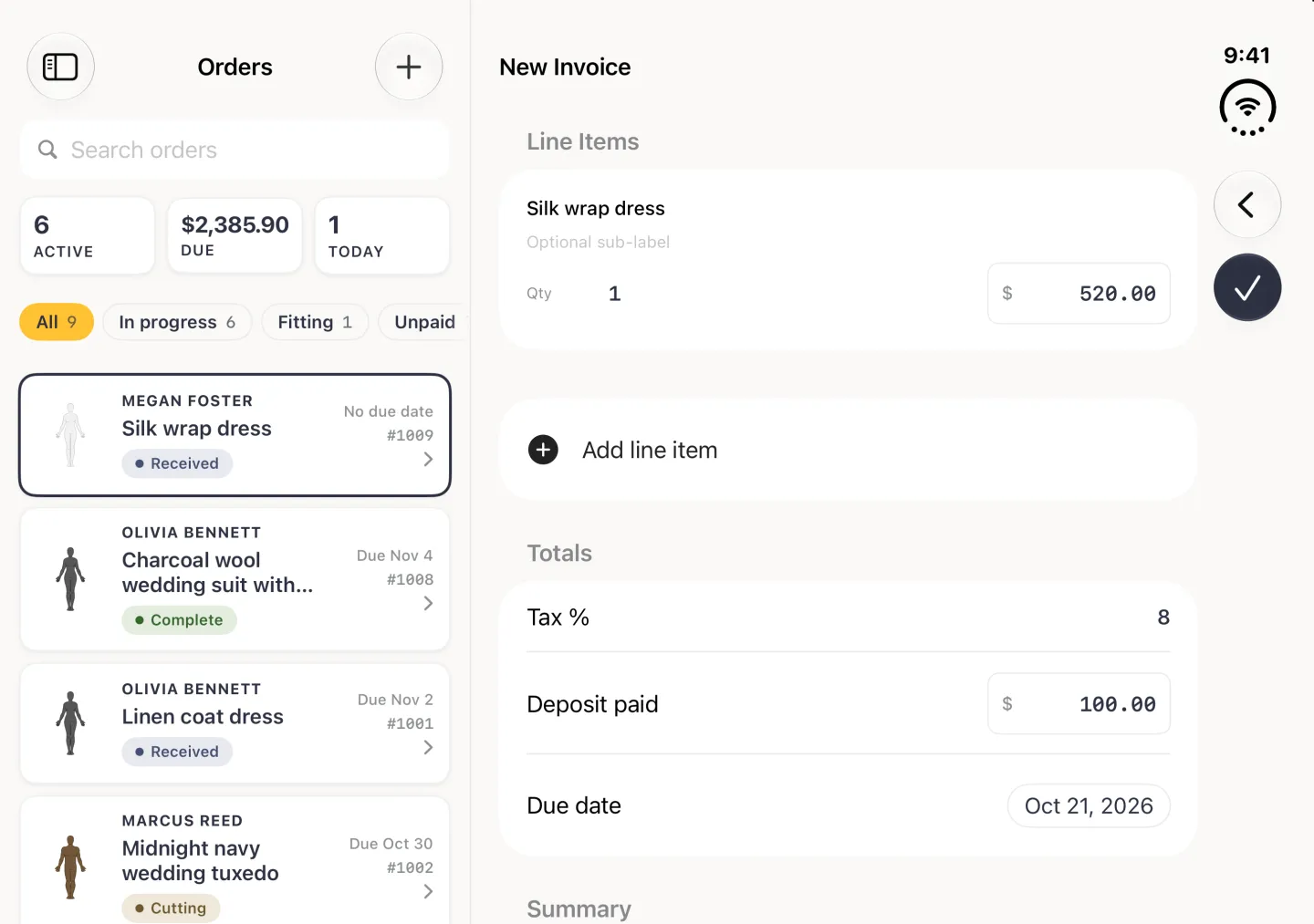
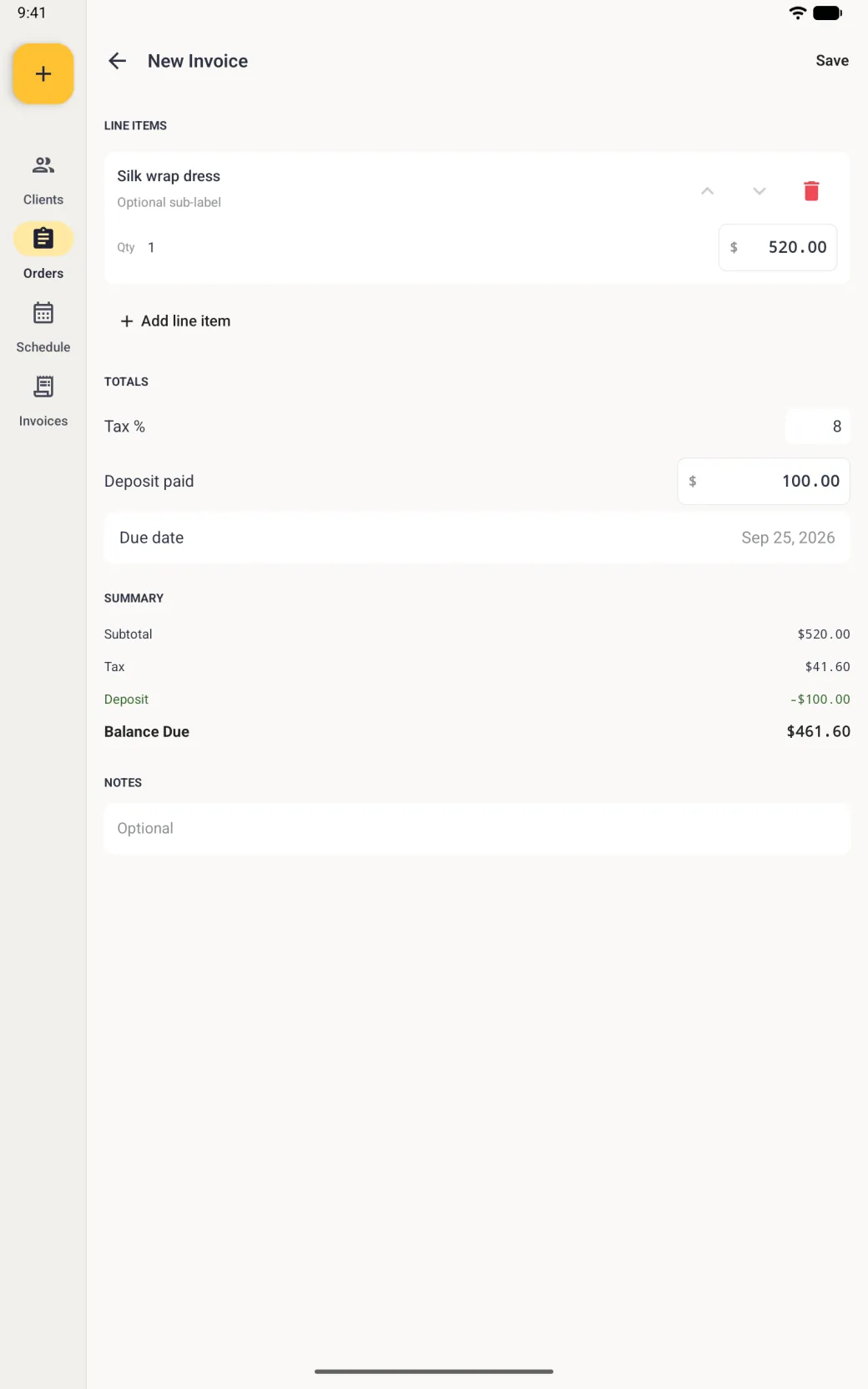
New Invoice screen on a tablet in portrait beside the navigation rail, with a line item card reading Silk wrap dress, quantity 1 at 520 dollars, with up and down arrows and a red delete button, an Add line item link, Tax percent 8, Deposit paid 100, Due date today, and a summary showing subtotal 520, tax 41.60, deposit minus 100 in green and Balance Due 461.60.
Raising the invoice copies the garment and the deposit off the order.
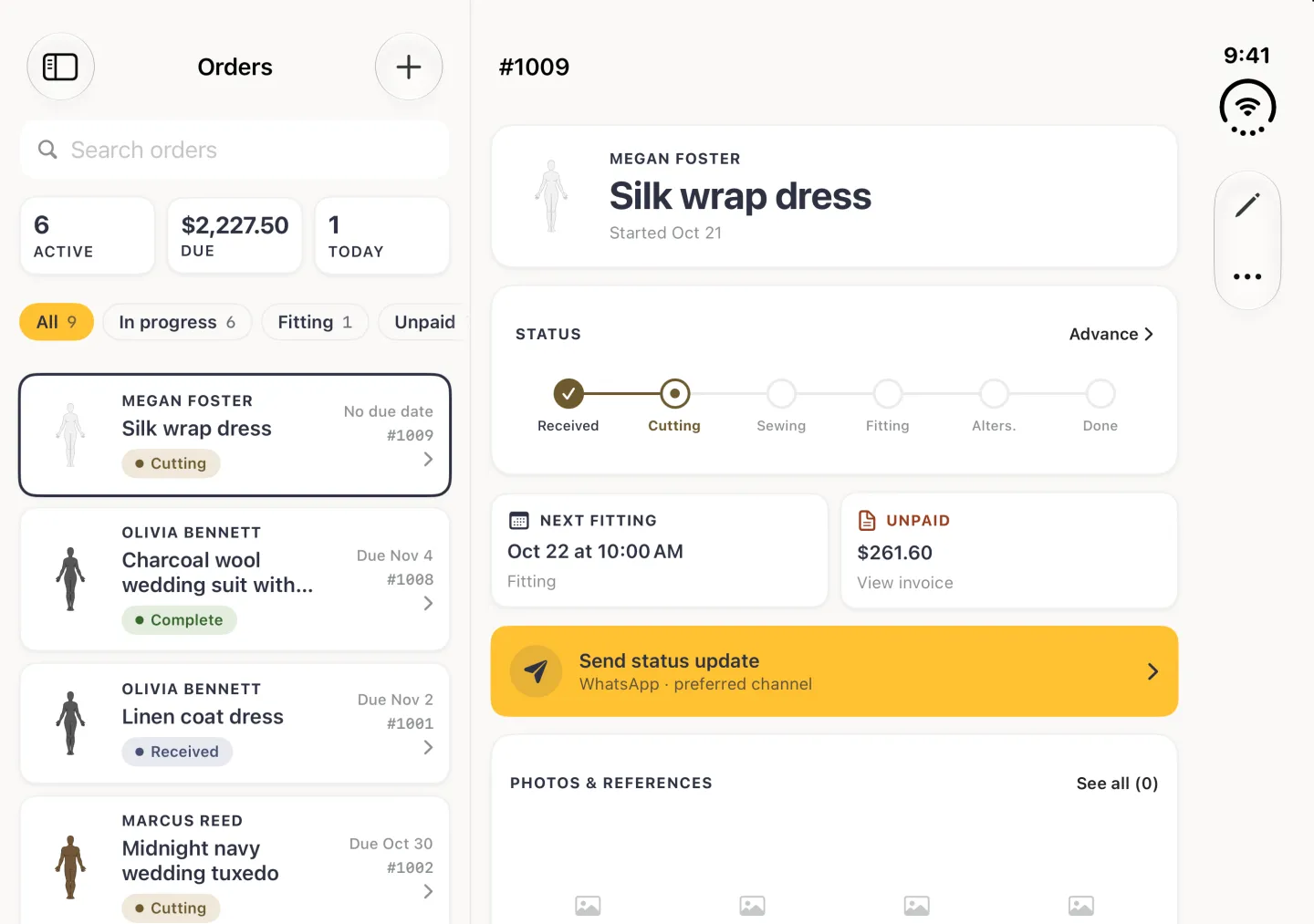
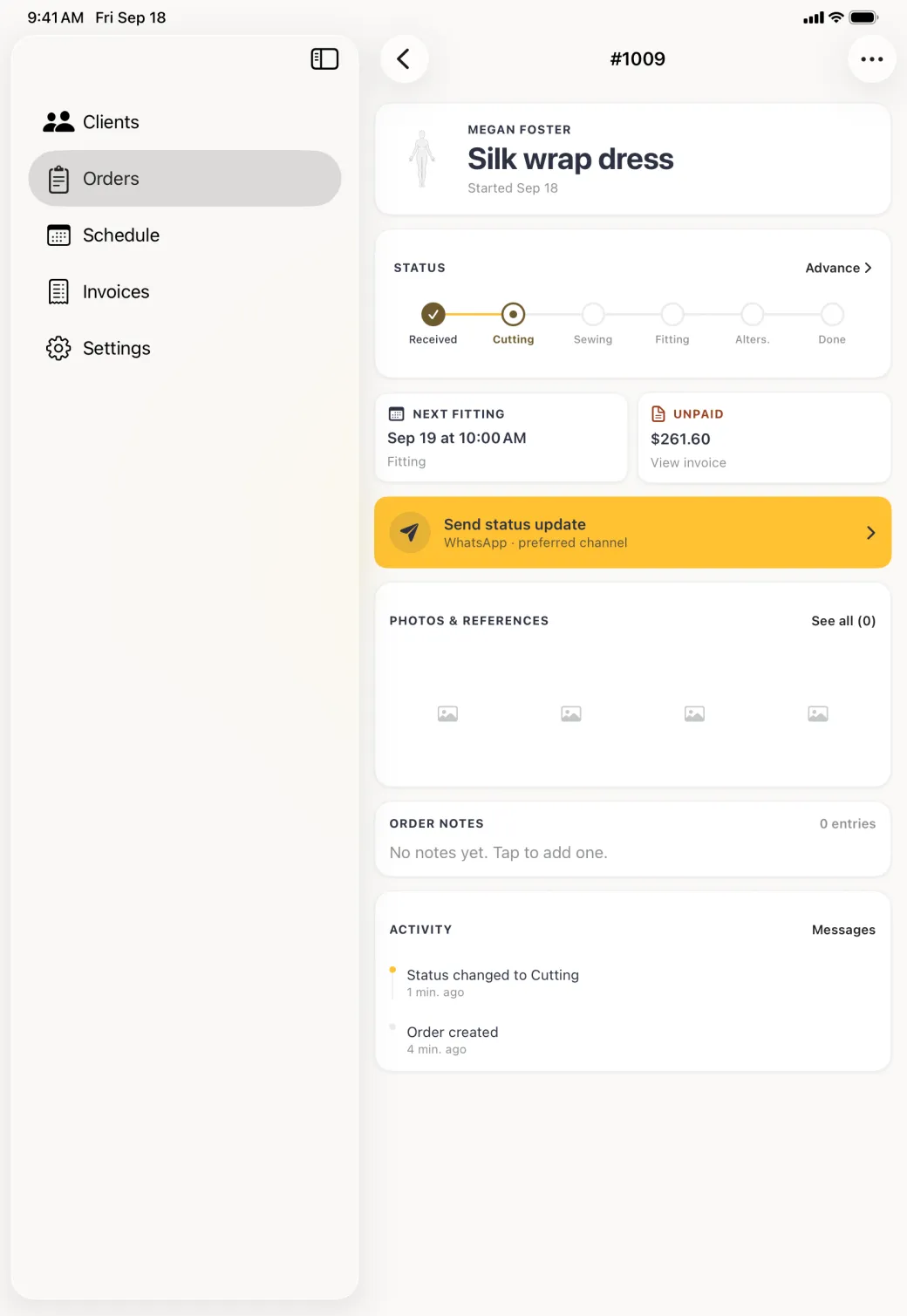
Order 1009 detail with the Next fitting card now reading Sep 19 at 10:00 AM below the word Fitting, the status track showing Received ticked and Cutting active, and the unpaid balance down to 261 dollars 60.
Order 1009 with the Next fitting card now reading Sep 19 at 10:00 AM above the word Fitting, the UNPAID card down to 261.60 after the payment, and the status track showing Received ticked and Cutting active.
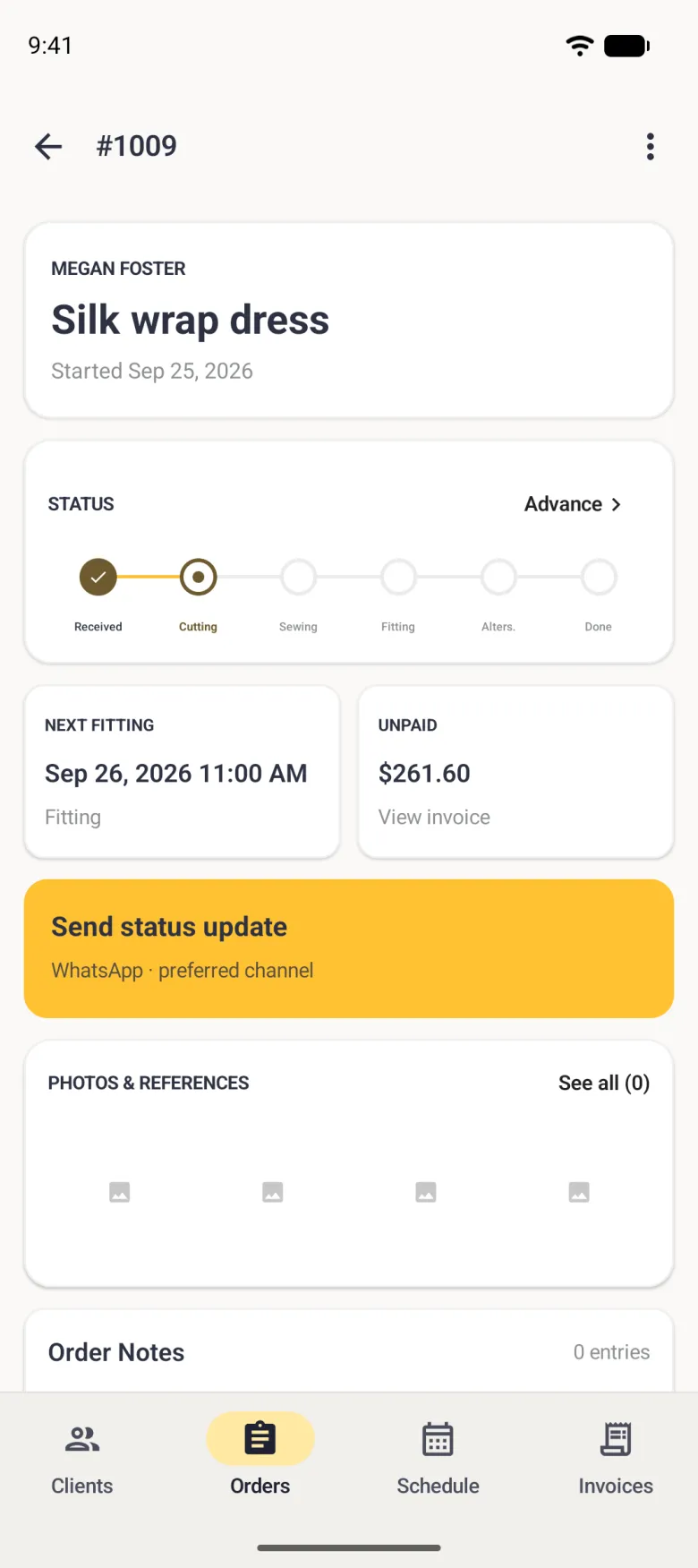
Order 1009 detail with the Next fitting card now reading Sep 26, 2026 11:00 AM above the word Fitting, the status track showing Received ticked and Cutting active, the UNPAID card showing 261.60 dollars with View invoice, and the gold Send status update card below.
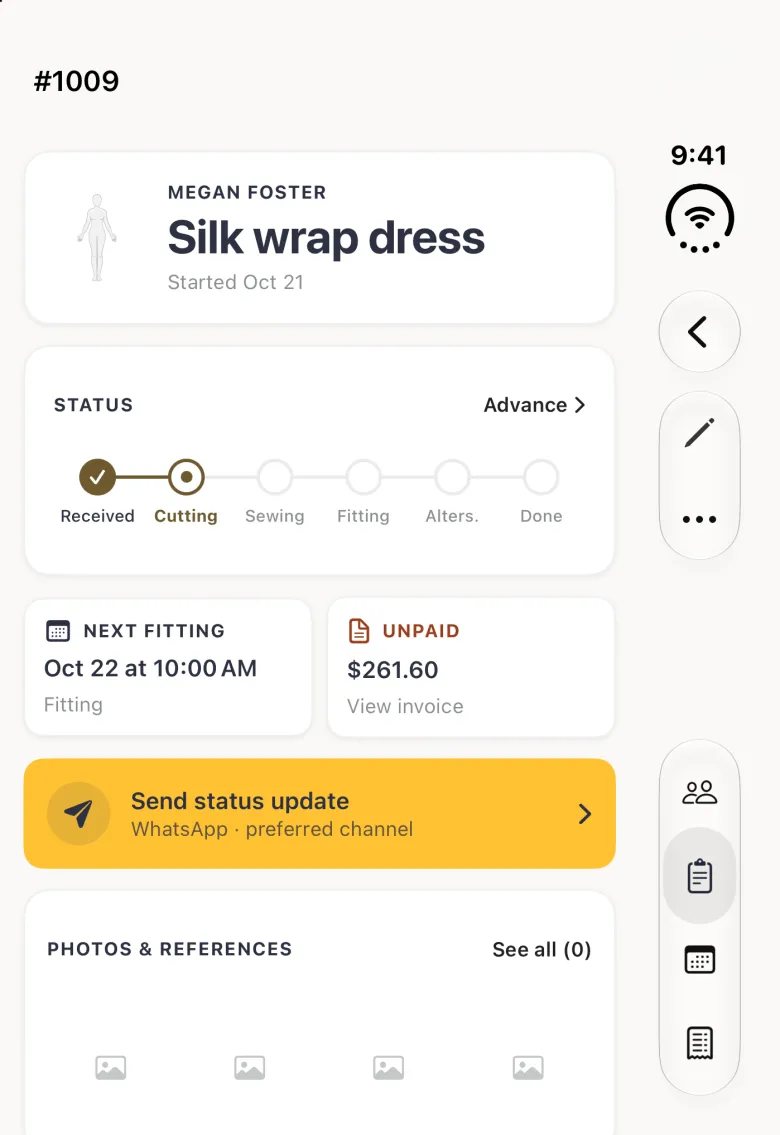
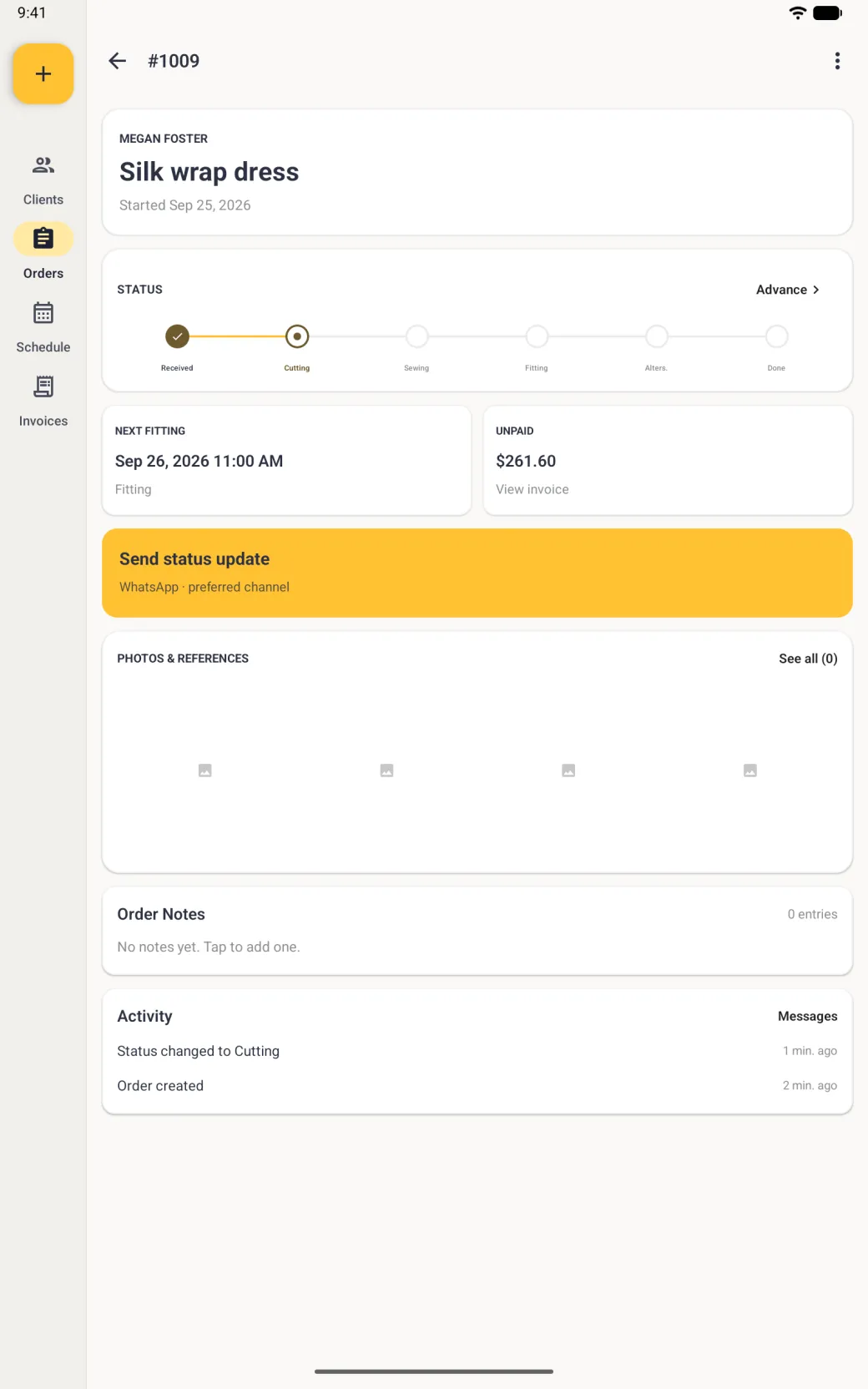
Order 1009 detail on a tablet in portrait with the Next fitting card now reading tomorrow's date with the year at 11:00 AM above the word Fitting, the status track showing Received ticked and Cutting active, the UNPAID card showing 261.60 dollars with View invoice, and the gold Send status update bar below.
Booking from the order keeps the fitting attached to the job.
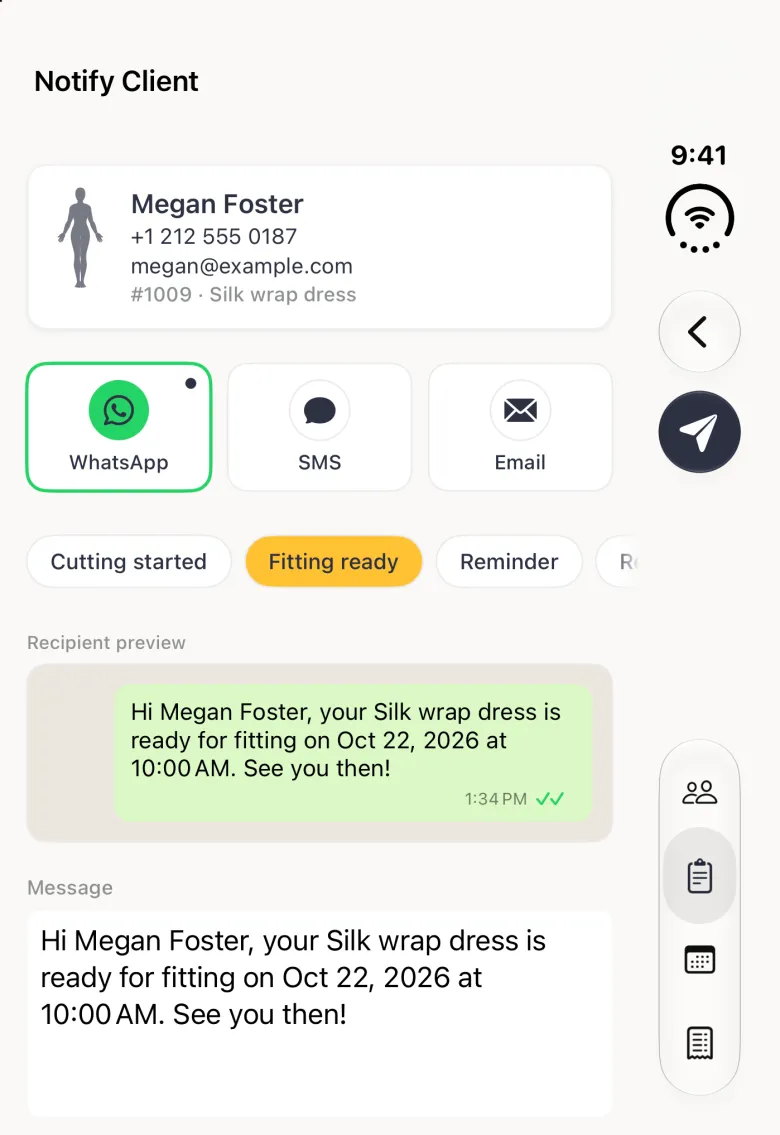
Notify Client screen for Megan Foster showing her phone and email, WhatsApp selected, the Fitting ready chip highlighted in gold, and a message reading Hi Megan Foster, your Silk wrap dress is ready for fitting on Sep 19, 2026 at 10:00 AM. See you then.
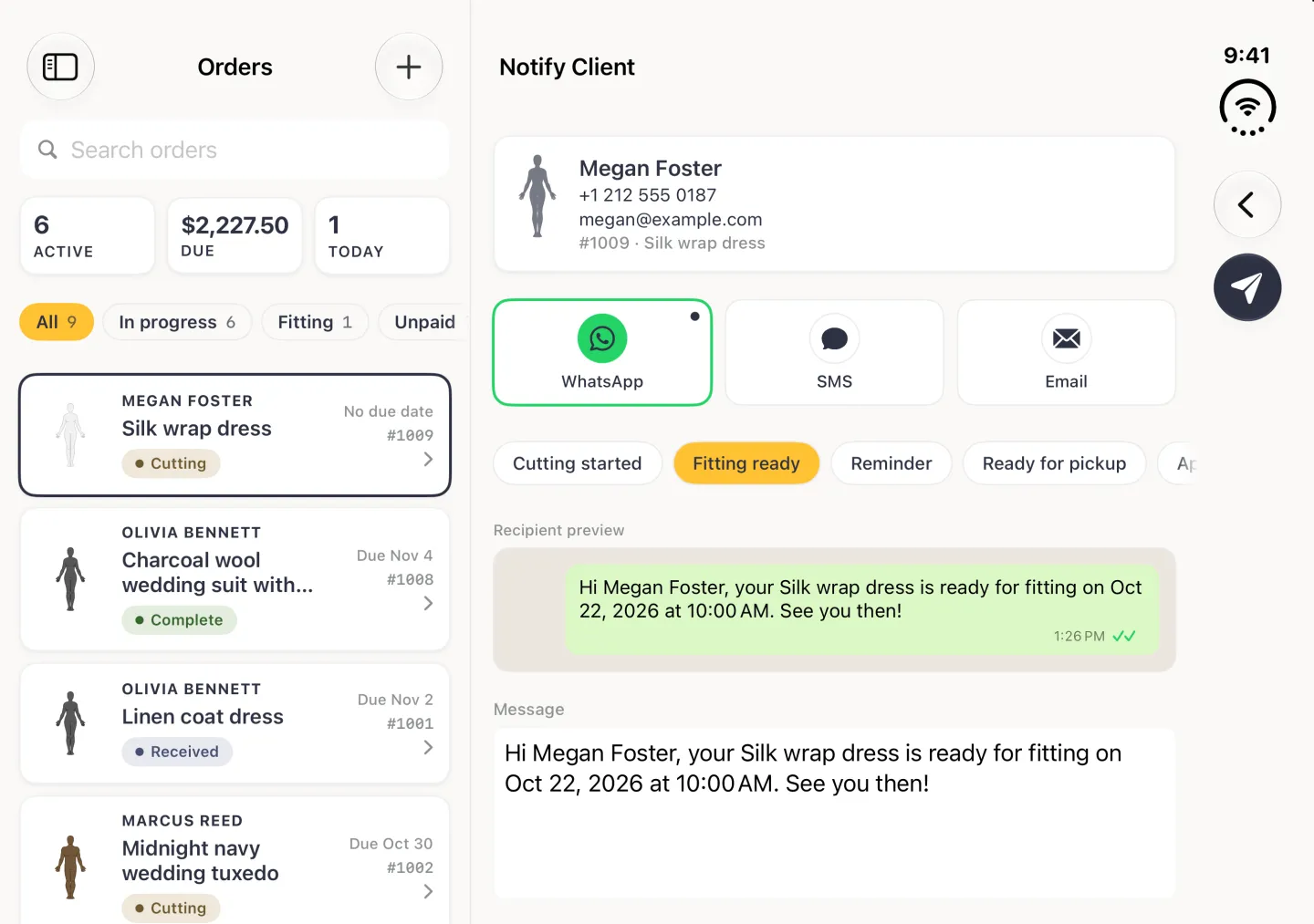
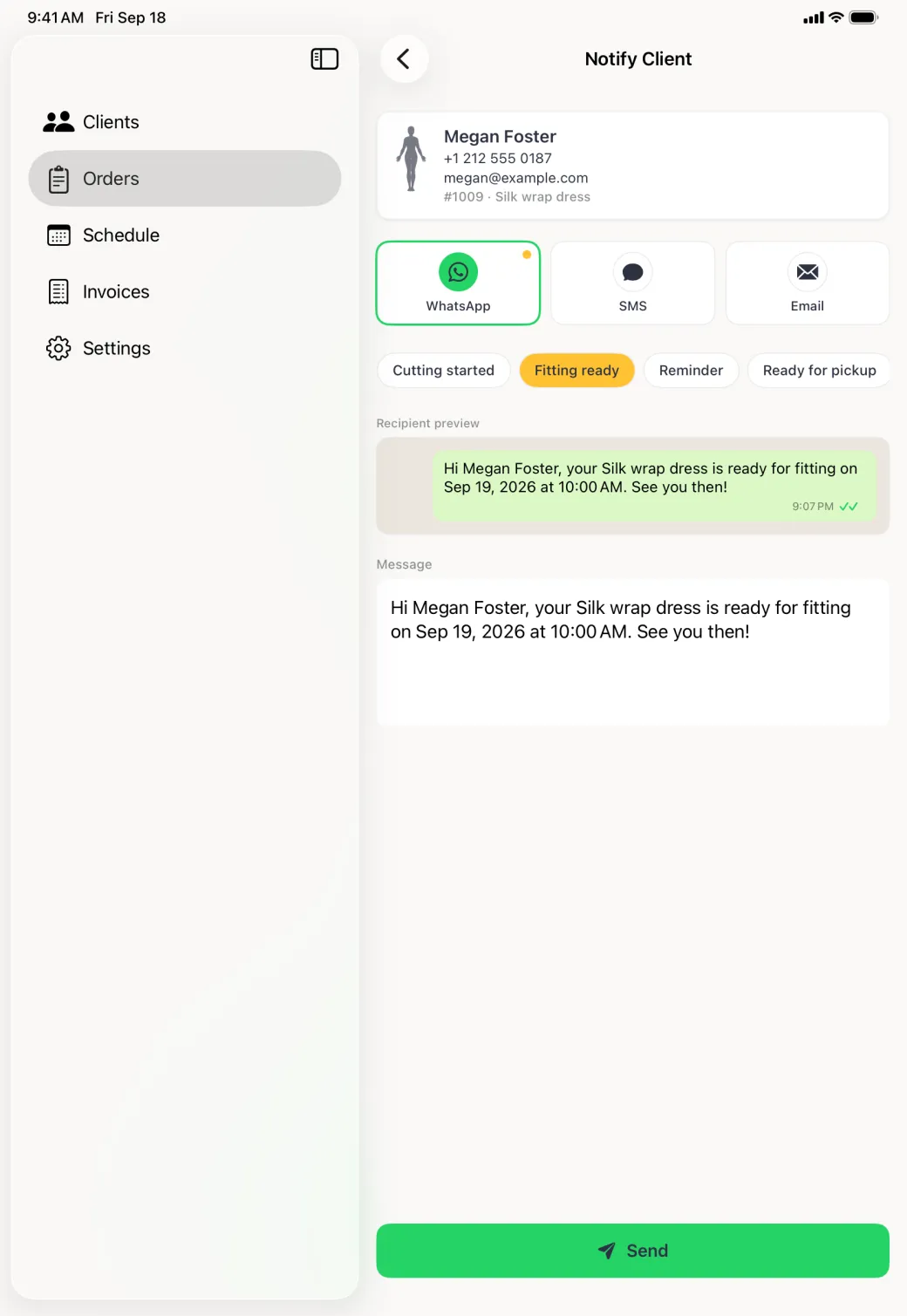
Notify Client page showing a card with Megan Foster, her phone number, her email and order 1009 Silk wrap dress, three channel tiles side by side with WhatsApp selected and marked as preferred, four template chips in one row with Fitting ready filled gold, a recipient preview bubble and a message reading Hi Megan Foster, your Silk wrap dress is ready for fitting on Sep 19, 2026 at 10:00 AM. See you then, above a green Send button pinned to the bottom of the pane.
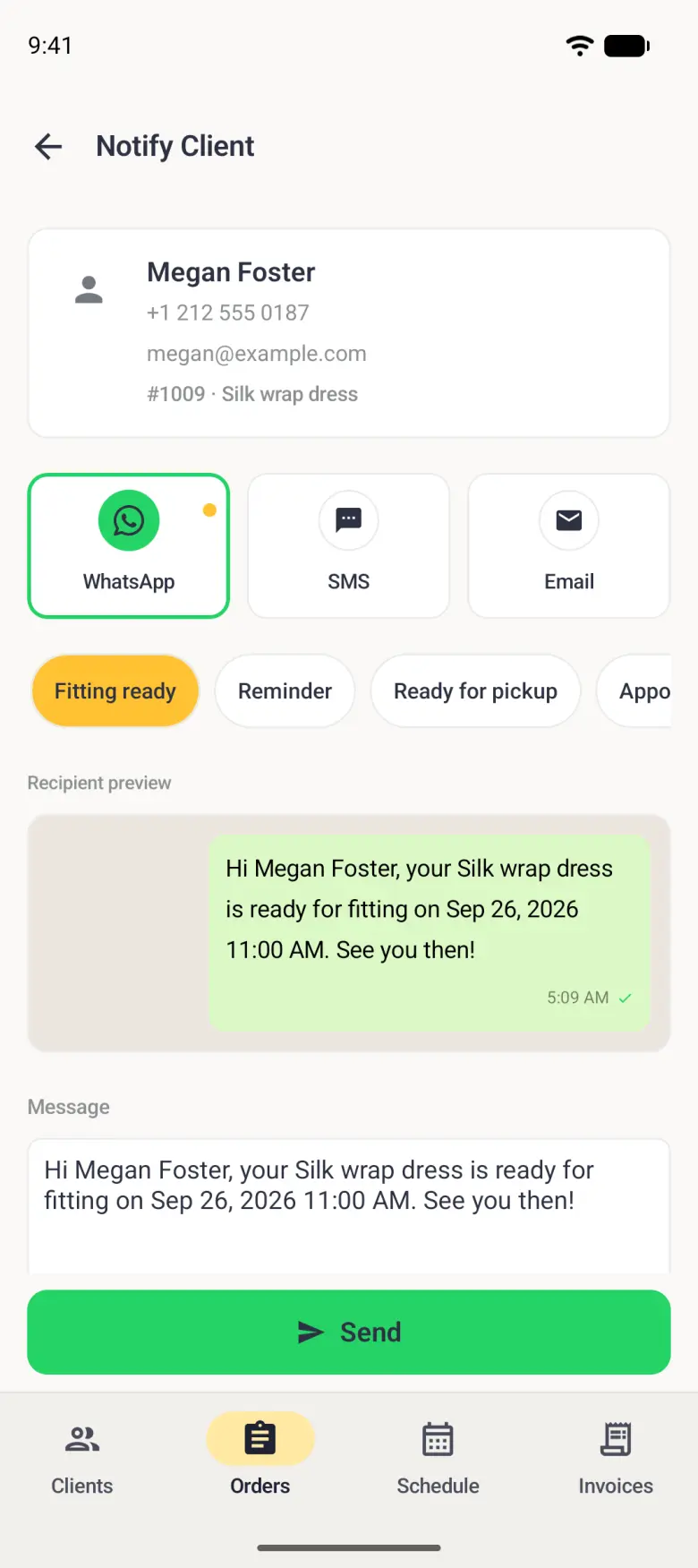
Notify Client screen with a card for Megan Foster showing her phone, email and order 1009 Silk wrap dress, the WhatsApp tile outlined in green with a gold preferred dot, the Fitting ready chip highlighted in gold, a WhatsApp style preview bubble and a Message box both reading Hi Megan Foster, your Silk wrap dress is ready for fitting on Sep 26, 2026 11:00 AM. See you then!, and a green Send button.
Notify Client screen on a tablet in portrait with a card for Megan Foster showing her phone, email and order 1009 Silk wrap dress, the WhatsApp tile outlined in green with a gold preferred dot beside SMS and Email, a row of five template chips with Fitting ready highlighted in gold, a WhatsApp style preview bubble and a Message box both reading Hi Megan Foster, your Silk wrap dress is ready for fitting on tomorrow's date at 11:00 AM. See you then!, and a wide green Send button at the bottom.
The Fitting ready template fills itself in from the order and the appointment.
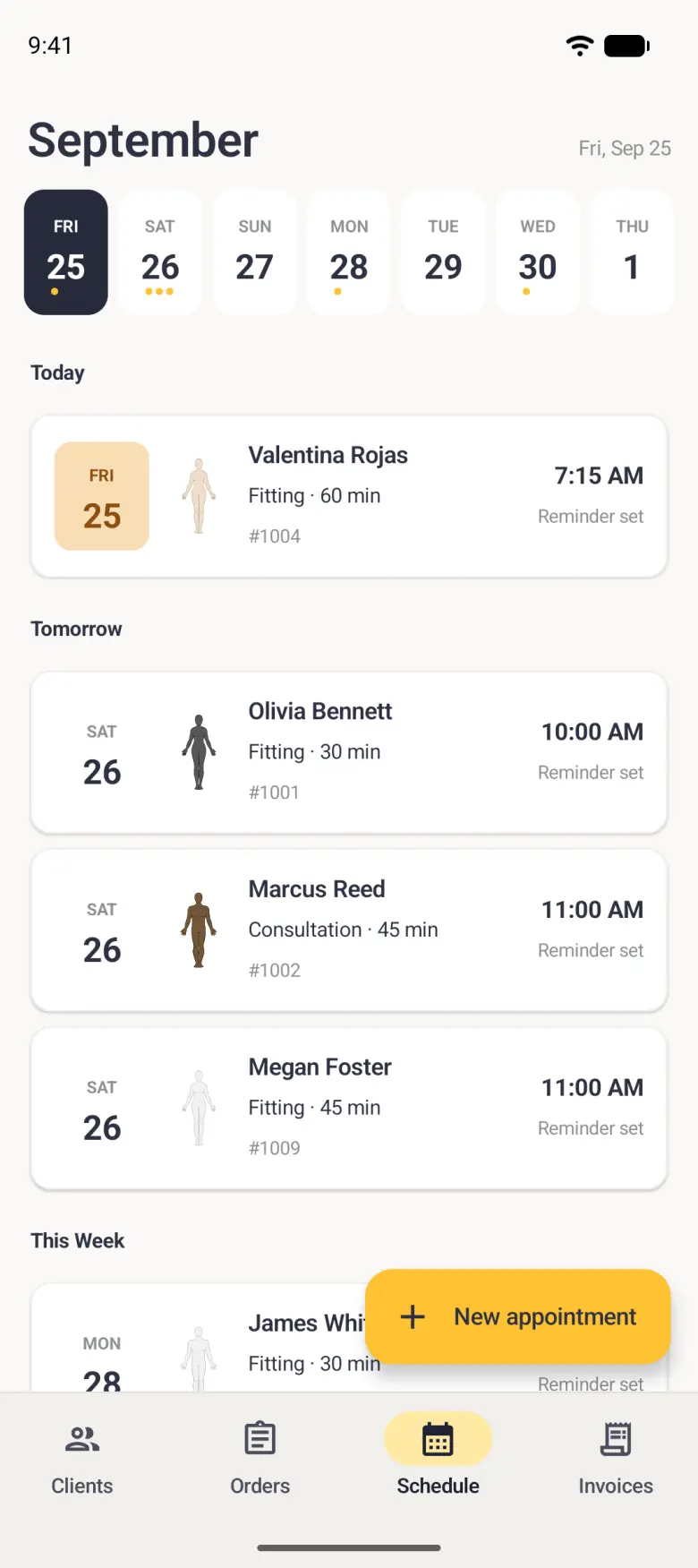
Schedule tab showing a week strip for September and grouped appointments, each card led by the client's body figure in their skin tone, with Megan Foster Fitting 45 min for her order at 10:00 AM under the Tomorrow heading and Reminder set beside it.
Schedule pane beside a sidebar listing Clients, Orders, Schedule, Invoices and Settings, headed September with a week strip of seven day pills, and appointments grouped in one column under Tomorrow, This Week and Later, with Megan Foster's forty-five minute fitting for her order at 10:00 AM under Tomorrow, led by her body figure in her skin tone and marked reminder set.
Schedule tab headed September with a seven-day strip from Fri 25 to Thu 1, Valentina Rojas's fitting under Today, and under Tomorrow three cards with Reminder set: Olivia Bennett, Fitting 30 min for order 1001 at 10:00 AM, Marcus Reed, Consultation 45 min for order 1002 at 11:00 AM, and Megan Foster, Fitting 45 min for order 1009 at 11:00 AM, with This Week below and a gold New appointment button at the bottom right.
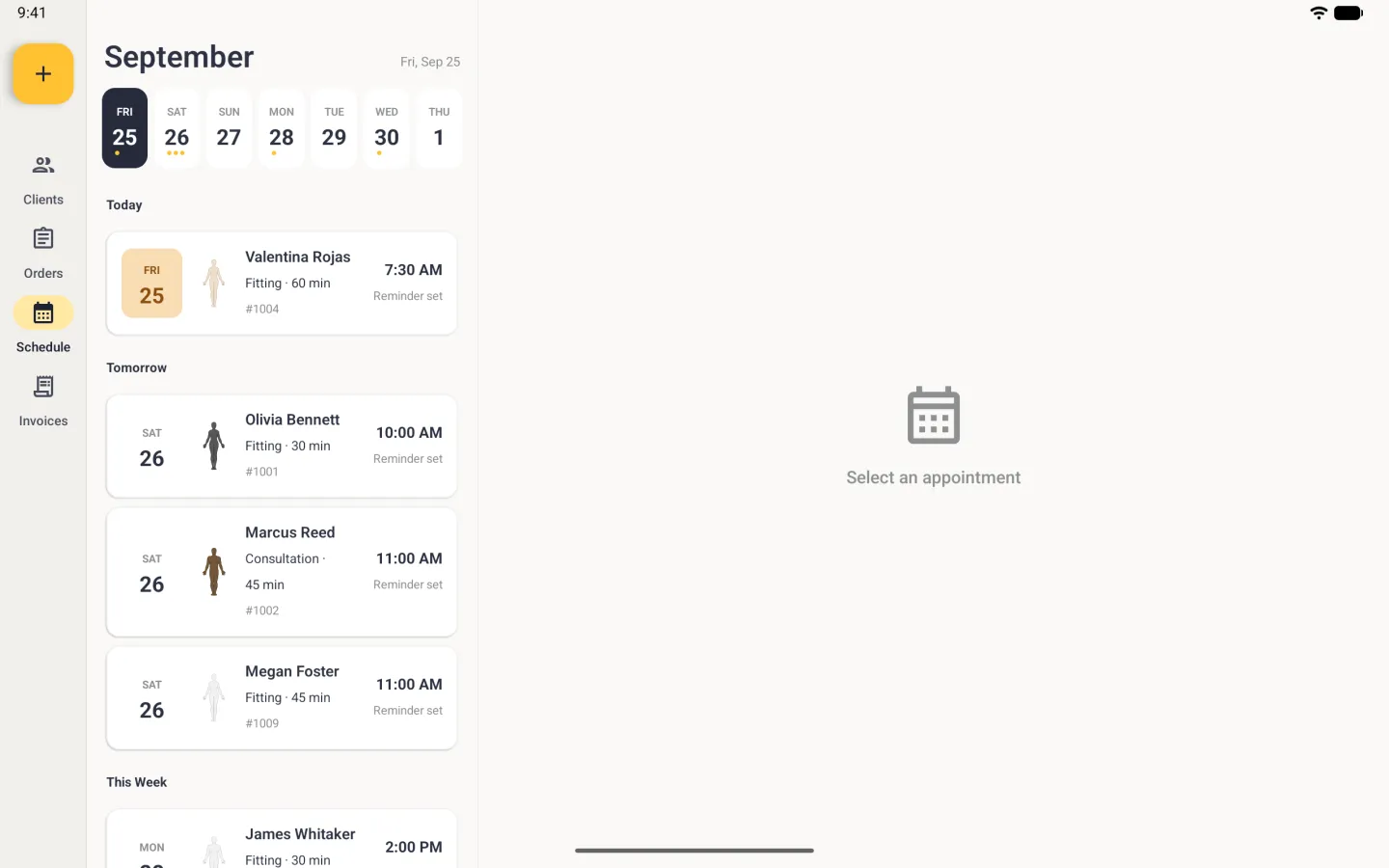
Schedule on a tablet in landscape, a list column beside the navigation rail headed September with a seven-day strip from Fri 25 to Thu 1, Valentina Rojas's fitting under Today, and under Tomorrow three cards with Reminder set: Olivia Bennett's fitting for order 1001 at 10:00 AM, Marcus Reed's consultation for order 1002 at 11:00 AM, and Megan Foster, Fitting 45 min for order 1009 at 11:00 AM, with This Week below, and a right-hand pane reading Select an appointment.
The booking appears on the Schedule under the day it falls on.

What to set up before you take the first order

Three settings print on every invoice and receipt, so fill them in before you bill anyone: your business profile, your currency and your payment details. All three sit under Tailor Shop in App Settings, reached from the three-dot menu at the top right of the Clients tab. The business profile guide walks through them.

Your messaging defaults live in the same screen, under Notifications. They decide which channel a new message opens on and what the four ready-made updates say.