DRESS MEASUREMENT

Measurement features

Reference measurements

Reference lines are guides with no value attached. Draw them on a page to show exactly where a measurement starts and stops, so whoever takes it measures the same thing you did.

Available on

  • iPhone
  • iPad
  • Android
  • Tailor Shop feature

A reference line is drawn the same way a custom measurement is, but it holds nothing: no value, no label, no entry screen. It is there to be looked at. Use one to mark the waistline a sleeve is measured to, or the hem a length is taken from, so the next person to pick up the tape starts and stops where you meant. Reference measurements are part of the Tailor Shop subscription and, like custom measurements, they only work on a page you added yourself.

How do I draw a reference line?

Open the page you want the guide on, then choose Reference Measurements from the three-dot menu. That menu item appears only on pages you created; a built-in page offers Page Settings instead. The editor works exactly like the custom measurement one, and the button at the bottom names the step you are on.

  1. Tap the plus button at the top right. A point appears on the body.
  2. Drag the point to where the guide should start, then tap Continue.
  3. Drag across the body to draw the line. A pale dotted line follows your finger.
  4. Tap Save Measurement, then close the editor with the X.

The guide then sits on the page underneath your real measurements, in pale grey with no label, so it reads as a guide rather than as something waiting to be filled in.

Show these screens on
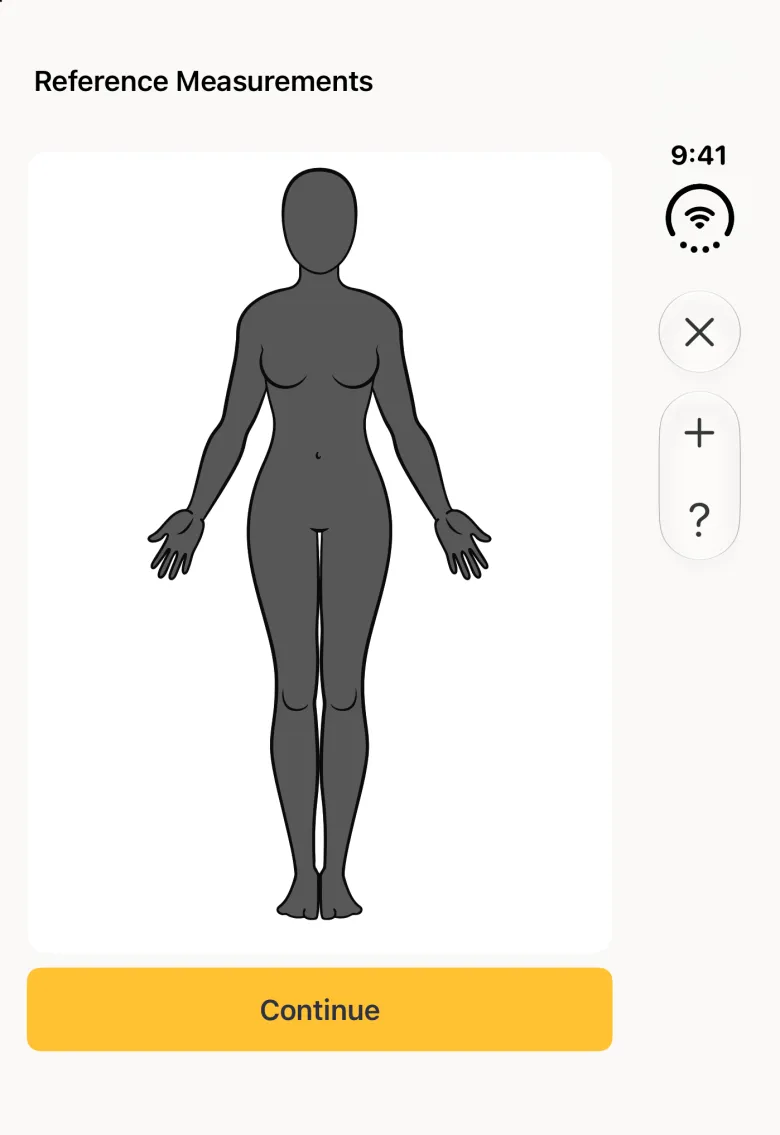
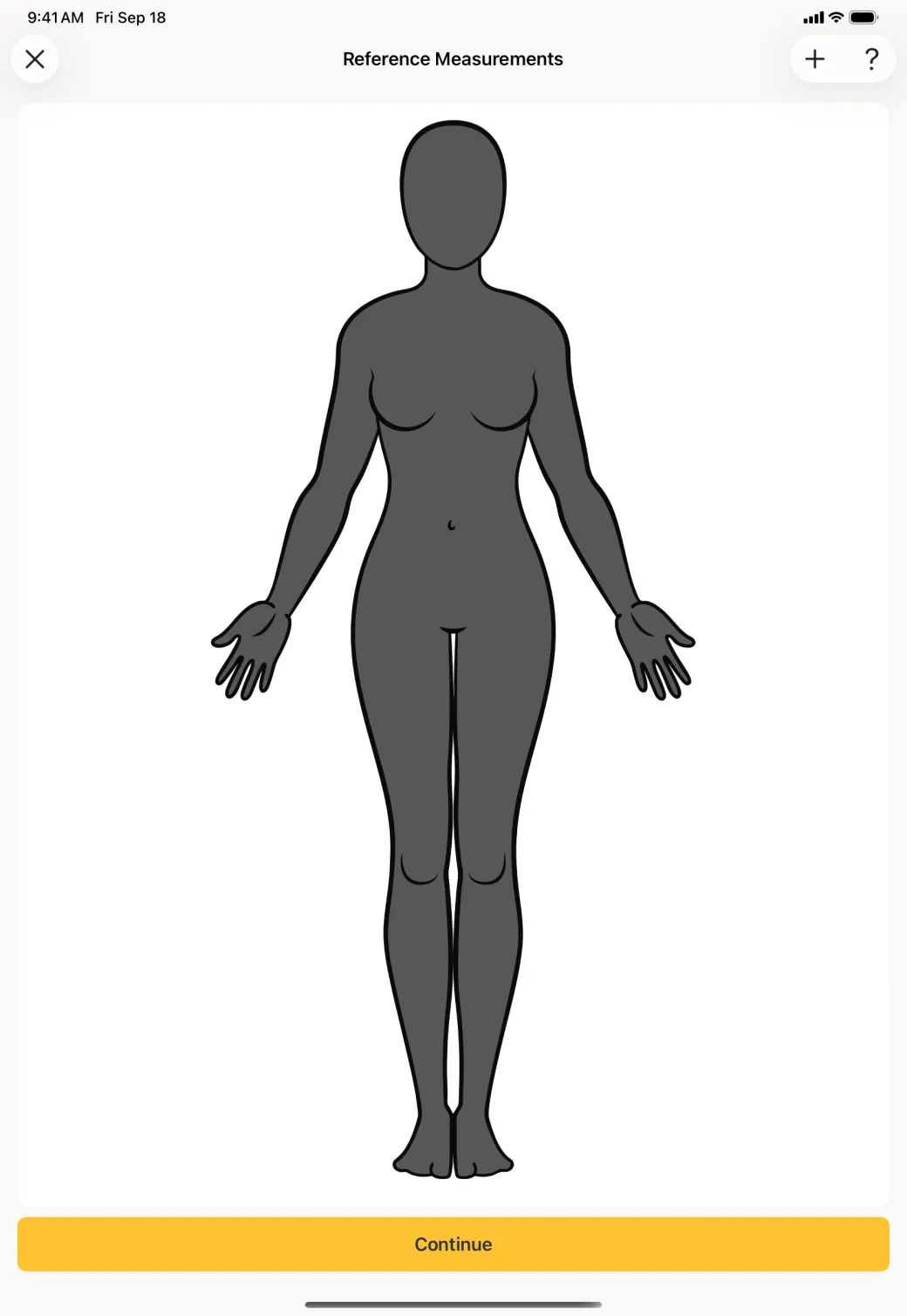
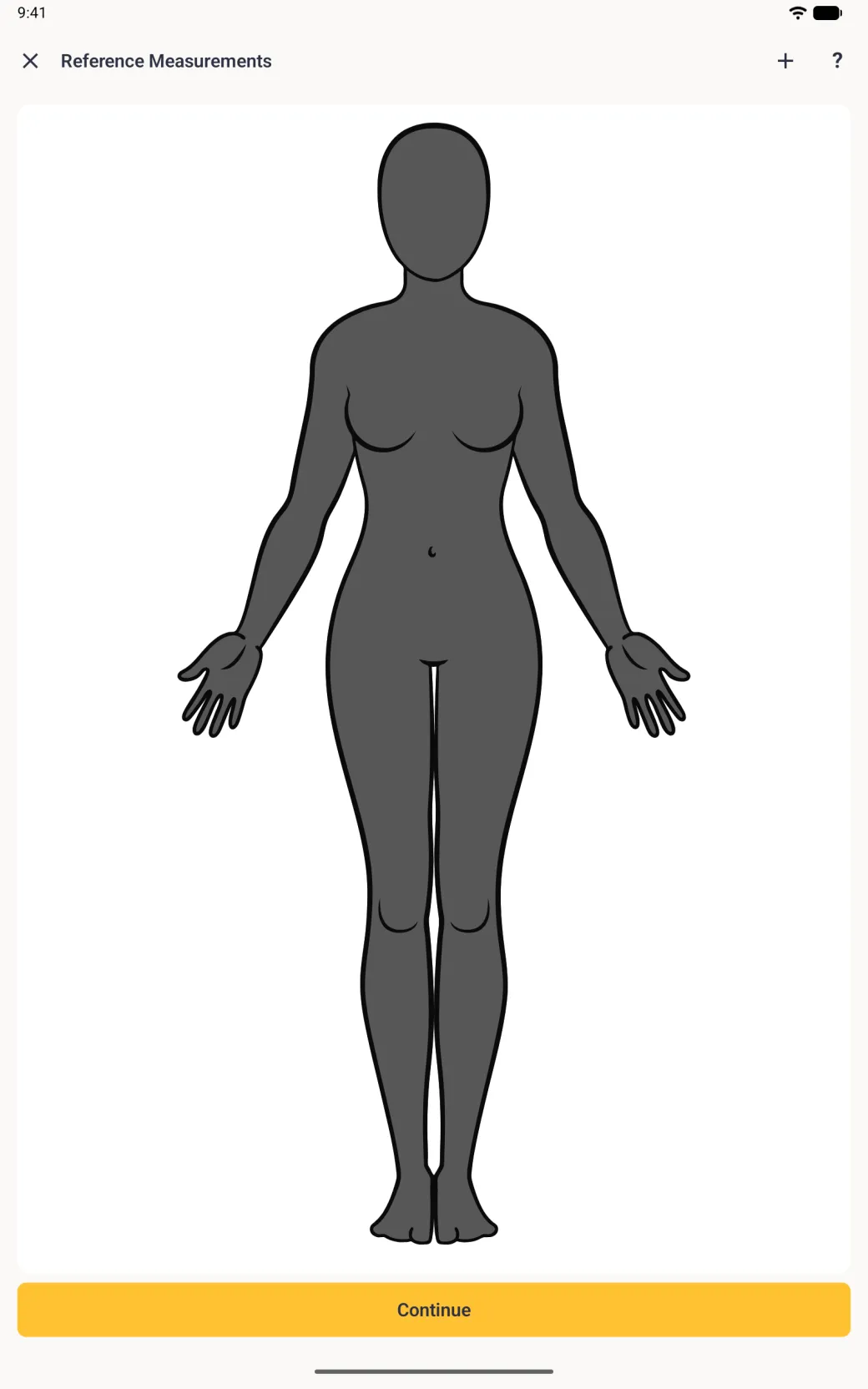
A Reference Measurements screen showing a body with no guide lines on it and a gold Continue button.
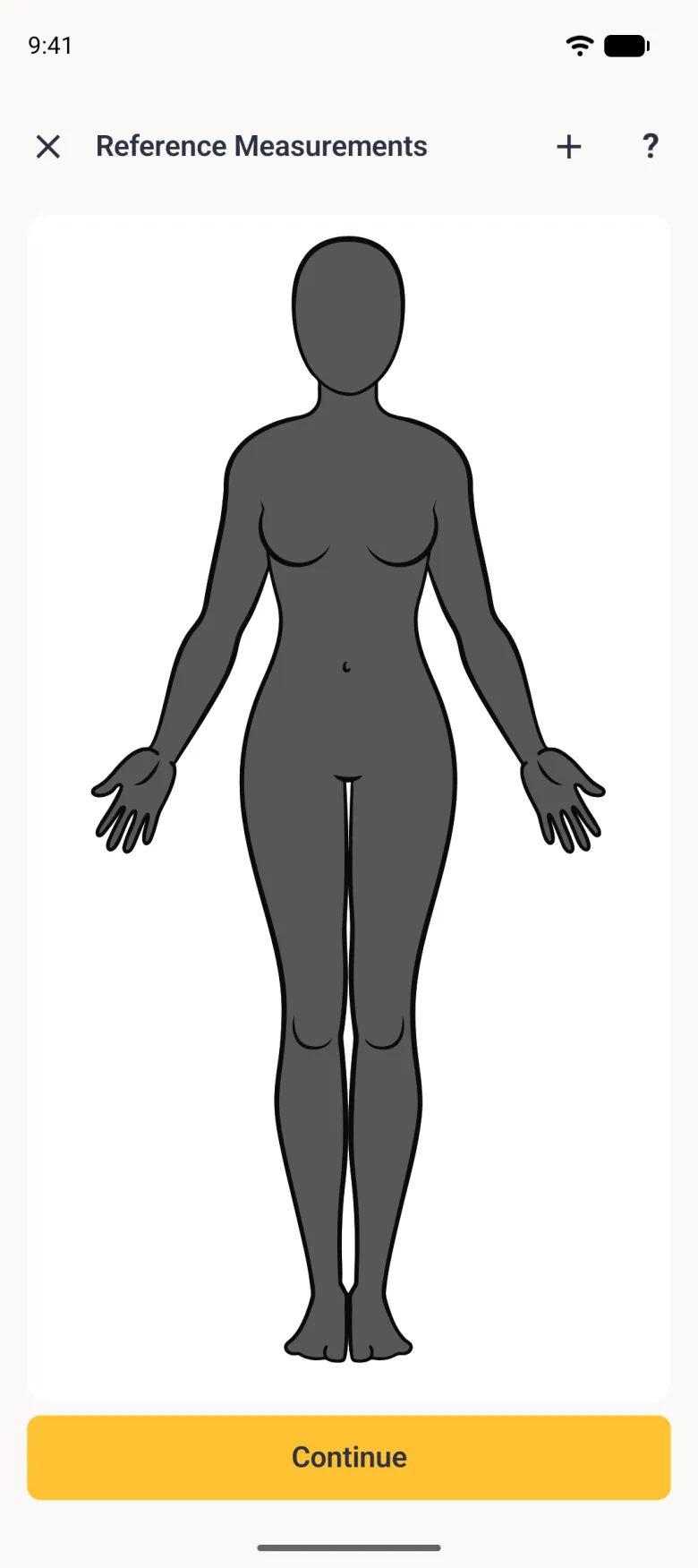
A Reference Measurements page filling the screen with a plain charcoal-skinned female figure and no lines on it, above a yellow Continue button.
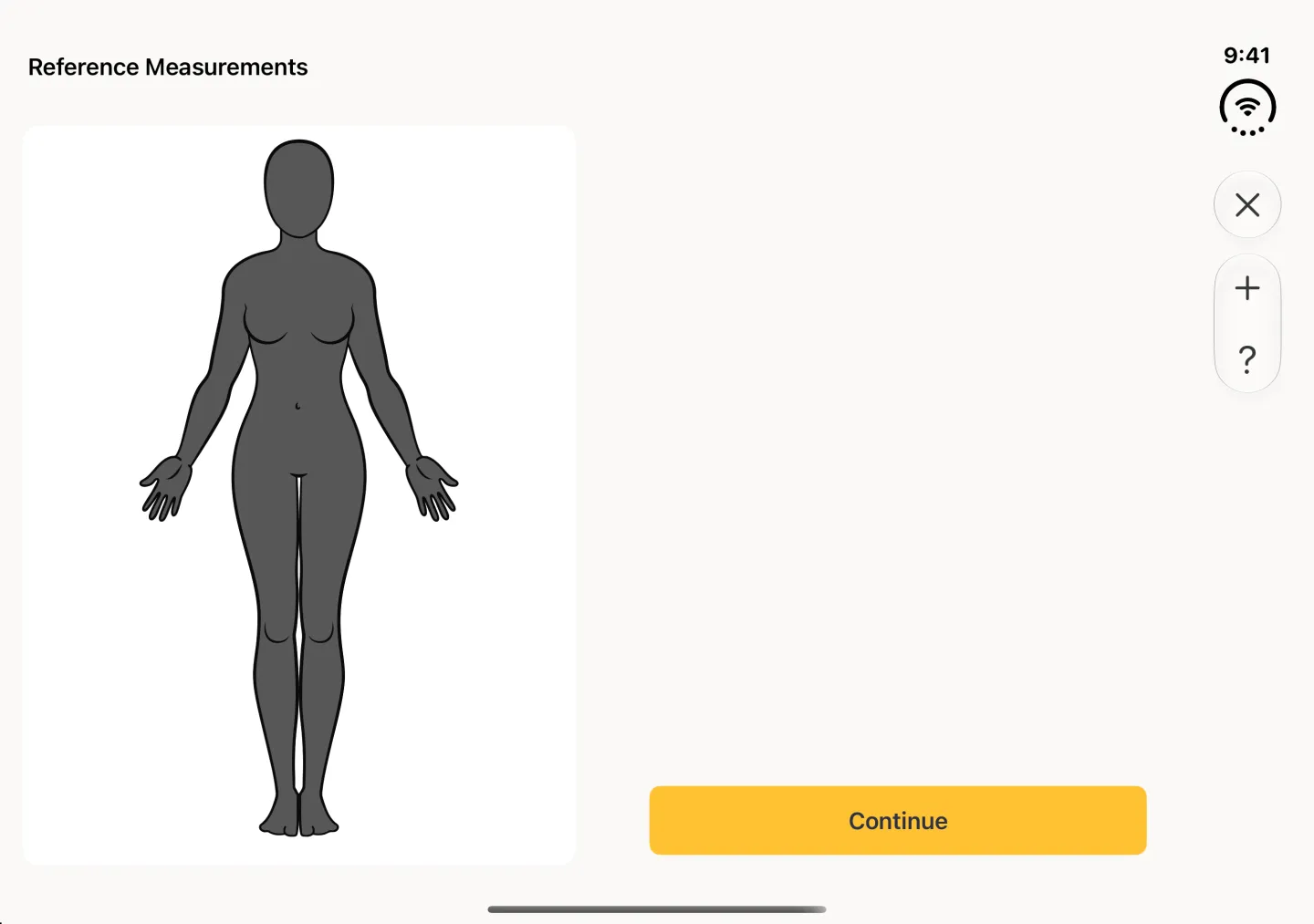
A Reference Measurements editor showing the client's charcoal female figure with no lines on it, an X at the top left, plus and question mark buttons at the top right and a yellow Continue button.
A Reference Measurements editor filling the tablet, showing the client's charcoal female figure with no lines on it, an X at the top left, plus and question mark buttons at the top right and a yellow Continue button.
The editor opens on the page with nothing drawn yet.
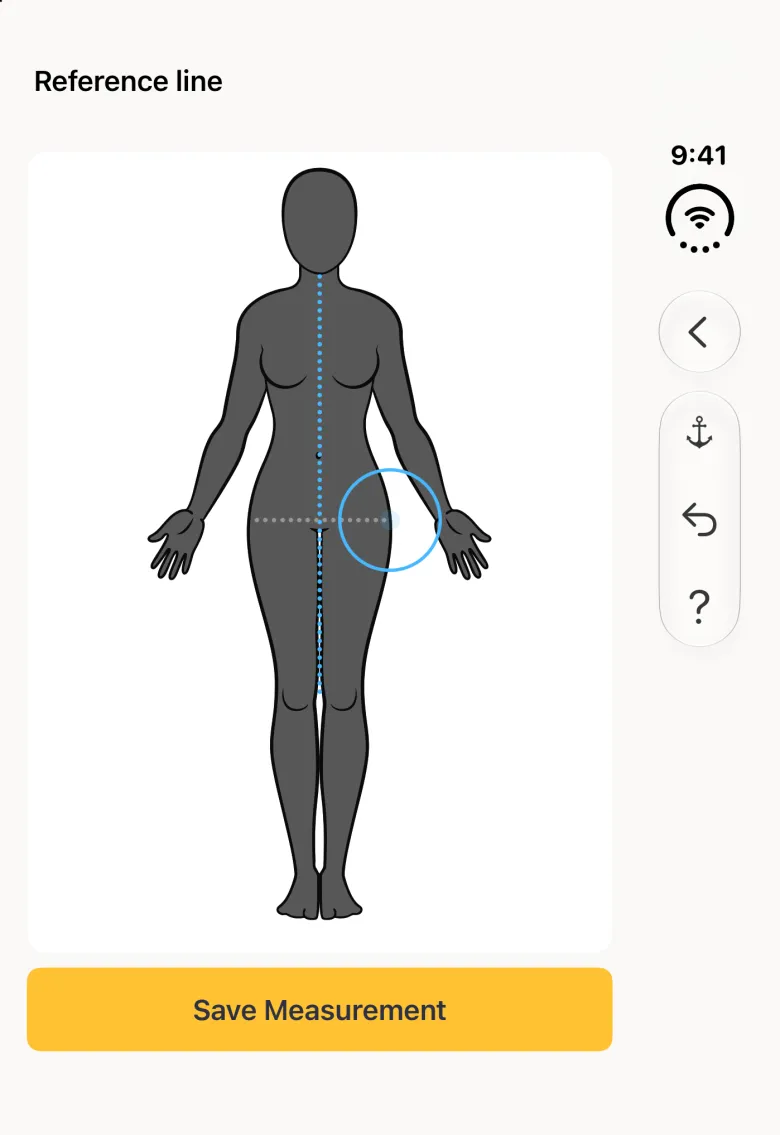
A body with a pale dotted line drawn horizontally across the top of the hips.
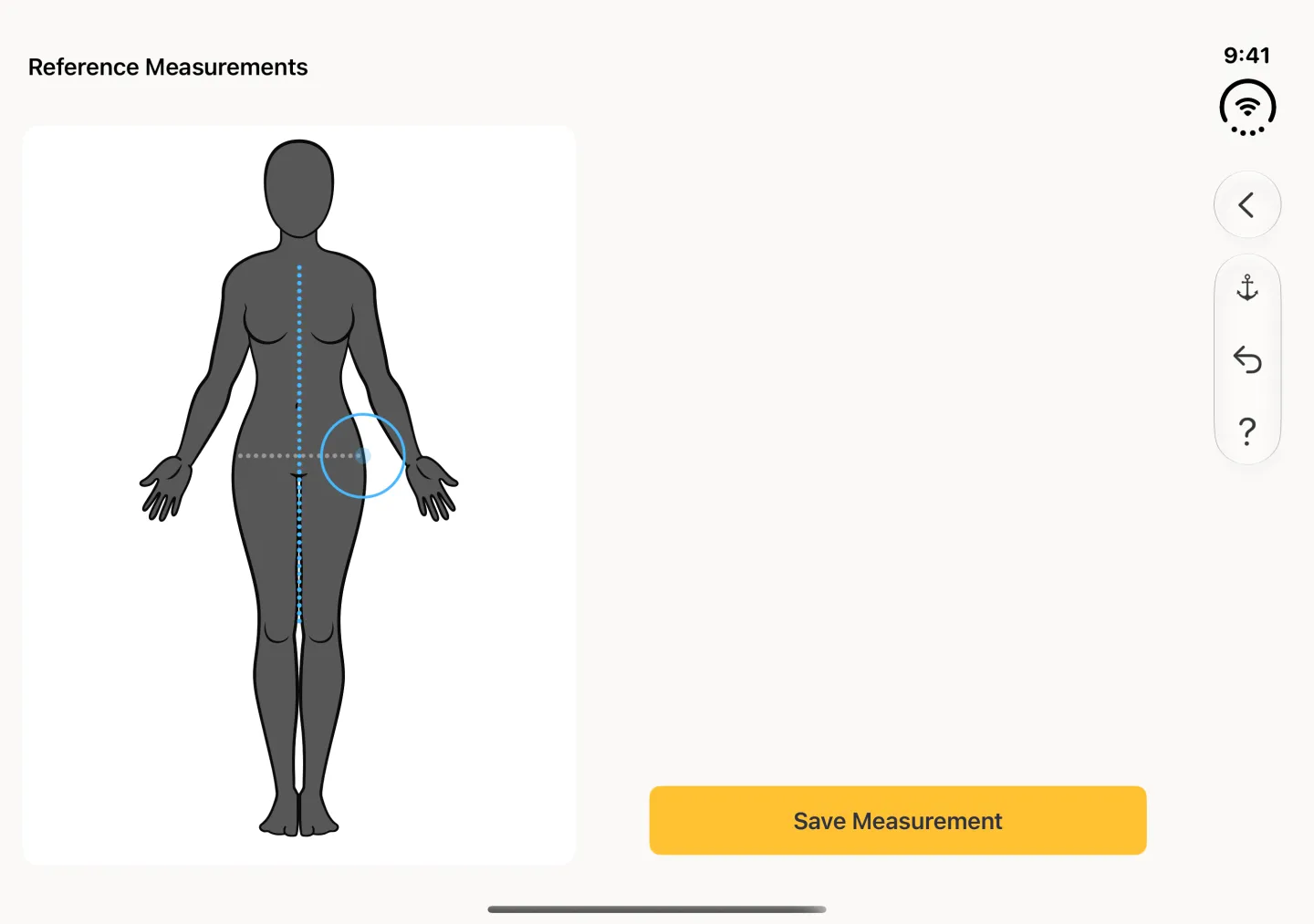
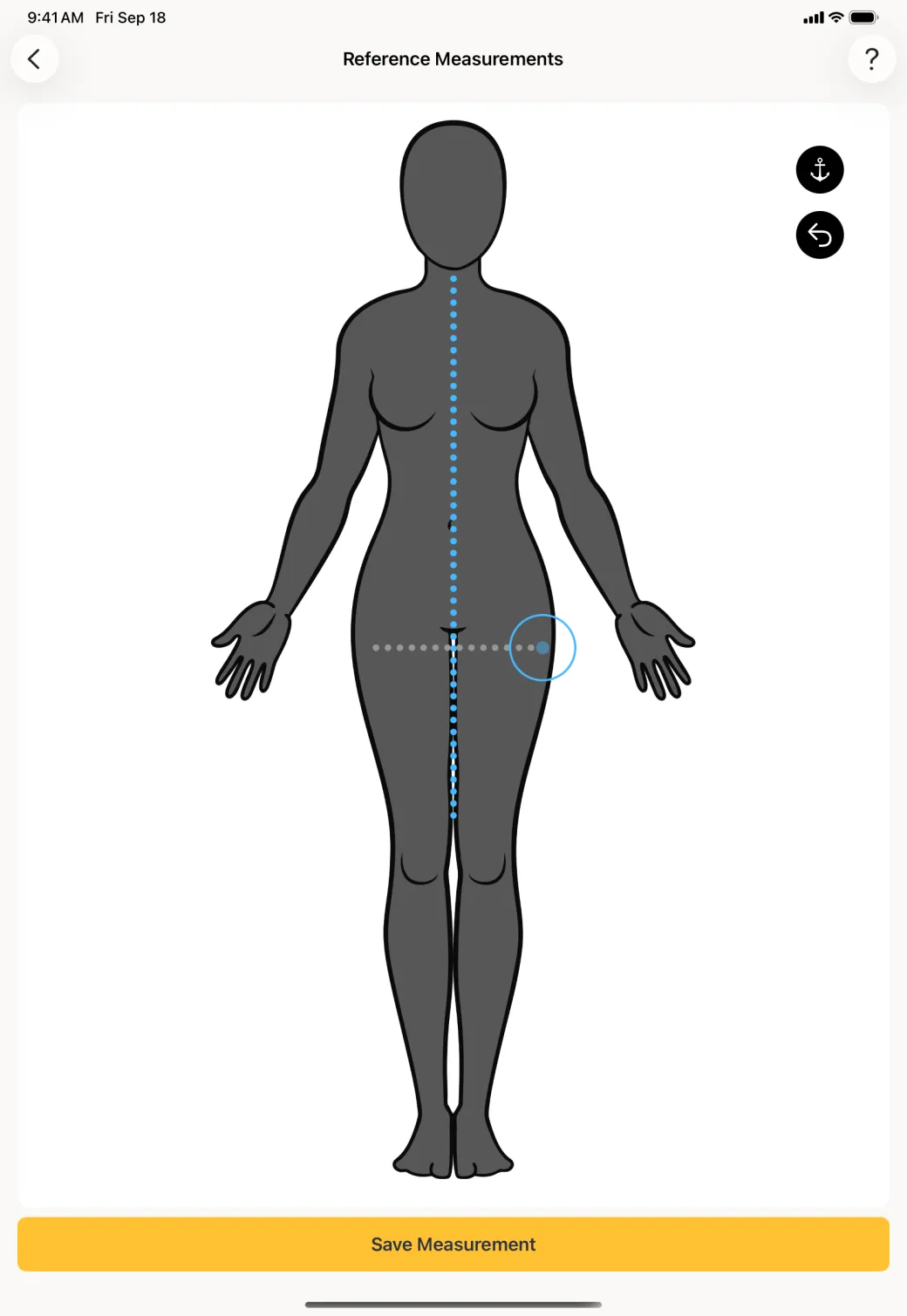
The figure with a pale dotted guide line drawn horizontally across the top of the hips, the existing custom line running down the front, and a yellow Save Measurement button below.
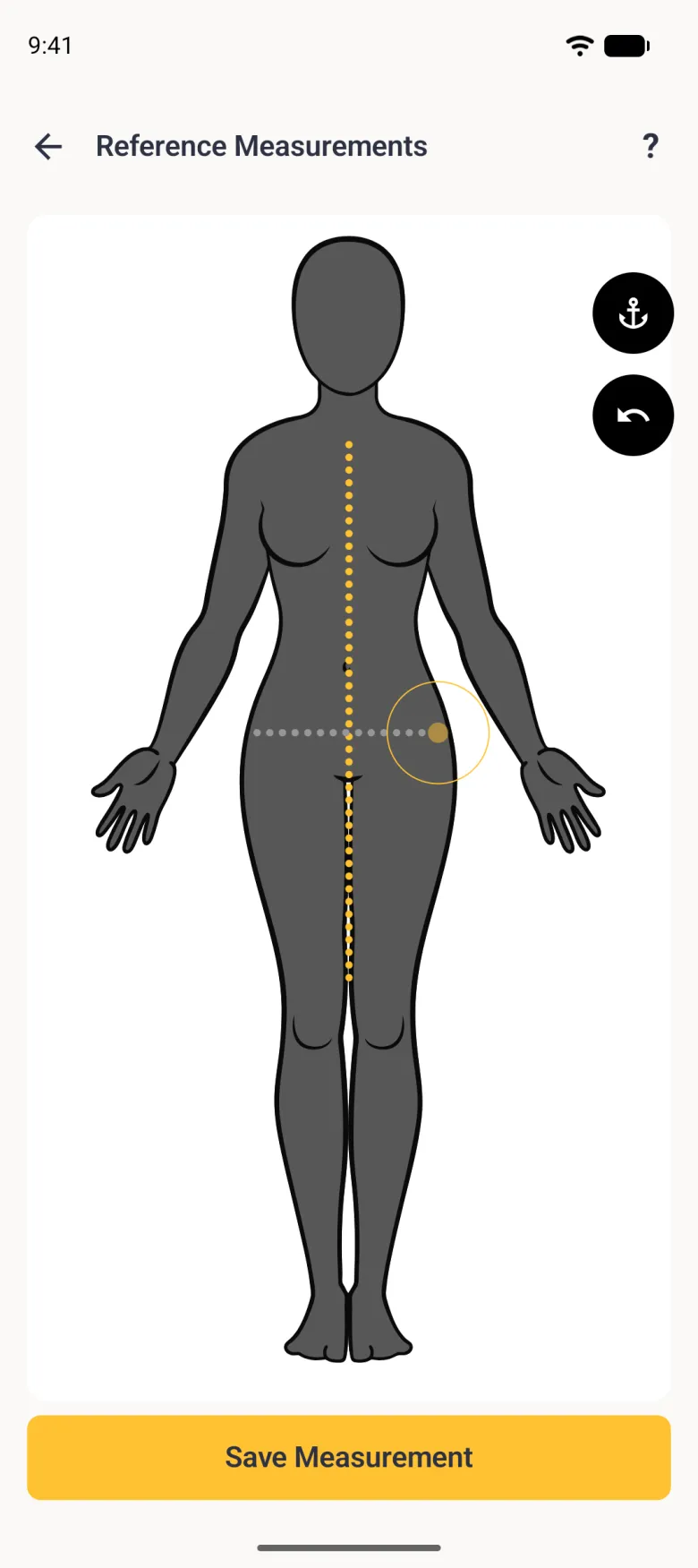
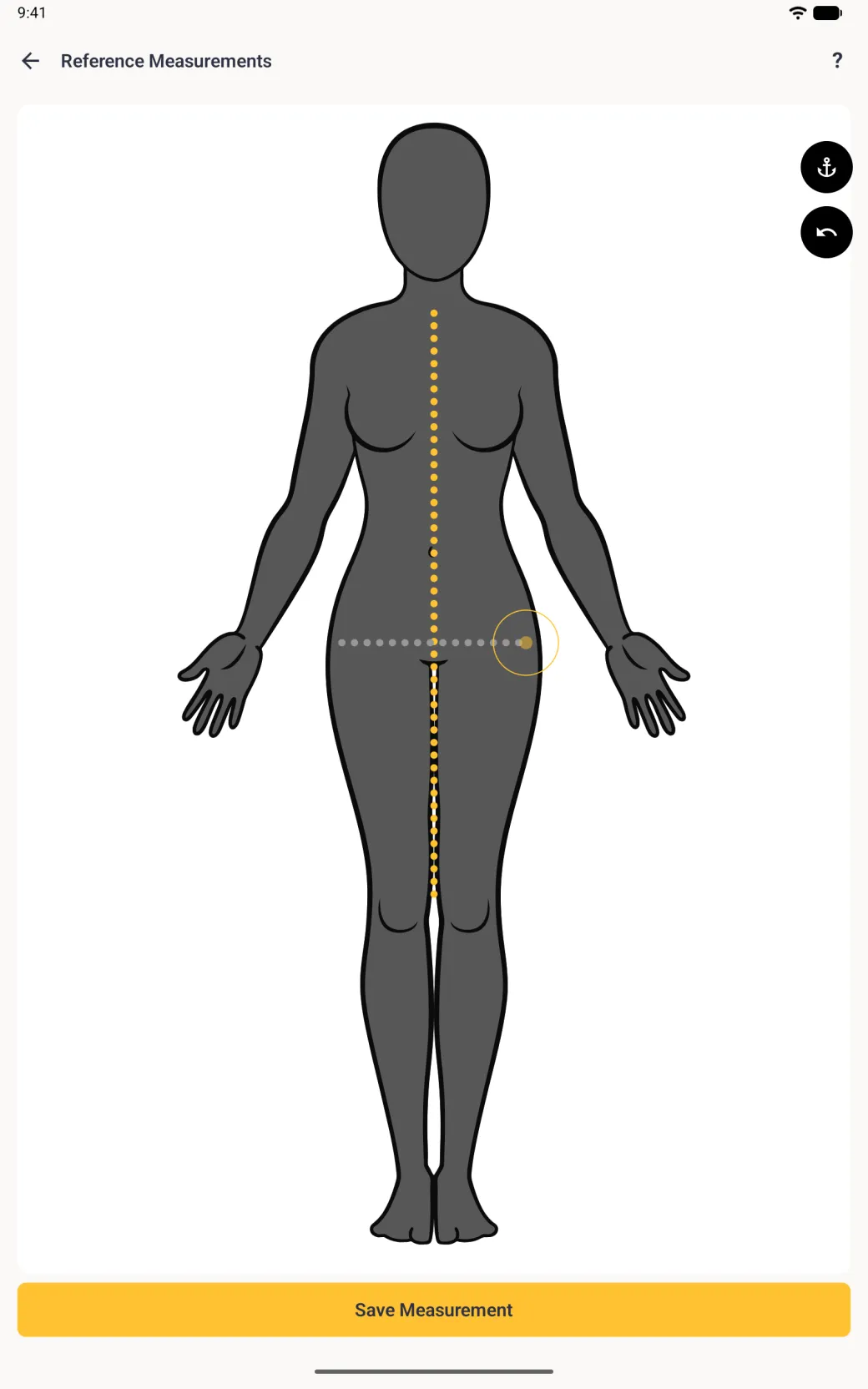
The charcoal figure with a pale grey dotted guide line drawn horizontally across the top of the hips, ending in a gold targeting circle, with the page's custom line shown as a gold dotted line down the front, anchor and undo buttons at the right edge and a yellow Save Measurement button.
The charcoal figure with a pale grey dotted guide line drawn horizontally across the top of the hips, ending in a gold targeting circle, the page's custom line shown as a gold dotted line down the front, round anchor and undo buttons at the right edge and a yellow Save Measurement button.
Drag across the body to draw the guide.
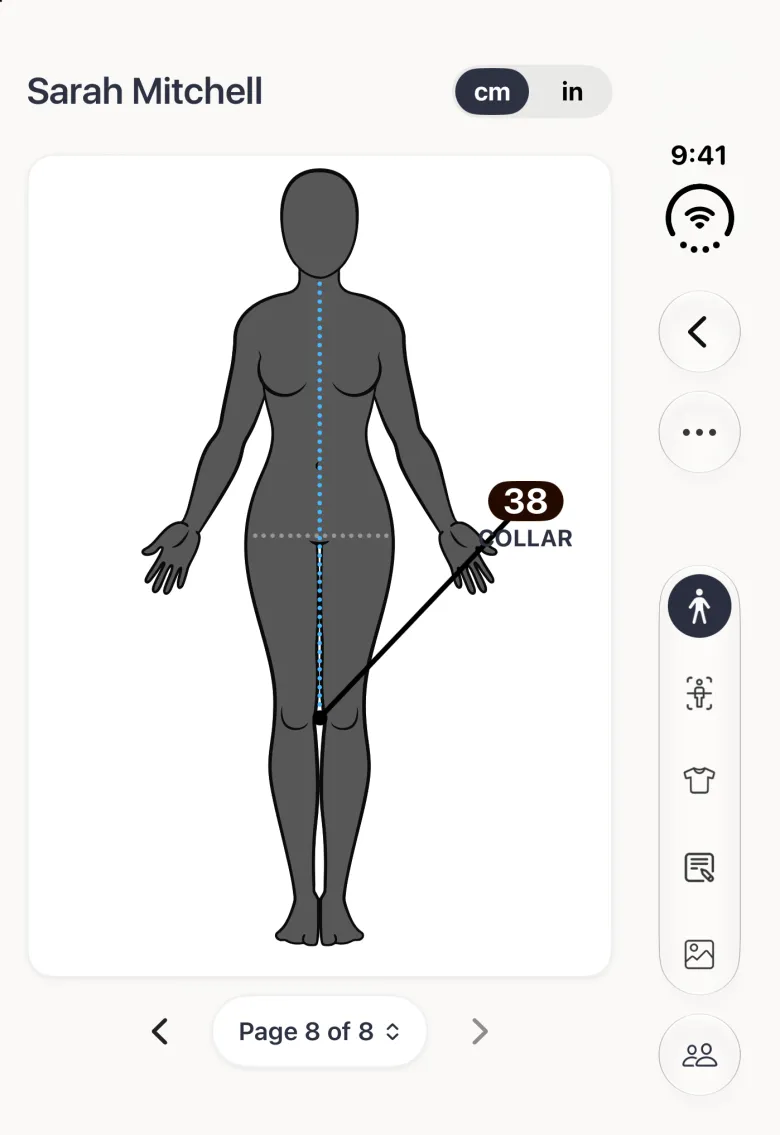
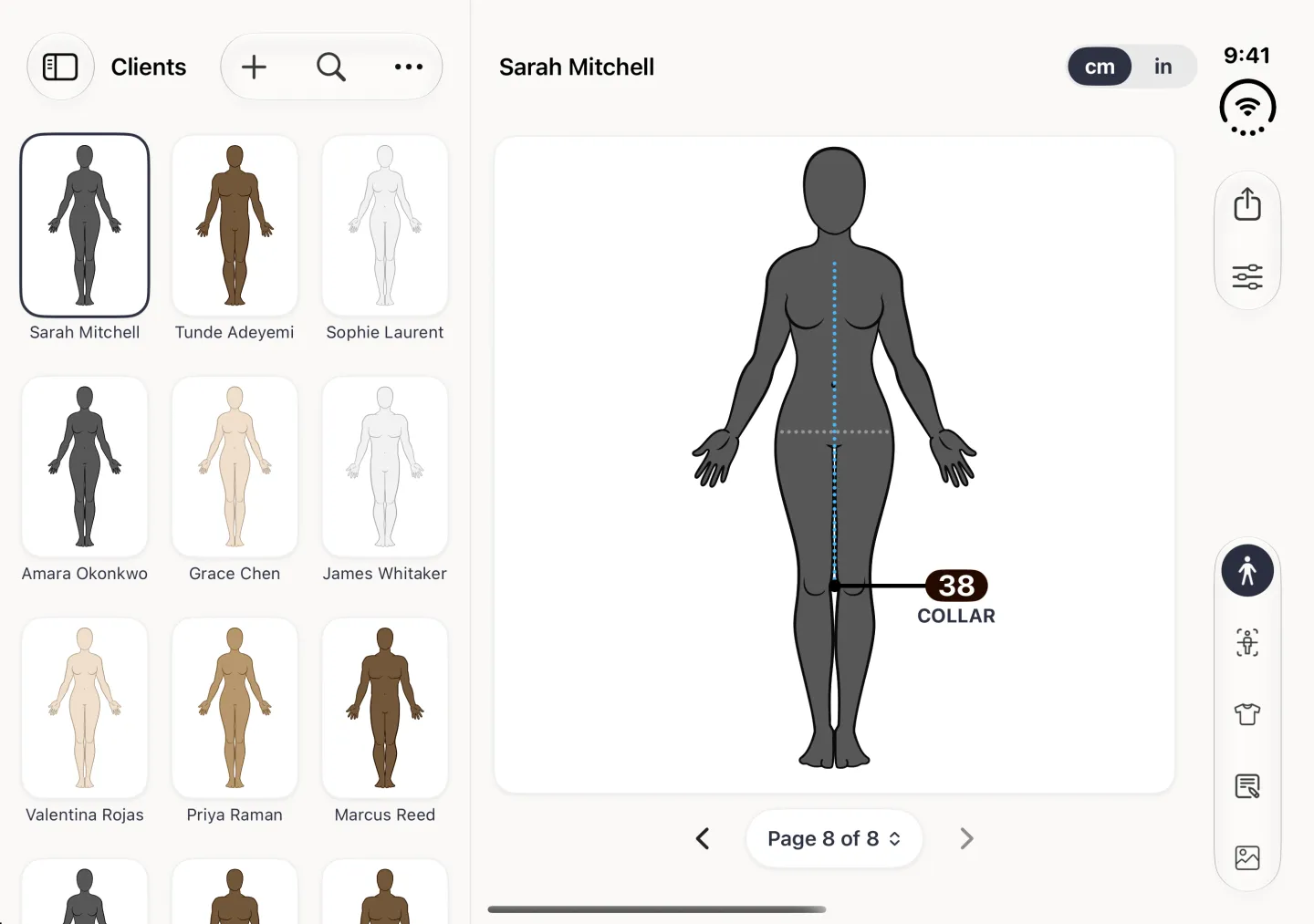
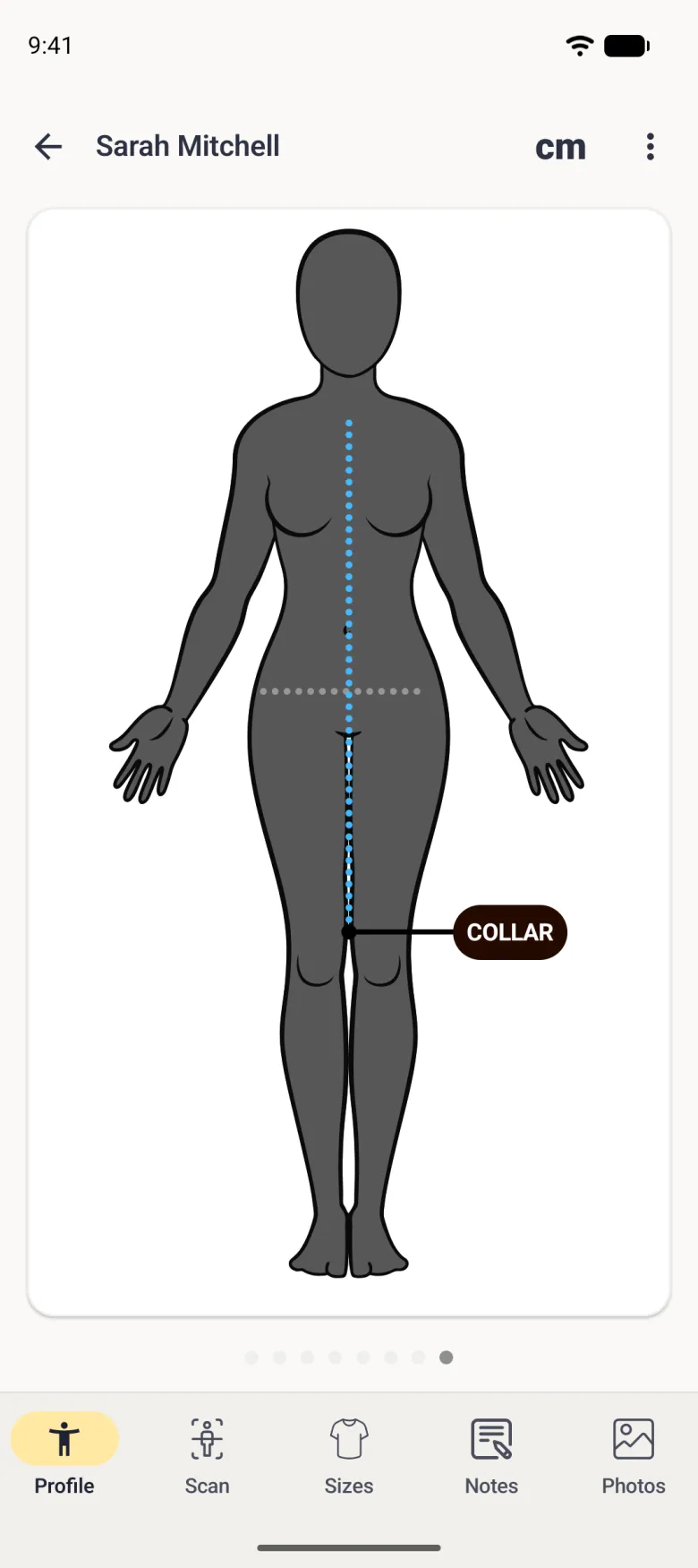
A profile page showing a blue measured line with a COLLAR label and, separately, a pale grey dotted line across the hips with no label.
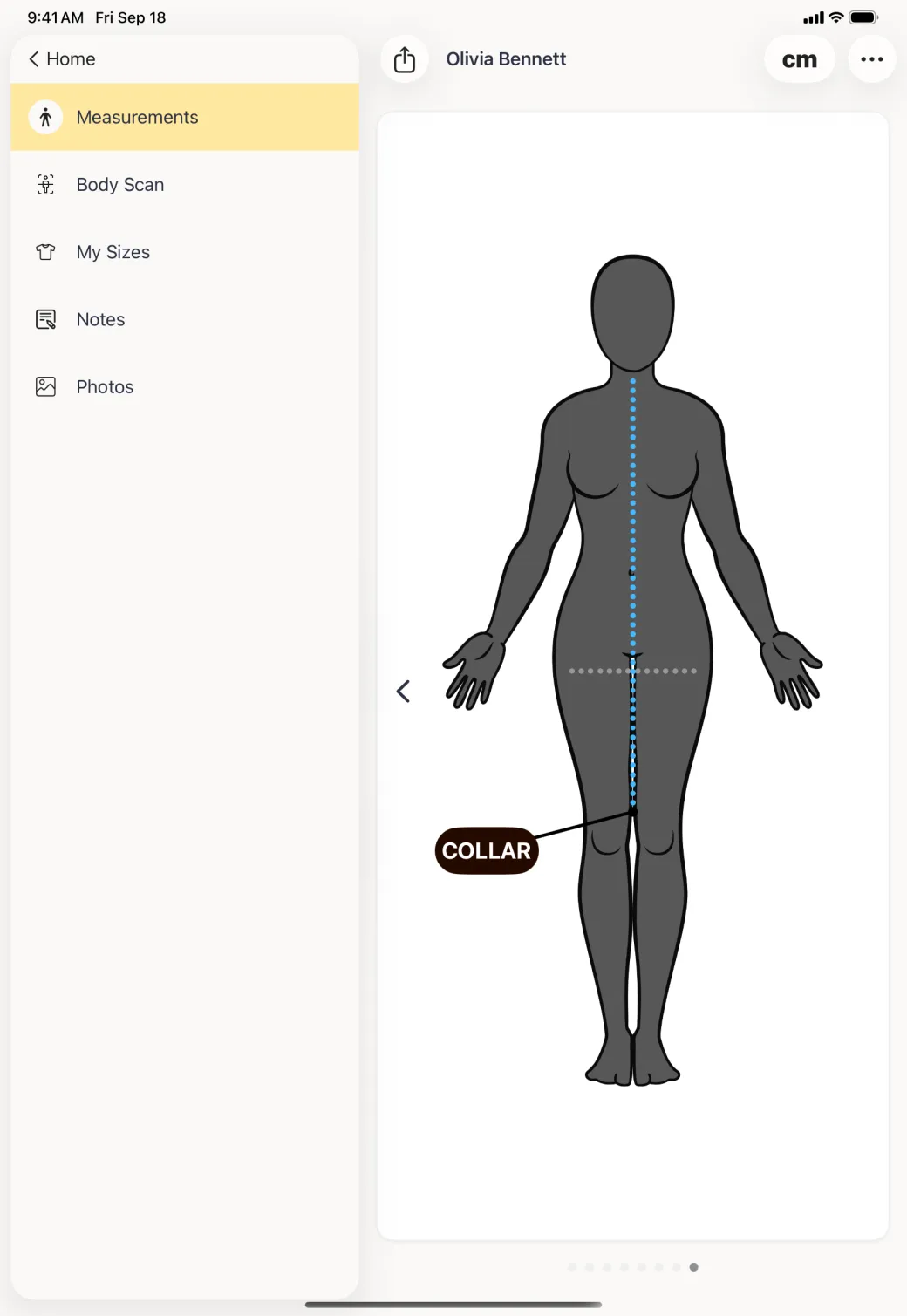
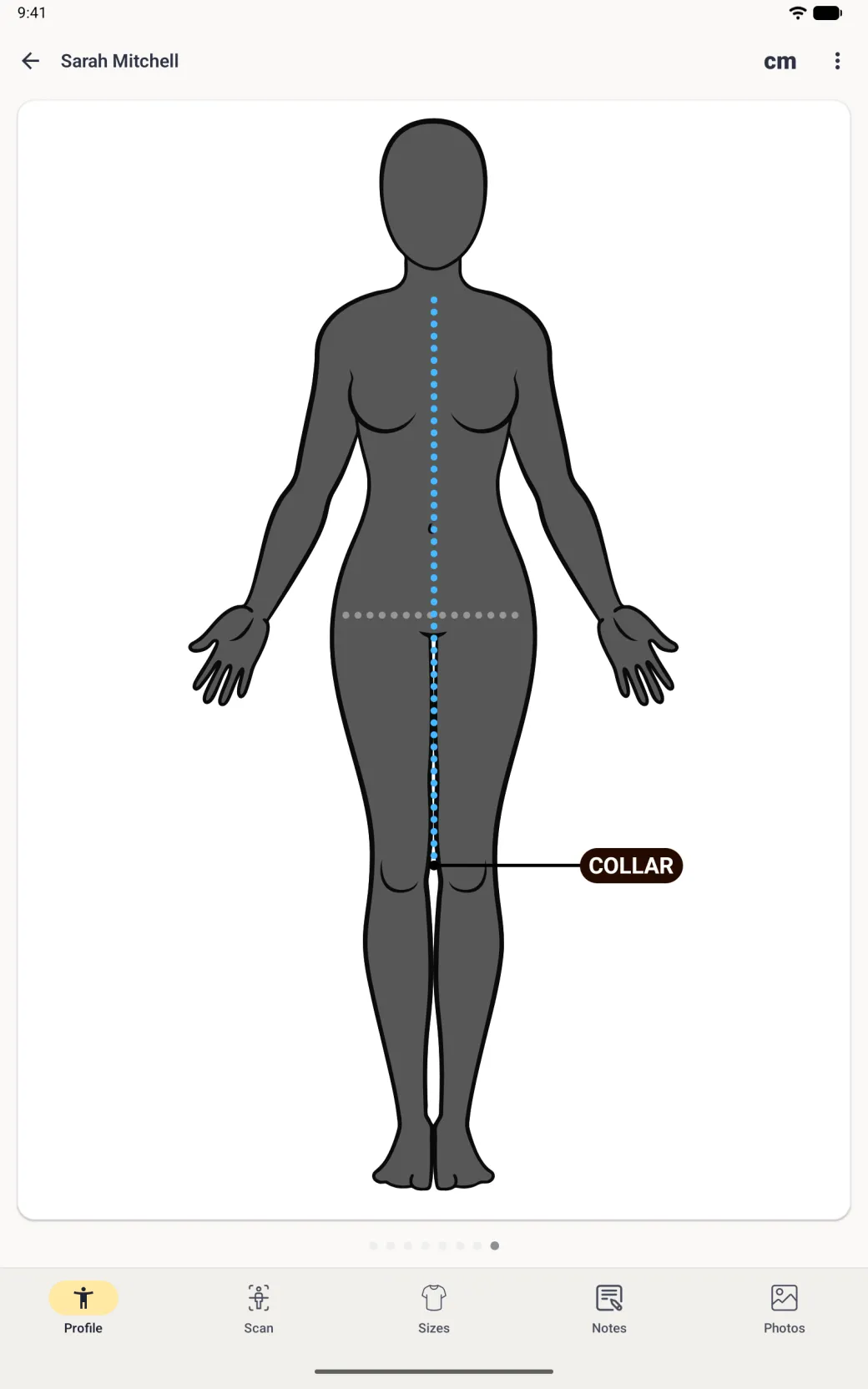
A client page showing a blue measured line with a COLLAR label and, separately, a pale grey dotted line across the hips with no label.
Sarah Mitchell's page showing the blue dotted COLLAR line down the front with its dark COLLAR label beside the knee and, separately, a pale grey dotted line across the hips with no label.
The client page showing the blue dotted COLLAR line down the front with its dark COLLAR label to the right of the knee and, separately, a pale grey dotted line across the hips with no label.
A guide line carries no value and no label.

How is this different from a custom measurement?

A custom measurement is a measurement: it has a short name, a full name, instructions, an optional photo, a label on the body and a value you enter. A reference line has none of that. There is no entry screen behind it and no number to record.

That is the point of it. Anything you want a number for should be a custom measurement. Anything you only want people to see should be a reference line.

How do I delete a reference line?

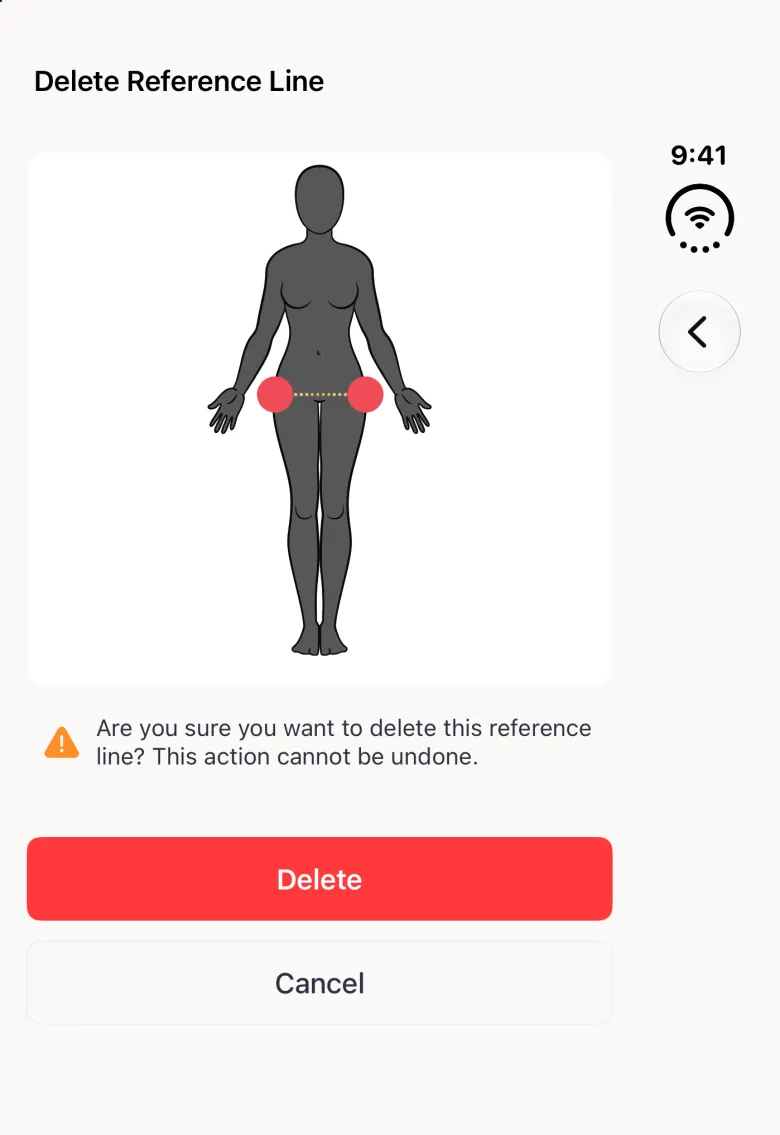
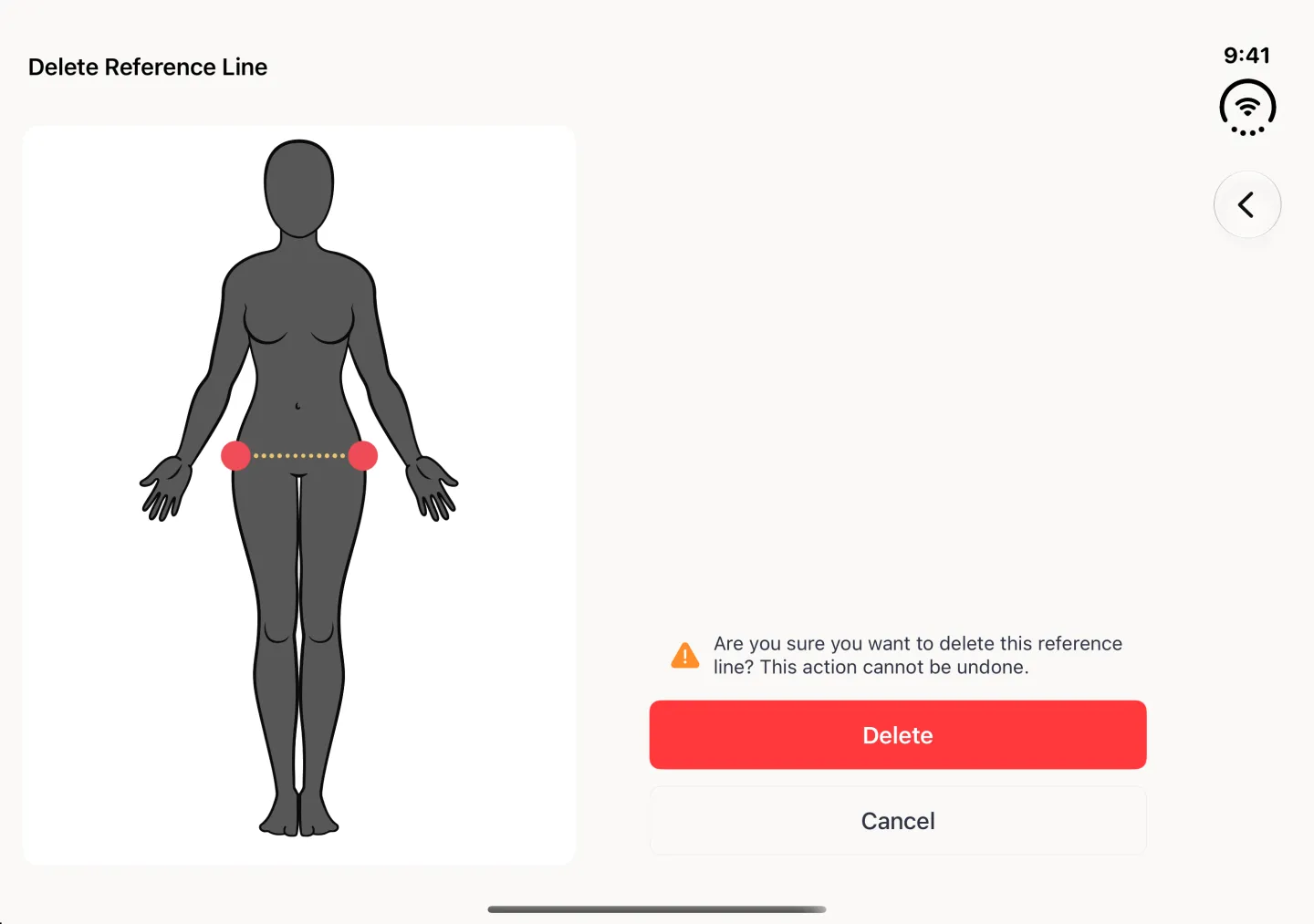
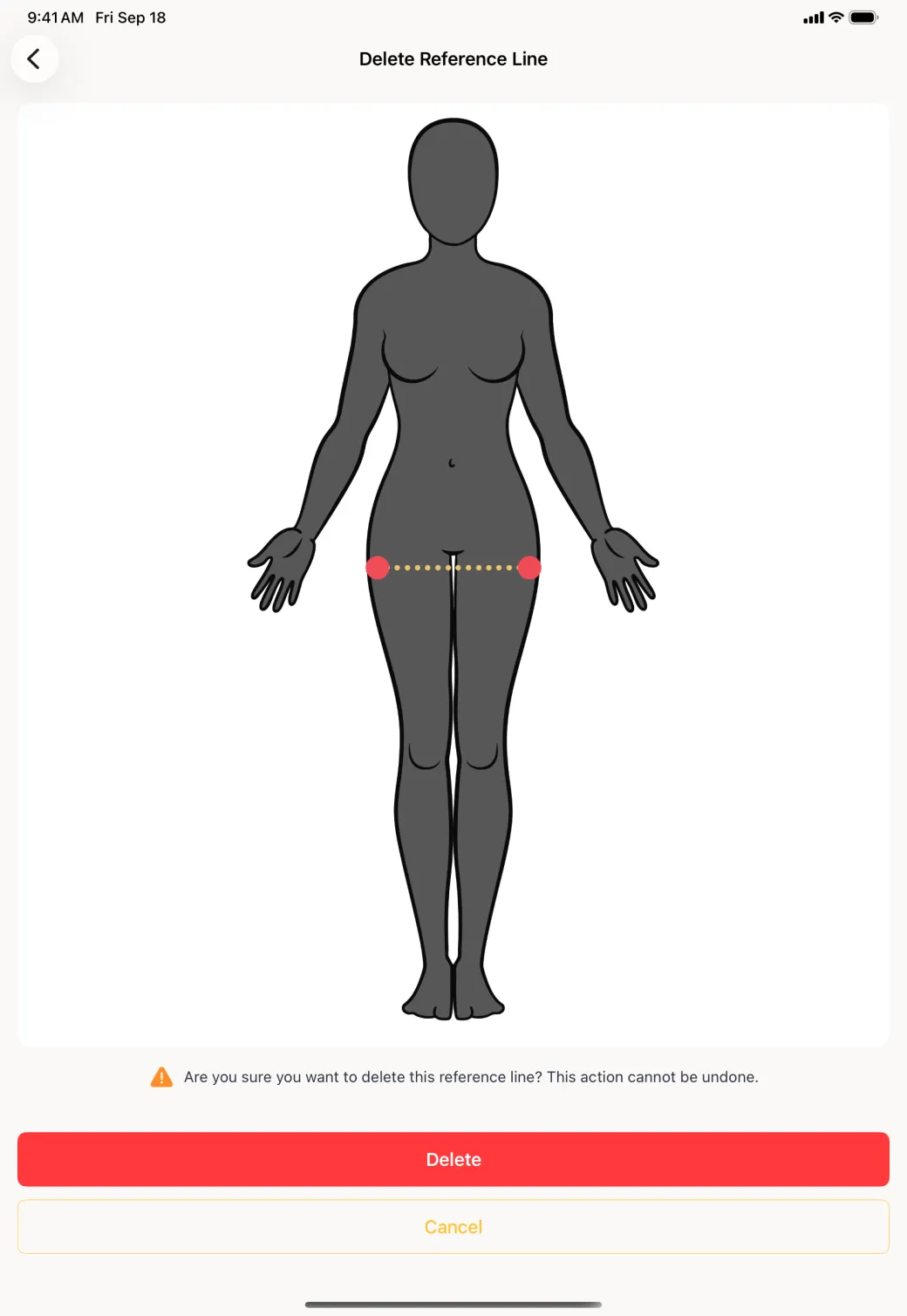
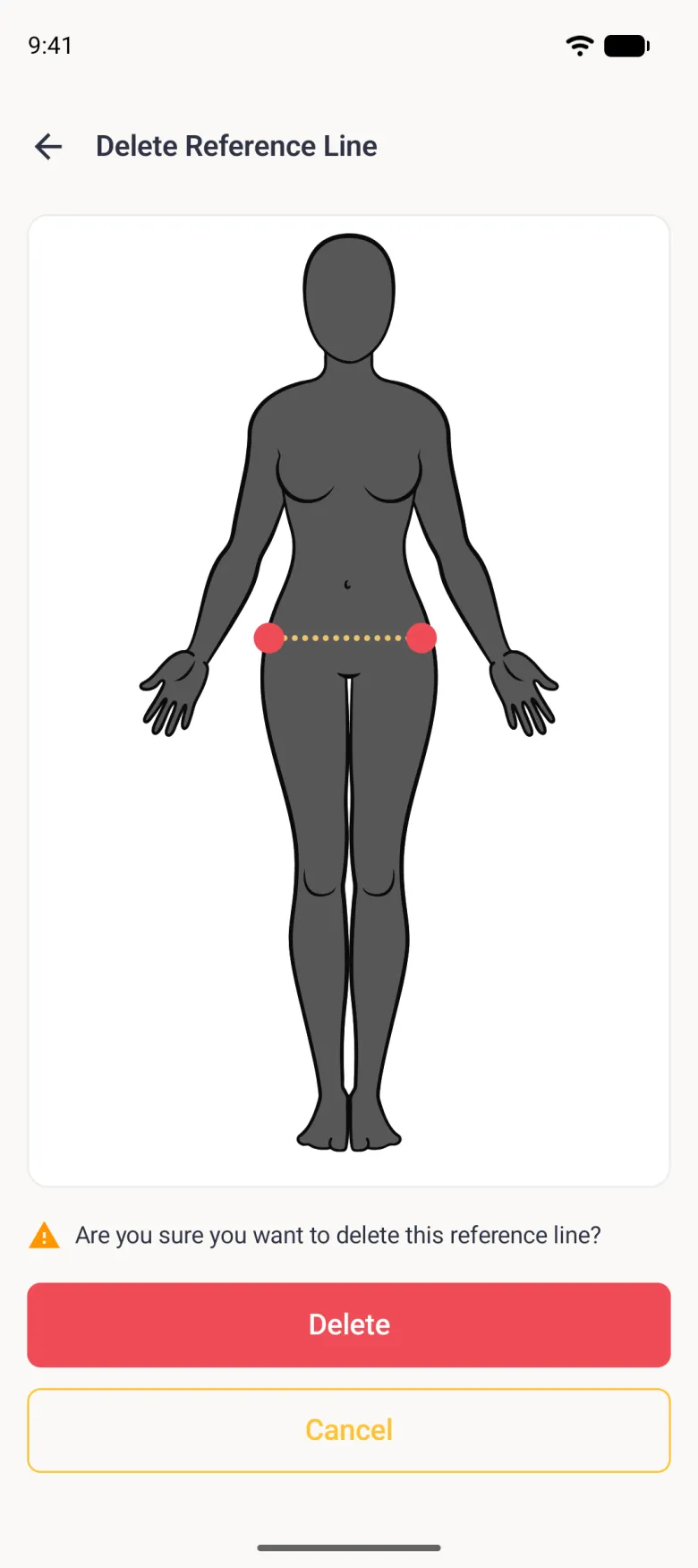
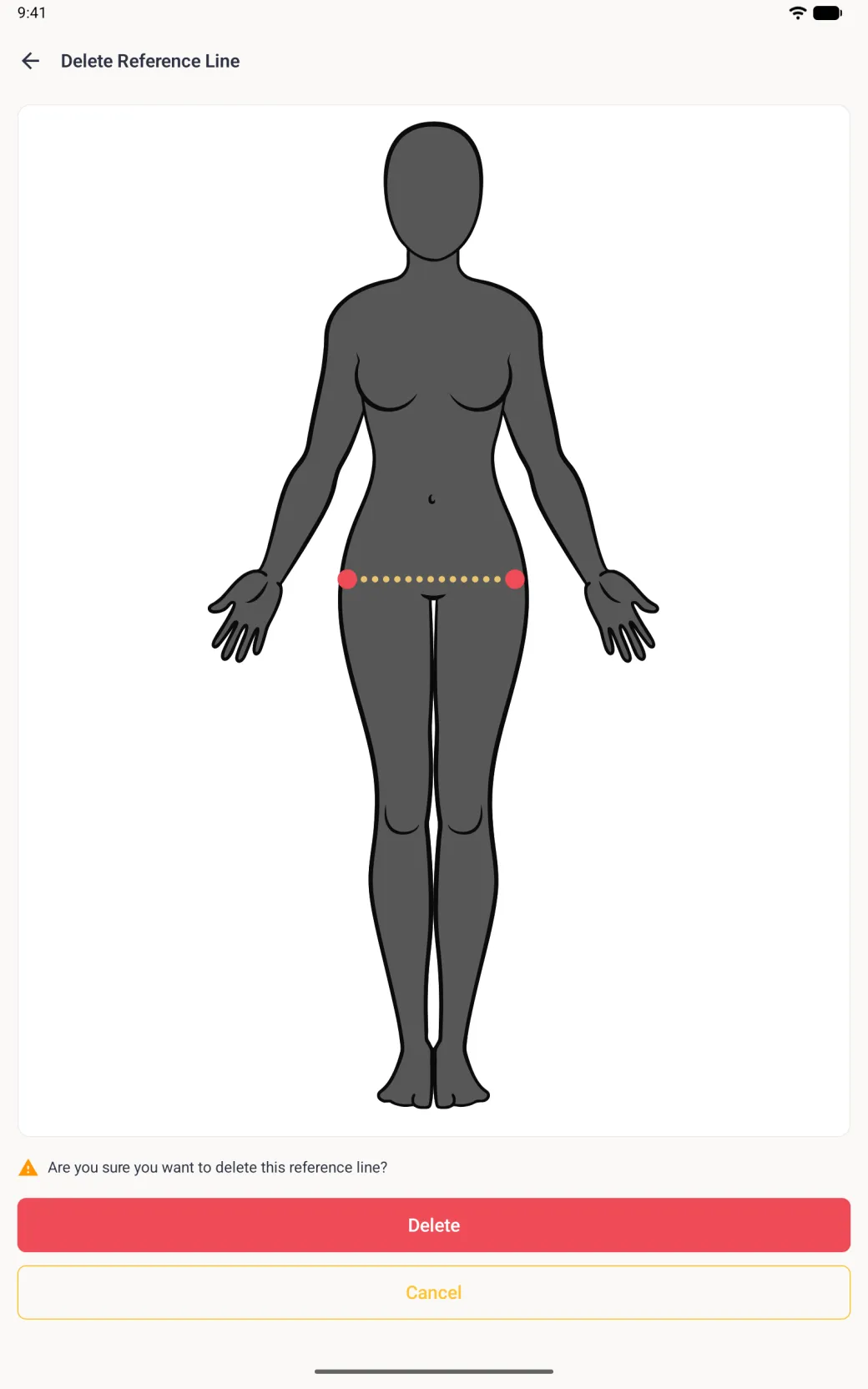
Tap the line to select it. It turns gold and a trash button appears in the top bar. Tap the trash button and the Delete Reference Line screen opens, showing the line in gold with its endpoints in red so you can check you picked the right one before confirming. Pressing and holding a selected line opens the same screen if that is quicker for you.

Deleting a guide leaves every real measurement on the page untouched.

Show these screens on
A Delete Reference Line screen showing the body with the guide line and its endpoints picked out in red, a warning line asking are you sure, and Delete and Cancel buttons.
A Delete Reference Line page showing the figure with the guide line drawn in gold between two red endpoints, a warning line asking whether you are sure because the action cannot be undone, and red Delete and Cancel buttons.
A Delete Reference Line page showing the charcoal figure with the guide line across the hips as a gold dotted line between two red endpoint dots, a warning line reading Are you sure you want to delete this reference line?, a red Delete button and an outlined gold Cancel button.
A Delete Reference Line page showing a smaller charcoal figure with the guide line across the hips as a gold dotted line between two red endpoint dots, a warning line reading Are you sure you want to delete this reference line?, a full-width red Delete button and an outlined gold Cancel button.
The line to be removed is shown with red endpoints before you confirm.