DRESS MEASUREMENT

Tailor Shop

Add and manage clients

With Tailor Shop on, a profile becomes a client record with a phone number, an email address, a preferred channel, an address, a birthday and tags.

Available on

  • iPhone
  • iPad
  • Android
  • Tailor Shop feature

The Tailor Shop tools described here are on iPhone, iPad and Android. On iPad the tabs are a sidebar on the left. On Android the tabs are a bar along the bottom of a phone, and a rail down the left on a tablet. With the subscription on, the home grid becomes the Clients tab of a four-tab bar, and the profile form grows the contact fields below.

How to add a client

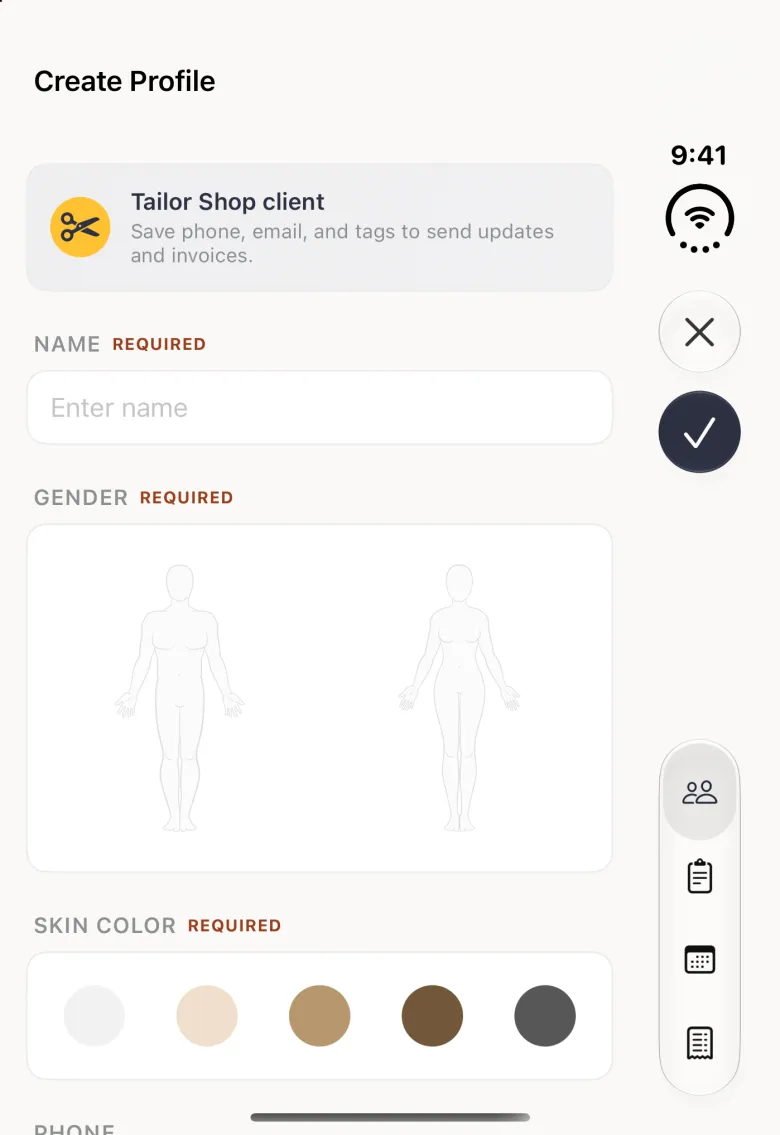
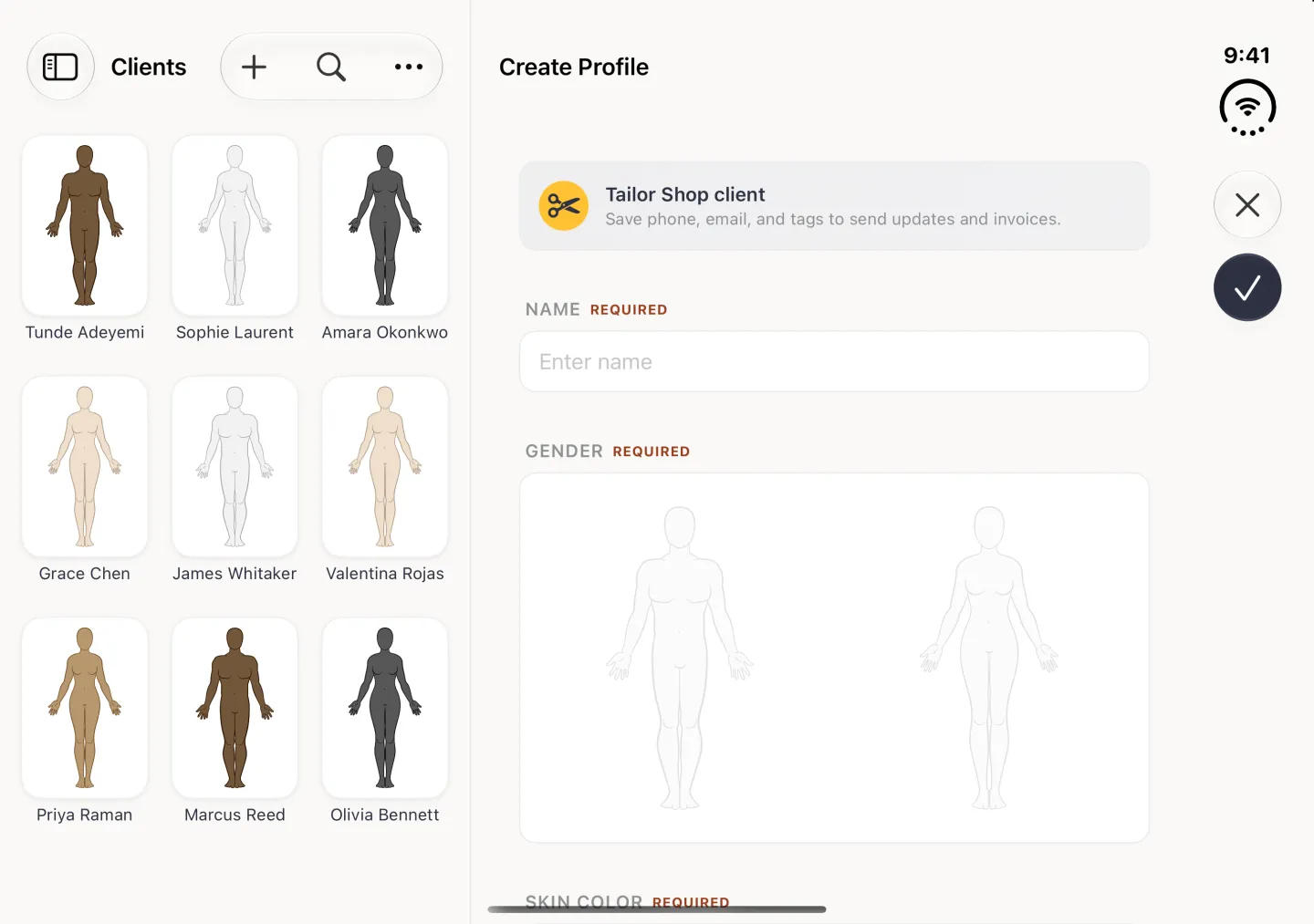
Tap the plus button at the top right of the Clients tab. On Android, tap the gold + button at the bottom right of the Clients tab instead; it sits at the top of the navigation rail on a tablet. The form opens with a Tailor Shop client banner across the top, then the same name, body type and skin tone you already use, followed by the contact fields. Name, body type, skin tone and units are required. Everything else is optional, though a phone number or an email address is what lets you message the client later.

  1. Type the client’s name, then choose the body type and skin tone. The chosen outline is highlighted in gold and takes the skin tone you picked.
  2. Enter the phone number, leaving the dialling code to the flag selector beside it, then the email address.
  3. Choose WhatsApp, SMS or Email under Preferred channel. Updates about this client’s orders open on that channel by default.
  4. Add the address if you deliver or fit at home, and set the units this client is measured in.
  5. Turn on Birthday if you want to record one. The year is ignored, so only the day and month are kept.
  6. Tap the tag chips that apply, or type your own. A tick turns a suggestion into an applied tag with a cross for removing it.
  7. Tap the tick at the top right. The client is saved and opens ready to measure.
Show these screens on
Client form headed by a Tailor Shop client banner, with required fields for name, gender and skin colour above an international phone number field and an optional email.
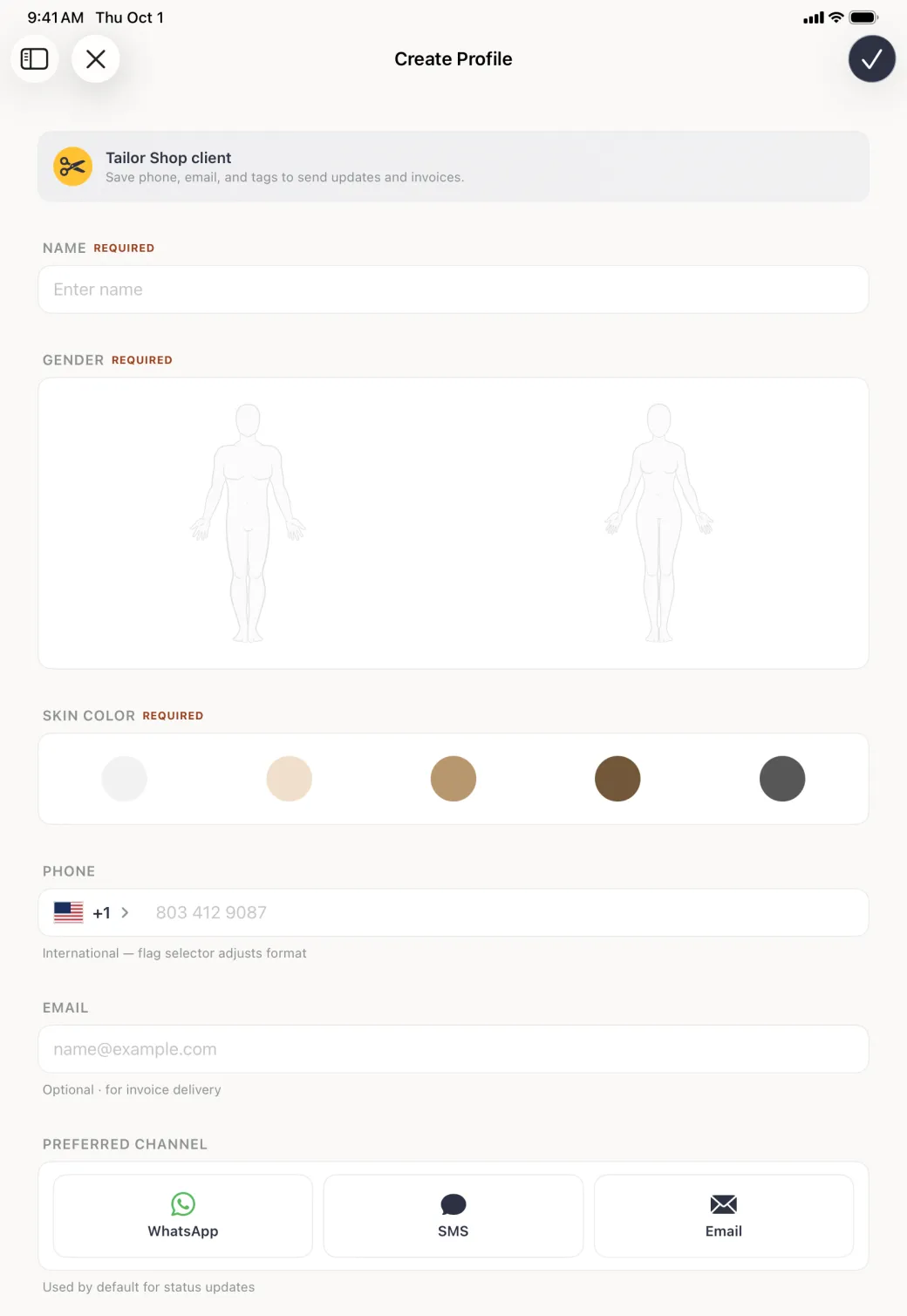
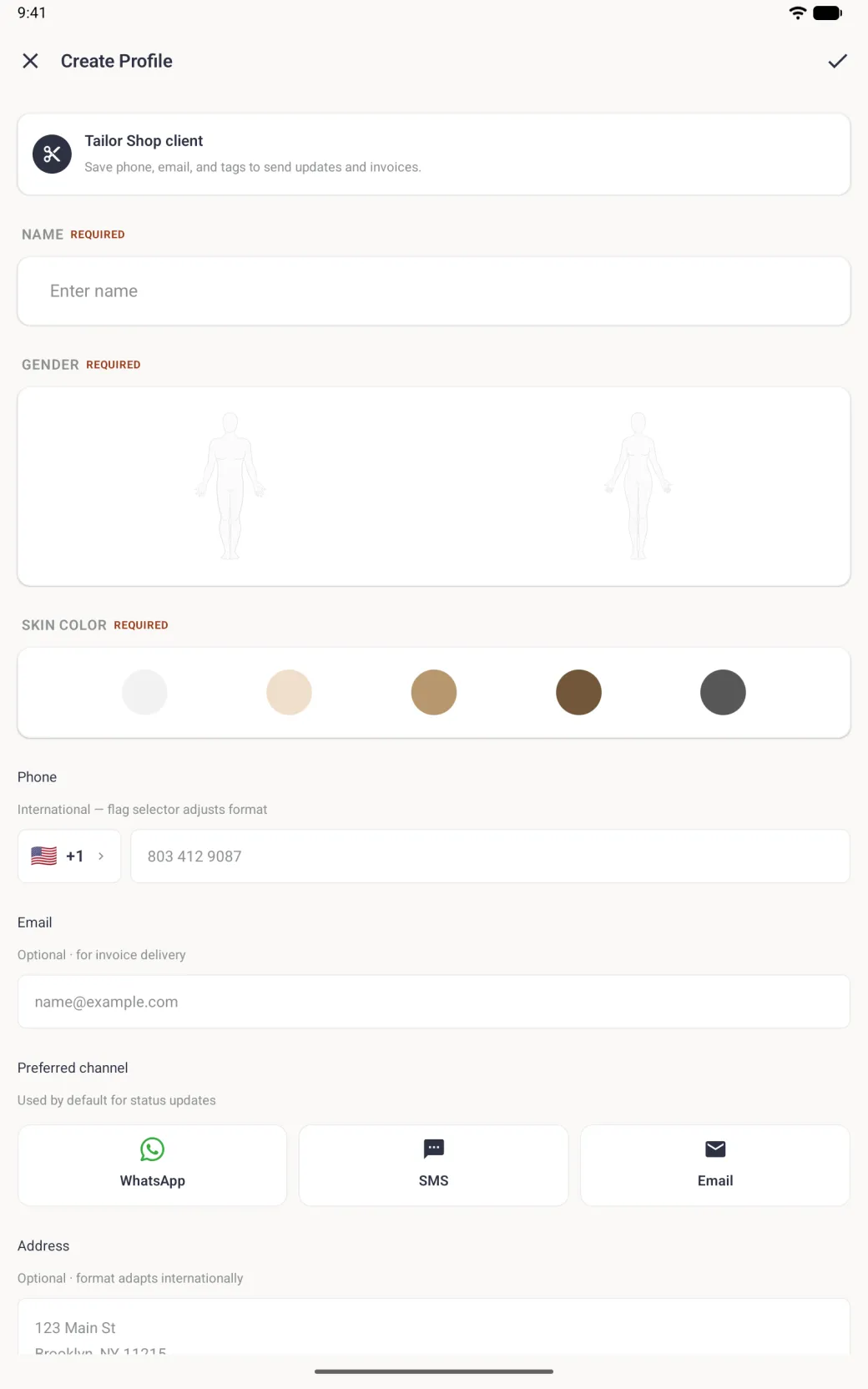
Create Profile form filling the iPad screen in portrait, headed by a Tailor Shop client banner, with fields for name, two body type figures and five skin tone circles, an international phone row with a country selector, an email field and three preferred channel cards.
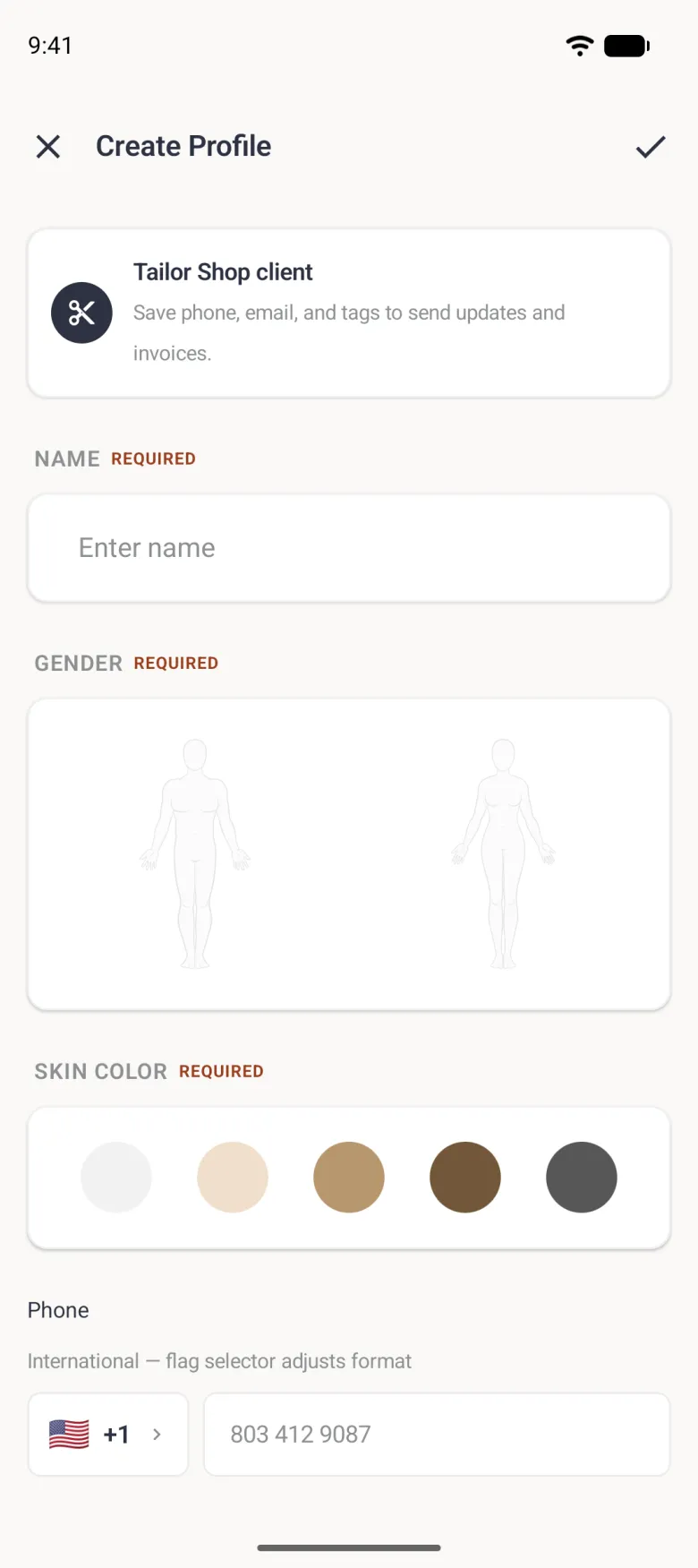
Create Profile form with a cross and a tick in the top bar, headed by a Tailor Shop client card with a scissors badge, then an empty name field, man and woman outlines under Gender, five skin tone circles, and a Phone row with a US flag, plus 1 and a grey example number.
Create Profile form filling the tablet in portrait, with an X and a tick in the top bar, a Tailor Shop client banner, an empty name field, a wide panel with man and woman outlines, five skin tone circles, a phone field with a US flag and +1 selector, email, WhatsApp, SMS and Email channel cards, and the top of the address box.
Tailor Shop adds phone, email, address and tags to the profile form.
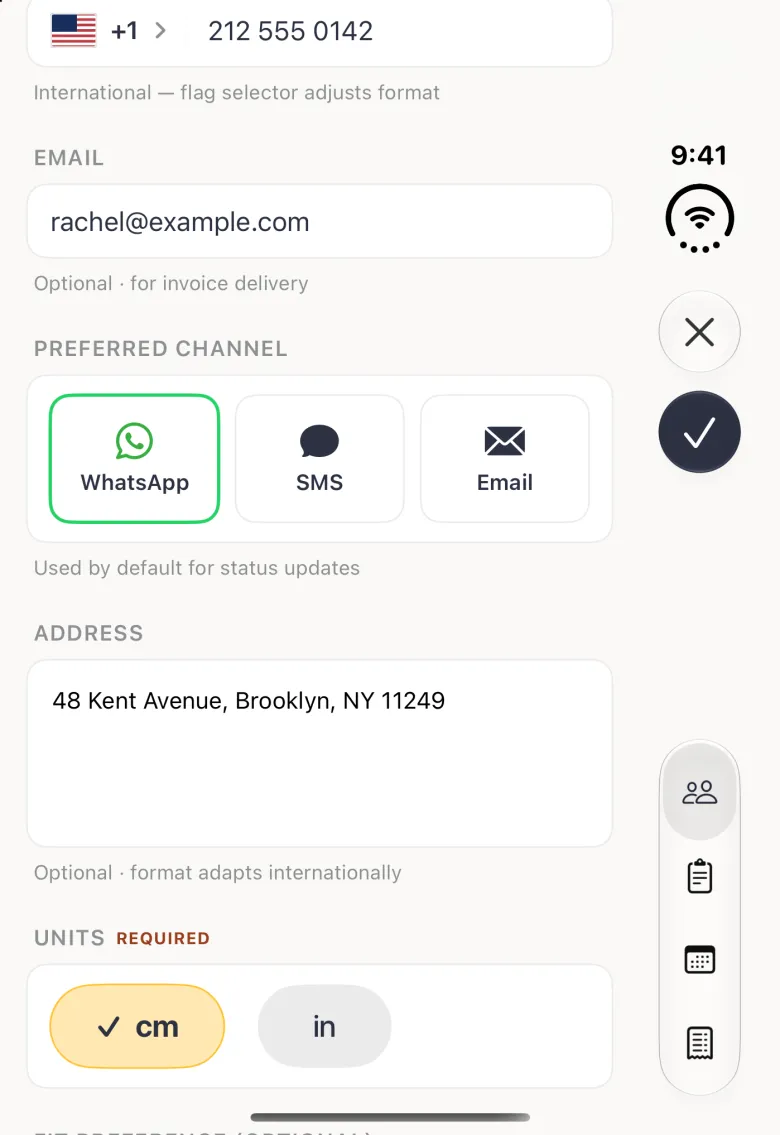
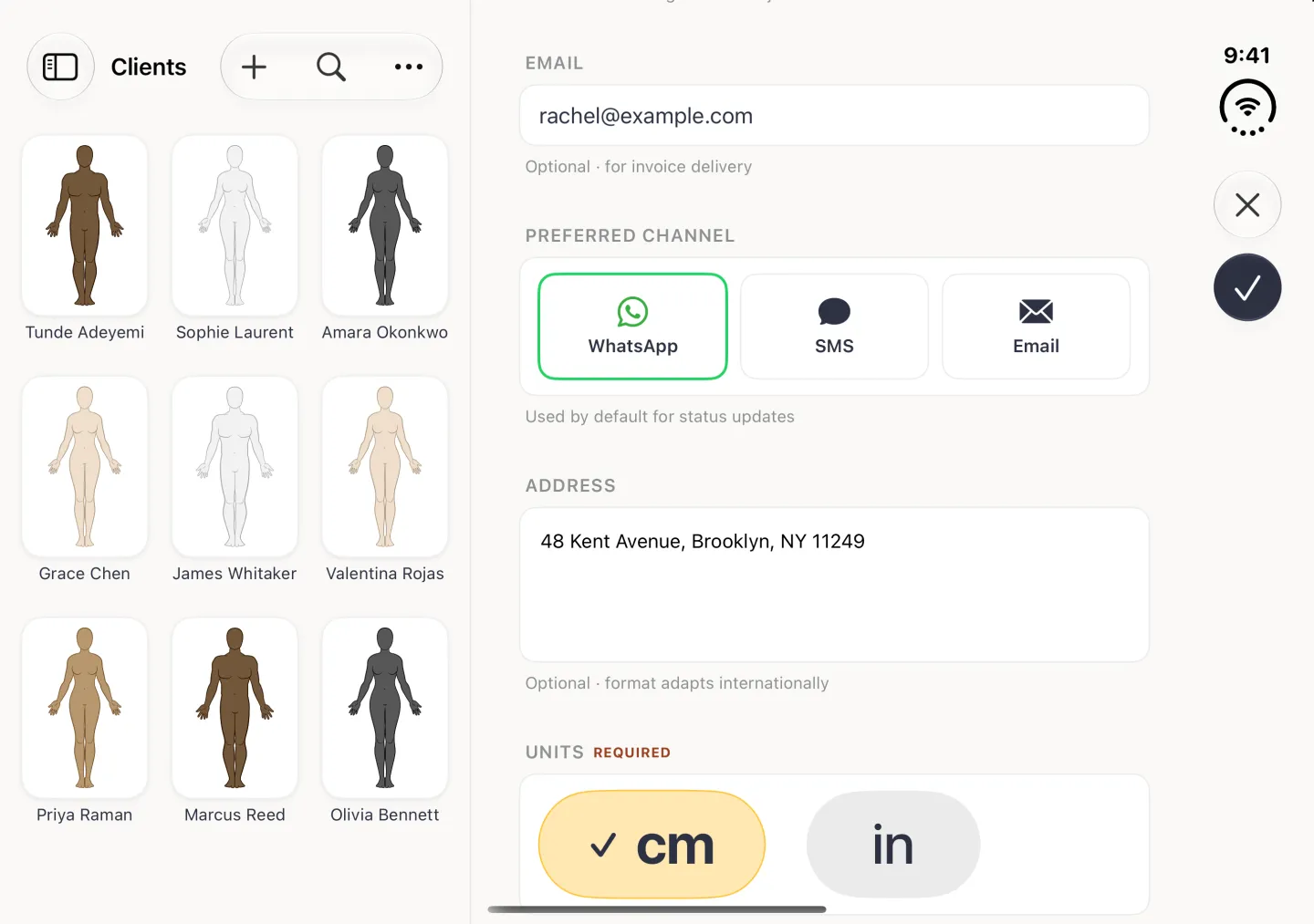
Client form showing a phone number, an email address, three channel cards with WhatsApp outlined in green, and an address box with a Brooklyn street address.
Create Profile form showing the phone number 212 555 0142 beside a United States flag, the email rachel at example dot com, and three preferred channel cards for WhatsApp, SMS and Email with WhatsApp outlined in green.
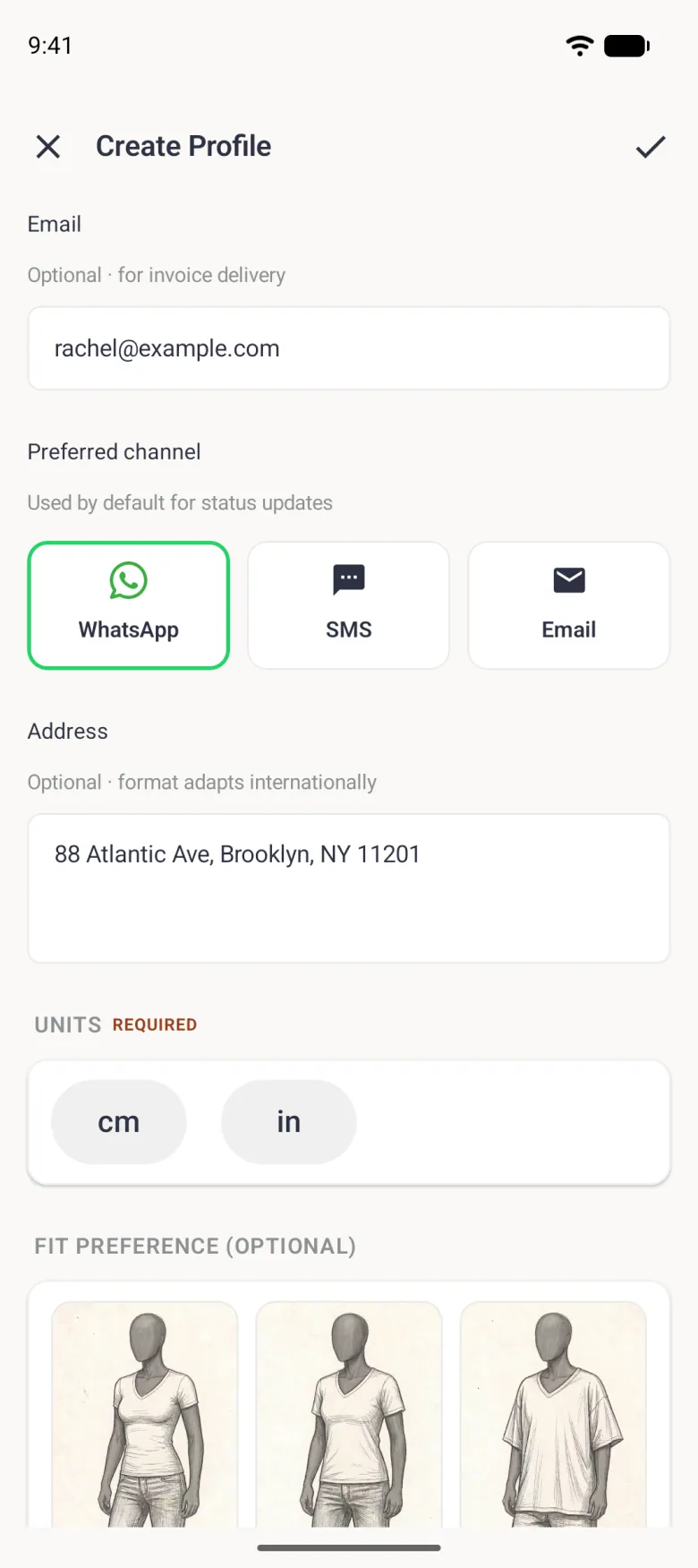
Client form showing rachel@example.com, Preferred channel cards for WhatsApp outlined in green, SMS and Email, an address box reading 88 Atlantic Ave, Brooklyn, NY 11201, and the Units and Fit Preference sections below.
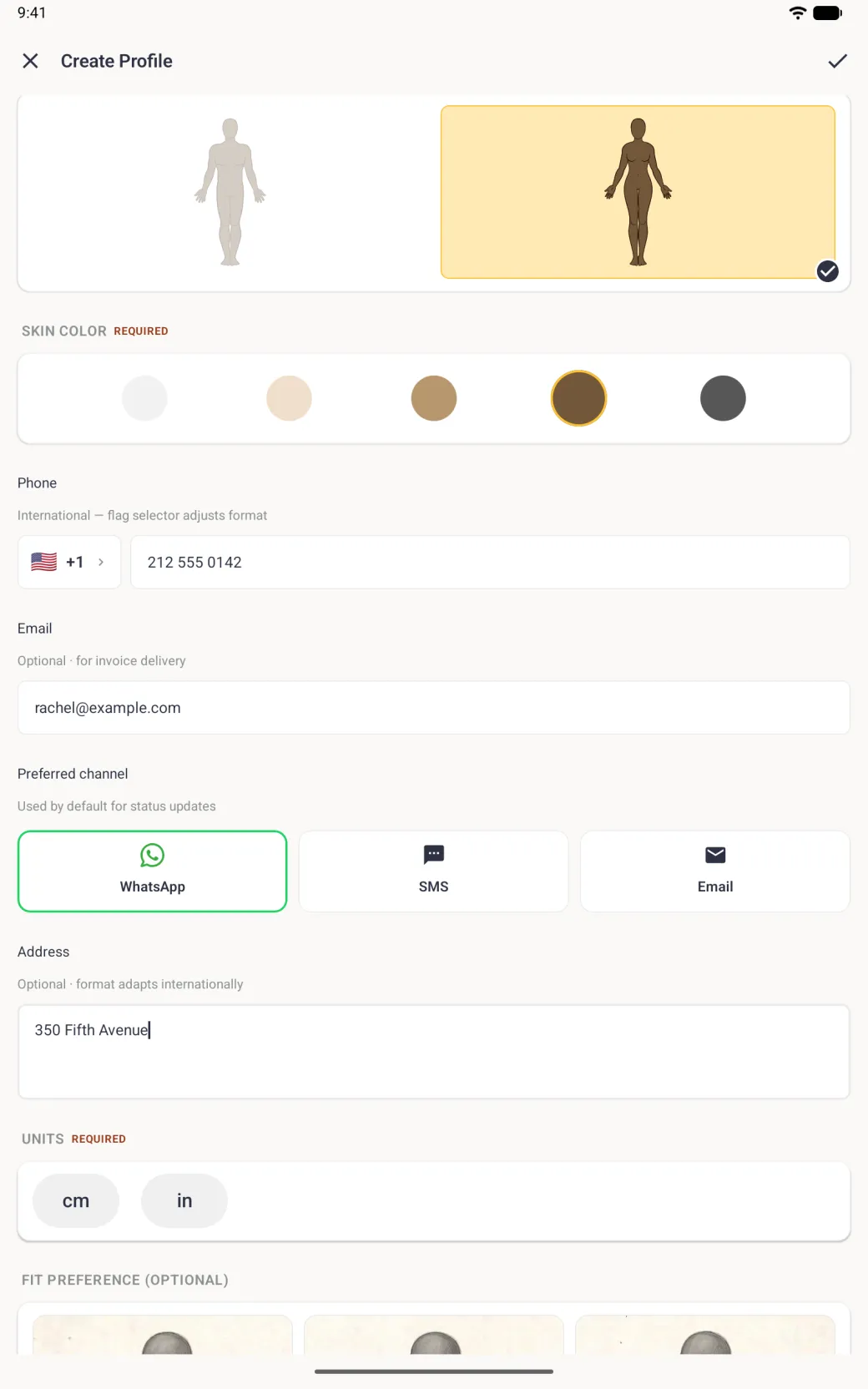
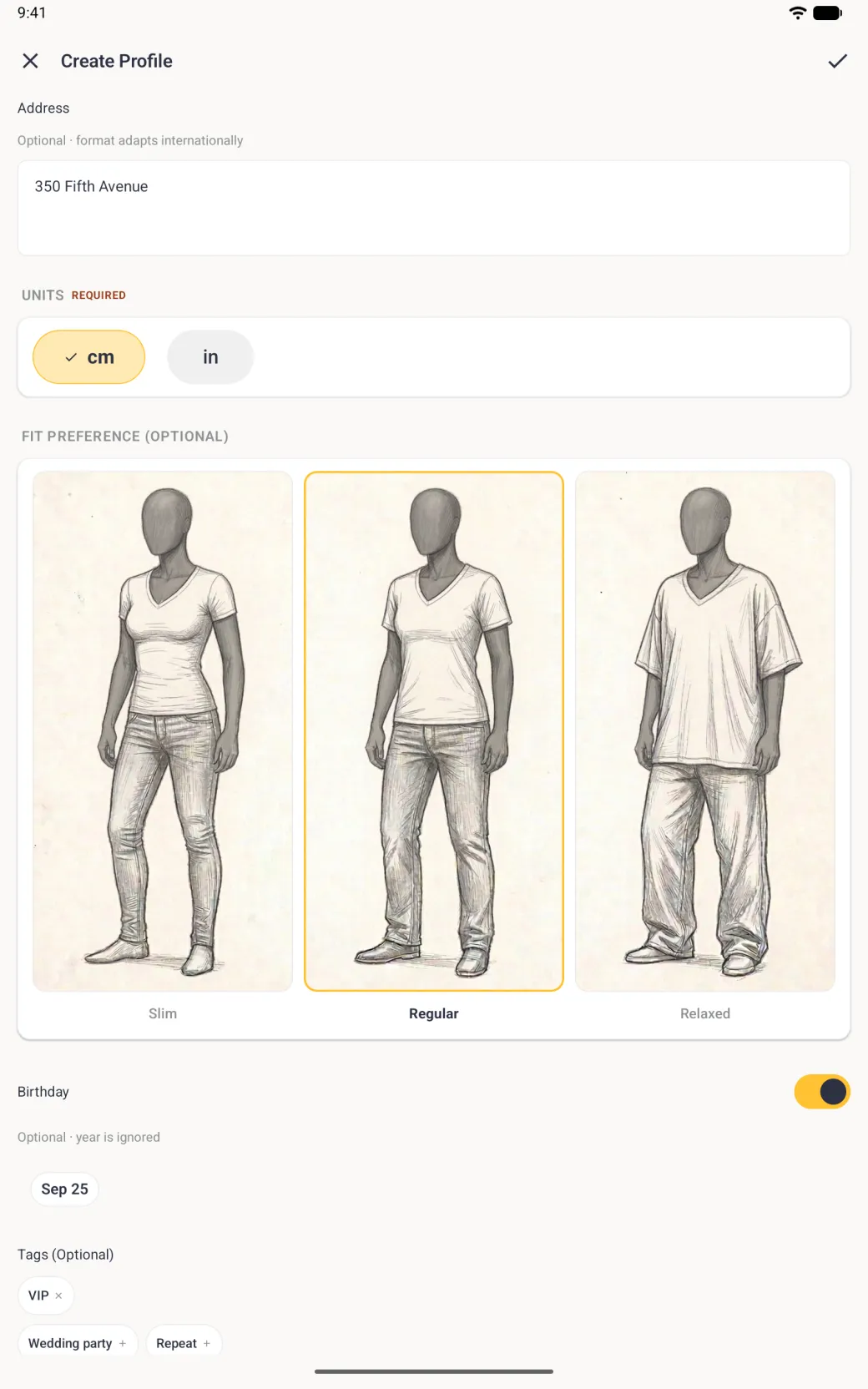
Client form showing the phone 212 555 0142, the email rachel@example.com, three wide channel cards with WhatsApp outlined in green, and an address box reading 350 Fifth Avenue, above the cm and in Units buttons.
Set the channel this client prefers for updates.
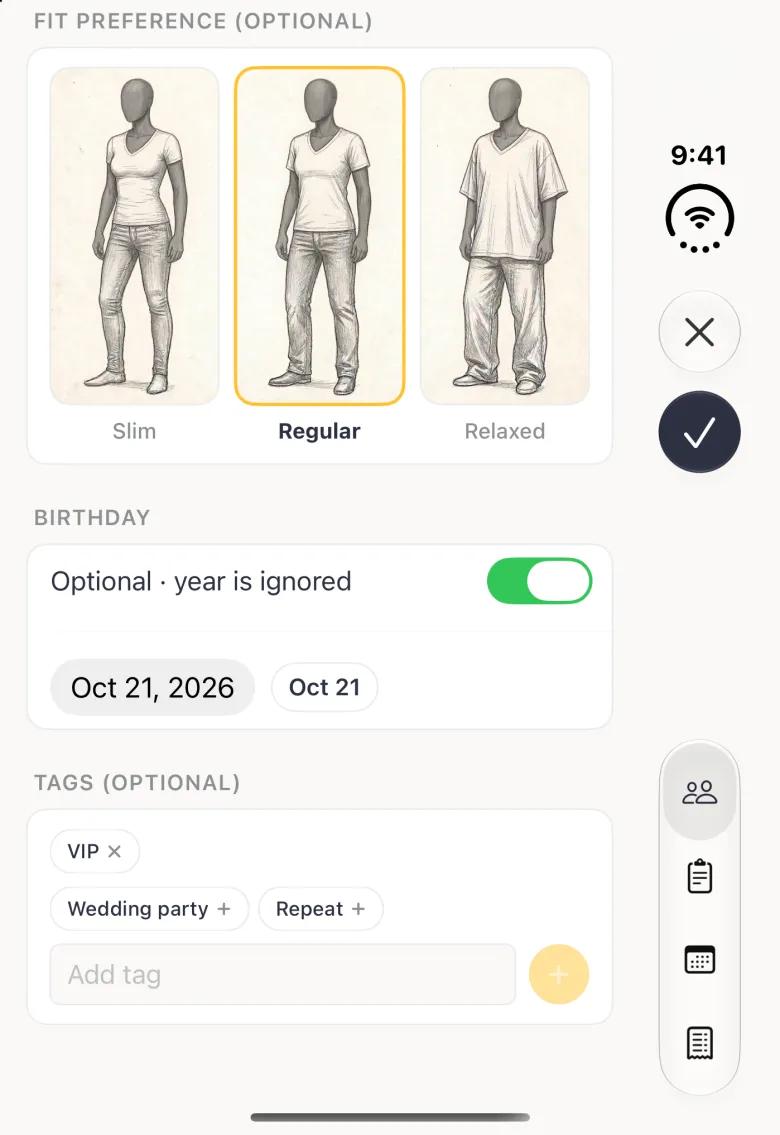
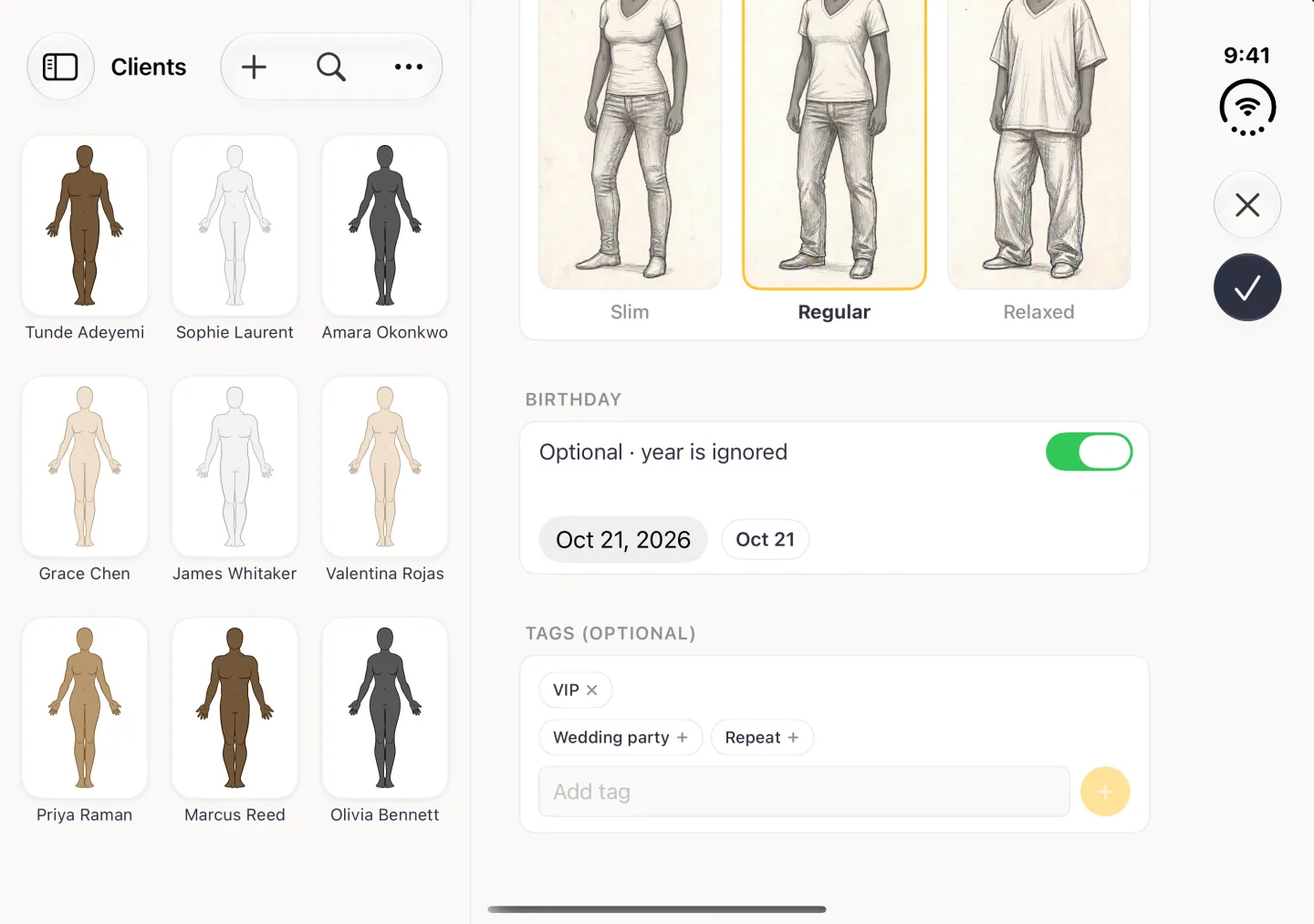
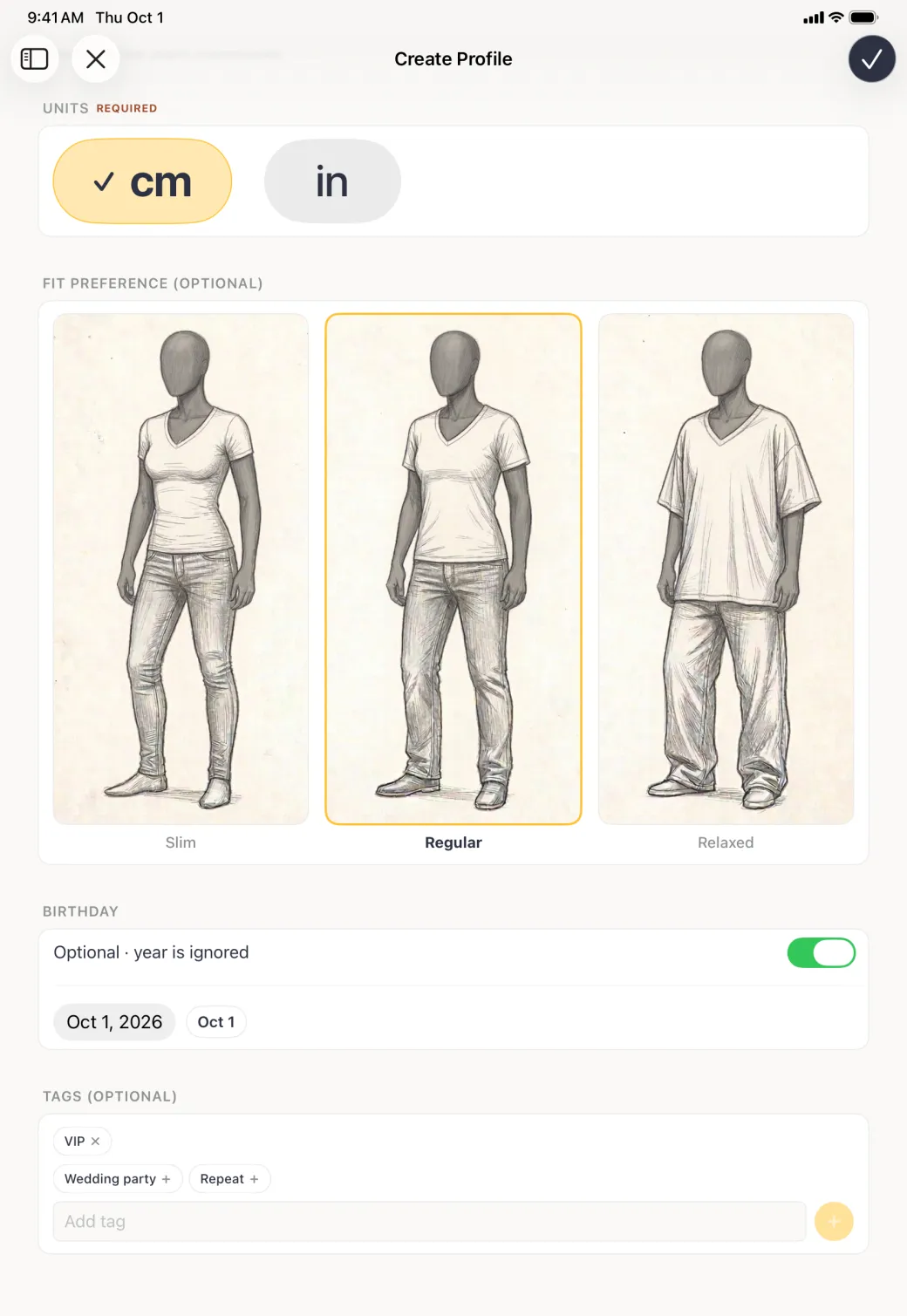
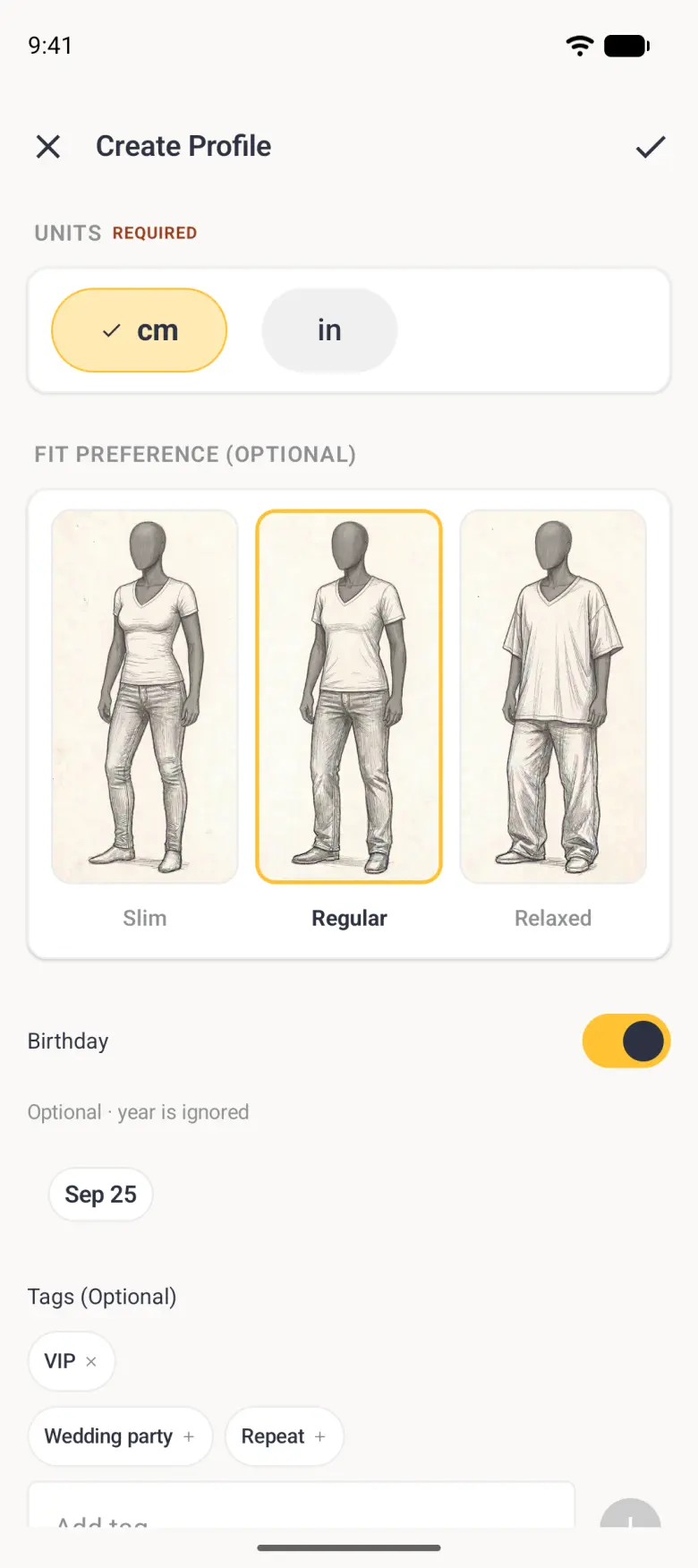
Lower part of the client form with a fit preference of Regular selected, the Birthday switch on above a date chip, an applied VIP tag with a cross, and remaining suggestions for Wedding party and Repeat.
Lower part of the Create Profile form with Regular outlined in gold under Fit Preference, the Birthday toggle on above a Sep 18 date chip, an applied VIP tag with a cross, and remaining suggestions for Wedding party and Repeat.
Lower part of the client form with cm ticked, a Regular fit preference outlined in gold, the Birthday switch on with a Sep 25 chip, an applied VIP tag with a cross, and suggestions for Wedding party and Repeat with plus signs.
Lower part of the client form with cm selected, three fit sketches with Regular outlined in gold, the Birthday toggle on with a Sep 25 chip, an applied VIP tag with a cross, and Wedding party and Repeat suggestions with plus signs.
Tag clients so you can pick out VIPs and repeat customers.
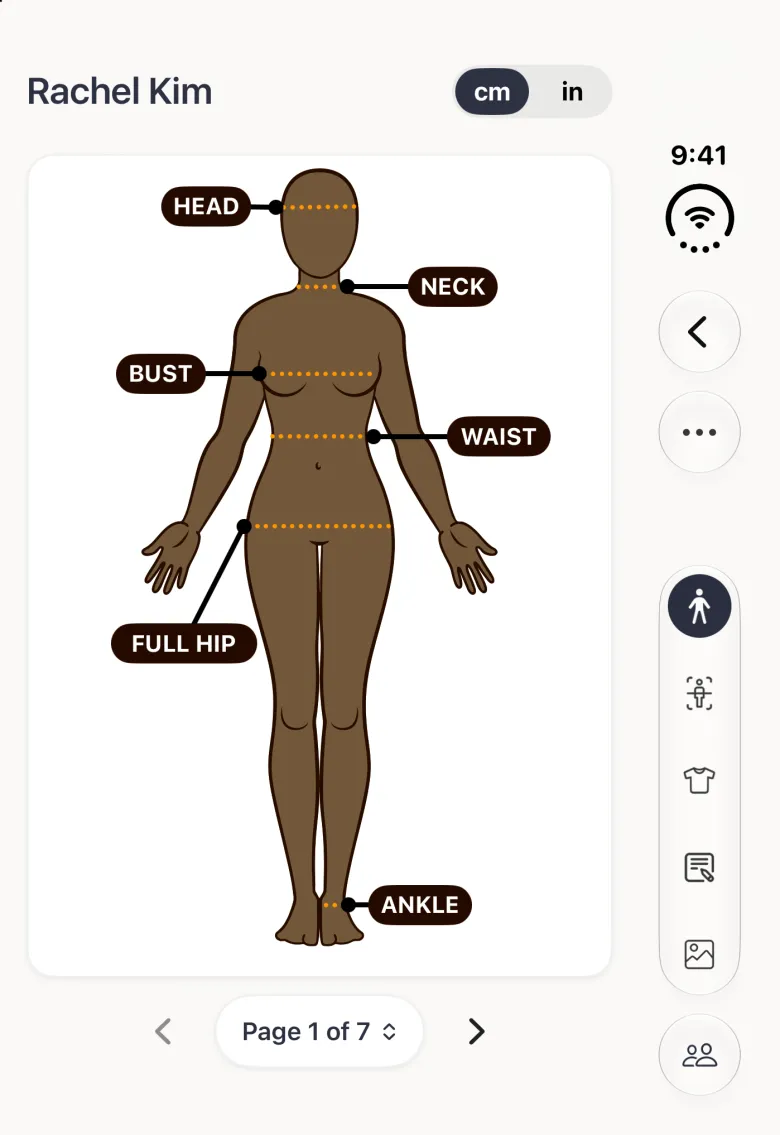
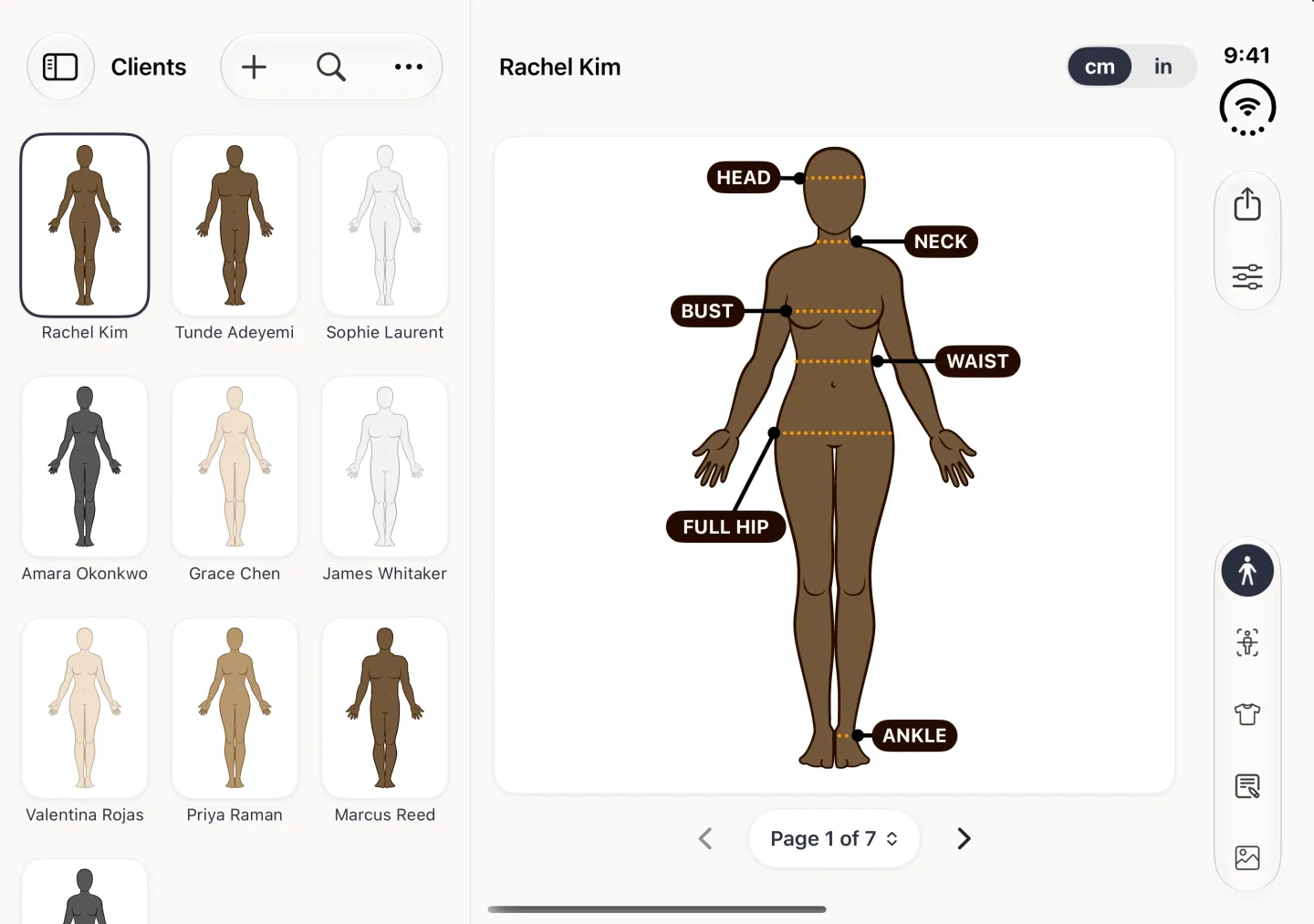
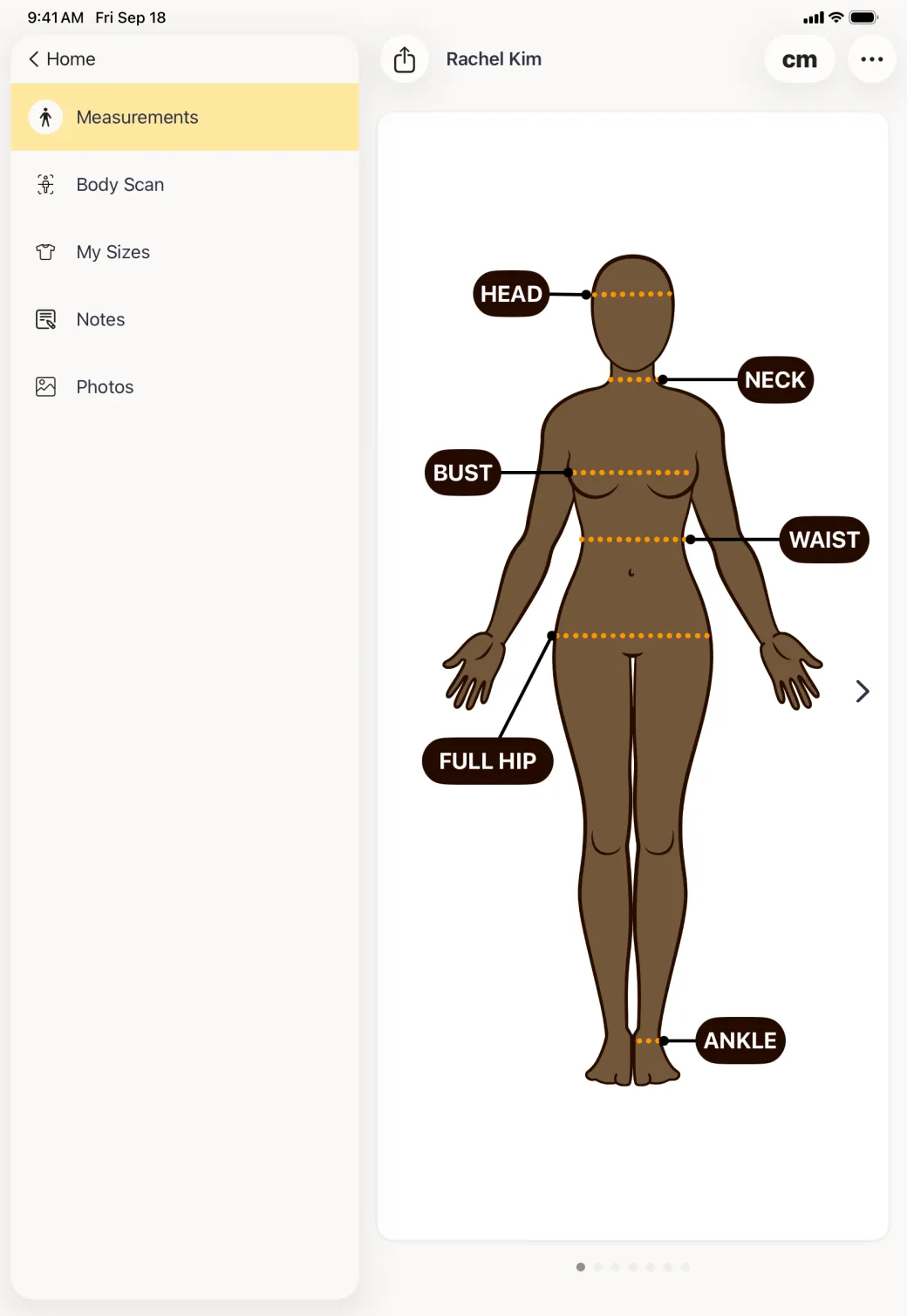
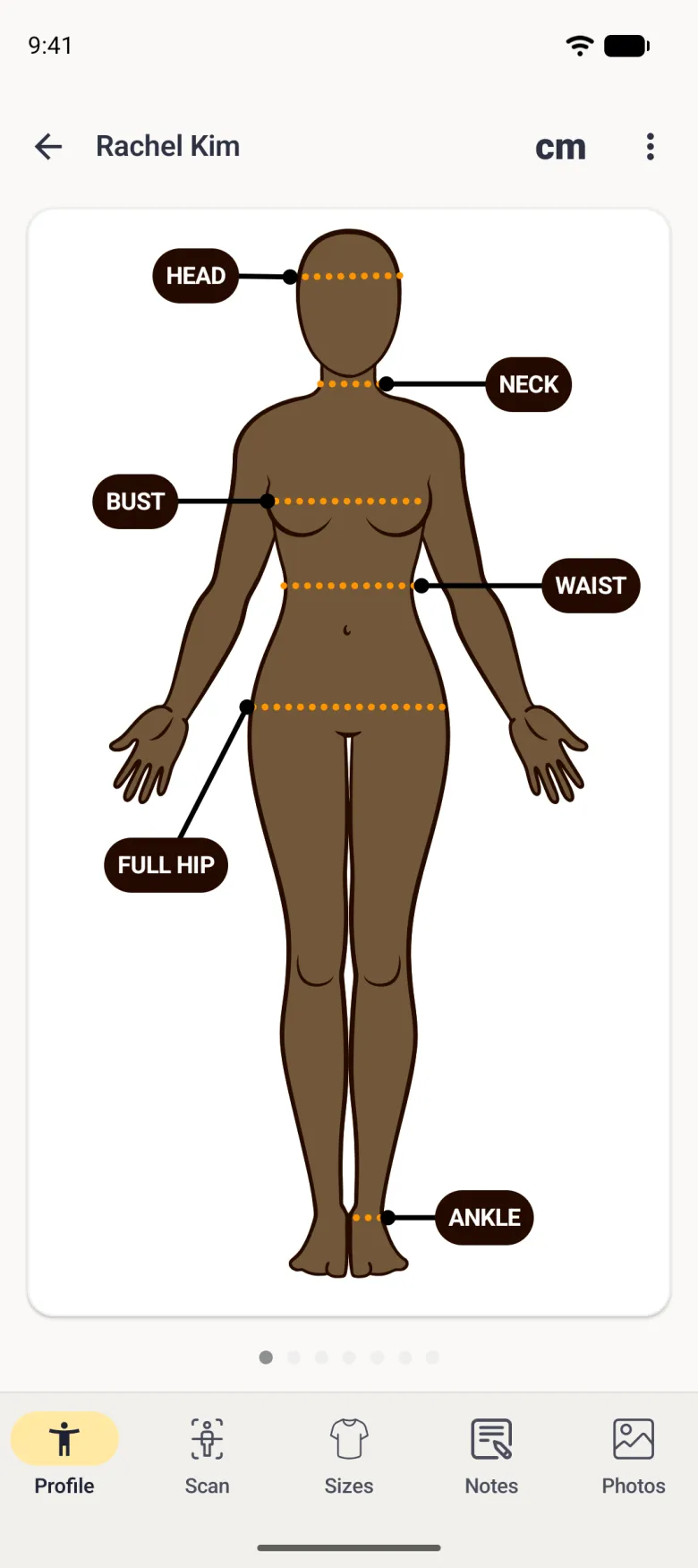
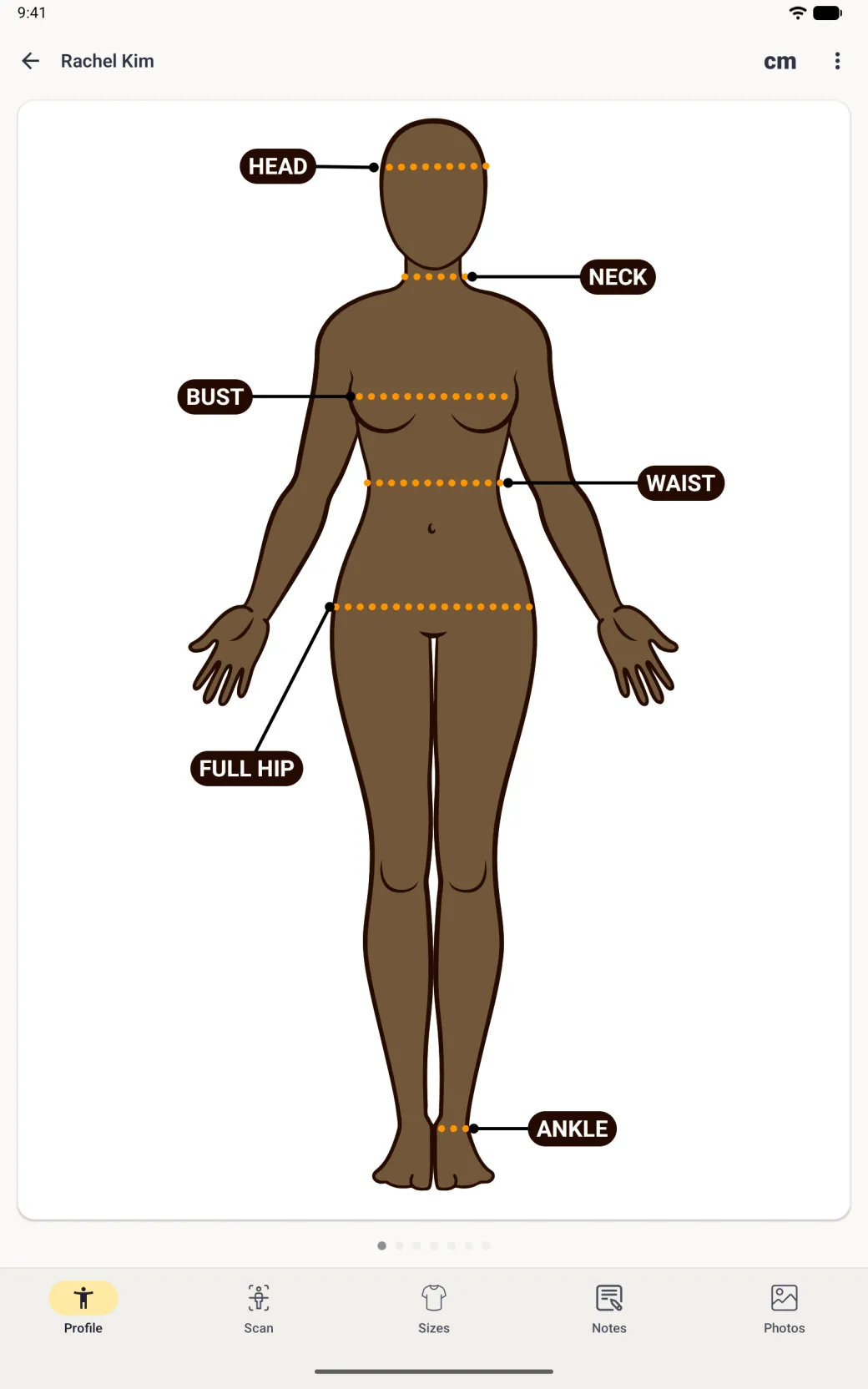
A newly created client opens on the body view, a brown figure labelled Head, Neck, Bust, Waist, Full Hip and Ankle with no values recorded yet.
The new client Rachel Kim open in the profile split view, with a sidebar listing Measurements, Body Scan, My Sizes, Notes and Photos under a Home button, beside a brown avatar whose Head, Neck, Bust, Waist, Full Hip and Ankle labels carry no values yet.
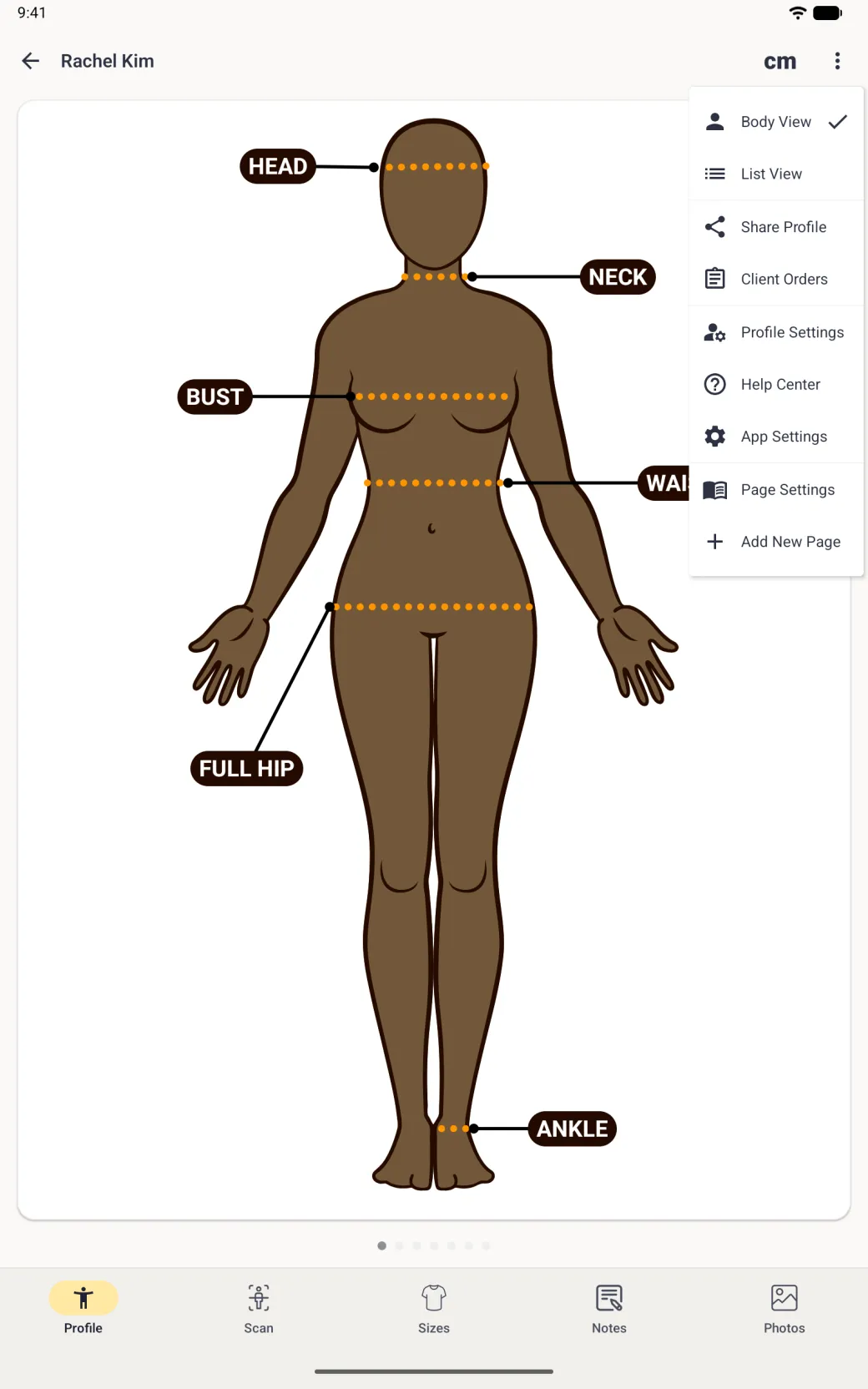
Rachel Kim profile with a brown woman avatar labelled Head, Neck, Bust, Waist, Full Hip and Ankle, a cm toggle and three-dot button in the top bar, and a bottom bar with Profile, Scan, Sizes, Notes and Photos.
Rachel Kim's profile full screen, showing a large brown woman avatar labelled head, neck, bust, waist, full hip and ankle, cm at the top right, and a Profile, Scan, Sizes, Notes and Photos bar along the bottom.
The new client opens on the body view, ready to measure.

How to change a client’s details

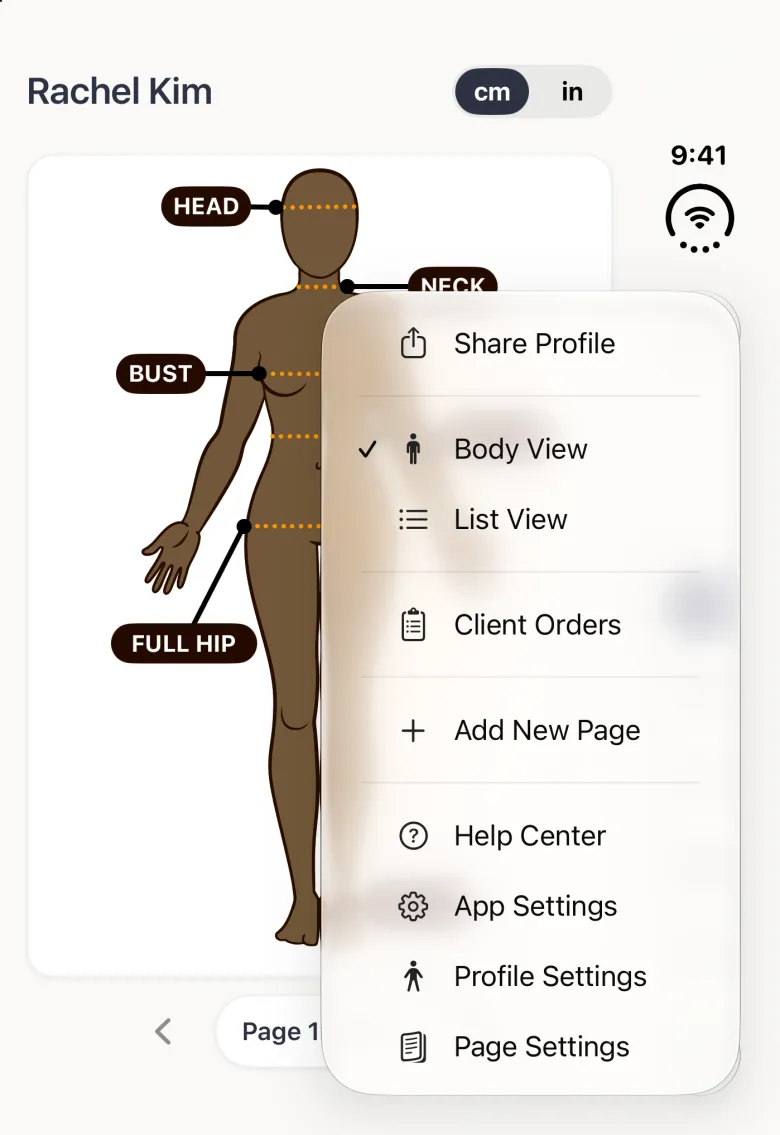
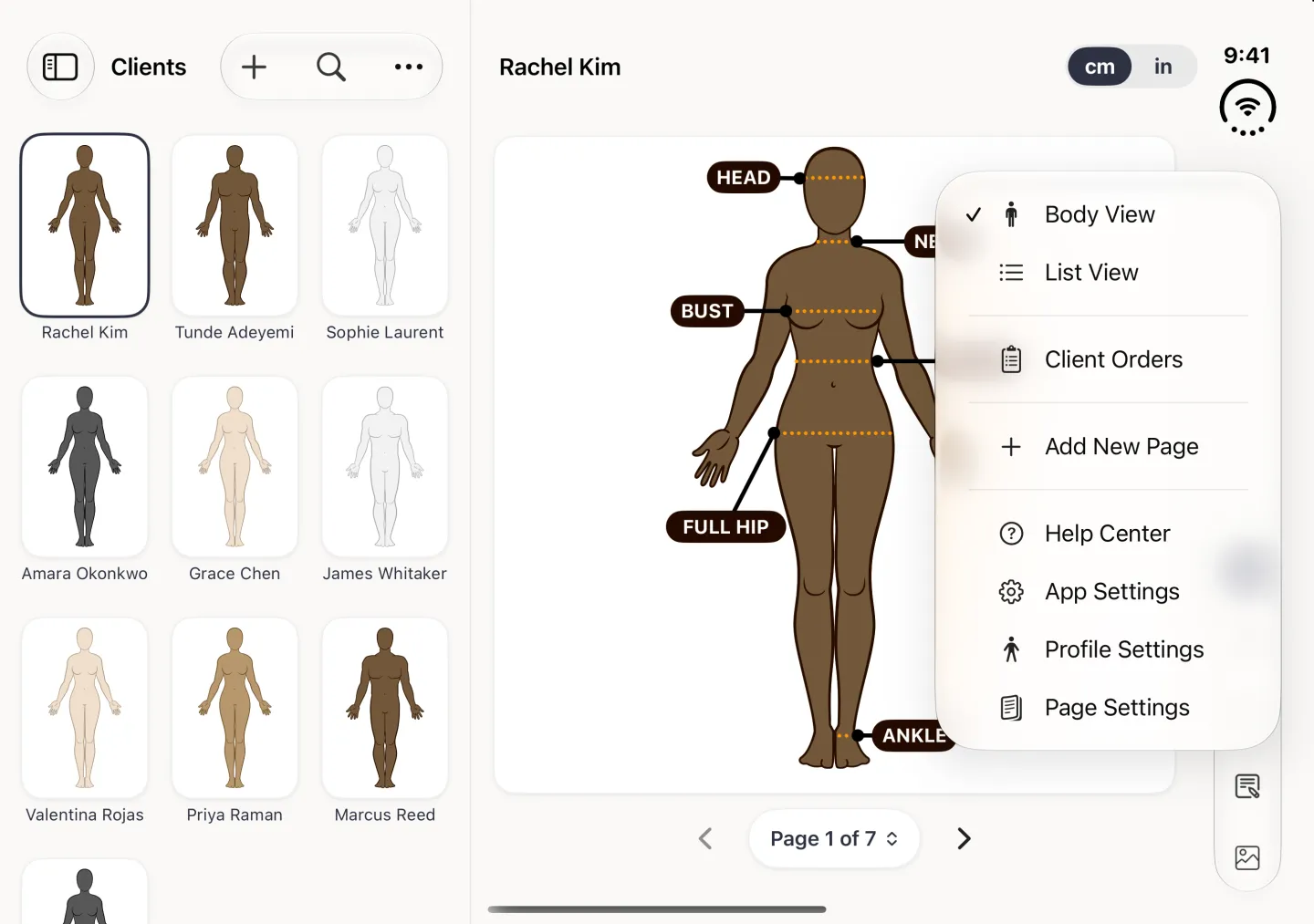
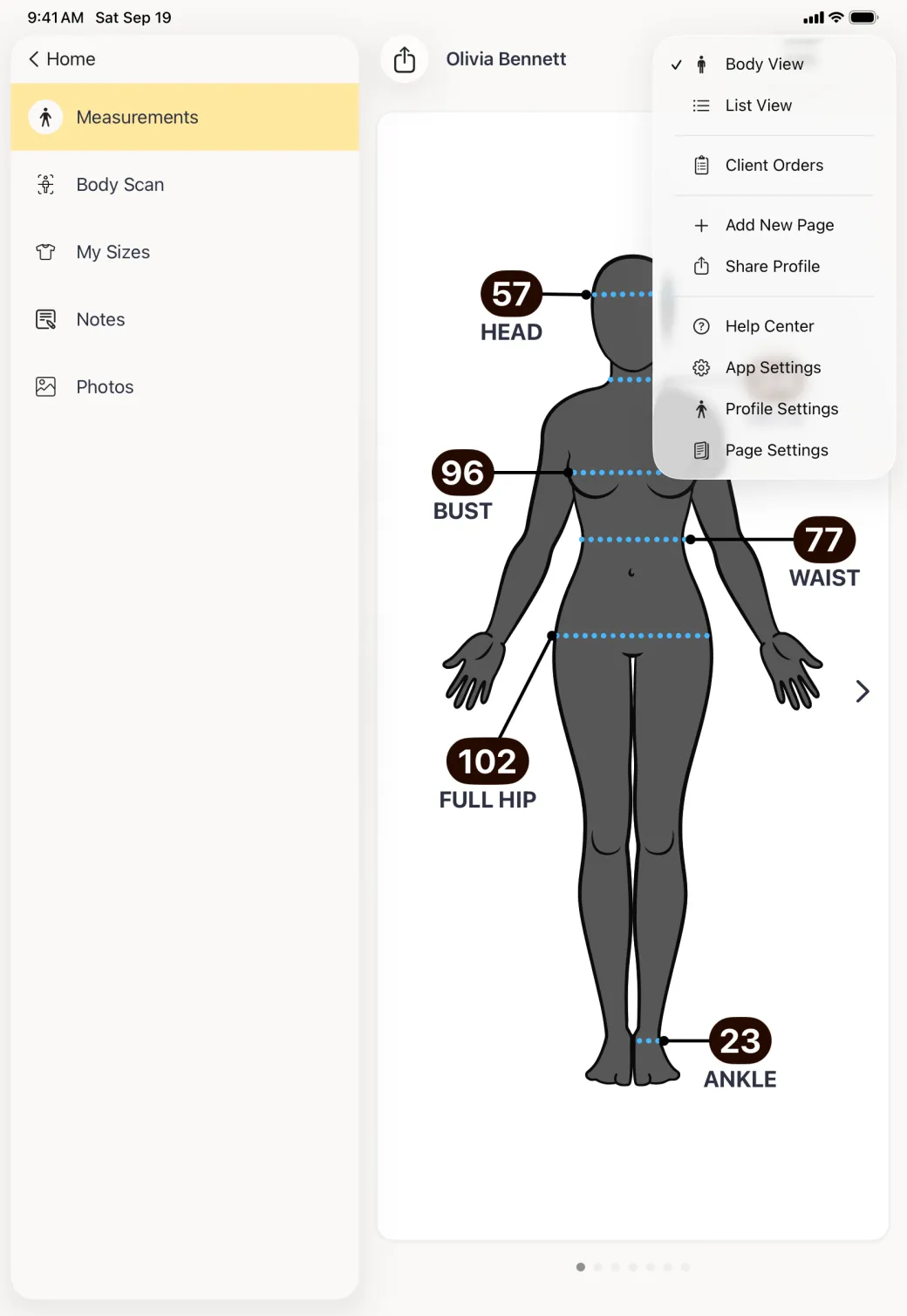
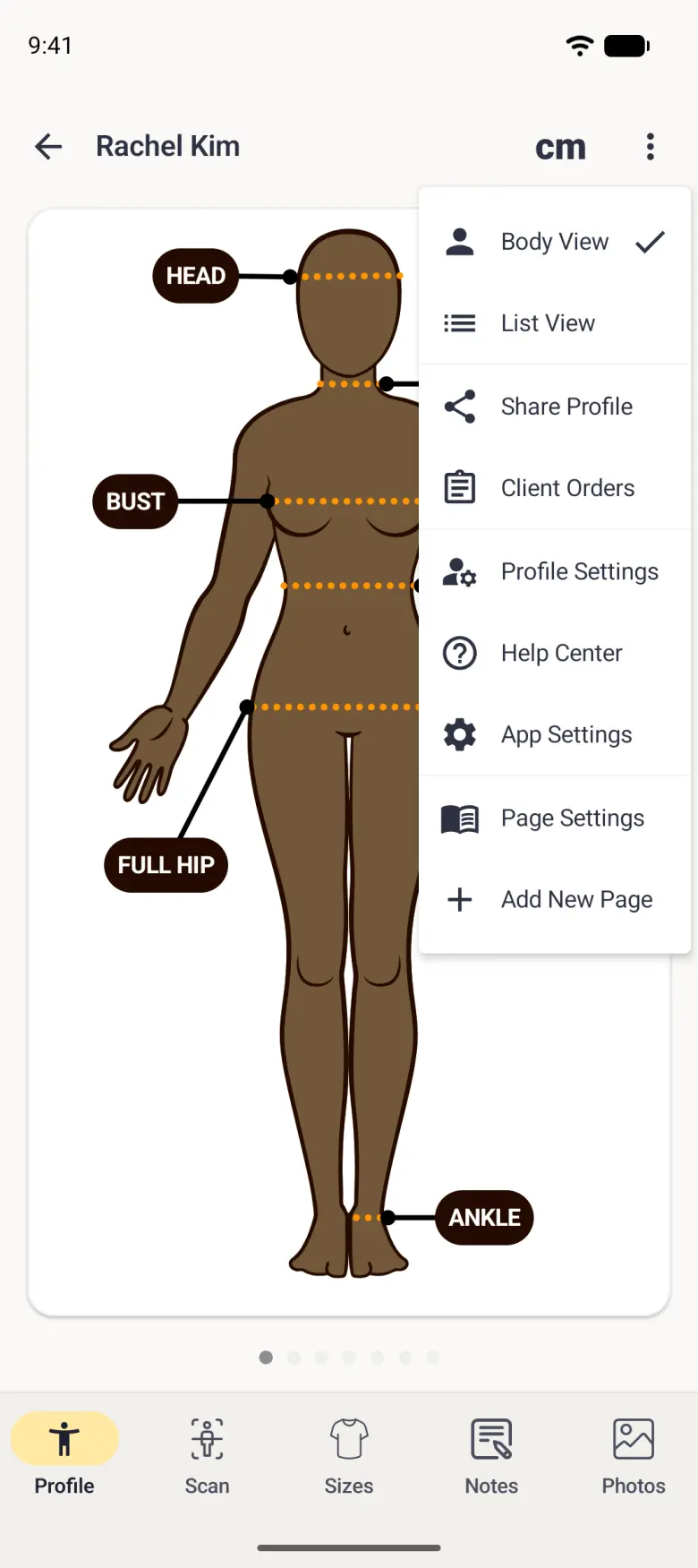
Open the client, then the three-dot menu at the top right, then Profile Settings. The same menu reaches this client’s orders, the body and list views, sharing and the app settings. It also carries Help Center, which opens the guides on dressmeasurement.com inside the app. Nothing is fixed at the moment you create a client: Profile Settings holds the name, units, skin tone and fit preference, and below them the phone number with its country selector, the email address, the preferred channel, the address, the birthday and the tags.

Changes are written when you tap the tick at the top right.

Show these screens on
Menu open under the three dot button on Olivia Bennett's profile, listing Body View with a tick, List View, Client Orders, Add New Page, Share Profile, Help Center, App Settings, Profile Settings and Page Settings.
Menu open under the three dot button on Olivia Bennett's profile in the split view, listing Body View with a tick, List View, Client Orders, Add New Page, Share Profile, Help Center, App Settings, Profile Settings and Page Settings, beside a profile sidebar reading Measurements, Body Scan, My Sizes, Notes and Photos under a Home button.
Client menu over Rachel Kim's avatar listing, each with an icon, Body View with a tick, List View, Share Profile, Client Orders, Profile Settings, Help Center, App Settings, Page Settings and Add New Page.
Client menu at the top right listing Body View with a tick, List View, Share Profile, Client Orders, Profile Settings, Help Center, App Settings, Page Settings and Add New Page, each with an icon, over Rachel Kim's avatar.
The three-dot menu reaches this client's orders, views and settings.
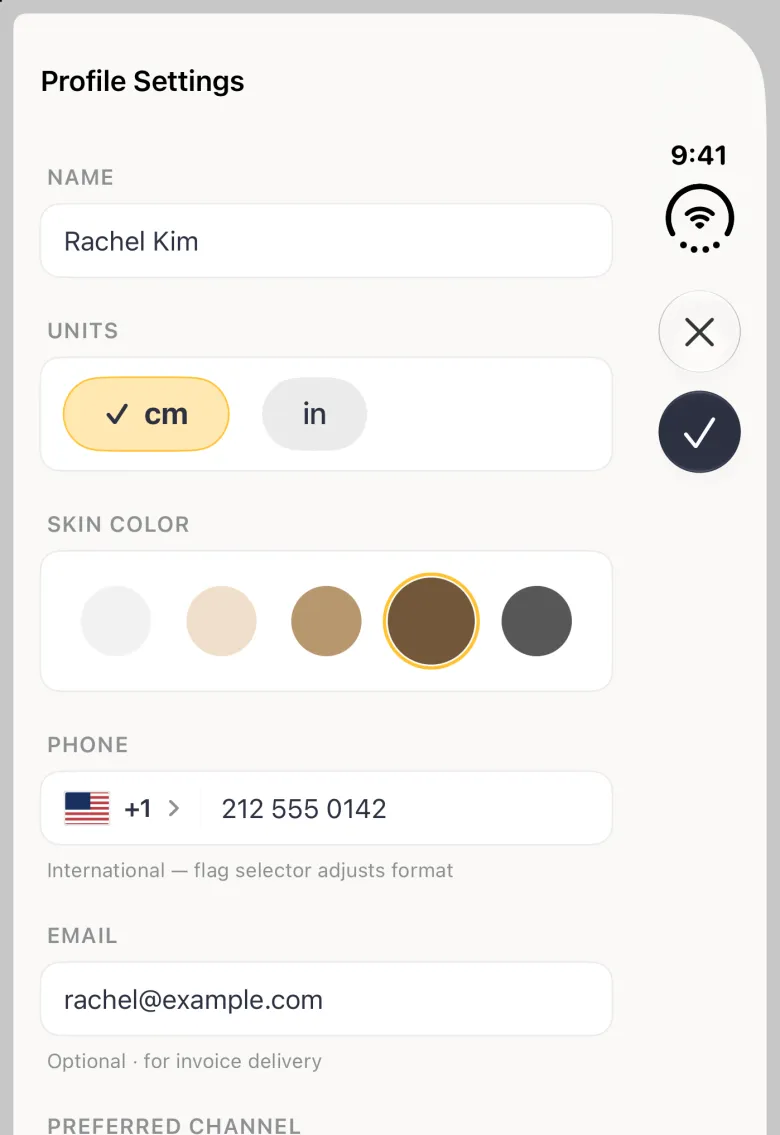
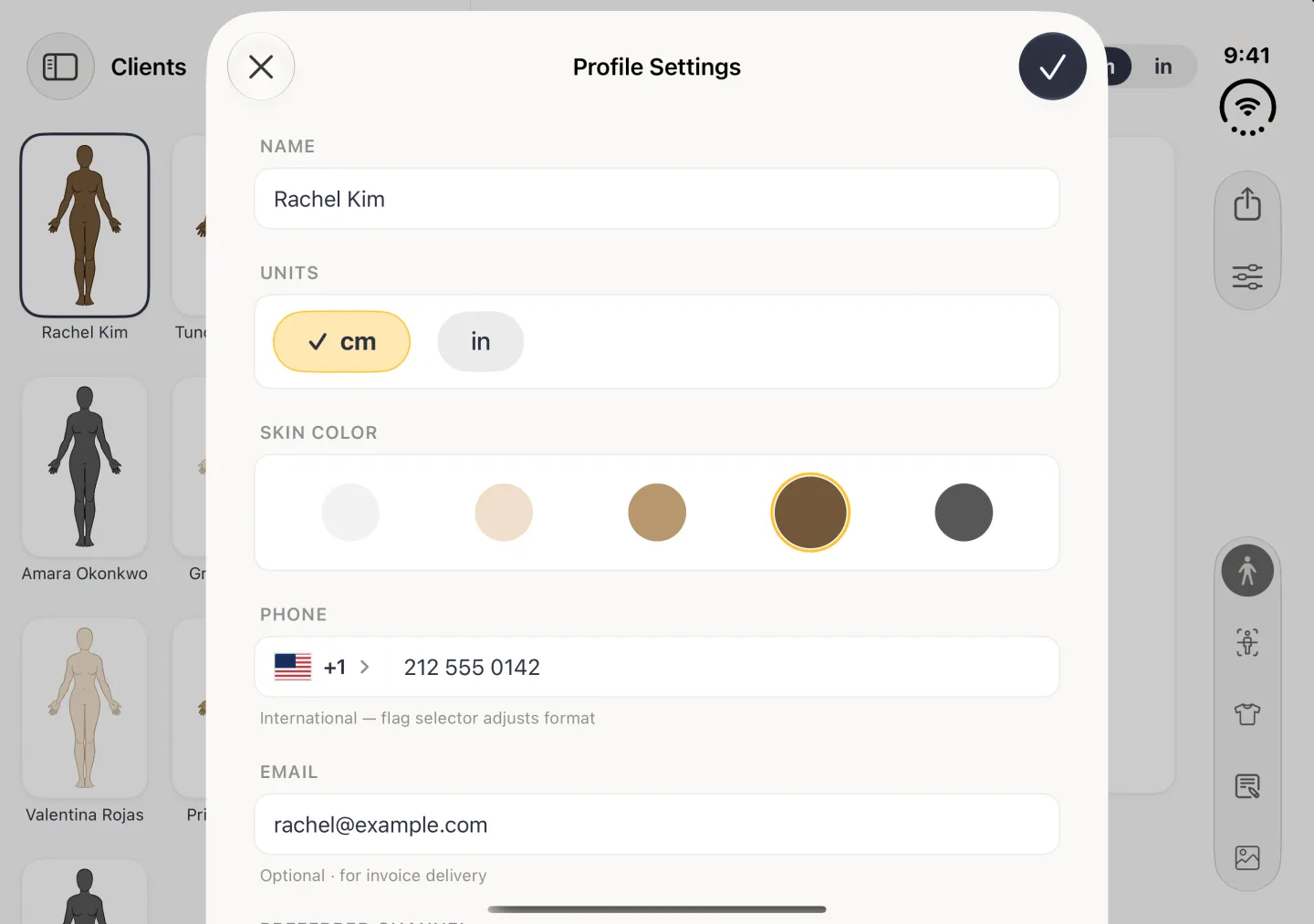
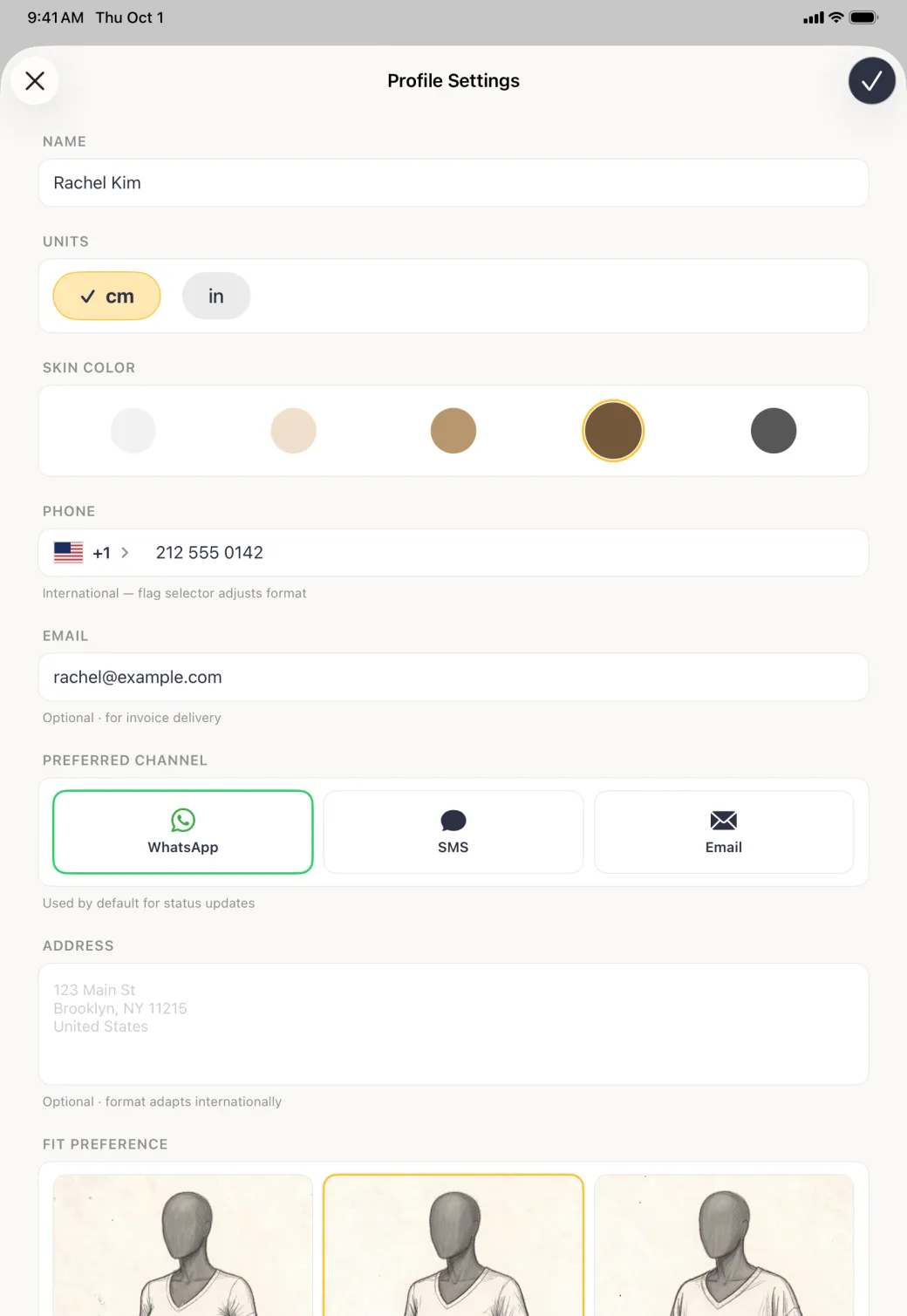
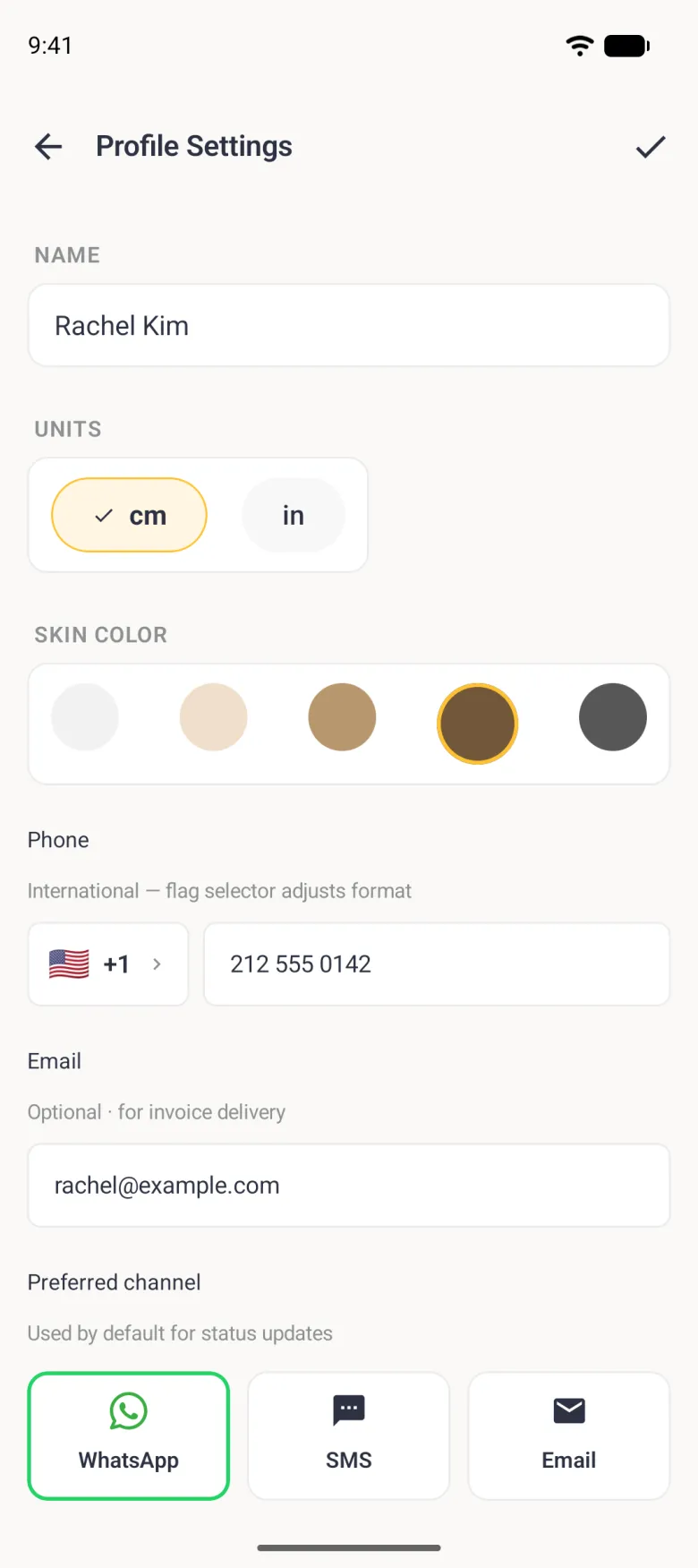
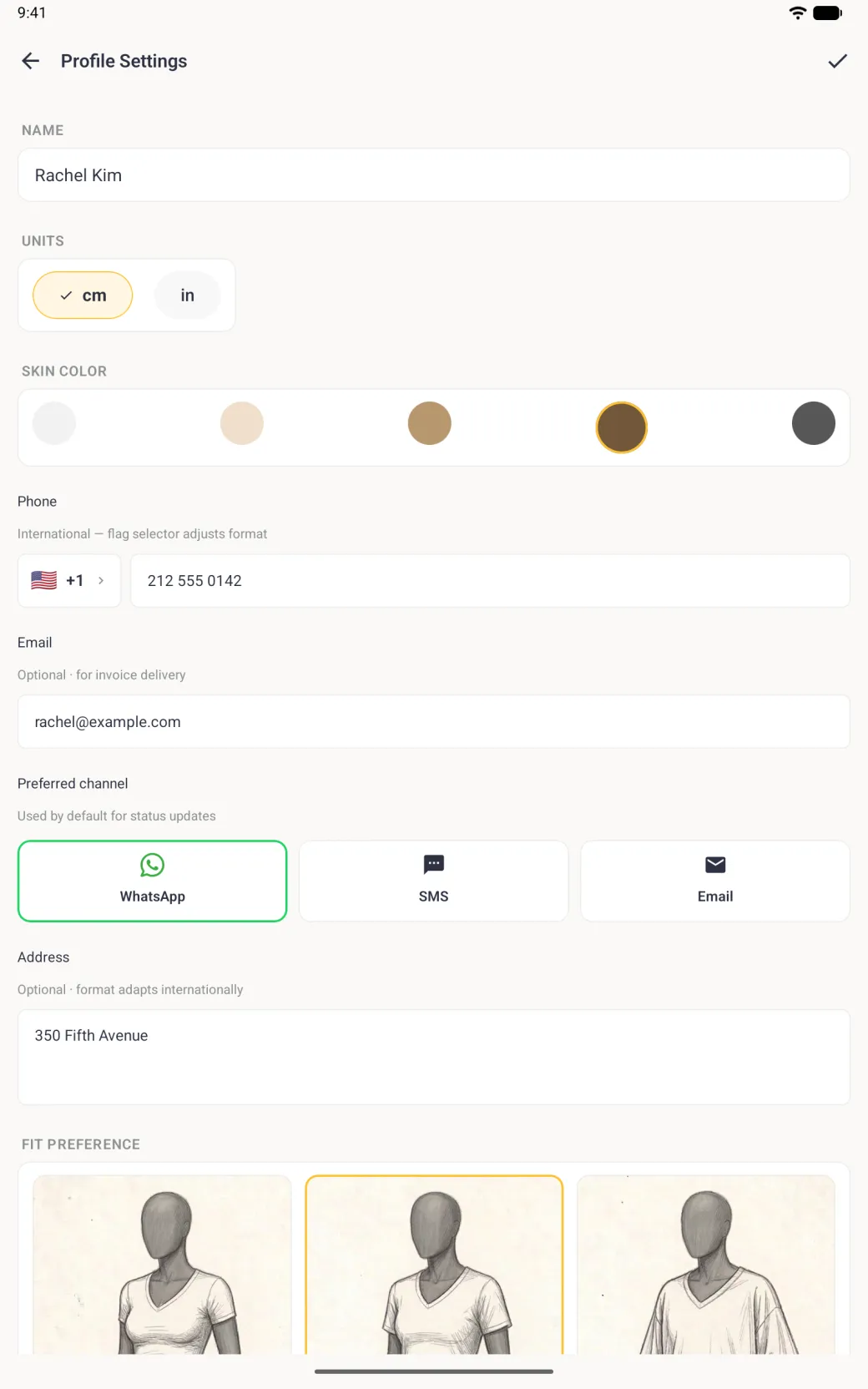
Profile Settings screen with a name field, cm and in buttons, five skin tone circles, and the client's phone, email, preferred channel and address.
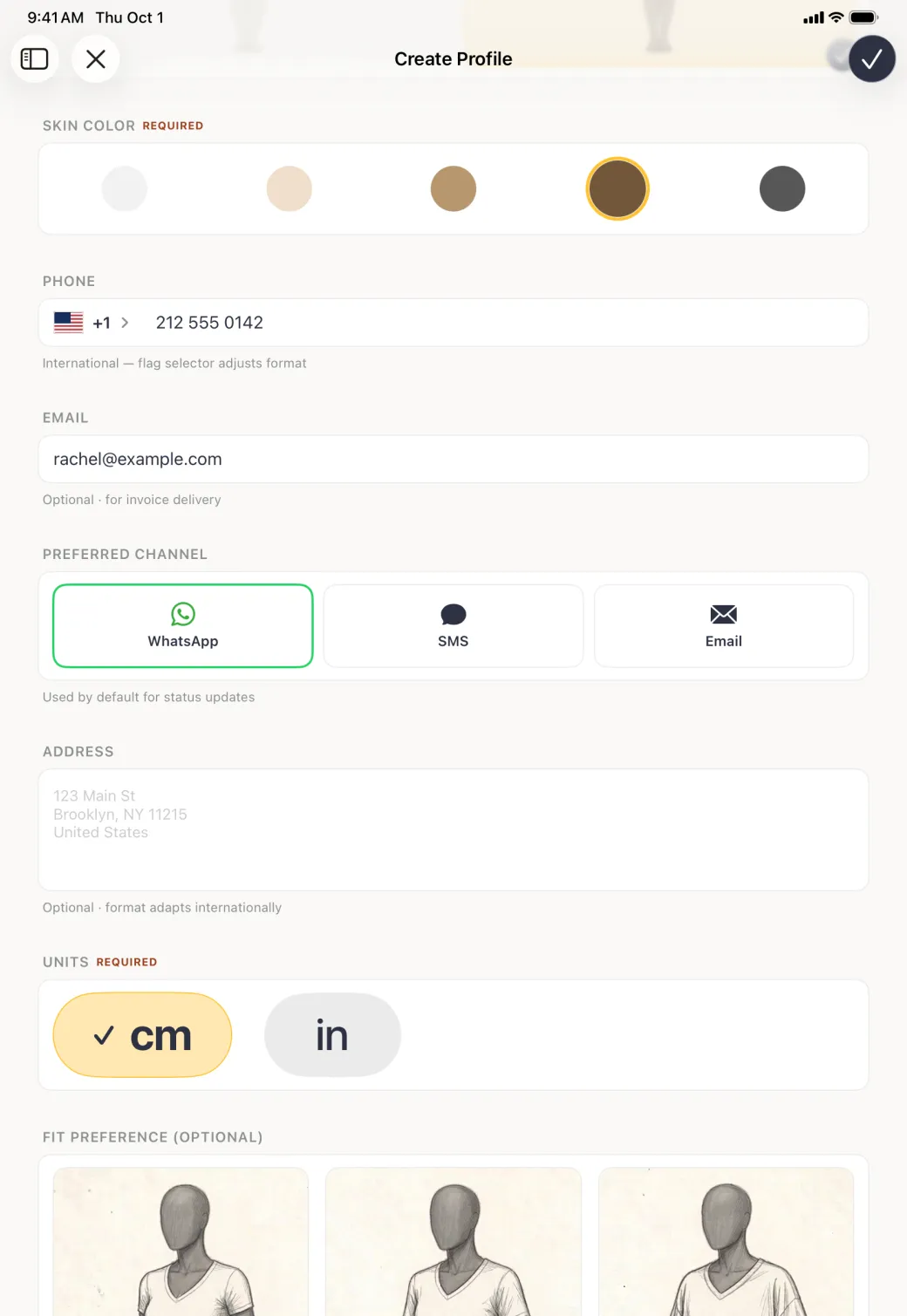
Profile Settings sheet for Rachel Kim with her name, cm and in buttons, five skin tone circles with brown selected, the phone number 212 555 0142 with its country selector, her email address, three preferred channel cards with WhatsApp selected, and an address box above Fit Preference.
Profile Settings for Rachel Kim with a Name field, cm ticked under Units, the brown skin tone ringed in gold, a Phone row with plus 1 and 212 555 0142, the email rachel@example.com, and Preferred channel cards with WhatsApp outlined in green.
Profile Settings screen with the name Rachel Kim, cm selected, a brown skin tone ringed in gold, the phone 212 555 0142, the email rachel@example.com, WhatsApp outlined as the preferred channel, the address 350 Fifth Avenue and the top of the fit preference sketches with Regular outlined in gold.
Name, units, skin tone and contact details are all edited here.

What happens when you delete a client

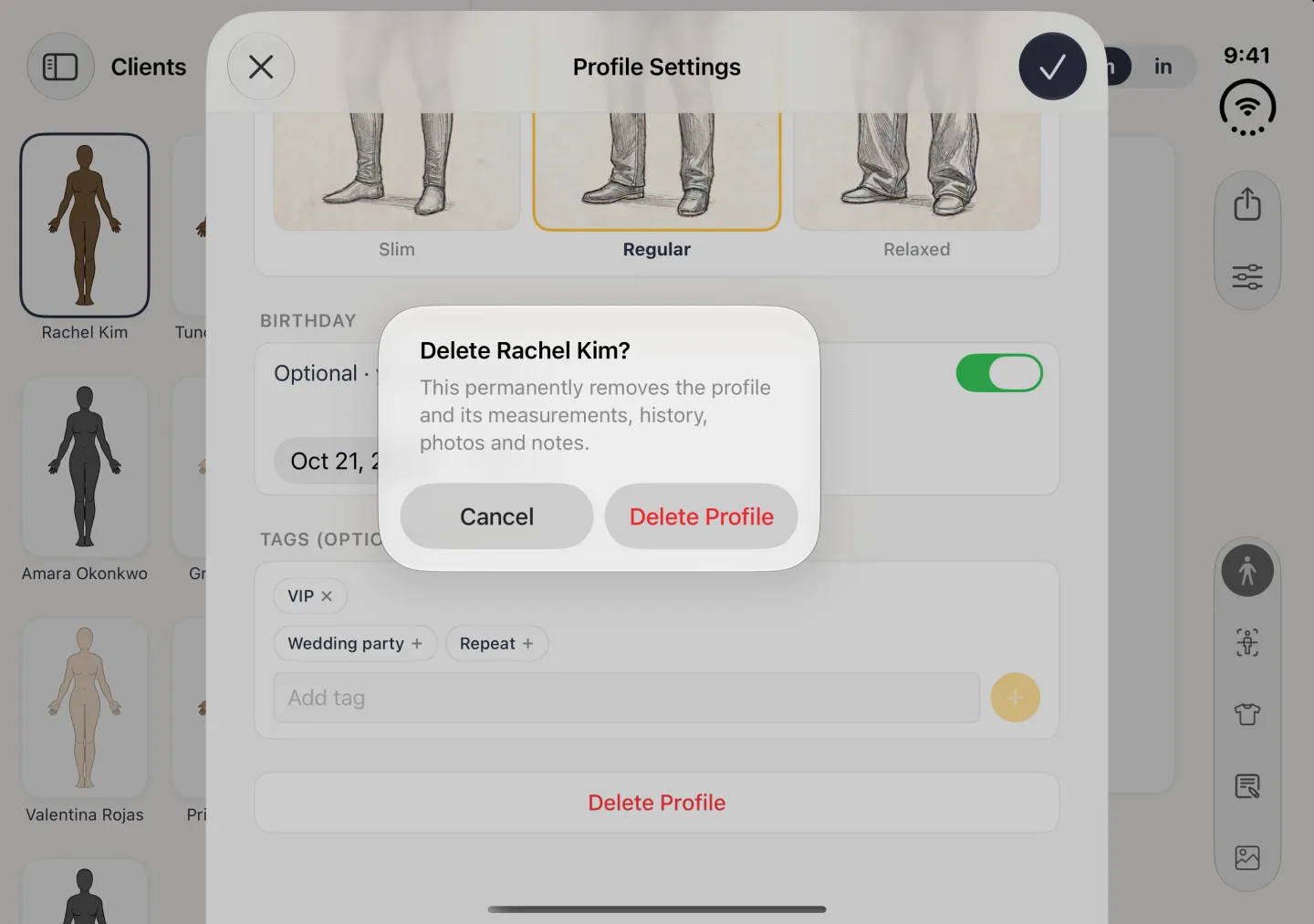
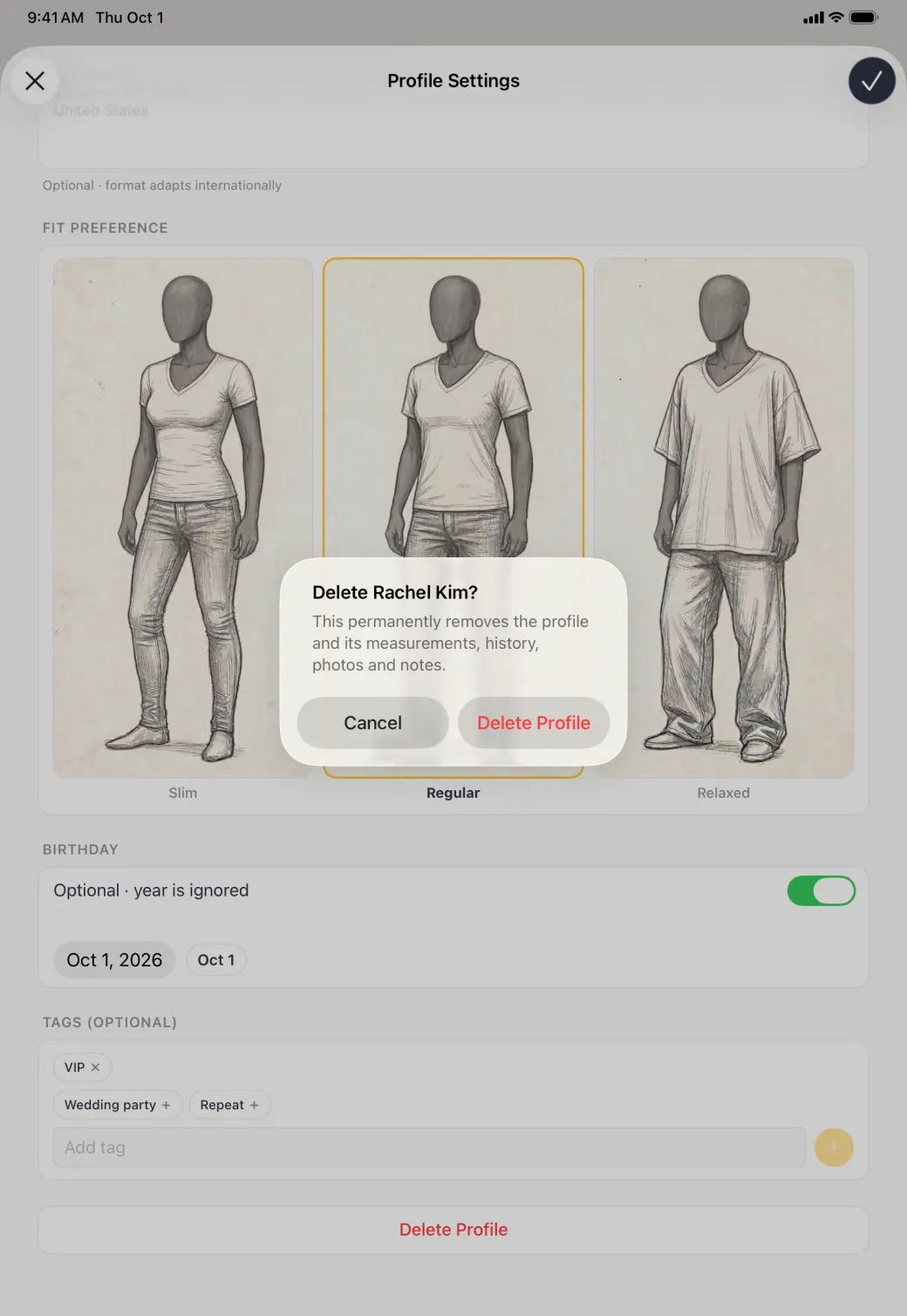
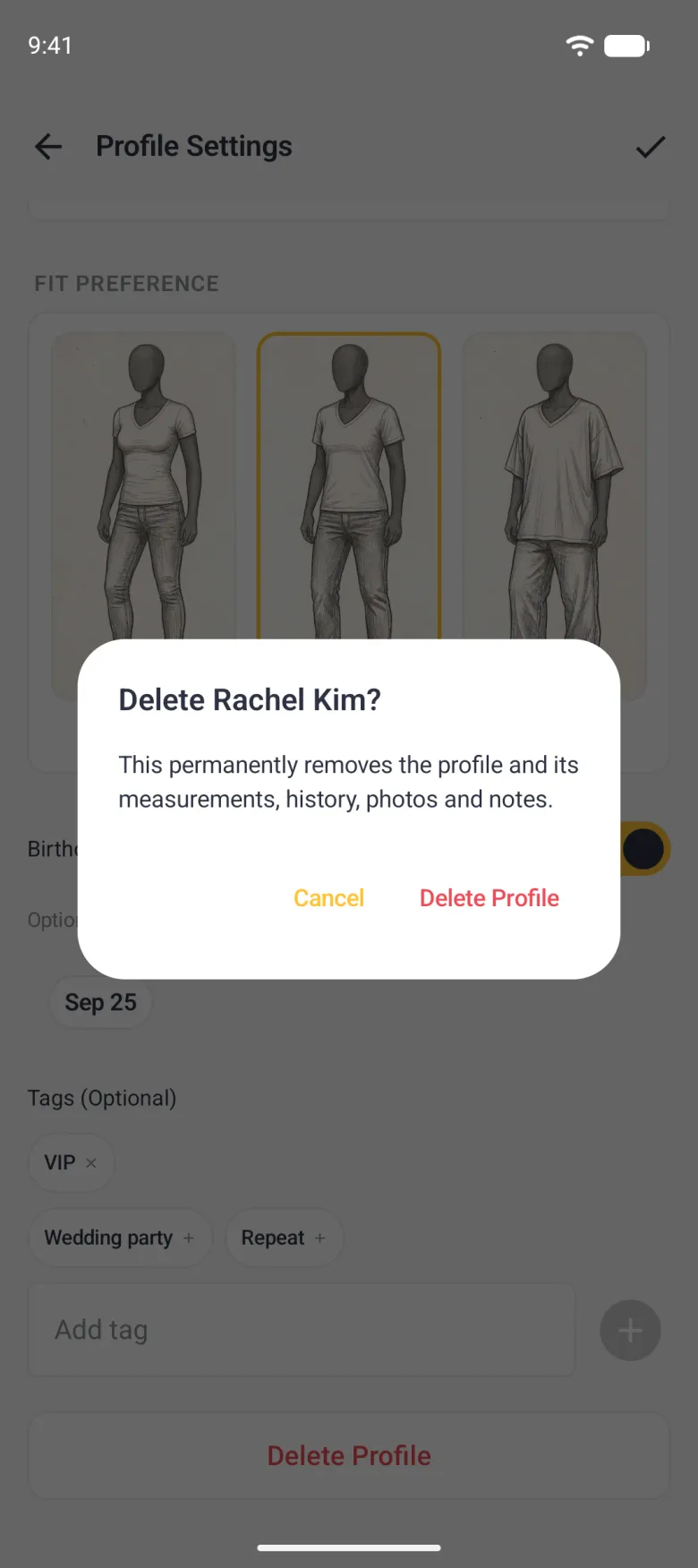
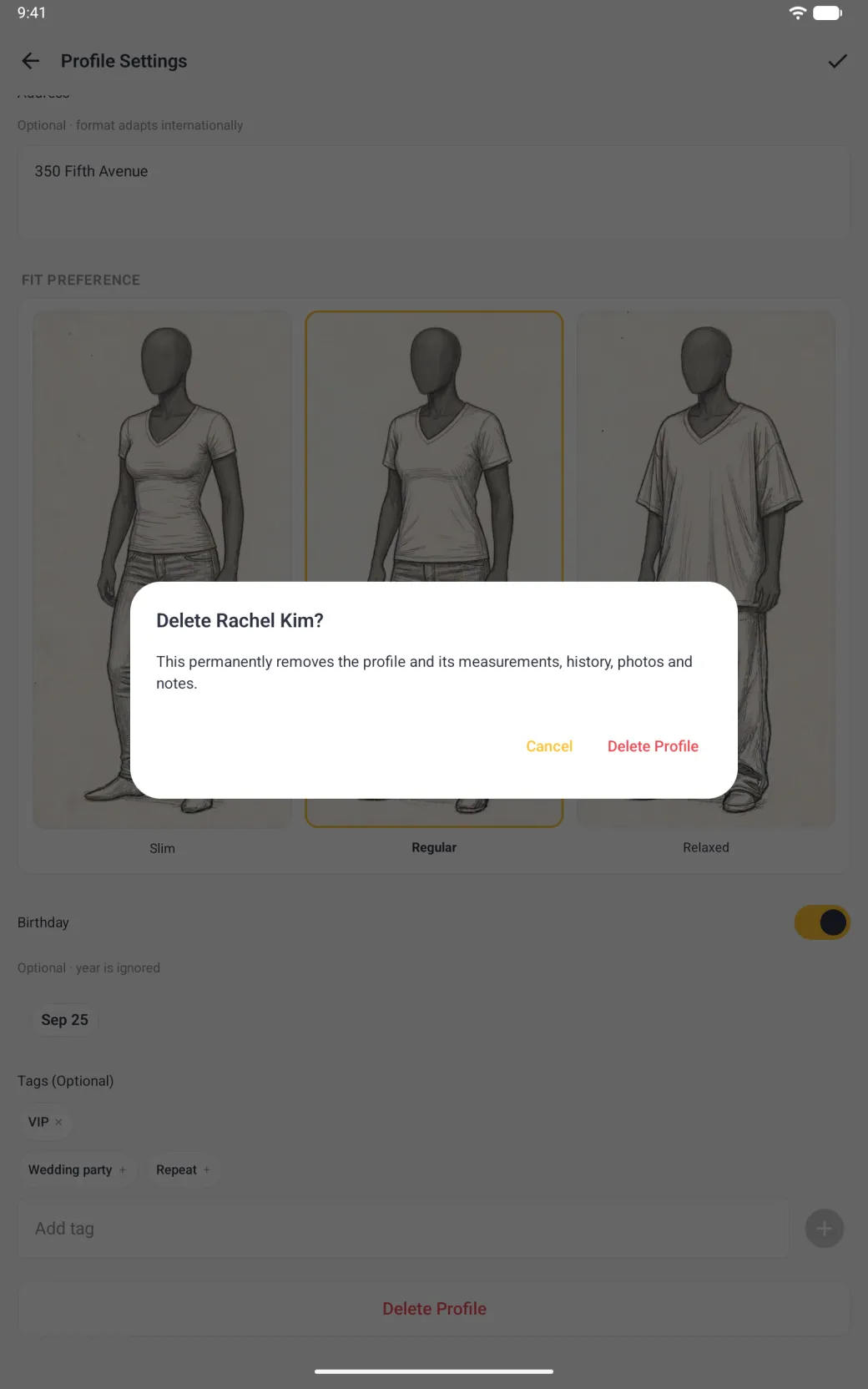
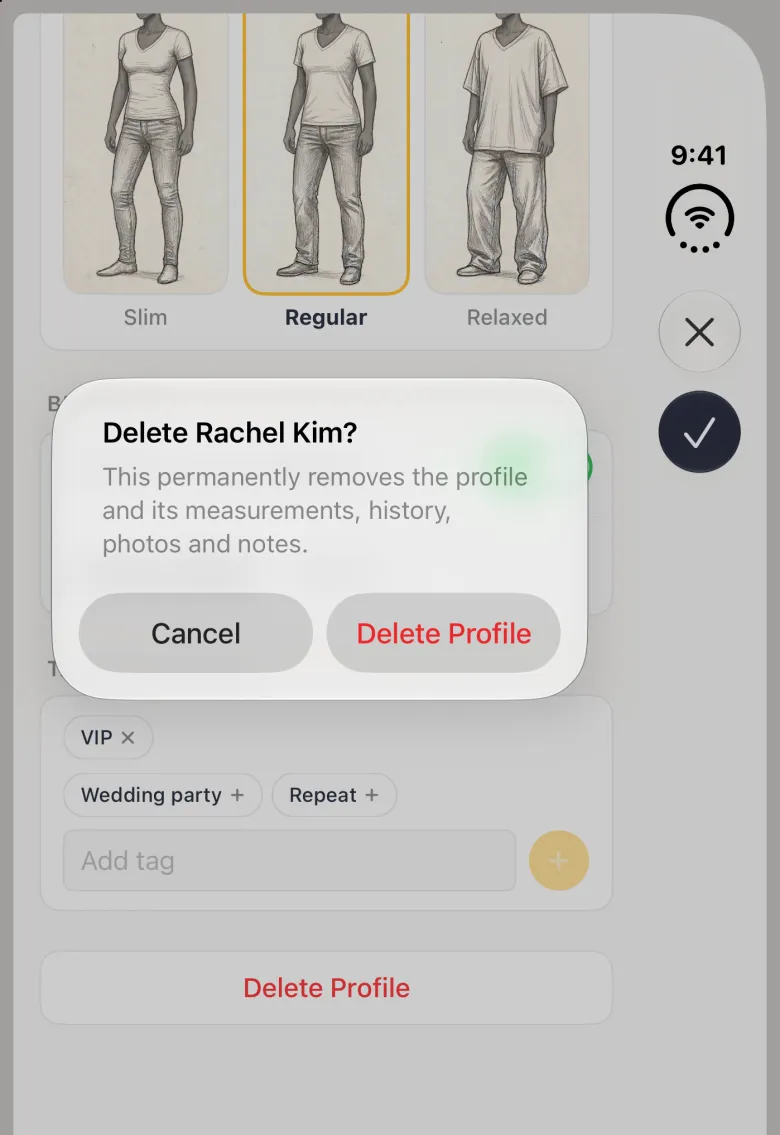
Deleting is permanent and it takes more than the name with it. Delete Profile sits at the foot of Profile Settings, and the confirmation names the client and spells out the cascade: the profile and its measurements, history, photos and notes are removed. Check the client has no open orders before you confirm, because their work will no longer have anyone to belong to.

Show these screens on
Confirmation alert asking Delete Rachel Kim, warning that the profile, measurements, history, photos and notes go with it, with Cancel and a red Delete Profile button.
Alert centred on the dimmed Profile Settings sheet, titled Delete Rachel Kim? and warning that this permanently removes the profile and its measurements, history, photos and notes, with a Cancel button and a red Delete Profile button.
Material dialog titled Delete Rachel Kim? saying it permanently removes the profile and its measurements, history, photos and notes, with a gold Cancel and a red Delete Profile, over the dimmed Profile Settings form.
Dialog titled Delete Rachel Kim? explaining that it permanently removes the profile and its measurements, history, photos and notes, with a gold Cancel and a red Delete Profile, over the dimmed bottom of Profile Settings.
Deleting a client asks you to confirm, and names what goes with them.

How to find a client in a long list

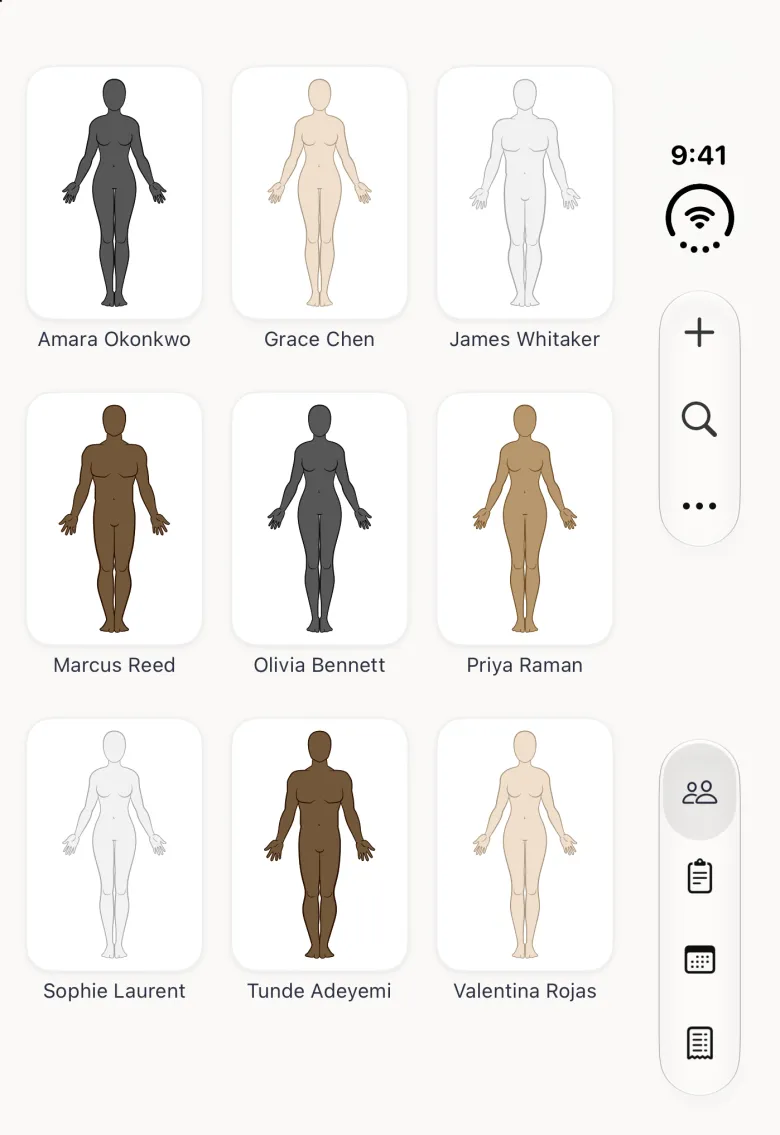
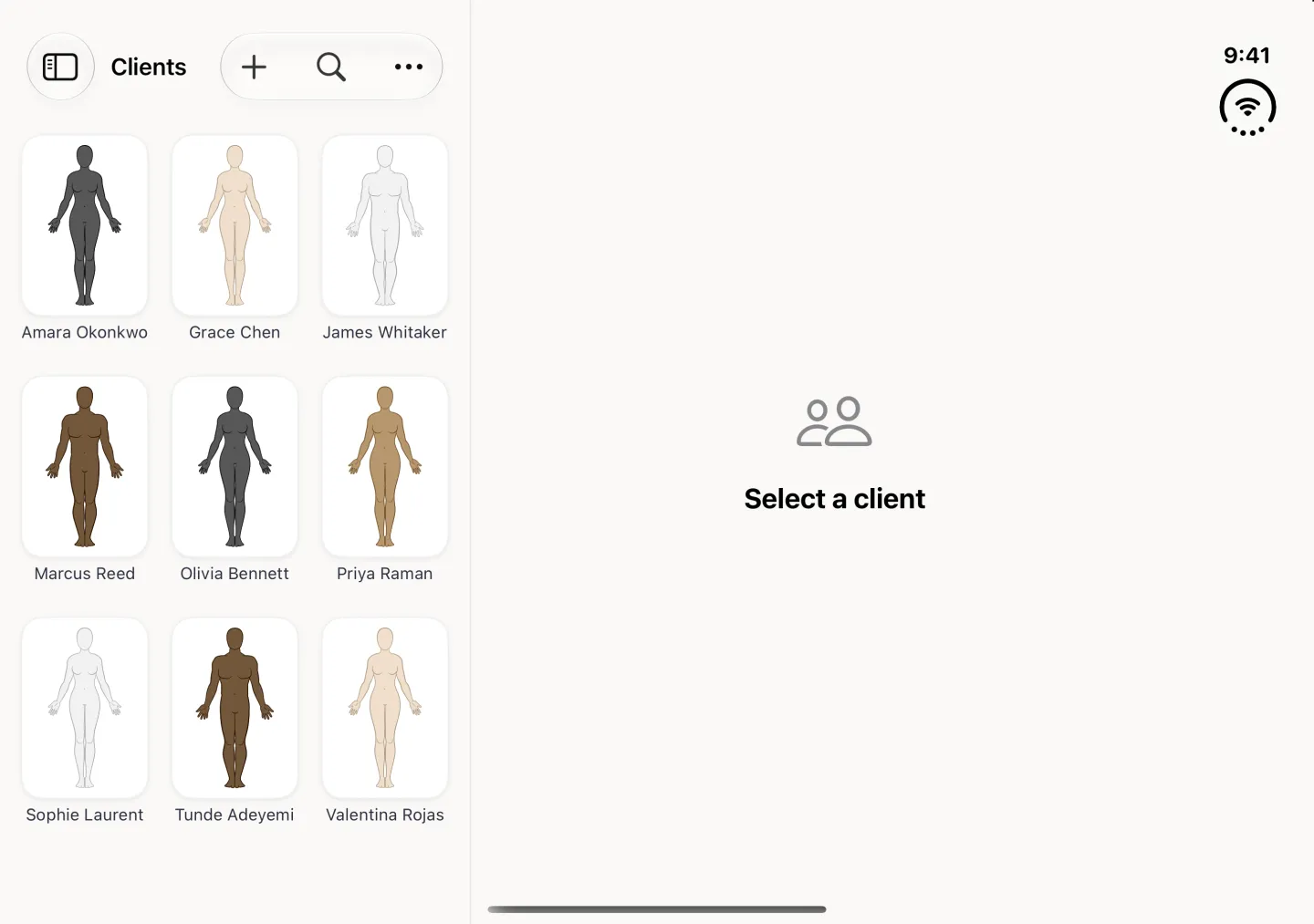
Two controls at the top right of the Clients tab handle this. The magnifier searches the grid by name, which is the quickest route once you have more clients than fit a screen. The three-dot menu holds the sort order: Sort by Date, which is the default and keeps the newest client first, and Sort by Name, which runs the grid alphabetically. A tick marks whichever is active.

Show these screens on
Clients grid in alphabetical order by first name, beginning with Amara Okonkwo, Grace Chen and James Whitaker.
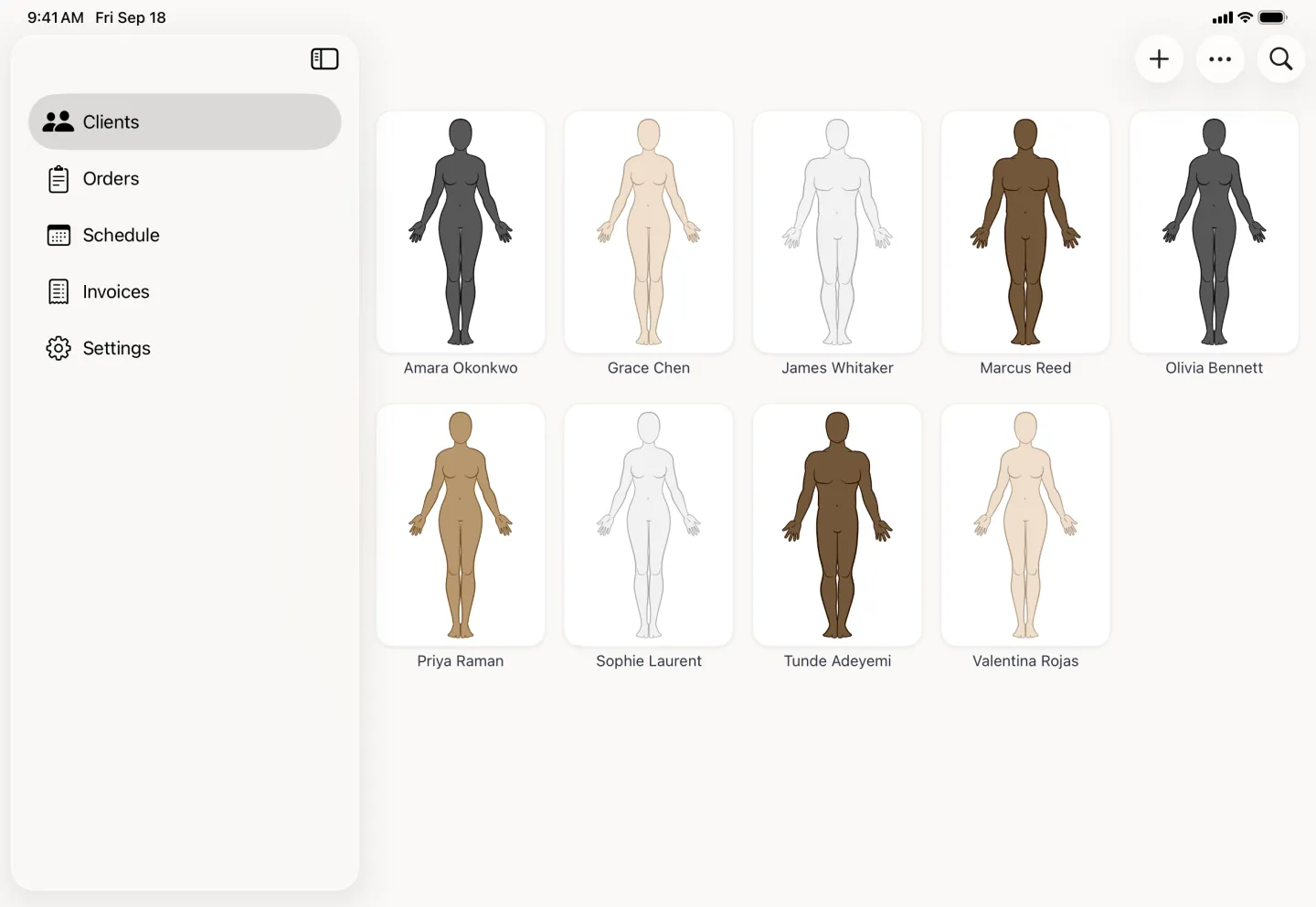
Client grid in alphabetical order beside the sidebar, running Amara Okonkwo, Grace Chen, James Whitaker, Marcus Reed and Olivia Bennett across the first row and Priya Raman, Sophie Laurent, Tunde Adeyemi and Valentina Rojas across the second.
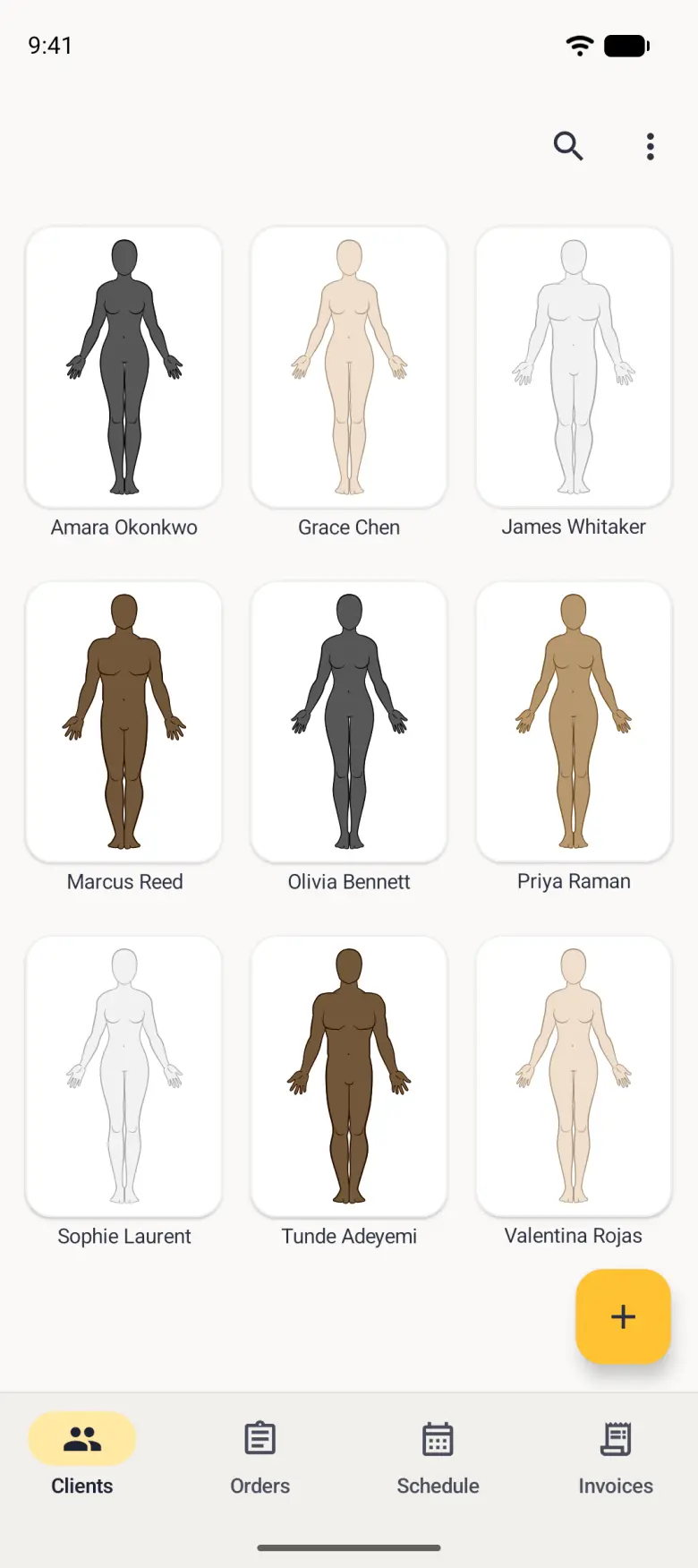
Clients grid in alphabetical order, Amara Okonkwo, Grace Chen and James Whitaker, then Marcus Reed, Olivia Bennett and Priya Raman, then Sophie Laurent, Tunde Adeyemi and Valentina Rojas, with a gold plus button at the bottom right and the Clients, Orders, Schedule and Invoices bar at the bottom.
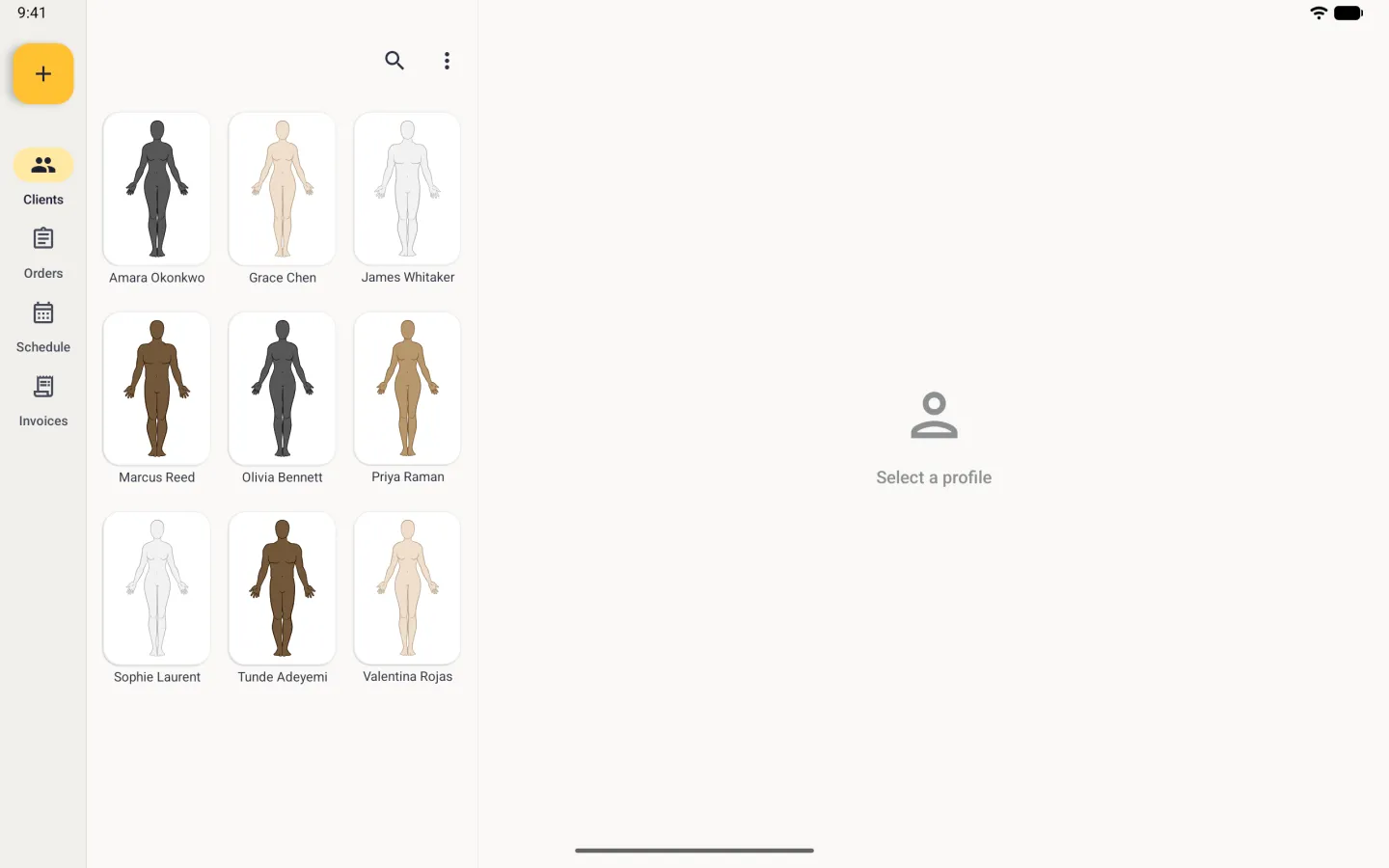
Clients grid of three columns in alphabetical order, Amara Okonkwo, Grace Chen and James Whitaker, then Marcus Reed, Olivia Bennett and Priya Raman, then Sophie Laurent, Tunde Adeyemi and Valentina Rojas, beside the navigation rail and an empty detail pane reading Select a profile.
Sorted by name, the grid runs alphabetically.