Start here
Creating and managing profiles
Every person you measure gets a profile. Here is how to create one, which fields are required, how many the free plan holds, and how to find one once you have several.
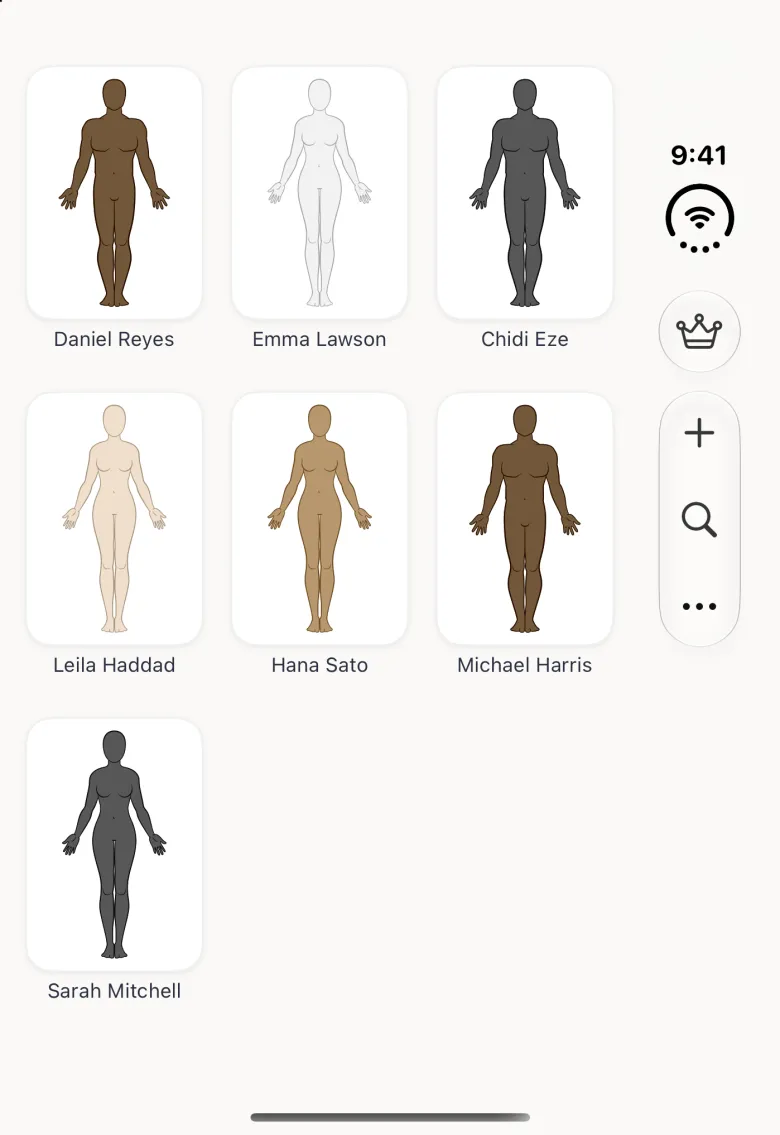
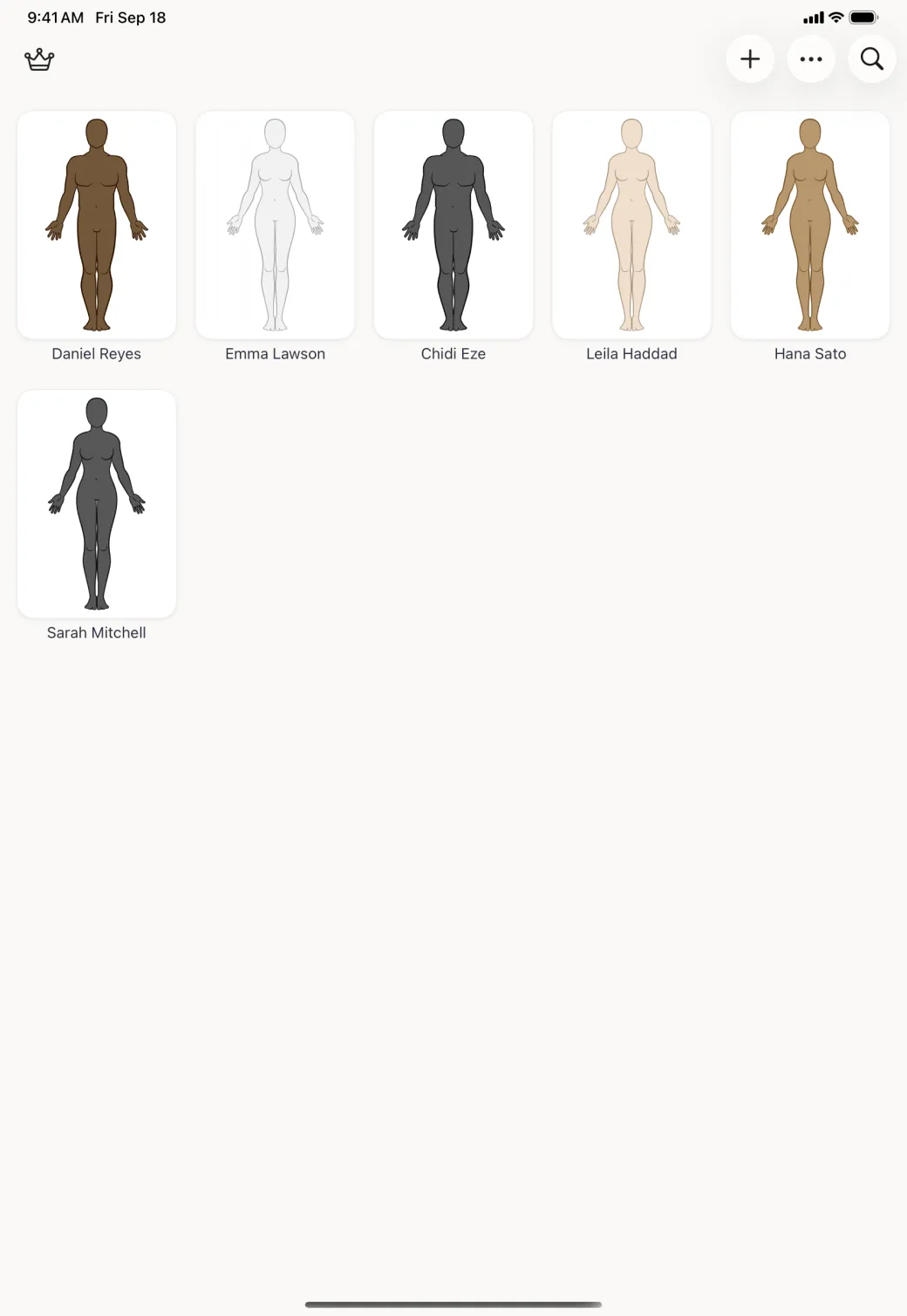
A profile holds one person’s measurements, their body type and skin tone, the units they were measured in, and the fit they prefer. Setup creates the first one. Everyone else you measure gets their own, and they all sit together on the home screen.
How do I create a profile?
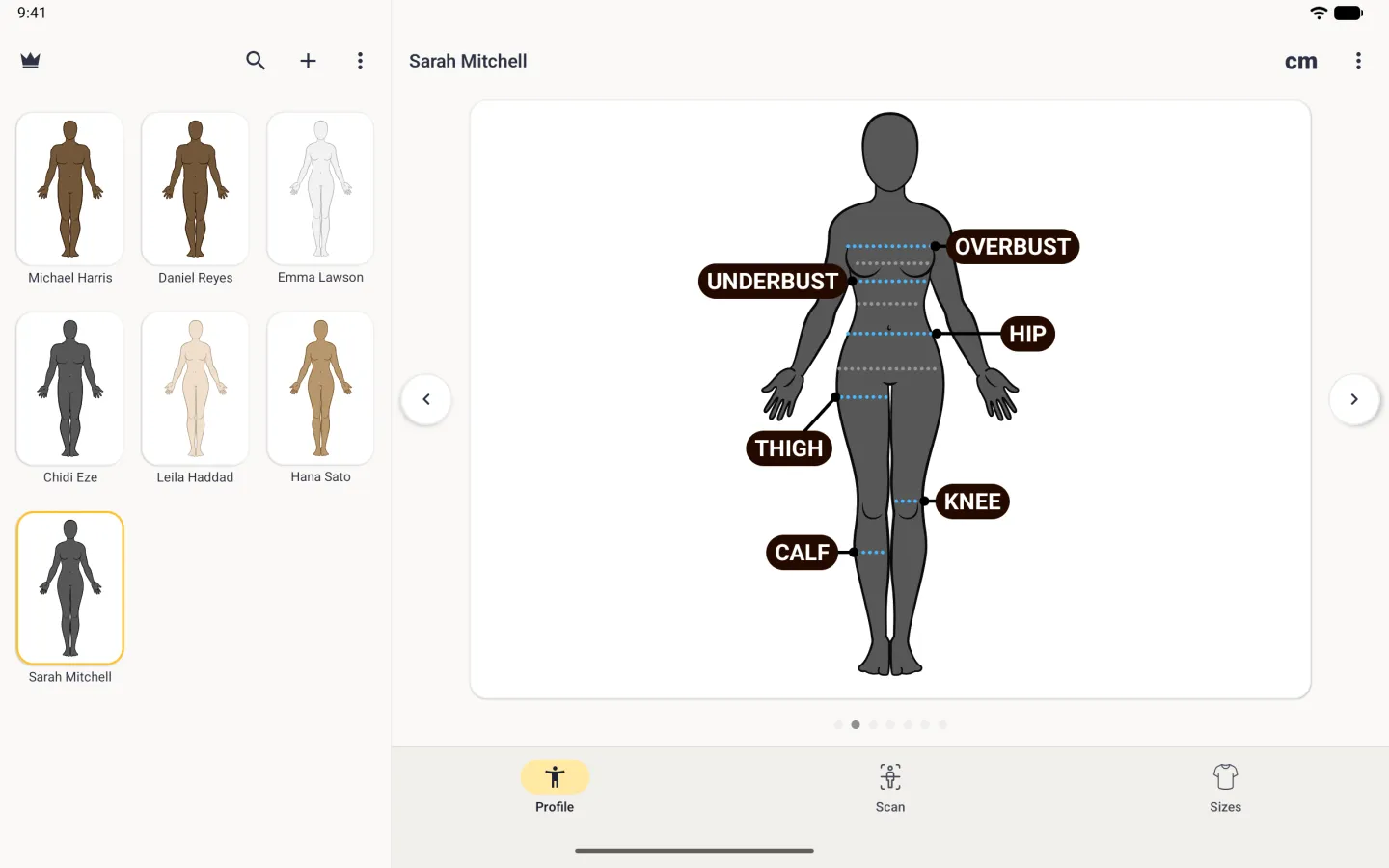
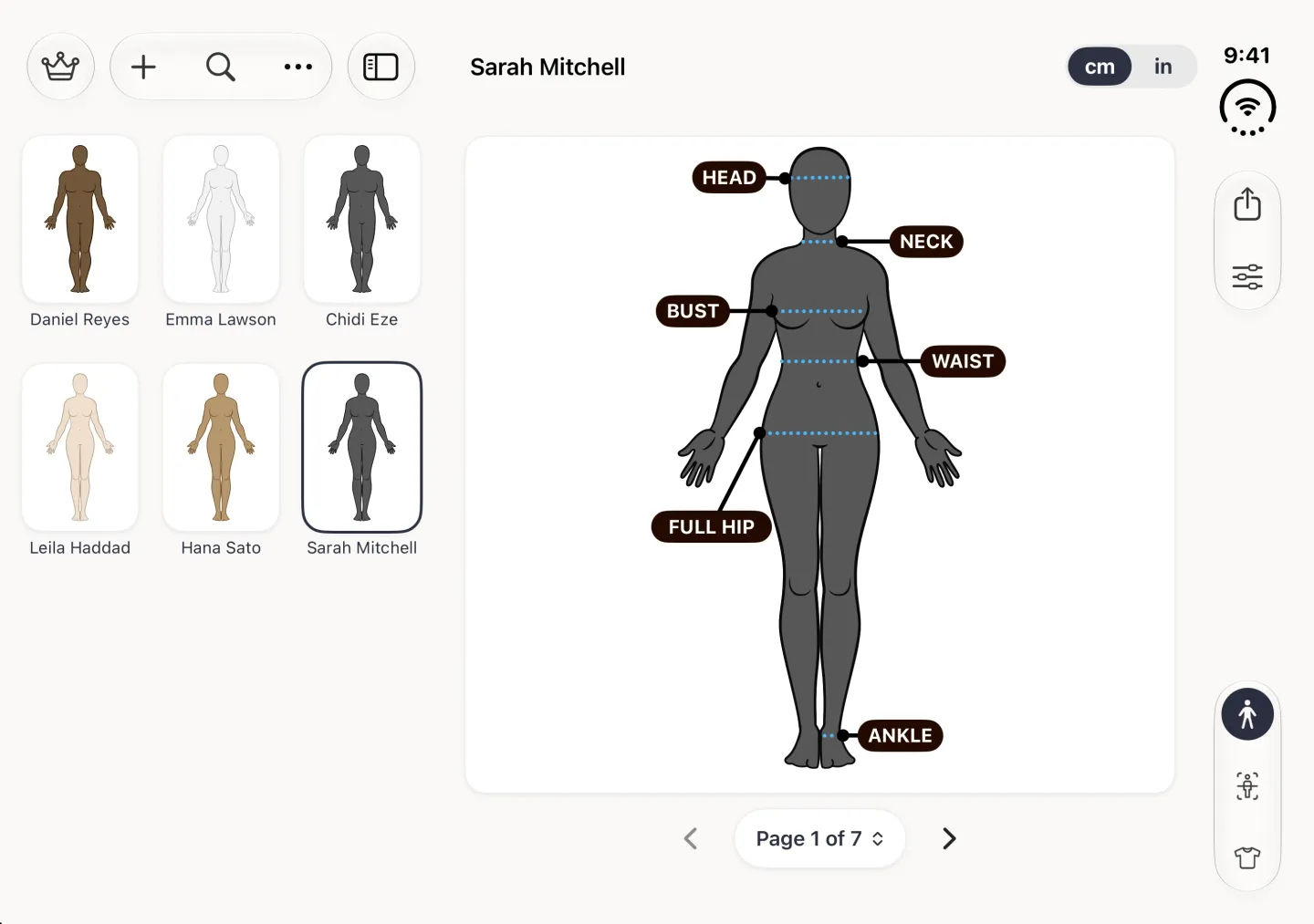
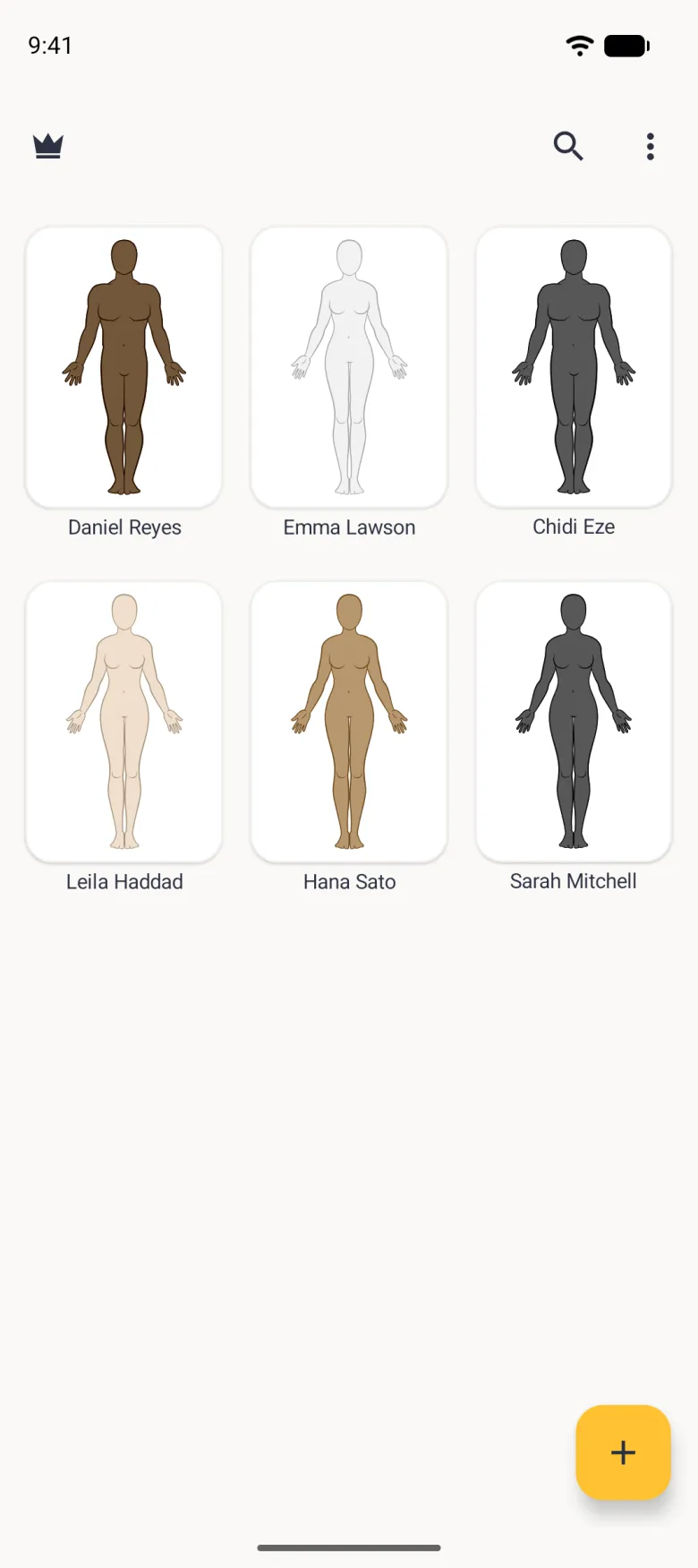
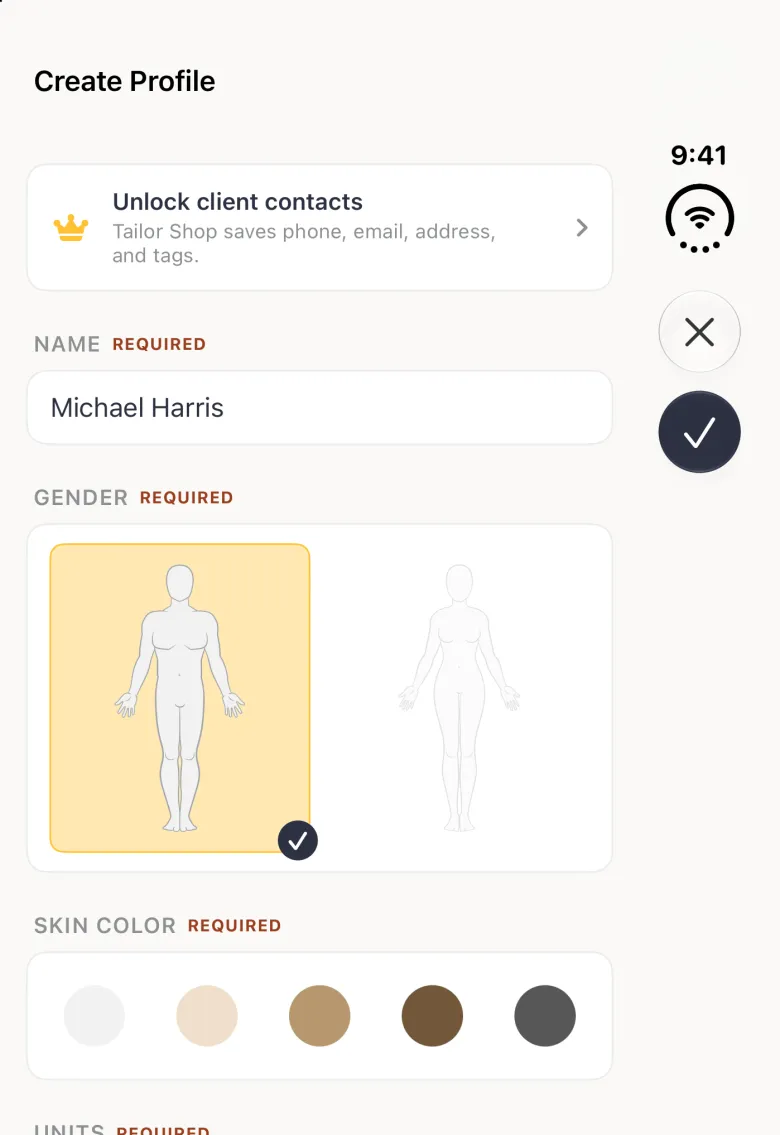
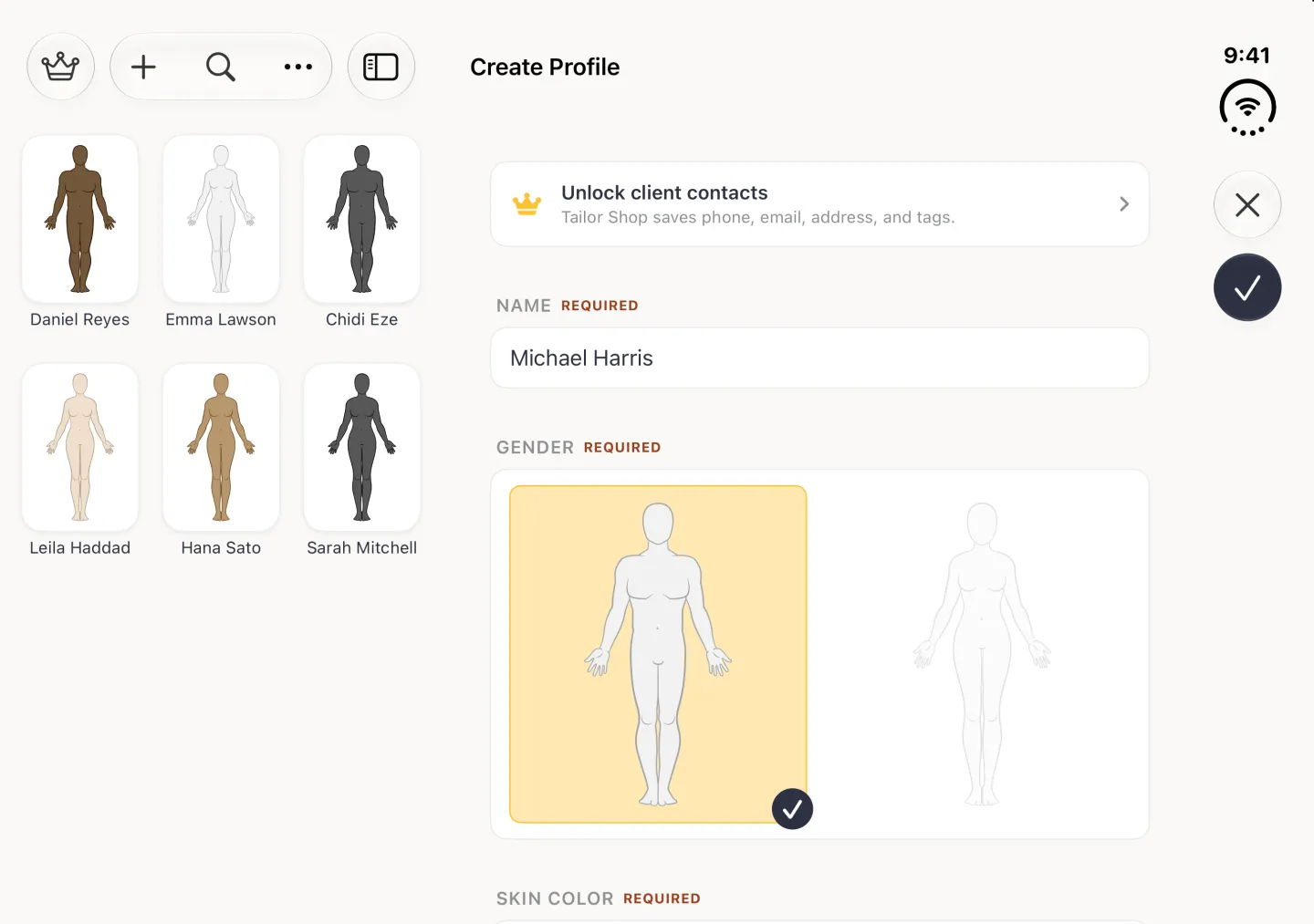
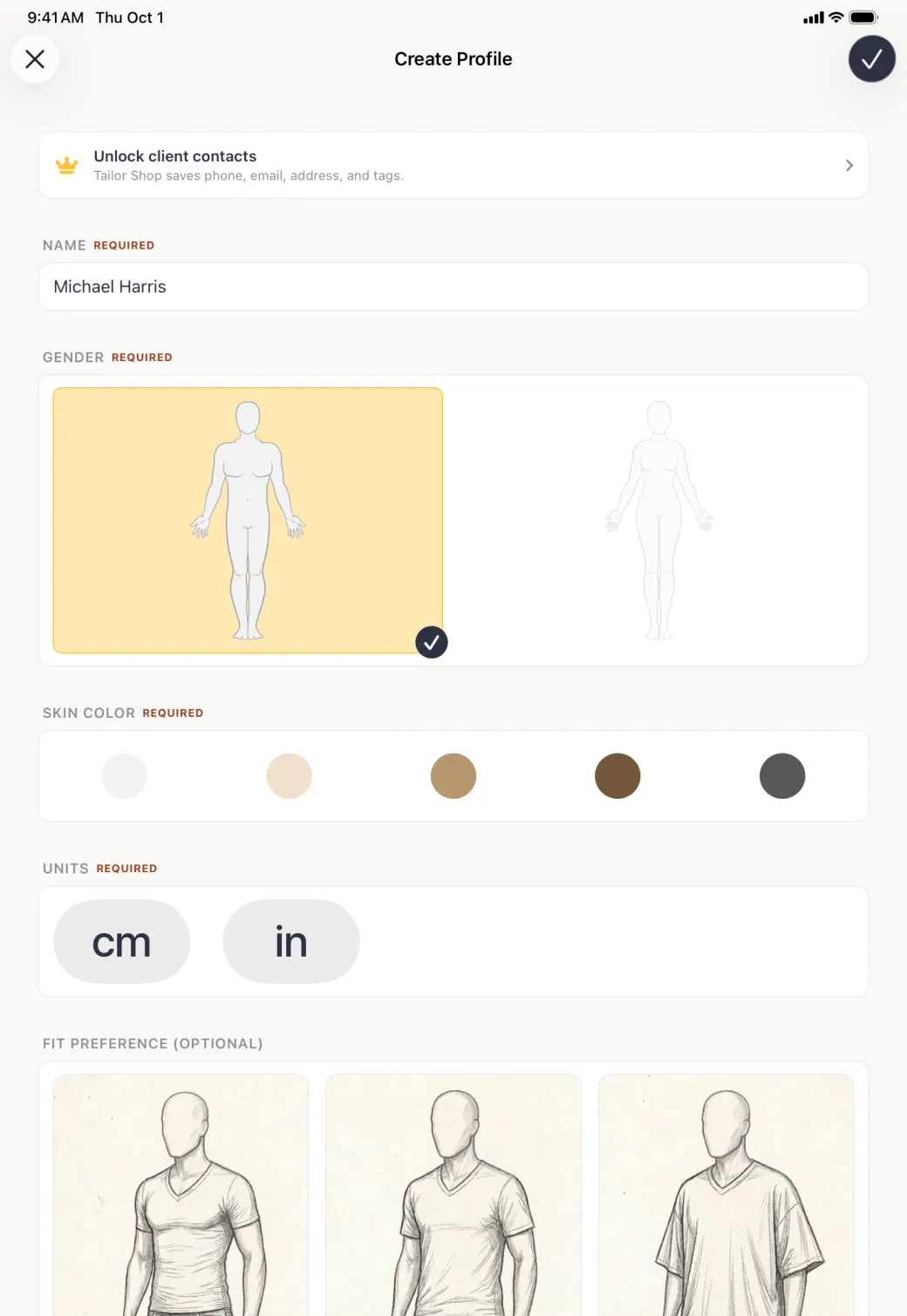
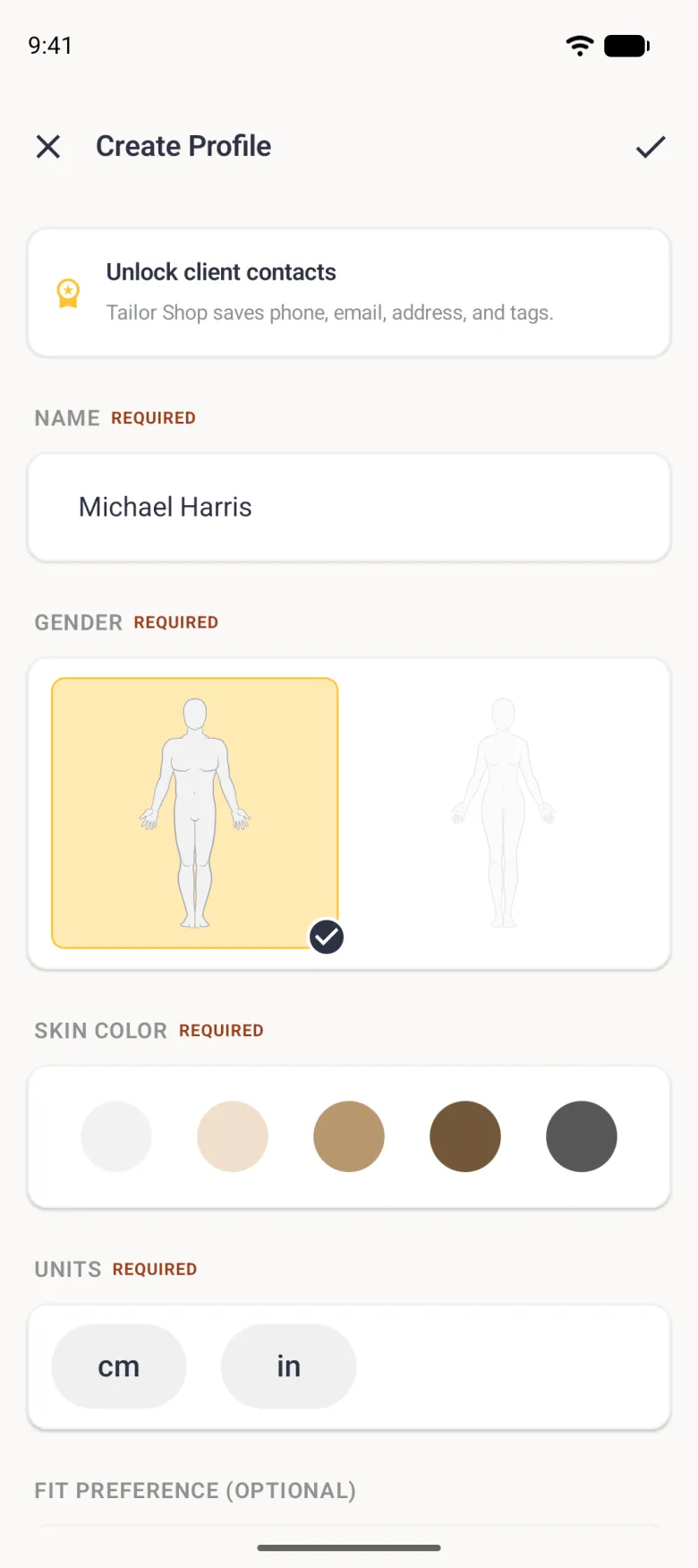
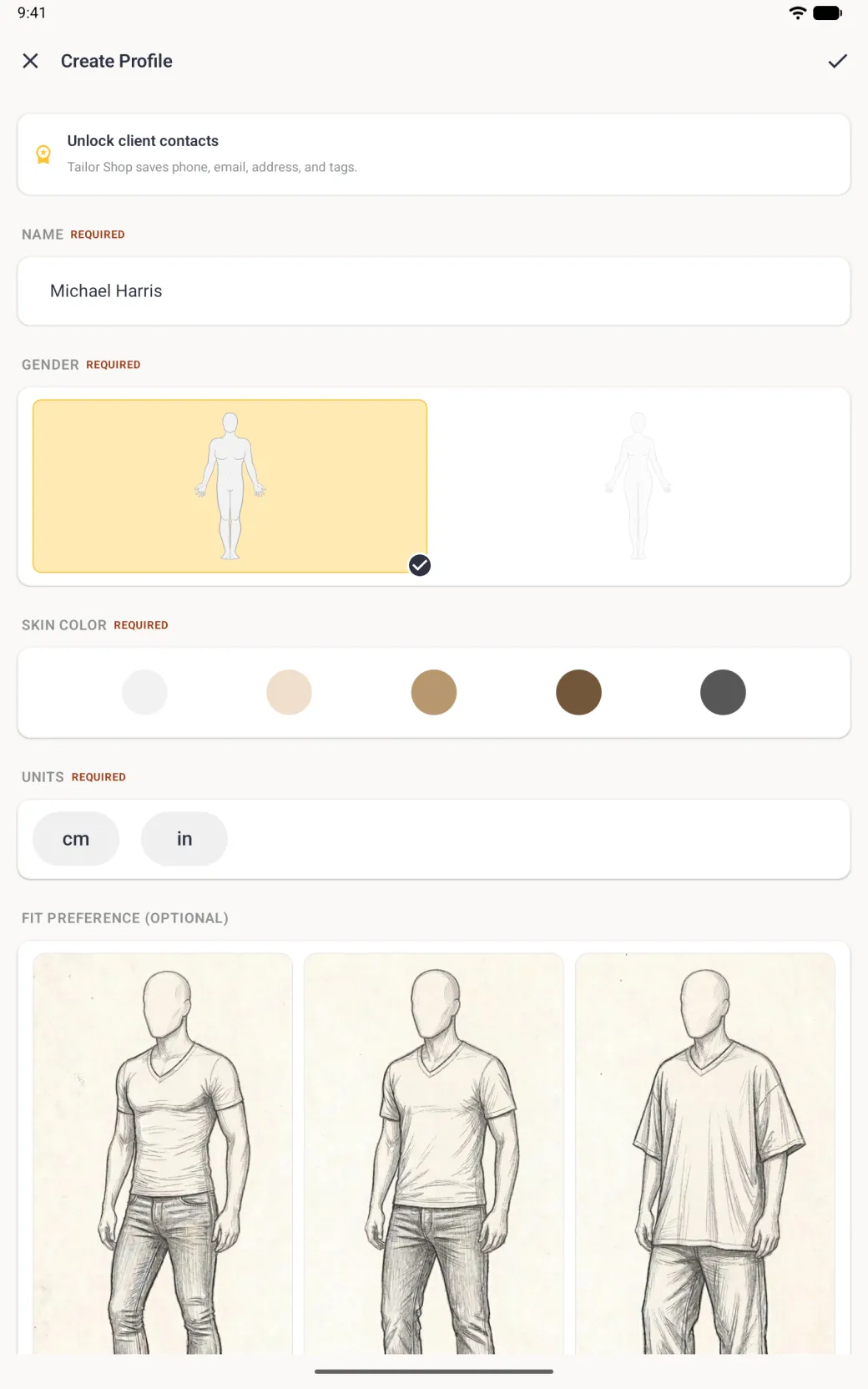
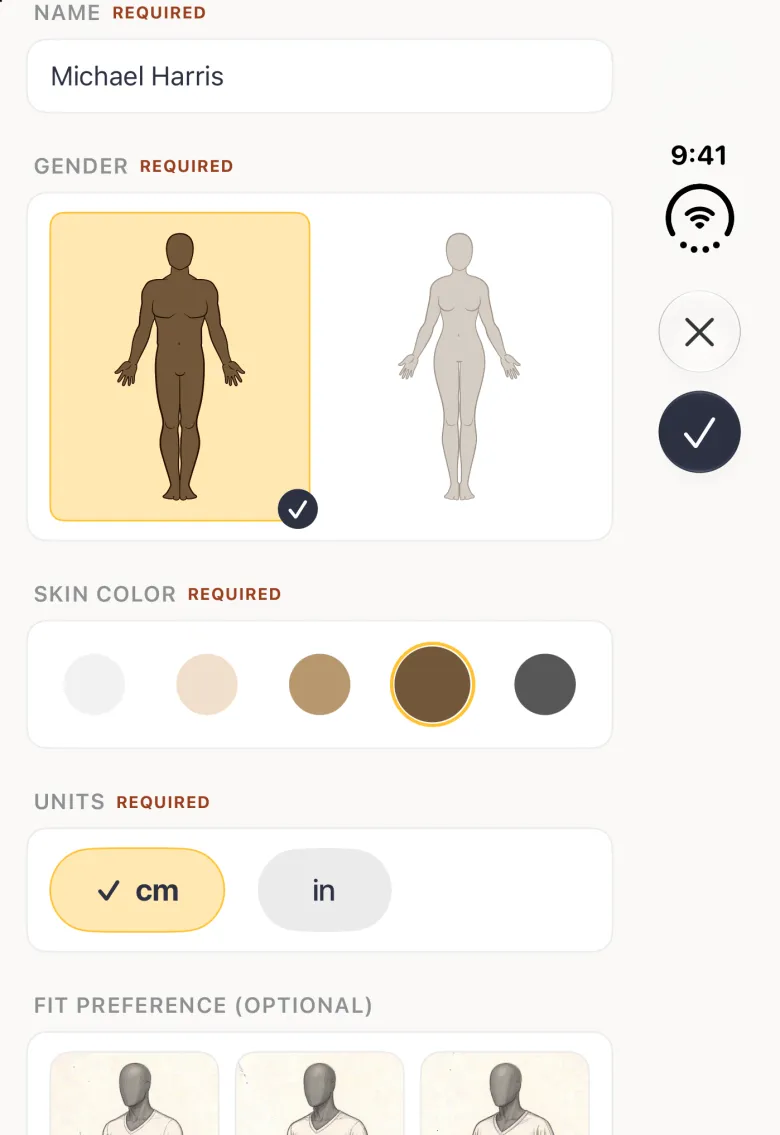
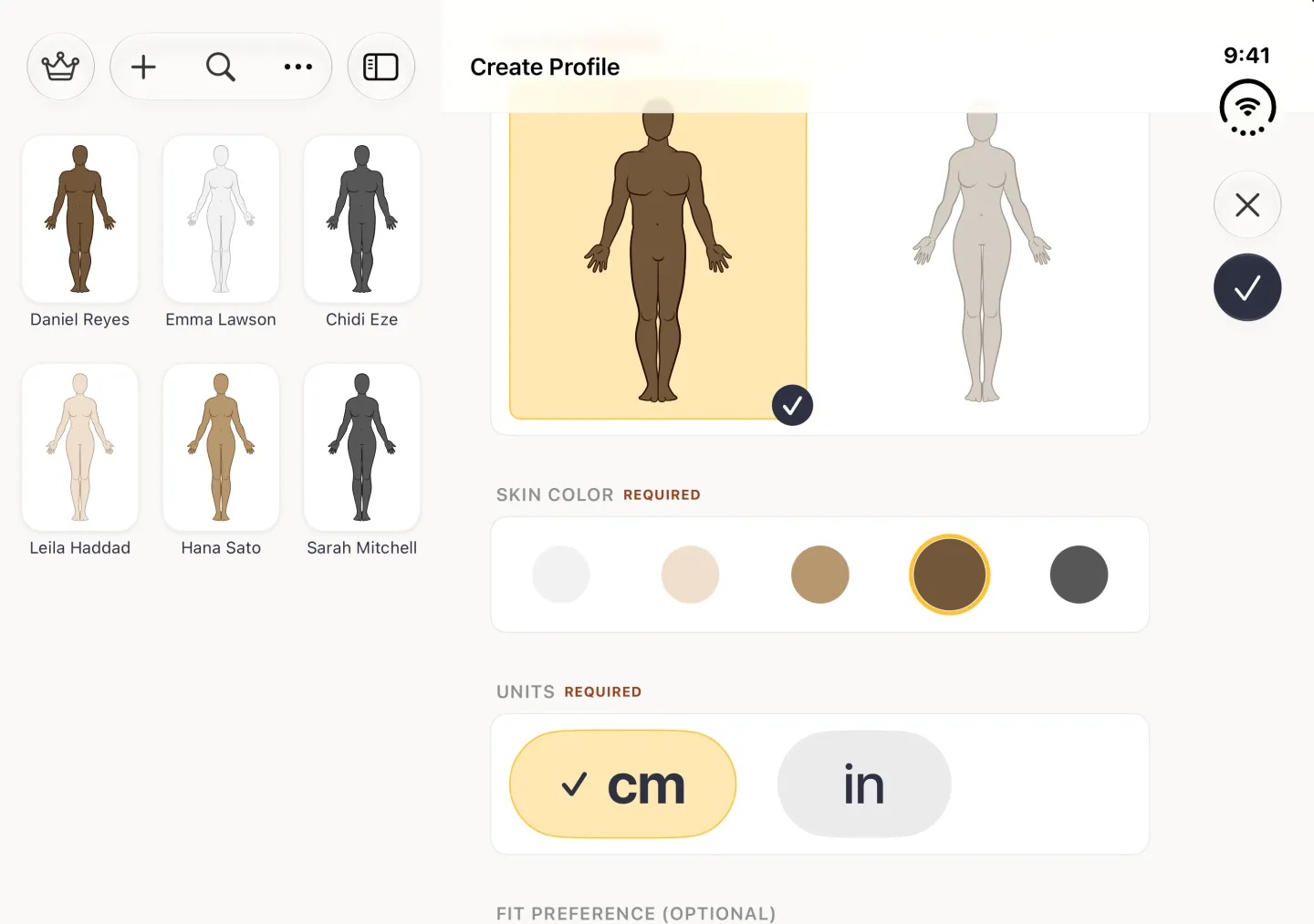
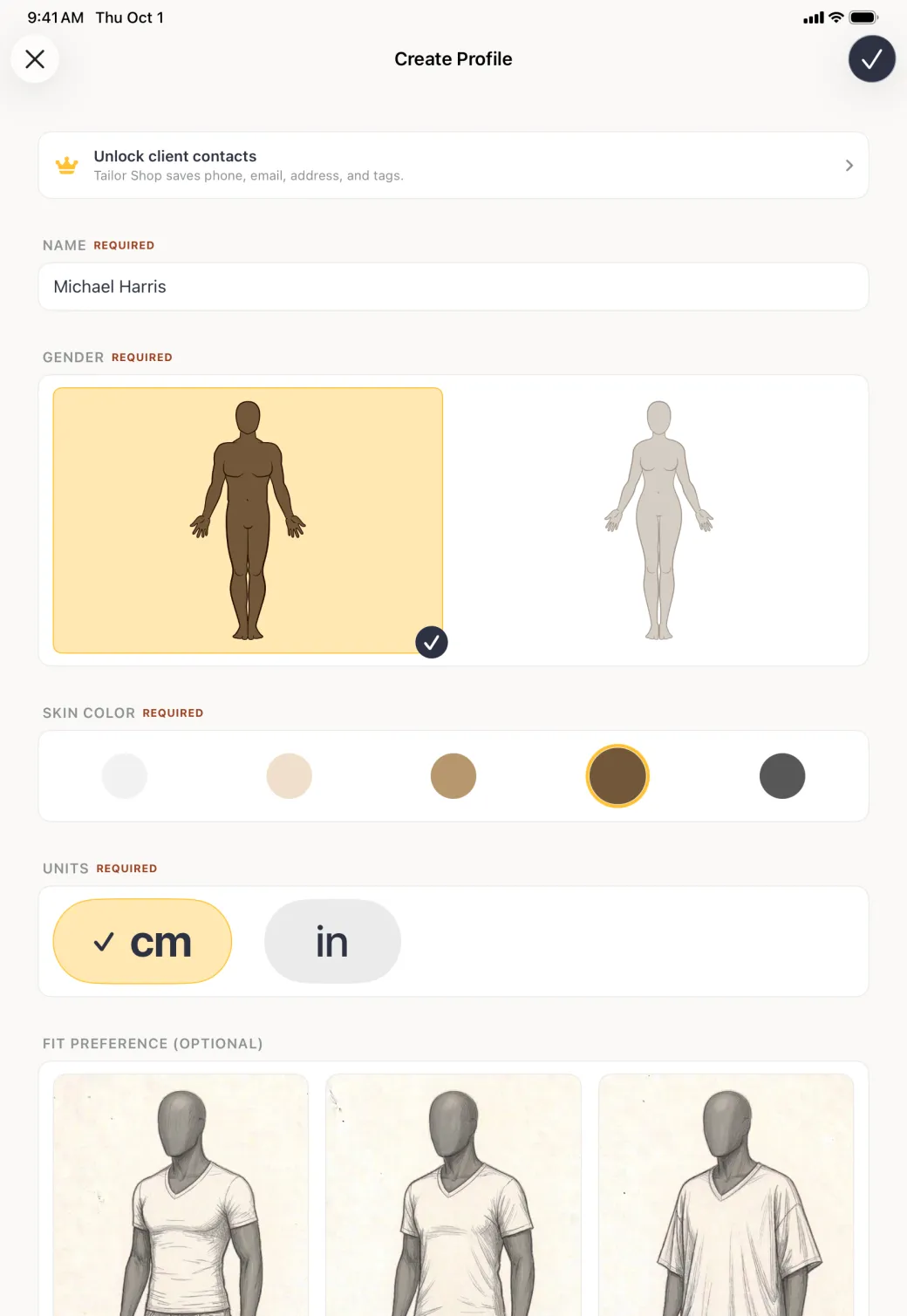
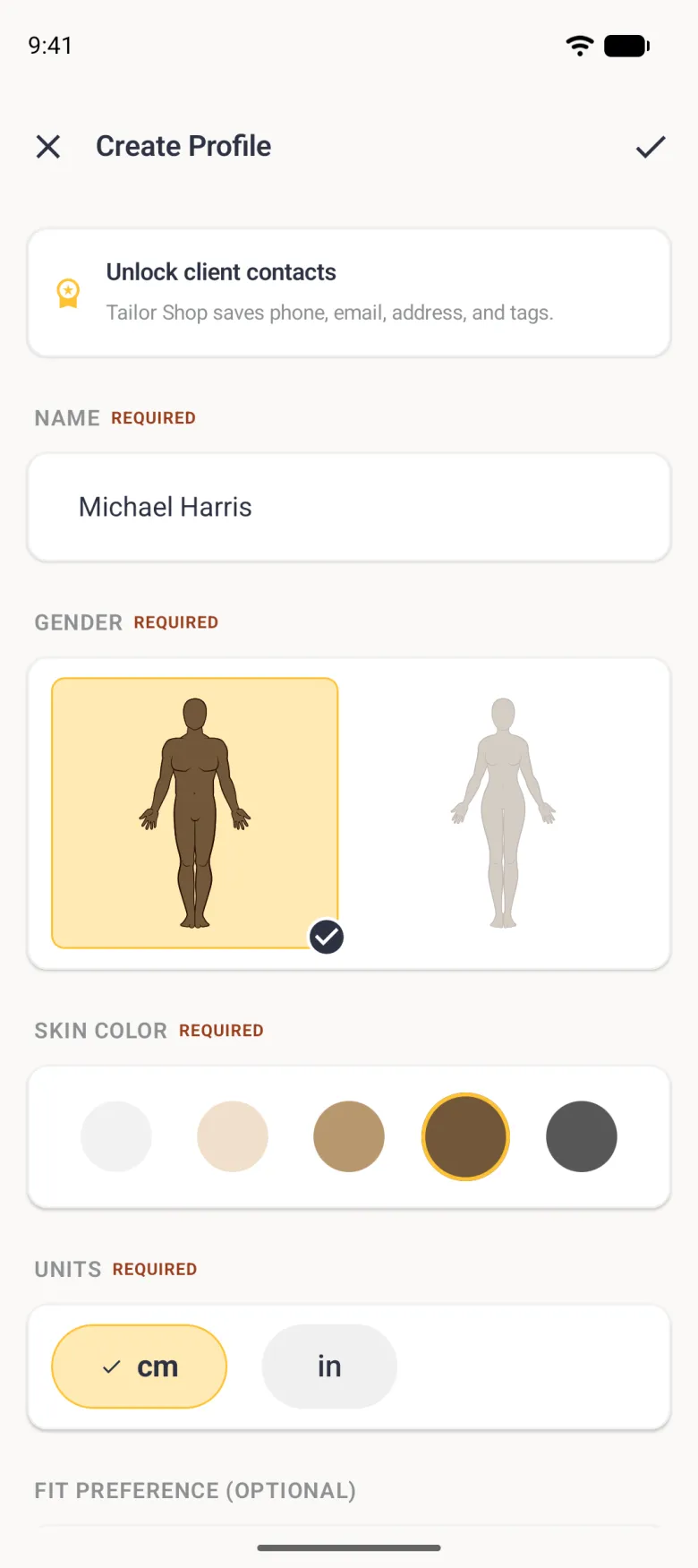
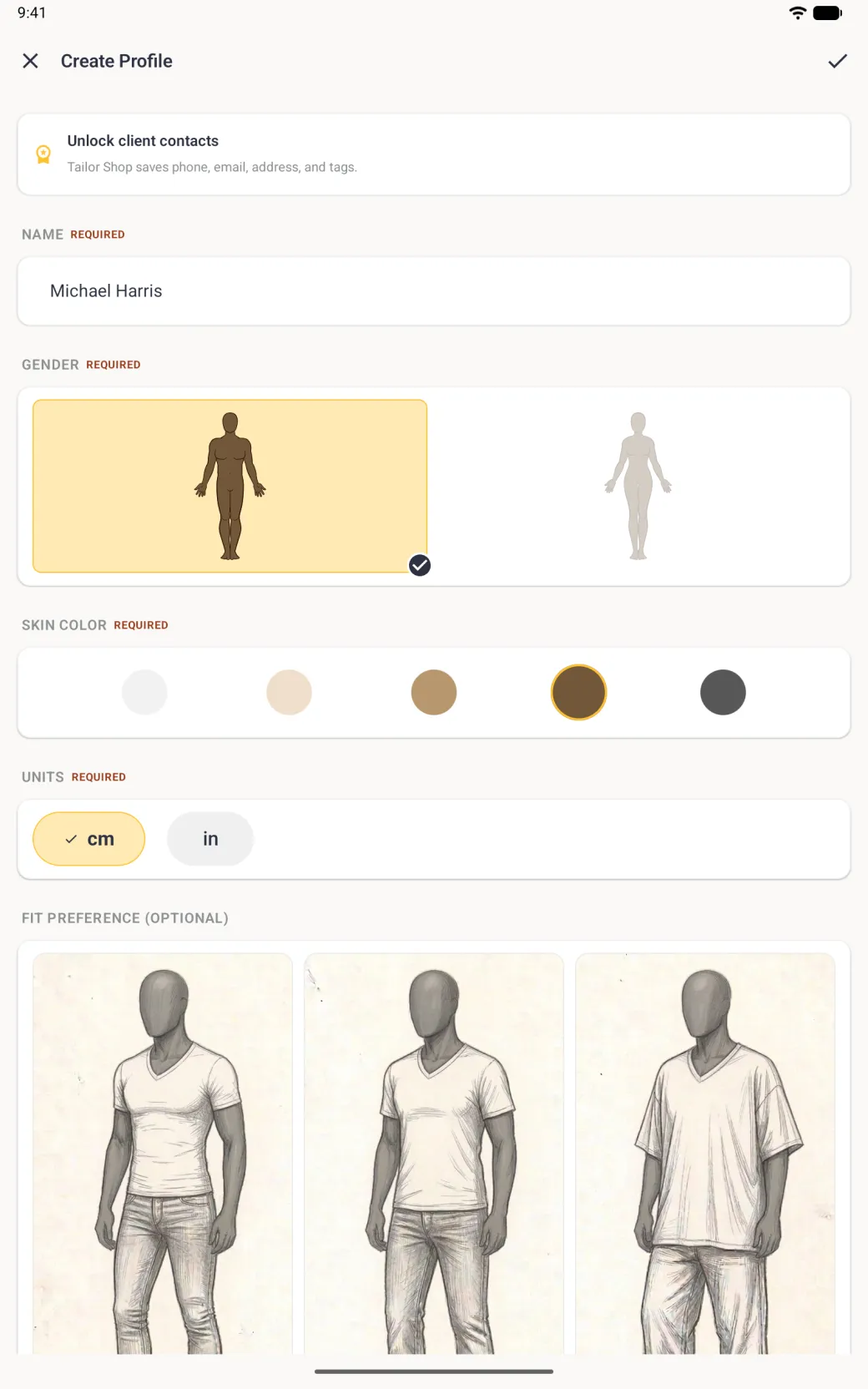
Profiles are made from the home screen, and the form is the same one you filled in during setup, with each field in its own card. It takes four fields and about twenty seconds. The new profile opens on its own body as soon as you save it, with its name and a cm and in switch above it, ready for measurements.
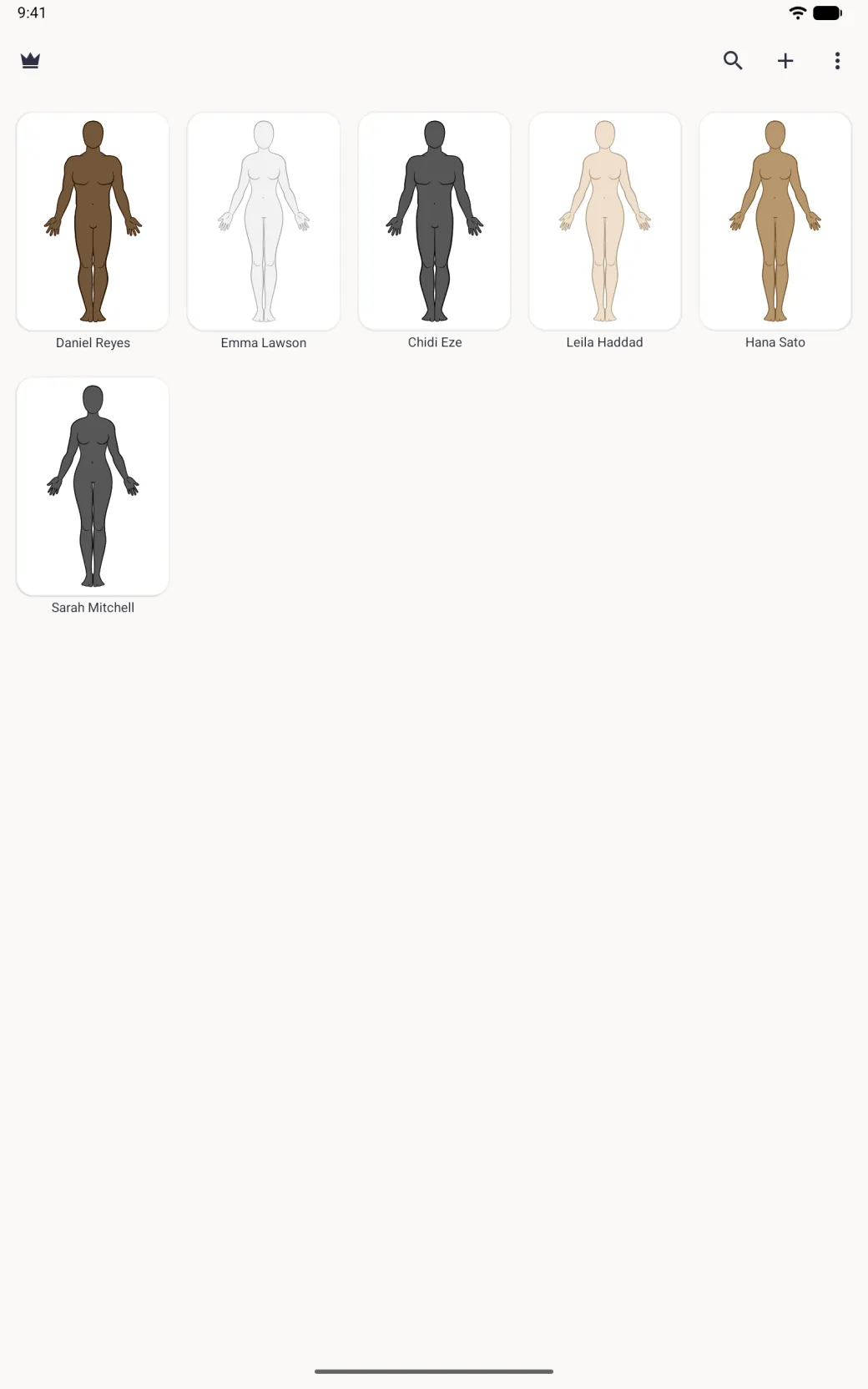
- On the home screen, tap the plus button, the first of the three buttons grouped at the top right.
- Type the name in the Name field.
- Tap the man or the woman outline under Gender.
- Pick a skin tone under Skin Color, then tap cm or in under Units.
- Under Fit Preference, choose Slim, Regular or Relaxed if you want size suggestions tuned to it. This one is optional.
- Tap the navy checkmark at the top right to save. The cross at the top left closes the form without saving.
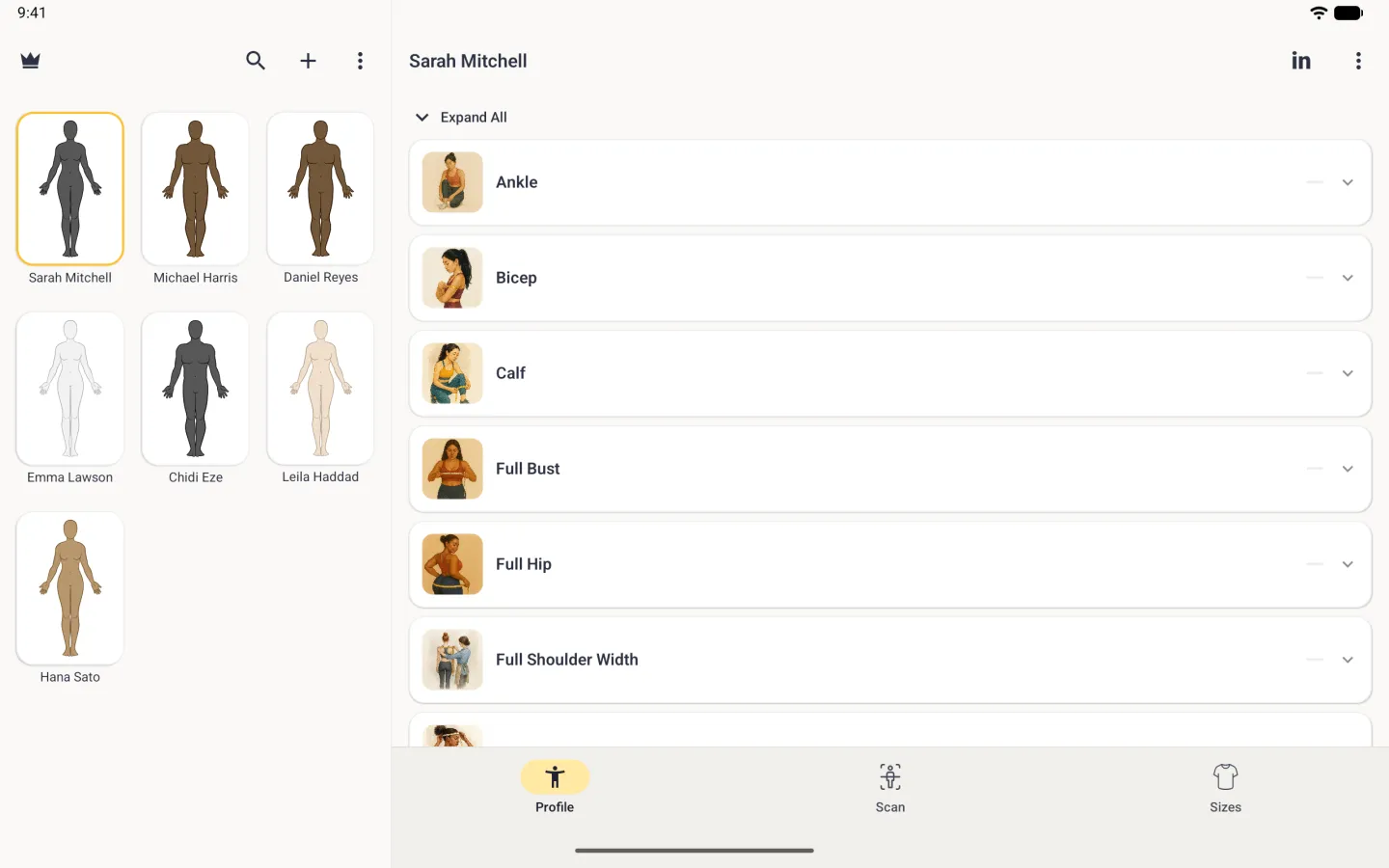
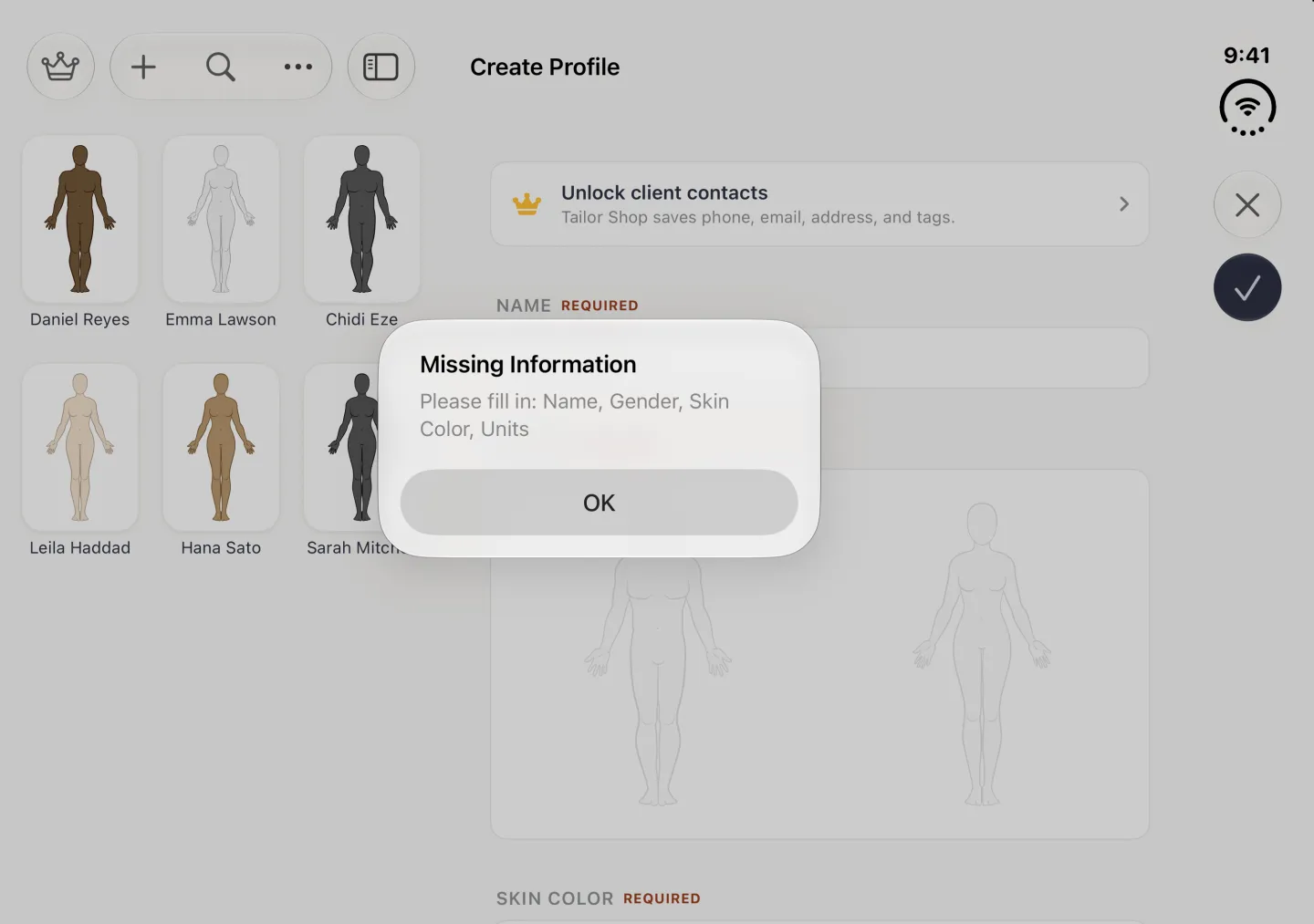
On an Android phone the plus button is a gold floating button at the bottom right of the home screen instead of in the top bar; on an Android tablet it stays in the top bar like iPhone and iPad. On iPad the form opens beside the profile list rather than over it. On iPhone Duo, opened, the profile list sits beside the form and the close and checkmark buttons move to a strip on the right; closed, it works like an iPhone with those buttons in a strip on the right.





Which fields are required?
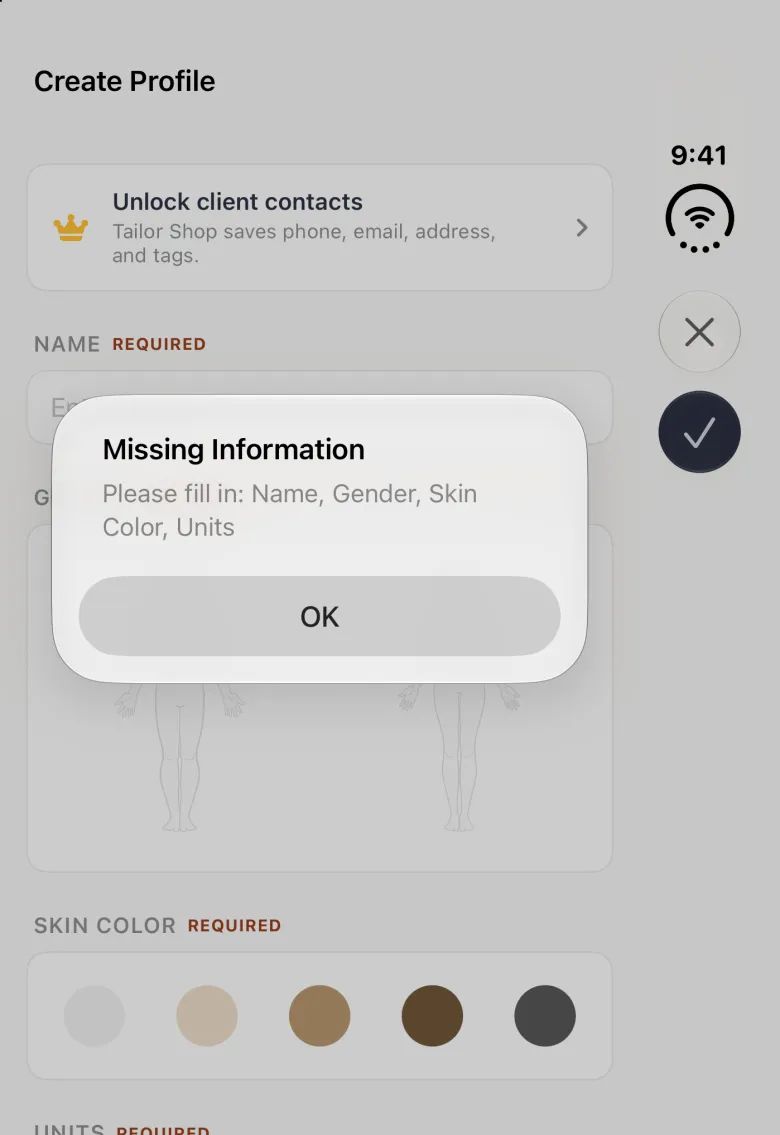
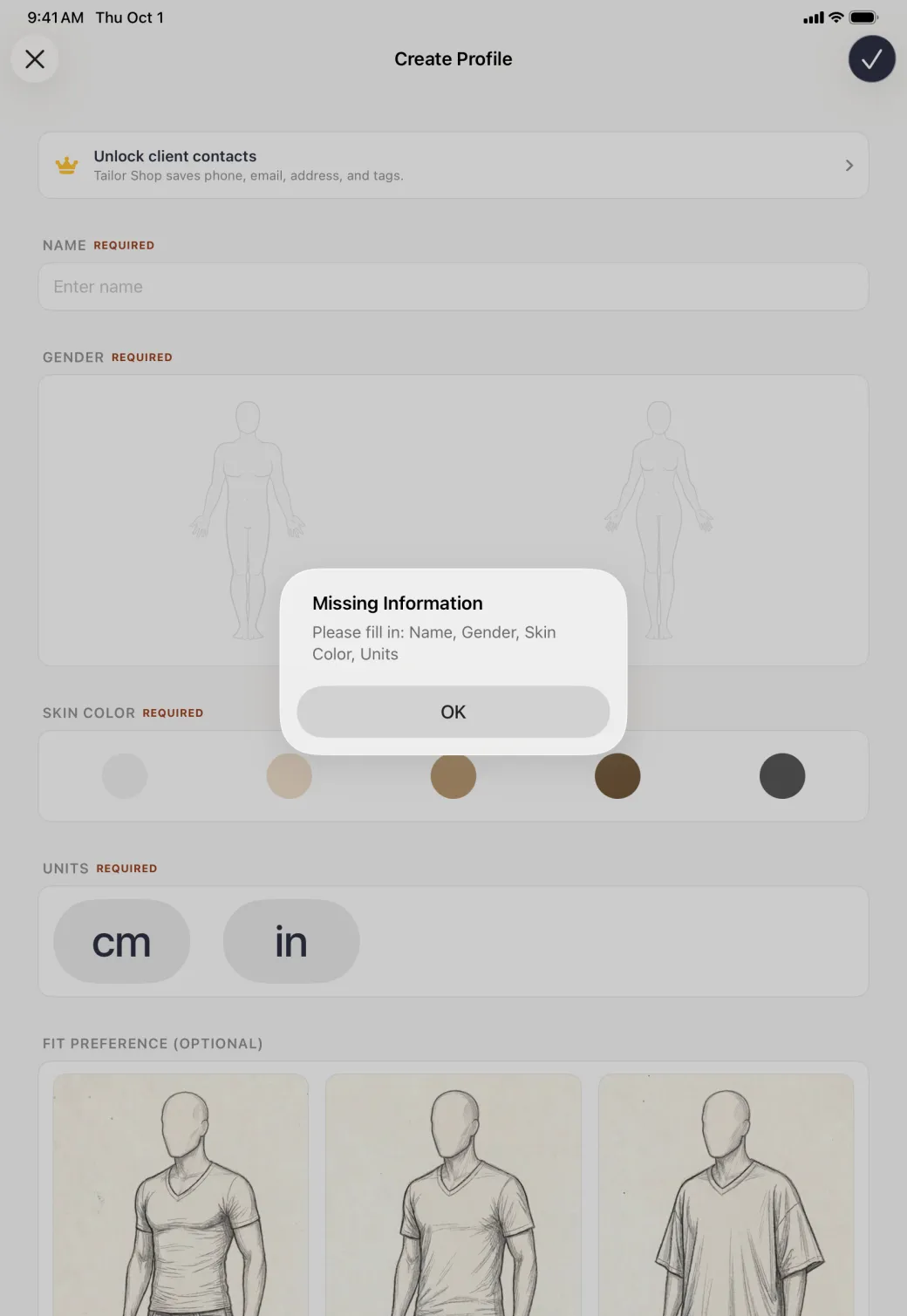
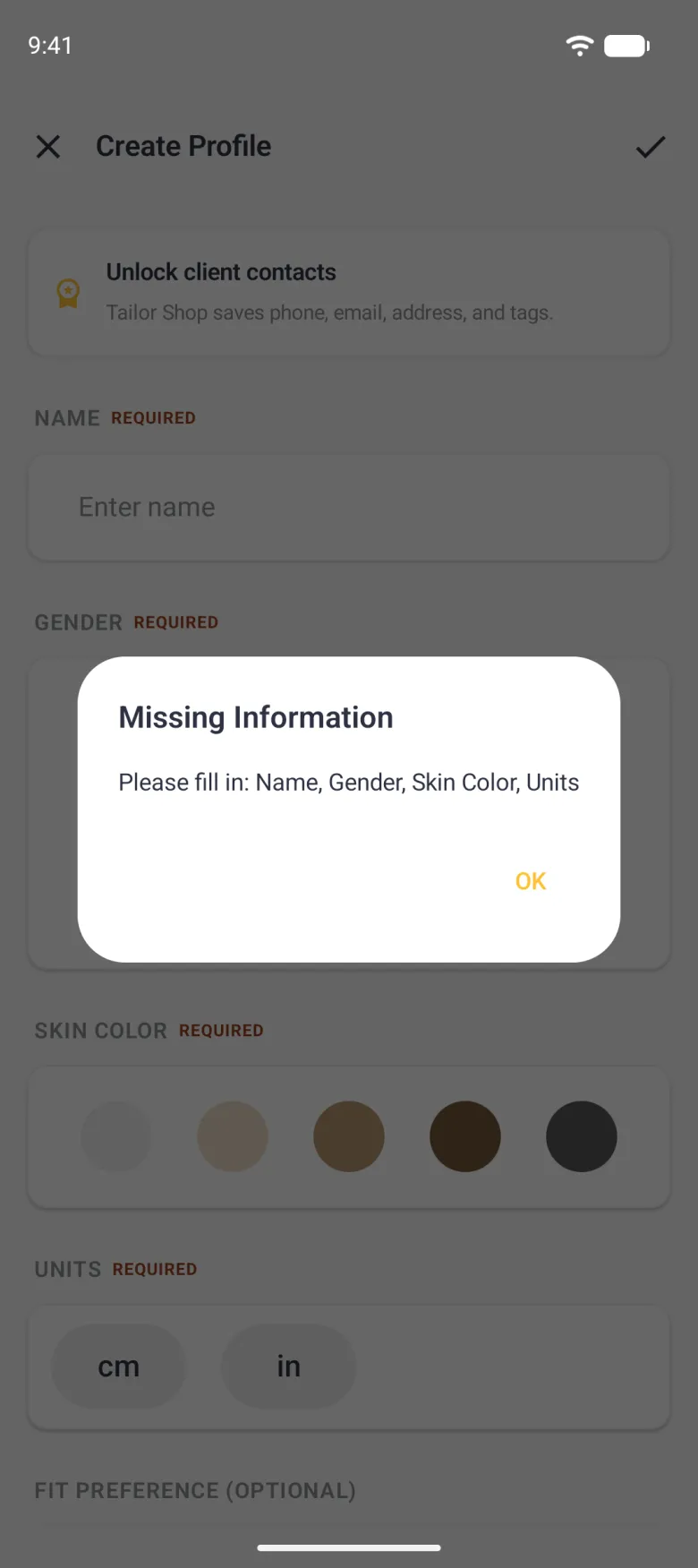
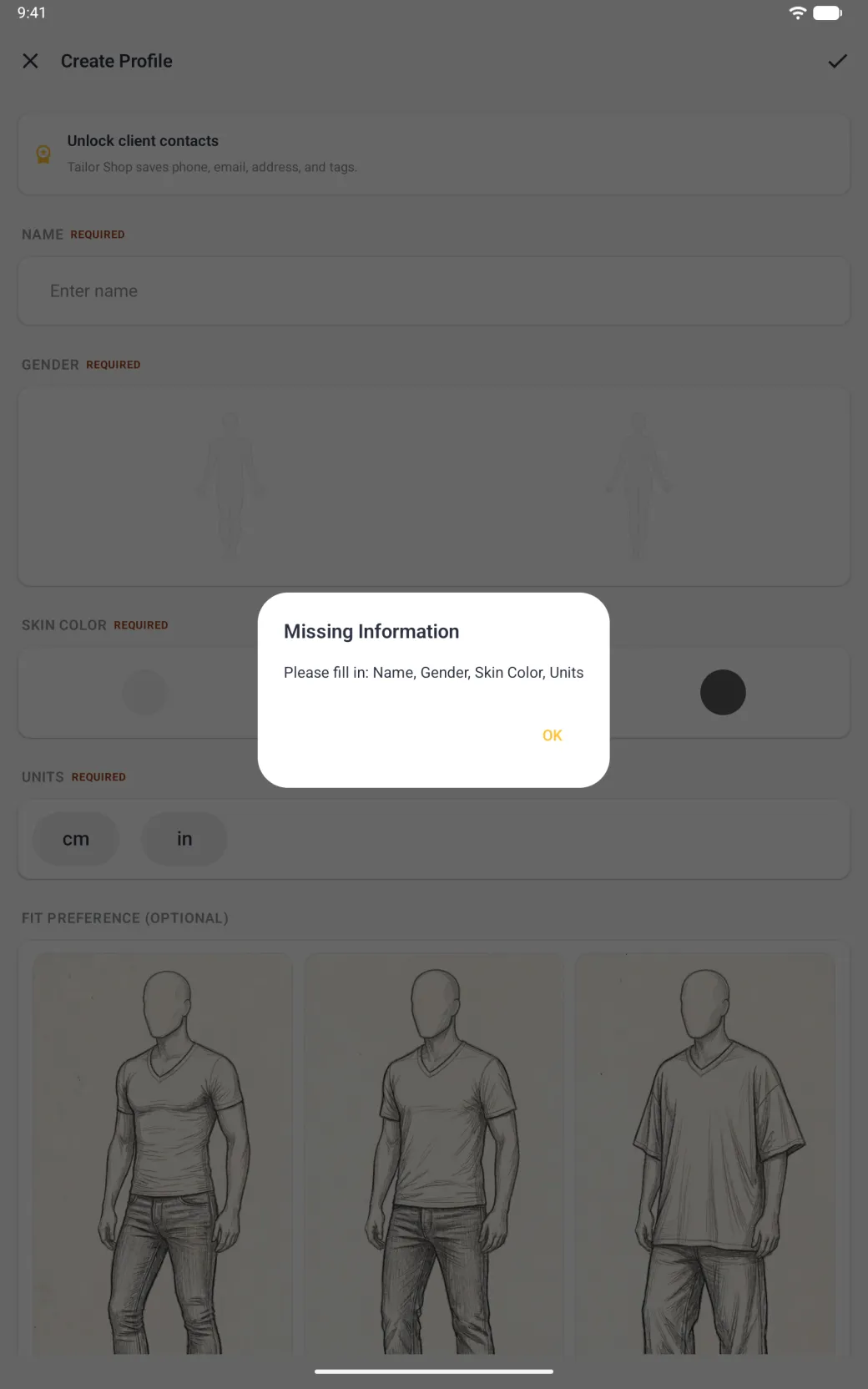
Name, Gender, Skin Color and Units are all required, and the form tells you so with a REQUIRED tag beside each one. Fit Preference is optional. If you save with anything missing, a Missing Information alert names every field still to be filled in, and nothing is lost from the fields you did complete.

How many profiles can I keep?
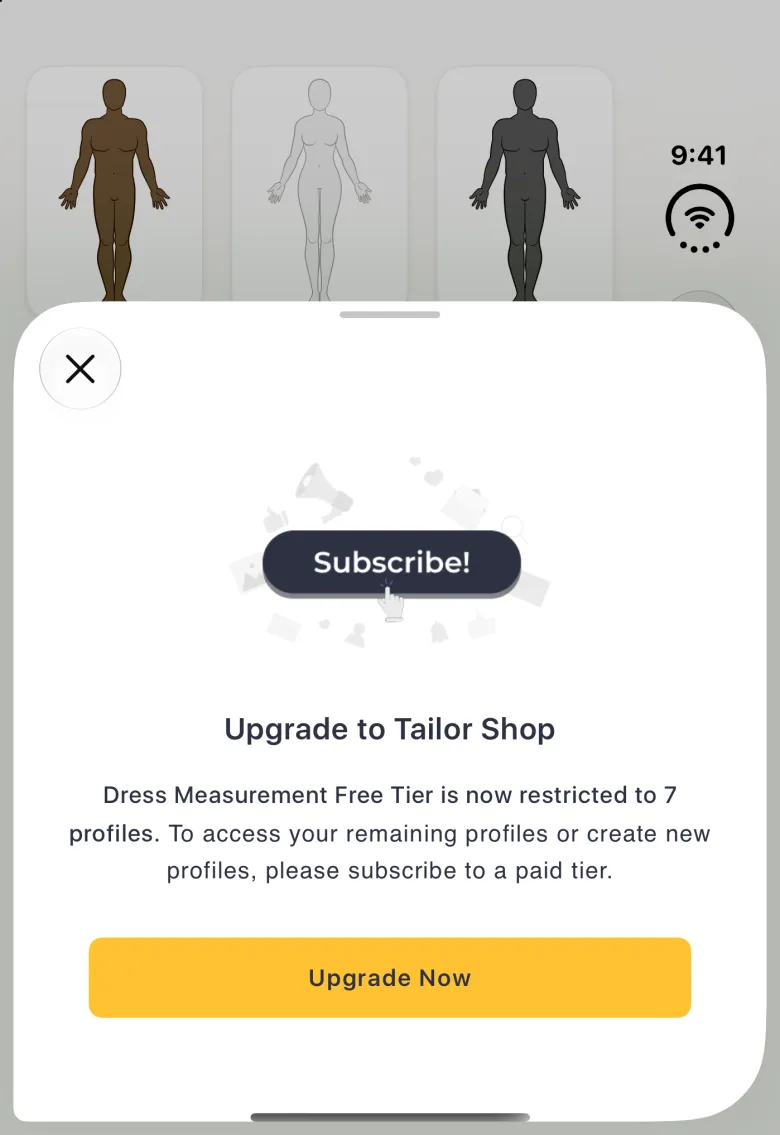
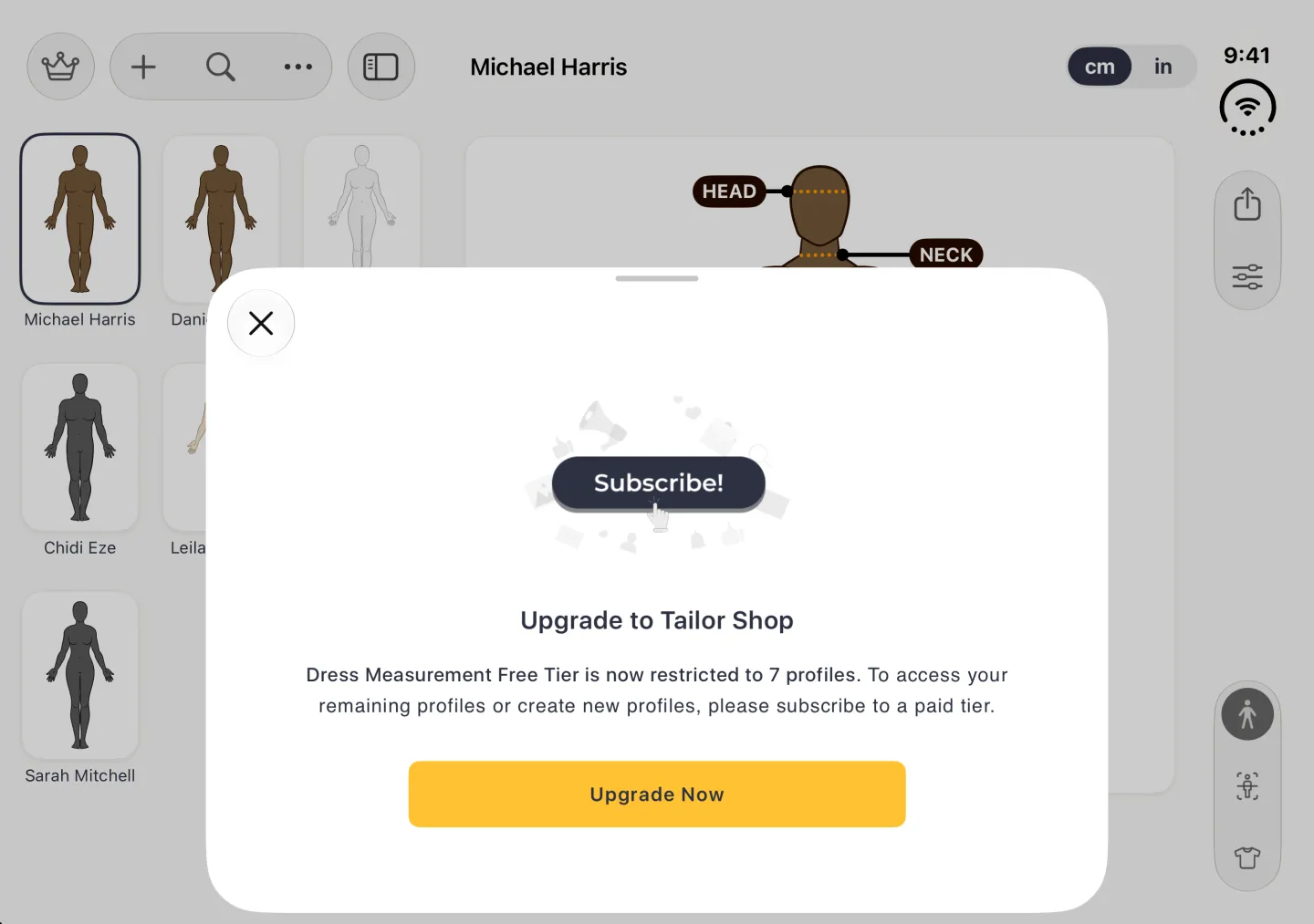
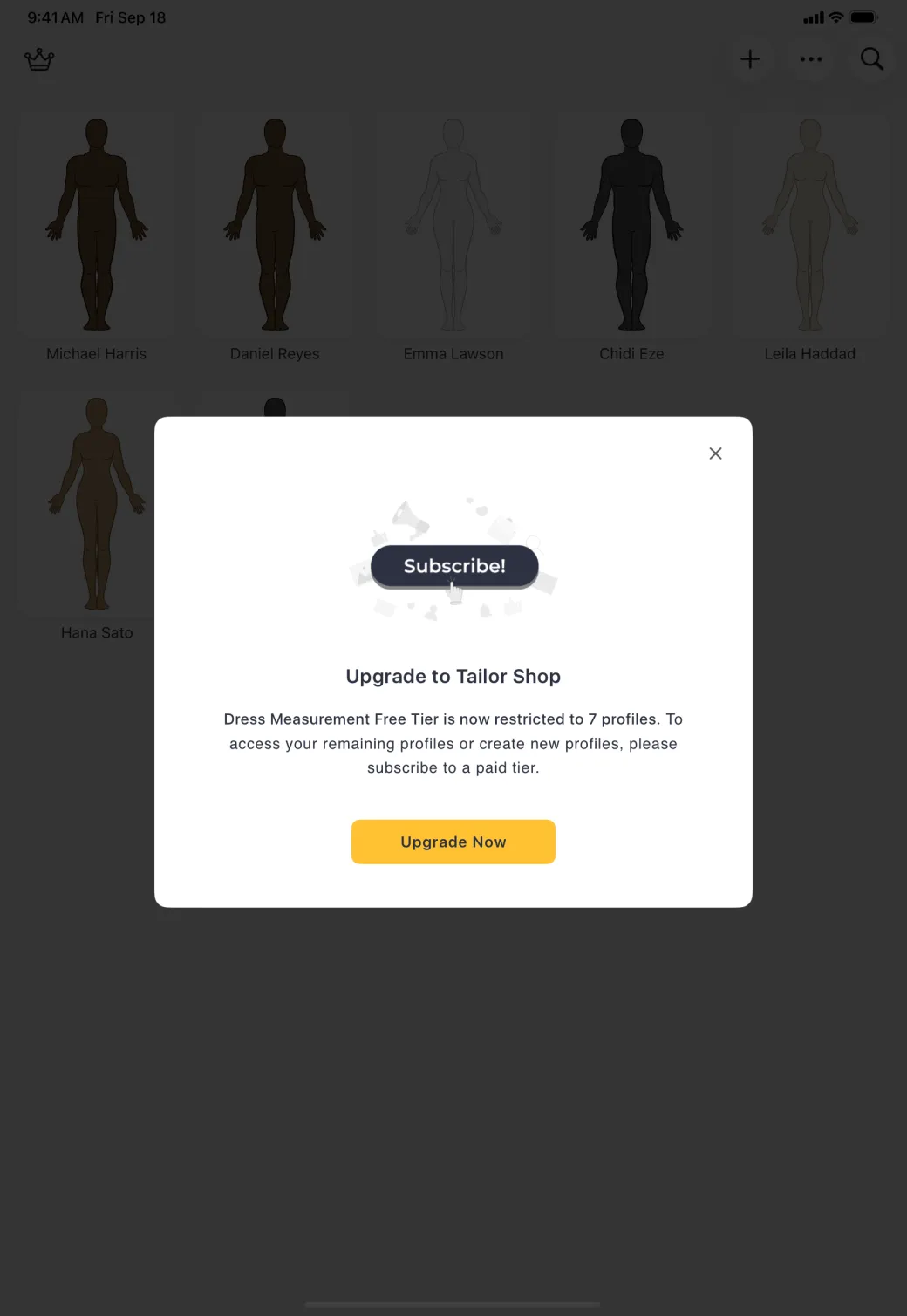
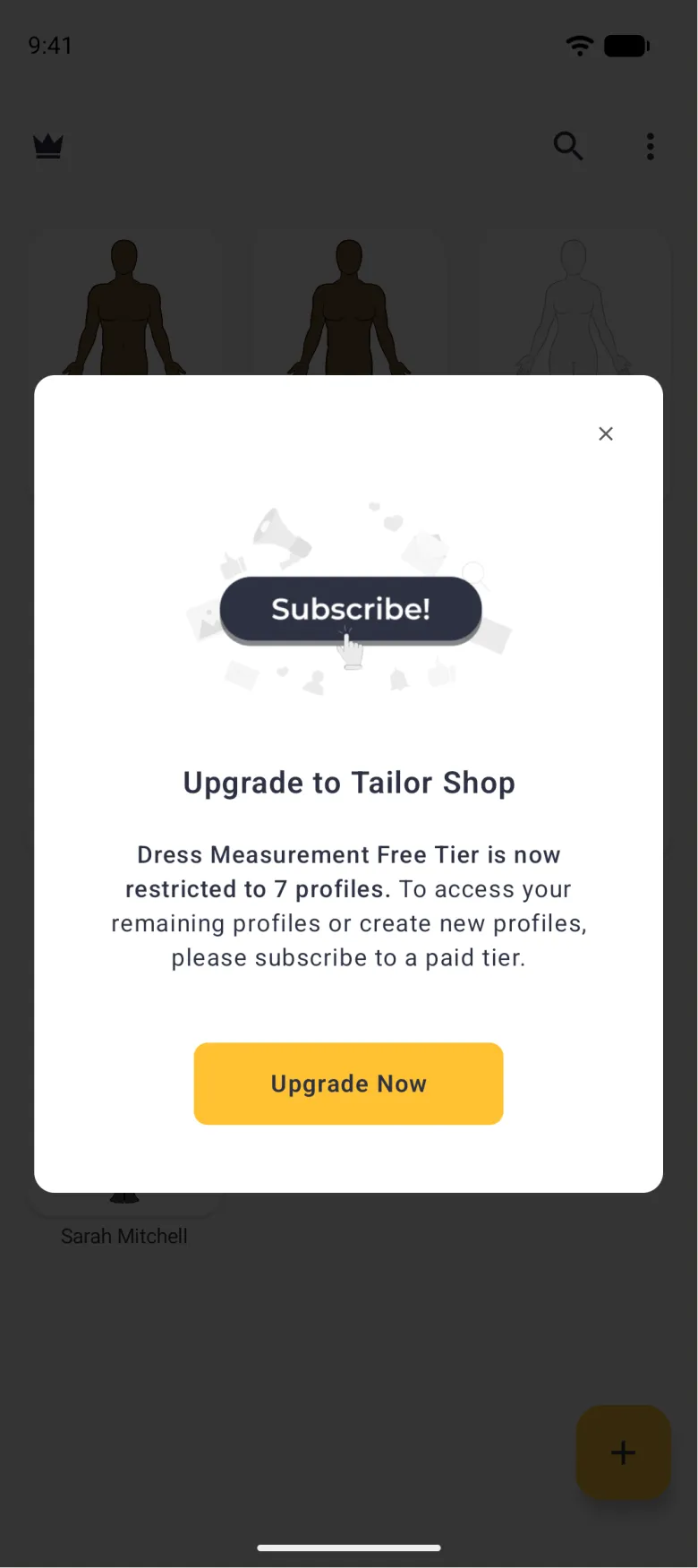
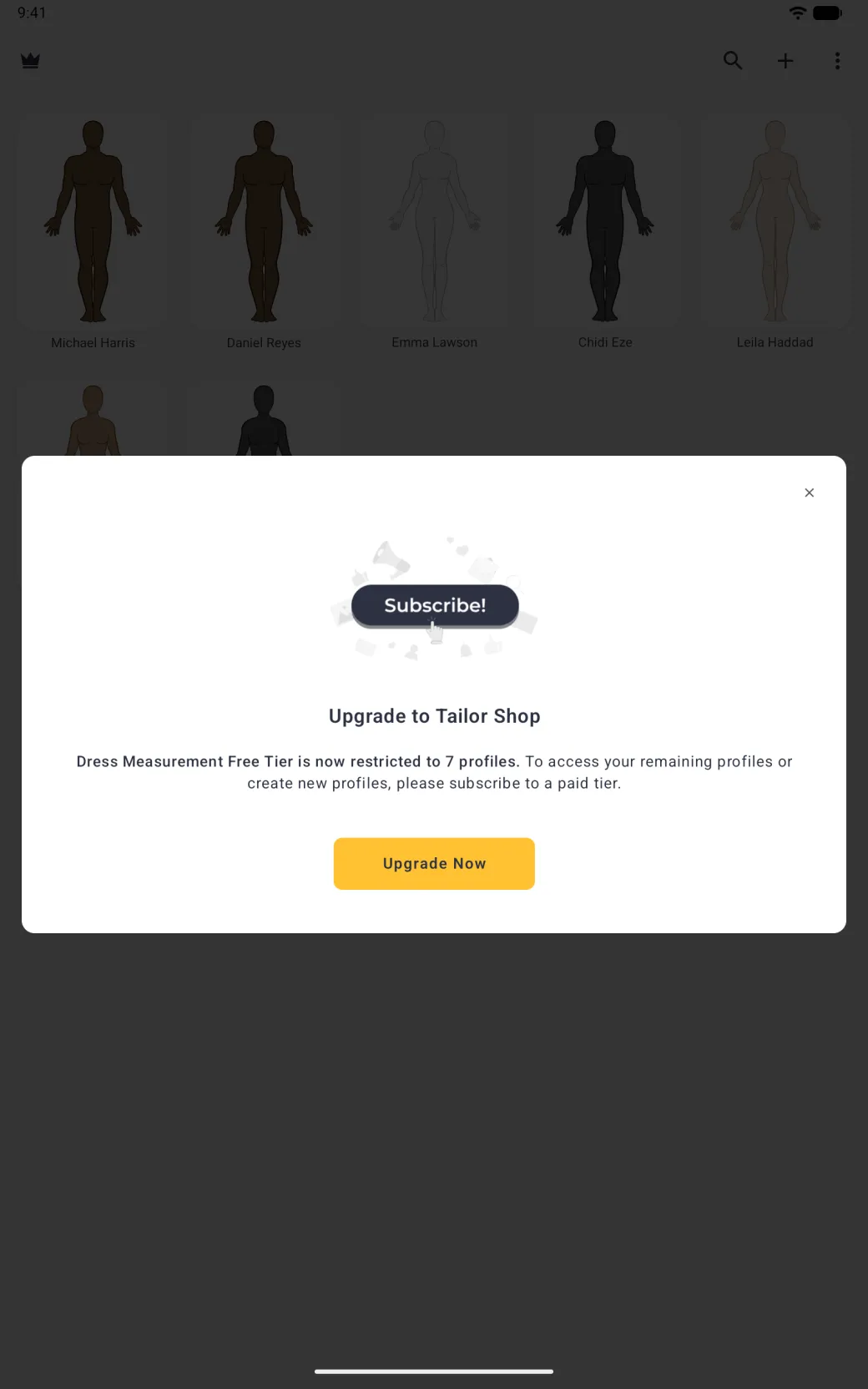
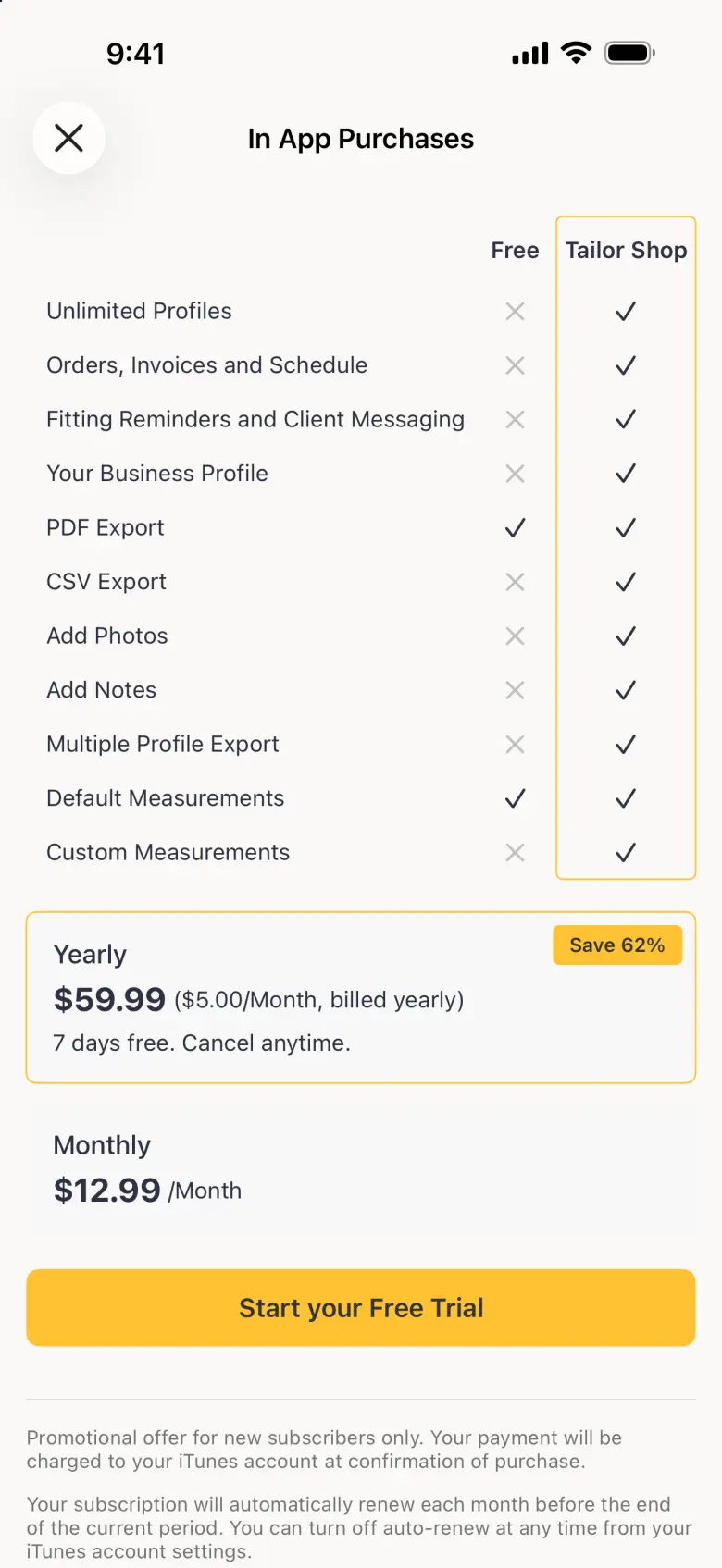
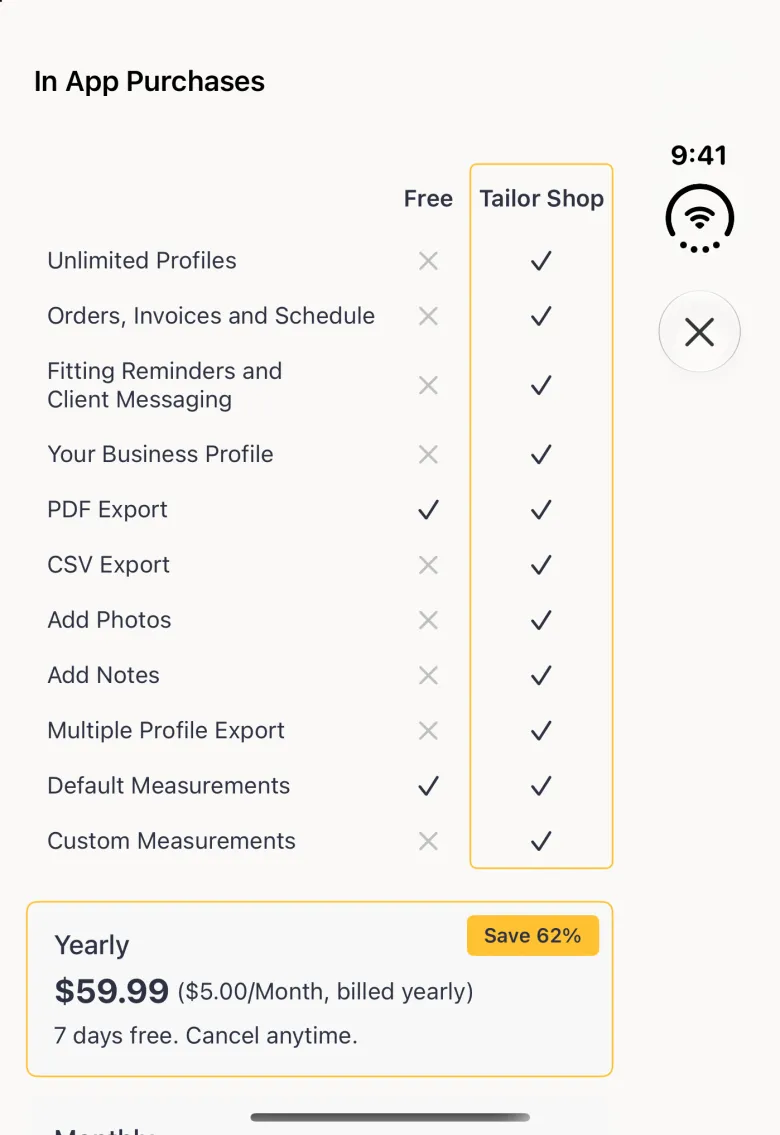
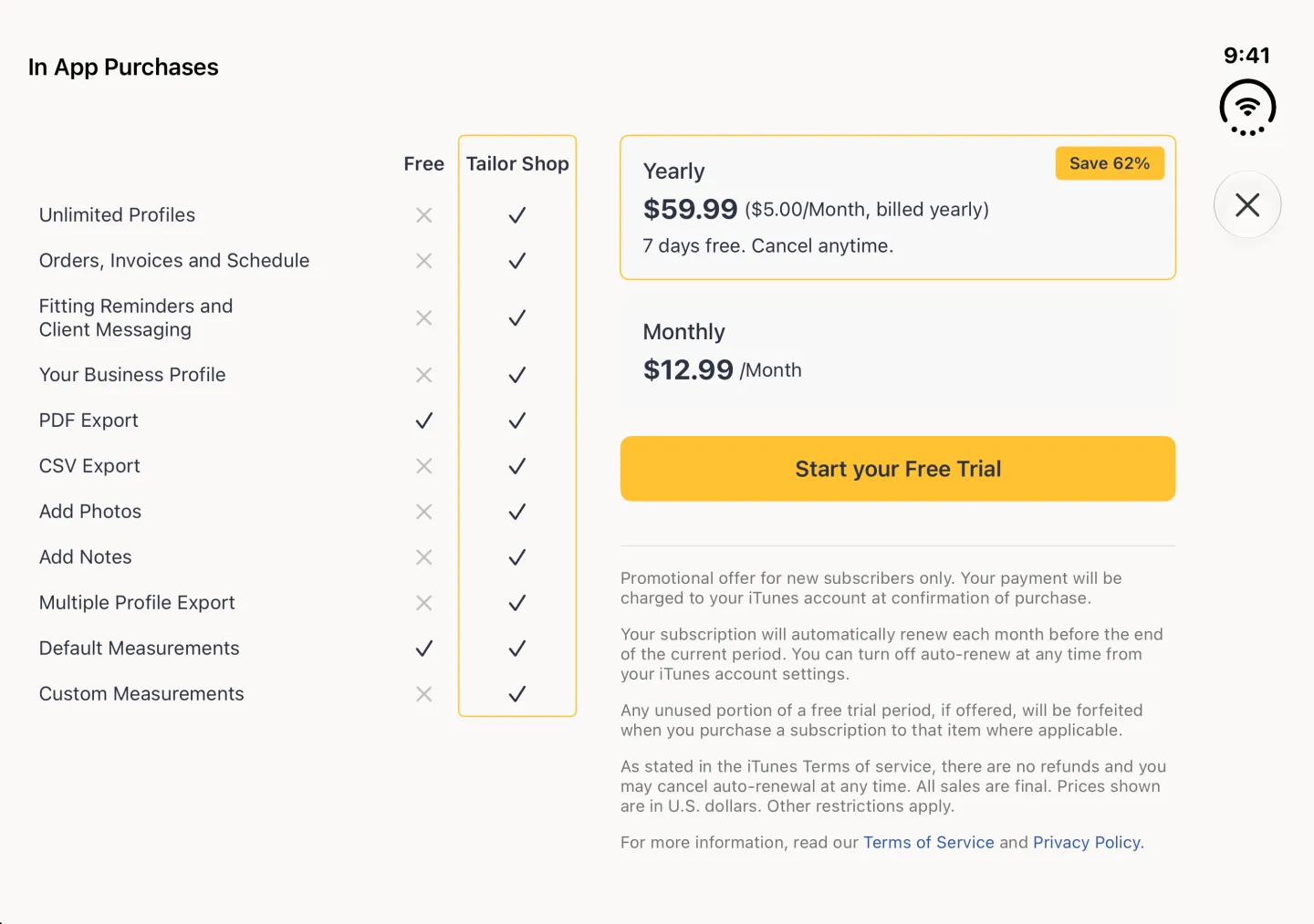
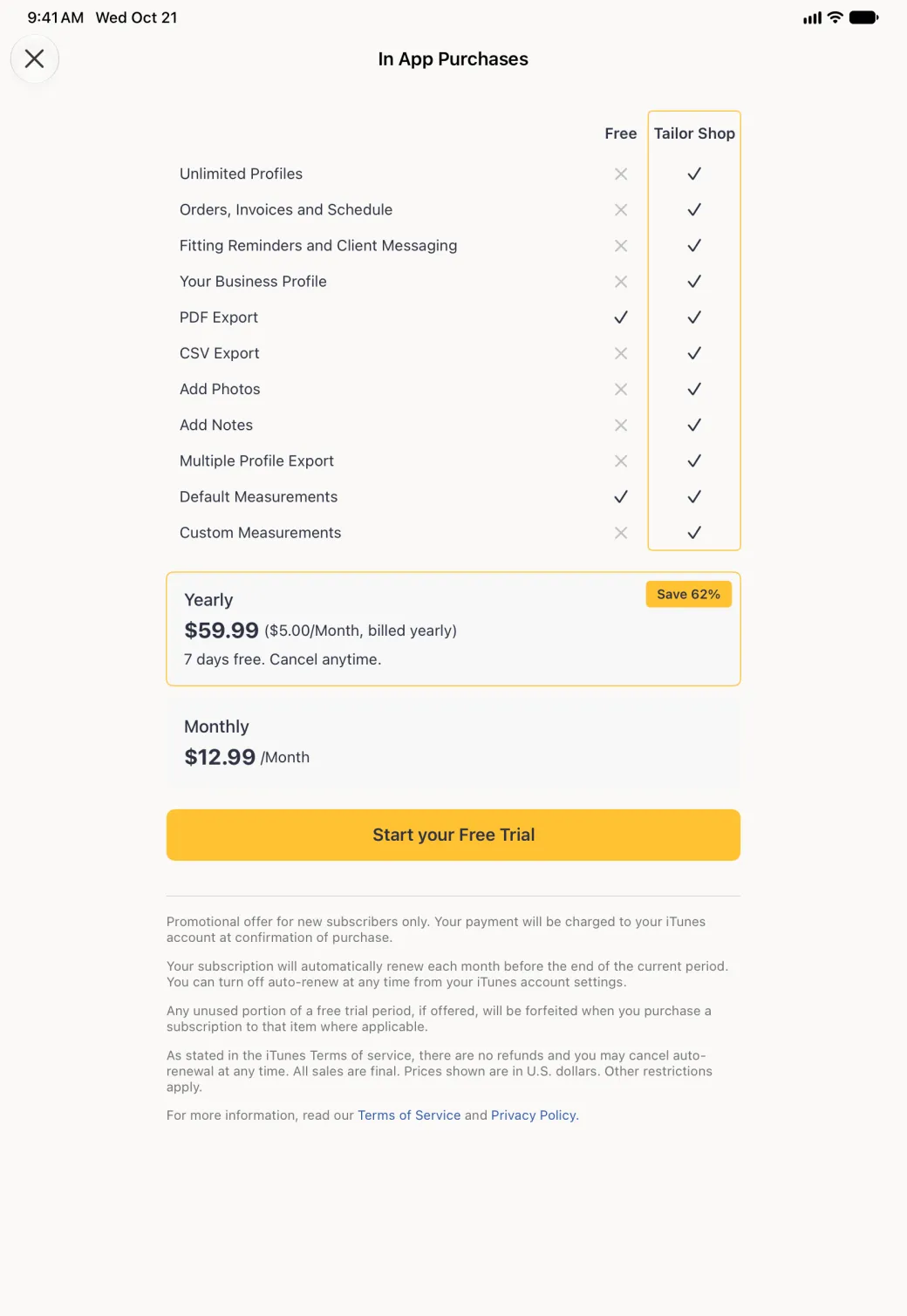
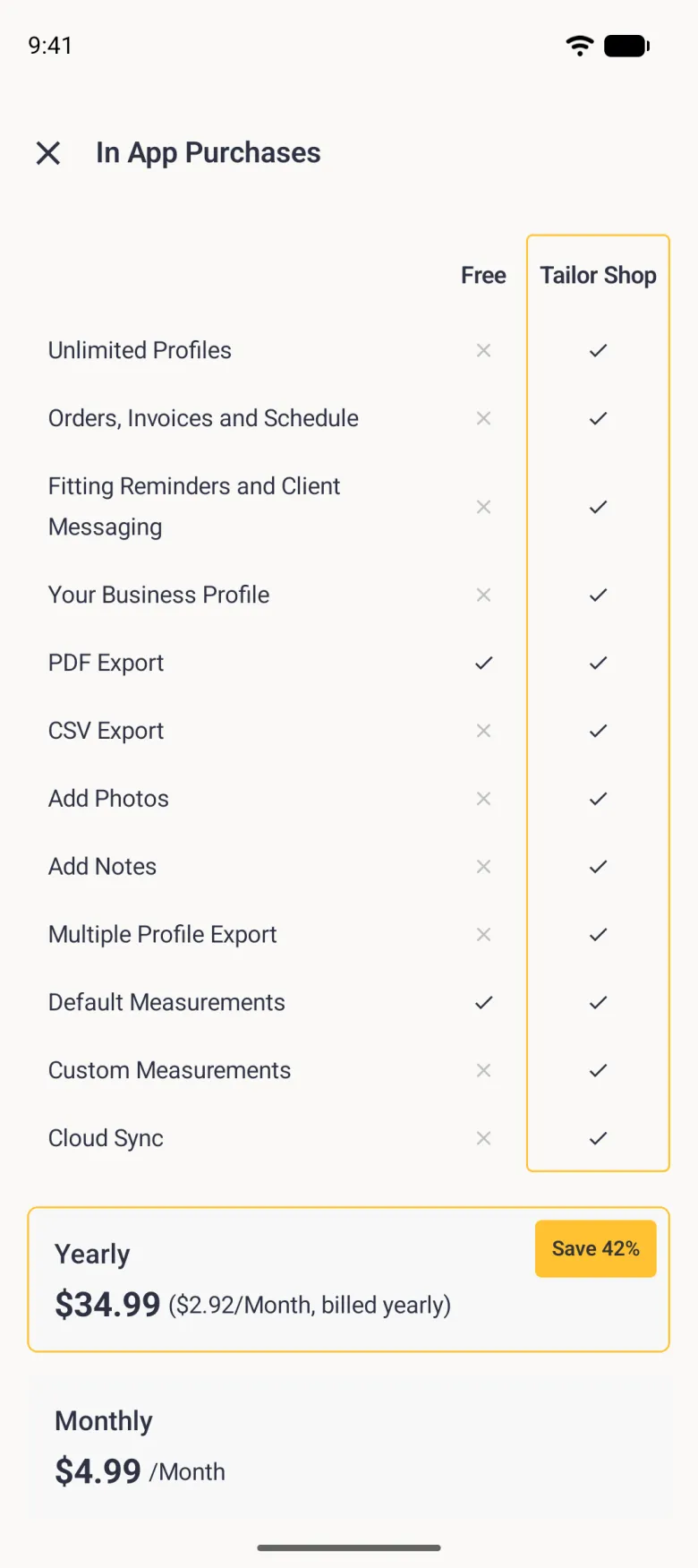
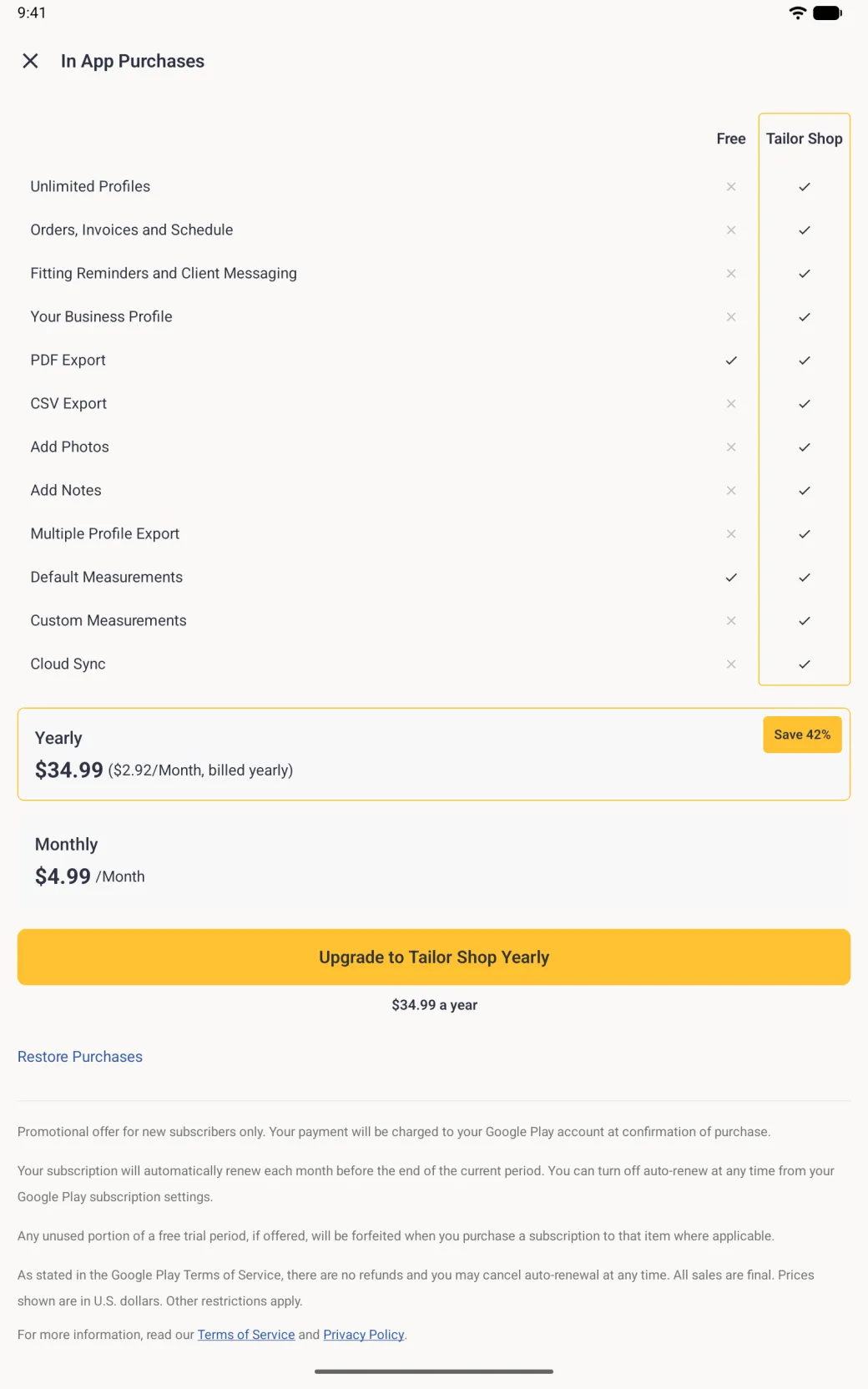
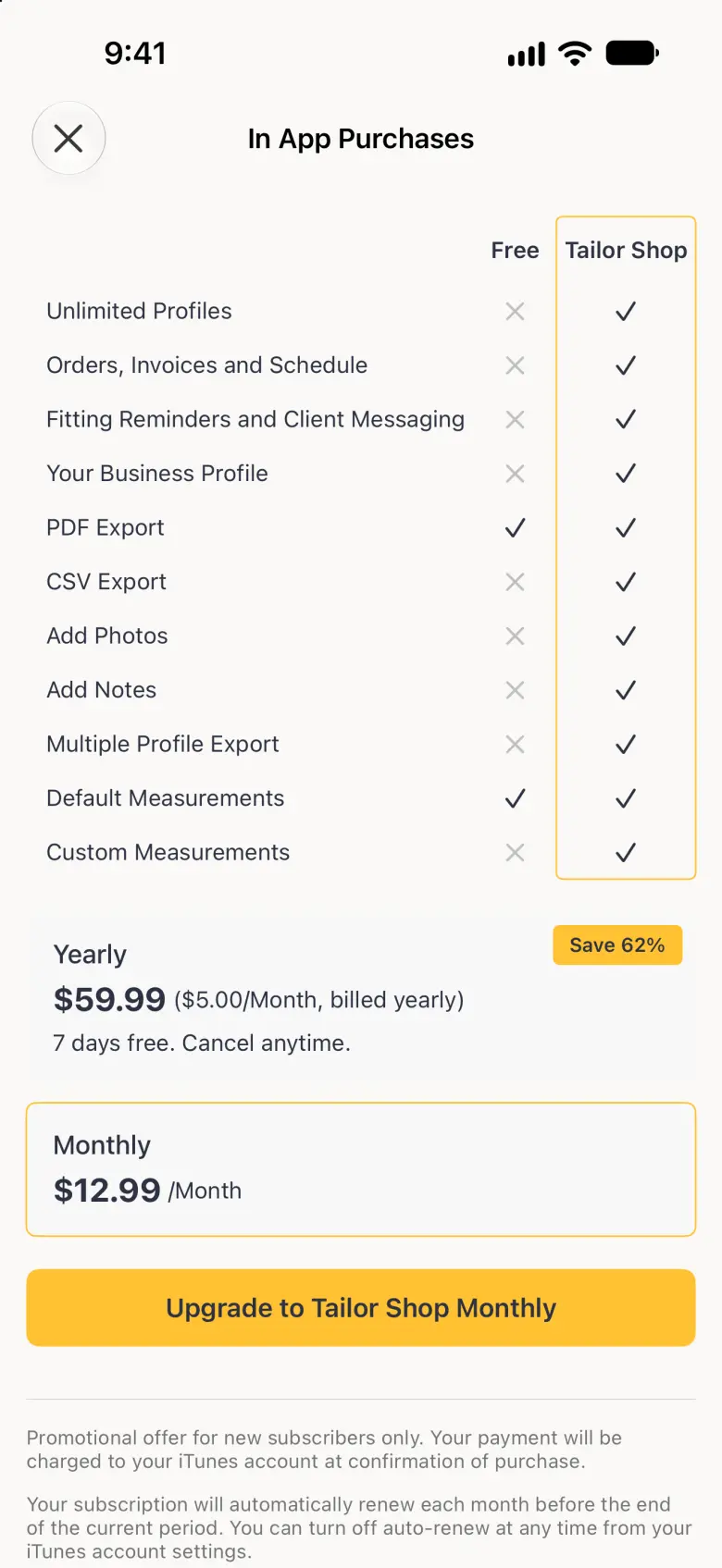
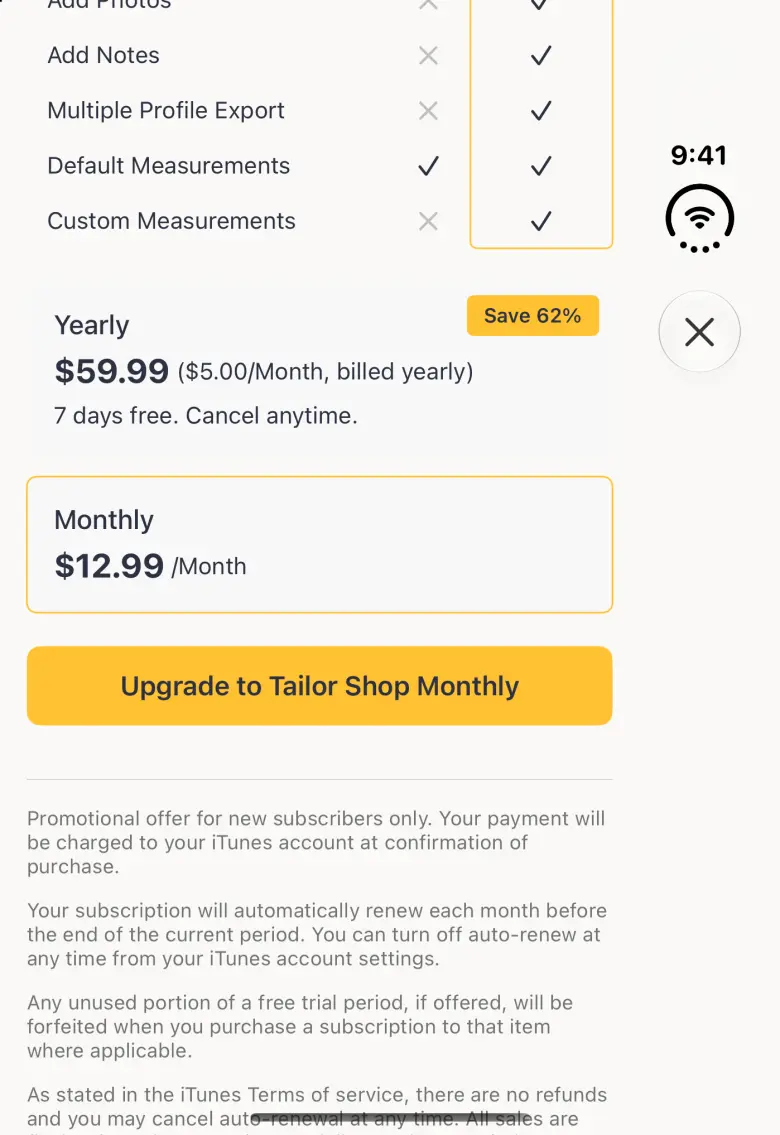
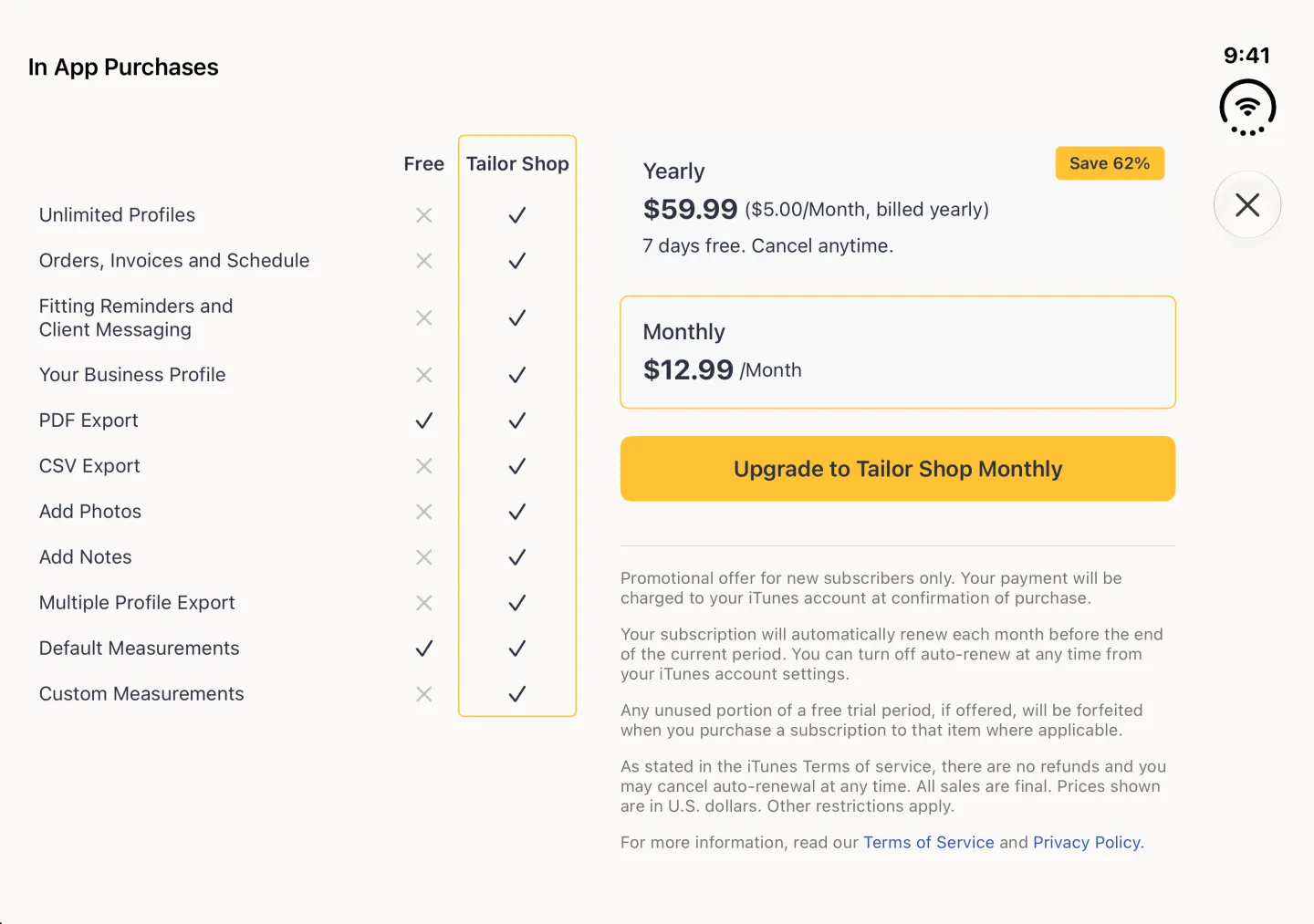
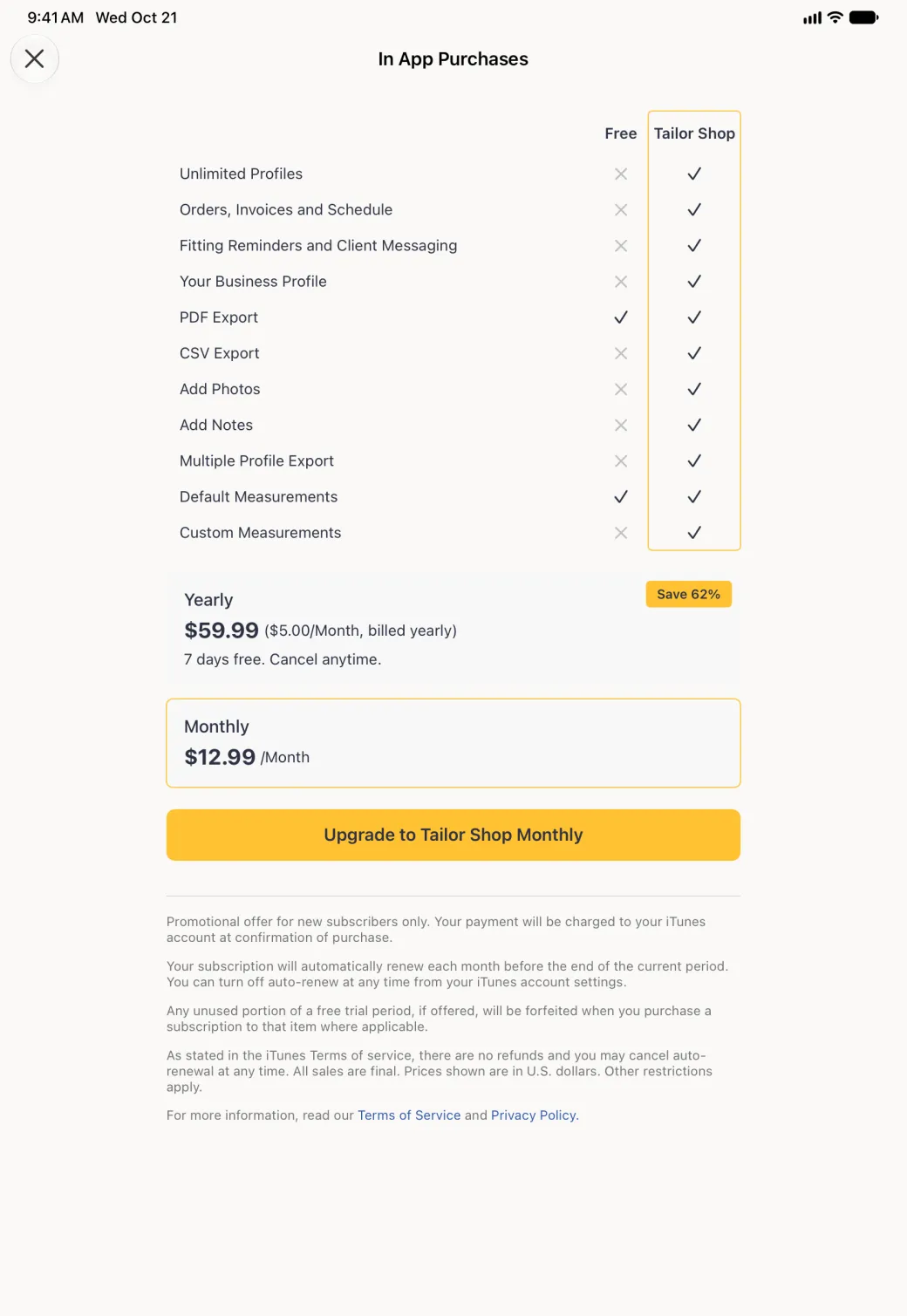
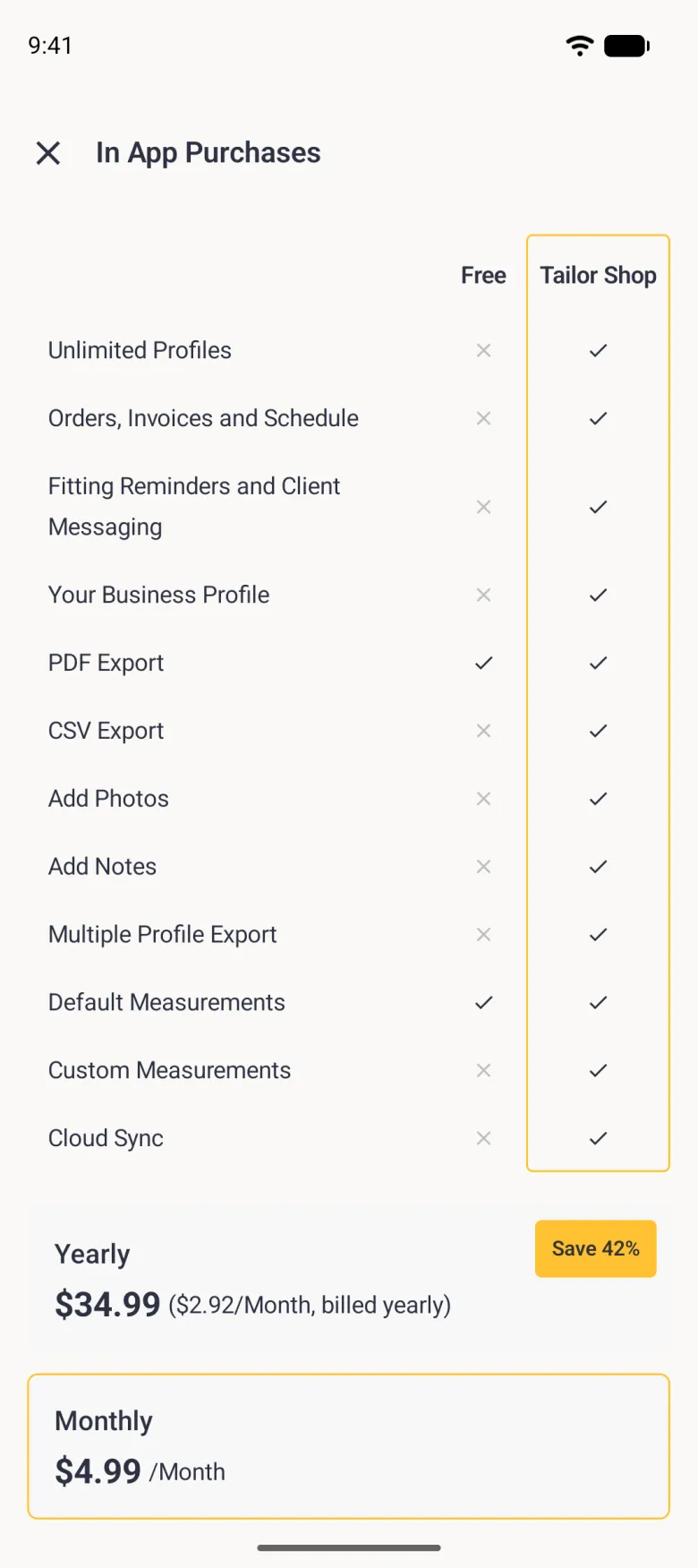
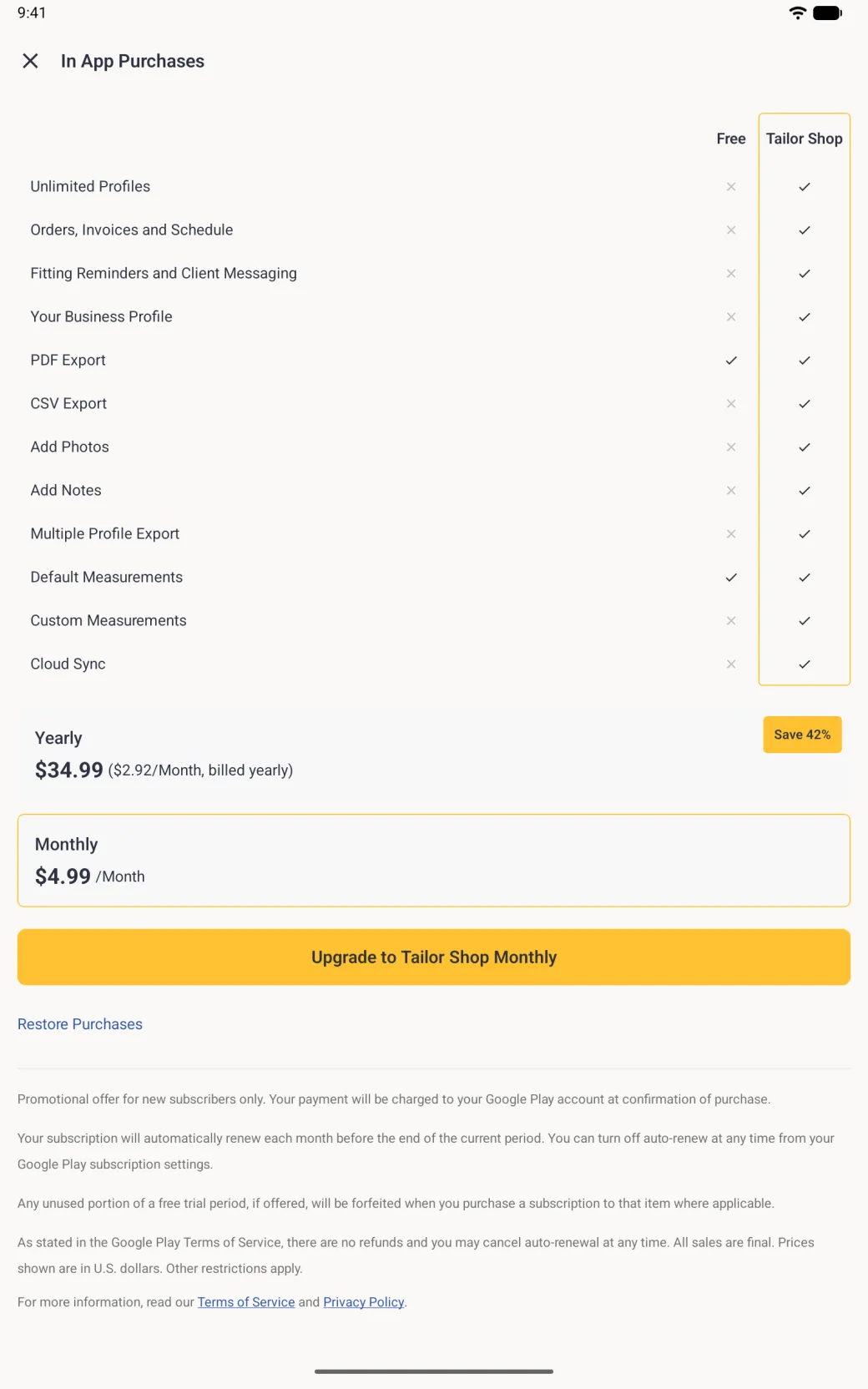
The free plan holds seven profiles on iPhone and on Android. When you tap the plus button with seven already saved, an Upgrade to Tailor Shop sheet slides up in place of the form and explains the limit; the cross at its top left closes it. Tailor Shop lifts it to an unlimited number. Tap Upgrade Now to open In App Purchases, which compares what the free plan and Tailor Shop include and lists the yearly and monthly plans. The App Store or Google Play shows the current price and any free trial there, and tapping a plan only selects it until you confirm the purchase.

How do I find one profile among many?
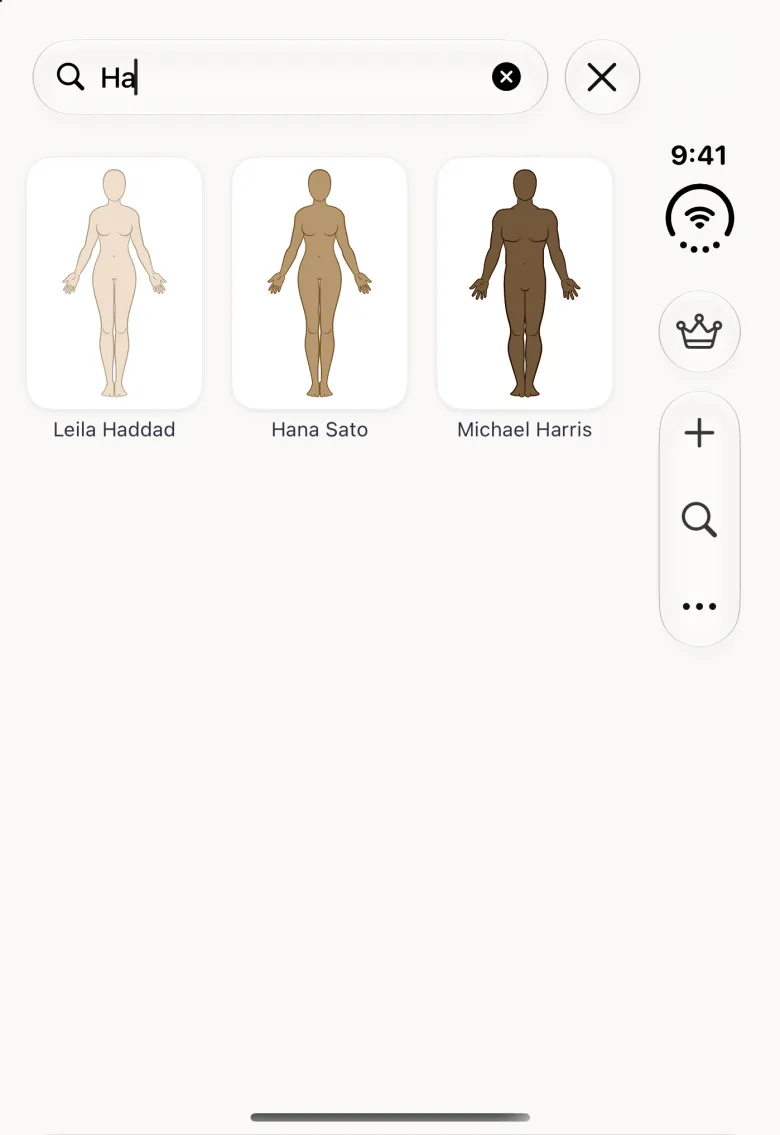
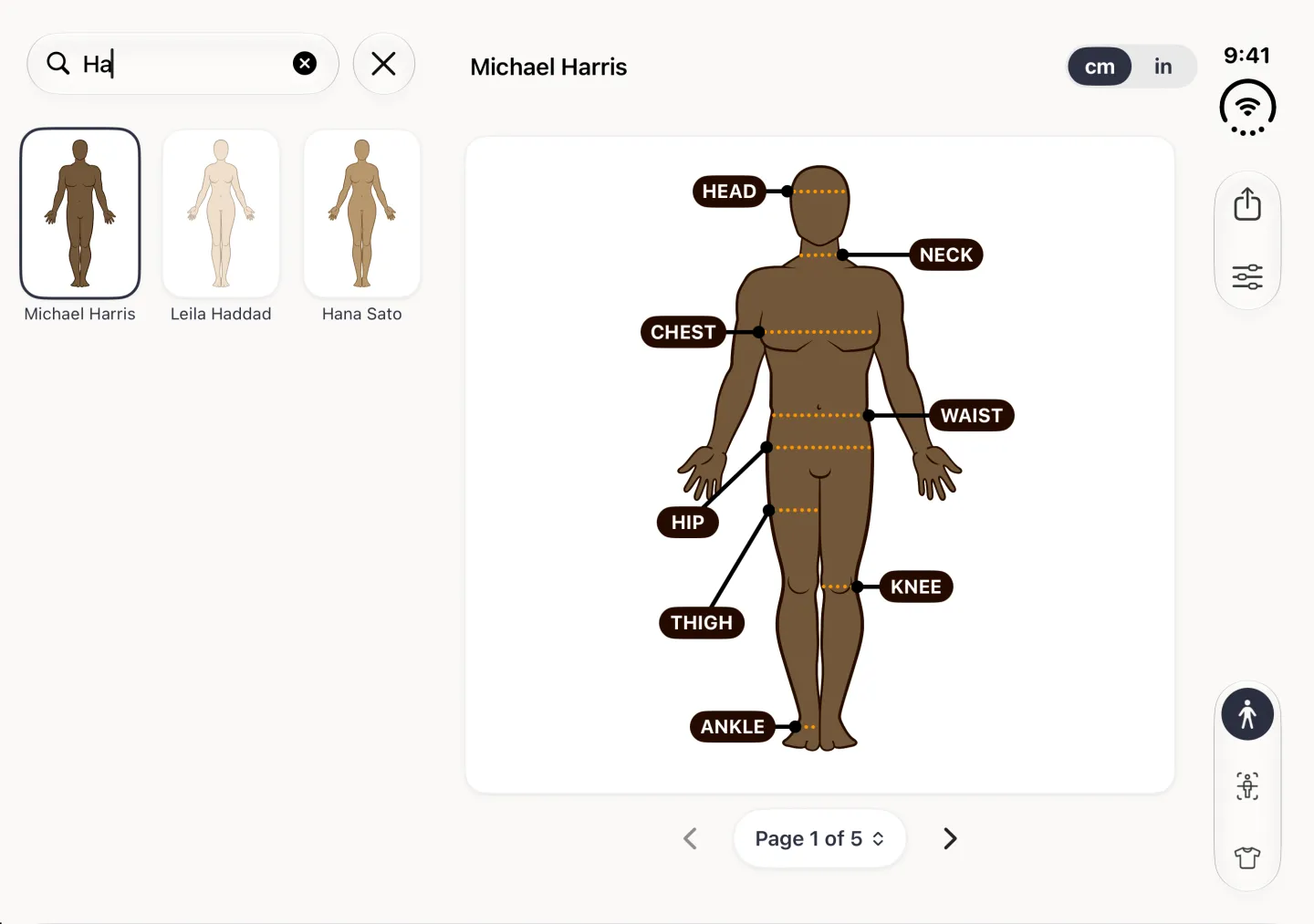
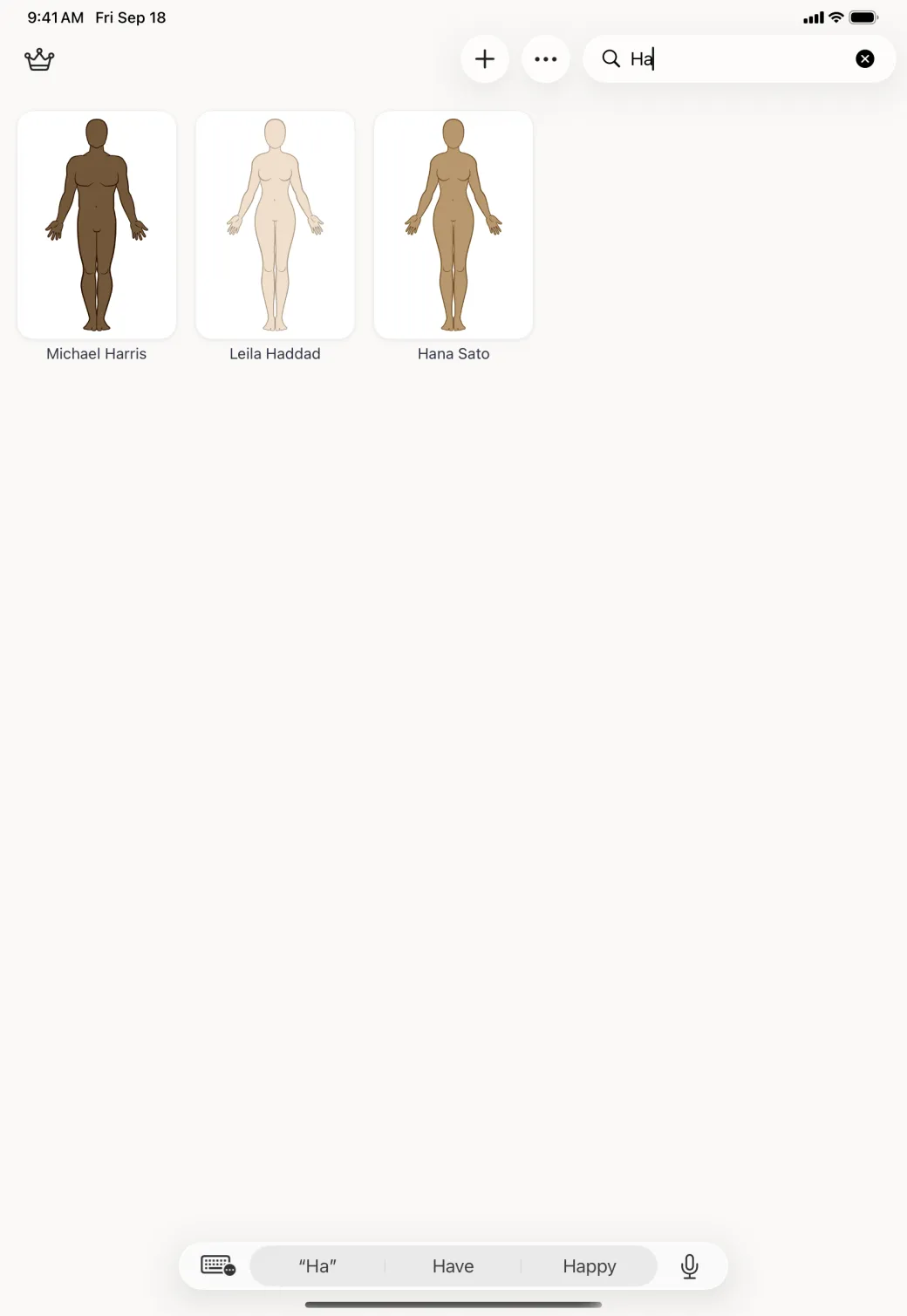
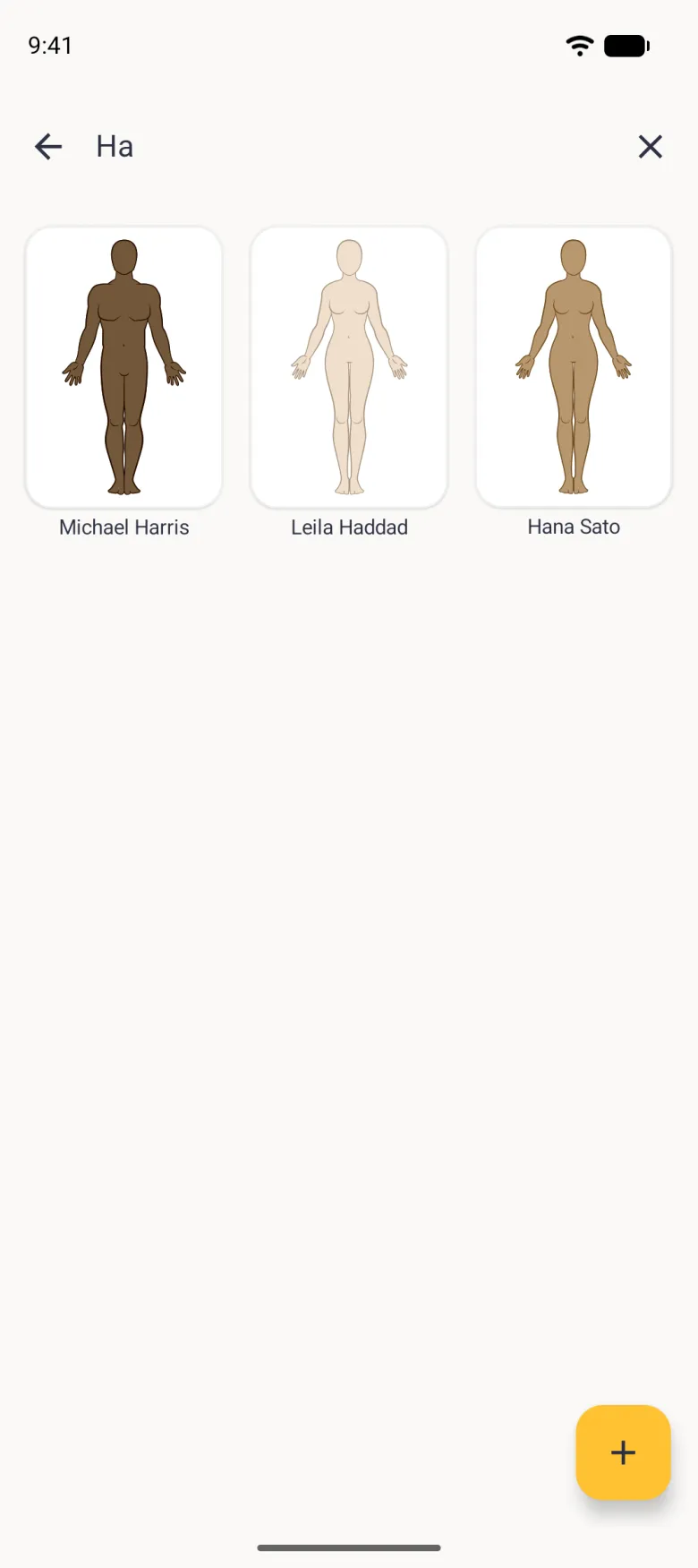
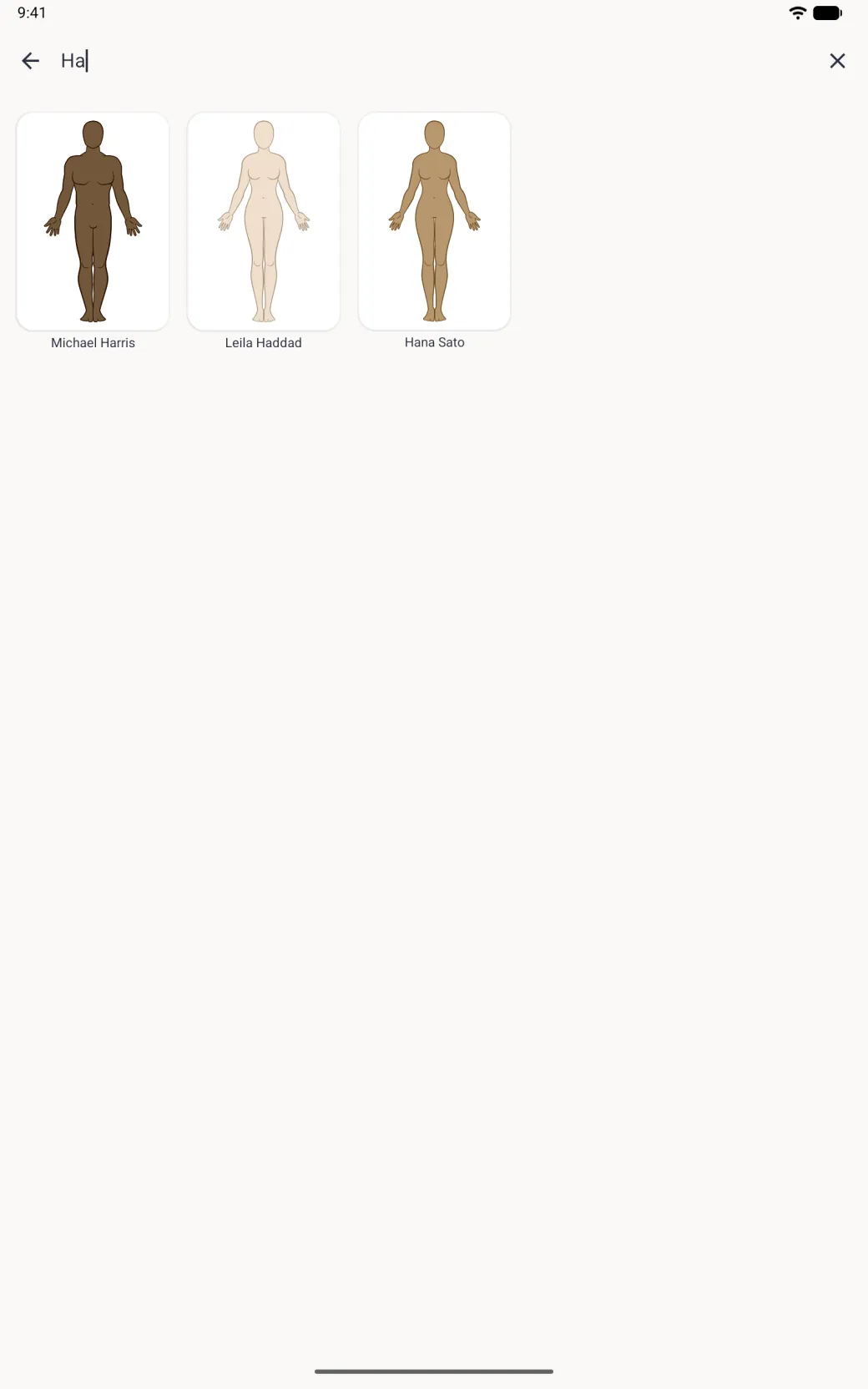
Tap the magnifying glass, the middle of the three buttons at the top right of the home screen, and type any part of a name. The grid narrows as you type, and it matches anywhere in the name rather than only at the start, so typing a surname or a few letters from the middle works. The clear button inside the field empties it, and the cross beside the field closes the search and brings the full grid back.

What is the difference between Body View and List View?
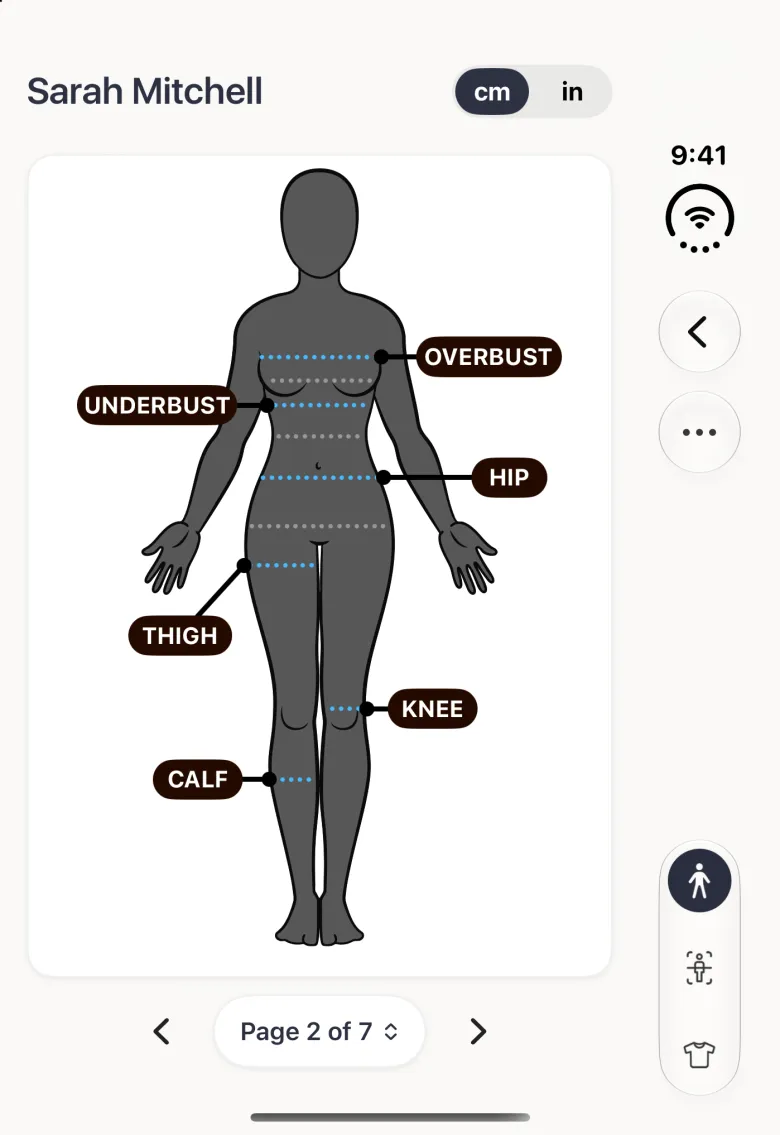
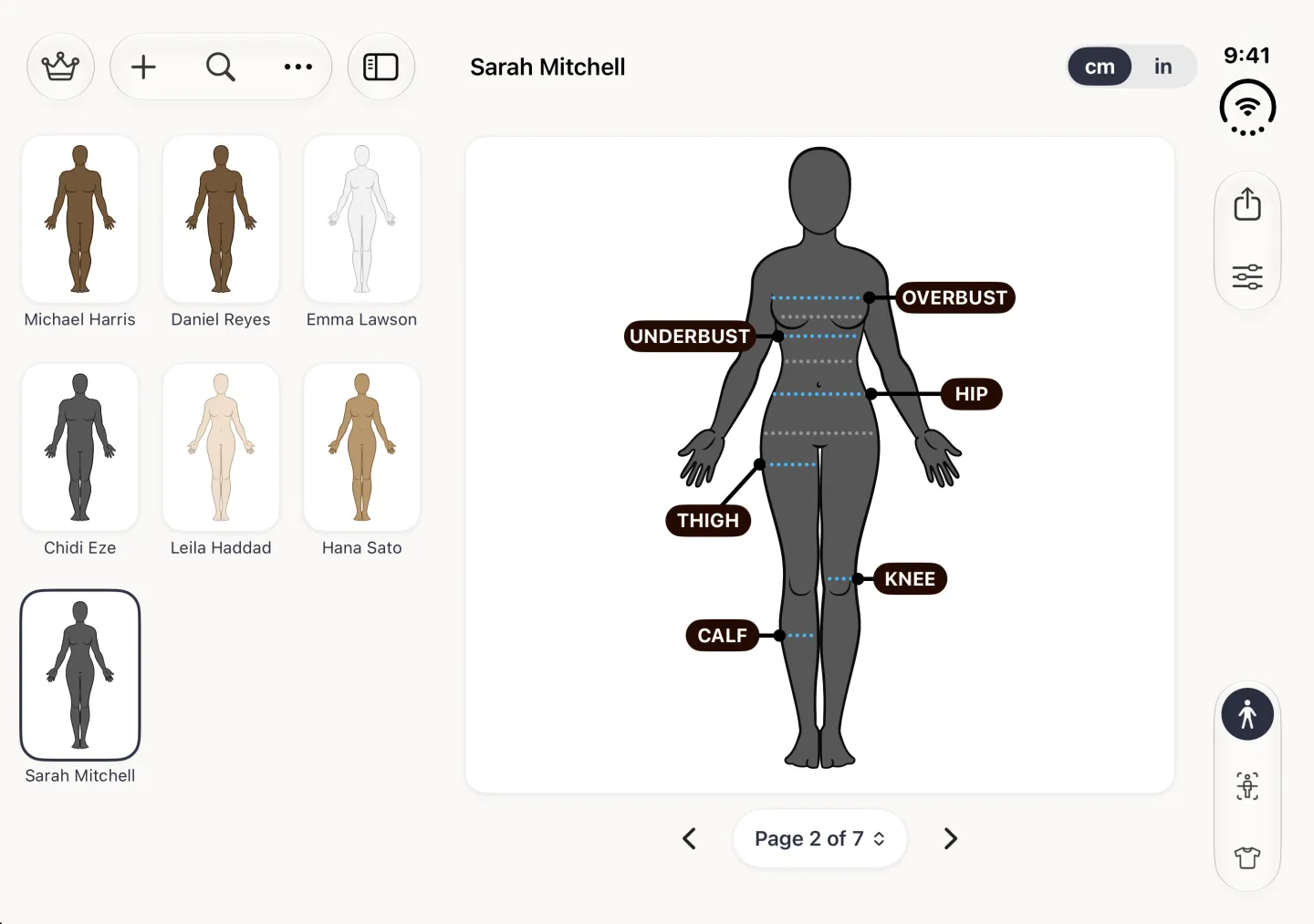
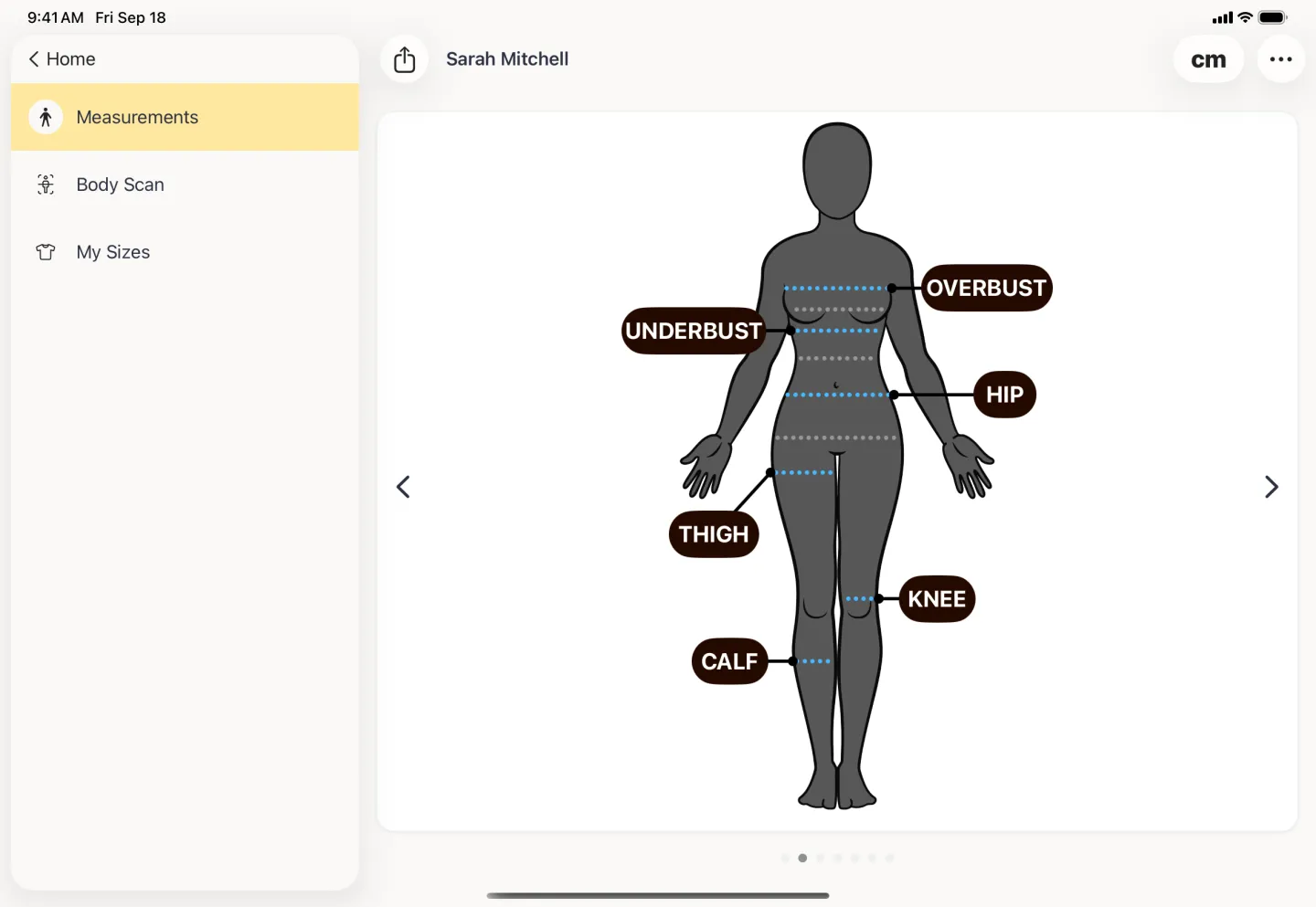
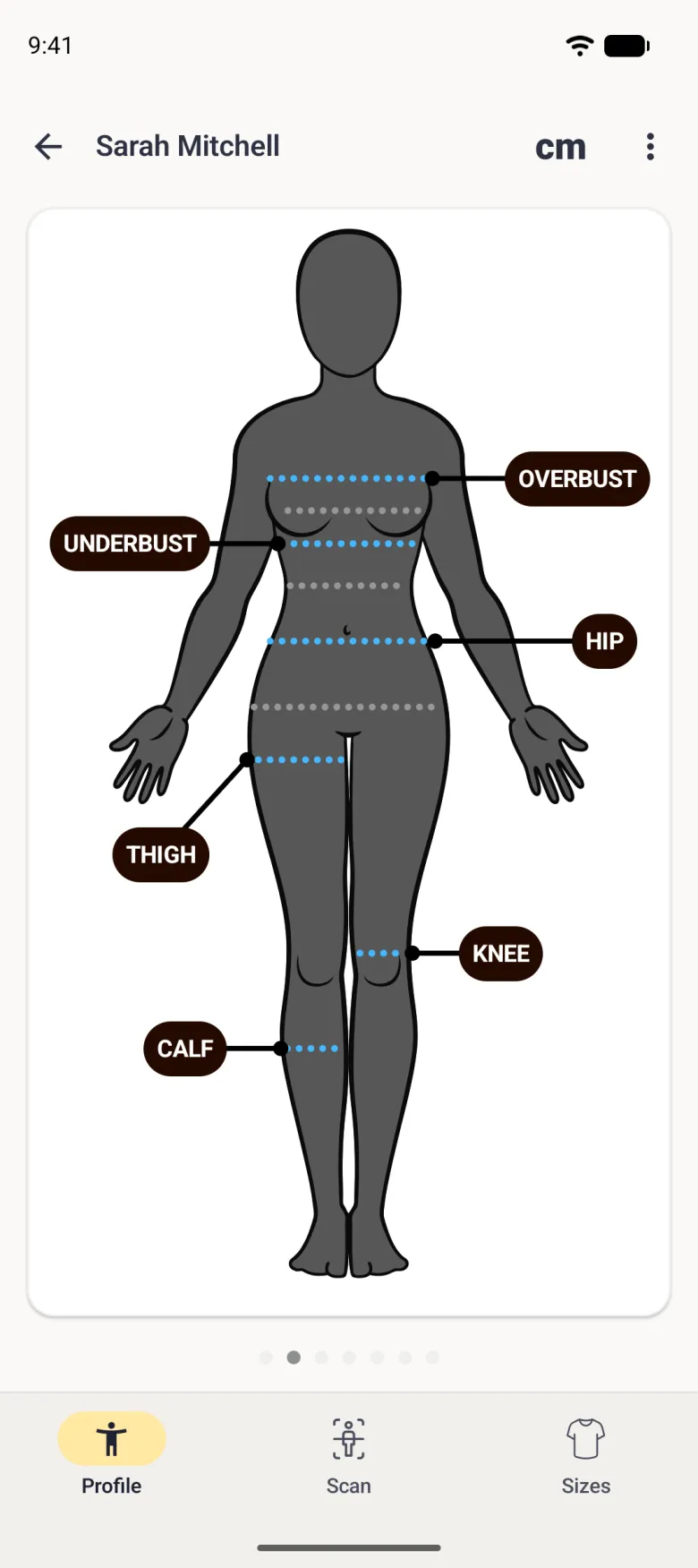
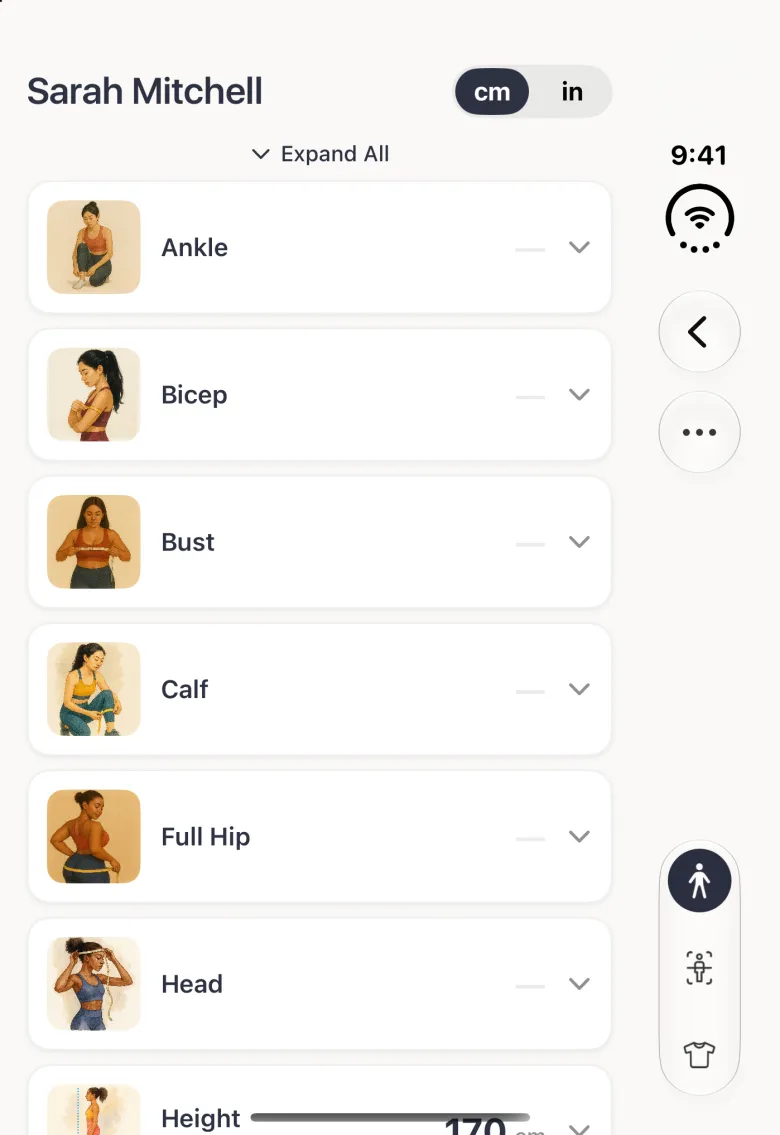
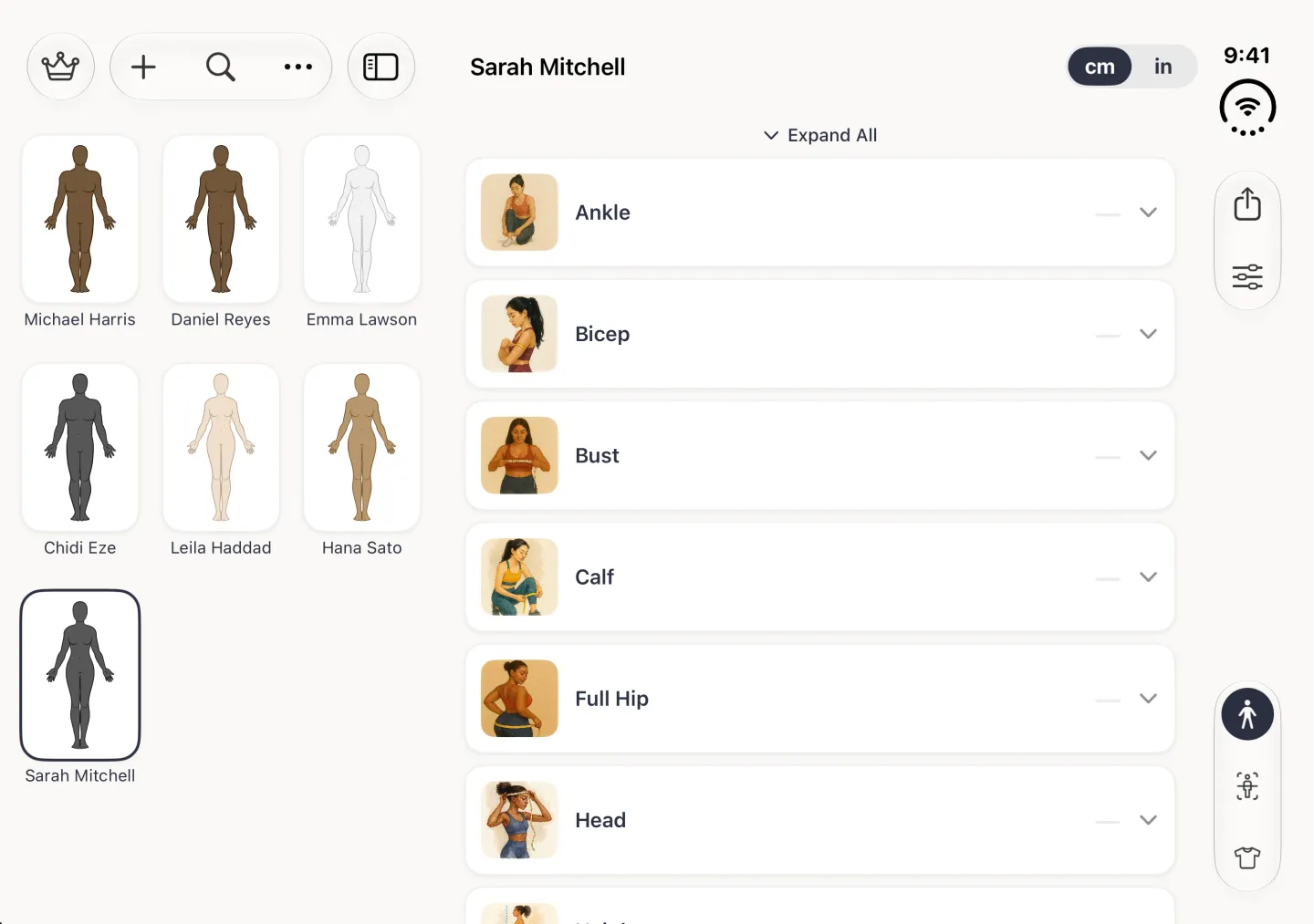
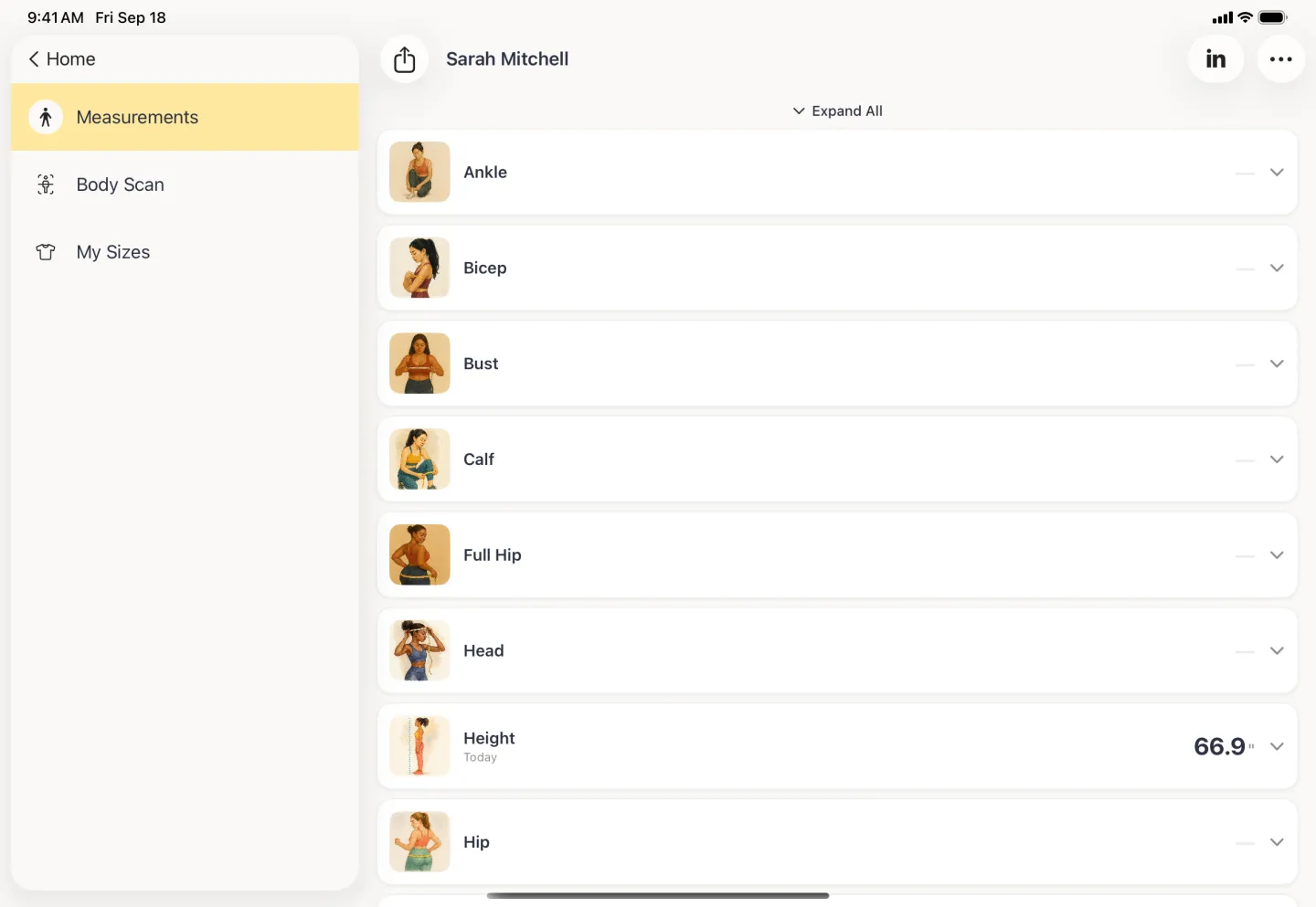
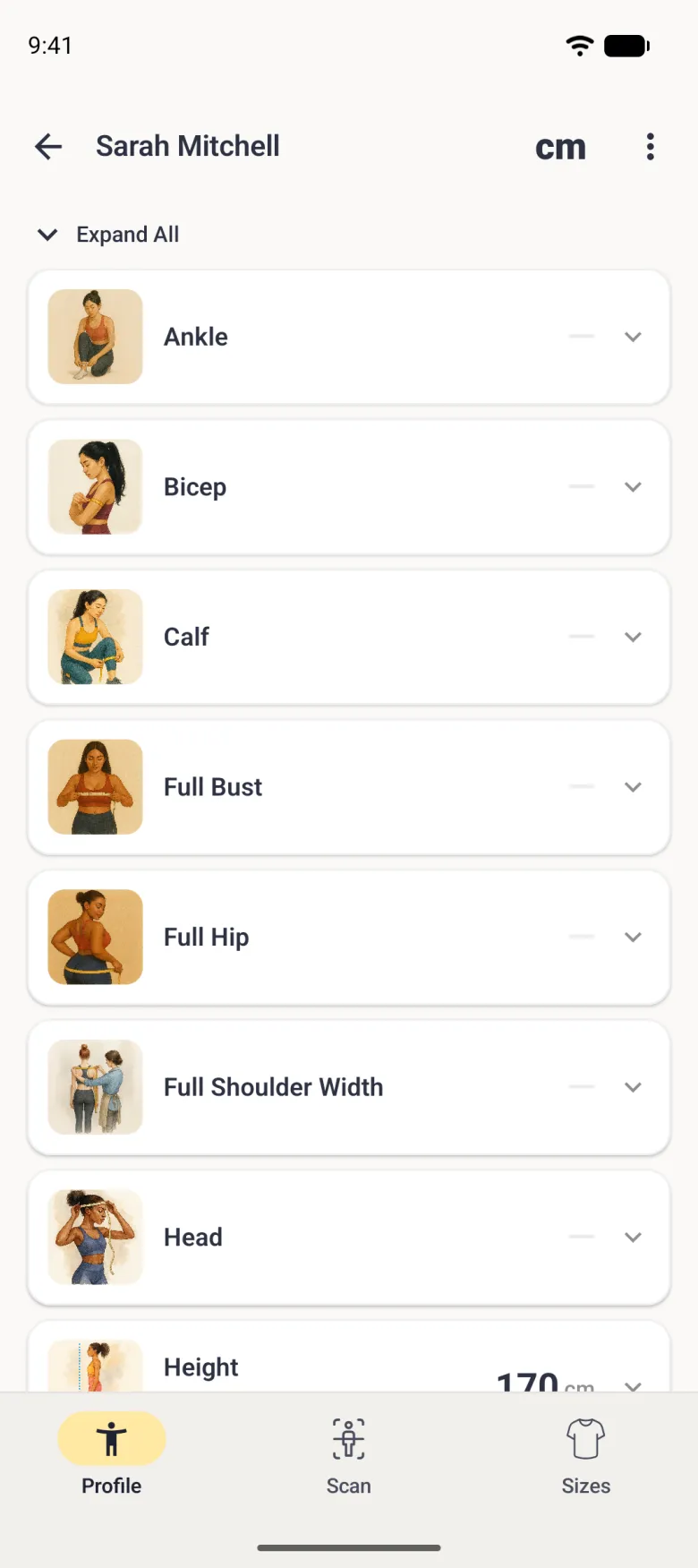
Body View draws the measurements on the body, a few at a time, across several pages you swipe through, or step through with the arrows either side of the Page control under the body. List View drops the body and shows every measurement in one alphabetical list with its full name and current value. Both hold the same data, so use whichever is quicker for the job in front of you.
Switch between them from the options button (three sliders) at the top right of the profile, whose menu also holds Help Center, App Settings and Profile Settings; sharing has its own button beside it. On Android, open the three-dot menu instead, which holds Share Profile too. On iPhone Duo, closed, the round more button in the strip on the right holds the same items, with Share Profile first. Help Center opens the guides on dressmeasurement.com inside the app, so you can read them without leaving the profile. The choice is remembered for the whole app rather than per profile, so if a profile opens in List View, that is because the last one did.